
The QloApps Occupancy-based Pricing Module is a powerful add-on that enhances your hotel’s pricing strategies.
The module can be applied to both room types and service products, enabling hotels to create flexible pricing structures based on adults, children, and infants
With multiple price strategies, customizable settings, and seamless integration, it empowers hoteliers to optimize revenue and provide transparent price to their guests.
Note: Once occupancy-based pricing is enabled for a room type or service product, standard pricing rules such as Group Discounts and Specific Prices will no longer be applied.
Instead, the final booking price will be calculated exclusively based on the configured Occupancy-Based Pricing Strategy and any applicable Advanced Price Rules
Features of QloApps Occupancy Based Pricing Module
- Flexible pricing with occupancy-based and per-night rate options.
- Occupancy-based price adjustment using fixed amounts or percentage increments.
- Per-guest pricing for adults, children, and infants.
- Dedicated pricing for each occupancy level and guest composition.
- Derived pricing based on fixed amount or percentage adjustments from base rates.
- Configurable child and infant age limits for accurate family pricing.
- Custom room rate management for different room types and services.
- Dynamic pricing updates without technical assistance.
- User-friendly interface with simplified configuration settings.
- Support for multiple hotel pricing strategies from a single platform.
- Flexible guest-based rate calculation for enhanced revenue management.
- Precise occupancy pricing control to maximize booking profitability.
Installation of QloApps Occupancy Based Pricing
The installation of any module is simple in QloApps.
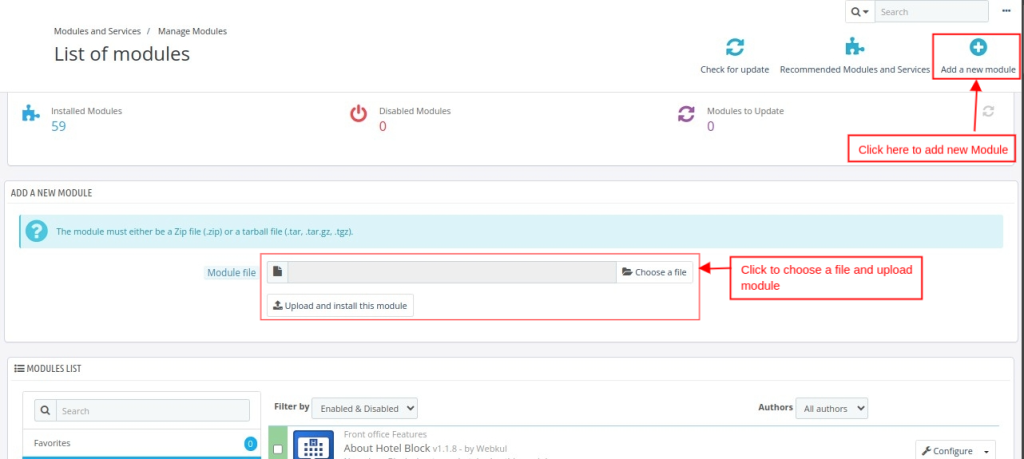
- Go to the “Module and Services” tab.
- Click on “Add New Module”.
- Now upload the Zip file of module and click on install.
Configuring QloApps Occupancy Based Pricing module
Once you have installed the QloApps Occupancy Based Princing, you can easily configure its settings by following these steps:
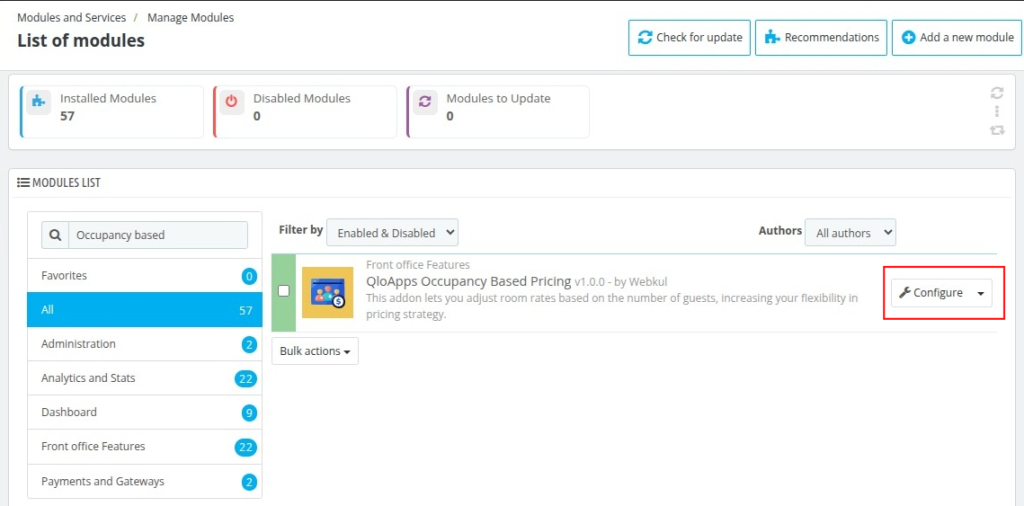
- Go to module and services tab and search for Occupancy Based Pricing.
- Click on “Configure” to customize the module settings.
- QloApps Occupancy Based Pricing Module requires the latest version therefore you need to update the files, to update the files click on the I have read the disclaimer .update files.
Note: This file update process is applicable only to QloApps 1.6.1 and earlier versions. If you are using QloApps 1.7.x or later, no file update is required.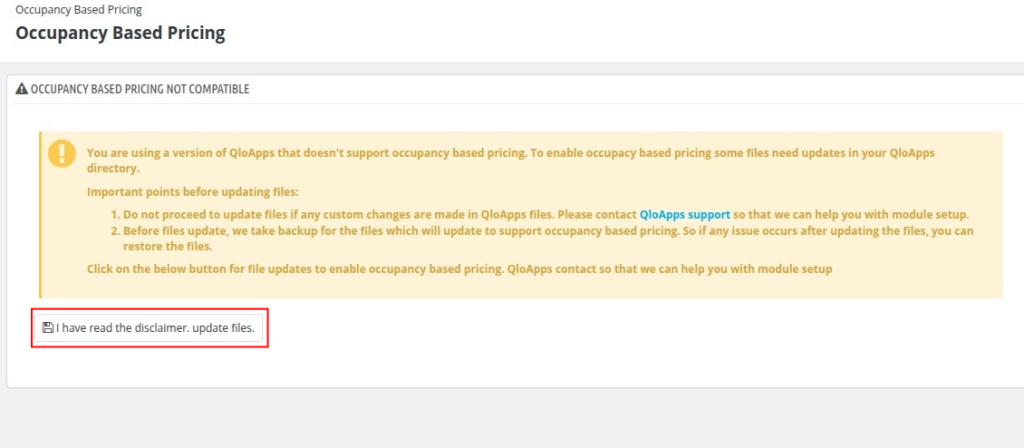
Types of Occupancy-Based Pricing
There are four types of occupancy-based pricing available:
- Occupancy-based Price Adjustment
- Per-Guest Pricing
- Price for Each Occupancy Level
- Derived Pricing
How to enable Occupancy-Based Pricing for Room Type
To make any hotel’s pricing model to occupancy Based pricing model:
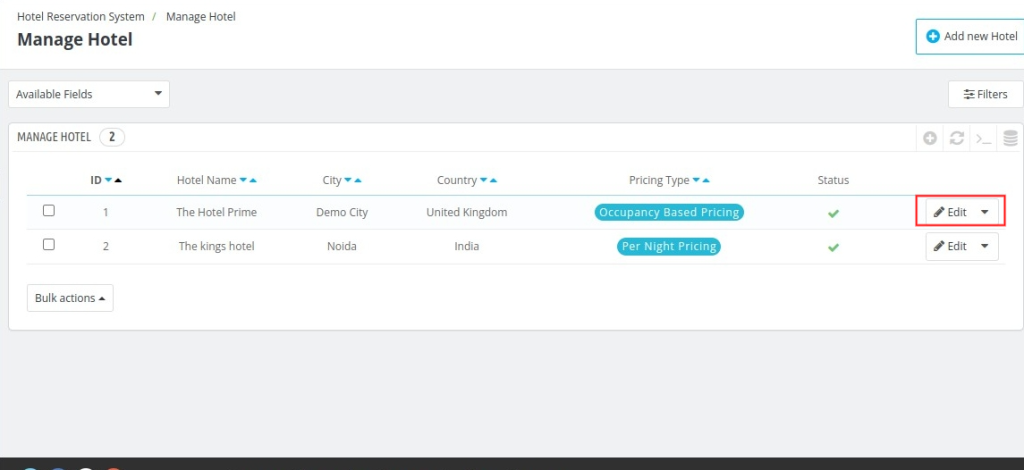
- Navigate to “Hotel Reservation System” then select “Manage Hotel” sub tab. You will see an interface similar to the below image.
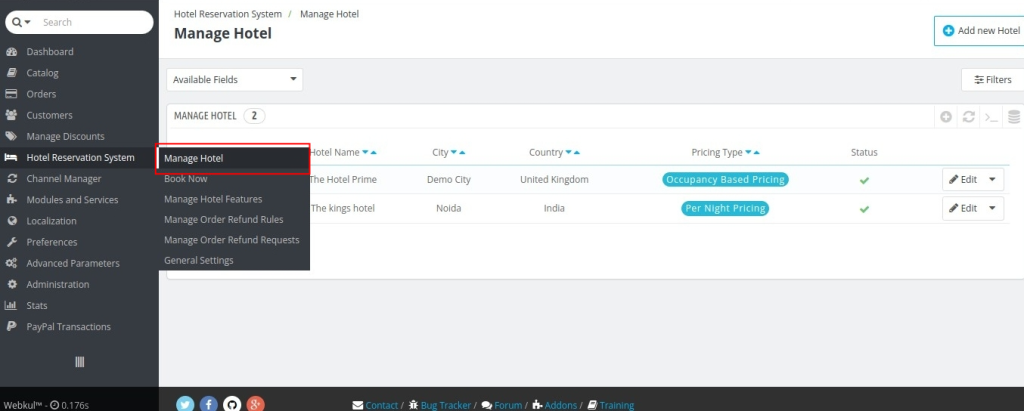
2. You need to click on edit button of the hotel whose Pricing Type you want to change.
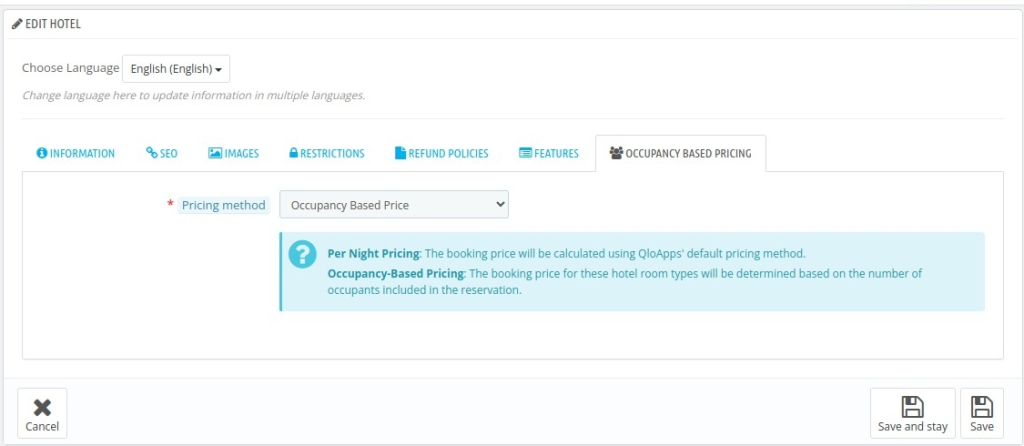
3. Fill all details and when you reach the “Occupancy Based Pricing” section you need to select “Occupancy Based Price” in ” Pricing method ” field.
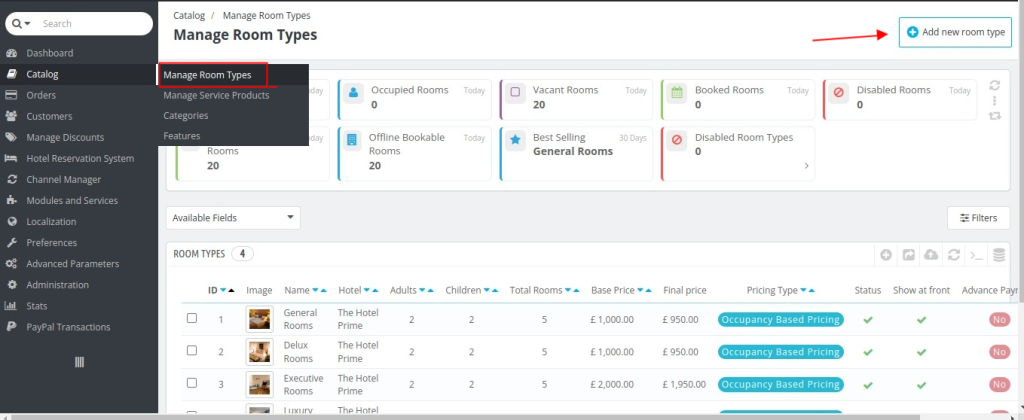
4. After that we have to set pricing strategy of each room type, to do this go to “Catalog” tab then select “Manage Room Type” sub tab.
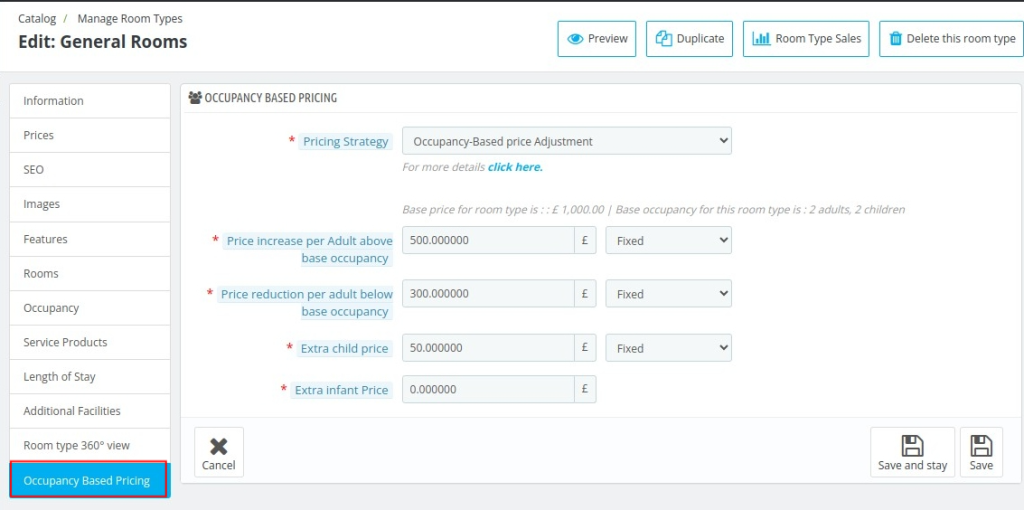
5. Click the Edit button for the room type you want to configure. Then, navigate to the Occupancy-Based Pricing tab within the room type settings.
Here, you can enable occupancy-based pricing and select the desired pricing strategy according to your requirements.
How to enable Occupancy-Based Pricing for Service Products
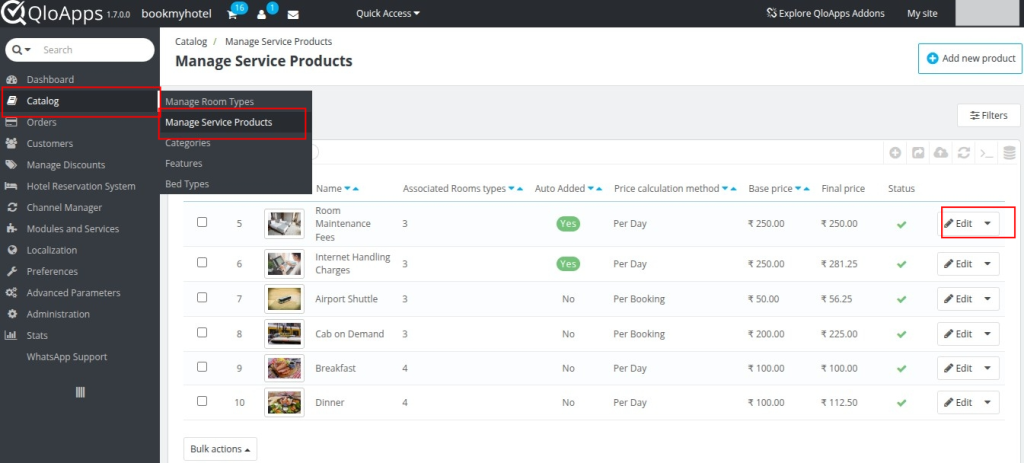
To configure occupancy-based pricing for service products, log in to the Back Office and navigate to Catalog > Manage Service Products.
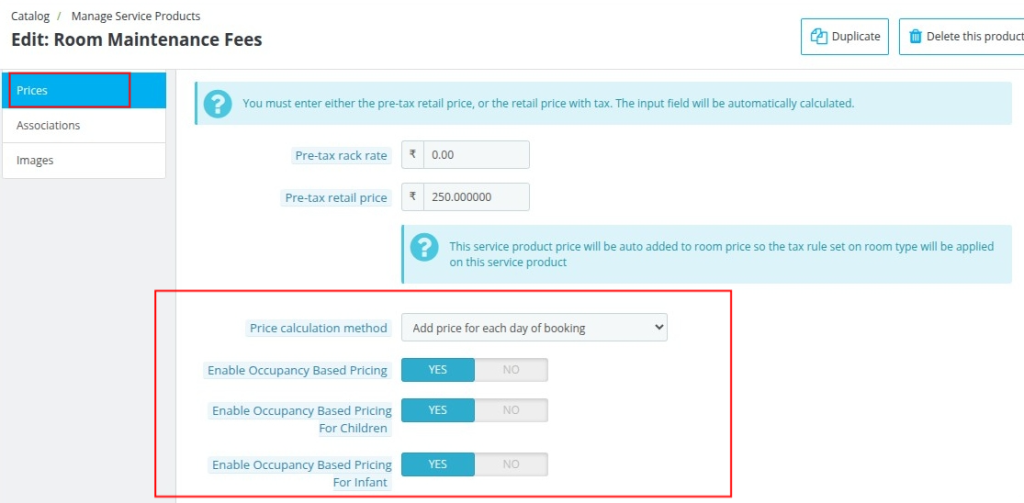
Select the service product you want to edit and configure the following options in the Prices tab:
- Enable Occupancy Based Pricing – Enable this option if you want the service product to follow occupancy-based pricing.
- Enable Occupancy Based Pricing For Children – Enable this option to include children in the occupancy-based pricing calculation.
- Enable Occupancy Based Pricing For Infant – Enable this option to include infants in the occupancy-based pricing calculation.
Once configured, the service product price will automatically be calculated based on the occupancy details of the booking.
Occupancy-based pricing strategies:
1. Occupancy- Based Price Adjustment
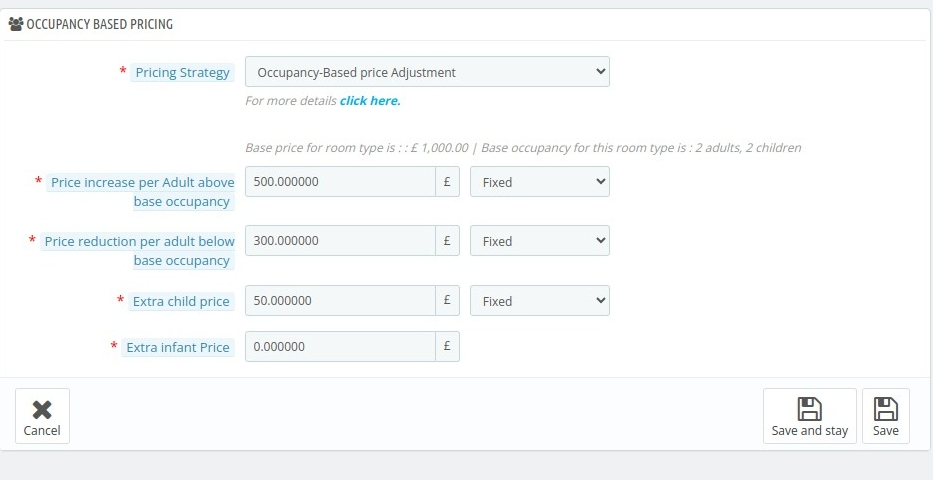
Occupancy-based price adjustments enable dynamic pricing tailored to guest numbers in relation to the base occupancy. The base room price is applied when bookings match the defined base occupancy.
This pricing model ensures flexible and accurate adjustments for diverse occupancy levels.
- Price Increase Per Adult Above Base Occupancy: Enter the value that you want to add for each additional adult exceeding the base occupancy for the selected room type.
- Price reduction per adult below base occupancy: Use this field to specify the reduction in cost applied when an adult is less than the base occupancy.
- Extra child price: Use this field to specify the additional cost applied for each child.
- Extra infant Price: Use this field to specify the additional cost applied for each infant.
2. Per-Guest Pricing
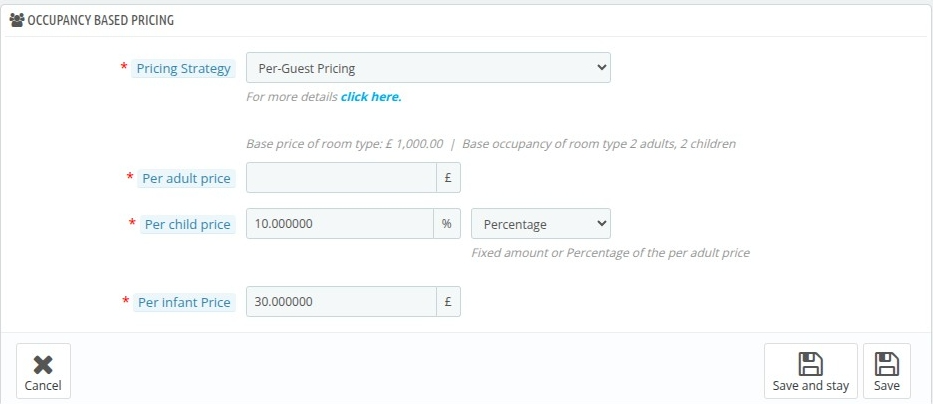
The price is calculated by multiplying the number of guests by their respective rates for adults, children, and infants.
You can set individual rates for each type of occupant—adults, children, and infants. The total room price is then determined by summing the costs for all categories of guests in the booking.
- Per Adult Price: Set the price charged for each adult included in the booking.
- Per Child Price: Configure the child occupancy price as either a fixed amount or a percentage of the adult price.
- Per Infant Price: Define a fixed charge for each infant included in the booking.
3. Price for Each Occupancy Level
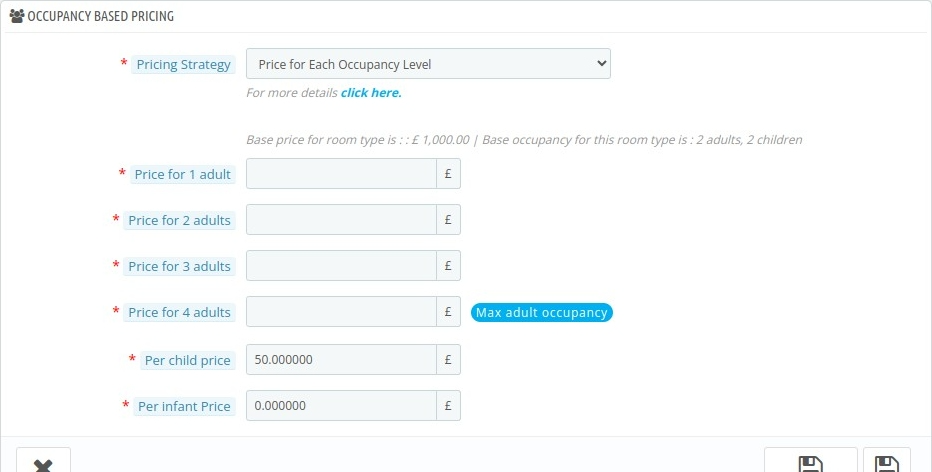
This feature lets you set tailored pricing for each adult occupancy level, based on the number of adults in the room, up to its maximum adult capacity.
- Adult Pricing: Set individual prices for each adult occupancy level (e.g., 1 adult, 2 adults, 3 adults, and so on, up to the maximum adult capacity of the room) to offer tailored rates based on the number of adults staying.
- Infant Pricing: Define a fixed price for each infant occupying the room, enabling accurate pricing based on infant occupancy.
- Child Pricing: Enter a fixed price for each child occupying the room. The configured price remains consistent regardless of the number of children staying, ensuring transparent billing.
This flexible pricing model ensures guests are charged accurately by occupancy type, optimizing revenue while catering to their specific composition and maximizing fairness.
4. Derived pricing
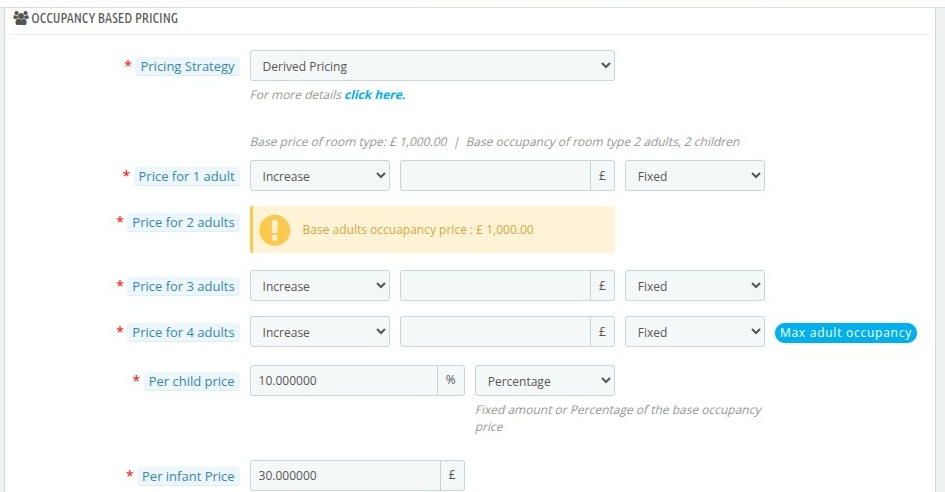
Derived pricing adjusts the price for each adult occupancy level based on the room’s base occupancy price, ensuring dynamic pricing according to the number of occupants.
- Base Price: The base price for the room is derived directly from the room type’s set rate for the base adult occupancy.
- Adjustment for Extra or Fewer Adults: For each additional or fewer adult, you can define how the price will change:
- Impact Way: Choose whether the adjustment increases or decreases the price based on the number of adults.
- Impact Value: Next, specify the adjustment amount that will be applied per occupant. Depending on your pricing strategy, this value can be configured as either a fixed amount or a percentage.
- Impact Type: Indicate if the adjustment is a fixed amount or a percentage of the base price.
- Child Pricing: For children, enter the price either as a fixed amount or as a percentage of the base adult occupancy price.
- Infant Pricing: Set a fixed price for infants per occupancy.
This approach provides flexibility and accuracy, enabling you to adjust room rates based on occupancy levels and guest composition, ensuring alignment with your hotel’s revenue goals.
Setting an Advance Price Rule based on Occupancy
The Advance Price Rules are applied according to the selected pricing strategy, and room rates are automatically adjusted based on the configured impact value.
1. Occupancy-based price adjustment
- Advance Price Rule Name: Enter the name of the Advance Price rule.
- Room Type : Enter the type of the room type this rule is associated with.
- Date Selection type: Select the date selection type.
- Impact way: Select whether you want to increase or decrease the price.
- Impact on base price (tax excl.) : Enter the value to update the base occupancy price for the selected room type.
- Price increase per Adult above base occupancy : Enter the value which you want to add for each additional adult exceeding the base occupancy for the selected room type.
- Price reduction per adult below base occupancy : Enter the value that you want to decrease for each adult below the base occupancy for the selected room type.
- Extra child price : Enter the price to be increased for each children above the base occupancy of the children in each booking.
- Extra infant price : Enter the price to be increased for each infant above the base occupancy of the infant in each booking.
2. Per-Guest Pricing
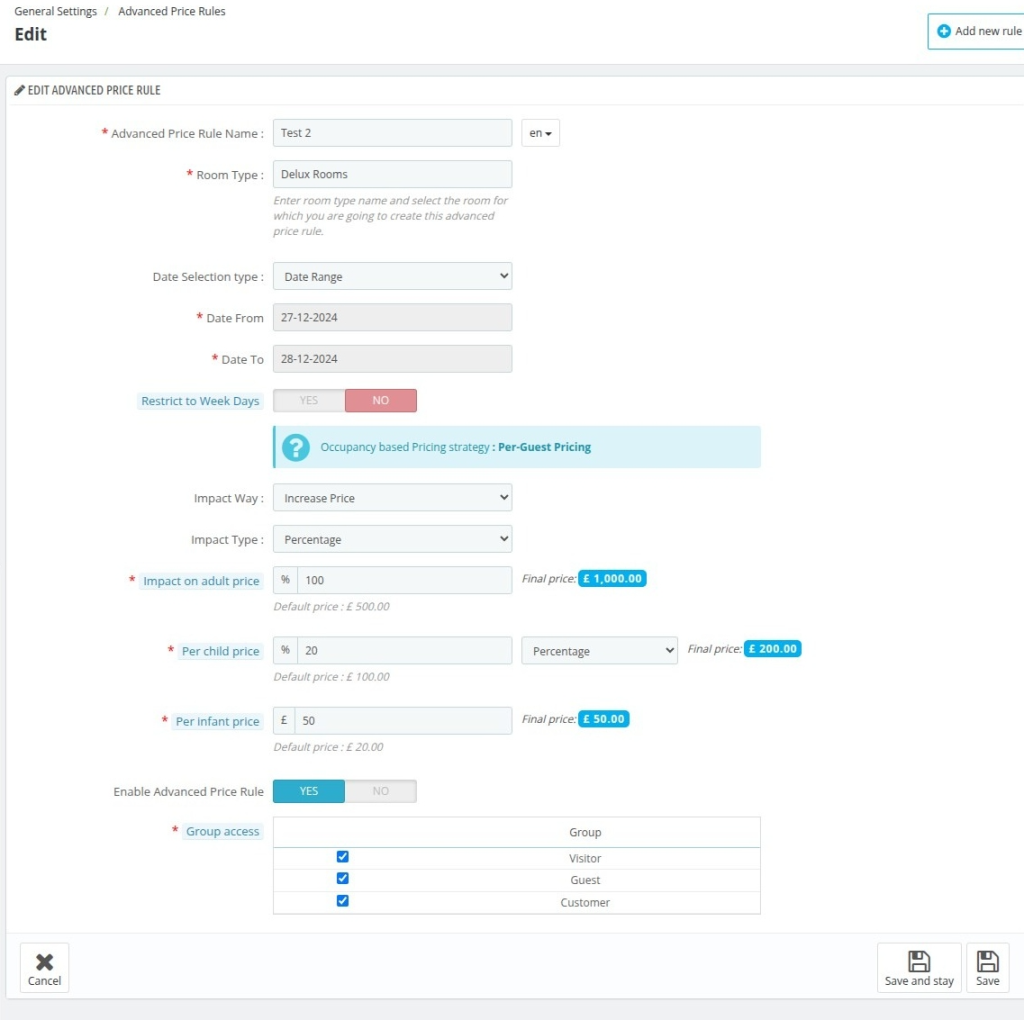
- Impact on adult price : Enter the value which you want to update for per adult occupancy.
- Per child price : Enter the price for per child occupancy. (will change based on Impact Value)
- Per infant price : Enter the price for per infant occupancy. (will change based on Impact Value)
3. Price for each occupancy level
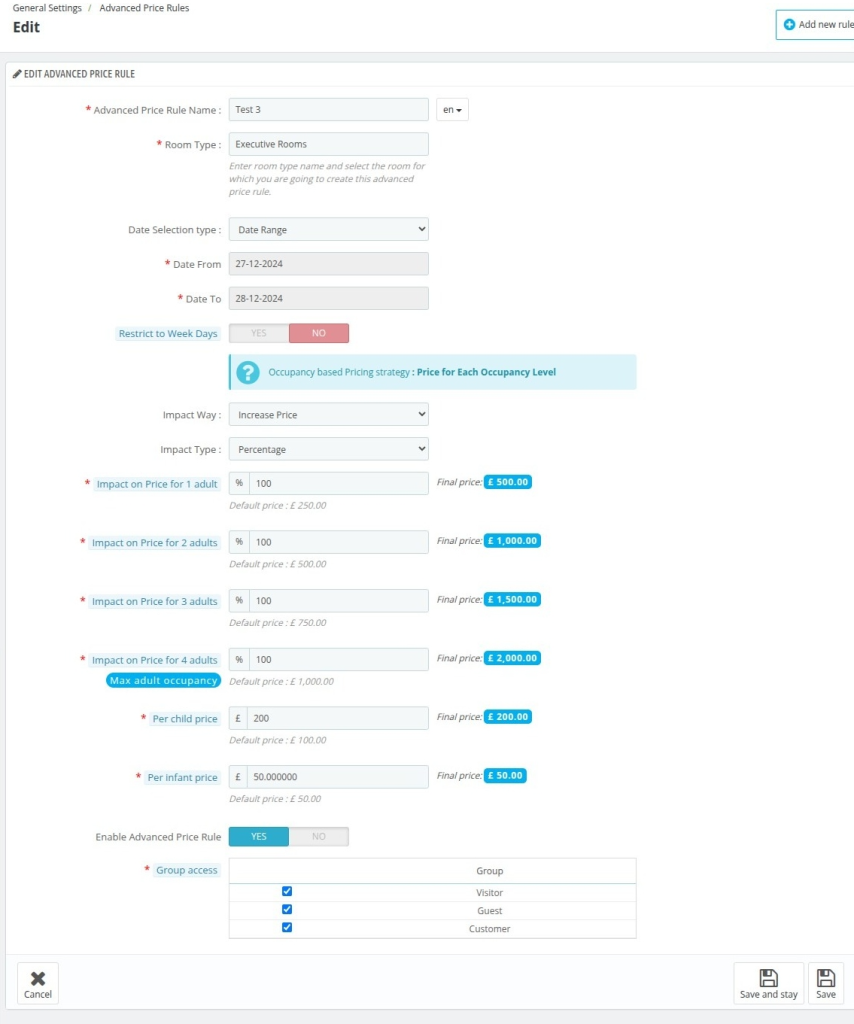
- Impact on Price for 1 adult : Enter the price which you want to update for 1 adult occupancy. (will change based on Impact Value)
- Impact on Price for 2 adult : Enter the price which you want to update for 2 adult occupancy. (will change based on Impact Value)
- Note: You have to enter the Impact on Price for n adults where n is the maximum number of adults .
- Per child price : Enter the price for per child occupancy. (will change based on Impact Value)
- Per infant price : Enter the price for per infant occupancy. (will change based on Impact Value)
4. Derived Pricing
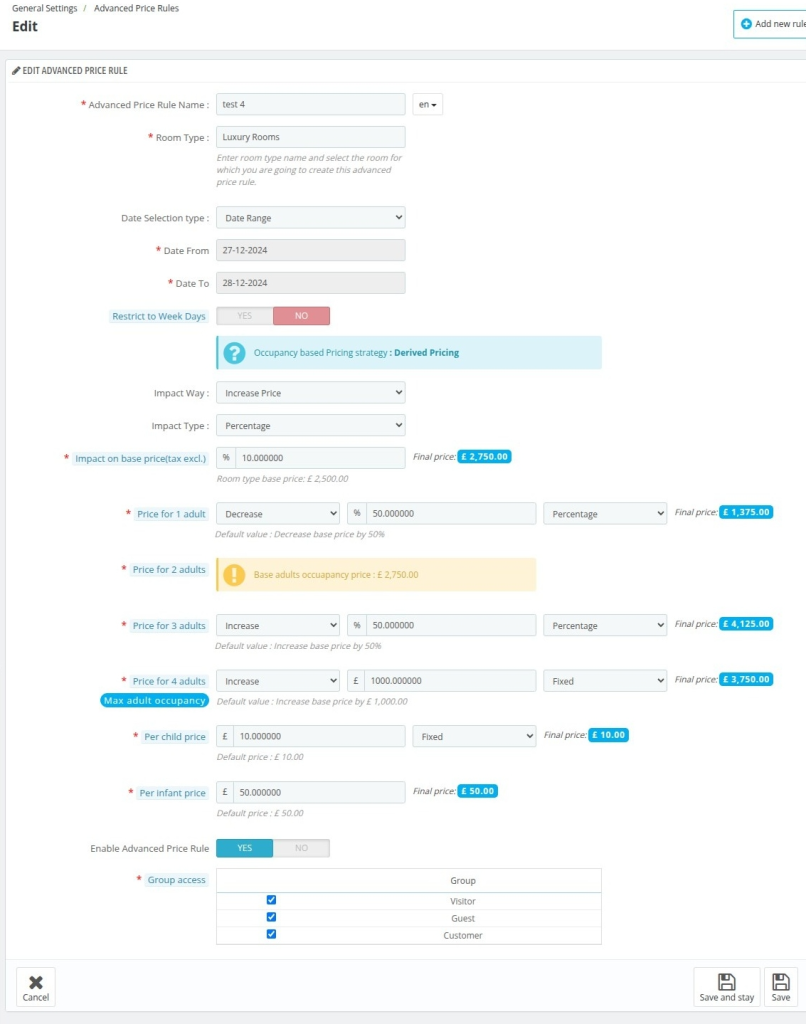
- Impact on base price( tax excl.) : Enter the value that you want to update for the base occupancy price of the room type.
- Price for 1 adult : Enter the price that you want to update for 1 adult occupancy. (will change based on Impact Value)
- Price for 2 adult : Enter the price which you want to update for 2 adult occupancy. (will change based on Imapct Value)
- Price for 3 adult : Enter the price that you want to update for 3 adult occupancy. (will change based on Impact Value)
- Per child price : Enter the price for per child occupancy. (will change based on Impact Value)
- Per infant price : Enter the price for per infant occupancy. (will change based on Impact Value)
Note: You have to enter the Impact on Price for n adults where n is the maximum number of adults .
Advance Price for Multiple Room Types
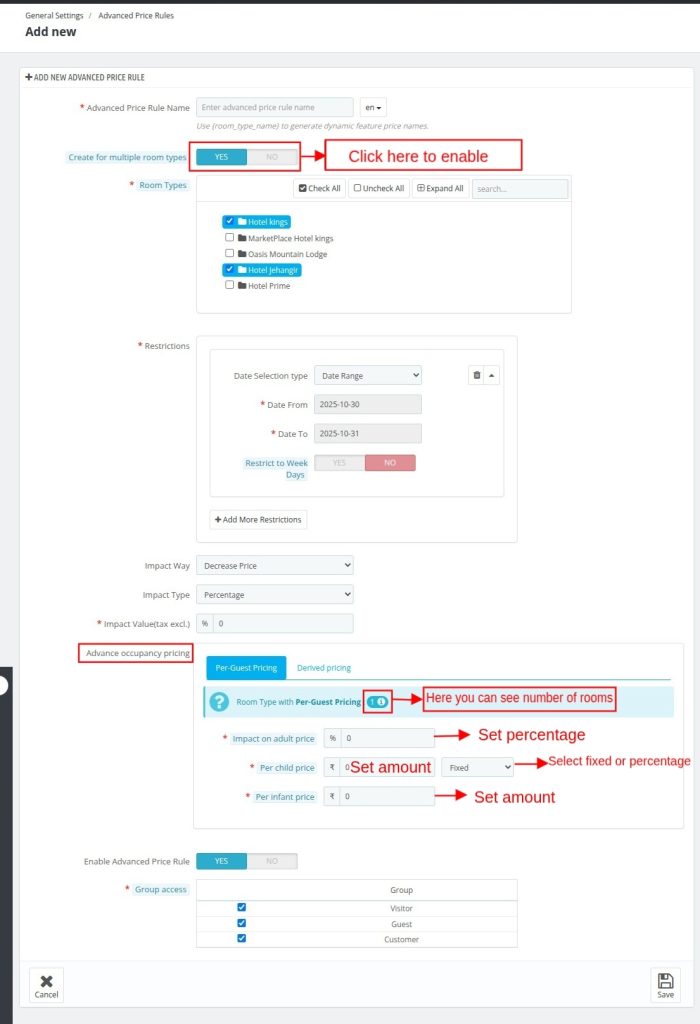
In this section, section allows you to create and apply occupancy-based pricing rules for multiple room types across different hotels from a single interface.
To speed up the configuration process, you can select all hotels or all room types with a single click.
Please note that the Advance Occupancy Pricing tab appears only for room types that use occupancy-based pricing. Room types configured with per-night pricing do not display this tab.
The platform displays the number of room types assigned to each pricing method, allowing you to quickly identify how occupancy-based pricing is distributed across your properties.
After you select a pricing method, you can configure pricing values for adults, children, and infants according to your occupancy pricing requirements.
Conclusion
The QloApps Occupancy Based Pricing Module provides a flexible way to manage room and service pricing based on guest occupancy.
Moreover, its multiple pricing strategies enable hotels to create customized pricing structures for adults, children, and infants.
As a result, hoteliers can optimize revenue while maintaining transparent and accurate pricing.
Should you have any queries, issues, or additional requirements, don’t hesitate to share them on the QloApps Forum.
Current Product Version – V 4.0.2
Supported Framework Version – QloApps 1.7.x & 1.6.x

Be the first to comment.