PriceLabs Set up for QloApps Channel Manager
PriceLabs is a powerful revenue management and dynamic pricing tool that helps hotels and vacation rentals optimize rates based on demand, seasonality, and market trends.
By integrating PriceLabs with QloApps Channel Manager, property owners can optimize rates based on demand.
Before integrating PriceLabs with QloApps Channel Manager, users must complete the mandatory steps for seamless connectivity.
Account Creation
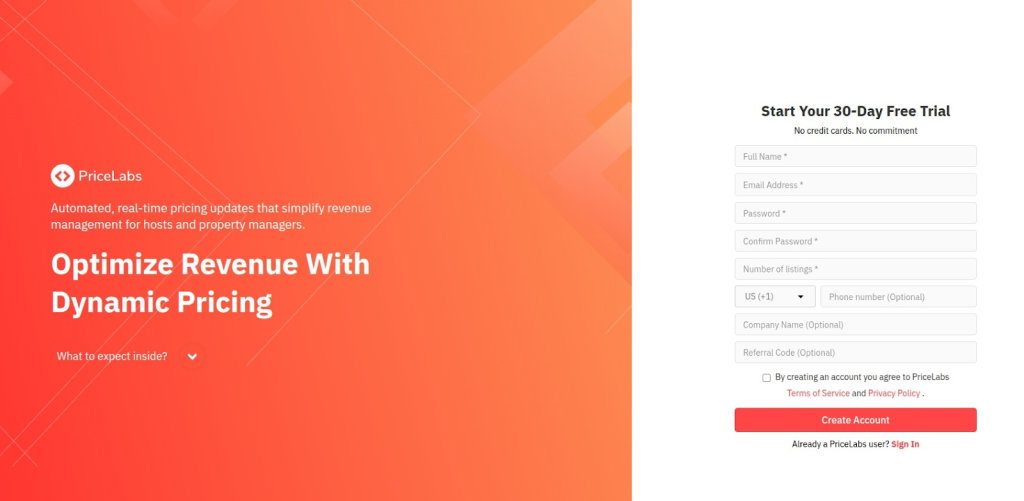
The user must have created the Account on PriceLab

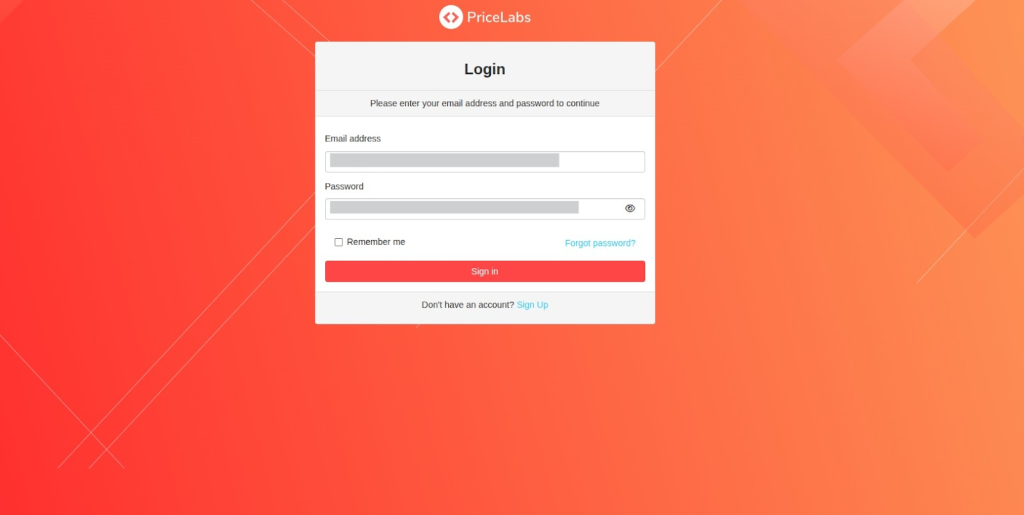
Once the account is created, sign in to your PriceLabs Account

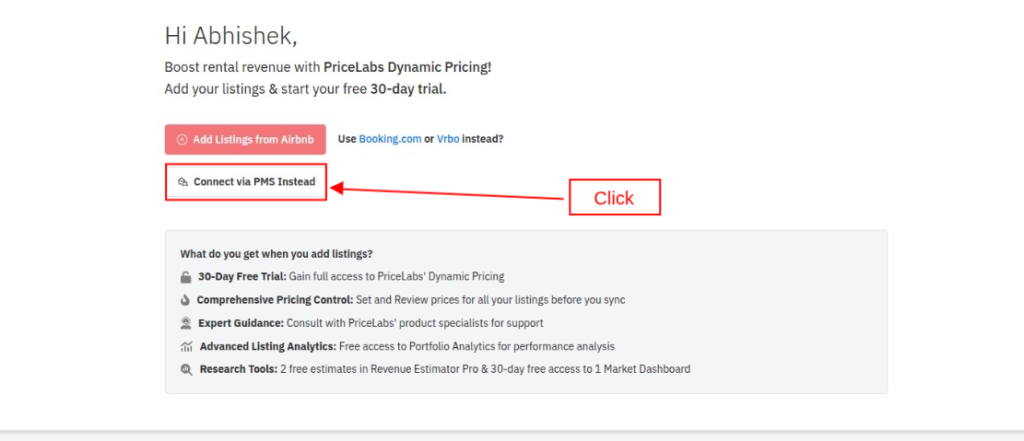
Click on Option Connect Via PMS Instead

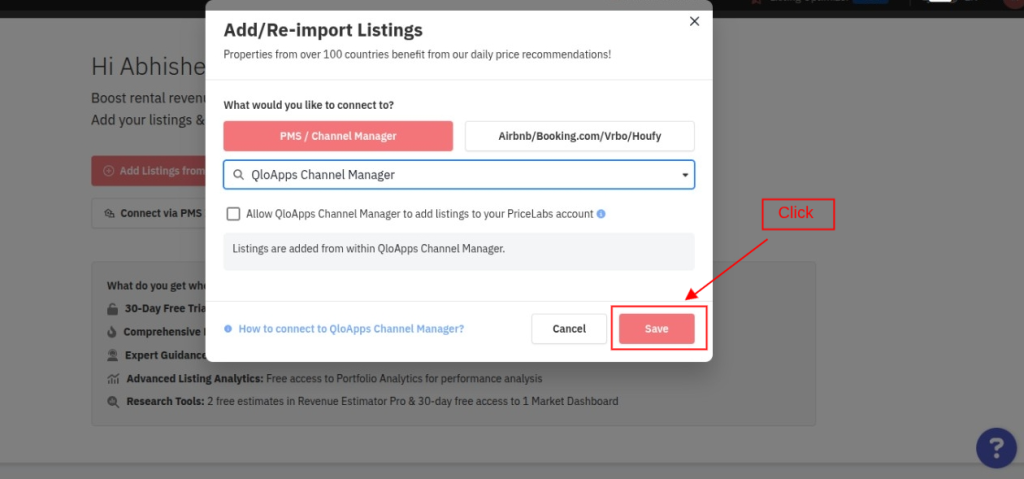
Now select QloApps Channel Manager from Drop Down List
Click on the Save button.


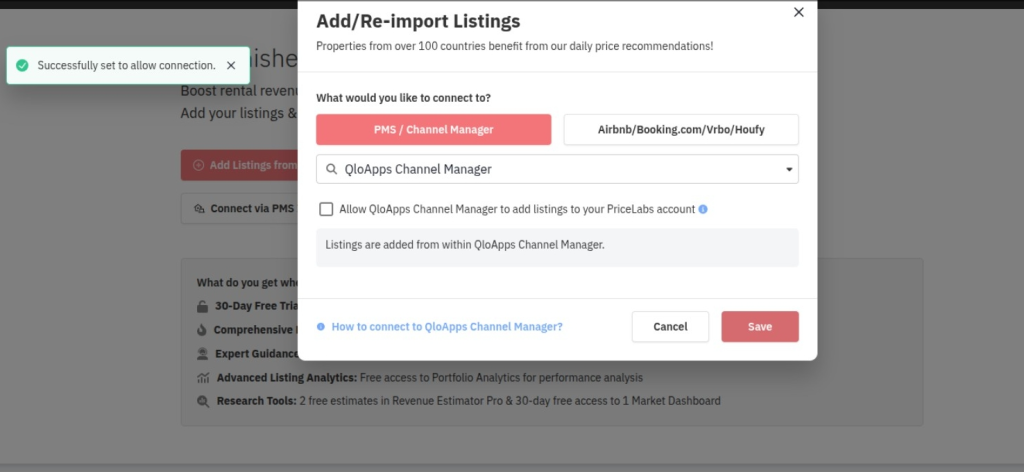
Add PriceLabs with QloApps Channel Manager
Follow the given steps.
From the Main Menu:
- Log in to the QloApps Channel Manager account.

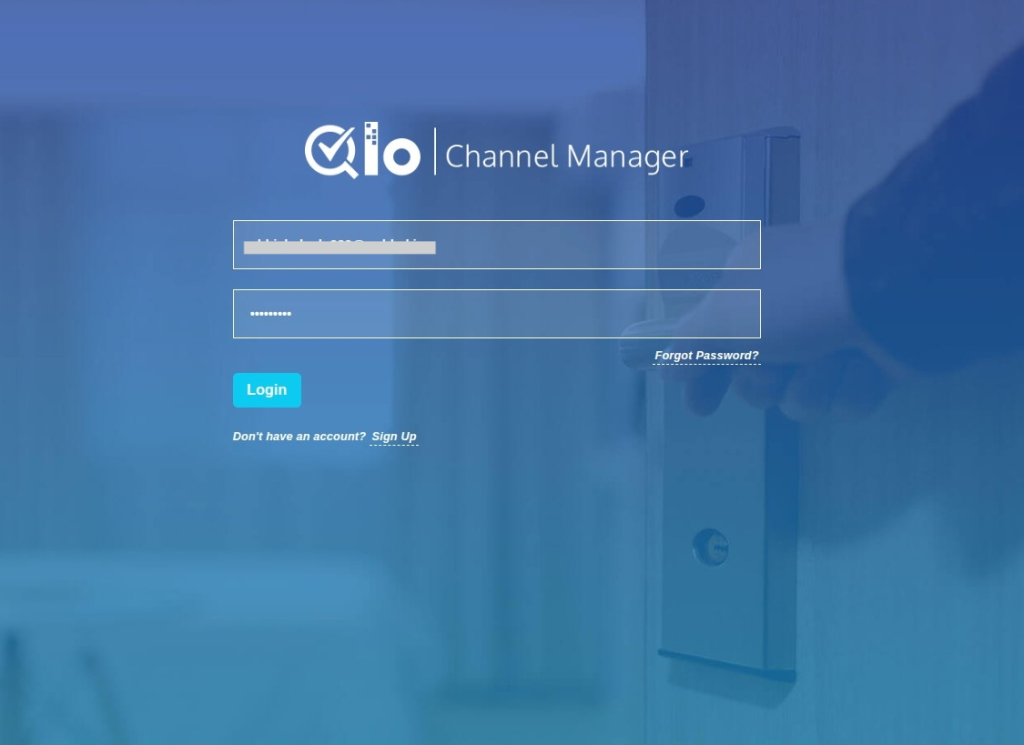
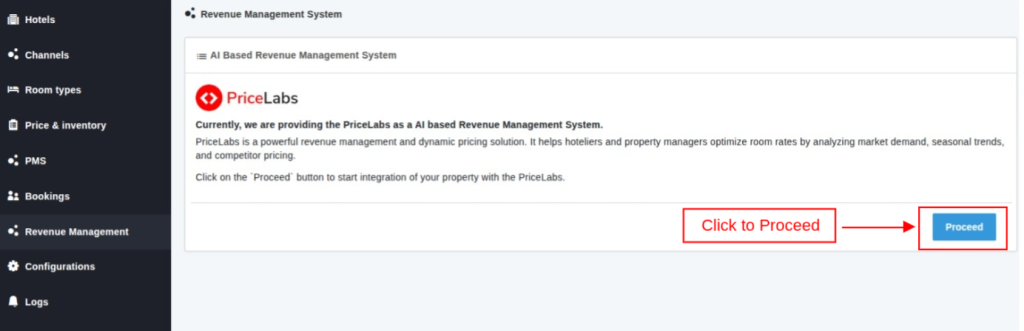
- Click On Revenue Management Tab
- Click on the Proceed Button.


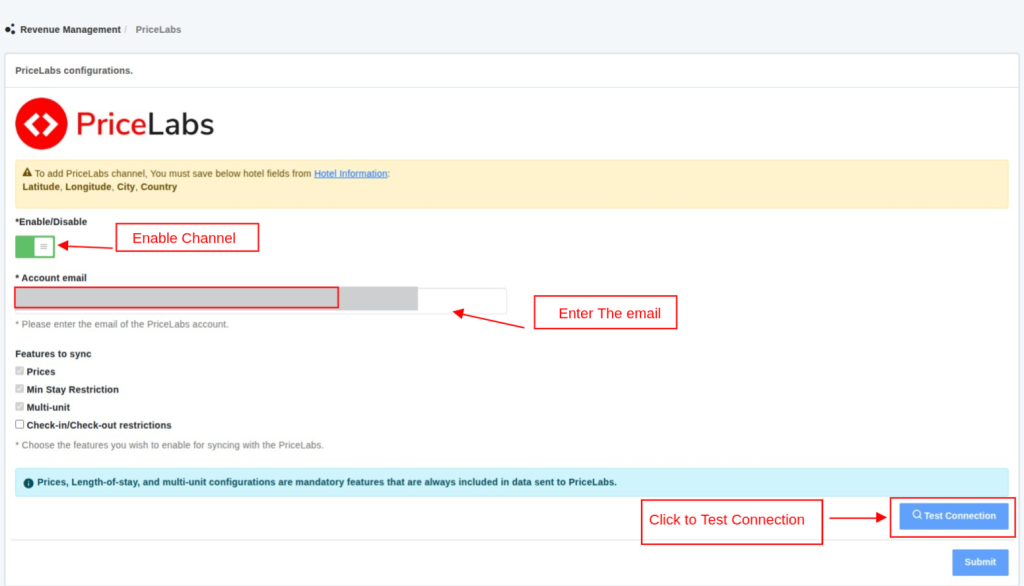
- Please enter the email address you used when registering on PriceLabs.
- Choose the features you wish to enable for integration with PriceLabs.
- Prices, Length-of-stay, and multi-unit configurations are mandatory features that are always included in data sent to PriceLabs.
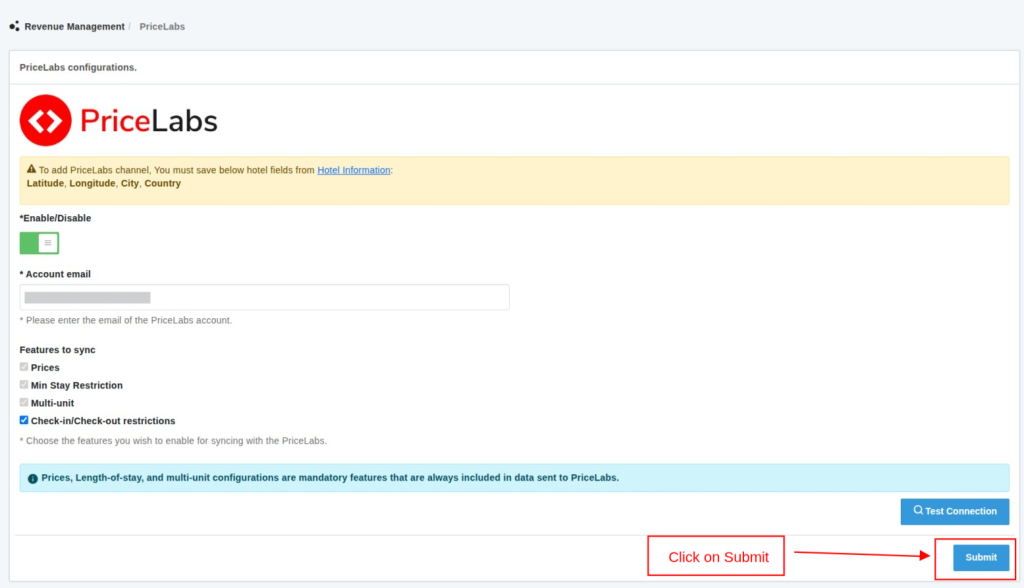
Note: To add the PriceLabs channel, you must save the following hotel fields in the hotel form: Latitude, Longitude, City, Country

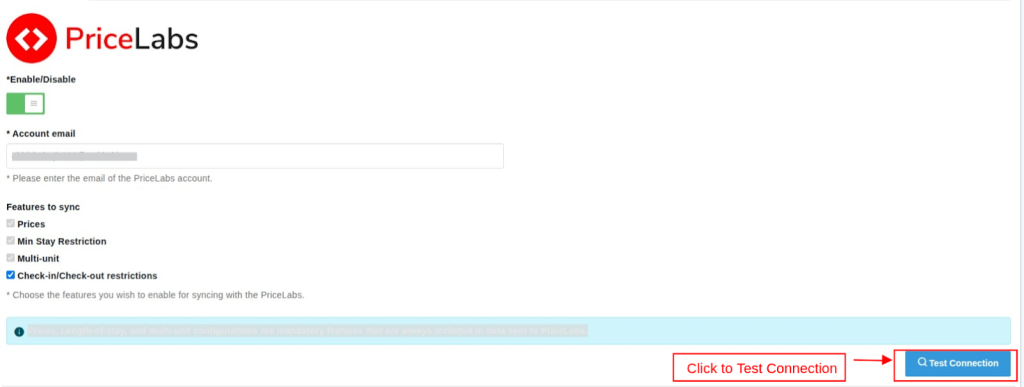
- Then click on Test Connection

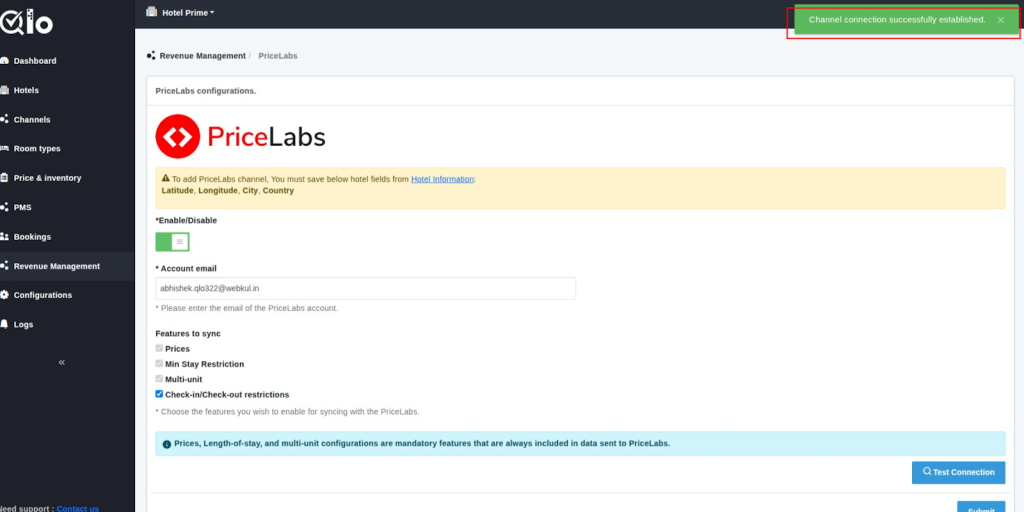
- Once the connection is Established click on the Submit button.

- If you want to delete the channel, then click on the disable button and then hit the delete button.

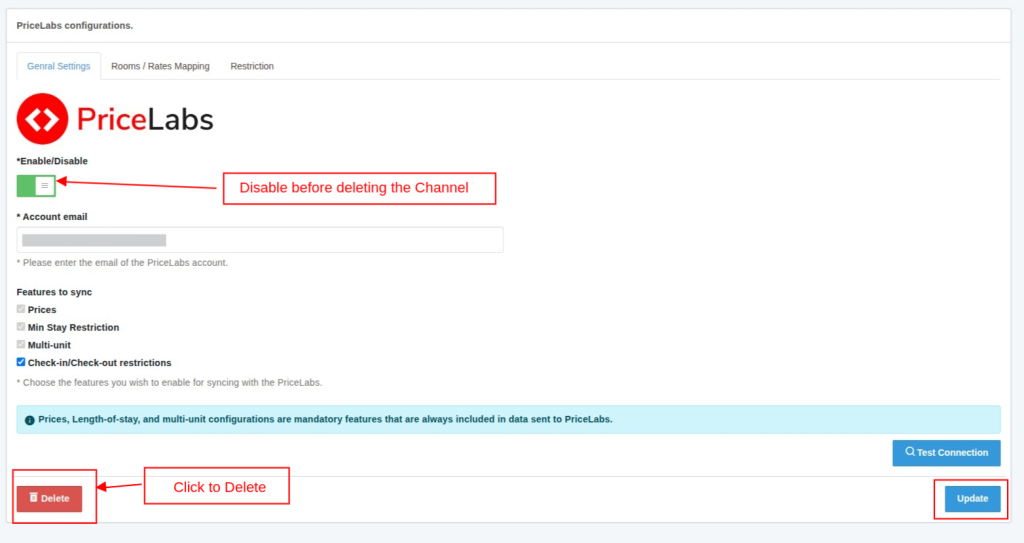
Note: This will temporarily deactivate the listing on PriceLabs; to permanently delete the listing from PriceLabs, you have to delete it manually on PriceLabs.
Room/Rates Mapping
- Select the room types and rate plans for which rates and restrection you want to manage for PriceLabs.
- PriceLabs supports only one default rate plan, so please select a rate plan for which you want dynamic pricing.

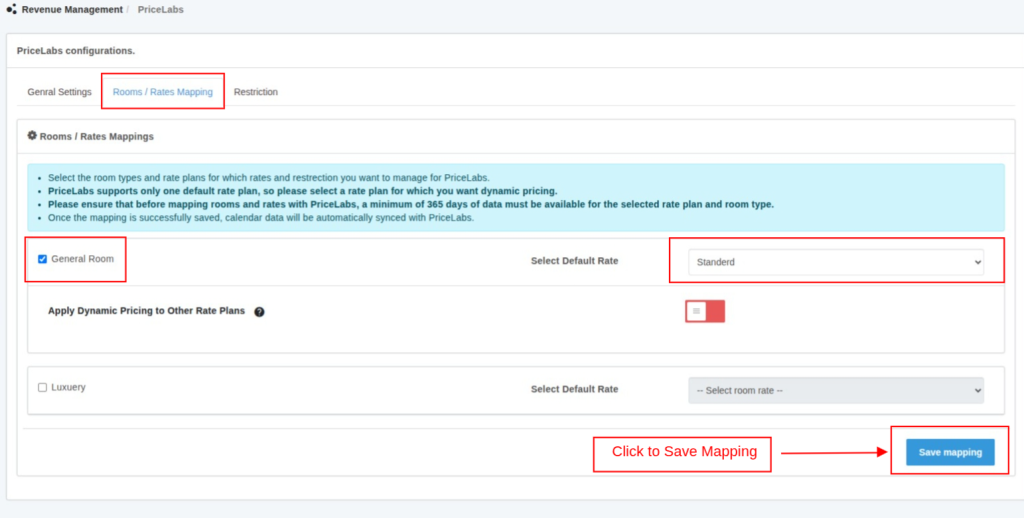
Note: Please ensure that before mapping rooms and rates with PriceLabs, a minimum of 365 days of data must be available for the selected rate plan and room type.
- Then click on the Save Mapping Button.
- Once you hit the save mapping Button this will create the listing on PriceLabs.
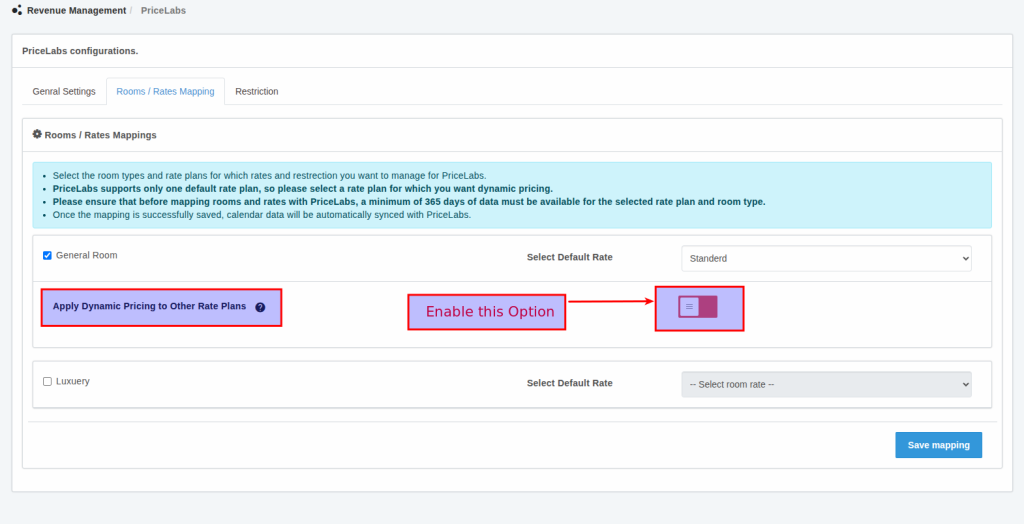
Apply Dynamic Pricing to Other Rate Plans
If you want to apply dynamic pricing to other rate plans, you must enable this option and select the default rate plan that will serve as the pricing source.

The pricing for other rate plans will be calculated using the selected Conversion Factor Type and Factor Value.
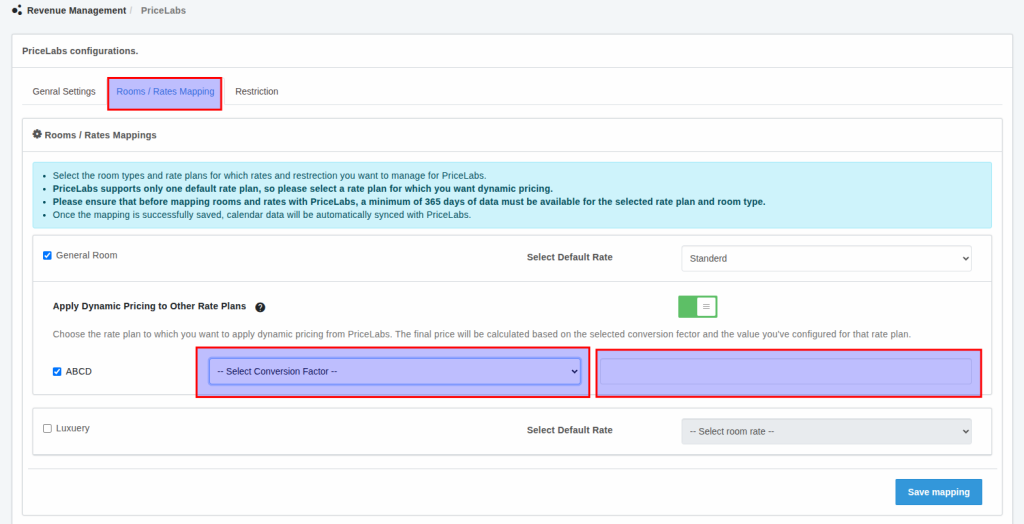
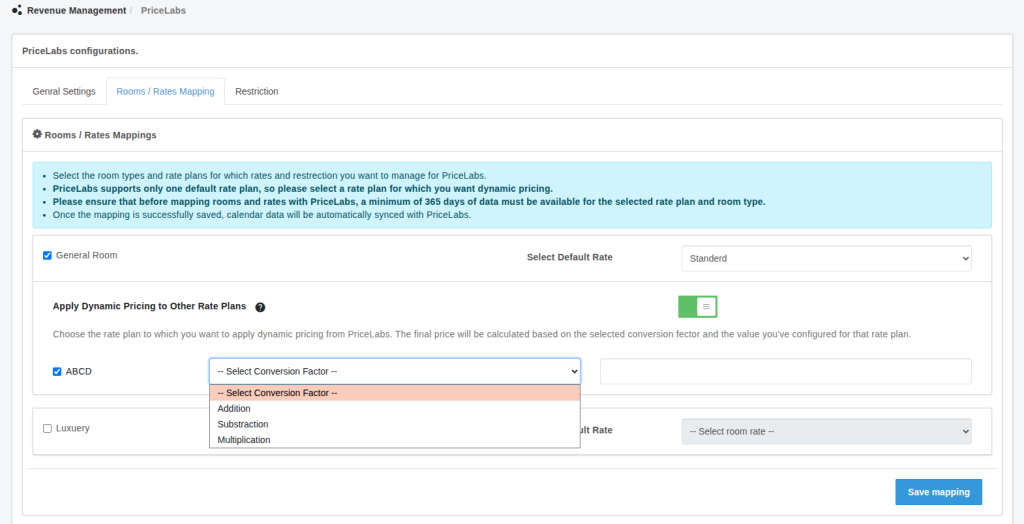
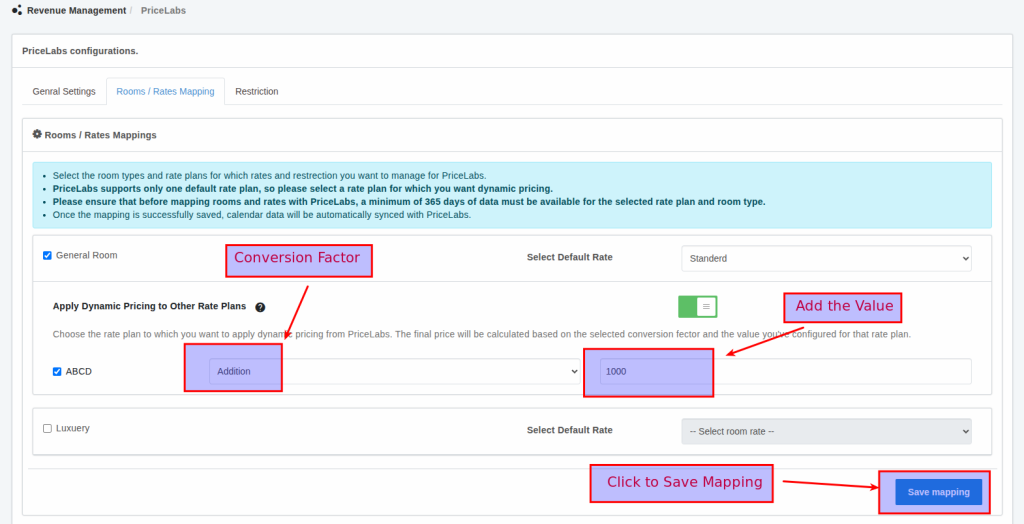
This rule will apply only to the selected Default Rate Plan that you selected above.
If you’ve set up rules for other rate plans, but this option is disabled, then dynamic pricing will not be applied to the rate plans listed below.
Then click on Save Mapping.
Once the mapping is successfully saved, calendar data will be automatically synced with PriceLabs.
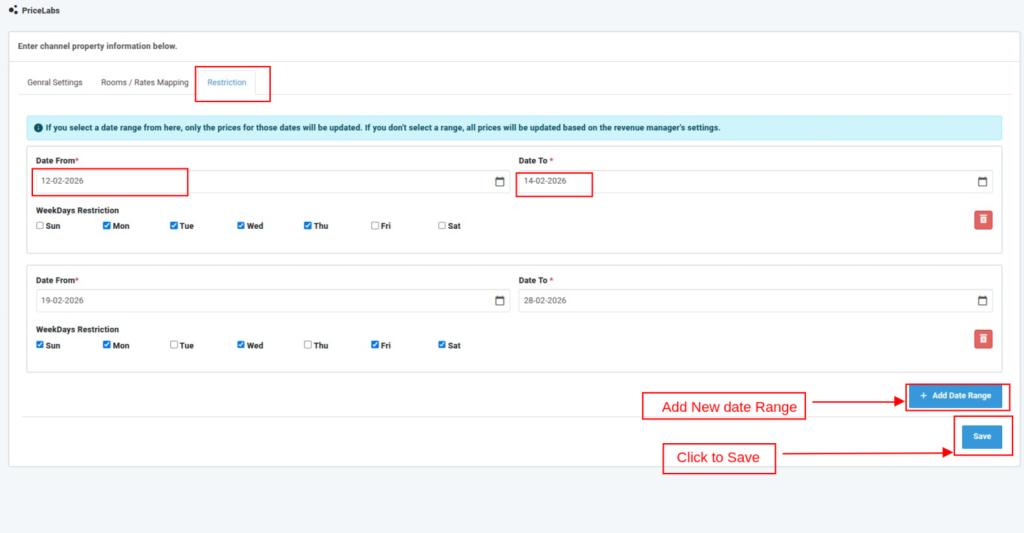
Restriction
If you select a date range from here, only the prices for those dates will be updated. If you don’t select a range, all prices will be updated based on the revenue manager’s settings.

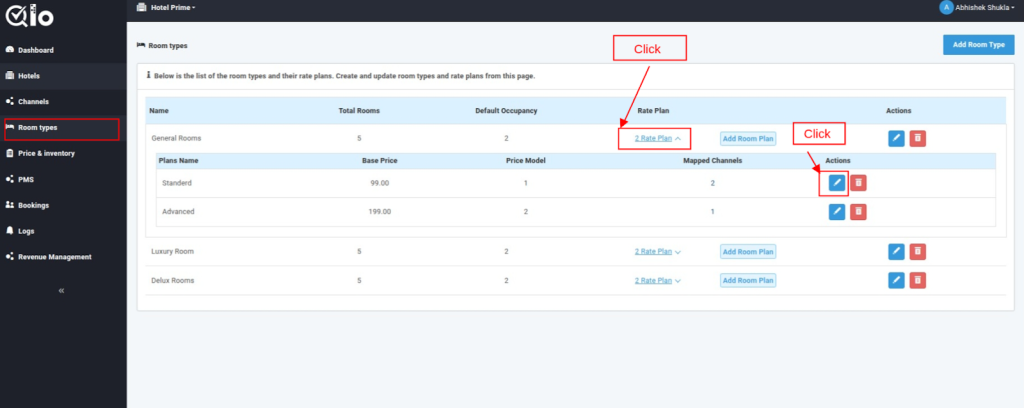
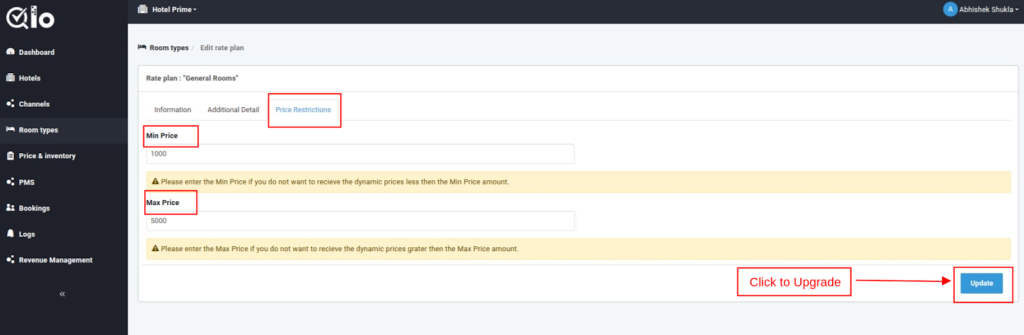
Set Minimum and Maximum Price for Room Type

Please enter the Min Price if you do not want to receive the dynamic prices less than the Min Price amount.
Please enter the Max Price if you do not want to receive the dynamic prices grater then the Max Price amount.

Buttons and Their Usage

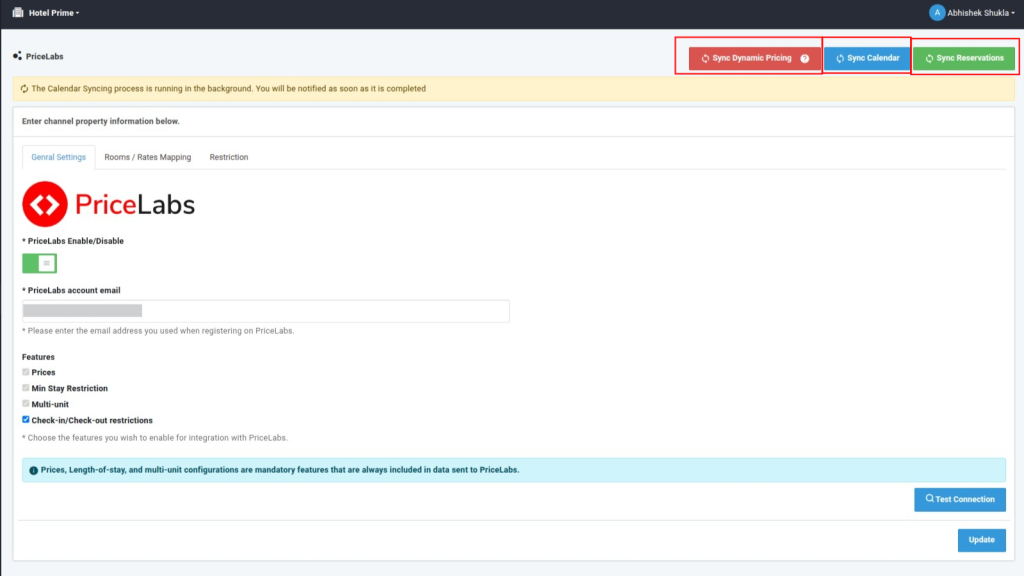
Sync Dynamic Pricing: By clicking on this button, all dynamic prices will be fetched from PriceLab and updated in QloApps Channel Manager and connected channels
Sync Calendar: Clicking on this button will sync all the latest price and inventory data with PriceLabs.
Once the mapping is successfully saved for the first time, calendar data will be automatically synchronized with PriceLabs for a period of 365 days or more for the selected rate plan and room type.
If the Sync Calendar button is used again, PriceLabs will resend calendar data for the same 365-day or more period.
In cases where complete data for all 365 days is not available, the system will generate default data for the remaining days.
For availability, the room type units configured in the QloApps Channel Manager will be applied. For pricing, the base price of the selected rate plan in QloApps Channel Manager will be used.
Sync Booking: By clicking on this button All booking data will be updated on the PriceLabs
Conclusion
This was all from the process of setting up PriceLabs for the QloApps Channel Manager. I hope I was able to clarify it for you.
If you want to learn more about QloApps Channel Manager.
If you want to learn about the functionality of QloApps, then you can visit this link: QLO Reservation System – Free Open-Source Hotel Booking & Reservation System
In case of any query, issue, or requirement, please feel free to raise it on QloApps Forum