QloApps Signature Theme
The QloApps Signature Theme modernizes the default QloApps design with a premium look, fully responsive design layout, and a familiar booking experience for hotel websites.
It enhances the familiar QloApps booking experience with a modern layout, improved typography, and a polished design that gives your hotel a professional look.
Built with a fully responsive design, the Signature Theme delivers an exceptional browsing and booking experience across smartphones, tablets, and desktops.
Perfect for hotels, resorts, and vacation rentals, the QloApps Signature Theme combines the trusted QloApps experience with a modern, responsive design.
Features of the QloApps Signature Theme
- Modern and premium website design inspired by the classic QloApps experience
- Mobile-friendly, fully responsive layout for seamless browsing on every device.
- Fast-loading and lightweight interface for improved website performance
- User-friendly navigation that helps guests find information effortlessly
- Elegant room and property presentation with enhanced visual appeal
- Optimized booking journey designed to encourage more direct reservations
- SEO-friendly structure to improve search engine visibility
- Clean, professional layout suitable for hotels, resorts, homestays, and vacation rentals
- Smooth and consistent user experience across all pages
- Built to showcase your property’s identity while maintaining the trusted QloApps booking workflow
Installation of the QloApps Signature Theme
Installing the QloApps Signature Theme is quick and straightforward. Follow the steps below to activate the theme on your QloApps website.
- Log in to your QloApps Back Office using your administrator credentials.
- From the left-side navigation menu, go to Preferences → Themes.
- You will be redirected to the Themes Management page, where you can manage and configure the themes available for your QloApps store.

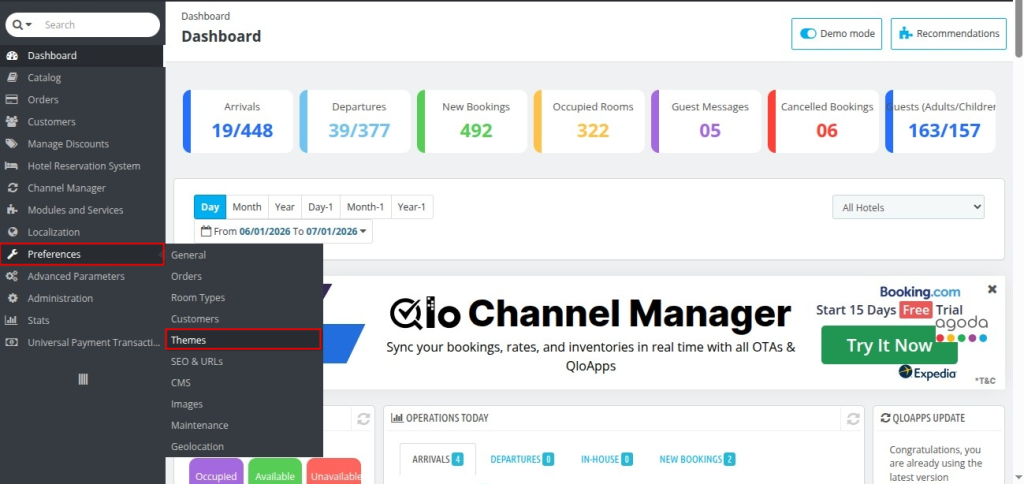
- Click the Add New Theme button located at the top of the Themes Management page.
- In the Import from your computer section, click Add File.
- Browse your computer and select the QloApps Signature Theme ZIP file.

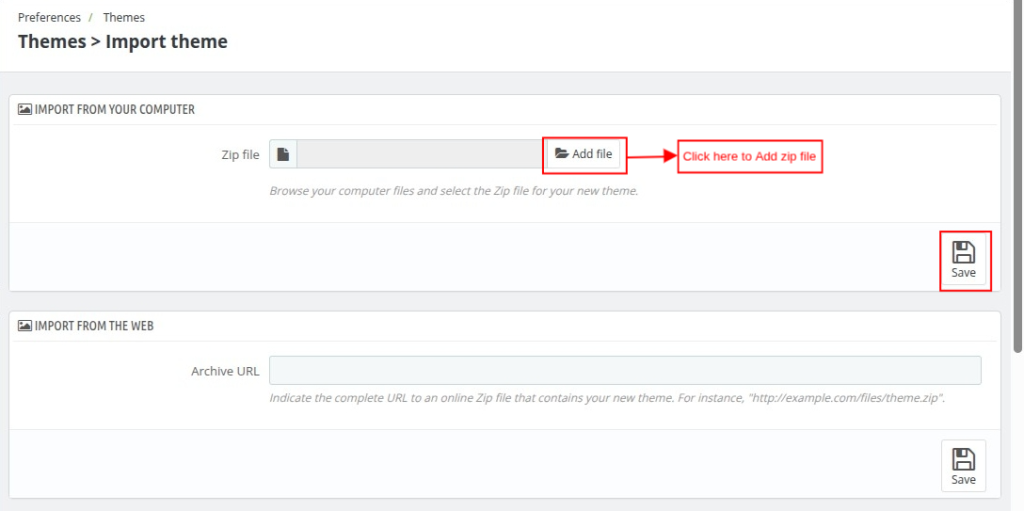
- After uploading the file, click on Save.
- Once uploaded successfully, the theme will appear in the theme list.
- Click on the theme image or thumbnail to activate and use the theme

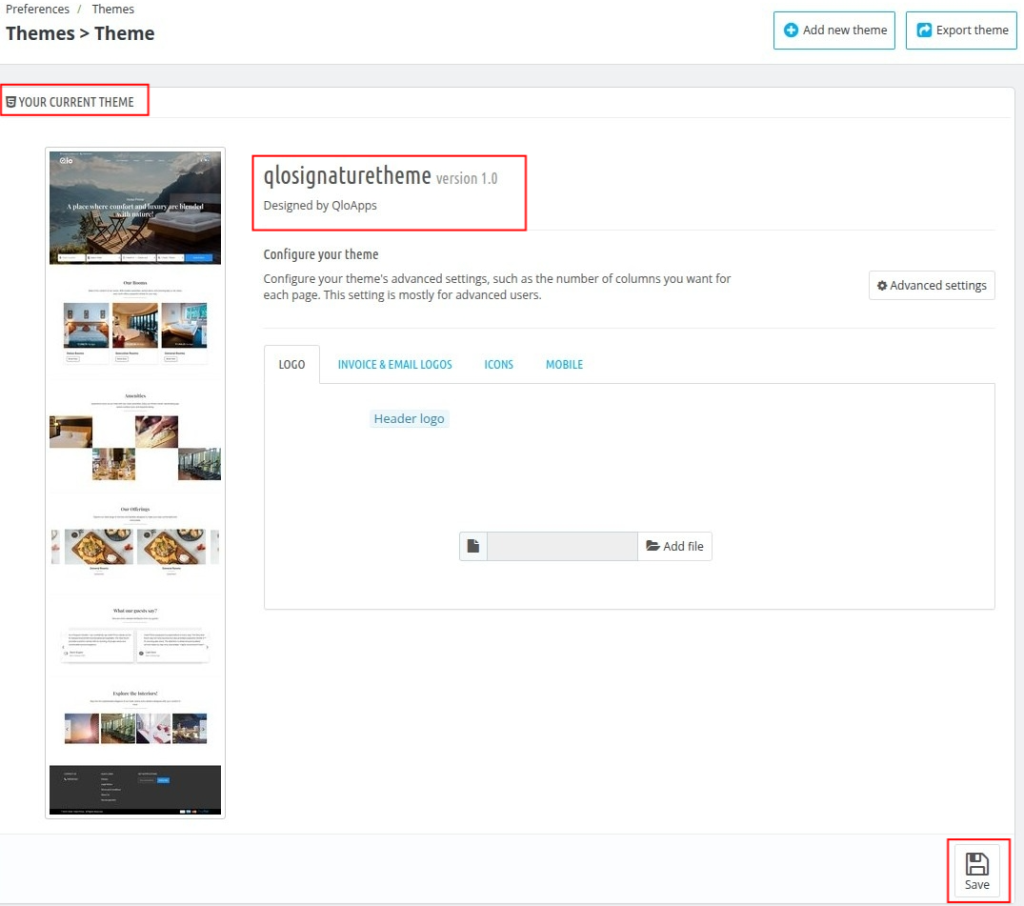
Front End of the QloApps Signature Theme
Header Section
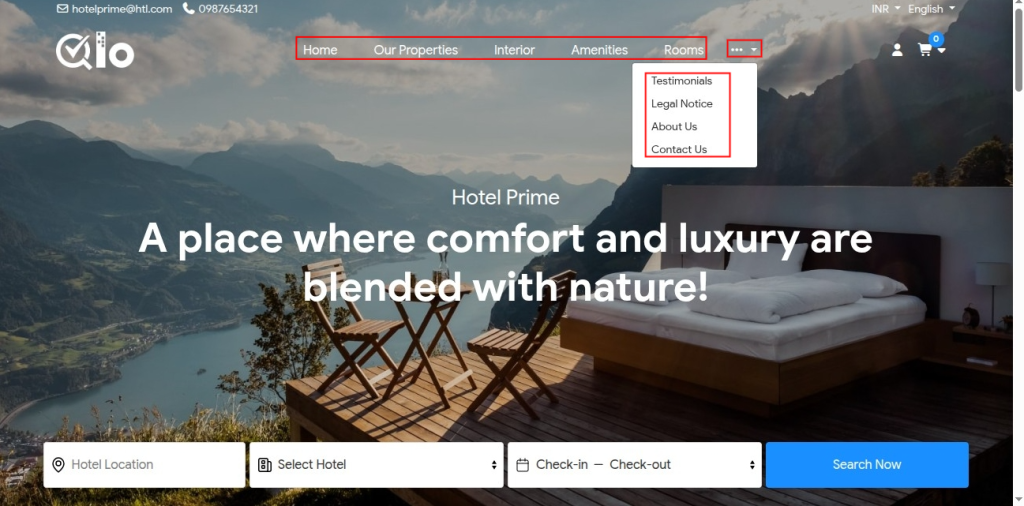
The QloApps Signature Theme features a clean, modern, and responsive header that creates a professional first impression while keeping navigation simple and intuitive.
The top navigation includes essential website pages, making it easy for visitors to explore your property, learn more about your services, and begin the booking process.
The fully responsive header adapts to different screen sizes, providing smooth and intuitive navigation across smartphones, tablets, and desktops.

Hero Banner & Hotel Search Section
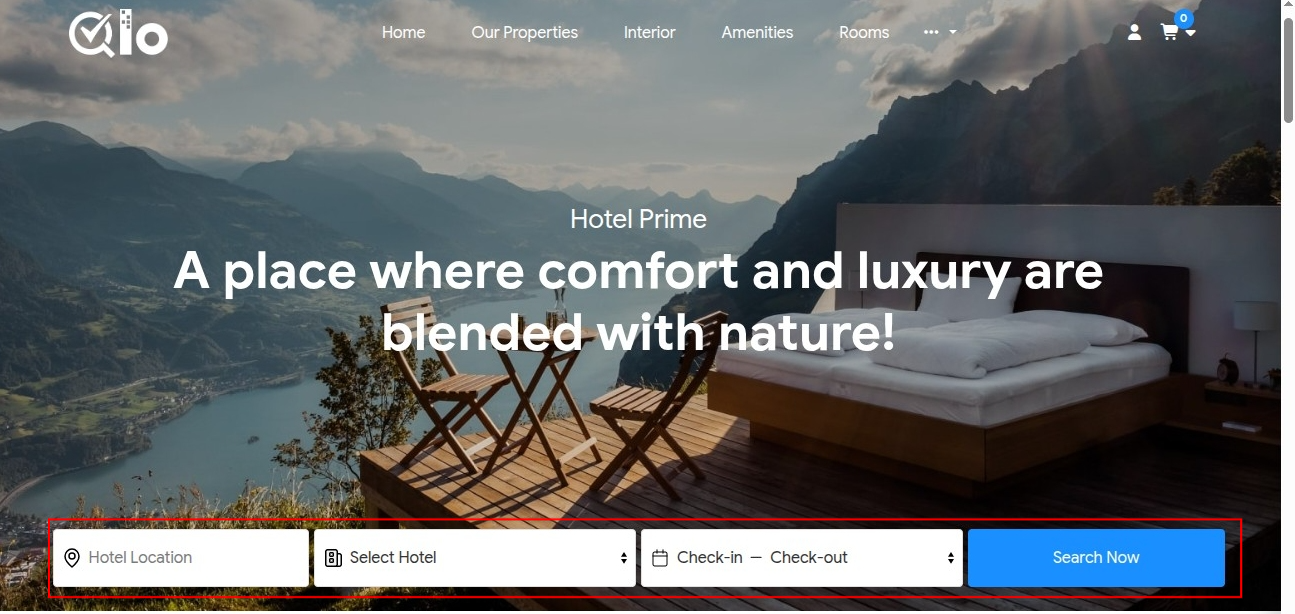
The QloApps Signature Theme features a full-width hero banner that immediately captures visitors’ attention with stunning property visuals and a modern content layout.
Integrated seamlessly within the hero banner is the Hotel Search Section, allowing guests to check room availability without navigating to another page.
Its prominent placement makes the booking process faster, more convenient, and accessible from the moment visitors land on the website.
Guests can quickly search for available rooms using the following booking options:
- Hotel Location – Select the preferred hotel location.
- Hotel Selection – Choose the hotel property from the available list.
- Check-In & Check-Out Dates – Select the desired stay duration using the integrated date picker.
- Search Now – Instantly search for available rooms based on the selected criteria.

Homepage Sections of the QloApps Signature Theme
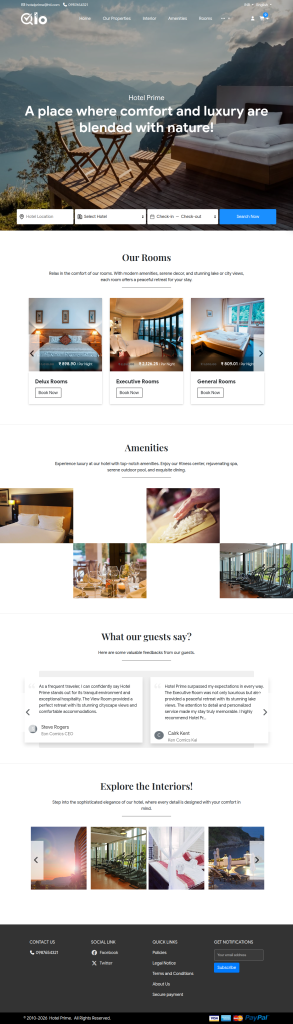
The QloApps Signature Theme is designed with multiple homepage sections that help hotels present their property in a visually engaging and well-structured manner.
The homepage includes the following sections:
- Room Showcase: Displays available room types with images, pricing, and a Book Now button, allowing guests to explore accommodations and make reservations quickly.
- Amenities Section: Highlights your hotel’s facilities and services with attractive images and short descriptions, helping guests discover everything your property offers.
- Guest Testimonials: Showcases guest reviews and experiences to build trust, improve credibility, and encourage visitors to book with confidence.
- Interior Gallery: Presents a beautiful image gallery of your hotel’s interiors and property spaces, giving guests a closer look before they book.
- Footer Section: Provides quick access to contact details, social links, important pages, newsletter signup, and payment options for easy navigation.

Search Results Page
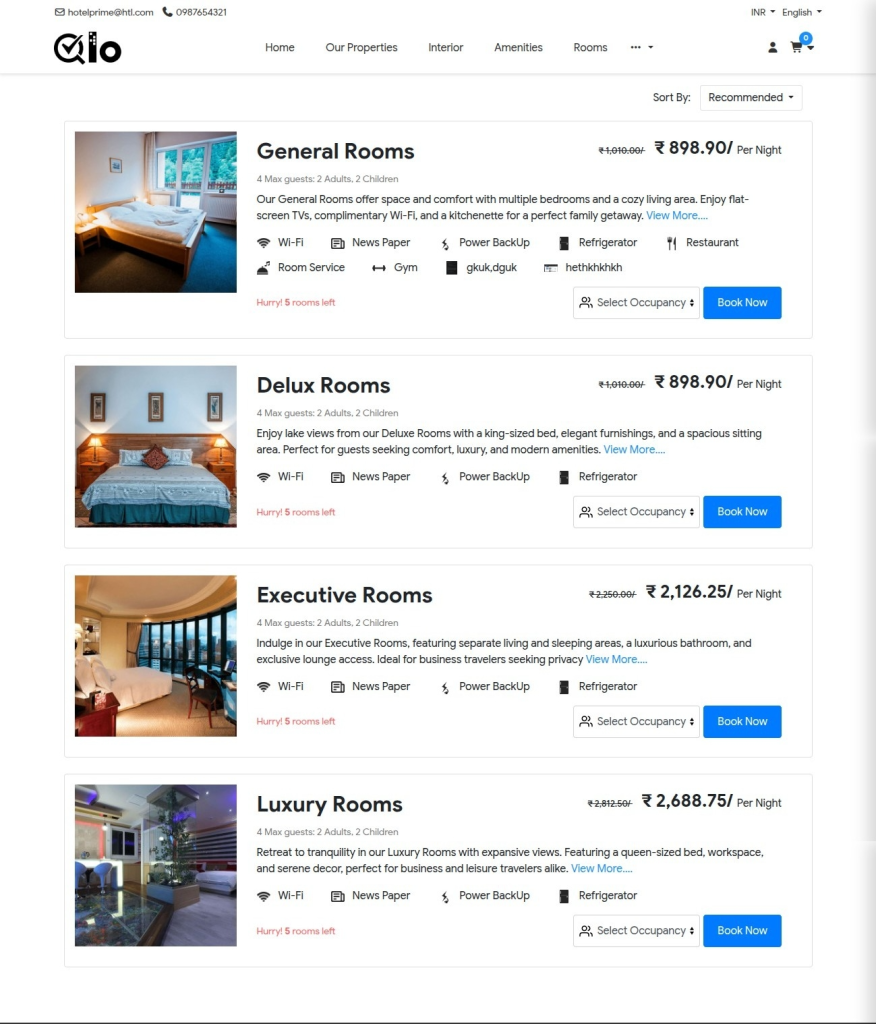
After completing a room search, guests are redirected to the Search Results page, where all available room types are displayed in a clean and organized layout.
Each listing presents the room image, pricing, occupancy, amenities, and a Book Now button, allowing guests to compare options and proceed with their reservation effortlessly.

Room Type Detail Page
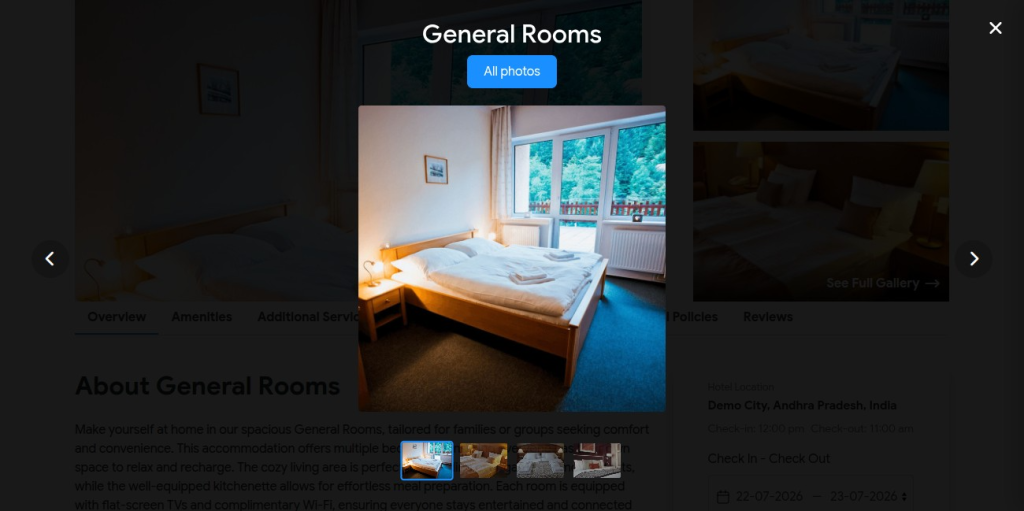
The Room Type Detail page displays complete room information in a clean layout. Guests can open it by clicking View More from the room listing.
The page displays the room overview, amenities, additional services, hotel amenities, policies, reviews, pricing, and booking details.

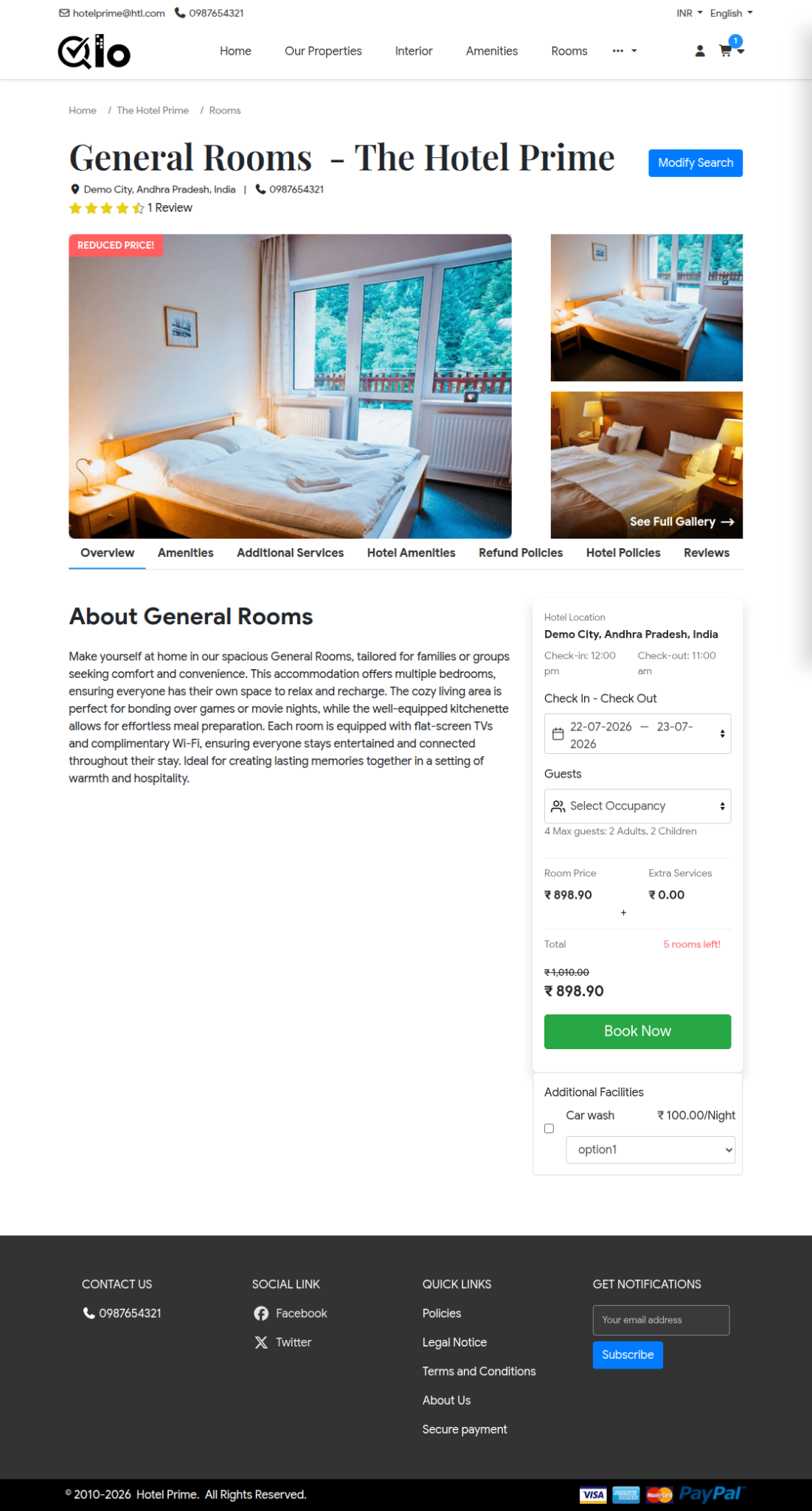
Guests can click on any image thumbnail to preview it instantly or select See Full Gallery to open a popup gallery and browse all room images in a larger view.
Order/Booking Details Page
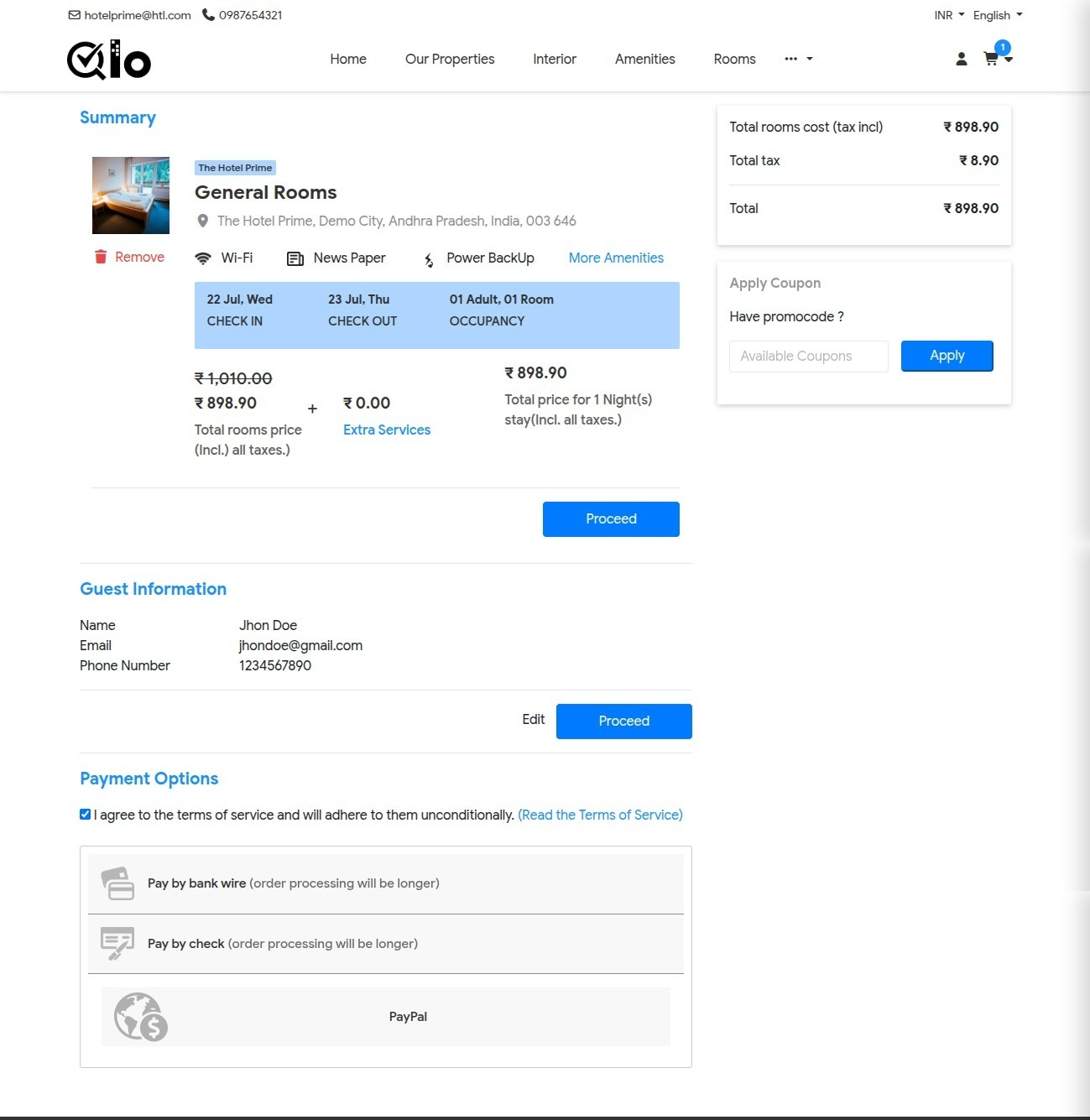
The Booking Details page provides guests with a complete overview of their reservation before proceeding to checkout.
It displays the selected room, stay dates, guest details, pricing, and booking summary in a clean and organized layout.

Order Summary Page
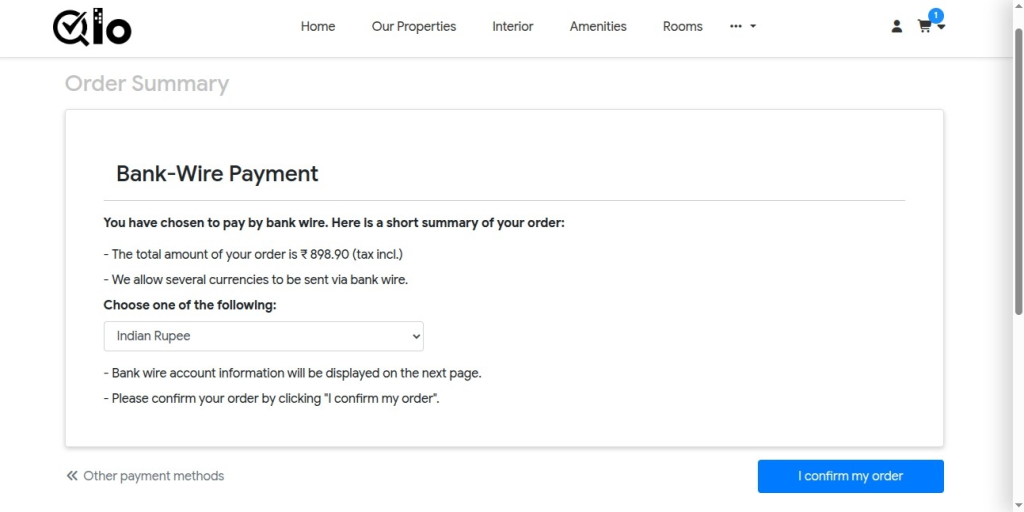
The Order Summary page allows guests to review their booking details before making the payment.
Guests can choose their preferred payment method and complete the reservation through a simple and secure checkout process.

Booking Confirmation Page
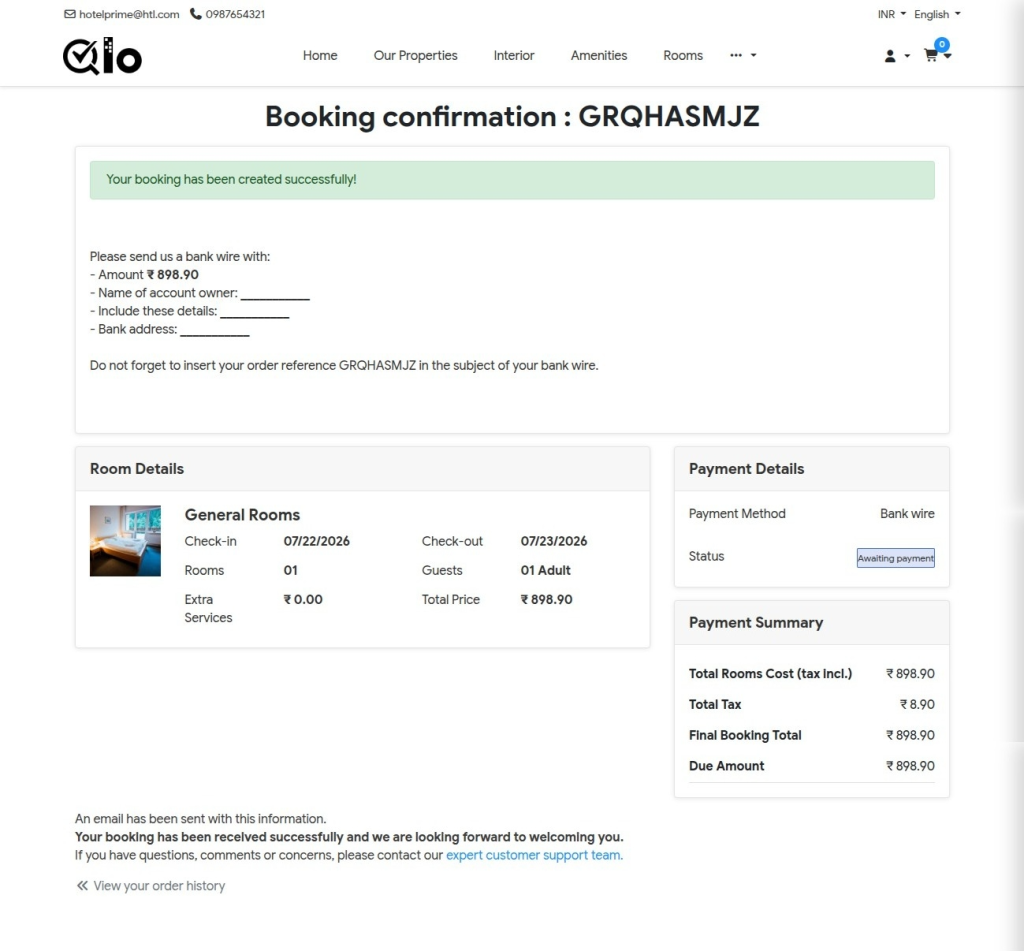
After a successful booking, guests are redirected to the Booking Confirmation page.
This page displays the reservation details and provides quick access to Booking History for managing previous and upcoming reservations.

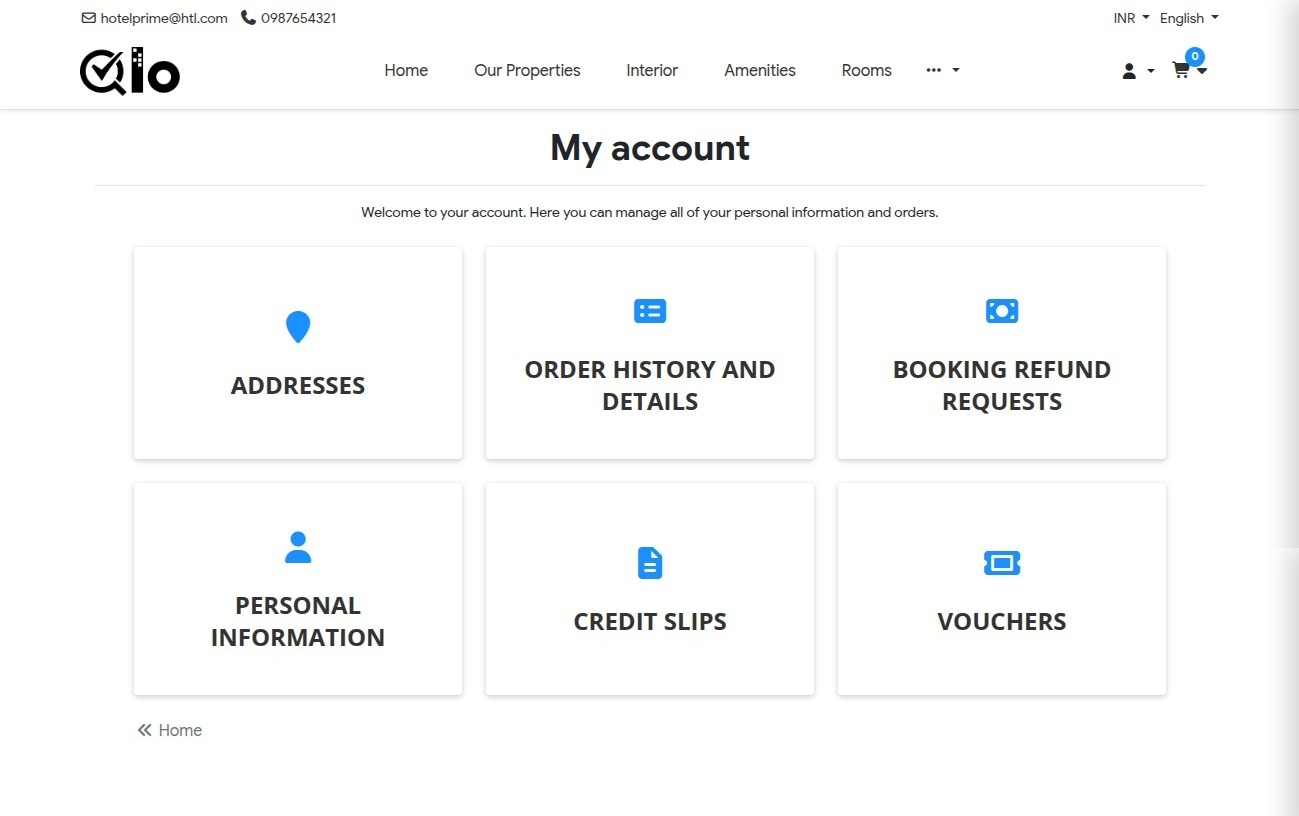
My Account Section
The My Account section allows guests to manage their profile and booking activities from a single place. Its clean and intuitive layout makes account management simple and convenient.

Order History Section
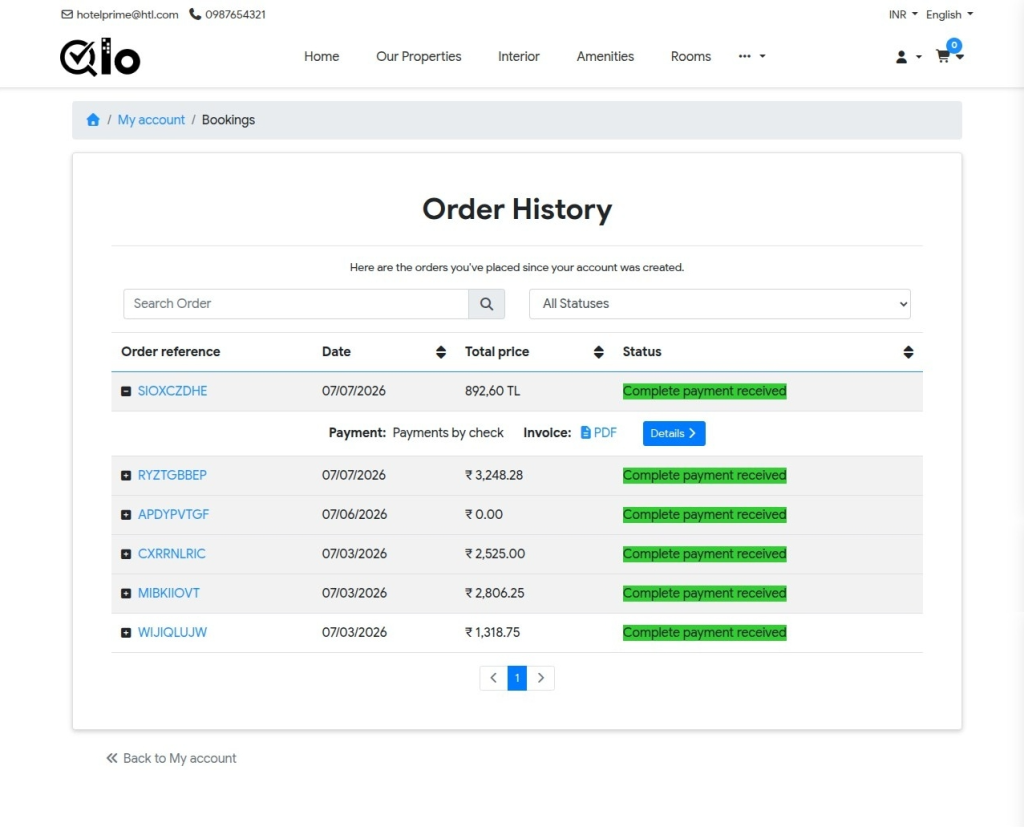
The Order History section allows guests to view and manage their previous bookings in a clean and organized interface.
Guests can:
- View booking records
- Check payment status
- Track order details
- Download invoices
- Search and filter orders

Order/Booking Detail Page
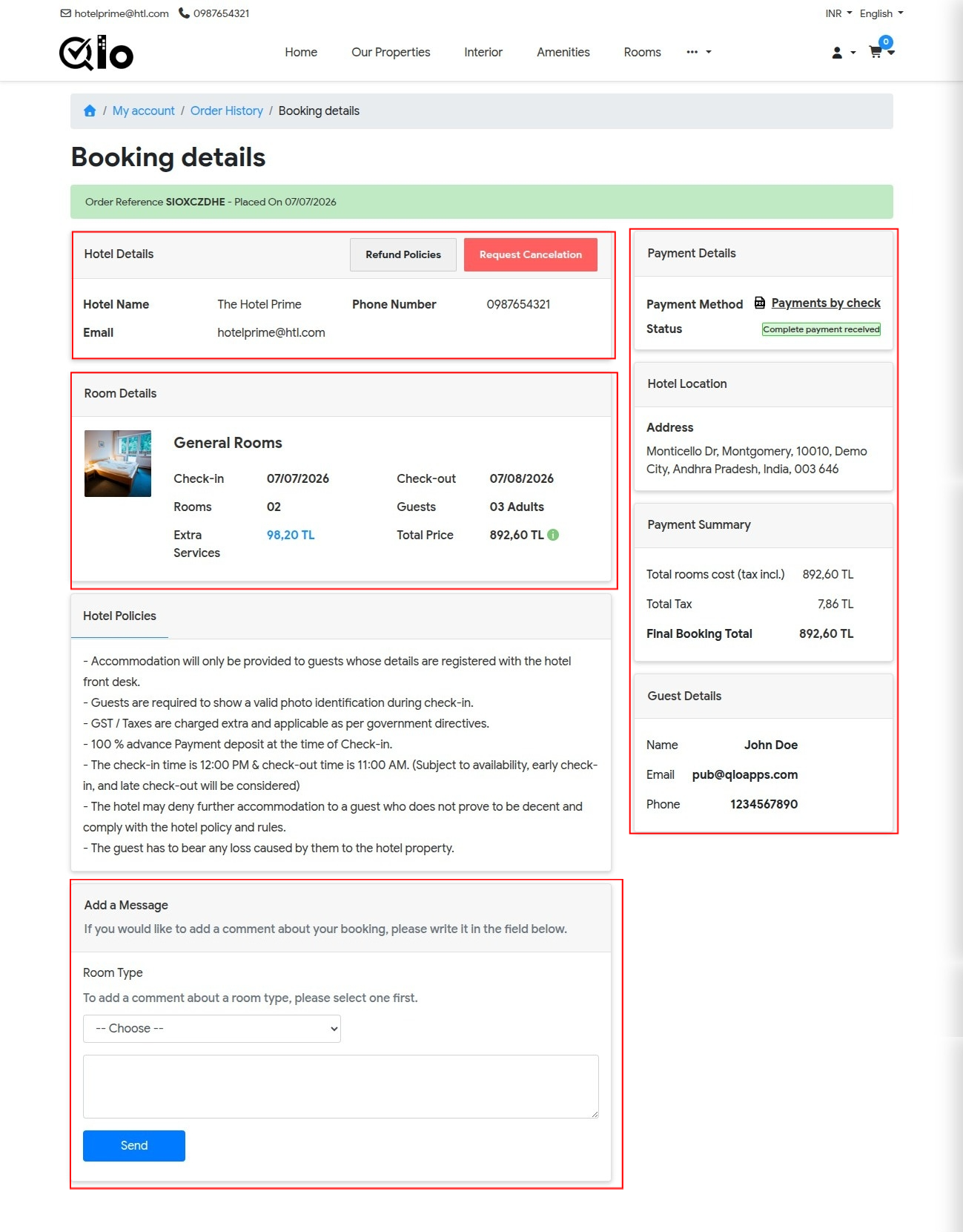
The Booking Detail page provides guests with complete reservation information in a detailed and organized layout.
Guests can easily track booking status, payment details, hotel information, room details, and booking policies from a single page.
- Order Reference Details
- Payment Method Details
- Hotel Details
- Order’s Status Details
- Room Details
- Hotel Policies Details
Guest Message Section: The page also includes an “Add a Message” section where guests can communicate directly regarding their booking.
Note: The Booking Detail page includes dedicated options for booking cancellation and refund policy management.

Cancel Bookings Section
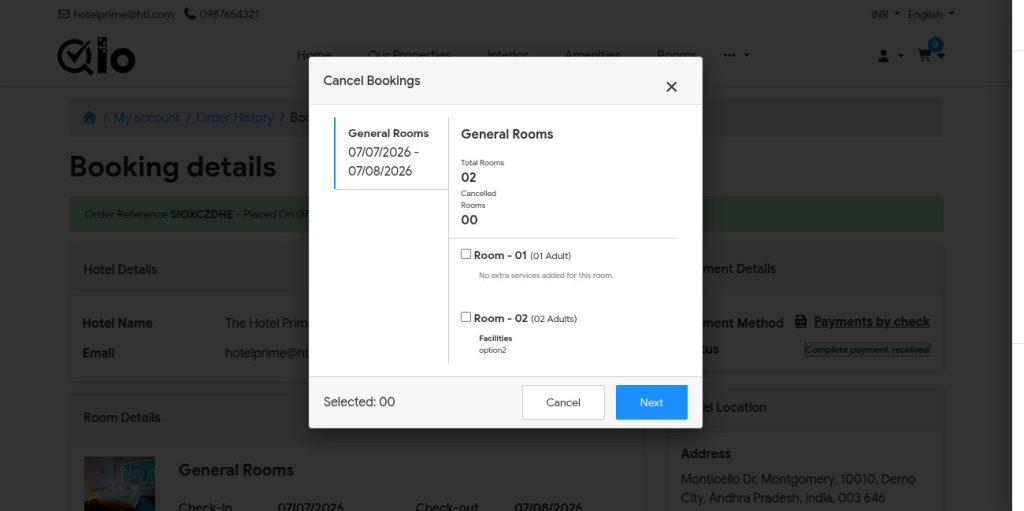
The Cancel Bookings section allows guests to manage and cancel reserved rooms directly from their booking details page.
Conclusion
The QloApps Signature Theme combines the familiar QloApps booking experience with a modern, fully responsive design.
From browsing rooms to managing bookings, every page is designed to deliver a smooth experience that simplifies reservations and encourages direct bookings.
With visually rich sections, user-friendly navigation, and seamless QloApps integration, the Signature Theme helps hospitality businesses create a professional and engaging website experience.
Get In Touch
If you want to learn about the functionality of QloApps, then you can visit this link: All-In-One Property Management System
In case of any query, issue, or requirement, please feel free to raise it on the QloApps Forum
Current Product Version – 1.1.0
Supported Framework Version – QloApps 1.7.x