QloApps Revenue Management System
QloApps Revenue Management System (RMS) is a powerful module designed to help hotels optimize room prices automatically, gain deep performance insights, and make smarter revenue decisions.
With flexible pricing rules, advanced analytics, and a visual price calendar, this module empowers hotels to maximize revenue per room while maintaining complete control.
What is QloApps Revenue Management System?
QloApps Revenue Management System helps hotels maximize revenue with intelligent insights and data-driven decision-making.
It enables automated price adjustments based on occupancy, lead time, seasons, weekdays, months, last-minute demand, and booking windows—all configurable at both hotel and room-type levels.
Key Features of QloApps Revenue Management System
- Hotel-wise and room-type-wise control
- Yield management using occupancy thresholds
- Last-minute and lead-time pricing rules
- Advanced analytics with year-over-year comparison
- Visual price calendar with rule history
- Downloadable reports.
How to Install QloApps Revenue Management System Module
The installation of any module is very simple in QloApps.
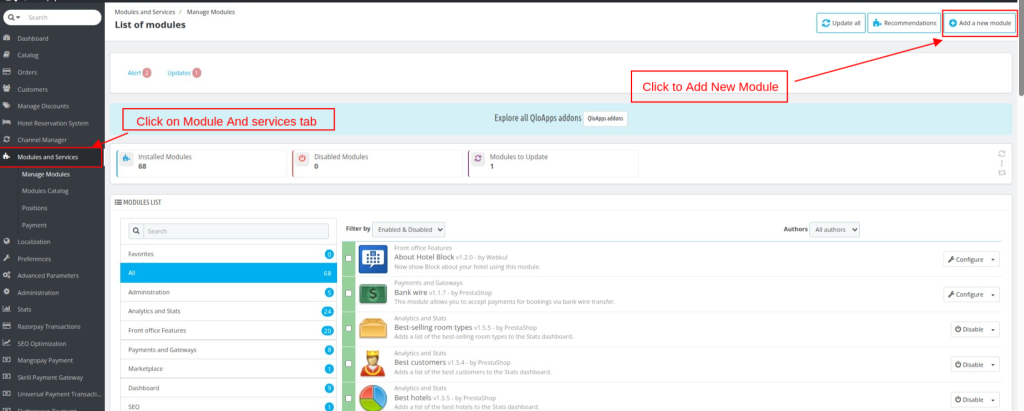
- Go to the Module and Services tab
- Click on Add New Module

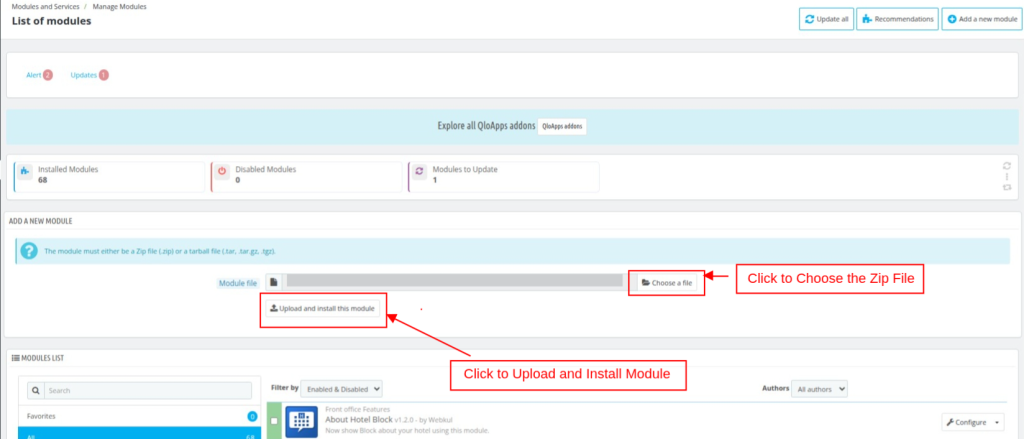
- Now upload the Zip file of the Module and click on Install

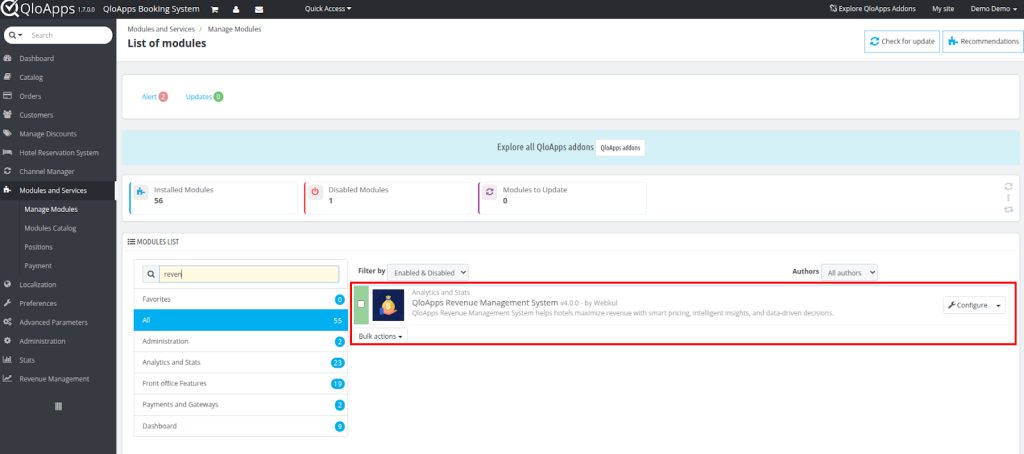
- Once the installation is finished, it will confirm that it was successful, followed by a display of the installed module below.

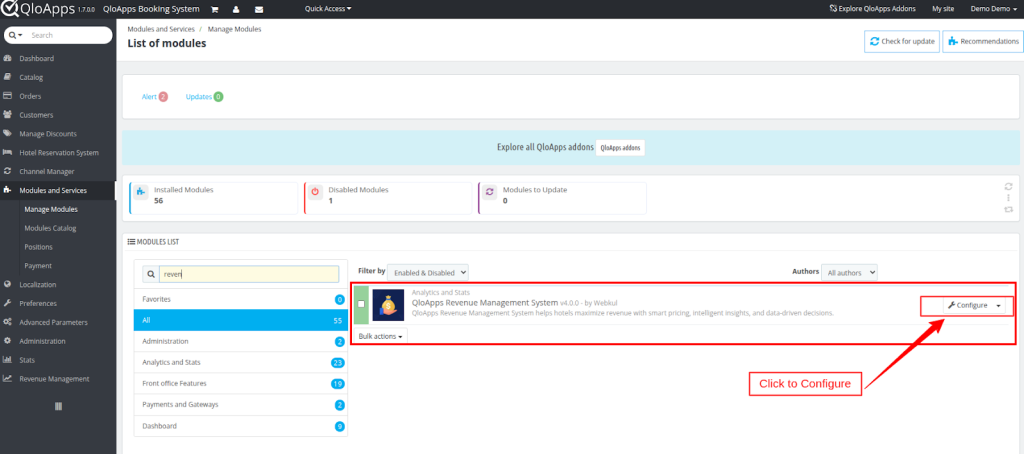
Configuration of QloApps Revenue Management System
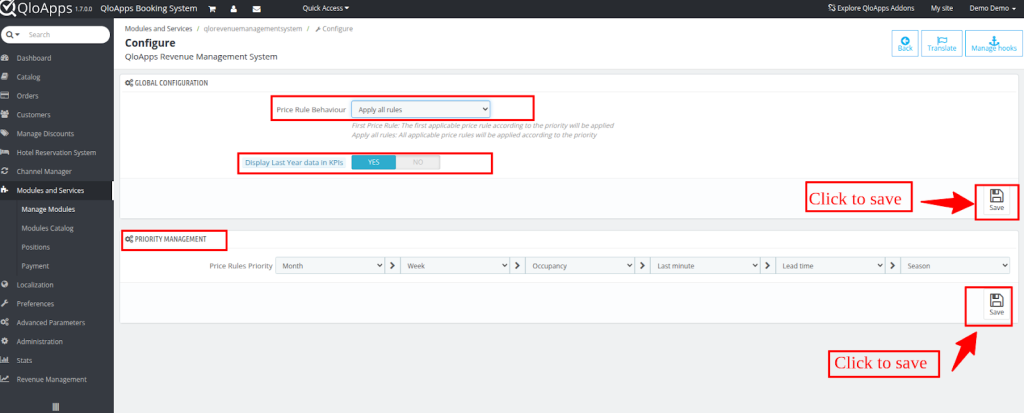
The configuration section allows admins to define how and when pricing rules are applied.
Global Configuration Options
Select Price Rule Behaviour
- First Price Rule: The first applicable price rule, according to priority, will be applied
- Apply all rules: All applicable price rules will be applied according to the priority
Enable or disable the option Display Last Year data in KPIs
If you enable the option, then the data comparison of the previous year of the selected date will be shown in KPIs on the revenue management dashboard
Priority Management
Under this section, set Price Rules Priority in accordance with Month, Week, occupancy, Last Minute, Lead time, and Season

Hotel-Wise Revenue Management Configuration
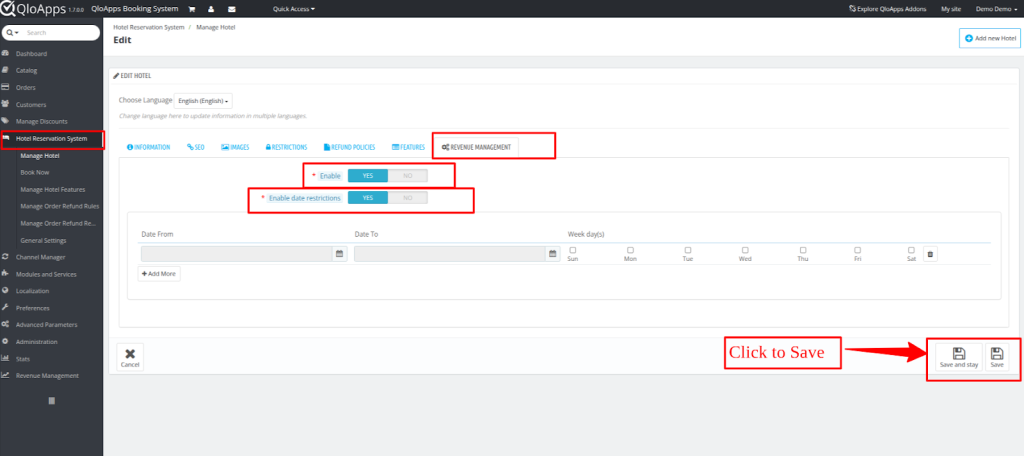
Each hotel has its own Revenue Management System settings:

Allow Price Rules
- Enable or disable price rule modifications at the hotel level
Date-Wise Restrictions
- Define specific date ranges during which pricing rules are active
- Enable or disable restrictions as required
Room-Type-Wise Revenue Management Configuration
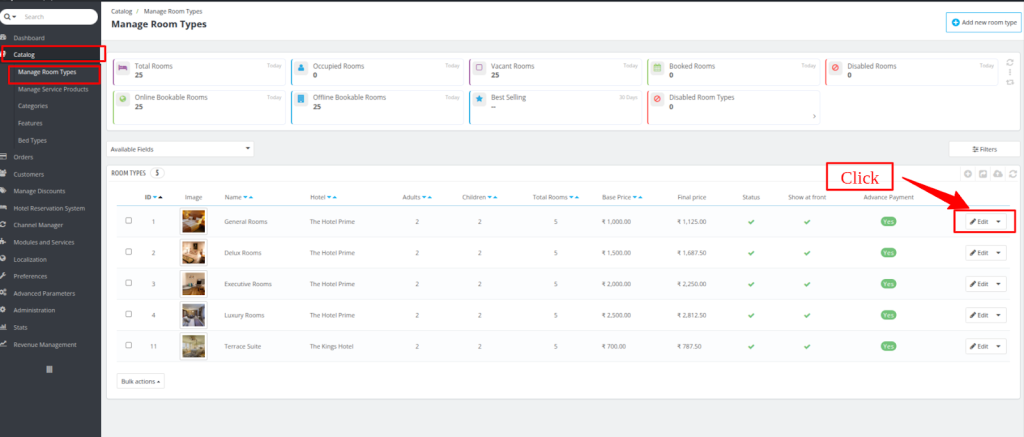
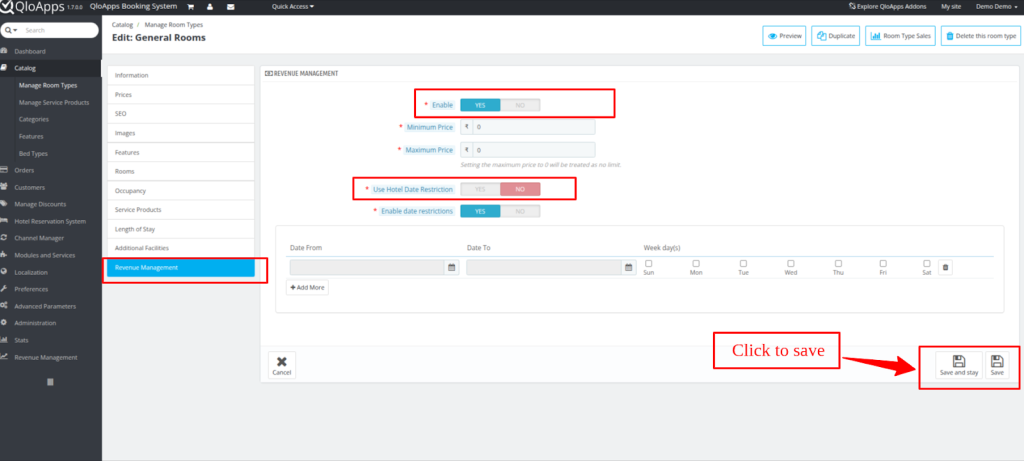
Each room type includes a dedicated “Revenue Management” tab with granular controls.


Room-Type Settings
- Allow Price Rules
Enable pricing rules for the room type (works only if hotel-wise RMS is enabled) - Minimum Price
Sets the lowest allowed price for the room - Maximum Price
Sets the highest allowed price
(If set to 0, no maximum restriction is applied) - Use Hotel-Wise Date Ranges
- Enable/Disable
- If disabled, admins can define custom date ranges per room type
- Enable/Disable
Custom Date Range Rules
Admins can:
- Enable multiple date ranges
- Select applicable weekdays
- Add multiple rule rows using “Add More Rules.”
Different options under the Revenue Management tab in Backoffice
📊 Dashboard
The Revenue Management Dashboard in QloApps RMS provides a comprehensive view of your property’s performance with historical comparison and detailed booking trends.
The dashboard is designed to help revenue managers quickly assess key performance indicators (KPIs) and make data-driven pricing decisions.
Below is the descriptive content for each heading and metric typically displayed in the dashboard:

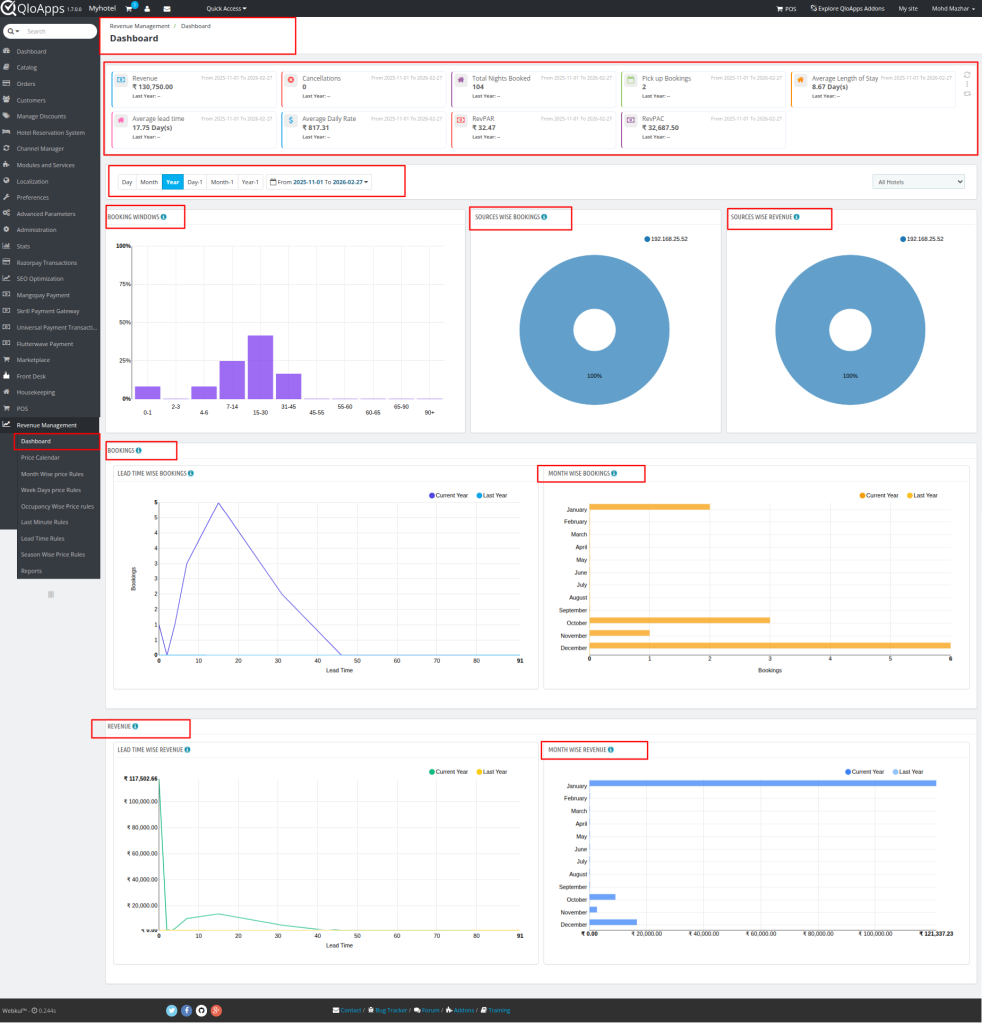
Revenue
This KPI shows the total revenue generated for the selected date range. It includes income from all confirmed bookings and reflects the hotel’s top-line performance.
Alongside the current year’s revenue figure, the dashboard shows last year’s revenue for the same date range.
Enabling quick comparison to assess growth, decline, or stability in revenue generation.
This comparison helps hotels measure the success of pricing strategies and revenue-driving initiatives.
Occupancy
Occupancy represents the percentage of available rooms that were sold in the selected timeframe.
It’s a fundamental indicator of demand and room utilization, showing how effectively your inventory is being filled.
Along with the current occupancy rate, the dashboard displays last year’s occupancy for comparison. A higher occupancy rate signals stronger demand or effective pricing tactics.
Pick Up
“Pickup” refers to the number of new bookings added for future dates during the selected period.
It shows how quickly reservations are being made relative to time, offering insights into booking pace and demand acceleration.
The RMS dashboard highlights pickup for the current and previous year, helping you gauge whether booking momentum has improved.
Cancellations
This metric shows the percentage or number of bookings that were cancelled during the selected range.
Like other KPIs, cancellations are compared with last year, allowing you to pinpoint if cancellation trends are improving or worsening.
Average Length of Stay (ALOS)
ALOS represents the average number of nights guests stay at your property during the selected period. A longer ALOS often translates to higher revenue per booking and better room utilization.
Average Lead Time
Average Lead Time measures the average number of days between the booking date and the arrival date.
It reflects booking patterns, whether guests tend to book far in advance or closer to their stay dates.
Average Daily Rate (ADR)
ADR shows the average room revenue earned per occupied room during the selected period. It’s a key pricing performance metric.
Revenue per Available Room (RevPAR)
RevPAR merges pricing and occupancy performance into a single metric: It calculates revenue generated for every available room, regardless of whether it was sold.
Revenue per Available Customer (RevPAC)
RevPAC measures the revenue earned per customer in the selected period. It helps you understand how much revenue, on average, each guest contributes — beyond just room rent.
📉 Monthly & Booking Source Comparison
Below the KPI panel, the dashboard typically contains graphs and charts showing:
Booking Source Performance
Displays the number of bookings and revenue by source (e.g., direct, OTA channels). Hovering reveals:
- Total bookings
- Total room nights
- Total revenue
- Comparison to last year
Lead Time Wise Booking Graph
Shows how bookings are distributed across different lead time buckets (e.g., 0–7 days, 8–14 days, 15–30 days, etc.), with curves for the current and previous year.
Month-Wise Revenue & Bookings Graph
Displays month-by-month comparisons of bookings and revenue for the selected year vs last year. Each point on the graph highlights:
- Month name
- Growth or decline percentage
Lead Time Wise Revenue
The Lead Time Wise Revenue section shows how revenue is generated based on the number of days between booking and check-in.
It compares the current year vs last year revenue across different lead-time ranges.
This helps hoteliers identify which booking windows generate the highest revenue and optimize advance or last-minute pricing strategies accordingly.
Month-Wise Revenue
The Month Wise Revenue section displays a month-by-month revenue comparison between the current year and the previous year.
It helps analyze seasonal demand trends, measure revenue growth or decline, and plan month-specific pricing and promotional strategies.
Price Calendar
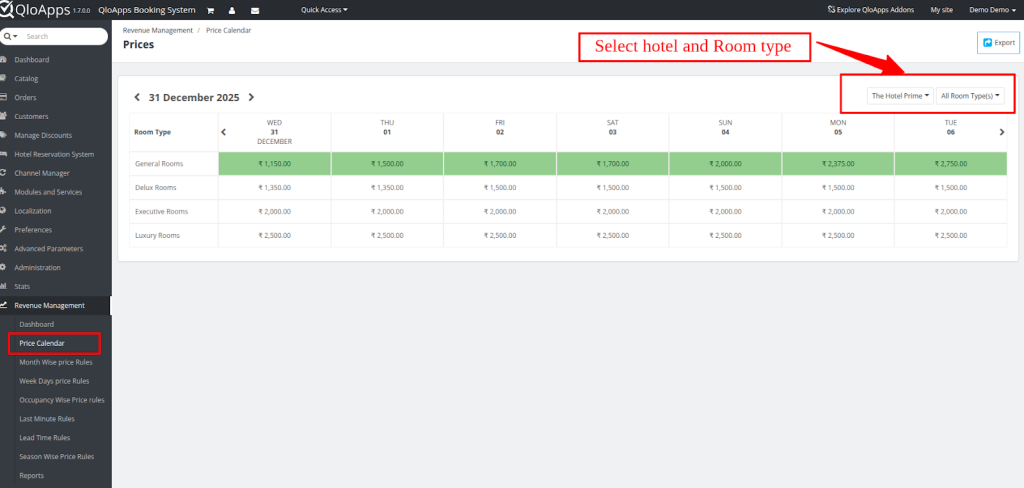
Under the price calendar, you can view the pricing of the room listed under the property
Calendar Layout
- Columns: Dates
- Rows: Room Types
- Each cell displays the adjusted room price
Additional Features
- Date range filter
- Room type filter
- Export CSV file

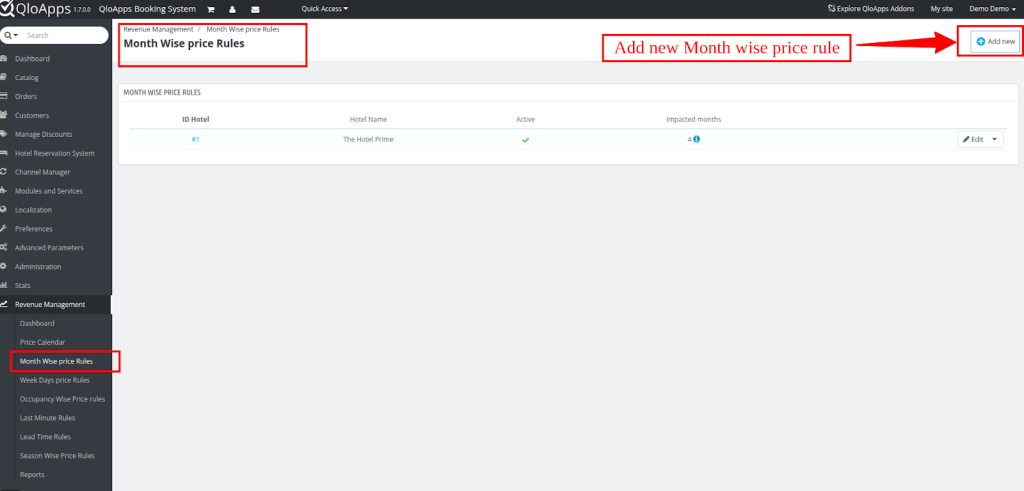
Month-Wise Price Rules
Apply pricing adjustments based on months.
Click on the Add new button to add a new month-wise price rule.

Set price adjustments for each month by choosing the price modification type, entering the price modification value, and enabling or disabling the rule.
The system uses the base room price and applies only the active monthly adjustments.

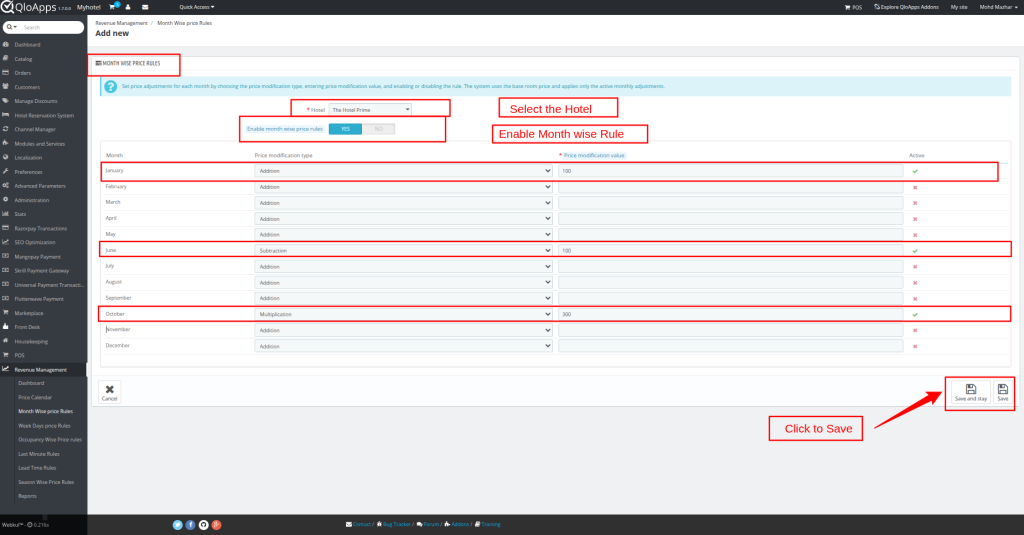
- Monthly rows with:
- Price modification type (Addition / Subtraction / Multiplication)
- Modification value
- Active/Inactive toggle
- Delete option
- Price modification type (Addition / Subtraction / Multiplication)
A warning is displayed if hotel-wise pricing rules are enabled.
Weekday-Wise Price Rules
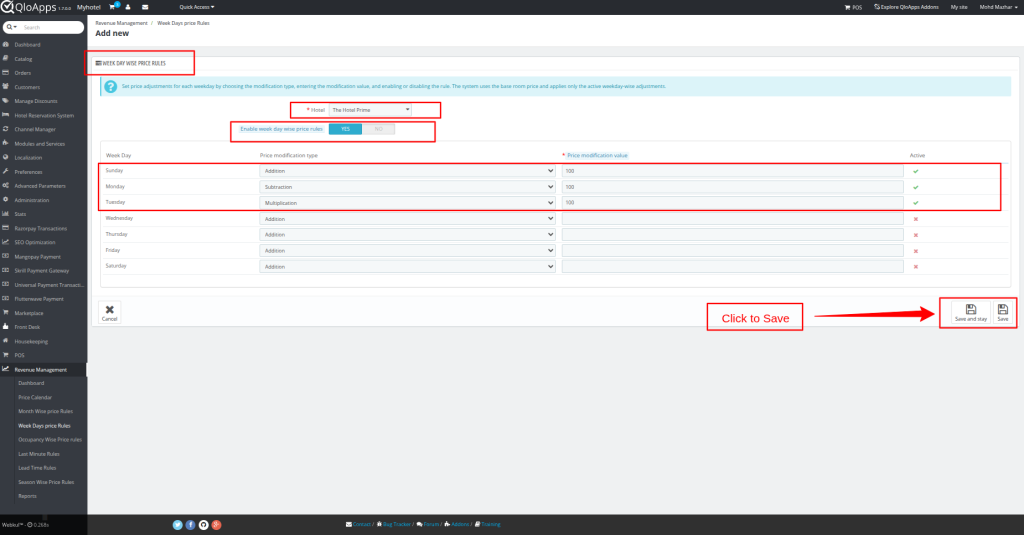
Adjust prices based on days of the week.

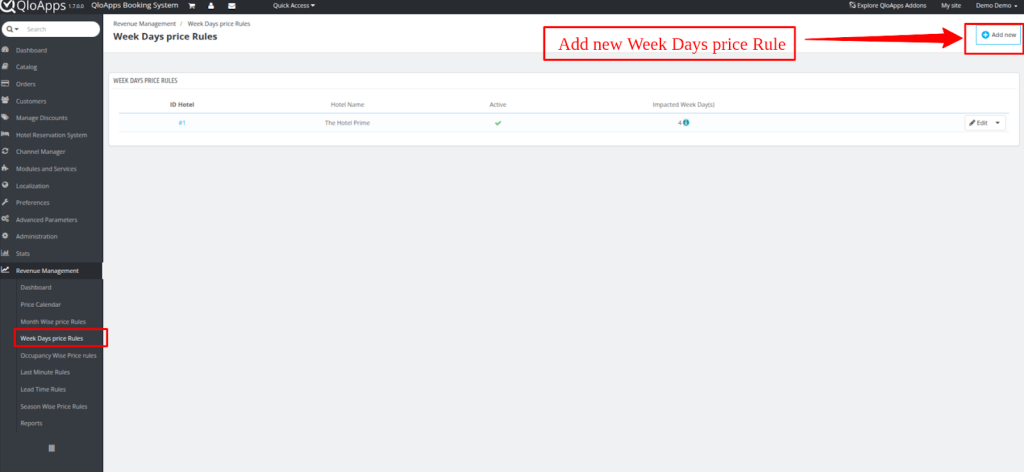
Add new price rule
Set price adjustments for each weekday by choosing the modification type, entering the modification value, and enabling or disabling the rule.
The system uses the base room price and applies only the active weekday-wise adjustments.
Occupancy-Wise Price Rules (Yield Management)

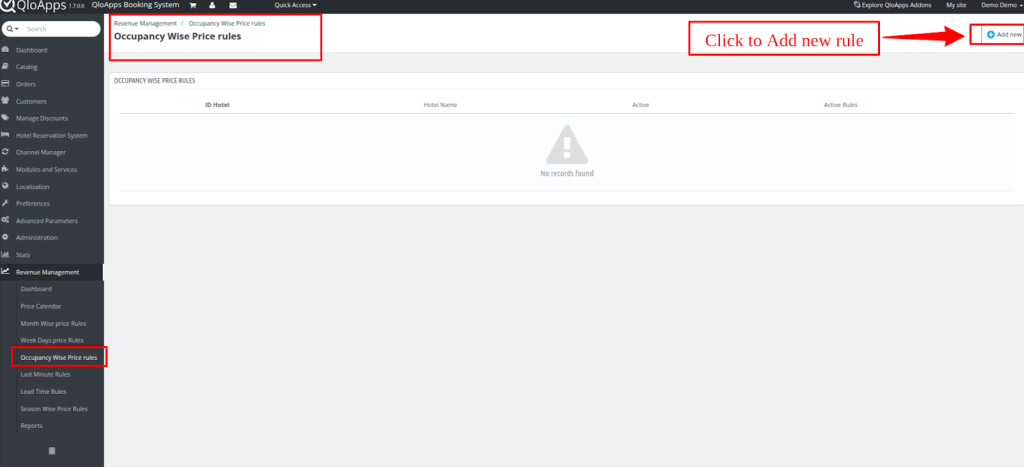
Set price adjustments based on occupancy ranges by selecting the start and end occupancy, choosing the modification type, entering the modification value, and enabling the rule.
The system applies only the active occupancy-based adjustments to the base room price.

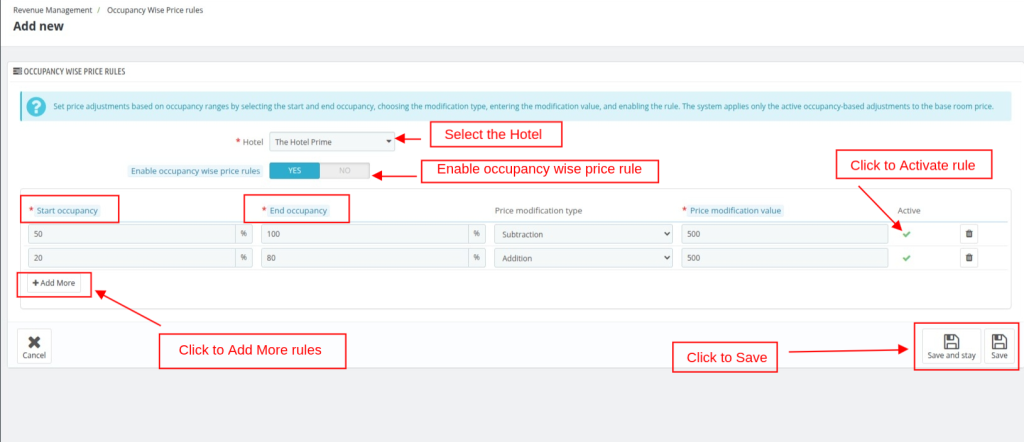
Dynamic pricing based on hotel occupancy levels.
Example:
- Increase prices when occupancy is high
- Reduce prices when occupancy is low
Rule Fields:
- Start Occupancy (%)
- End Occupancy (%)
- Price modification type and value
- Active/Inactive toggle
Last-Minute Pricing Rules
Last Minute Price rules are applied to bookings created after the start time and within the specified lead days (based on check-in date and booking time). Rules with fewer lead days take priority.
Add New Last Minute Rule:

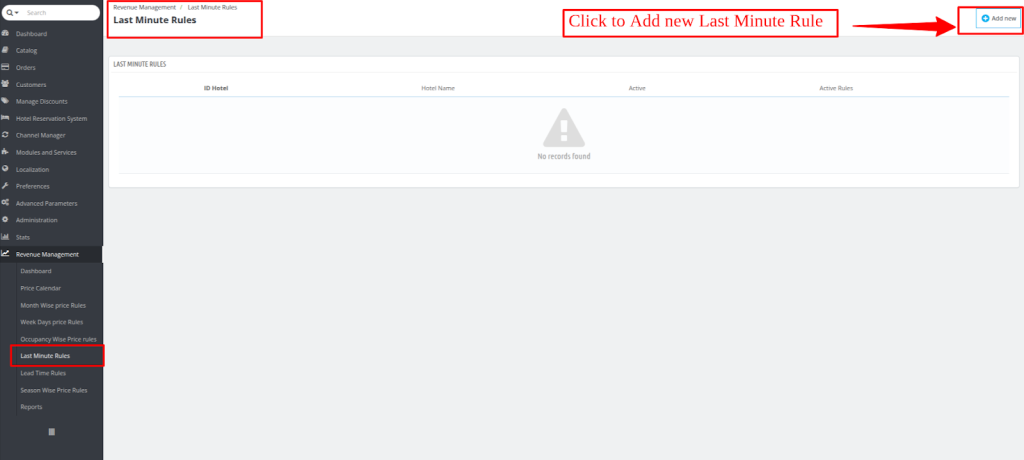
Optimize prices for same-day or near-arrival bookings.

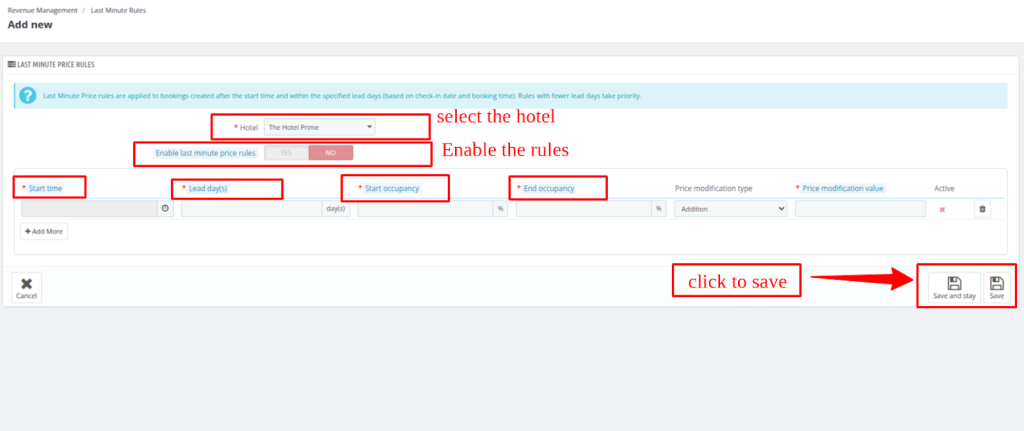
- Start & End Time
- Occupancy thresholds
- Price modification factor
- Enable/Disable and rule priority
Ideal for managing unsold inventory close to arrival dates.
Lead-Time Pricing Rules
Define lead-time ranges using Start (maximum days before check-in) and End (minimum days before check-in).

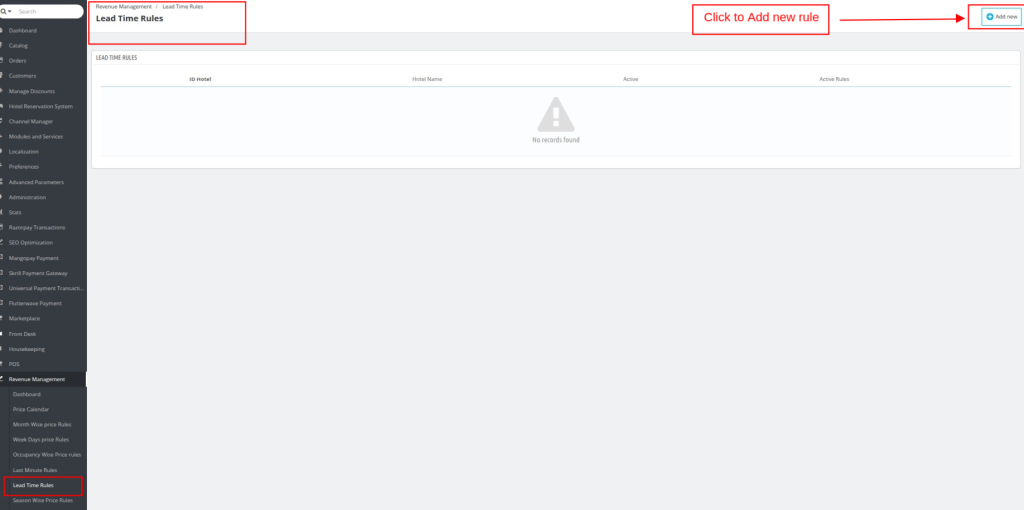
Example: Start 30, End 20 applies for bookings made 20–30 days before arrival.
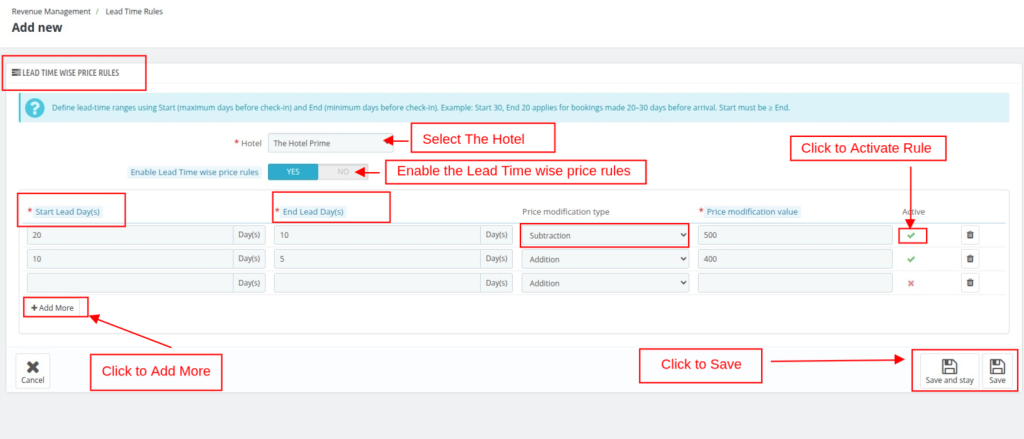
Adjust pricing based on booking window size.
Use Case Examples:
- Offer lower prices for early bookings
- Increase prices for short-notice reservations
Rule Fields:
- Start Lead Time
- End Lead Time
- Price modification logic
- Rule activation control
Season-Wise Price Rules
Season-wise Price Rules is Perfect for festivals, holidays, and peak seasons.

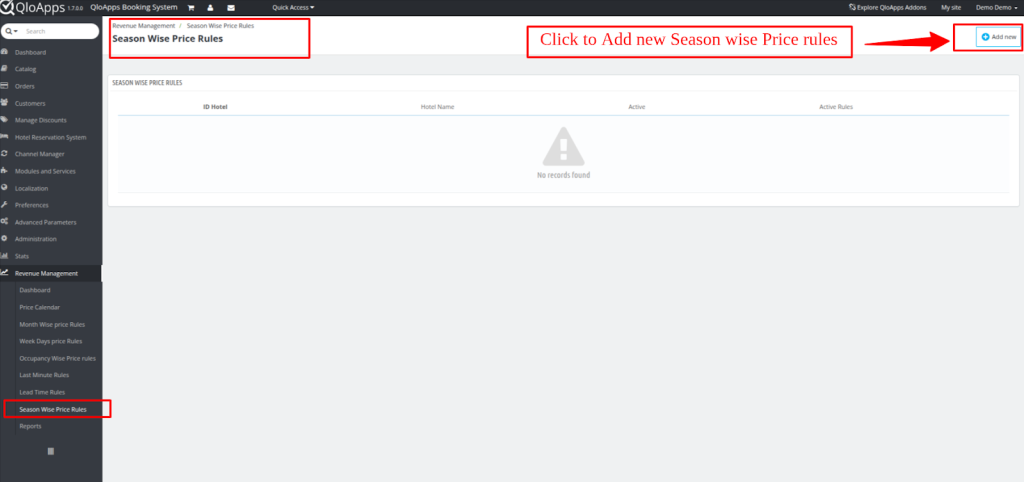
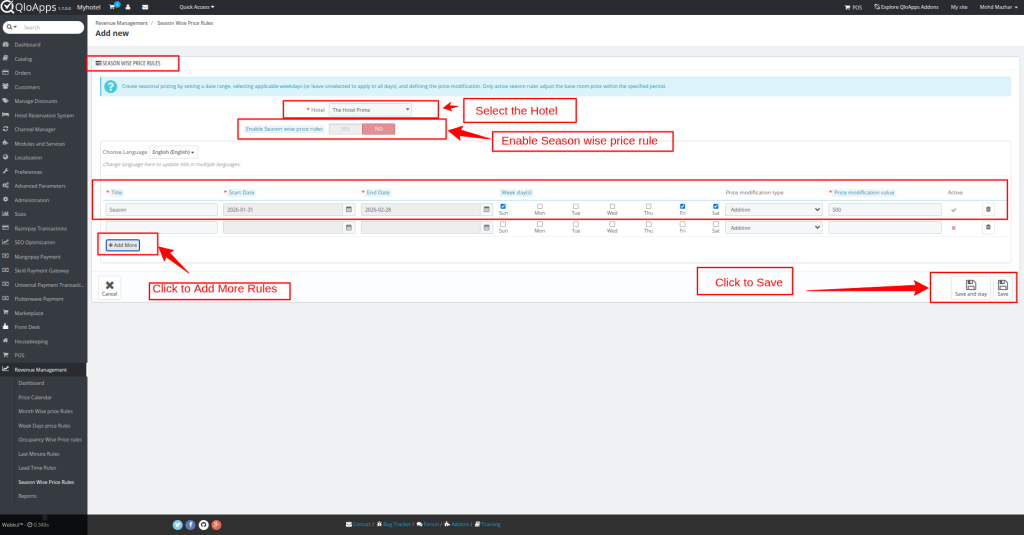
Add Season-Wise Price Rules
Create seasonal pricing by setting a date range, selecting applicable weekdays (or leave unselected to apply to all days), and defining the price modification.
Only active season rules adjust the base room price within the specified period.
- Multi-language rule title
- Start and End dates
- Weekday selection
- Pricing logic
- Active/Inactive status
Advanced Revenue Reports
All reports are downloadable in CSV format. enabling easy sharing, analysis, and decision-making across revenue, sales, and operations teams.
1. Performance by Channels Report
This report helps to evaluate how different distribution channels are performing and contributing to overall revenue.

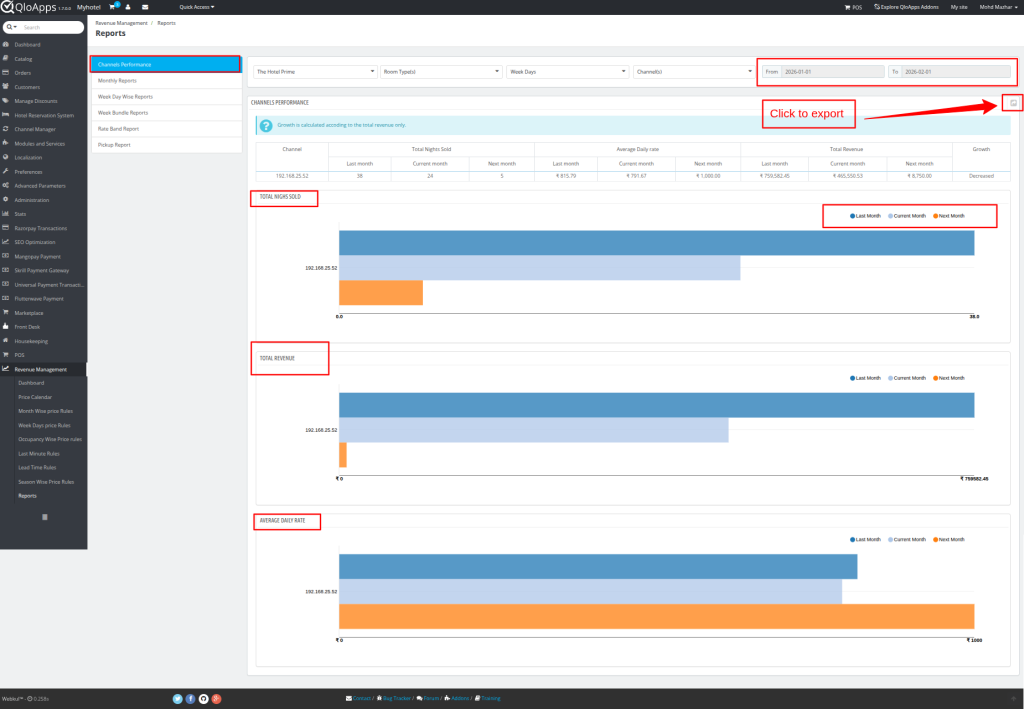
Compare performance across:
- Last month
- Current month
- Next month
Metrics:
- Total Nights Sold – Number of room nights generated per channel
- Revenue – Gross room revenue from each channel
- ADR (Average Daily Rate) – Average rate achieved per night
- Growth Rate – Month-over-month performance trend
2. Month-Wise Report
Provides a Month-over-Month comparison to understand long-term performance trends and seasonality.

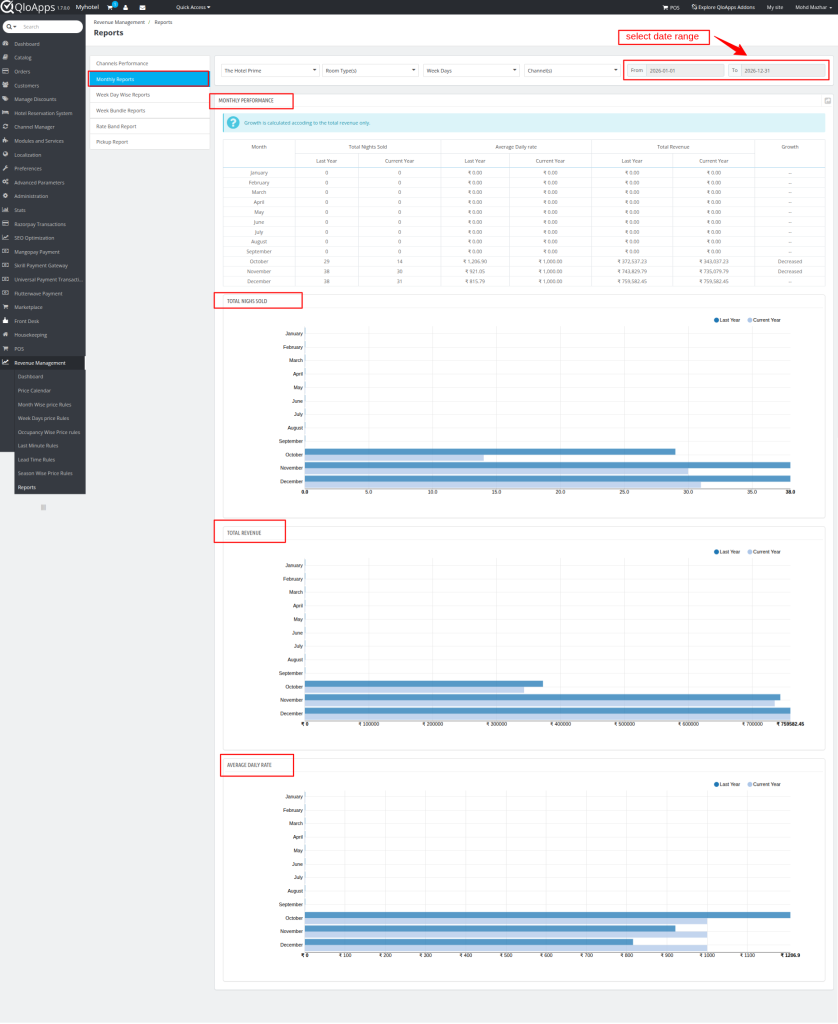
Compare:
- Current Year vs Last Year
Metrics:
- Nights Sold
- Revenue
- ADR
- Growth Rate
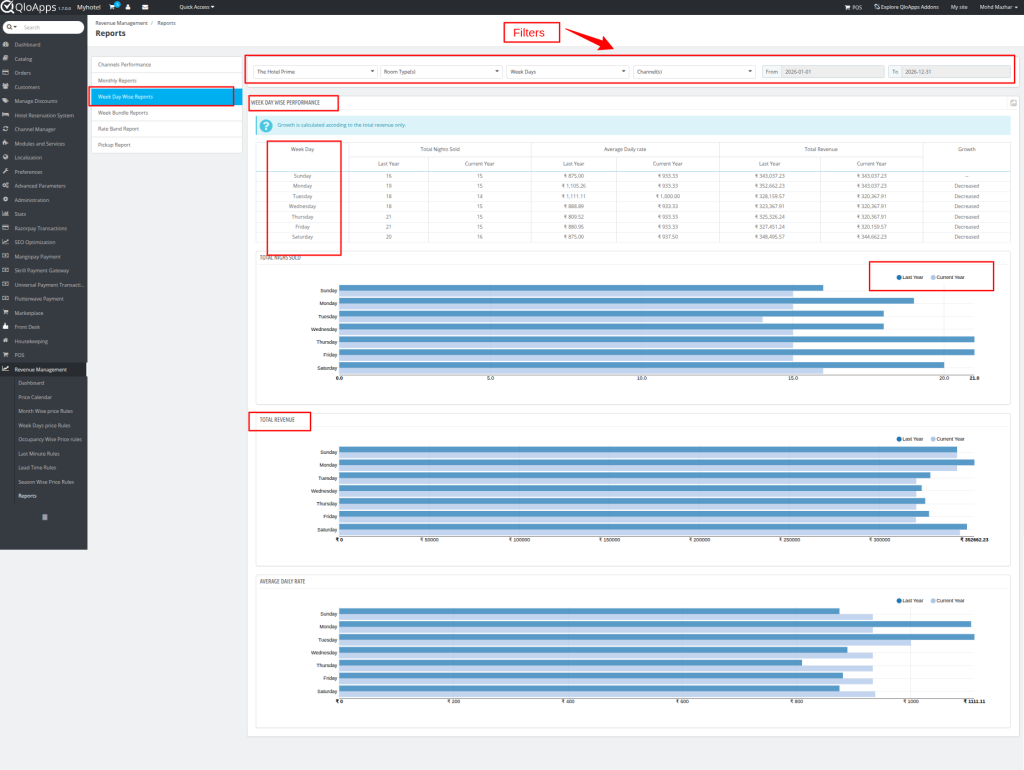
3. Weekday-Wise Report
Analyze performance by weekday with a year-over-year comparison.

4. Week Bundle Report
Compares overall performance between weekdays and weekends to better understand demand patterns.

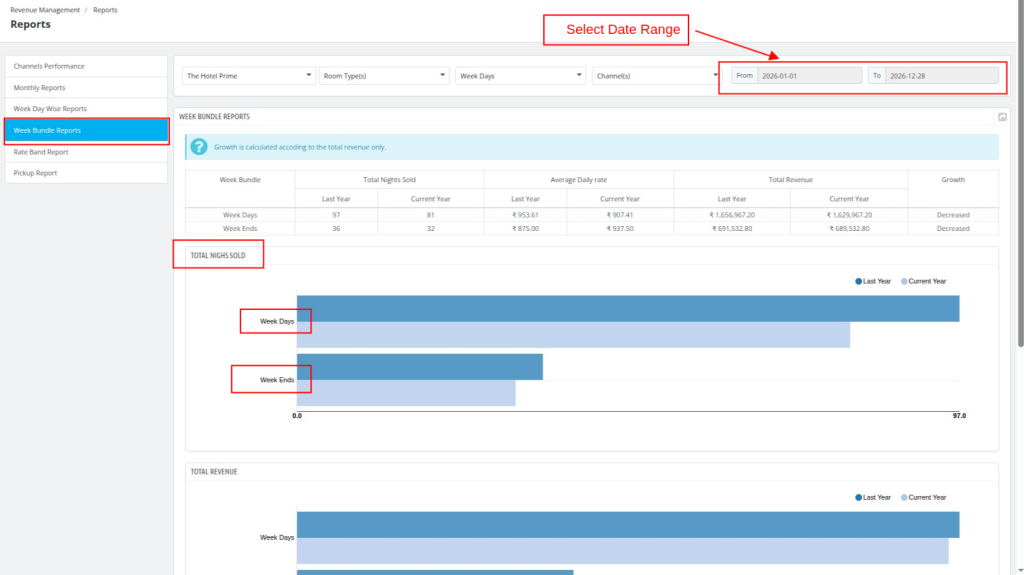
Compare:
- Weekdays (Mon–Fri)
- Weekends (Sat–Sun)
5. Rate Band Report
This report analyzes how room nights and revenue are distributed across different price ranges.
Includes:
- Rate bands
- Room nights sold
- Revenue
- Growth rate
6. Pickup Report
Tracks how bookings are picked up over time for future stay dates, providing strong forecasting visibility.
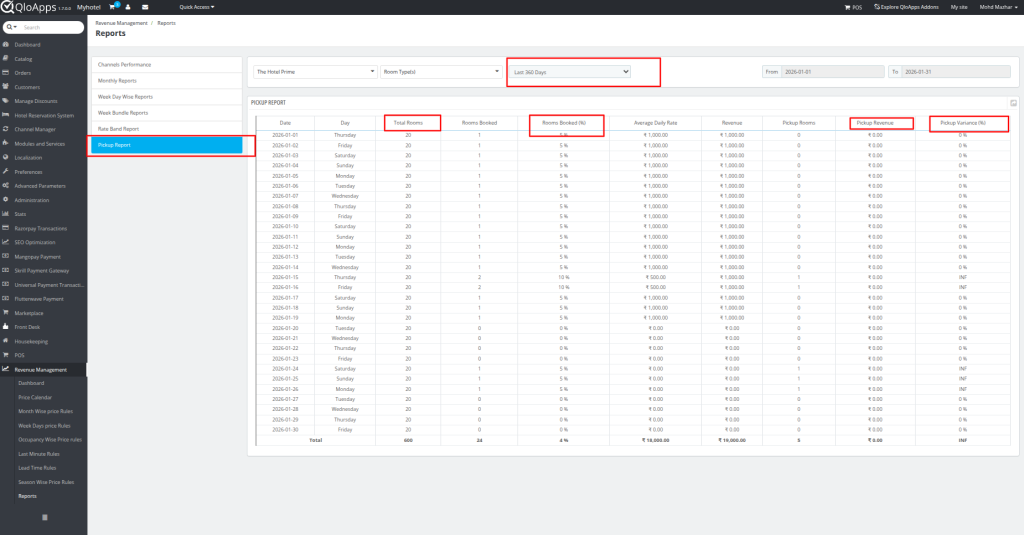
Metrics Include:
- Stay date
- Occupancy %
- Revenue
- ADR
- Pickup rooms & revenue
- Variance
Pickup filters available for:
- Last 7 to 360 days
Conclusion
The QloApps Revenue Management System is a complete, enterprise-grade solution for hotels seeking pricing intelligence, operational transparency, and revenue growth.
With flexible rule engines, deep analytics, and intuitive visual tools, it enables hoteliers to react faster to demand changes, improve occupancy, and maximize profitability without manual effort.
Whether you manage a single property or a multi-hotel portfolio, QloApps RMS gives you the power of modern revenue management inside an open-source PMS ecosystem.
If you want to learn about the functionality of QloApps, then you can visit this link: QLO Reservation System.
In case of any query, issue, or requirement, please feel free to raise it on QloApps Forum.
Moreover, for any support, you can raise a ticket from here.
Current Product Version: 4.0.0
Supported Framework: QloApps 1.7.x