QloApps PayU Latam Payment Gateway
The QloApps PayU Latam Payment Gateway Module allows hotel businesses to accept online payments through PayU Latam, one of the leading payment solutions in Latin American countries.
With this integration, guests can complete bookings securely while admins can manage transactions efficiently from the QloApps backend.
Additionally, the module provides a smooth checkout experience, reliable payment processing, and real-time transaction management.
Note: PayU Latam supports businesses registered in Argentina, Brazil, Chile, Colombia, Mexico, Panama, and Peru.
Additionally, transactions are processed in local supported currencies such as ARS, BRL, CLP, COP, MXN, USD, and PEN, depending on the merchant account region.
Payment methods may vary depending on the country and PayU region. Admins can check the officially supported payment methods for each country here:PayU Supported Payment Methods by Country
Features of QloApps PayU Latam Payment Gateway Module
- Easily integrate PayU Latam with QloApps
- Supports secure online payment processing
- Provides a smooth and user-friendly checkout experience
- Supports Sandbox and Production environments
- Enables real-time payment status updates
- Helps admins track all transactions from the backend
- Displays complete transaction and customer details
- Supports full and partial refunds
- Allows admins to enter custom refund amounts for partial refunds
- Maintains refund history for better tracking and transparency
- Ensures encrypted and secure payment communication
Installation of QloApps PayU Latam Payment Gateway
- Log in to your QloApps Admin Panel.
- Go to the Modules and Services tab in the QloApps admin panel.
- Click on Add New Module.

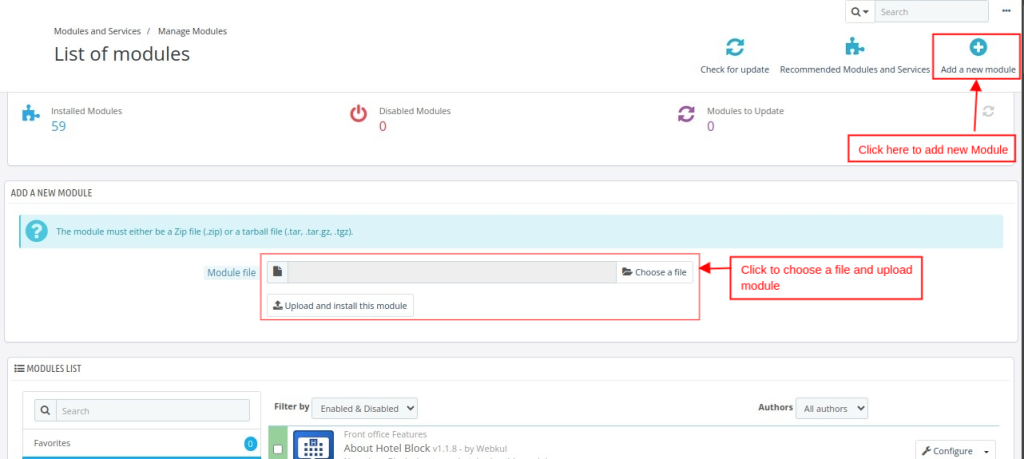
- Click on Choose a file and upload the module ZIP file.
- After uploading, the module installation starts automatically.
Once installation completes successfully, QloApps displays a success message and lists the module in installed modules.
Configuration of QloApps PayU Latam Payment Gateway
After installing the module, configure it to enable it in QloApps.
- Login to the QloApps Admin Panel
- Go to Modules and Services
- Search for PayU Latam Payment Gateway

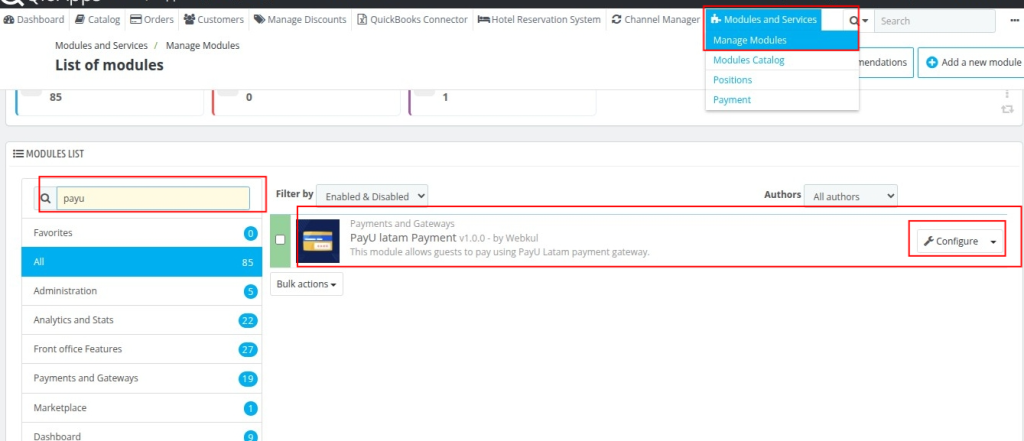
- Click on Configure
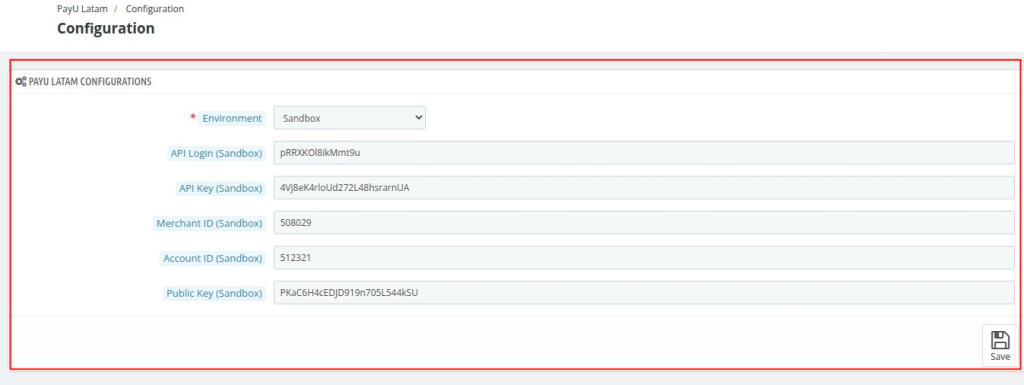
- Enter all required credentials
- Save the configuration settings
Configuration Parameters Explained
- Environment: Defines the operational mode of the payment gateway
- Sandbox: Used for testing transactions without real money
- Production: Used for live transactions with actual payments
- API Login: Unique API login credential provided by PayU Latam
- API Key: Secure API key used to authenticate requests between QloApps and PayU Latam
- Merchant ID: Unique merchant identifier assigned by PayU Latam
- Account ID: Unique account identifier linked with the merchant account
- Public Key: Authentication key provided by PayU Latam for secure transactions

How Admin Can Get Configuration Details for QloApps PayU Latam Payment Gateway
Before integrating the QloApps PayU Latam Payment Gateway Module, admins need to create and activate a PayU latam merchant account.
Admins can also follow the official PayU documentation to create and activate their merchant account:https://developers.payulatam.com/latam/en/docs/getting-started/create-an-account.html
Once the admin creates the account and PayU successfully validates it, they can choose the preferred integration method for their business requirements.
Admins can follow the official PayU documentation to understand the complete integration process and obtain all required credentials.
To know more in detail, click here: PayU Official Integration Documentation
How Admin Can View All QloApps PayU Latam Transactions
Admins can easily track and manage all PayU Latam transactions directly from the QloApps backend.
Steps to Access Transactions
- Login to the QloApps Admin Panel
- Navigate to PayU Latam Payment tab
- Click on Transactions
After opening the transaction section, admins can view a complete transaction summary with all payment records.

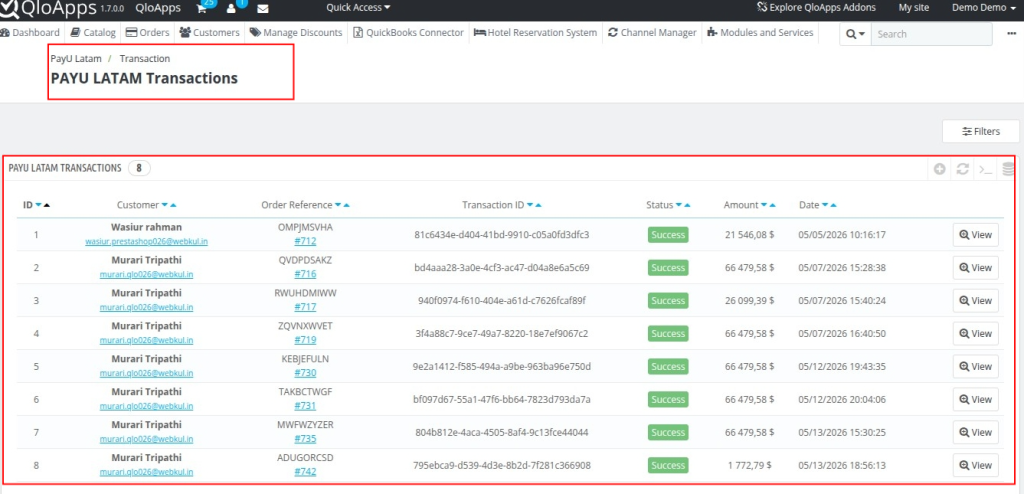
- Customer: Name and email of the guest who made the booking
- Order Reference: Unique booking reference associated with the order
- Transaction ID: Unique payment transaction ID generated by PayU Latam
- Status: Displays the current payment status such as Completed, Pending, Failed, or Refunded
- Amount: Total transaction amount paid by the guest
- Date: Date and time when the transaction was created or completed
How Admin Can View QloApps PayU Latam Transaction Details
Admins can view complete PayU Latam transaction details directly from the QloApps backend.
Steps to View Transaction Details
- Login to the QloApps Admin Panel
- Navigate to PayU Latam Payment tab
- Click on Transactions
- Select a specific transaction from the transaction list
- Click on View
Once the admin clicks on “View”, QloApps opens a detailed transaction page with complete payment information.

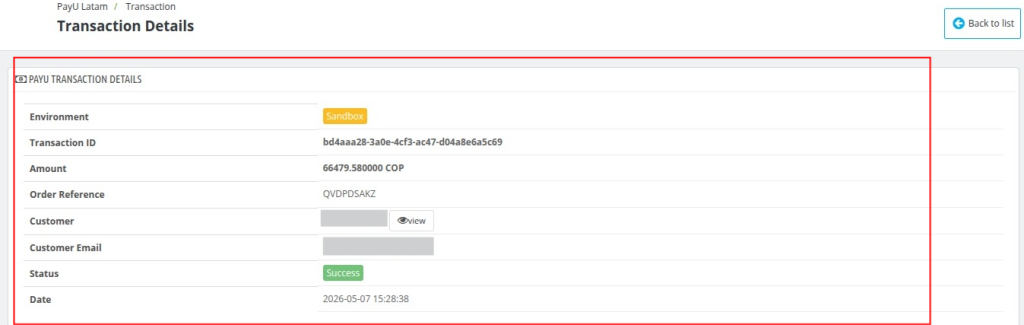
The transaction detail page displays:
- Environment: Indicates whether the transaction was processed in Sandbox or Production mode
- Transaction ID: Unique payment transaction ID generated by PayU Latam
- Amount: Total amount paid by the guest
- Order Reference: Unique booking reference associated with the order
- Customer: Name of the guest who made the booking
- Customer Email: Email address of the guest
- Status: Displays the current payment status
- Date: Date and time when the transaction was completed.
How Admin Can Manage QloApps PayU Latam Refund Management
Admins can easily manage refunds directly from the QloApps backend using the PayU Latam transaction management system.
Steps to Manage Refunds
- Login to the QloApps Admin Panel
- Navigate to PayU Latam Payment tab
- Click on Transactions
- Select a specific transaction
- Click on View to open the detailed transaction page
From the transaction detail page, admins can manage refunds efficiently.
Refund Management Options
Admins can perform:
- Full Refund: Refund the complete transaction amount
- Partial Refund: Refund a specific amount from the transaction
- Admin can enter a custom refund amount
- Add Refund Reason: Add notes or reasons for the refund request

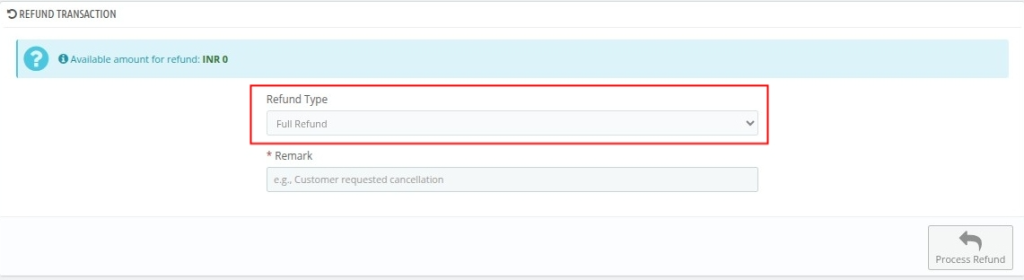
Refund History
The refund history section helps admins track all refund activities related to a transaction


QloApps PayU Latam Frontend Payment Flow (Guest Experience)
The QloApps PayU Latam Module provides a simple, secure, and smooth checkout experience for guests booking rooms online.
- Guest selects the desired room, booking dates, and proceeds to the checkout page
- Guest enters booking details such as name, email, and contact information
- Guest selects PayU Latam Payment Gateway from the available payment methods

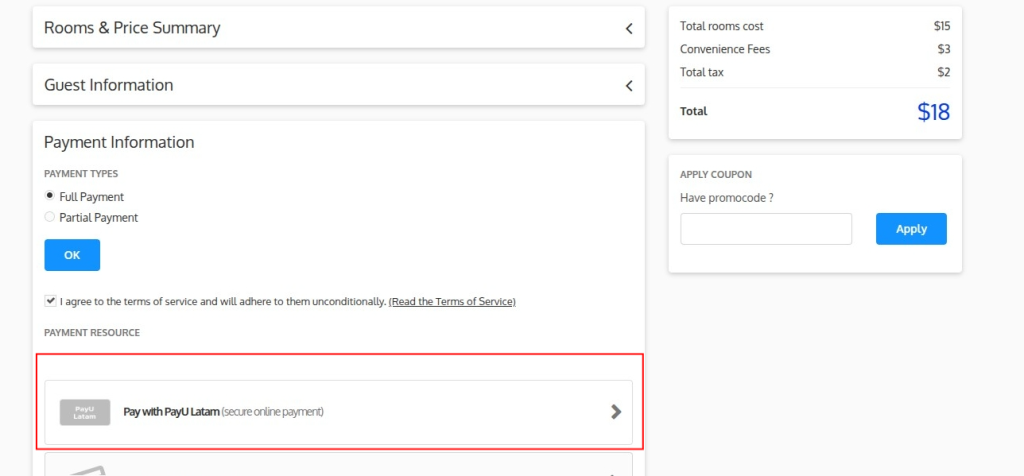
- QloApps redirects the guest to the secure payment gateway page
- Guest completes the payment using the available payment options supported in their country

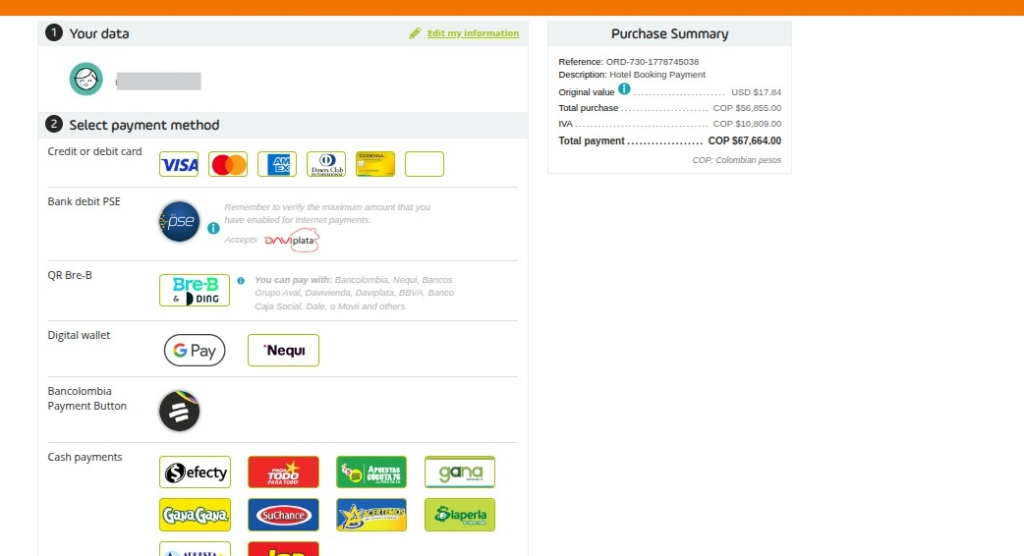
- PayU Latam securely processes the payment transaction
- After successful payment, QloApps redirects the guest back to the website
- Then, QloApps automatically confirms the booking based on the payment status
This payment flow helps properties to deliver a fast and reliable booking experience while ensuring secure online transactions.
Conclusion
The QloApps PayU Latam Payment Gateway Module helps hotel businesses accept secure online payments across multiple Latin American countries.
Additionally, it provides a smooth booking experience for guests and efficient transaction management for admins.
Admins can easily configure the gateway, monitor transactions, manage refunds, and track payment records directly from the QloApps PMS.
Moreover, support for multiple regions and local payment methods helps properties expand their reach and improve customer convenience.
By integrating PayU Latam with QloApps, they can simplify payment management, increase booking reliability, and deliver a secure and seamless checkout experience to their guests.
Current Product Version: 1.0.0
Supported Framework Version 1.7.x & 1.6.1