QloApps Marketplace Occupancy Based Pricing
QloApps Marketplace Occupancy Based Pricing lets a marketplace seller price a room type by who is staying in it, not just by night. A seller can charge more for extra adults. They can also add flat or percentage rates per child and infant. The same guest-based pricing carries over to extra services like breakfast or airport transfer.
NOTE: This module is an extension of the Marketplace module and does nothing on its own. Install and configure Marketplace first, with at least one approved seller and hotel, before installing this module. Module version 5.0.0 is built against Marketplace version 5.0.0 — using it with an older Marketplace release is not supported.
Features of QloApps Marketplace Occupancy Based Pricing
- Switch a hotel between per-night pricing and occupancy-based pricing
- Charge a room type using one of four pricing strategies: price adjustment, per-guest, per-occupancy-level, or derived pricing
- Set separate rates for extra adults, children, and infants on every room type
- Override a room type’s occupancy pricing for a specific date range with its own advanced price rule
- Multiply a service product’s price by guest count, with separate switches for counting children and infants
- Turn Occupancy Based Pricing on or off for one seller at a time from the Back Office
- Set the age below which a child counts as an infant for pricing, shared across every seller
How to Install QloApps Marketplace Occupancy Based Pricing
- In the Back Office go to Modules and Services › Modules and Services and click Add a new module.
- Choose the module ZIP under Module file, then click Upload and install this module.
- QloApps installs the module immediately after upload. Find “QloApps Marketplace Occupancy Based Pricing” in the modules list to confirm it now shows a Configure button.

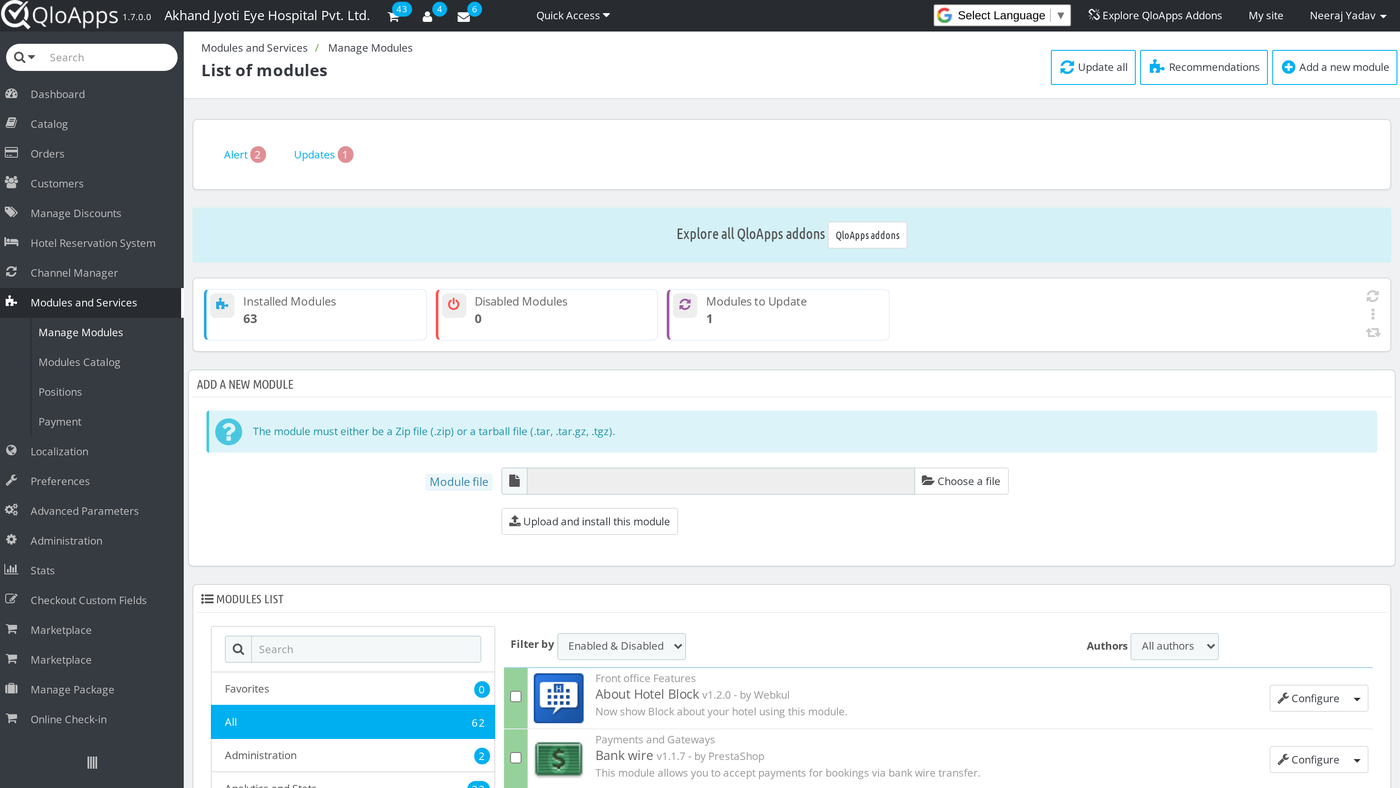
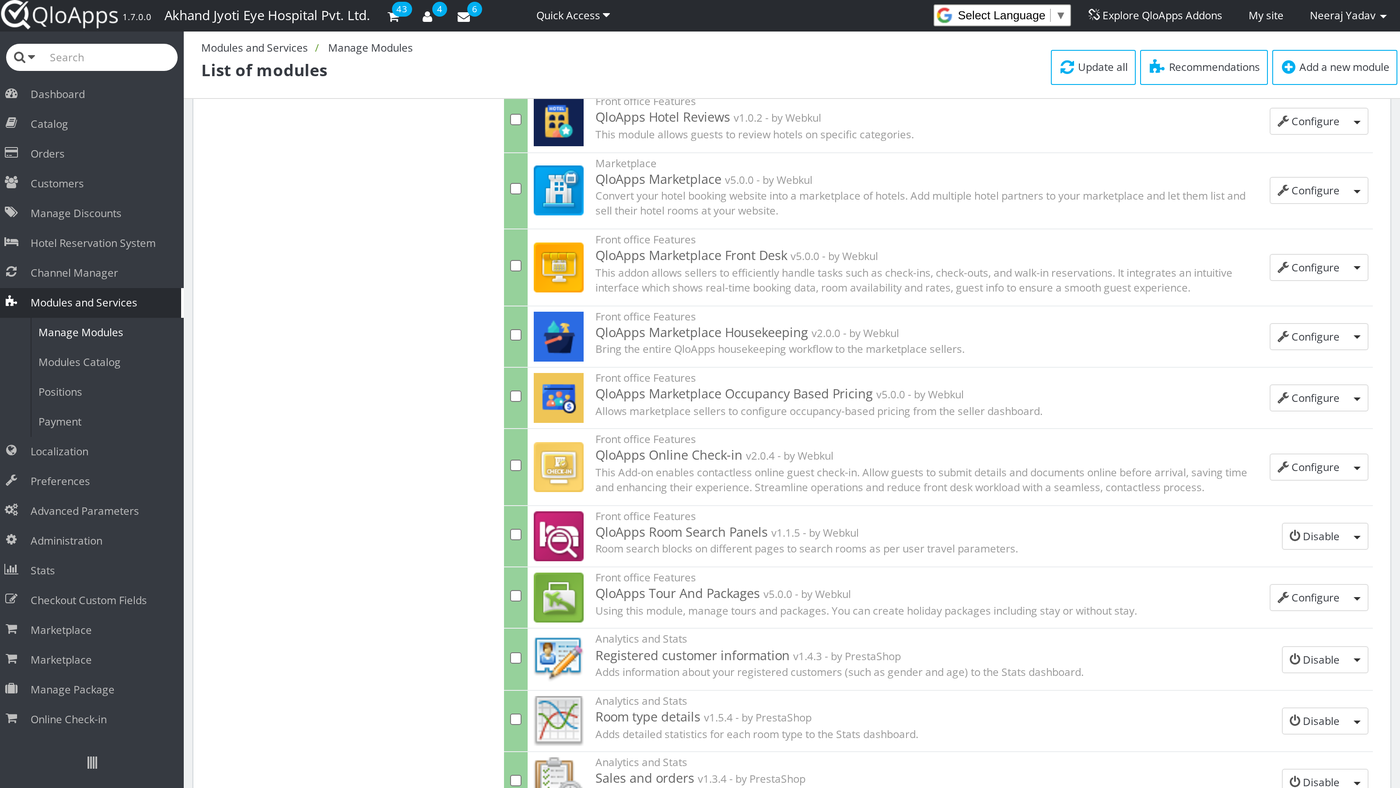
NOTE: The seller-facing Prices tab on a service product in the Back Office (Marketplace › Seller Service Products) only shows the occupancy-pricing fields because
modules/marketplace/views/templates/admin/seller_service_products/prices.tplalready contains a{hook h='displayMpAdminServiceProductsPricesExtra' id_product=$product->id}line before the panel’s closing footer. If those fields are missing after installing this module, ask whoever maintains your Marketplace template files to confirm that line is still there.
Configuration of QloApps Marketplace Occupancy Based Pricing
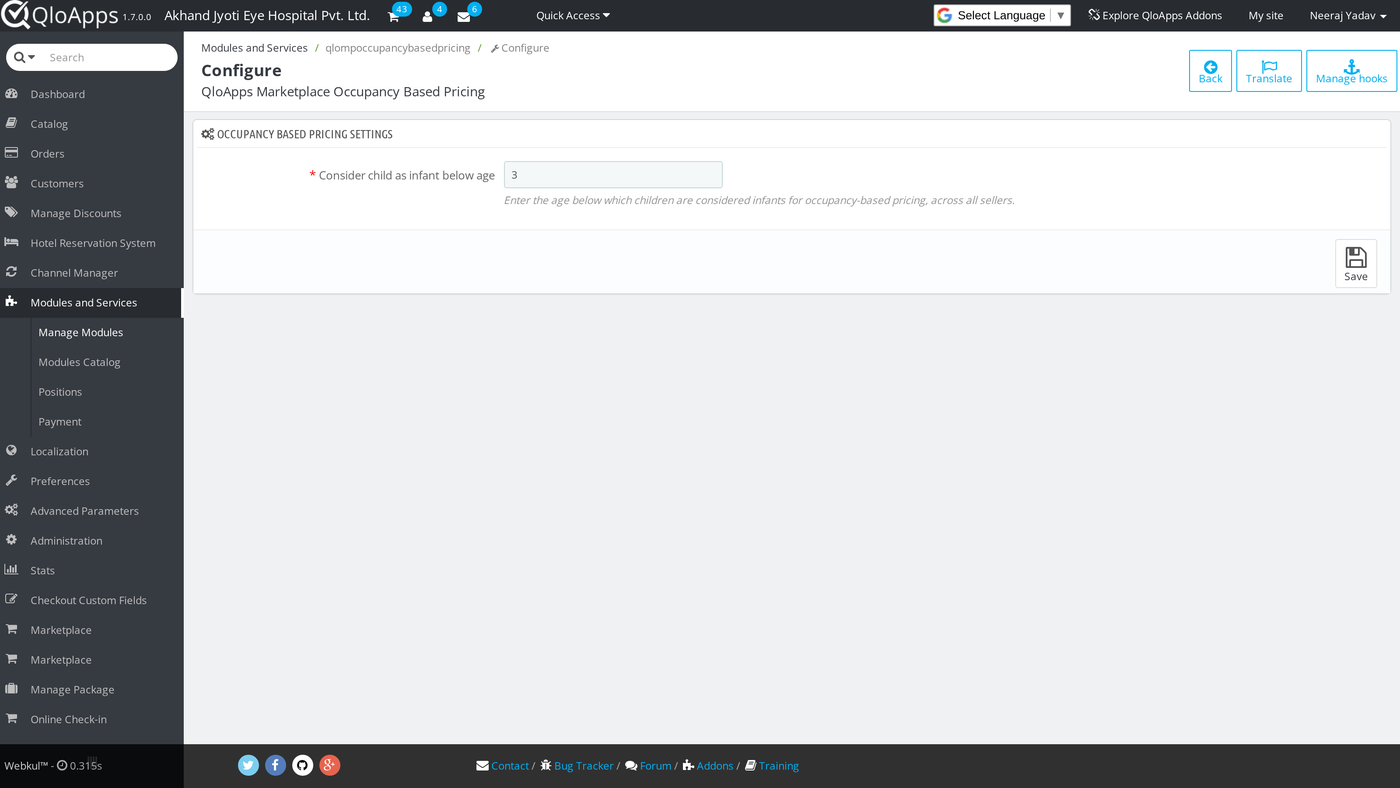
This module has one setting of its own, reached from Modules and Services › Modules and Services, then Configure on QloApps Marketplace Occupancy Based Pricing. Everything else is managed from the Marketplace menu instead. That covers which sellers can use the feature, and how each hotel, room type, and service product is priced. An administrator sets this up from the Back Office, or a seller sets it up from their own dashboard.
General Configuration
The Configure page has a single field, Consider child as infant below age, with a default value of 3. This age applies across every seller on the marketplace. Any guest younger than this age is priced as an infant instead of a child wherever occupancy pricing applies.
Reviewing Pricing Type Across Your Marketplace
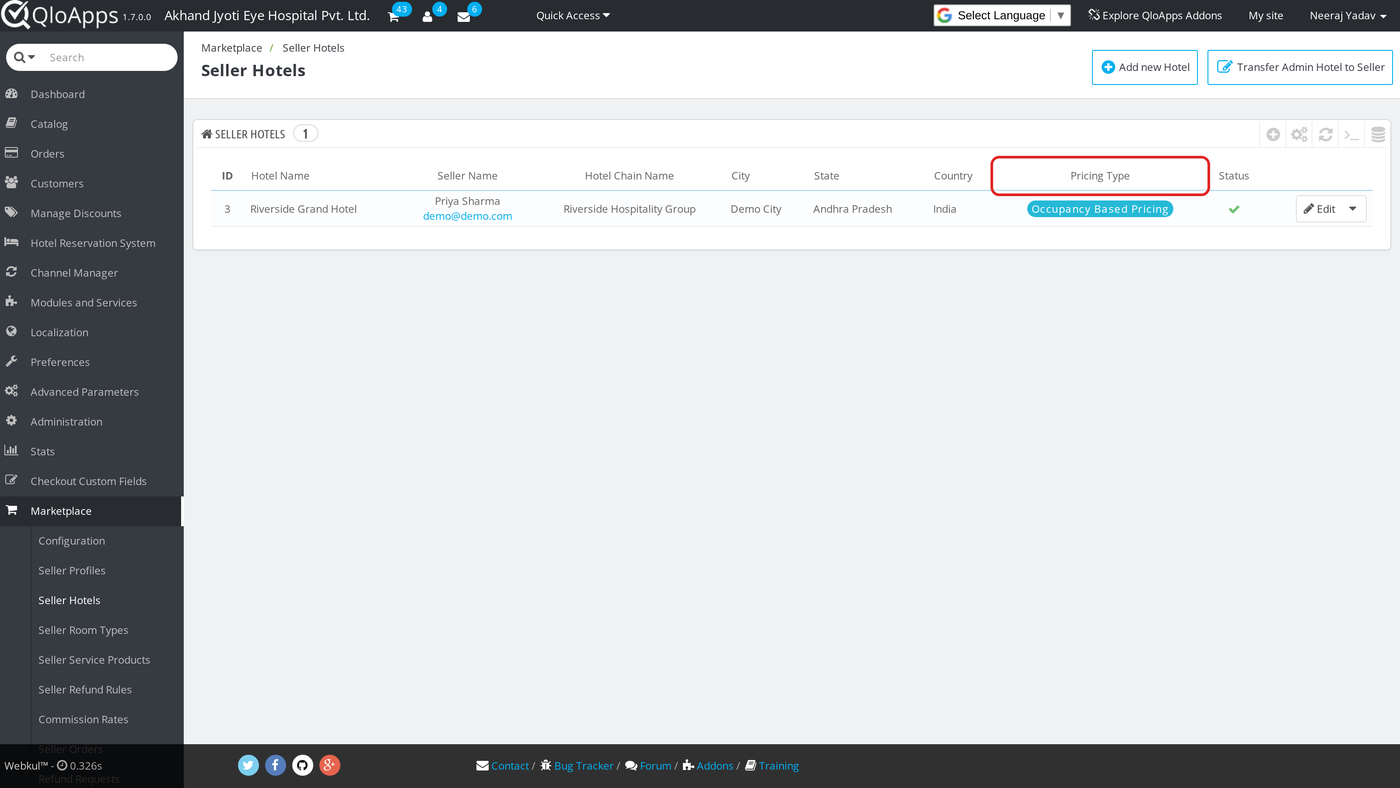
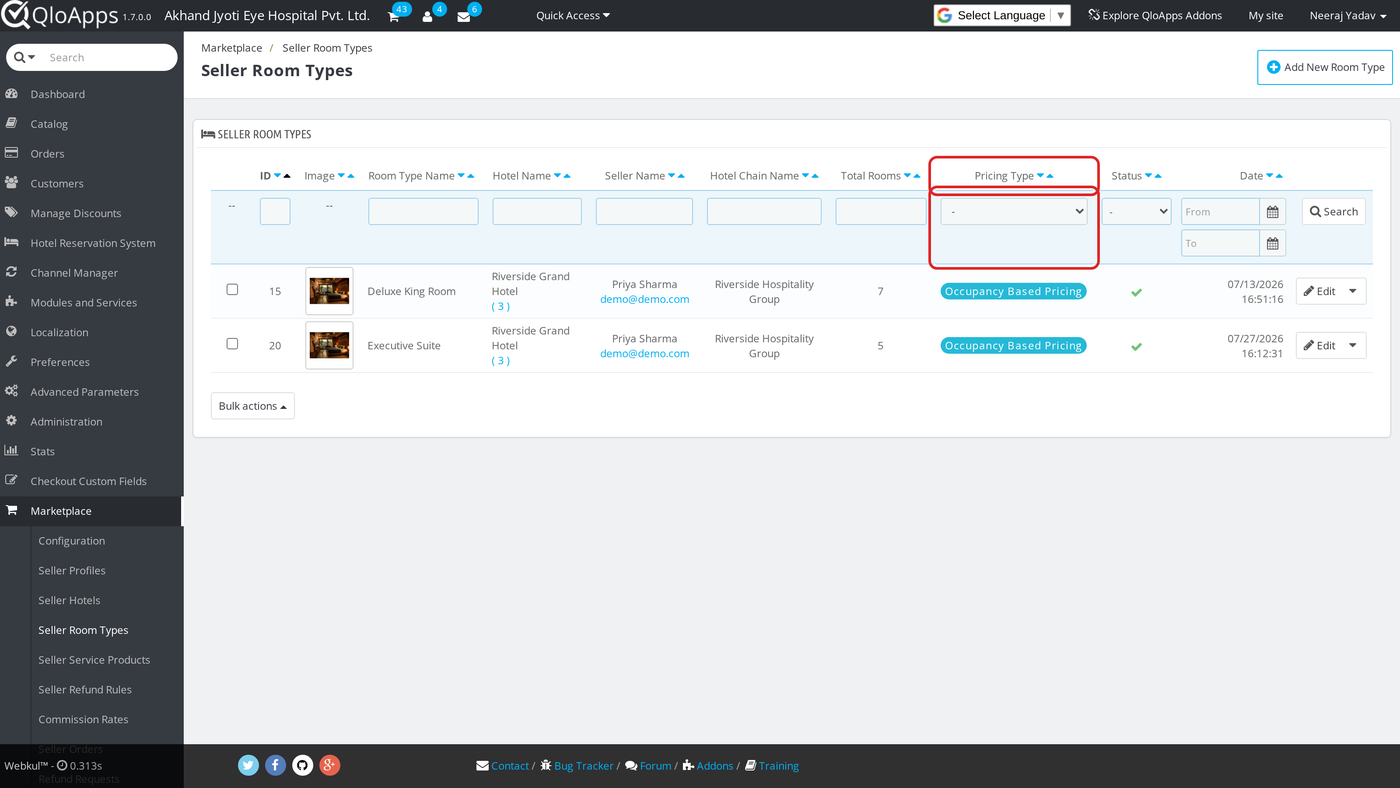
Marketplace › Seller Hotels and Marketplace › Seller Room Types both list a Pricing Type column added by this module. It shows Per Night Pricing or Occupancy Based Pricing for every hotel and room type without opening a single record. As a result, this is the fastest way to check who has switched over.
Setting a Hotel’s Pricing Method
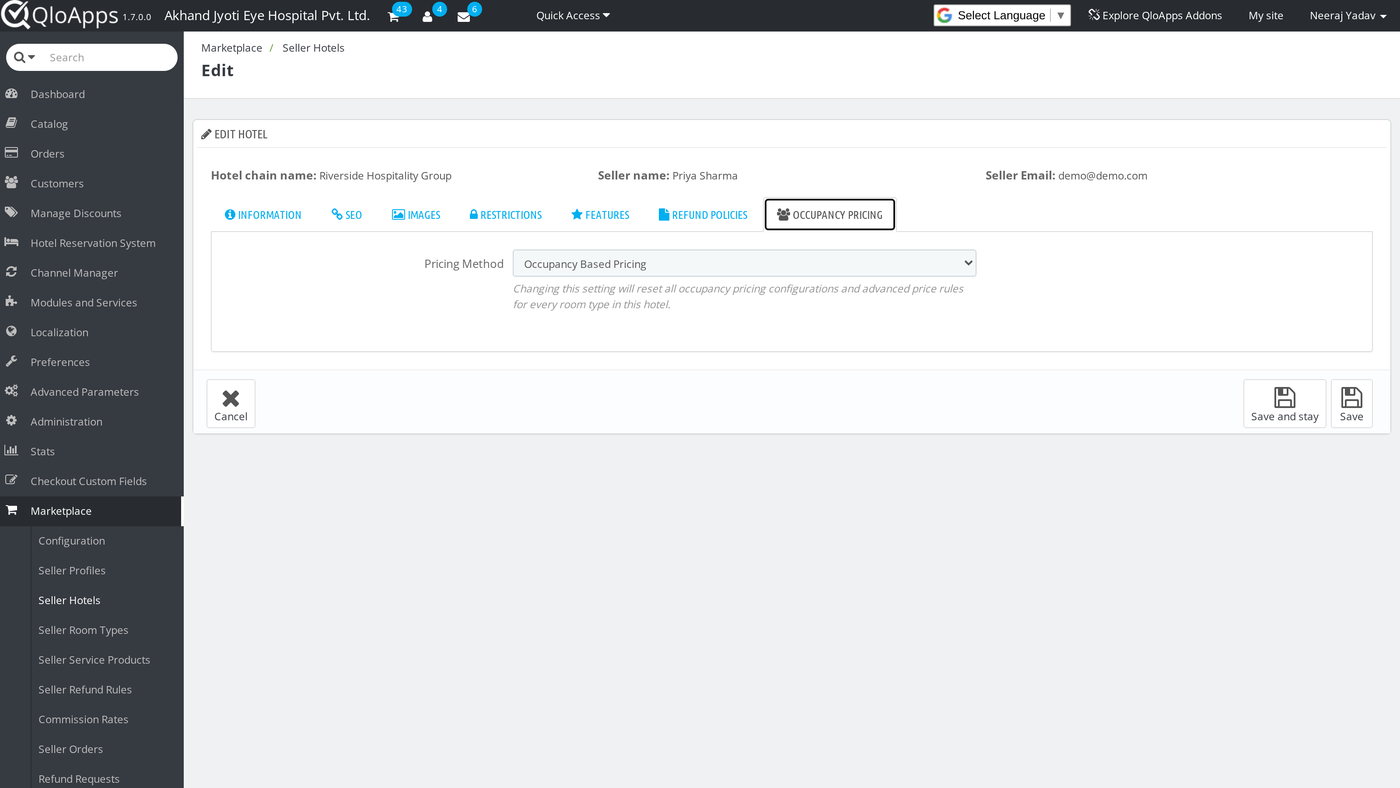
Open Marketplace › Seller Hotels, click Edit on a hotel, and open the Occupancy Pricing tab. The only field here is Pricing Method, a choice between Per Night Pricing and Occupancy Based Pricing. Switching this setting deletes every room type’s occupancy pricing configuration and advanced price rules for that hotel. So treat it as a one-way decision per hotel rather than something to toggle back and forth.
Setting a Room Type’s Pricing Strategy
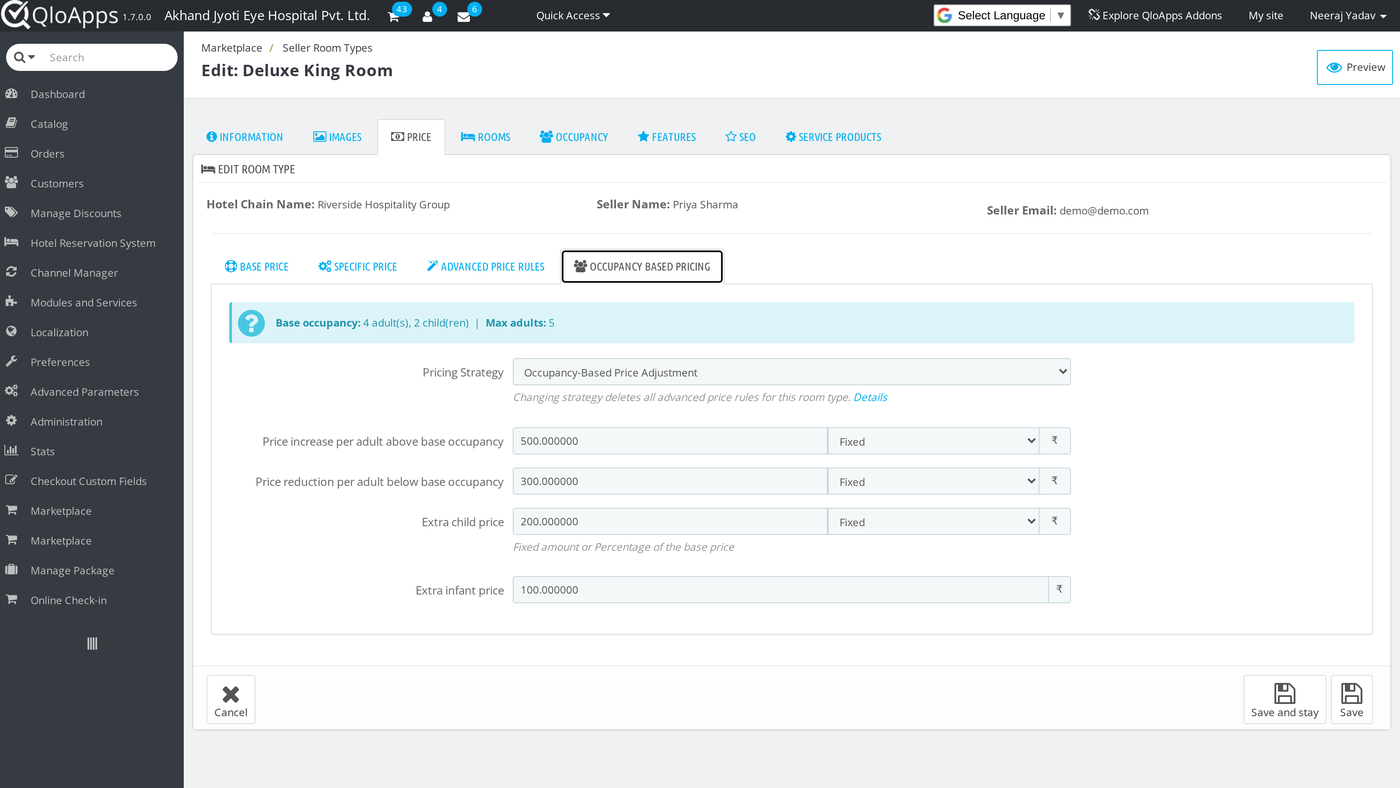
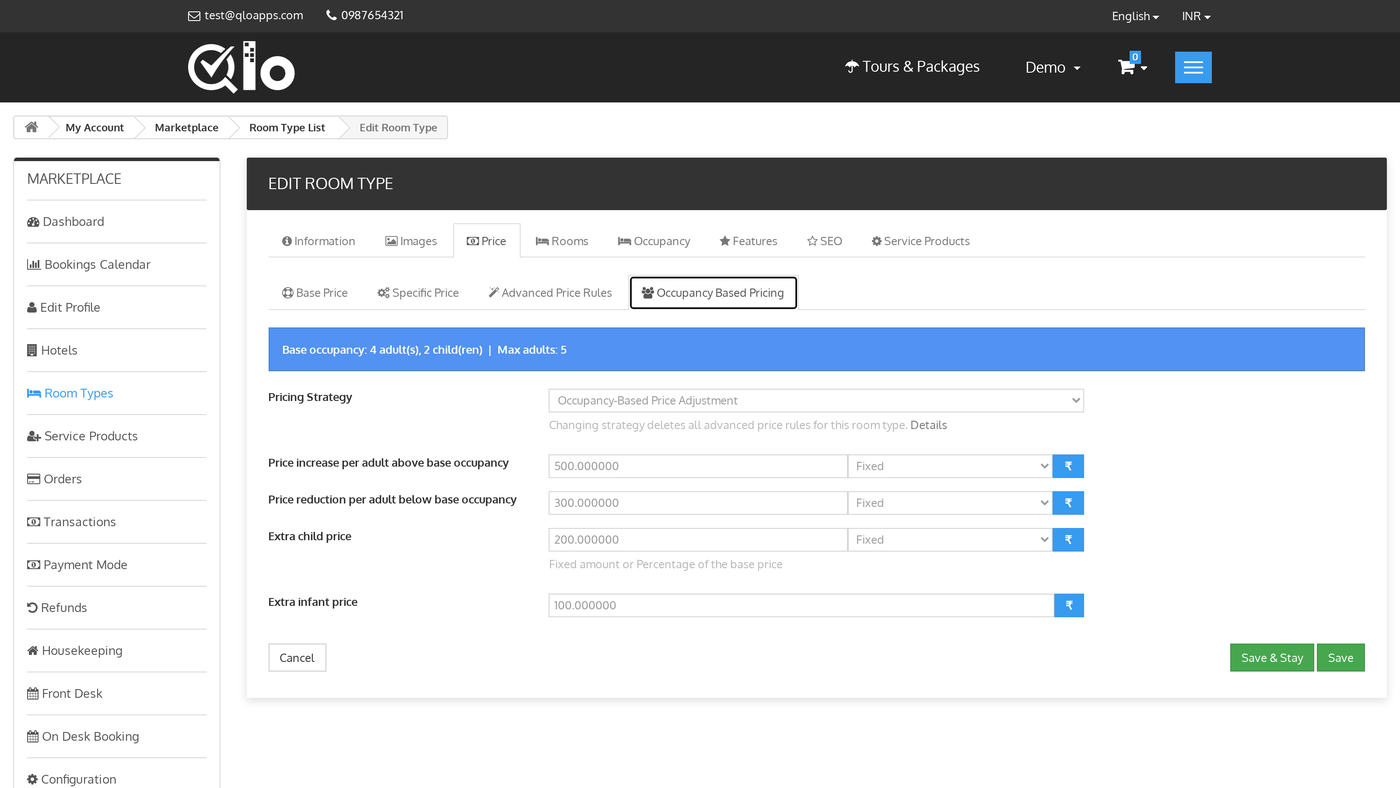
Once a hotel is in Occupancy Based Pricing mode, open Marketplace › Seller Room Types and edit a room type. Next, open the Price tab, then the Occupancy Based Pricing sub-tab. An info box first states the room type’s base occupancy — for example “Base occupancy: 2 adult(s), 1 child(ren) | Max adults: 3”. This is pulled from the room type’s own Occupancy tab. Every strategy below prices relative to that base.
The Pricing Strategy field offers four options:
- Occupancy-Based Price Adjustment (the default) — set a Price increase per adult above base occupancy and a Price reduction per adult below base occupancy. Each can be a Fixed amount or a Percentage of the base price. Add a flat or percentage Extra child price and a fixed Extra infant price.
- Per-Guest Pricing — set one price per adult, one for children, and one for infants. The room type’s final price is the sum of these guest prices instead of the base price.
- Price for Each Occupancy Level — set a distinct price for every adult count from 1 up to the room type’s maximum. Add separate child and infant prices.
- Derived Pricing — set an increase or decrease against the base price for every adult count except the base occupancy itself. Add separate child and infant prices.
Changing the Pricing Strategy deletes the room type’s advanced price rules, the same as changing the hotel’s pricing method does.
Configuring Service Product Pricing
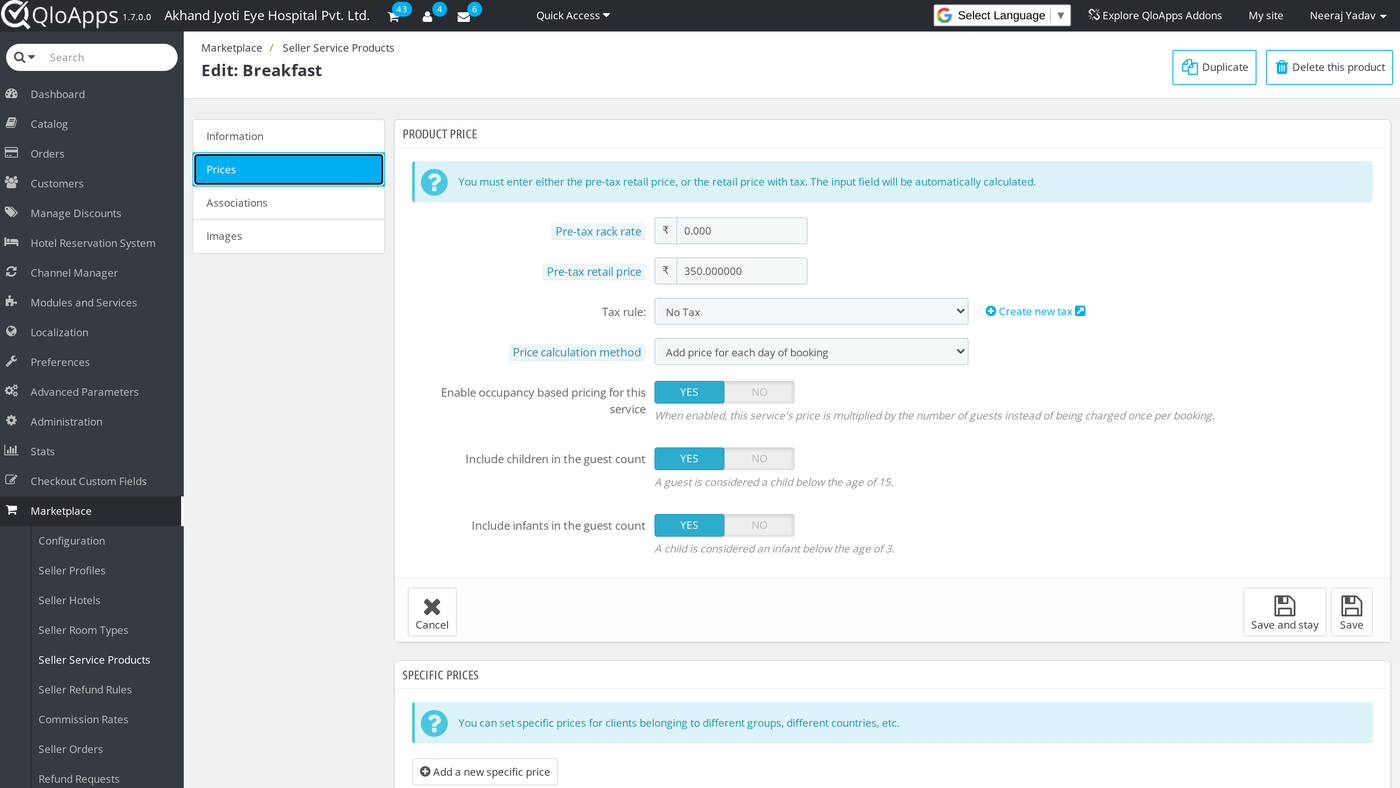
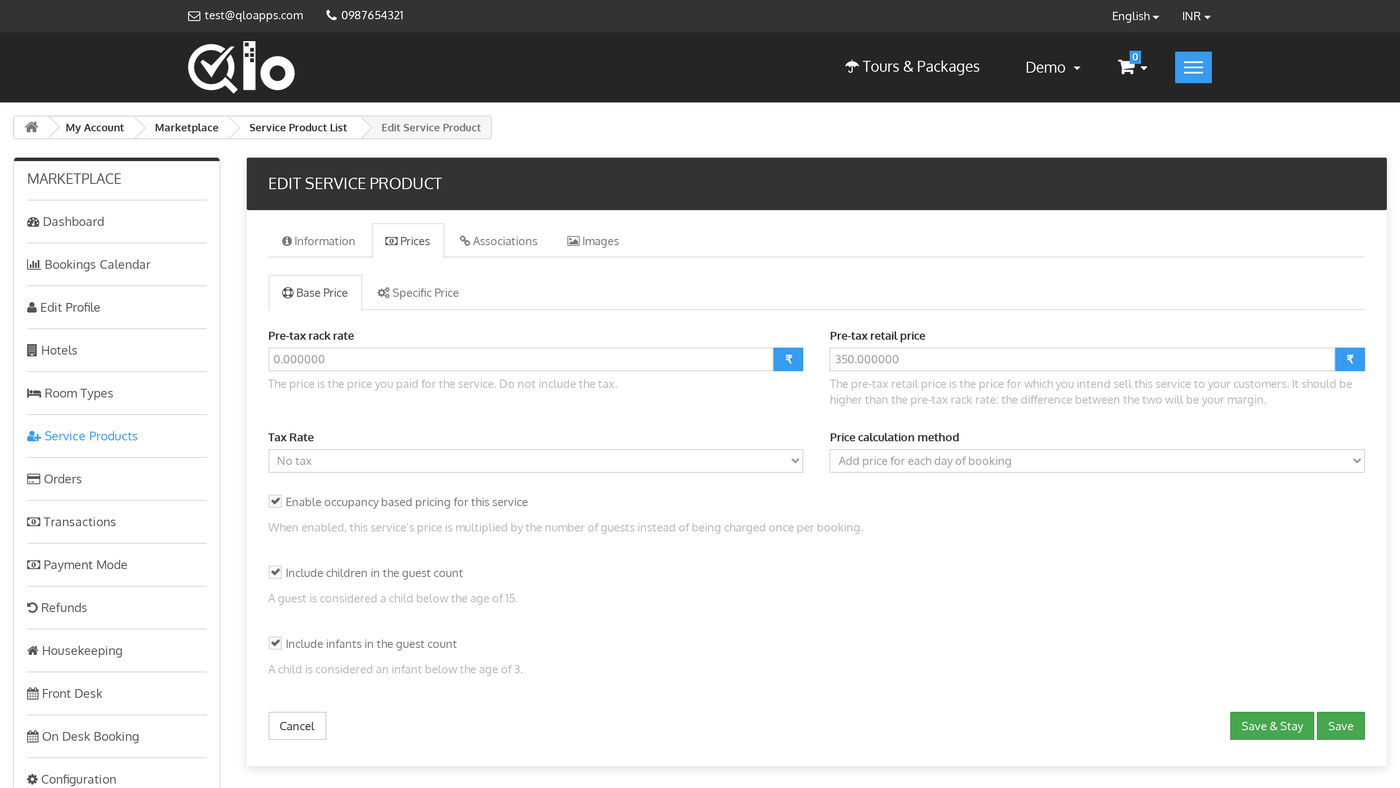
Open Marketplace › Seller Service Products, view a seller’s products, edit one, and open the Prices tab. Set Enable occupancy based pricing for this service to YES. The service’s price is then multiplied by the number of guests instead of being charged once per booking. Two more switches appear once this is on: Include children in the guest count and Include infants in the guest count. A guest counts as a child below the general child age set on the room type. Likewise, a child counts as an infant below the age set on this module’s own Configure page.
Enabling Occupancy Based Pricing for a Seller
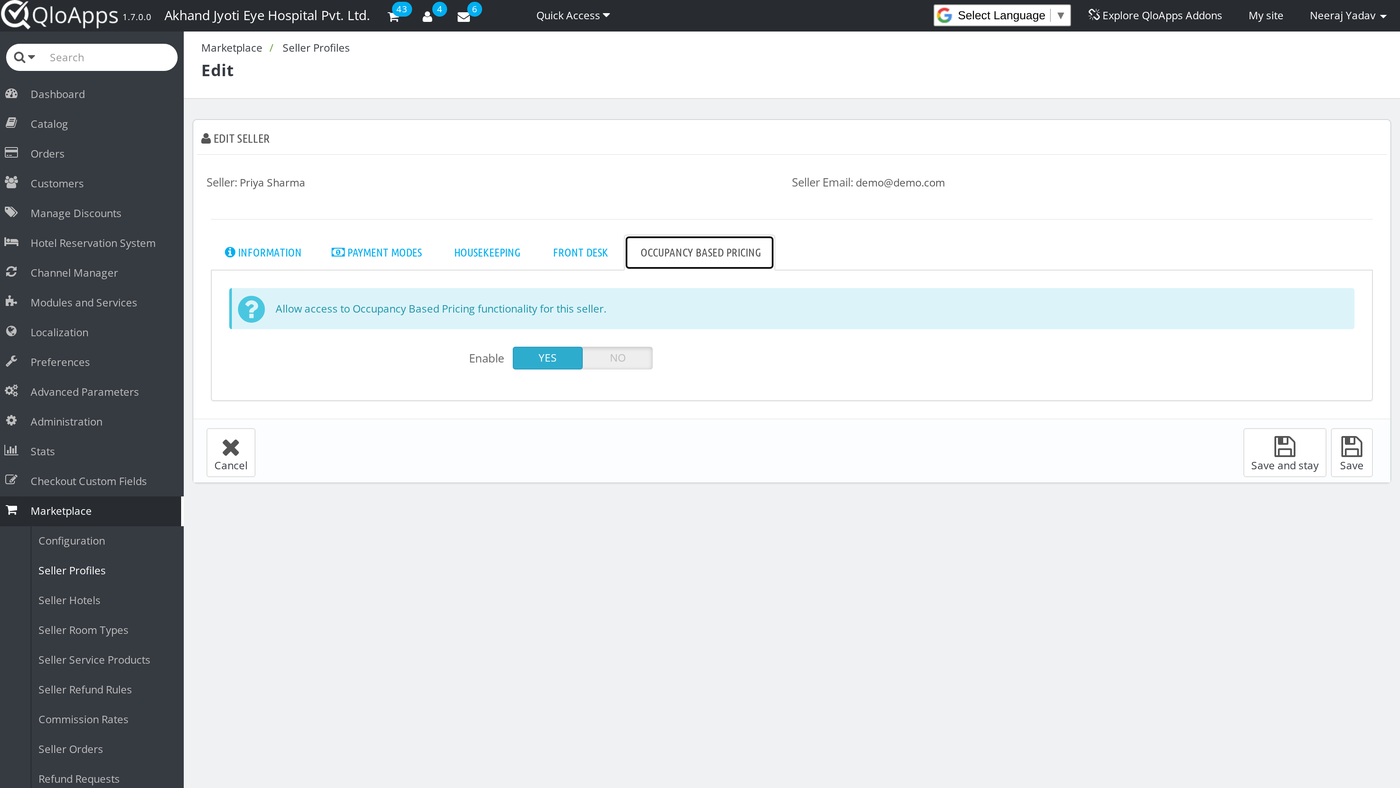
Open Marketplace › Seller Profiles, edit a seller, and open the Occupancy Based Pricing tab. The single Enable switch here — YES by default — controls whether that seller can use any part of this module at all. Set it to NO and every occupancy-pricing tab and field disappears from that seller’s dashboard. However, the seller cannot turn this switch back on — only an administrator can.
Switching a Hotel to Occupancy Based Pricing
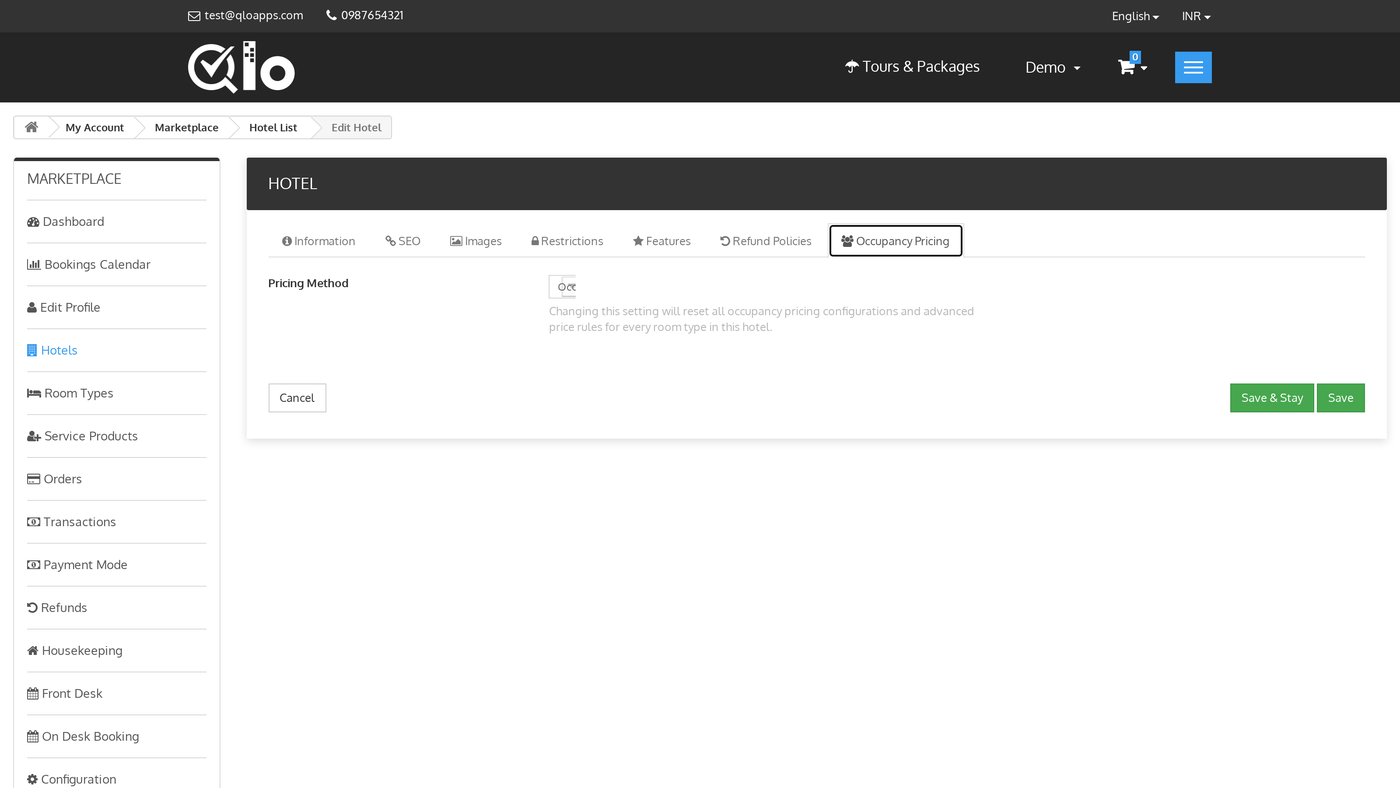
A seller manages their own hotels and pricing from their dashboard rather than the Back Office. Sign in to the booking website, go to Marketplace › Hotels, edit a hotel, and open the Occupancy Pricing tab. This is the same Pricing Method field an administrator sees from the Back Office. However, the same warning applies: switching from Per Night Pricing to Occupancy Based Pricing (or back) clears every room type’s pricing configuration and advanced price rules for that hotel.
Setting Up Room Type Pricing Strategies
From the seller dashboard, go to Marketplace › Room Types, edit a room type, open the Price tab, then Occupancy Based Pricing. Pick one of the four strategies described above and fill in its fields. For example, on Occupancy-Based Price Adjustment, a seller might set a 500 fixed increase per extra adult, a 300 fixed reduction per adult below base occupancy, a 200 extra child price, and a 100 extra infant price. Save and stay to check the numbers before leaving the page. That’s because there is no preview of the final price on this screen.
Overriding Pricing for Specific Dates
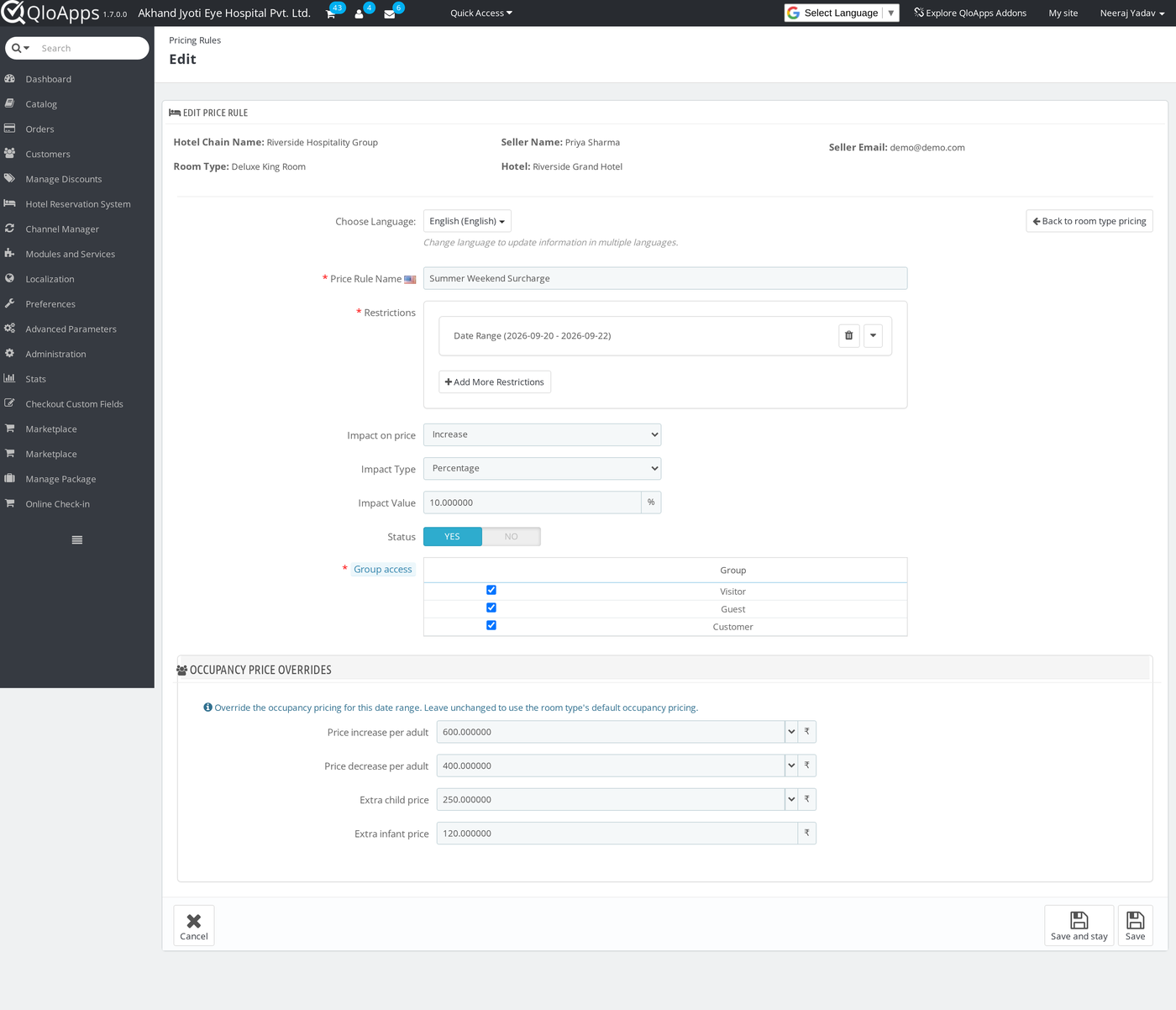
A room type’s Advanced Price Rules still work the same way they do without this module: a date range or specific date, an increase or decrease, and a group access restriction. However, this module also adds an Occupancy Price Overrides panel to the same Add Price Rule form. Fill in Price increase per adult, Price decrease per adult, Extra child price, and Extra infant price here to replace the room type’s default occupancy pricing for just that rule’s dates. Leave any of these fields at their default and the room type’s normal occupancy pricing still applies for that part of the calculation. This is useful for a weekend or seasonal surcharge that should charge extra guests differently than the rest of the year.

Applying Occupancy Pricing to Service Products
From the seller dashboard, go to Marketplace › Service Products, edit a service such as breakfast or an airport transfer, and open the Prices tab. Set Enable occupancy based pricing for this service to YES to charge the service once per guest instead of once per booking. Then decide with the two switches below it whether children and infants count toward that guest total. A breakfast service with this enabled and priced at 350 per adult, for example, charges 700 for two adults instead of a flat 350 for the booking.
Conclusion
QloApps Marketplace Occupancy Based Pricing turns a marketplace seller’s flat per-night rates into pricing that responds to who is actually staying. In other words, more adults, children, and infants each carry their own rate on the room and on any service product a guest adds to the booking. This guide covered installing the module and the administrator controls in the Back Office for turning it on per seller and per hotel. It also covered the seller-dashboard screens for setting a room type’s pricing strategy, overriding it for specific dates, and applying the same guest-based pricing to service products.
Additionally, to learn more about the functionality of QloApps, you can visit this link: All-in-One Property Management System. For technical assistance, raise a ticket at QloApps Support. In case of any query, issue, or requirement, please feel free to raise it on the QloApps Forum. QloApps modules, including the Marketplace module this one extends, are available at store.webkul.com.
Current Module Version: 5.0.0
Supported QloApps Versions: 1.7.x