QloApps Marketplace Iyzico Payment Gateway
QloApps Marketplace Iyzico Payment Gateway simplifies online payments while helping admins manage commissions and seller booking amounts efficiently.
This module enables secure Iyzico payments, automatically splitting booking amounts between the marketplace admin and seller for accurate, hassle-free payouts.
A secure payment experience is vital for hotel marketplaces. Iyzico enables trusted payments, smoother guest bookings, and simpler payment management for admins and sellers.
Supports TRY, USD, EUR, GBP, CHF, NOK, DKK, SEK, CAD, RUB, AED, and RON currencies.
Note: The QloApps Marketplace Iyzico Payment Gateway module is compatible with QloApps Marketplace Module .
Important: Before purchasing this module, please verify that the Iyzico Payment Gateway is available in your country and that your merchant account is eligible to use its services.
Key Features of the QloApps Marketplace Iyzico Payment Gateway:
- Automatically splits customer payments between sellers and admins based on ownership and commission rates, supporting advance and partial payments.
- Supports both Instant and Delayed settlement options for managing seller payouts.
- Automatically approves seller settlements immediately after a successful customer payment when Instant settlement is selected.
- Keeps seller settlements pending when Delayed settlement is selected, allowing the admin to manually approve or disapprove payouts.
- Sellers can connect or update their Iyzico accounts directly from their seller panel by providing their business details, contact information, tax details, and IBAN.
- Allows the marketplace admin to create and configure an Admin Submerchant account for admin-owned hotel bookings.
- Automatically approves pending seller settlements after the configured number of days when Auto-Approval Cron is enabled.
- Displays a secure Iyzico payment window directly on the checkout page without redirecting guests away from the marketplace.
- Supports TRY, USD, EUR, GBP, CHF, NOK, DKK, SEK, CAD, RUB, AED, and RON.
- Allows the admin to view transaction details, customer information, linked orders, settlement status, and seller payment details from the back office.
Installation of the QloApps Marketplace Iyzico Payment Gateway
Installing the QloApps Marketplace Iyzico Payment Gateway module is quick and simple.
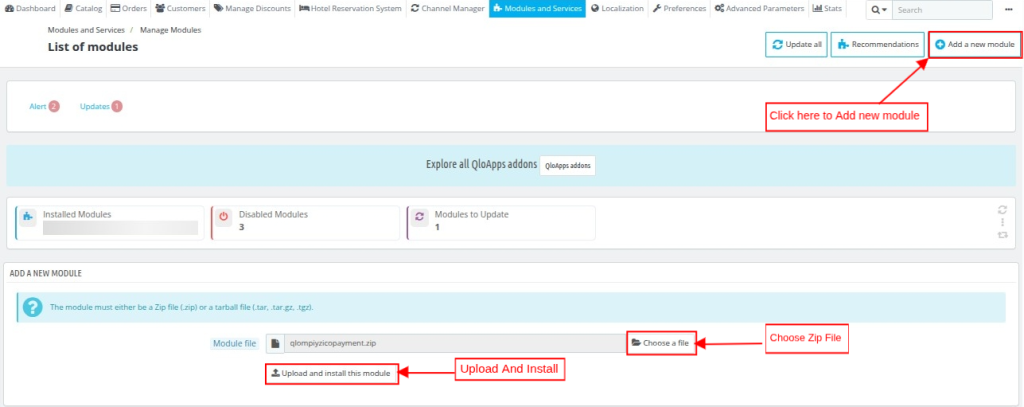
- Go to the Modules and Services tab in your QloApps back office.
- Click on Add New Module.
- Upload the ZIP file of the QloApps Marketplace Iyzico Payment Gateway module and click Install.

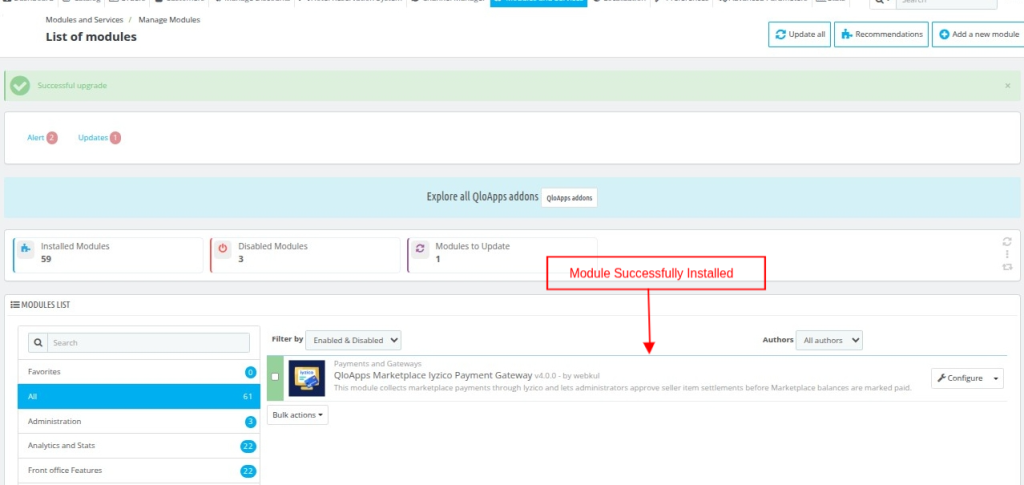
- Once the installation is complete, a success message will be displayed, and the installed module will appear in the list of available modules.

How to Configure the QloApps Marketplace Iyzico Payment Gateway
Log in to your QloApps back office as the admin. Go to the Modules and Services tab and search for the QloApps Marketplace Iyzico Payment Gateway module.

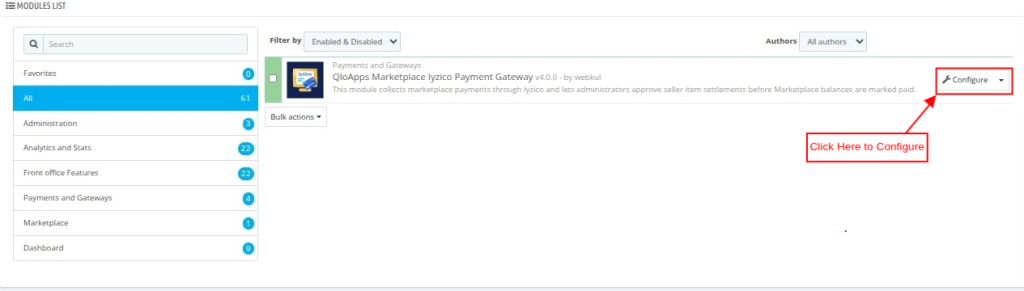
Click Configure to access the module settings and begin configuring the Iyzico payment gateway for your marketplace.
Iyzico API Configuration
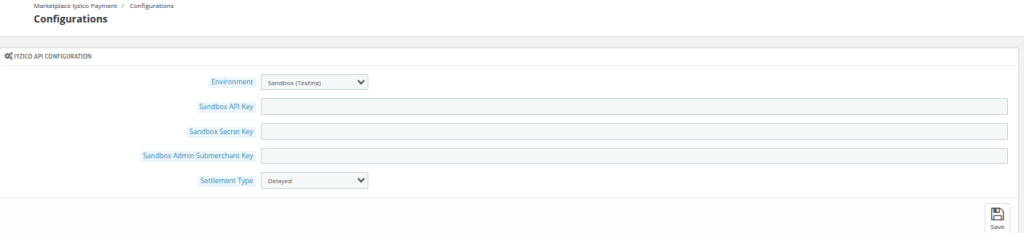
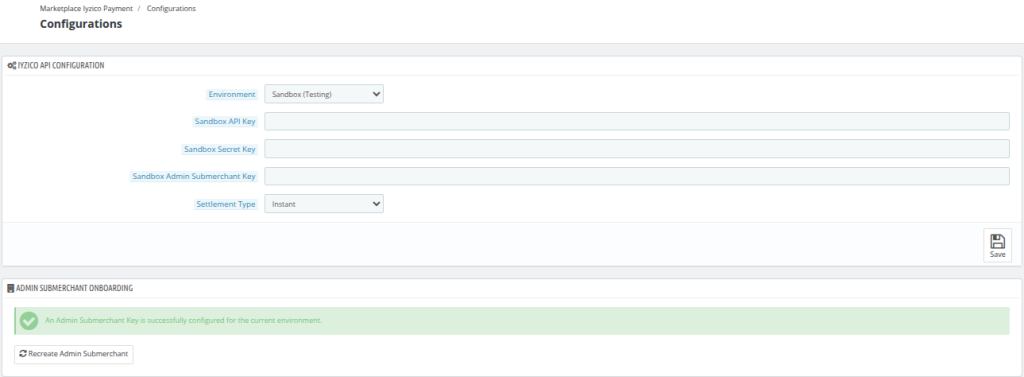
The Iyzico API Configuration connects QloApps Marketplace with your Iyzico account for secure payments and seller settlement management.
The admin first needs to select the appropriate transaction environment for the configuration.
- Production (Live Mode): For real-life transactions, select the production.
- Test Mode: For testing, select the sandbox.

API Key
Enter the API Key generated from your Iyzico merchant account. This key is used to authenticate API requests while testing the payment gateway.
Secret Key
Enter the Secret Key associated with your sandbox account. It works together with the API Key to securely authorize communication between QloApps Marketplace and Iyzico.
Admin Submerchant Key
Enter the Submerchant Key created for the Marketplace Admin in the Iyzico account.
This key identifies the marketplace admin as an Iyzico submerchant and receives the admin’s share when the booking amount is split with the seller.
Note: Create the marketplace admin’s submerchant in your Iyzico account before entering the Submerchant Key here.
Settlement Type

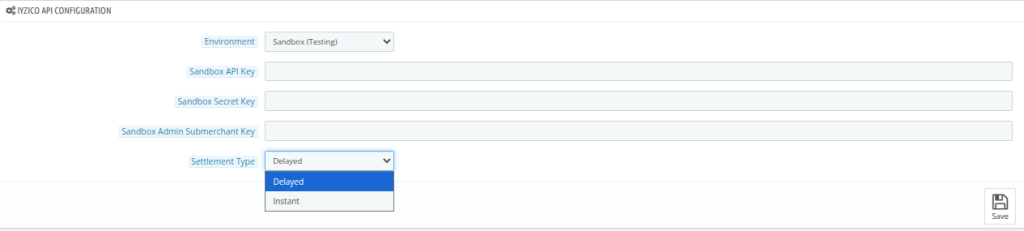
Choose how seller settlements should be processed after a successful payment.
- Delayed: Seller settlements are not approved immediately after payment. The marketplace admin can approve settlements manually or automate the approval using a cron job.
- Instant: Seller settlements are approved automatically immediately after a successful payment, and no manual approval is required.
Admin Submerchant Onboarding
Before processing marketplace payments, the admin must create an Iyzico Admin Submerchant to receive the admin’s share from split booking payments.
Click Recreate Admin Submerchant to open the onboarding form.


Note: The submerchant is created in the currently selected environment (Sandbox or Live). Make sure you save the API configuration before submitting this form.
Fill in the following details:

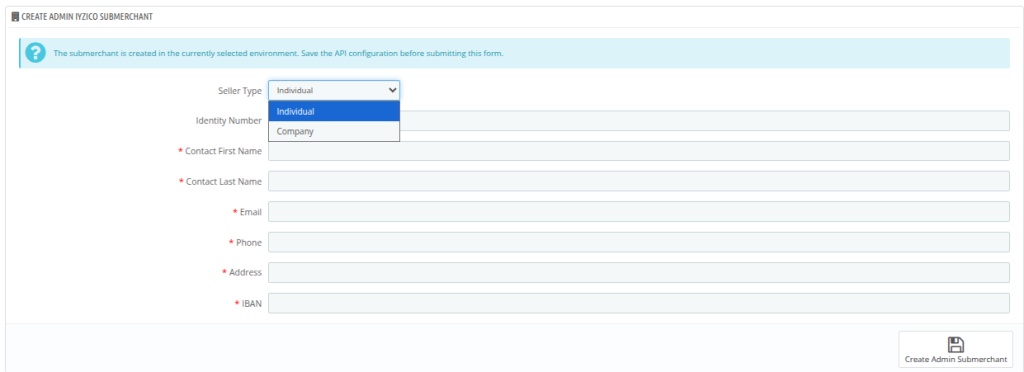
- Seller Type: Select the type of submerchant you want to create.
- Individual: Select this option if the marketplace admin is registering as an individual.
- Company: Select this option if the marketplace admin is registering as a business or company.
- Identity Number: Enter the identity number of the individual or the tax/company identification number, depending on the selected seller type.
- Contact First Name: Enter the first name of the marketplace admin or the authorized contact person.
- Contact Last Name: Enter the last name of the marketplace admin or the authorized contact person.
- Email: Enter a valid email address for the admin submerchant account.
- Phone: Enter the contact phone number of the marketplace admin.
- Address: Enter the complete business or residential address of the marketplace admin.
- IBAN: Enter the valid IBAN (International Bank Account Number) where the admin’s settlement amount will be transferred by Iyzico after successful payment processing.
After filling in all the required details, click Create Admin Submerchant to register the marketplace admin as an Iyzico submerchant.
Cron Job Configuration
The behavior of the Cron Job Configuration depends on the Settlement Type selected in the Iyzico API Configuration.
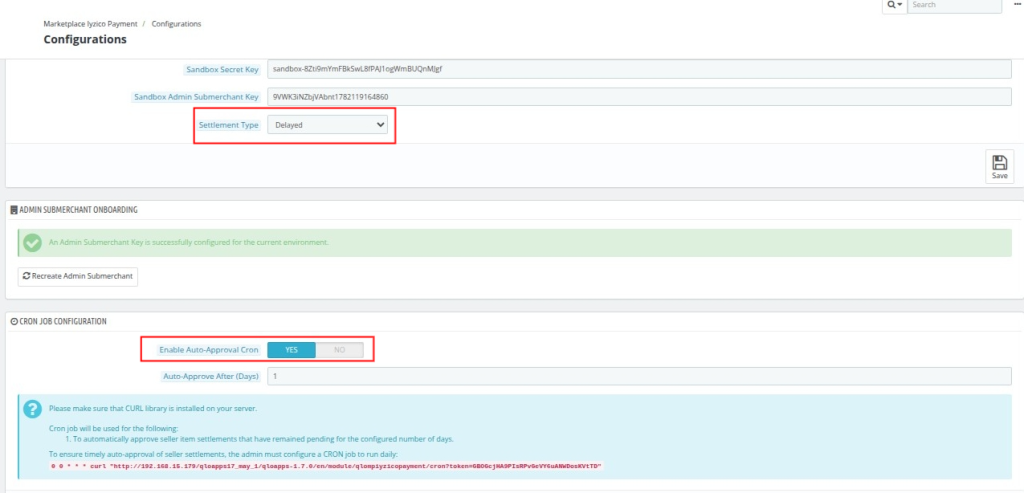
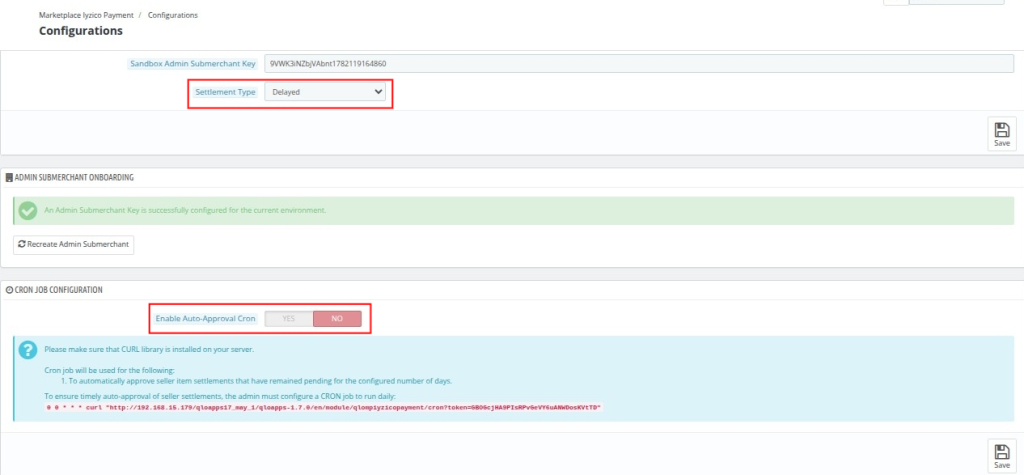
Case 1: Settlement Type – Delayed
When you select Delayed as the Settlement Type, the system keeps seller settlements pending after a successful payment.
- Enable Auto-Approval Cron
This setting controls whether the system automatically approves seller settlements after the specified number of days.
Yes: Seller settlements are approved automatically by the cron job after the configured waiting period.
- Auto-Approve After (Days)
If Yes
This field is available only when Enable Auto-Approval Cron is set to Yes.
Enter the number of days after which the cron job should automatically approve pending seller settlements.

If No: Seller settlements must be approved manually by the marketplace admin.

Case 2: Settlement Type – Instant
When the Settlement Type is set to Instant, seller settlements are approved immediately after a successful payment.

In this case, no cron job or manual approval is required, as the booking amount is automatically split and settled between the marketplace admin and the seller during the payment process.
How to Obtain API Keys for the QloApps Marketplace Iyzico Payment Gateway
To configure the Marketplace Iyzico Payment Gateway, you first need to enable your Iyzico merchant account for Marketplace (Submerchant & Split Payment) APIs.
Step 1: Log in to Your Iyzico Merchant Account
- For Sandbox (Testing), log in to your Sandbox Iyzico Merchant account.
- For Live (Production), log in to your Live Iyzico Merchant account.

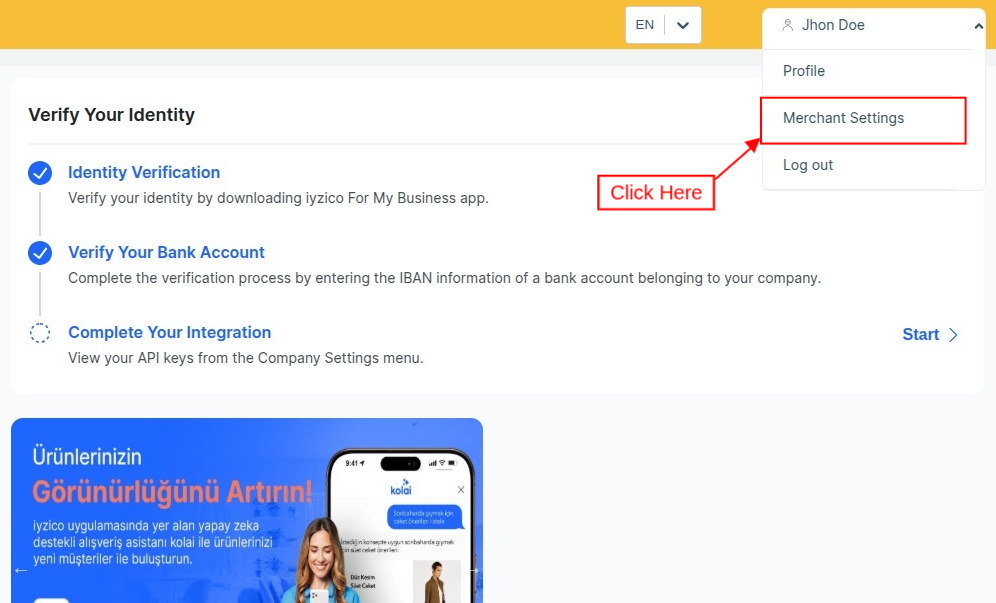
Step 2: Locate Your Merchant Settings
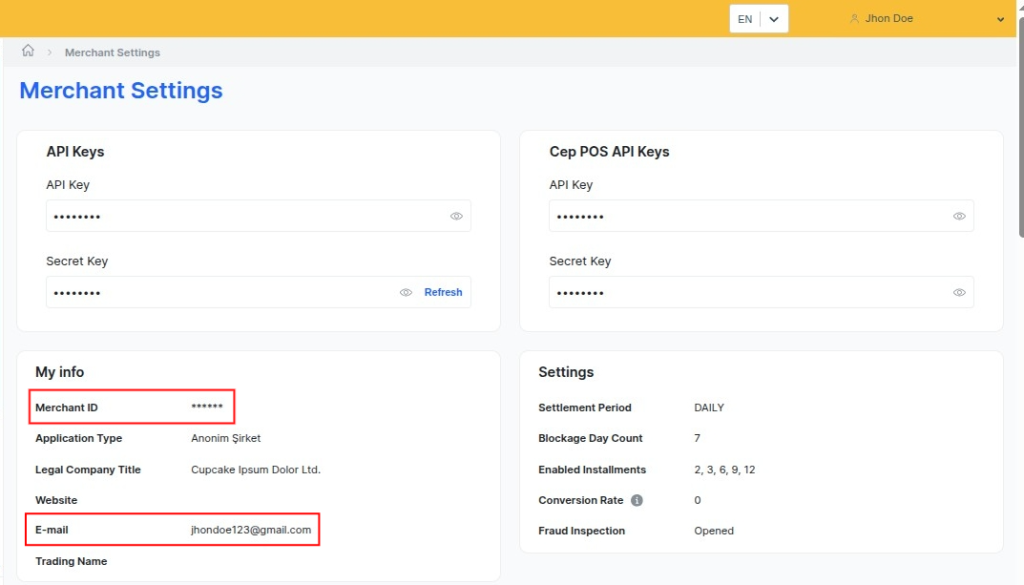
Navigate to Profile → Merchant Settings → My Info.
Here, you can find your
- Merchant ID
- Registered Email Address

Step 3: Request Marketplace Enablement
Send an email to destek@iyzico.com and keep entegrasyon@iyzico.com in CC from your registered email address requesting Marketplace API activation.
Include the following details in your email:
- Merchant ID
- Registered Email Address
Once Iyzico confirms the activation, you can retrieve your API credentials from Merchant Settings and proceed with configuring the QloApps Marketplace Iyzico Payment Gateway.
Seller Iyzico Onboarding
Before sellers can receive their share of marketplace booking payments, they must connect their Iyzico account with the marketplace.
The seller needs to log in to their marketplace account and navigate to Your Hotel → Iyzico Onboarding.

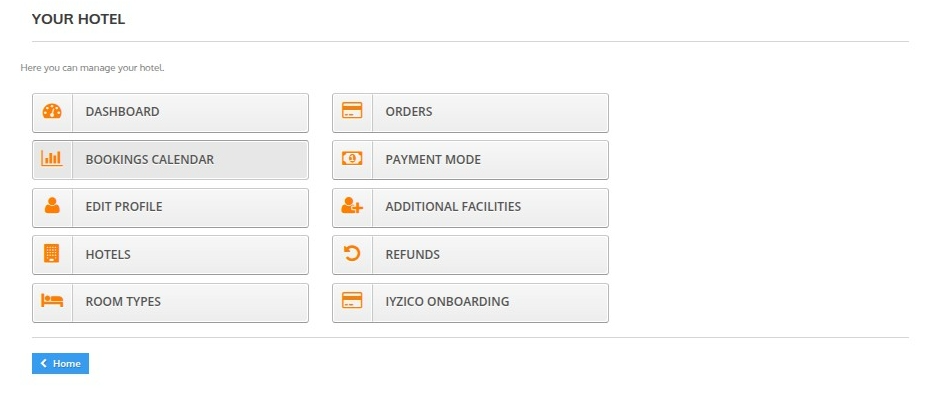
Click Iyzico Onboarding to open the Iyzico Payment Connection page.
On this page, the seller will see the following message:
- Please connect with Iyzico payment gateway and provide your business and banking details to receive your marketplace payouts.
- Click Create New Iyzico Connection.



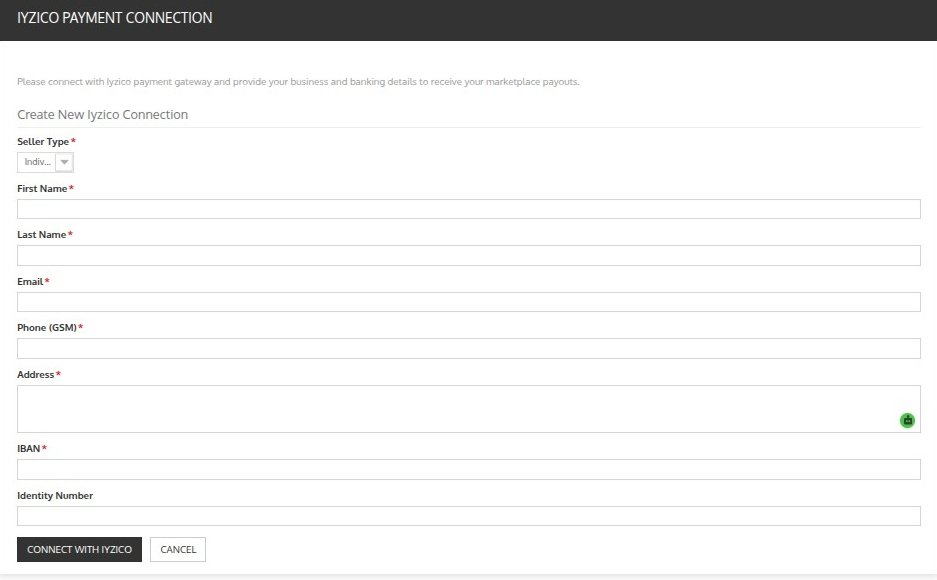
Fill in the required details:
- Seller Type: Select Individual or Company.
- First Name: Enter the seller’s first name.
- Last Name: Enter the seller’s last name.
- Email: Enter the registered email address.
- Phone (GSM): Enter the contact phone number.
- Address: Enter the seller’s complete address.
- IBAN: Enter the bank account IBAN where settlement payments will be received.
- Identity Number: Enter the identity number or company tax identification number, depending on the selected seller type.
After filling in all the required information, click Connect with Iyzico.
Once connected, the seller can see the Connected with Iyzico status and use Manage Iyzico to update account details or Disconnect the connection.


Front-End Workflow
Once the QloApps Marketplace Iyzico Payment Gateway is configured successfully, guests can use Iyzico as their payment method during checkout.
On the checkout page, select Pay with Iyzico from the list of available payment methods.

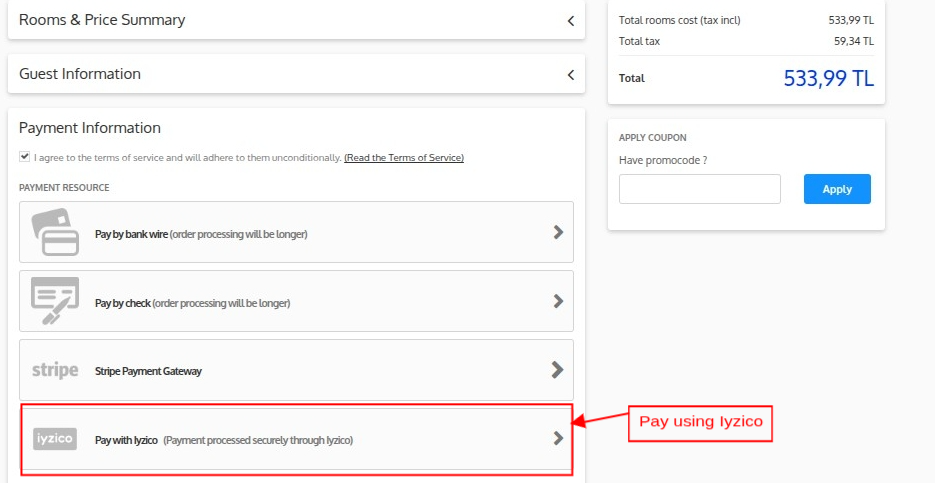
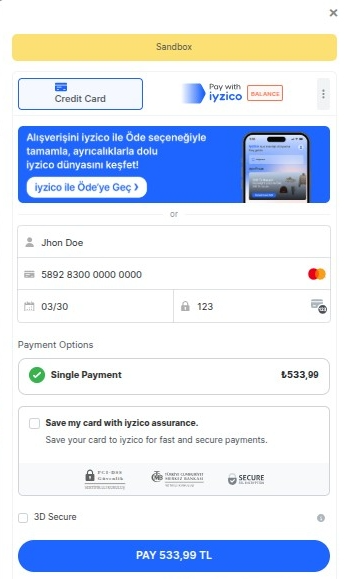
After clicking Pay with Iyzico, the guest is redirected to the secure Iyzico payment page.
Here, the guest can enter the required card details.
After entering the details, click Pay to complete the transaction.

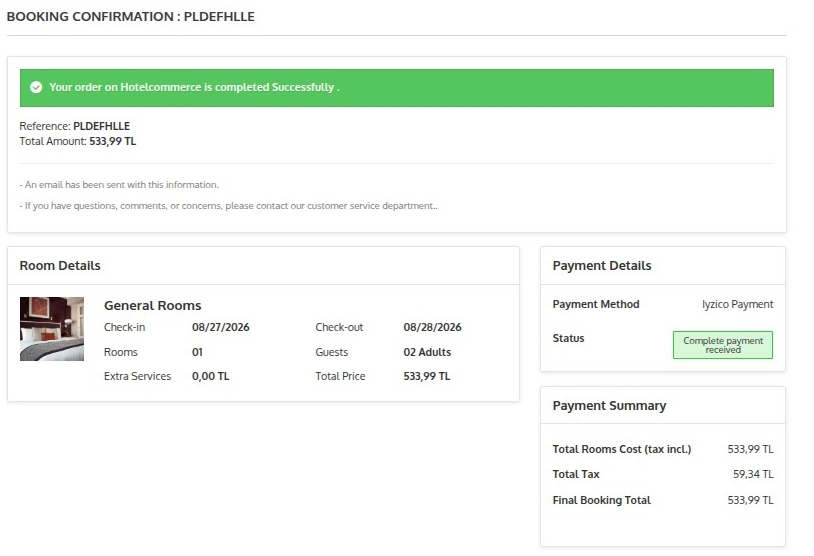
After a successful payment, the system redirects the guest to the booking confirmation page, where they can view the booking details, payment status, and booking reference.

Marketplace Iyzico Payment Transactions
After installation, the module adds a new tab, Marketplace Iyzico Payment Transactions.
Here, you can view the list of all bookings made through the Iyzico payment gateway.
Click on the View button to see the complete transaction details.


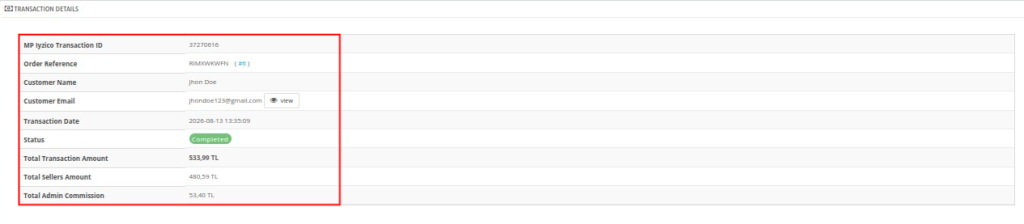
Transaction Details
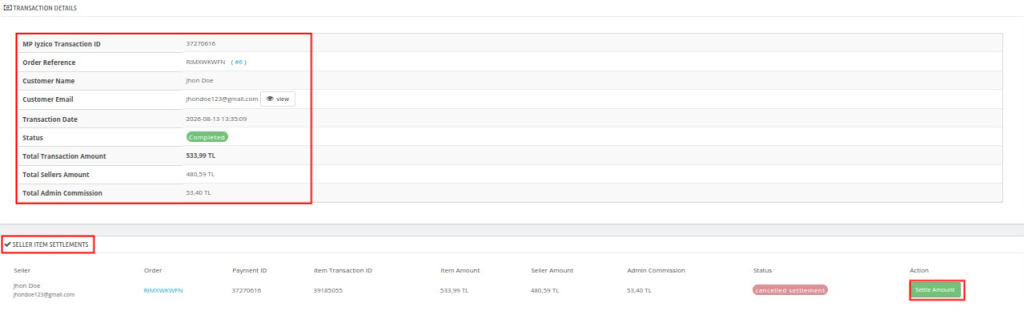
The Transaction Details section displays the complete payment and booking information, including the seller item settlements.

Seller Item Settlements
Under Seller Item Settlements, the admin can review the settlement amount assigned to each seller.
By clicking on the Settle Amount, the admin can process and approve the seller’s settlement.



Below the settlement section, the Seller-wise Commission Distribution provides a clear breakdown of the booking amount, seller share, admin commission, and settlement amount for each seller.
This helps the admin easily track how each marketplace seller receives their payment.
Conclusion
That was all about the QloApps Marketplace Iyzico Payment Gateway.
Above all, if you want to learn about the functionality of QloApps, then you can visit this link: All In One Property Management System.
In case of any query, issue, or requirement, please feel free to raise it on the QloApps Forum.
I hope this blog helped you understand the working, configuration, seller onboarding, payment processing, and settlement management of the QloApps Marketplace Iyzico Payment Gateway Module.
Current Product Version – 4.0.0 & 1.0.0
Supported Framework Version – QloApps 1.7.x & 1.6.x