QloApps Marketplace Housekeeping
Managing housekeeping efficiently is essential for every hospitality business. Clean and well-maintained rooms help create positive guest experiences and improve operations.
The QloApps Marketplace Housekeeping module allows sellers to manage housekeeping activities directly from their marketplace dashboard with ease and convenience.
This module enables sellers to track room cleaning status, monitor housekeeping tasks, and ensure rooms are ready before guest arrivals.
The module provides better visibility into room conditions, helping property owners maintain service quality and avoid delays caused by housekeeping issues.
With an organized housekeeping workflow, sellers can improve efficiency, reduce manual effort, and deliver a comfortable and consistent stay for every guest.
We have developed the QloApps Marketplace Housekeeping Module to simplify housekeeping management for marketplace sellers.
This module helps automate housekeeping operations, organize tasks efficiently, and manage staff activities from a centralized interface.
QloApps Marketplace Housekeeping Dependency
- You must install and configure the QloApps Marketplace Module on your system before installing this module.
- Module 2.0.0 is compatible with QloApps version 1.6.x and above, and marketplace versions 2.0.0 and 5.0.0
- Module 1.0.0 is compatible with QloApps version 1.6.x and above, and marketplace versions 1.3.2 and 4.0.0
Features of QloApps Marketplace Housekeeping
- Admin has the option to enable or disable housekeeping features as per the seller.
- Admin can set the status of the housekeeping task for various events and the status once chosen will be automatically updated for the events as selected by the admin.
- Admin can configure the housekeeping statuses:
- Clean
- Dirty
- In Progress
- Out of Order
- Sellers can assign any of the following housekeeping statuses to their rooms based on their current housekeeping task:
- Clean
- Dirty
- In Progress
- Out of Order
- The seller can easily export the list of rooms with their housekeeping status.
- The seller can also perform the bulk update of the housekeeping status of the rooms.
- The seller can also create a new housekeeping task for any room in their hotel.
- The seller can manage the housekeeping work order assigned to any third party for maintenance tasks of his rooms or hotel.
- The seller can track the history of each room’s housekeeping task status. They can view the past logs to monitor when the room housekeeping status has been changed and who has changed the status.
How To Install The QloApps Marketplace Housekeeping Module?
You can install the QloApps Marketplace Housekeeping Module easily by performing the following steps:
- At the admin back office panel, go to the Modules and Services tab present in the menu.
- Click on Add a new module
- Upload the ZIP file of the module.

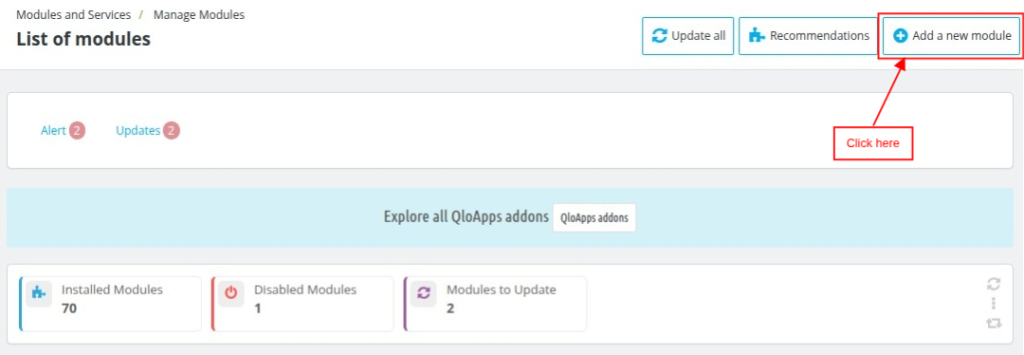
Now upload the ZIP File of the module and click on install.

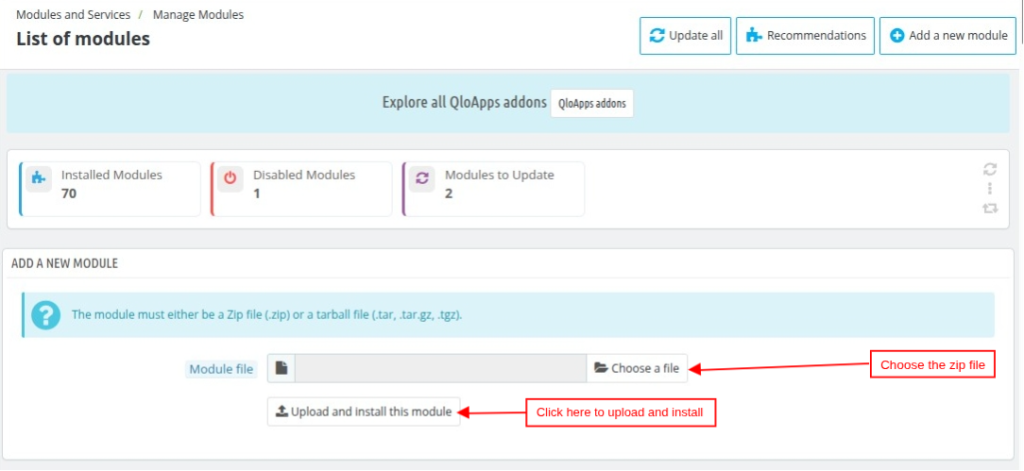
After this process, your QloApps Marketplace Housekeeping module will be successfully installed.
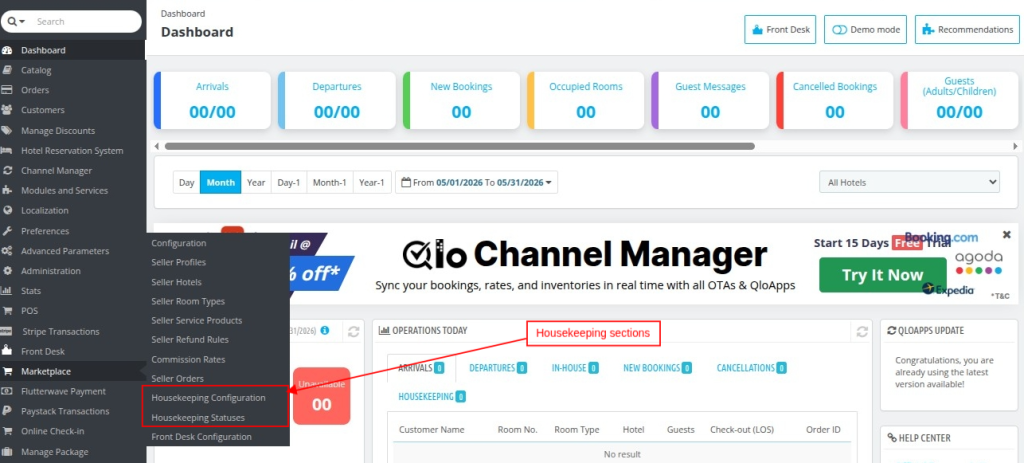
You can access the Housekeeping Configuration and Housekeeping Status sections from the Marketplace menu to manage housekeeping settings and status tasks.

Before discussing how you can use this add-on, let’s first discuss how you can configure this add-on.
Configuration of the QloApps Marketplace Housekeeping
To configure this module, search for the marketplace housekeeping module in the module list on the manage module tab. Now, click on the configure button.

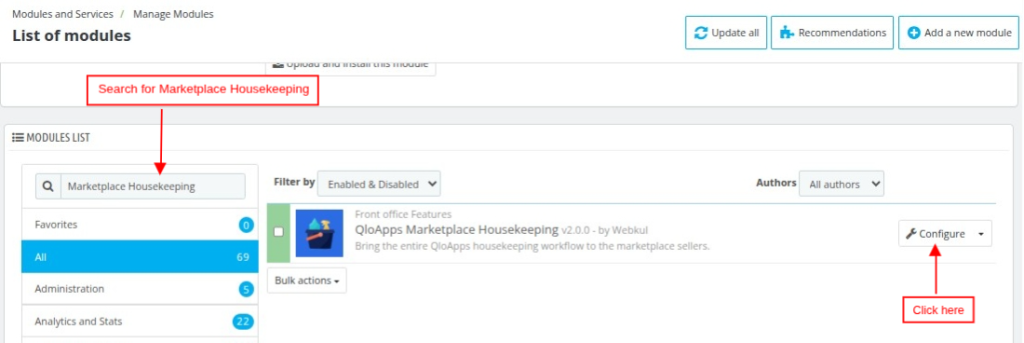
The other way to open the configuration page is to click directly on the Housekeeping Configuration under the Housekeeping tab.

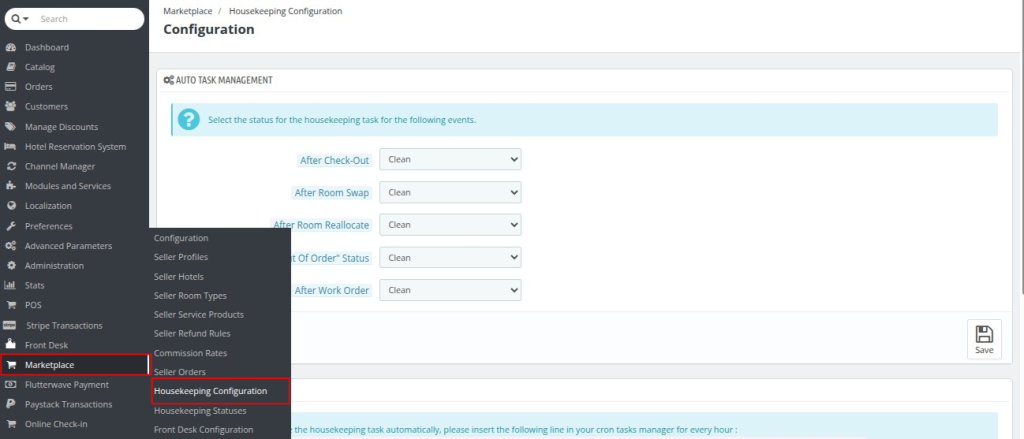
Once you click on the Housekeeping Configure button, the Configuration page will open. On this page, you can set the status of housekeeping for various events.
Auto Task Management

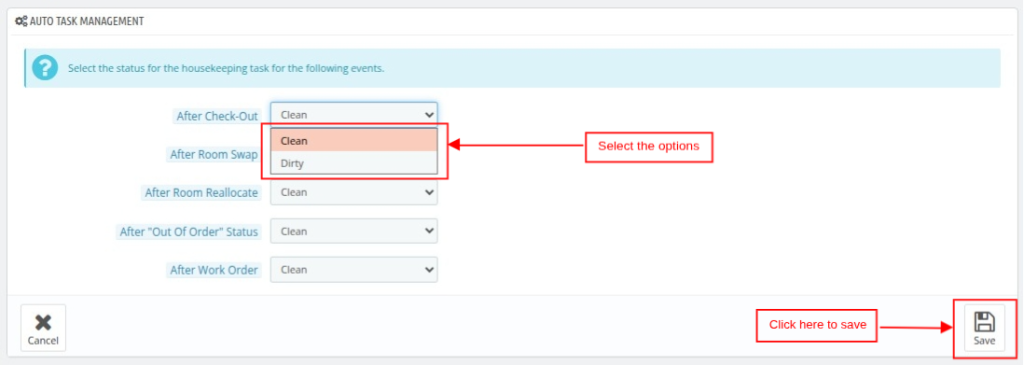
Various events for which admin can set the auto-update of your preferred housekeeping status for sellers are:
After Check-Out
Select whether you want the system to automatically change the room’s housekeeping status to Clean or Dirty when a guest checks out.
After Room Swap
Select whether you want the housekeeping status of the room to automatically change to clean or dirty when you swap the rooms.
After Room Reallocate
Select whether you want the housekeeping status of the room to automatically change to clean or dirty when you reallocate the rooms.
After “Out of Order” Status
Select whether you want the housekeeping status of the room to automatically change to clean or dirty when the room becomes active for booking after the “Out of order” status.
After Work Order
Select whether you want the housekeeping status of the room to automatically change to clean or dirty when the room becomes active for booking after work order completion.
Cron Task Management

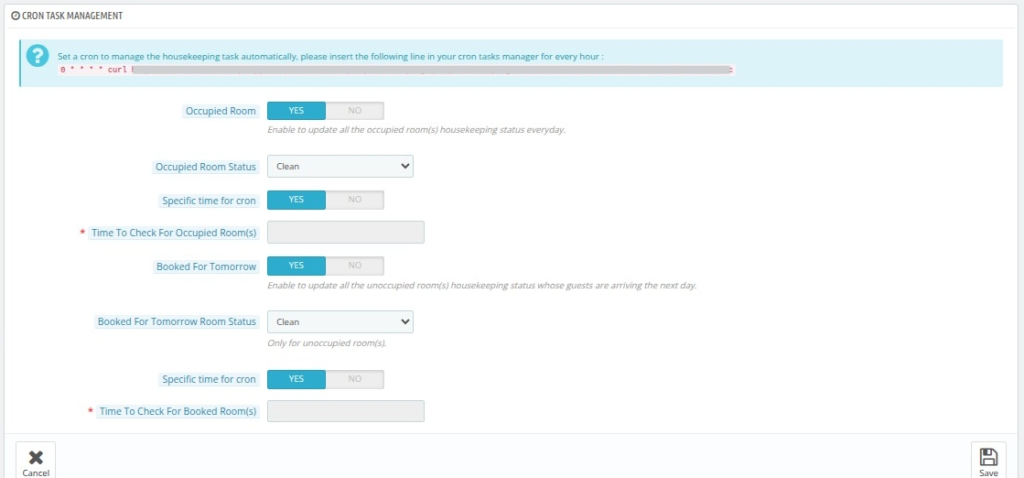
1) Occupied Room: Enable this option to automatically update the housekeeping status of occupied rooms to Clean or Dirty based on your selected preference at the start of each day.
a) Occupied Room Status: Set the status that needs to be updated every day for occupied rooms.
b) Set Cron for Specific Time: You can set cron if you want to change the selected housekeeping status of the room at a specific time of the day rather than as soon as the next day begins.
c) Time To Check For Occupied Room(s): Enter the time at which you want to check whether rooms are occupied or not, if occupied then their status will be set as per your selected housekeeping status.
2) Booked for Tomorrow: Enable this option to automatically change the housekeeping status for the seller rooms that are booked for the next day as soon as the next day starts.
This will help you maintain a clean room for upcoming guests.
a) Booked for tomorrow Room Status: Set the status that you want to be assigned to rooms booked for the next day.
b) Set Cron for Specific Time: Set a cron schedule to update the housekeeping status of rooms with arrivals scheduled for the next day at a specific time.
c) Time To Check For Tomorrow’s Arrival: Set the time at which the system should check rooms with arrivals scheduled for the next day and update their housekeeping status accordingly.
Housekeeping Statuses of the QloApps Marketplace Housekeeping
In this section, you can edit the name and color of all existing housekeeping statuses.

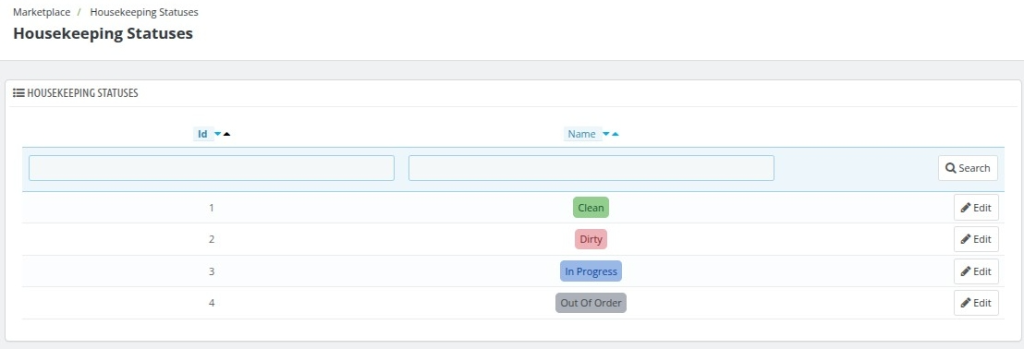
To edit the status, click on the edit icon of the particular status.

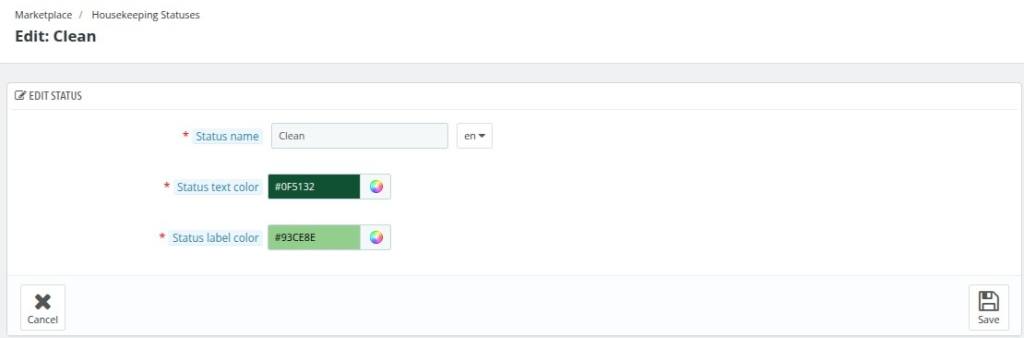
When you click on the edit icon, you will be able to edit the name and color of the status through the following options:
- Status Name
- Status Text Color
- Status Label Color
Note: Only admin will have the access to change the Name, Text Color, and Label Color of the Status.
How Admin can Disable the Housekeeping Section for Sellers
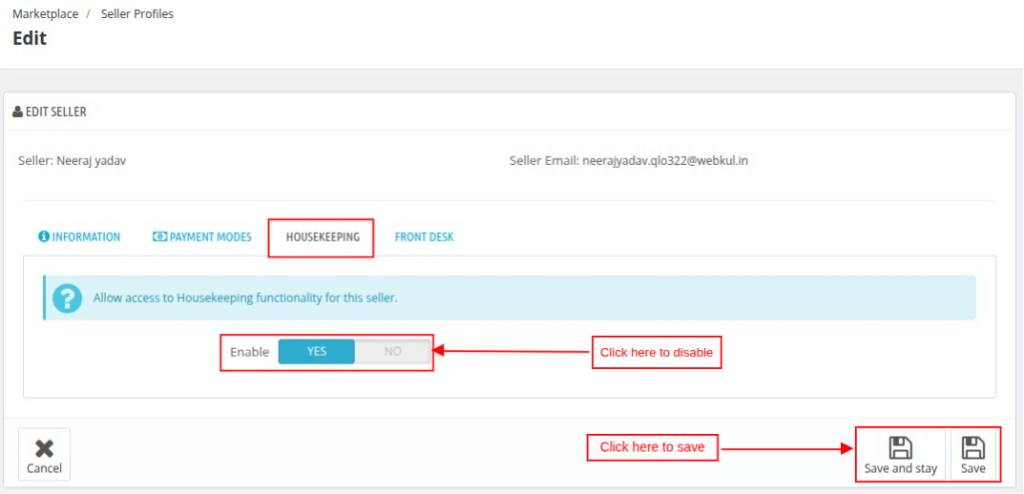
The admin can revoke housekeeping access for a specific seller by disabling the Housekeeping option in the seller’s profile, as shown below.
Note: By default, the system grants all sellers access to the Housekeeping section.

QloApps Marketplace Housekeeping Seller View
After the admin enables the Housekeeping feature for a seller, a Housekeeping tile will appear under the Account tab in the Your Hotel section, as shown below:

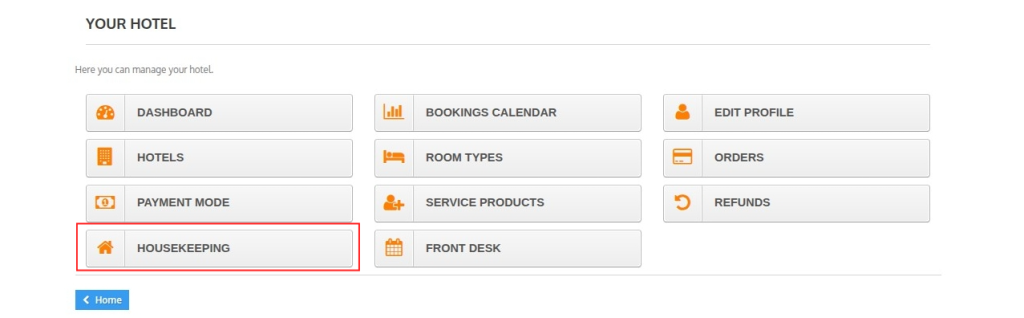
Clicking the Housekeeping tab takes the seller to the Manage Tasks page, where they can view and manage housekeeping tasks, as shown below.
The Housekeeping section consists of the following four sections:
- Manage Tasks
- Manage Work Orders
- Configuration
- History

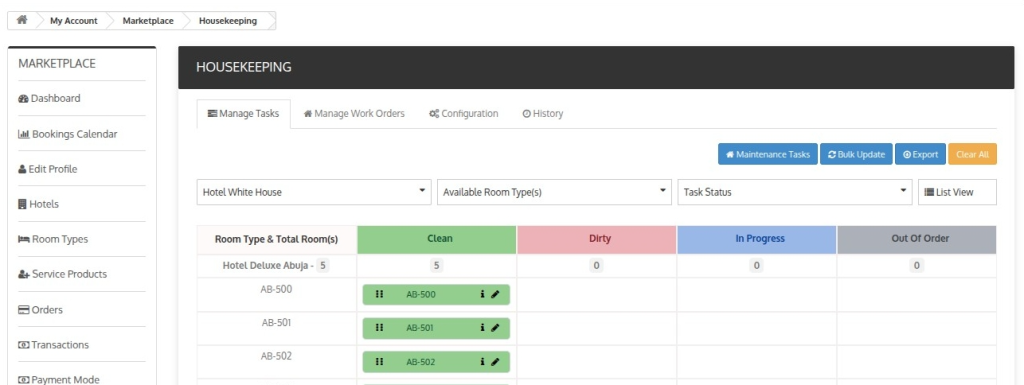
Manage Tasks
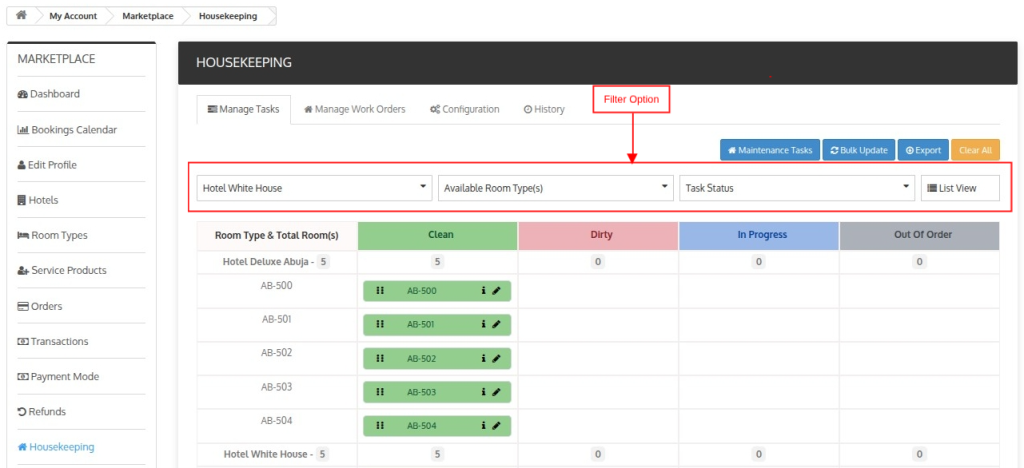
In this section, the seller can view and update the housekeeping status of each room in their hotel for the current day.
The seller can also view and manage rooms that are marked as Out of Order and create maintenance tasks for future dates.
Additionally, sellers can filter the displayed data based on their requirements using the available filter options, as shown below.

Bulk Update
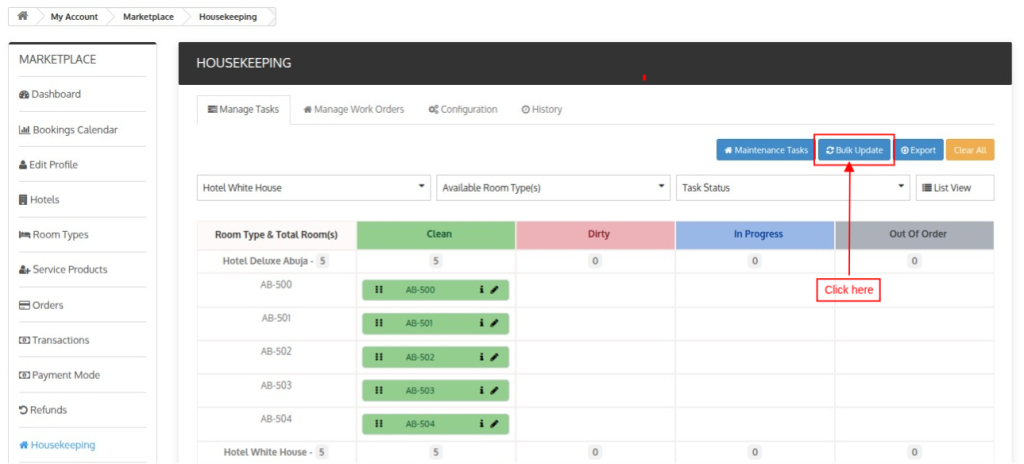
The seller can easily update the housekeeping status of various rooms of the hotel at once using the bulk update option.
- To update the housekeeping status of the rooms, click on Bulk Update.

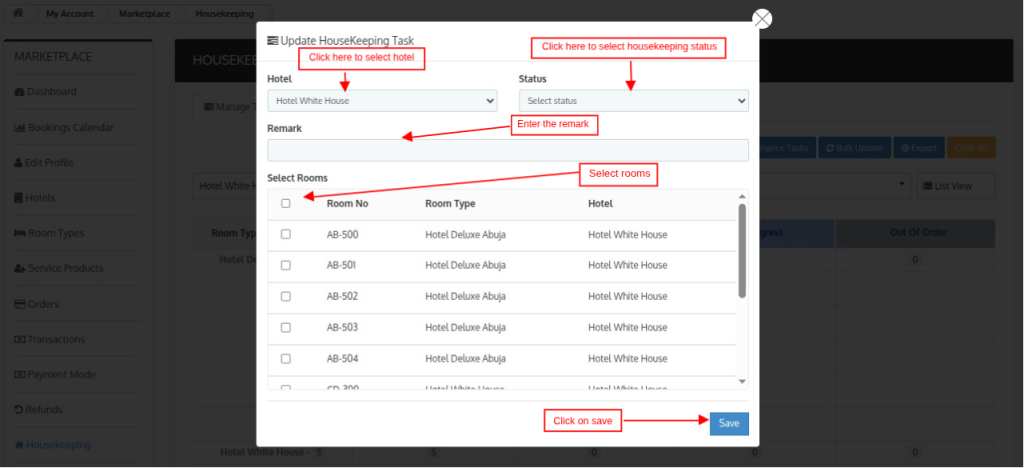
- Select the hotel: Select the hotel for which you want to update the status.
- Select the Status: Select the status (Clean, Dirty, In Progress, and Out of Order) that you want to assign to the rooms.
- Remark: Add any note/ remark that you want to display for this task to inform others.
- Select Rooms: Select room for which you want to update the status.
Export List
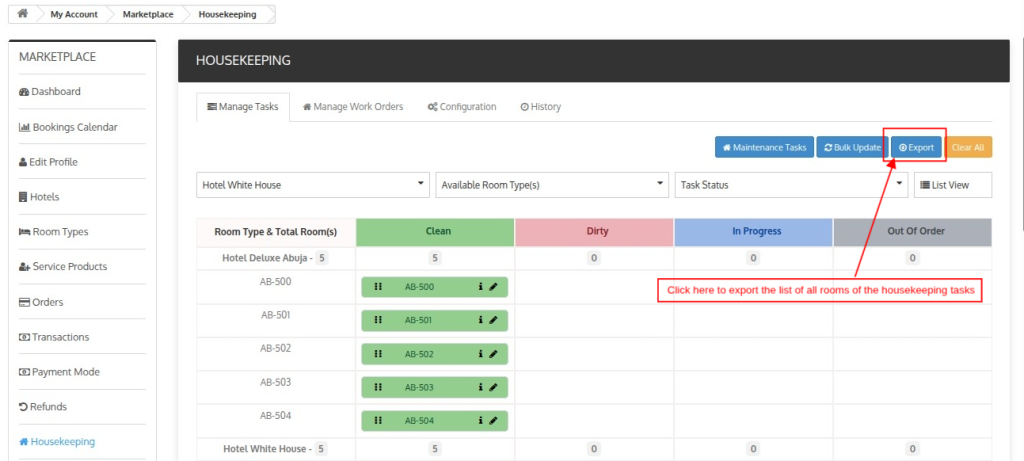
The seller can easily export the list displaying the housekeeping status of each room of the hotels in one click using the Export button.

Maintenance Task
The seller can directly click on the Maintenance tasks to view the complete list of the tasks under maintenance.
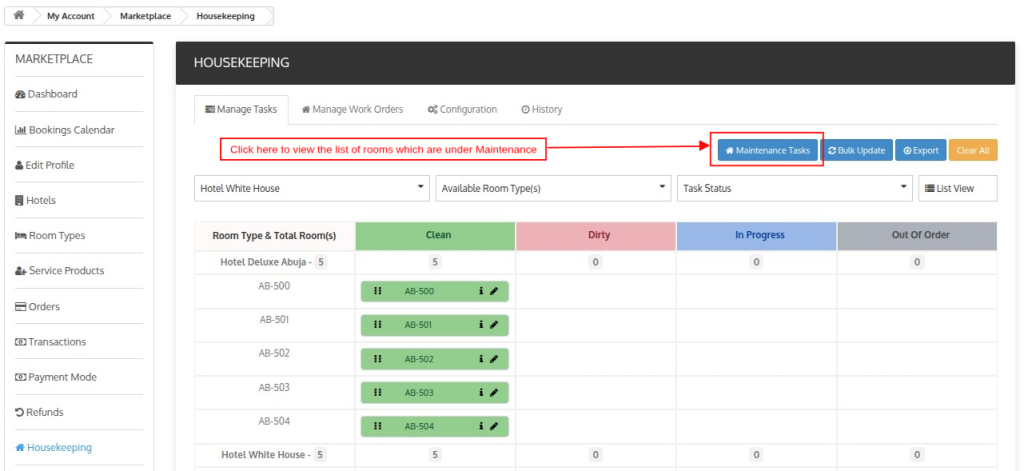
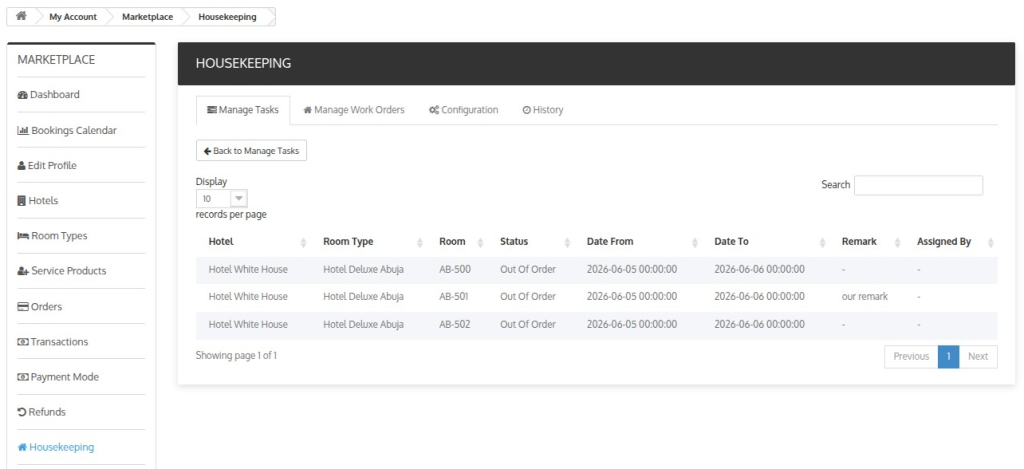
Once the seller will click on the Maintenance Tasks button, they can view a list of all rooms that are out of order.

Grid View and List View
The module offers two view modes for sellers to view room details:
- Grid View
- List View
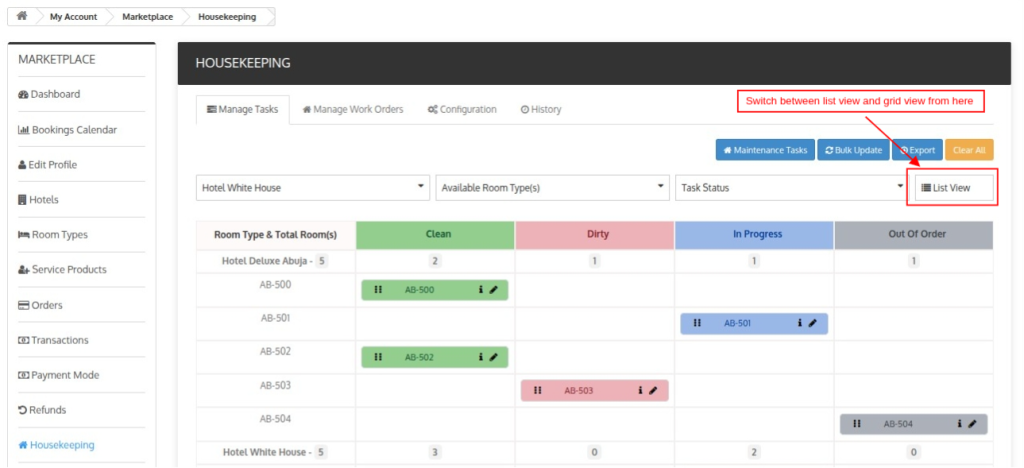
The seller can switch from one mode to another using the mode button.
Grid View
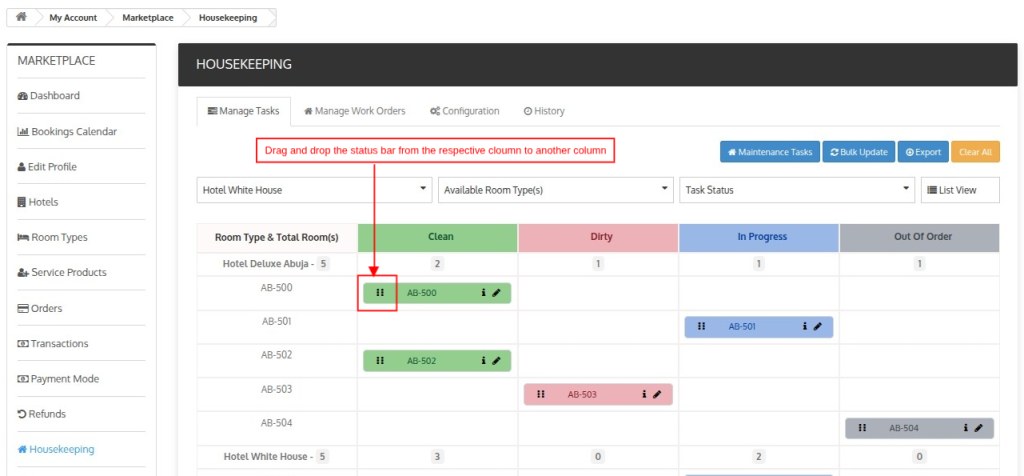
In this view mode, seller can see the list of all rooms and the status assigned to that room in a grid view.

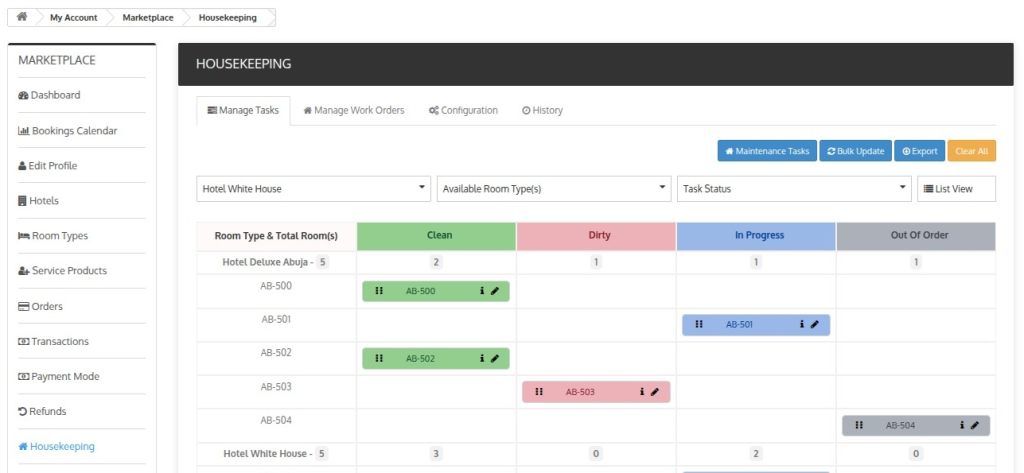
The first column displays all rooms and the rest columns highlight all available status types. Specific rows also display the inventory of a particular room type rooms in each housekeeping status.
To change the status of any room, you can simply drag the status bar from one column to another.

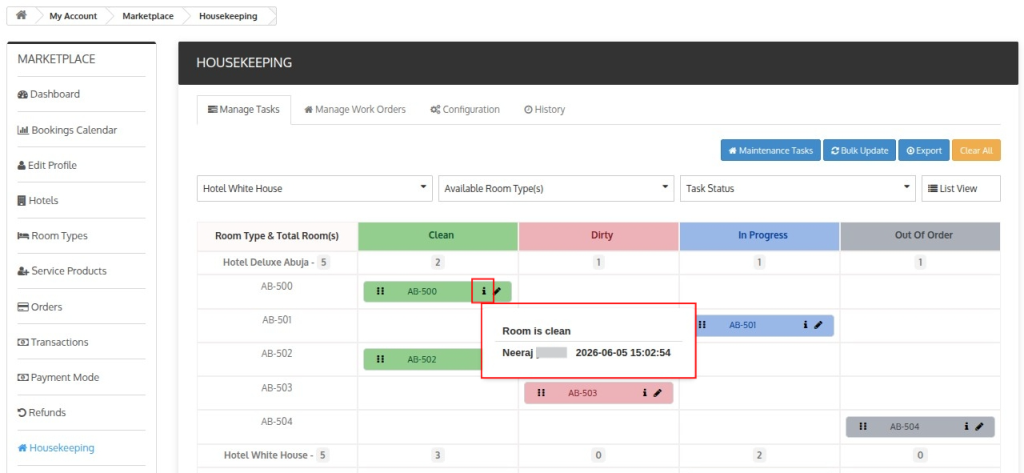
When you hover over the Info Icon, you will see the history of the statuses of this room.
It will provide you with information about the person who has updated the status and at what date, and time the update has been made.
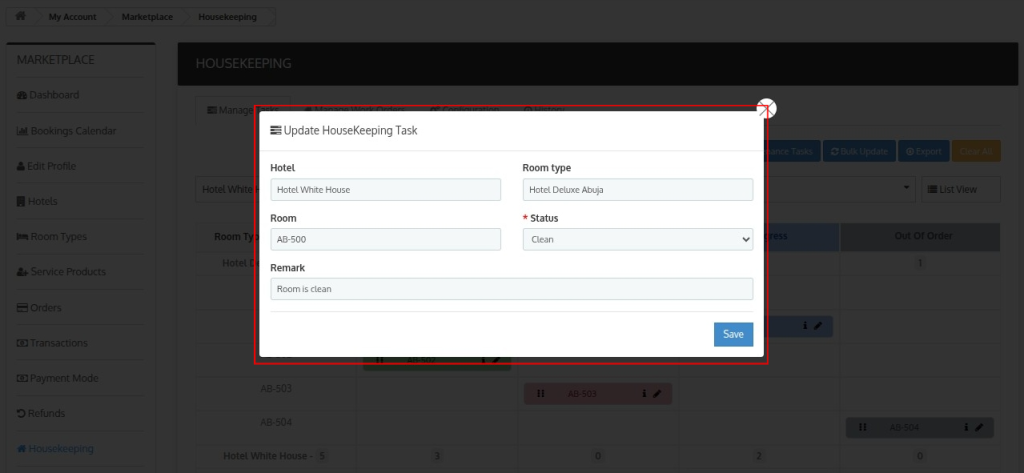
To edit the task, click on the edit icon in the status bar.
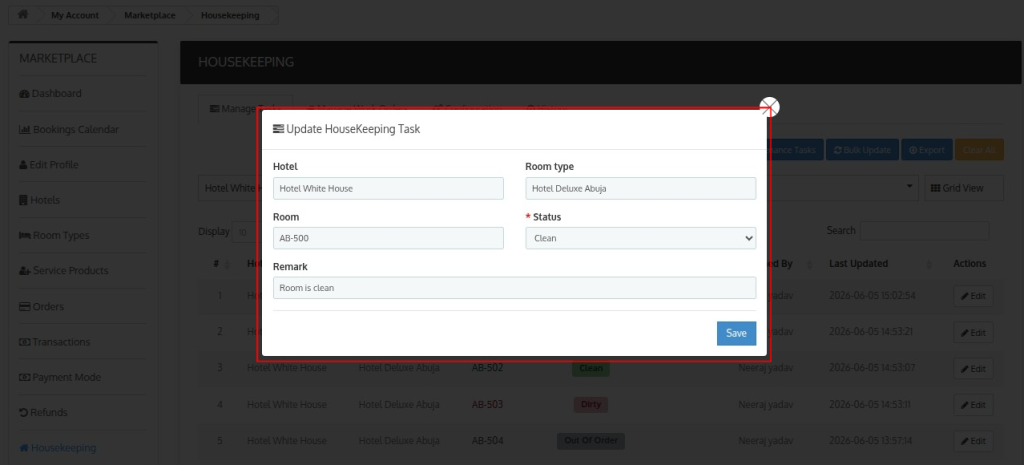
Once you click on the edit icon, a pop-up will open in which you will add the updated status and remark and the task will be updated accordingly.
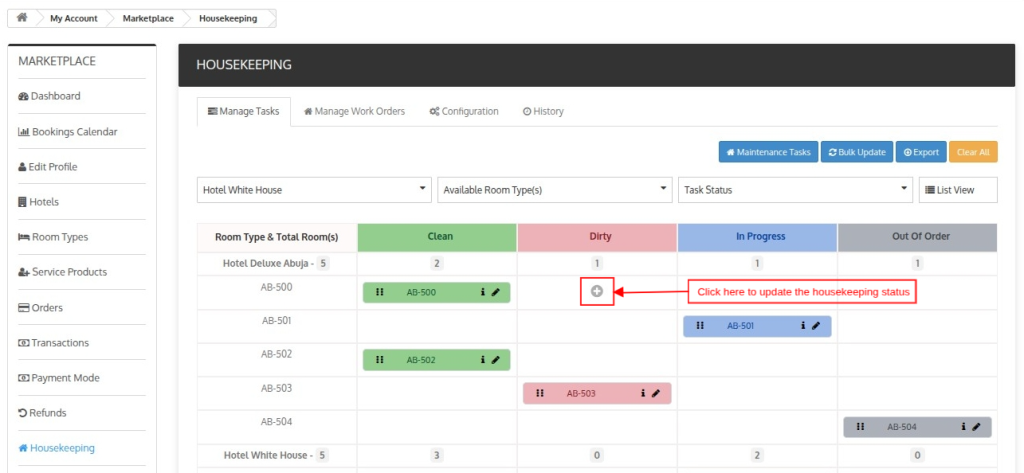
You can also edit the housekeeping task of any room by simply clicking on the Plus Icon of the respective housekeeping status column for a particular room or room type.
List View
In this mode, sellers can view details such as room number, room type, hotel, and housekeeping status.

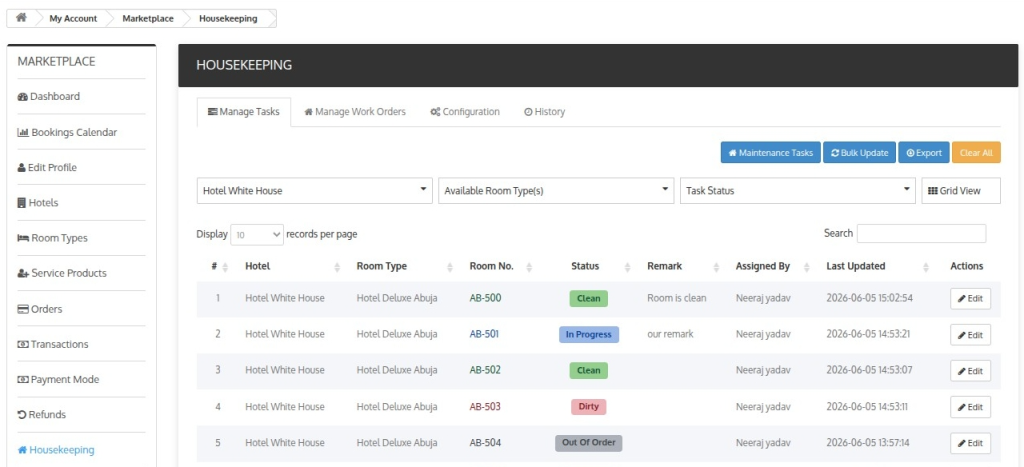
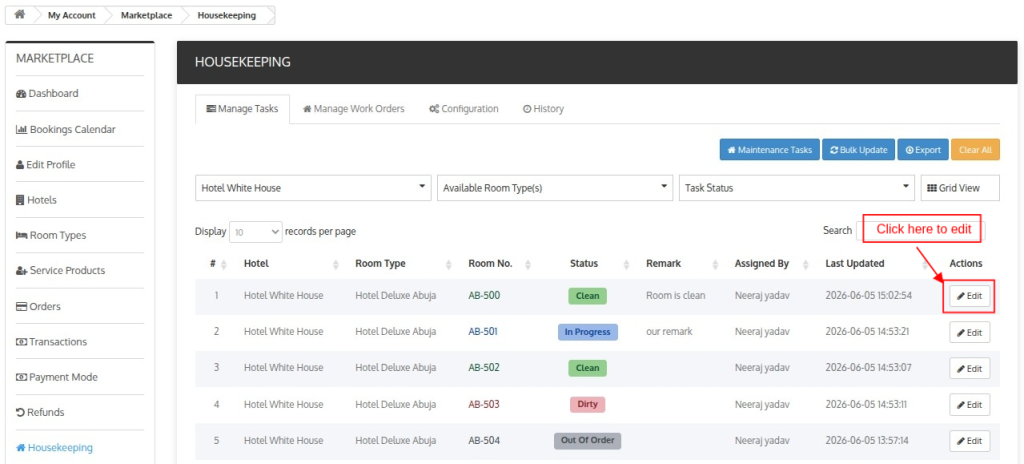
To edit any task, you can click on the edit button of the particular task and update the task details.

Manage Work Orders
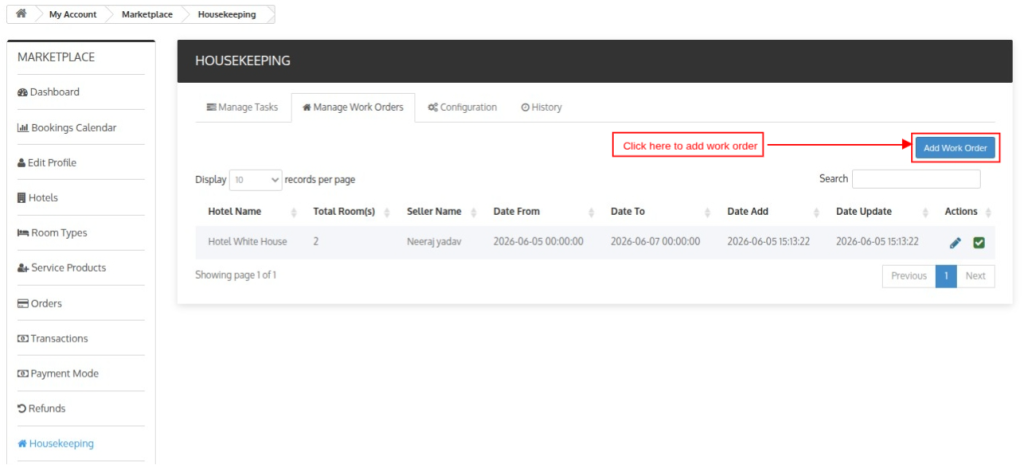
In this section, seller can view all the tasks you have assigned to third-party vendors. You can create separate work orders for each task that you have assigned to any worker.

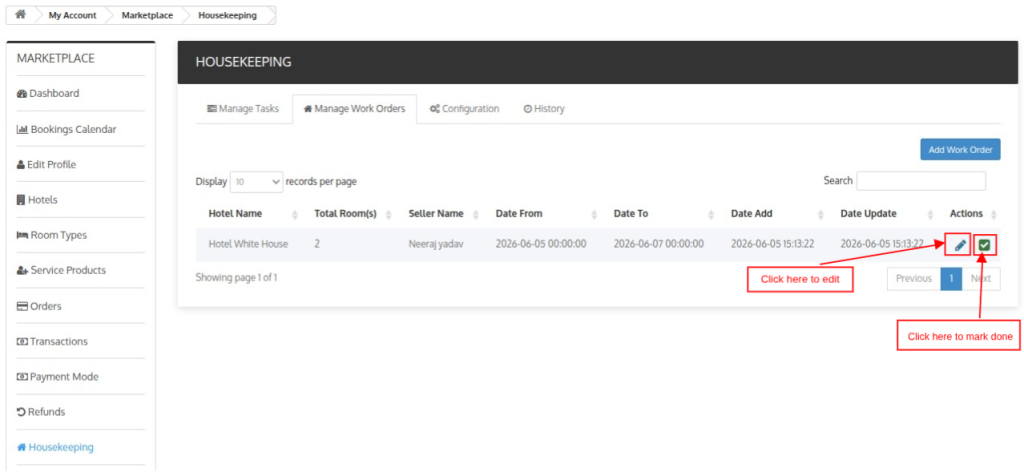
Through this section, seller can easily manage the repair and maintenance tasks of their hotel. It will help them to keep a record of all the tasks and inform their staff about the same.
The seller can directly mark the task as done if the task is completed before the end date using the check box option under the Action column as shown above.
How To Create A New Work Order?
To create a new work order, click on Add Work Order.
Once you will click on Add work order, a new page will open on which you will have to add the following details of the work order:

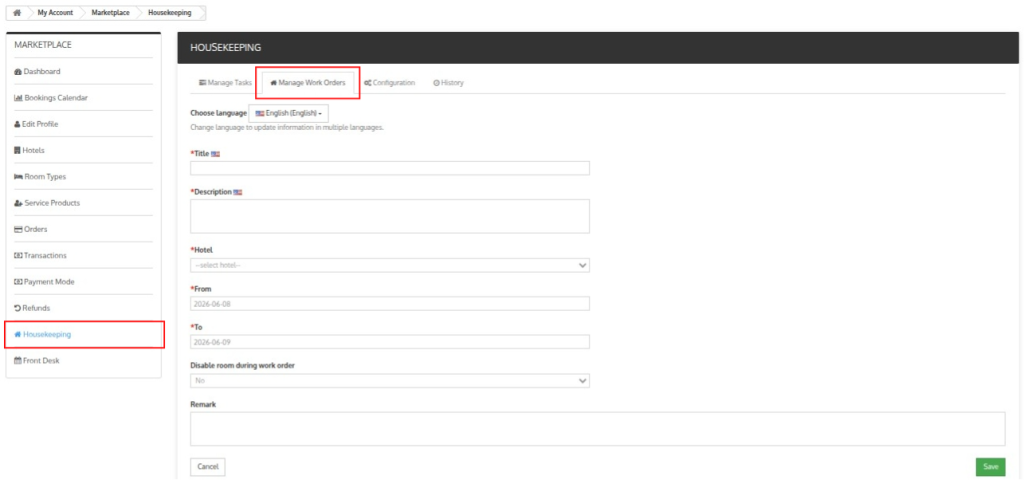
- Title: Enter the name of the work order
- Description: Enter a basic detail about the work
- Hotel: Select the hotel from the drop down
- From: Enter the start date of the work order
- To: Enter the end date of the work order
- Disable room during booking: Select the option from the drop down.
- Remark: Add a note with this work order
History
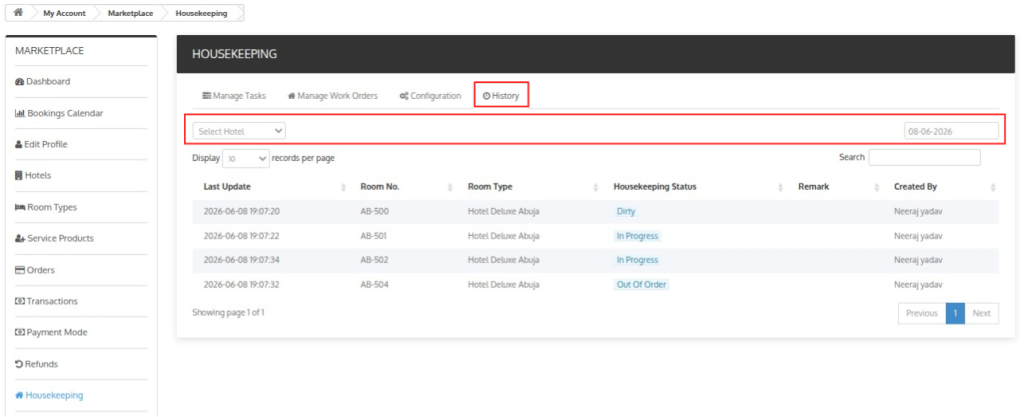
This section displays the history of the housekeeping status of each room and the details about the person who edited the status.
Using the filter of hotels and dates, you can also filter the history data and monitor the data as per your requirements.

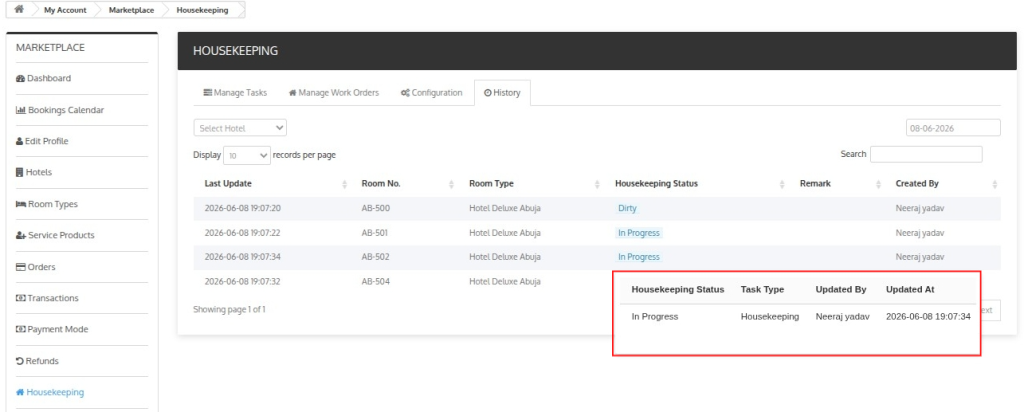
You can view the details of each room’s housekeeping status history of a particular hotel by simply hovering over the housekeeping status.

Configuration
Seller can also configure the housekeeping tasks, which can auto-update of their preferred housekeeping status.

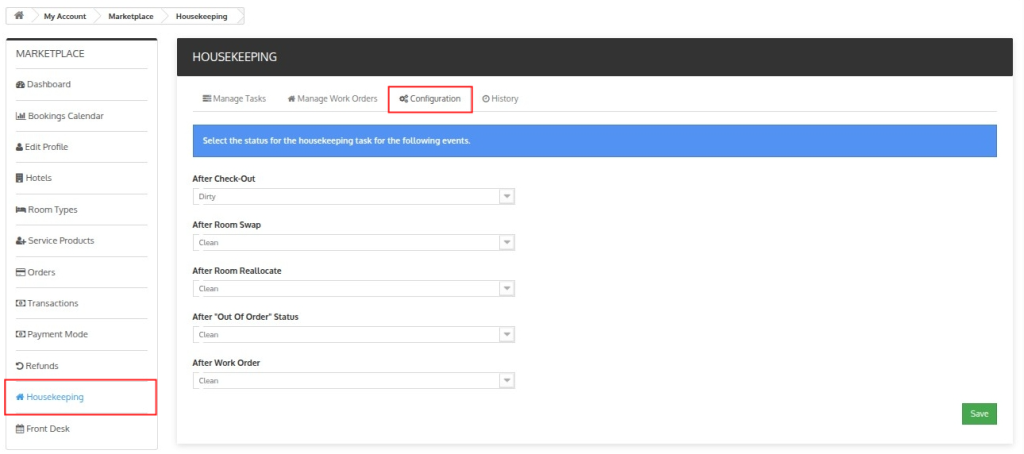
After Check-Out:
Select whether you want the housekeeping status of the room to automatically change to clean or dirty when the room status is updated as checkout.
After Room Swap
Select whether you want the housekeeping status of the room to automatically change to clean or dirty when you swap the rooms.
After Room Reallocate
Select whether you want the housekeeping status of the room to automatically change to clean or dirty when you reallocate the rooms.
After “Out of Order” Status
Select whether you want the housekeeping status of the room to automatically change to clean or dirty when the room becomes active for booking after the “Out of order” status.
After Work Order
Select whether you want the housekeeping status of the room to automatically change to clean or dirty when the room becomes active for booking after work order completion.
Note: If any modification has been made by the seller in the configuration section, then the Global Configuration (Admin Level) will not apply.
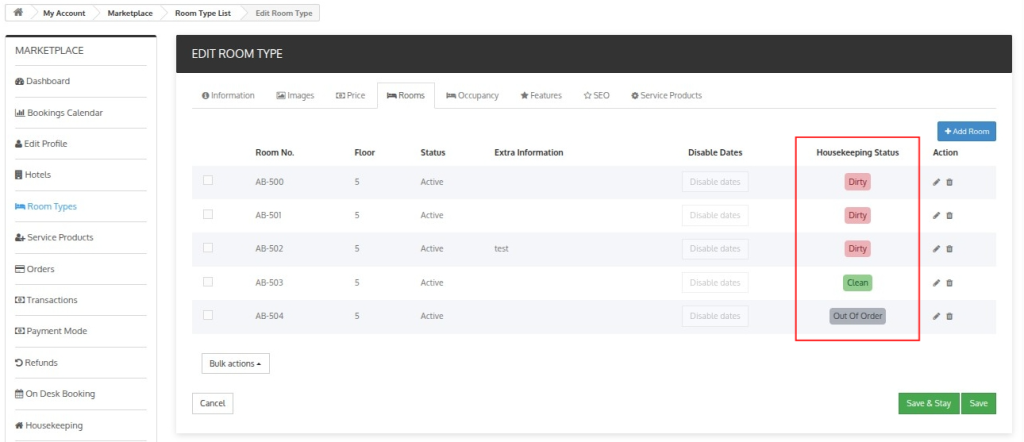
Configuration Section of Room Type
The current status of all rooms of each room type can be viewed in the room tab of room type.

Conclusion
The QloApps Marketplace Housekeeping Module helps sellers streamline housekeeping operations, improve room readiness, track tasks, and enhance efficiency.
With features such as status management, bulk updates, work orders, history tracking, and automated workflows, sellers can reduce manual effort and maintain better control over daily tasks.
By ensuring rooms are properly maintained and prepared on time, the module enhances service quality, supports staff productivity, and contributes to a better guest experience.
Additionally, to learn more about the functionality of QloApps, you can visit this link: All-in-One Property Management System.
In case of any query, issue, or requirement, please feel free to raise it on the QloApps Forum.
Current Product Version: 1.0.0 and 2.0.0
Supported Framework: 1.6.x and 1.7.x