
QloApps Social Feeds connects your hotel Instagram profile with your booking website. As a result, you can share real guest photos and property highlights.
This module lets hoteliers show live Instagram posts on several pages. You can pick between a sliding carousel and a multi-page list.
NOTE: You need an active Meta Developer account. You also need a connected Instagram Business or Creator account to get your Instagram App ID and App Secret.
Features of QloApps Social Feeds
- Display live Instagram photos and videos on your hotel booking website
- Position social feeds on home, room footer, and column hooks
- Select between responsive slider and multi-page layouts
- Customize caption view with always show, hover, or hide modes
- Adjust caption font colors, heading tones, and background opacity
- Display post timestamps so guests can track recent property updates
- Configure slider autoplay intervals and set the post count per row
- Enable border thumbnails to match your property theme style
How to Install QloApps Social Feeds
Hoteliers can install the module directly through the Back Office panel:
- In the Back Office, navigate to Modules and Services › Modules and Services and click Add a new module in the top bar.
- Under Module file, click Choose a file. Next, select the module zip file (
qloinstagramfeed.zip) and click Upload this module. - Find QloApps Social Feeds in the modules list and click Install. Then confirm the installation prompt.
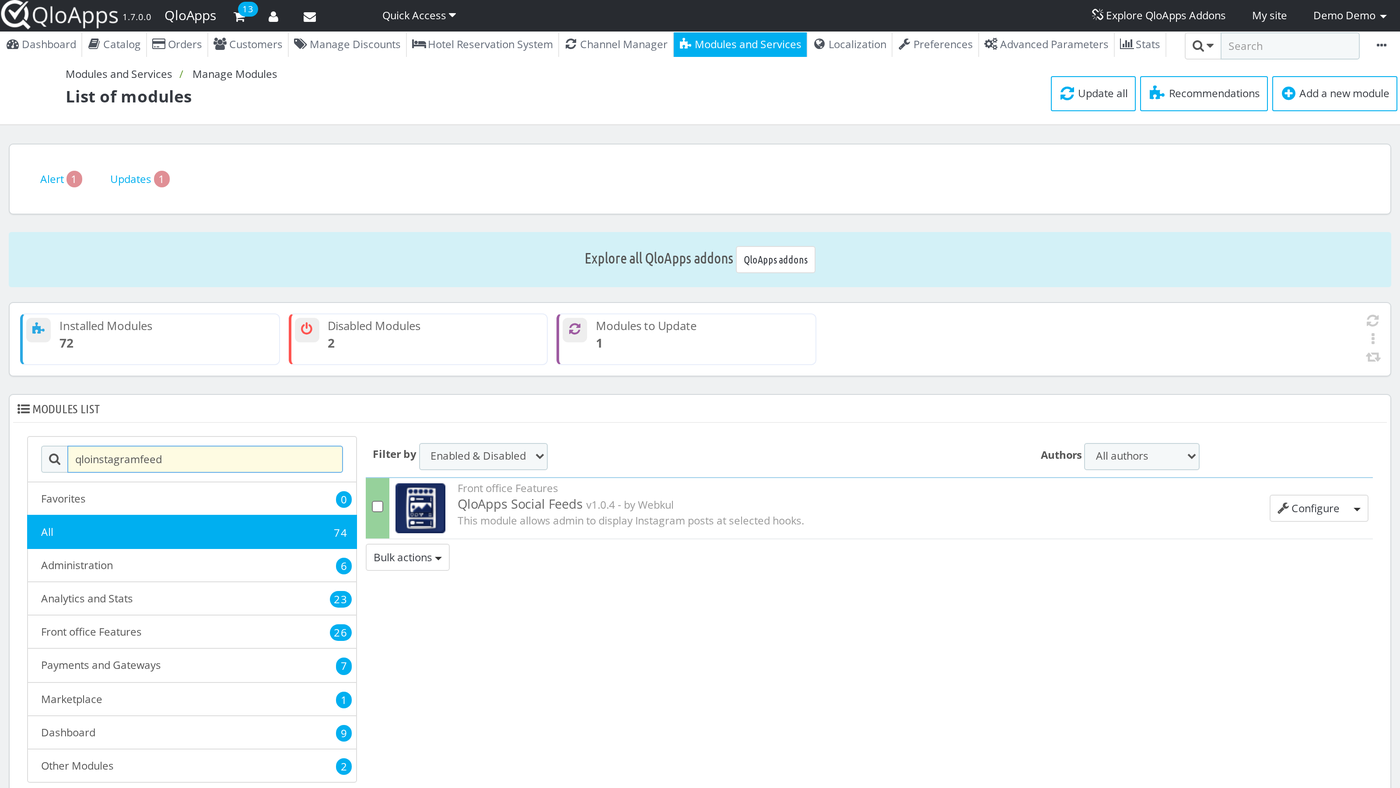
Configuration of QloApps Social Feeds
After installation, click Configure next to QloApps Social Feeds in Modules and Services › Modules and Services.
This opens the settings page. The settings form has two main sections: Instagram API Settings and Configuration Settings.
Instagram API Settings
The API connection section links your QloApps reservation platform with the Instagram Graph API.
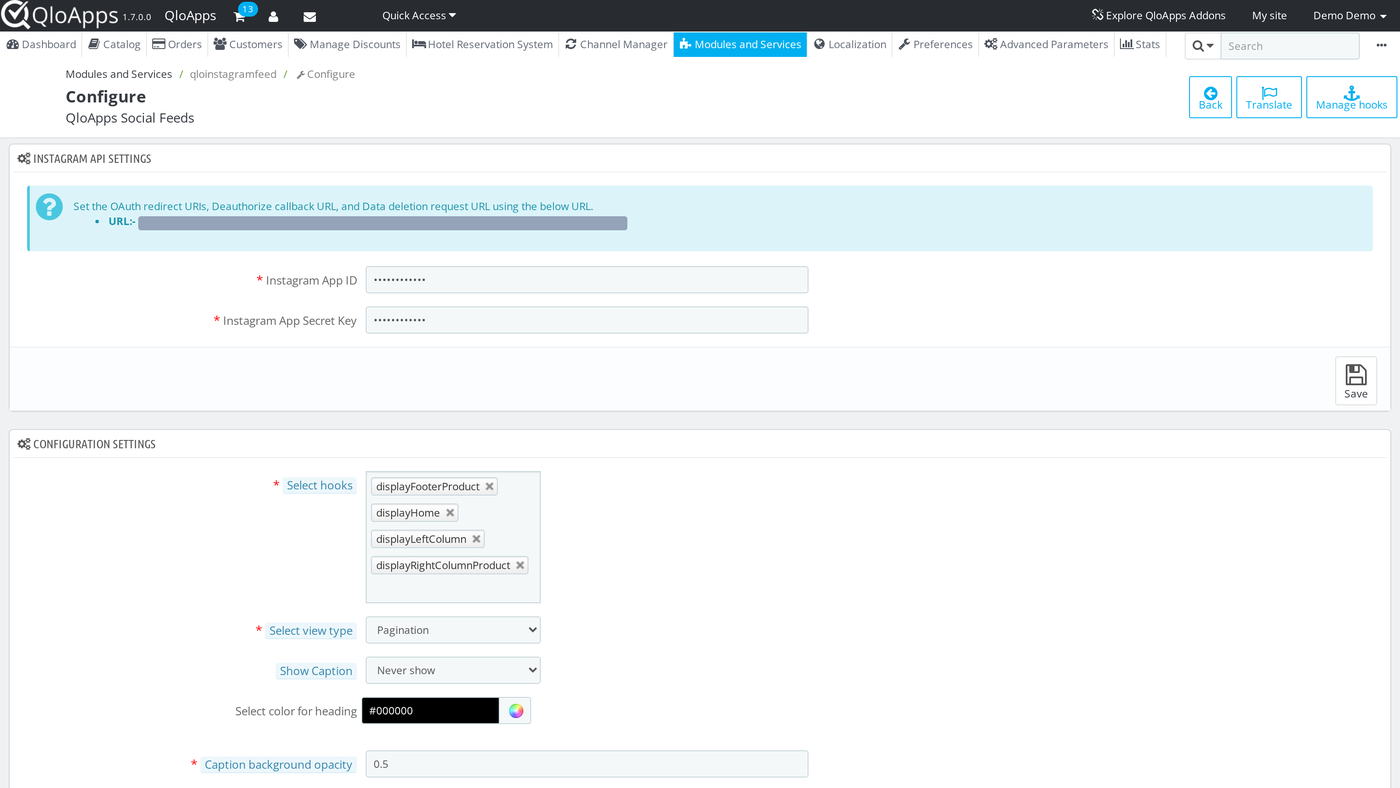
This panel includes the following controls:
- OAuth Redirect URIs Notice: QloApps displays your unique OAuth redirect URL (
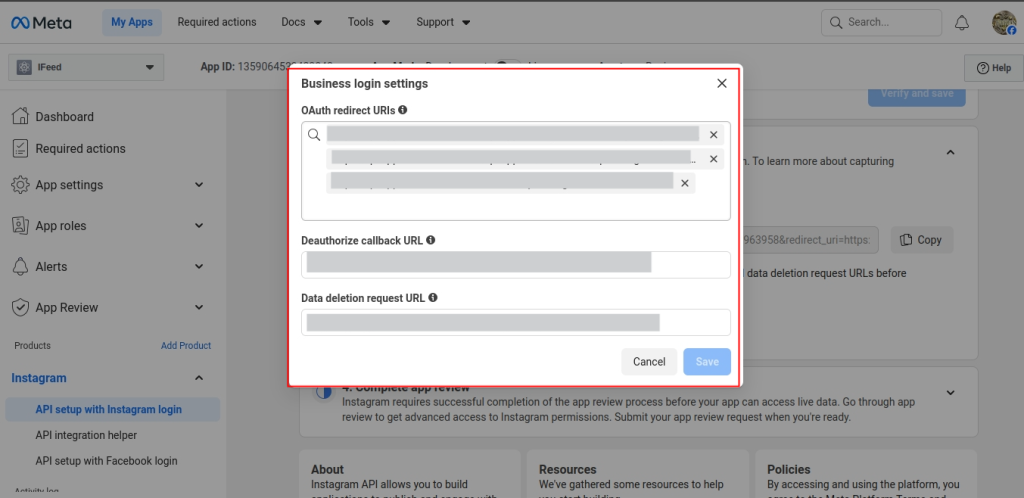
https://your-domain/module/qloinstagramfeed/accesstoken). You must copy this address. Then paste it into your Meta App settings under Valid OAuth Redirect URIs, Deauthorize callback URL, and Data deletion request URL. - Instagram App ID: Enter the unique number assigned to your Meta app. This field is required.
- Instagram App Secret Key: Enter your Meta app secret key. This value signs token requests and stays safe in your database.
After you enter both keys, click Save. QloApps then sends you to the Instagram login screen.
There, you can grant read access for your media. Once approved, QloApps saves the access token and confirms the connection.
Configuration Settings
The display settings section controls where and how social posts show on your booking website.
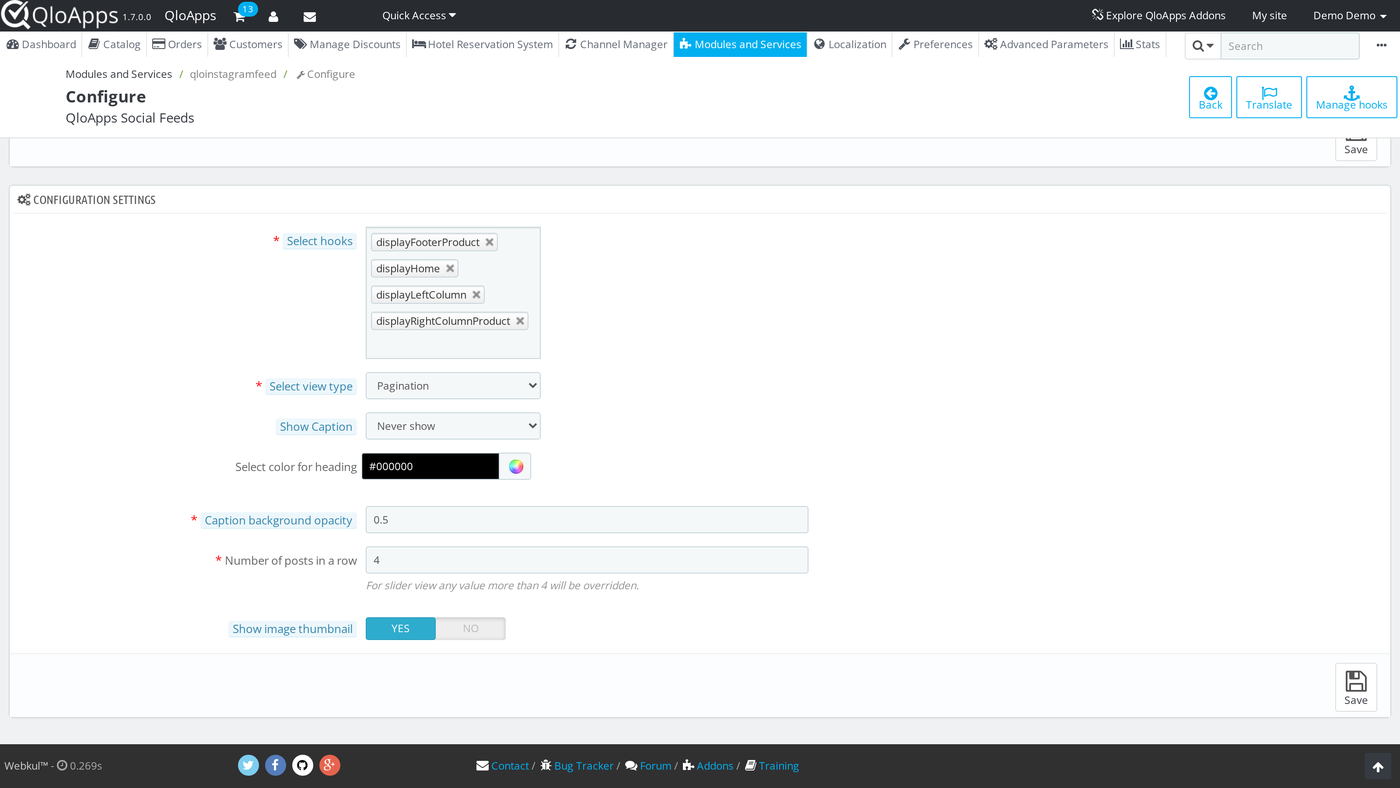
Display and Hook Preferences
Hoteliers can choose where posts appear:
- Select hooks: Choose the layout positions where Instagram posts should show. You can assign posts to
displayHome(landing page),displayFooterProduct(room type footer),displayLeftColumn(sidebar column), anddisplayRightColumnProduct. All four hooks stay on by default. - Select view type: Choose between Slider and Pagination modes. Slider mode shows posts in a sliding carousel. In contrast, Pagination mode puts posts into rows with page numbers. The default mode is Slider.
- Show Caption: Control when post text appears. Choose Always show, Show on hover, or Never show. The default setting is Always show.
- Select color for caption background: Pick the background color shown behind caption text. The default color is
#000000. - Select color for caption: Choose the text color for captions. The default value is
#ffffff. - Select color for heading: Set the color for the section title (“Instagram Feed”). The default is
#000000. - Caption background opacity: Enter a number between
0(fully clear) and1(fully solid). This sets the caption box opacity. The default value is0.5. - Show timestamp with caption: Choose if the post date and time appear next to captions. The default value is Yes.
Carousel and Visual Options
Next, you can adjust the post slider behavior:
- Number of posts in a row: Set how many photos show at once in each row. The default value is
4. - Slider autoplay: Turn auto slide movement on or off. The default setting is Yes.
- Slider autoplay time: Set the pause time between slide moves in milliseconds. The default value is
500milliseconds. - Show image thumbnail: Enable this switch to frame photos with clean borders and padding. The default value is Yes.
Click Save at the bottom of the form to apply your choices.
Instagram Setup
To display your media feed, you must link QloApps Social Feeds with your Instagram account. You can do this by setting up a simple app in the Meta Developer portal.
How to Get Instagram API Keys and Access Token
Follow these quick steps to get your Instagram API keys:
- Visit Meta for Developers and sign in with your Meta account.
- In the top right corner of the screen, click My Apps.
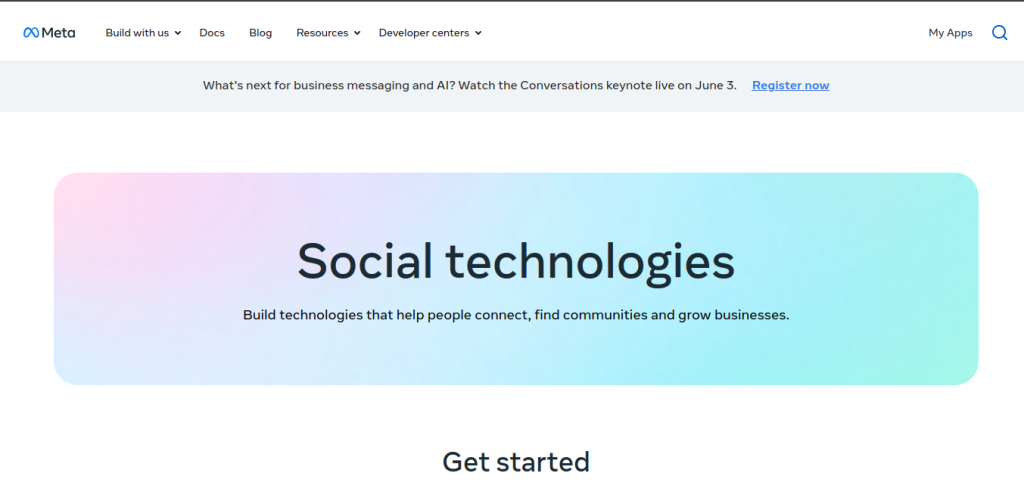
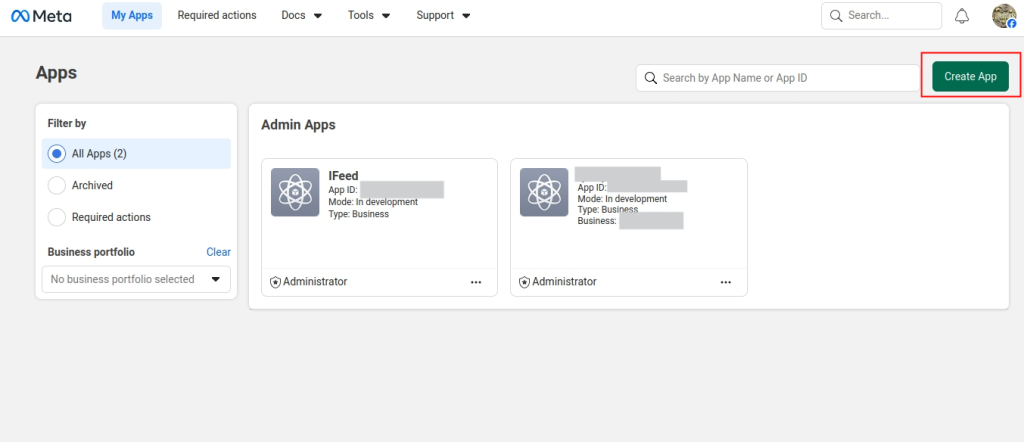
- On the apps page, click Create App to register your hotel app.
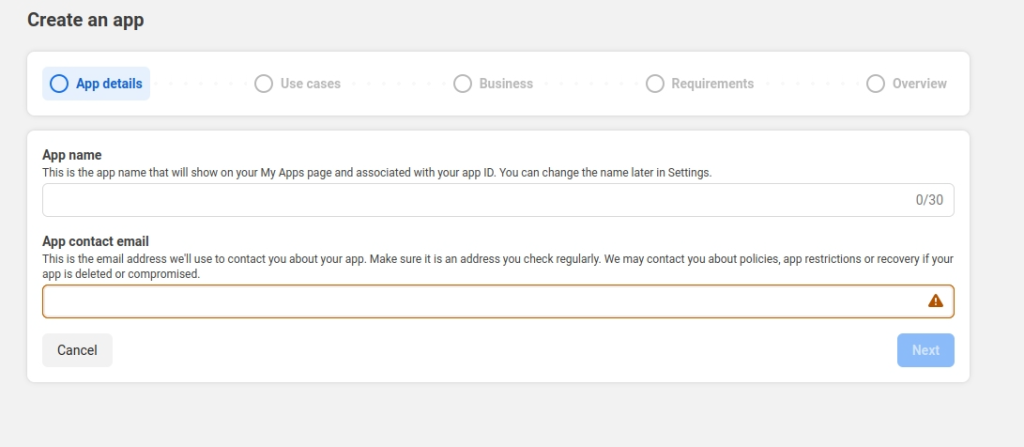
- Enter an App Name for your hotel brand. Next, enter a valid App Contact Email. Then click Next to proceed.
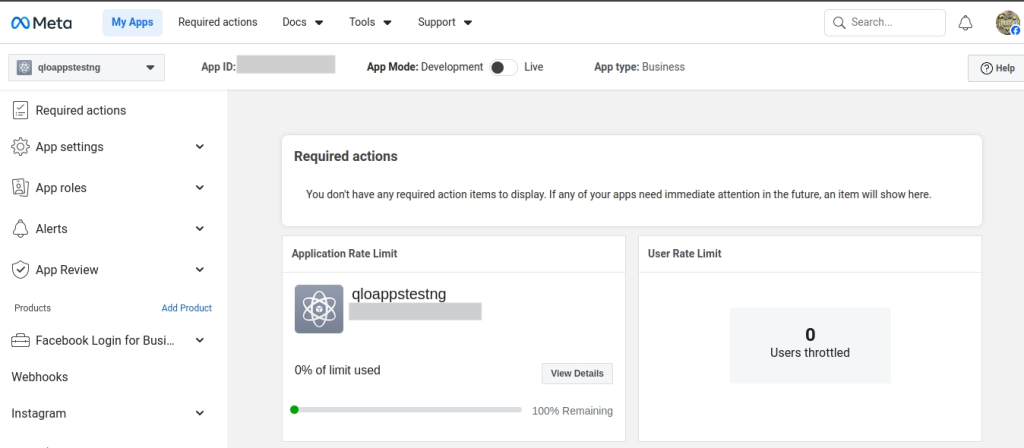
- After creating the app, Meta sends you to the App Dashboard.
- Scroll down the page, click Add Platform, and select Instagram to turn on the Instagram API for your app.
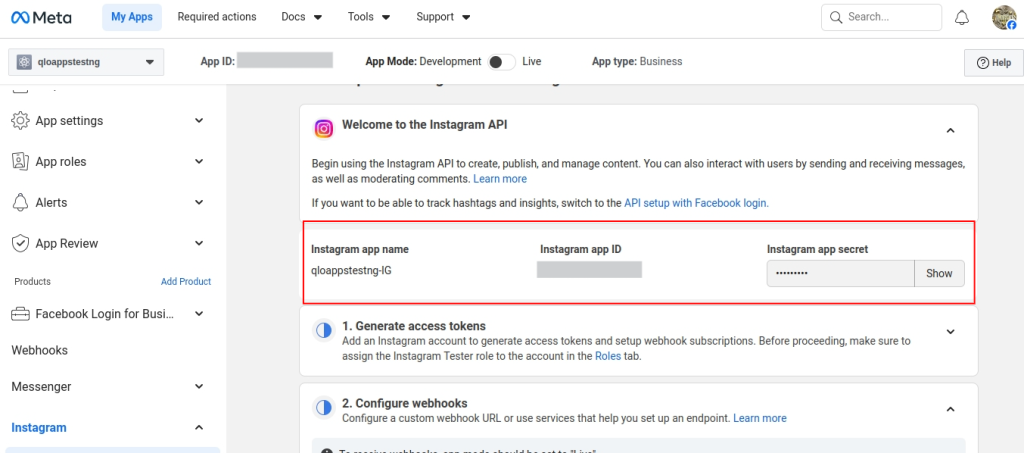
- Locate your Instagram App ID and Instagram App Secret in your app settings. You will need to paste these two values into the QloApps module settings.
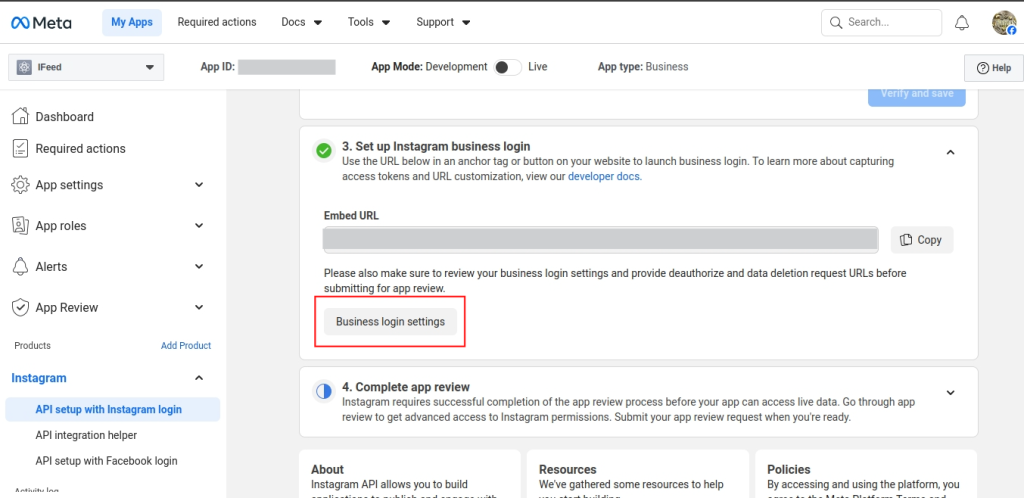
- Scroll down to the Instagram Business Login area and click Business Login Settings.
- Copy the OAuth redirect URL shown in your QloApps Social Feeds module setup. Then paste it into the Set the OAuth Redirect URIs box in the Meta dashboard.
How to Add Front-End URL in Meta Developer Dashboard
Next, add your hotel website URL so Meta allows feed display:
- In the left menu bar, click App Settings › Basic.
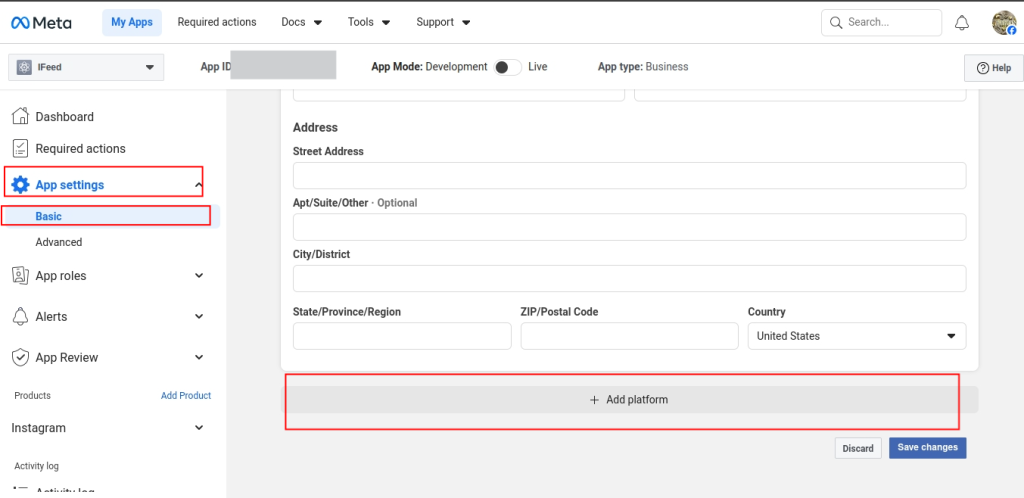
- Scroll down to the bottom of the page, click Add Platform, and pick Website.
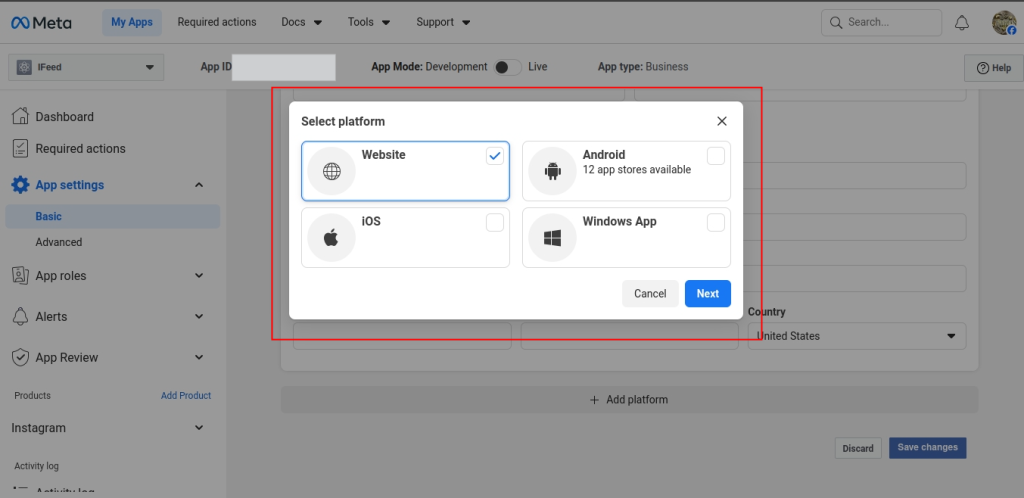
- In the Site URL field under Website platform, enter the web address of your QloApps hotel booking site.
Adding and Authorizing Instagram Testers
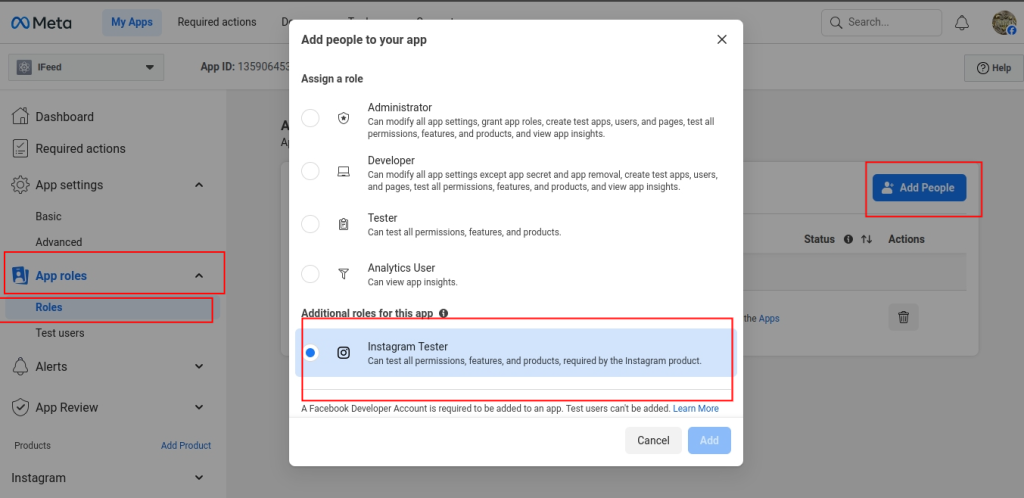
To test photo loading during setup, add your Instagram profile as a tester:
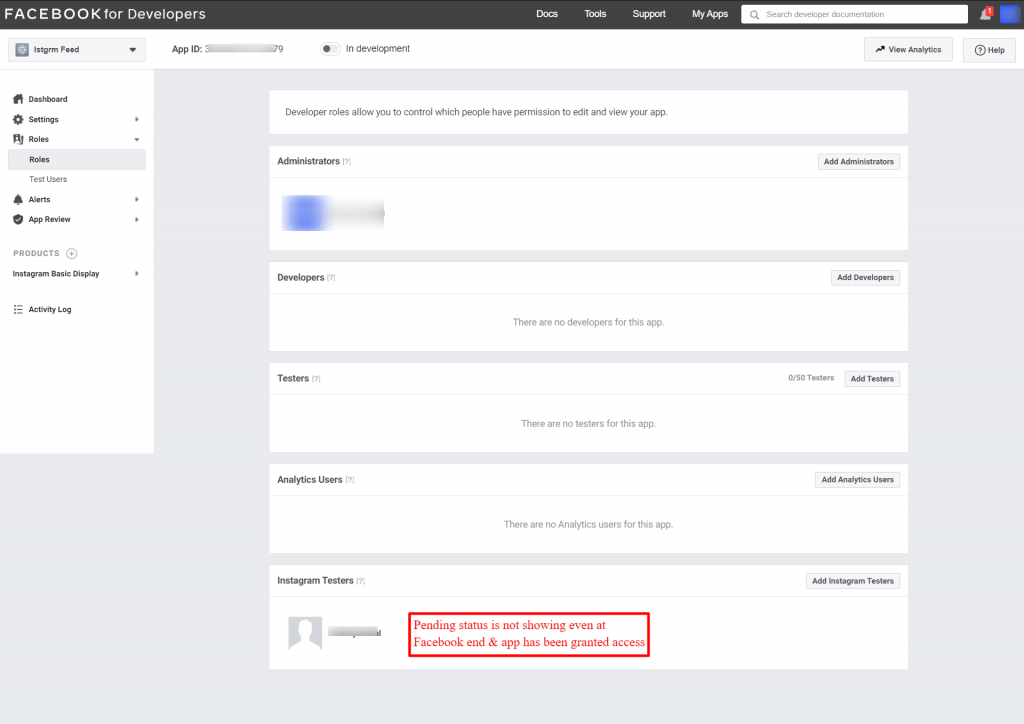
- In the Meta dashboard, go to Roles › Roles and click Add Instagram Tester.
- Type your property Instagram username into the search box and select your profile.
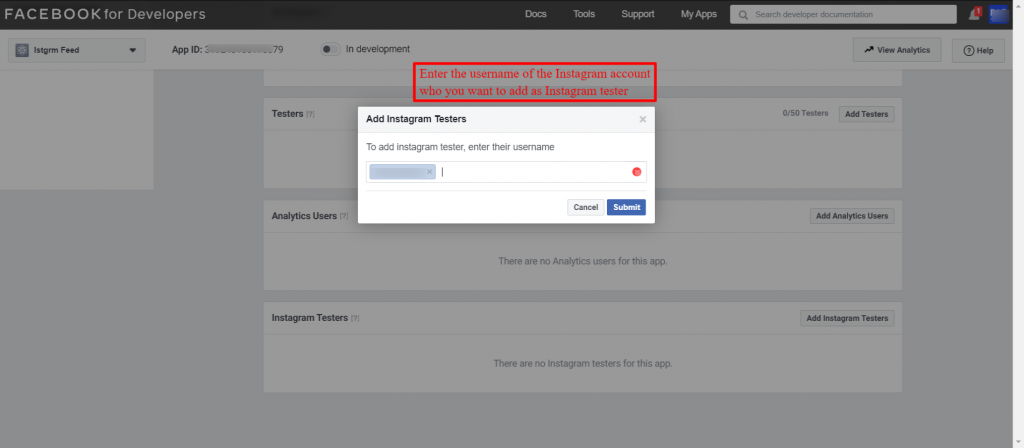
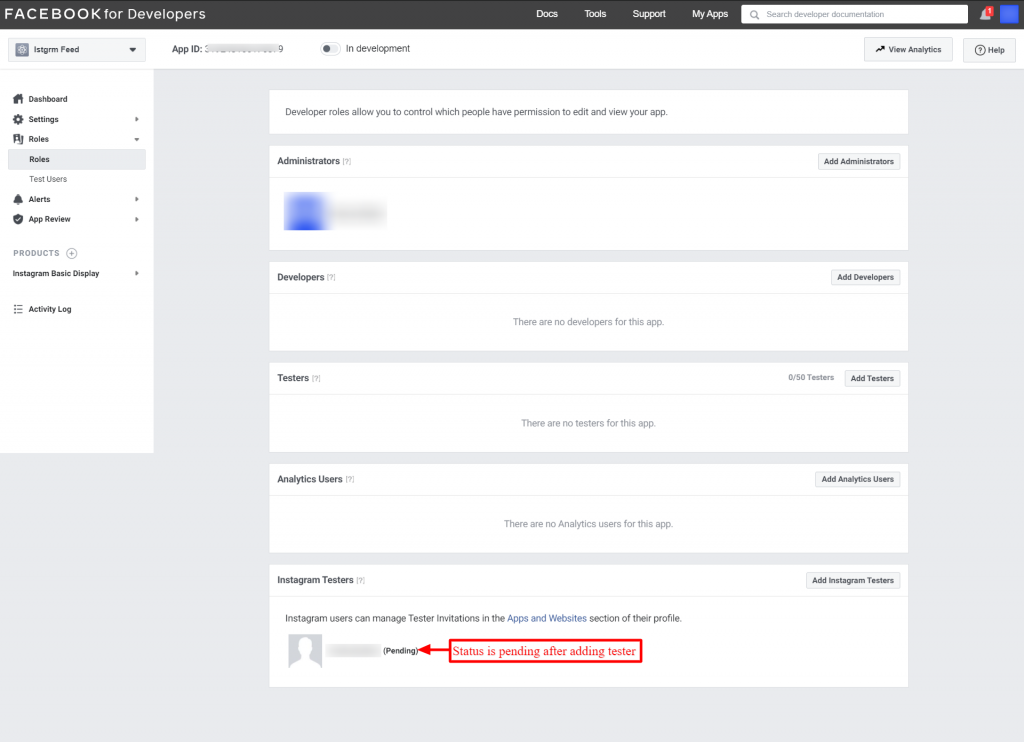
- Click Submit to send the tester invite. Meta marks the account with a Pending status until you accept the invite.
- Open a new browser tab and log in to your account on Instagram. Next, open Settings, and go to Apps and Websites.
- Select the Tester Invites tab to check incoming invites.
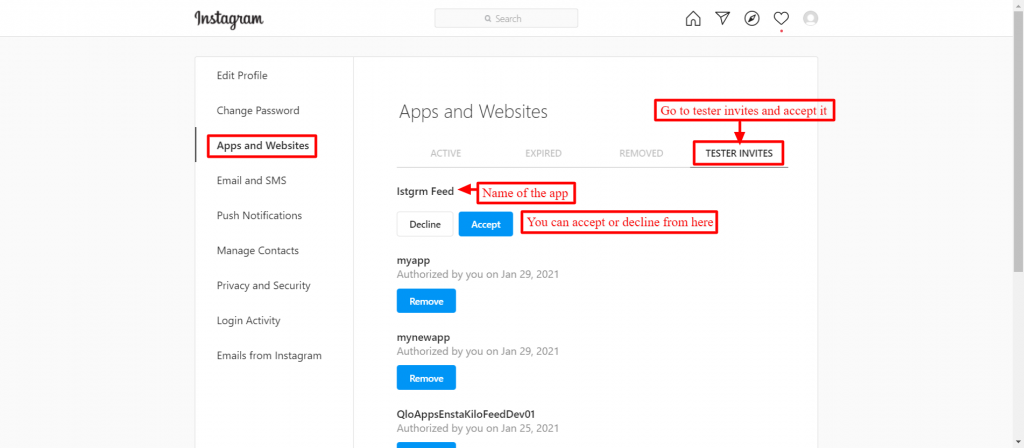
- Find your Meta app name and click Accept to approve access.
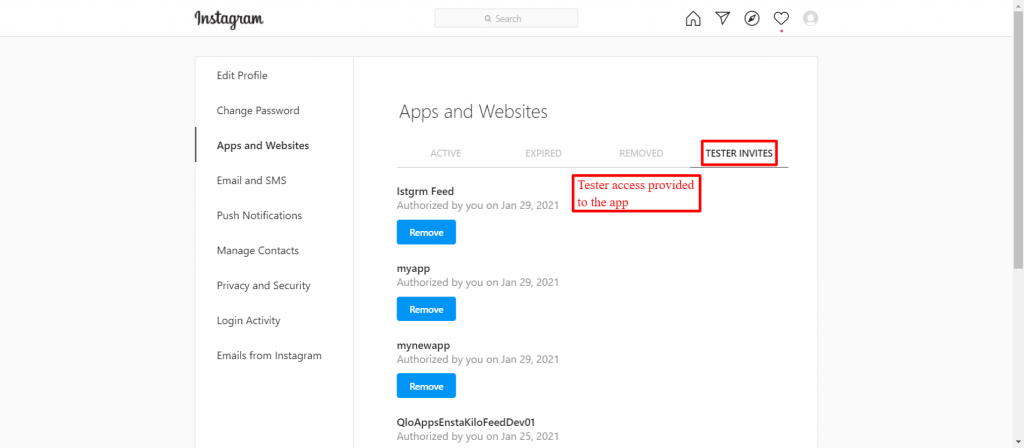
- Return to the Meta Developer dashboard and refresh the page. The tester status now shows as approved. This confirms that your token connection is ready.
- Return to your QloApps Back Office. Enter your Instagram App ID and Instagram App Secret. Next, click Save and complete the approval screen.
Front Office Display of Social Feeds
Once set up, QloApps shows your Instagram feed across your hotel website to engage guests during booking.
Landing Page Display
When hoteliers turn on the displayHome hook, QloApps places the Instagram block on your main homepage.
Guests can view recent hotel photos, amenities, dining options, and seasonal events before picking stay dates.
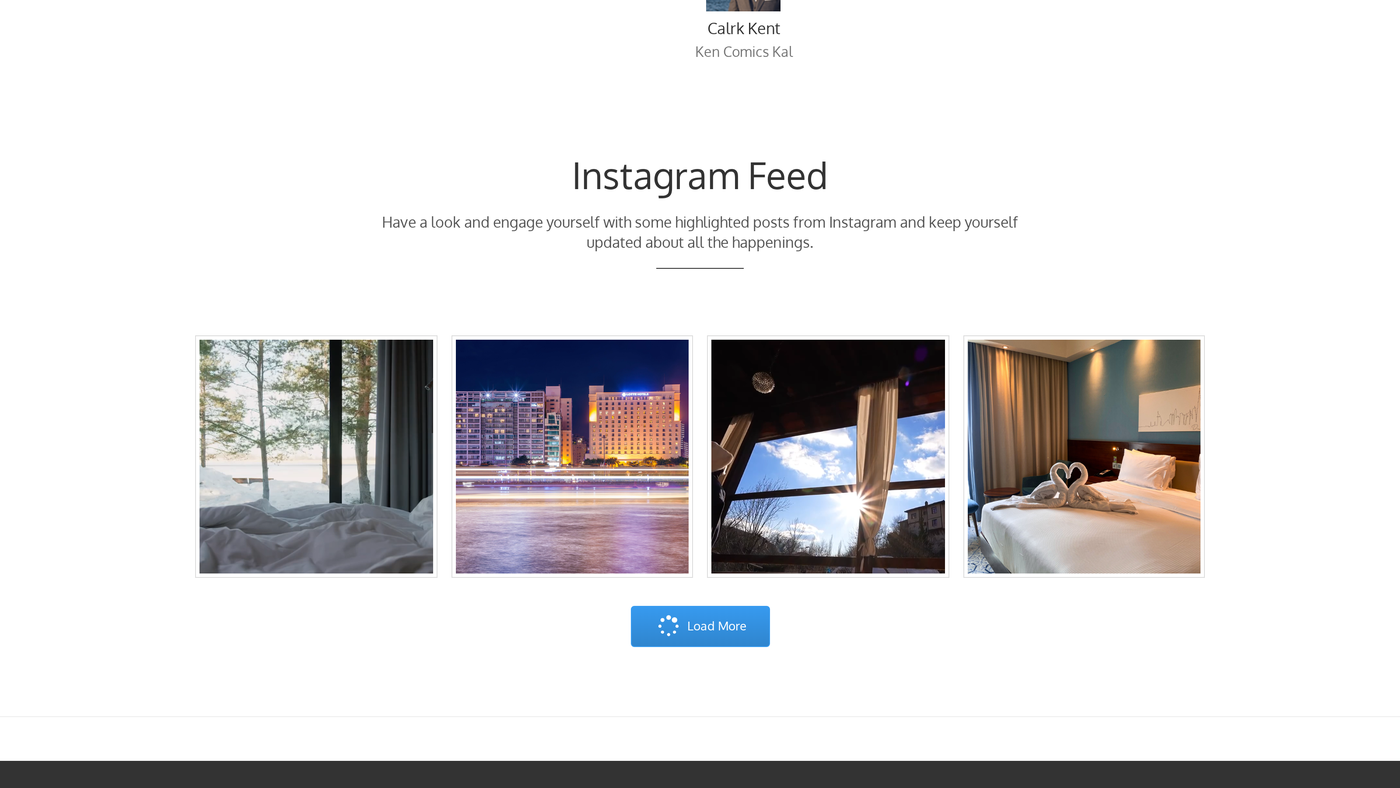
The homepage block shows photos under an “Instagram Feed” title. Visitors can click any photo to open a lightbox view and read captions.
In pagination mode, guests can click Load More to reveal earlier property photos without leaving the page.
Room Type Details Page Display
When hoteliers enable the displayFooterProduct hook, QloApps adds the social gallery to the bottom of each room type page.
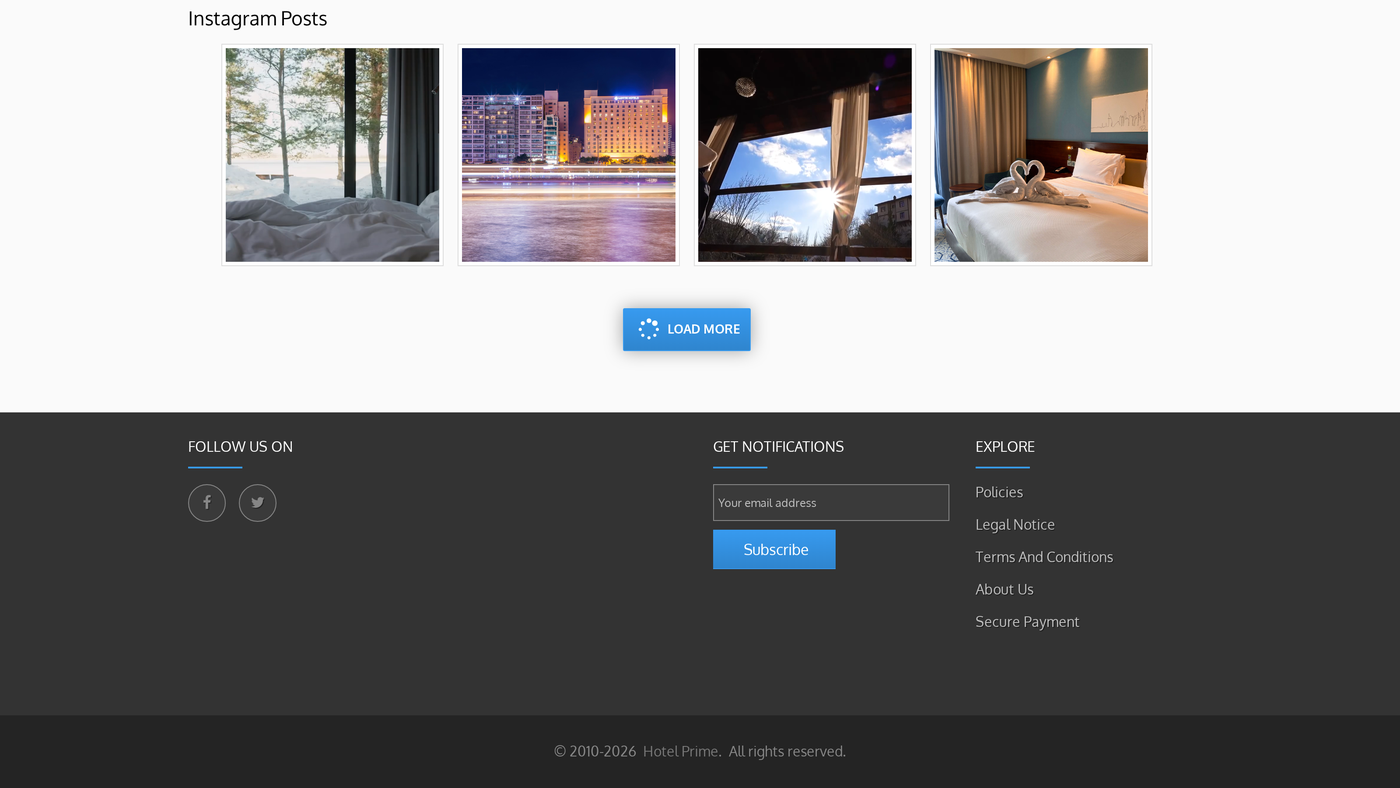
This layout lets travelers see real photos of room decor, bed types, balcony views, and hotel grounds while booking. Guests can explore photo feeds without leaving the room page.
Conclusion
QloApps Social Feeds brings your hotel social media directly into your booking engine.
By showing real photos on landing pages and room profiles, hoteliers can build guest trust and grow room bookings.
To learn more about the functionality of QloApps, visit All-in-One Property Management System. Explore the official store page at QloApps Social Feeds on Webkul Store.
For technical assistance, raise a ticket at QloApps Support. In case of any query, issue, or requirement, please feel free to raise it on the QloApps Forum.
Current Module Version: 1.0.4
Supported QloApps Versions: 1.6.x and 1.7.x

Be the first to comment.