QloApps Google Hotel Connector
QloApps Google Hotel Connector provides the free booking link on Google Hotel Center and syncs room availability, rates, and booking restrictions with Google automatically. This guide covers connecting your property, enabling individual hotels and their room types, and reading the API logs that record every sync.
NOTE: Before you connect a hotel, list it on Google Business Profile first, and complete its address (street, city, country, and state) in QloApps. You cannot enable a hotel for Google Hotel until it meets both requirements.
Features of QloApps Google Hotel Connector
- Provide the free booking link on Google Hotel Center and sync room availability, rates, and stay restrictions automatically
- Track every booking, cancellation, room, rate, and restriction change and queue it for the next sync to Google
- Show each hotel’s Google Hotel status — Not Connected, Pending, Connected, or Failed — right on the hotel list
- Warn on the dashboard and on each hotel’s edit form when a hotel still needs to be connected
- Choose which room types of a hotel are shared with Google, per hotel
- Log every sync call — connection, ARI updates, property feed, status — with a Success or Error result and full request/response detail
- Inject Google-readable structured data into the hotel and checkout pages so Google Search can show live rates
- Auto-generate the webservice key the connection needs, leaving nothing for you to create by hand
How to Install QloApps Google Hotel Connector
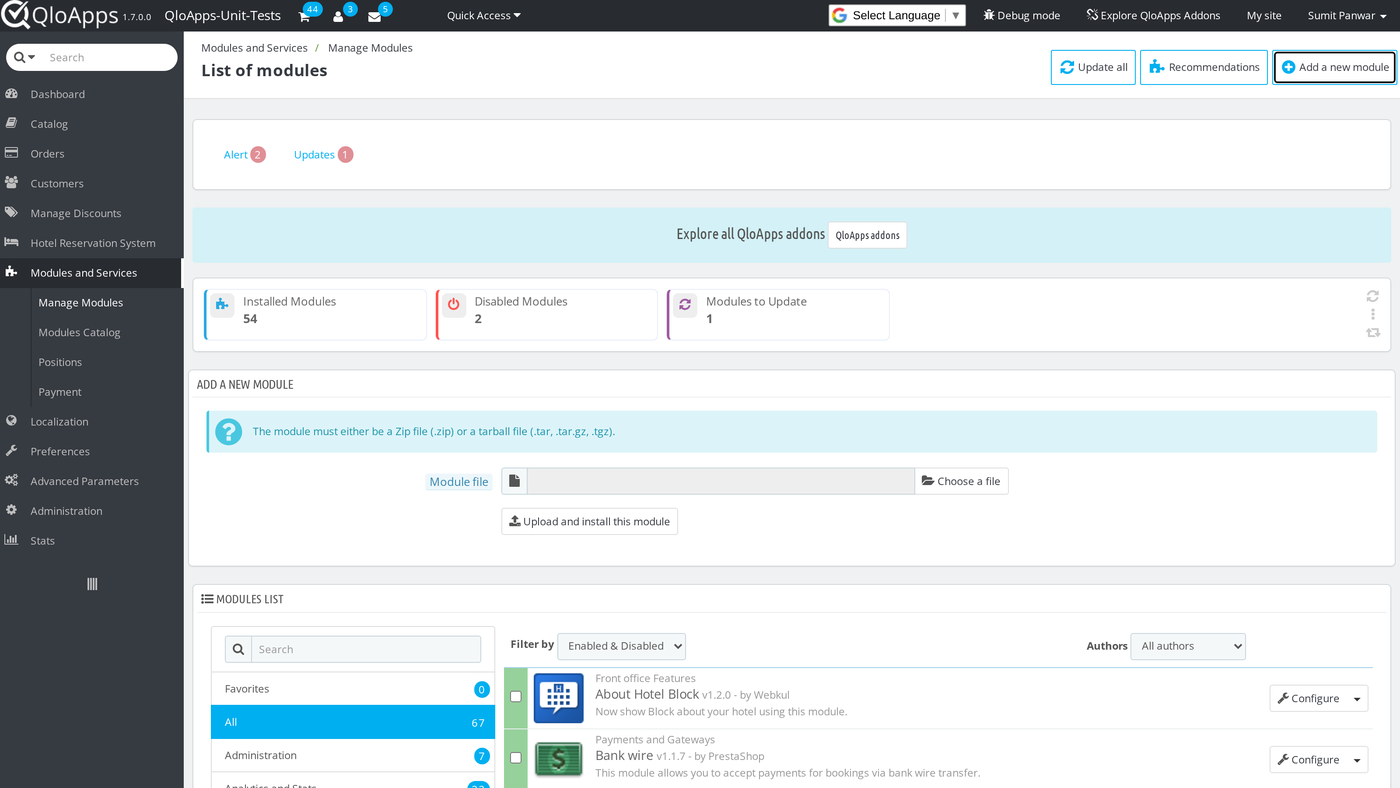
- In the Back Office go to Modules and Services › Modules and Services and click Add a new module.
- Choose the module ZIP under Module file, then click Upload and install this module.
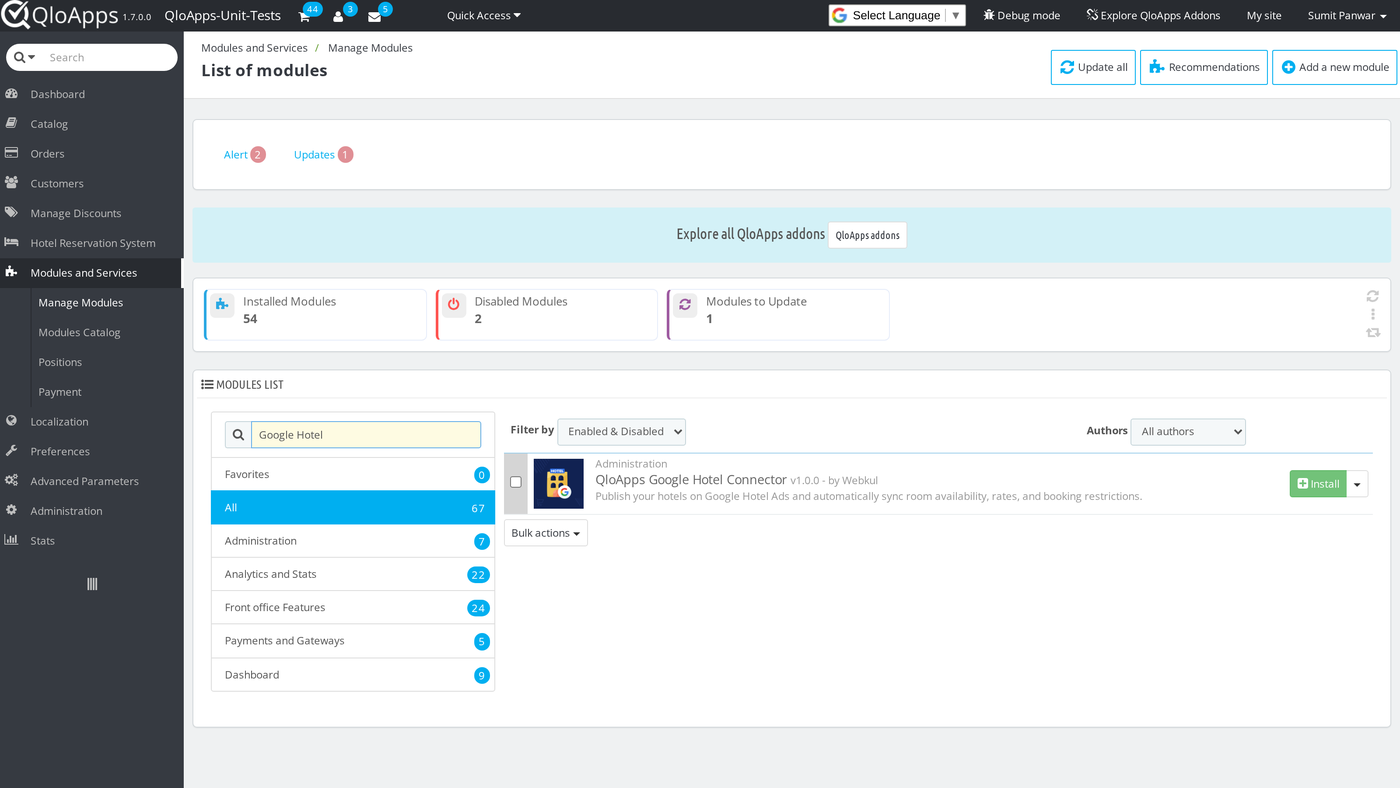
- Find QloApps Google Hotel Connector in the list and click Install.

Configuration of QloApps Google Hotel Connector
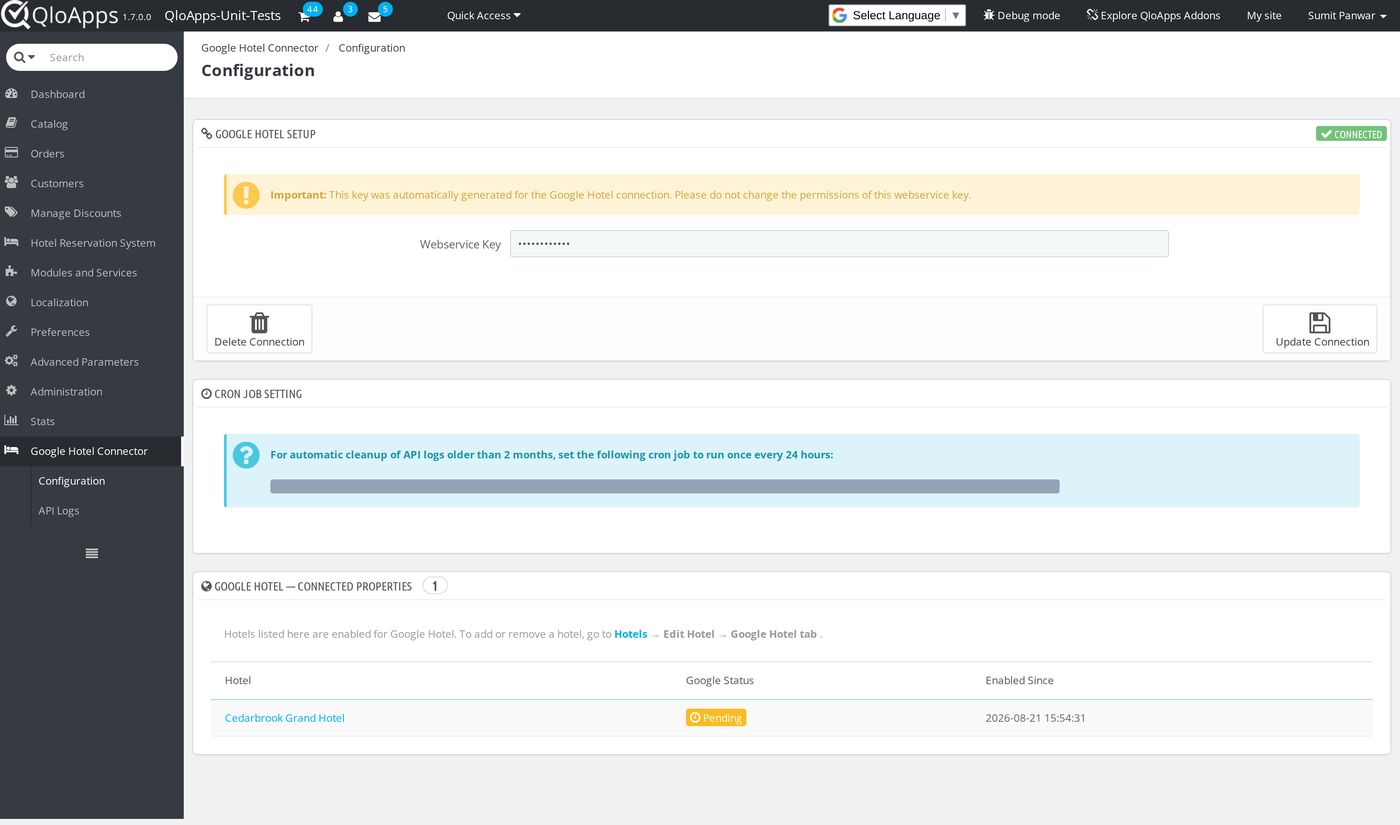
Configuration lives at Google Hotel Connector › Configuration, a menu the module adds to the Back Office sidebar once installed.
General Configuration
The Google Hotel Setup panel shows the Webservice Key. The module generates this QloApps API key automatically on install and scopes it to its own API resource only. Do not change its permissions. Click Create Connection to register your property with Google Hotel Center. Once it succeeds, the badge in the top-right corner switches from Not Connected to Connected. Once connected, the same button reads Update Connection, and a Delete Connection button appears. Disable every hotel first — the module blocks deletion while any hotel still has Google Hotel enabled.
Below that, the Cron job setting panel gives you a ready-to-copy cron line that purges API logs older than 2 months. Add it to your server’s crontab to run once every 24 hours, or old logs will pile up indefinitely.
The Google Hotel — Connected Properties table lists every hotel you have enabled for Google Hotel, along with its status and the date you enabled it. It stays empty until you enable your first hotel from its Google Hotel tab.

Google Business Profile Setup
Google Hotel Center only accepts properties that already have a verified Google Business Profile. Set this up before connecting a hotel in QloApps:
- Create or claim your hotel’s Business Profile and complete Google’s verification process.
- Fill in the profile with the same hotel name and address you use in QloApps. Google checks the two against each other before approving the listing, so a mismatch will hold up approval.
QloApps Google Hotel Connector does not create or manage the Business Profile itself. It only pushes live rates, availability, and booking links once a Business Profile listing exists and you connect the hotel.
Enabling a Hotel for Google Hotel
Until you connect a hotel, its edit page carries a warning at the top pointing you to the Google Hotel tab.
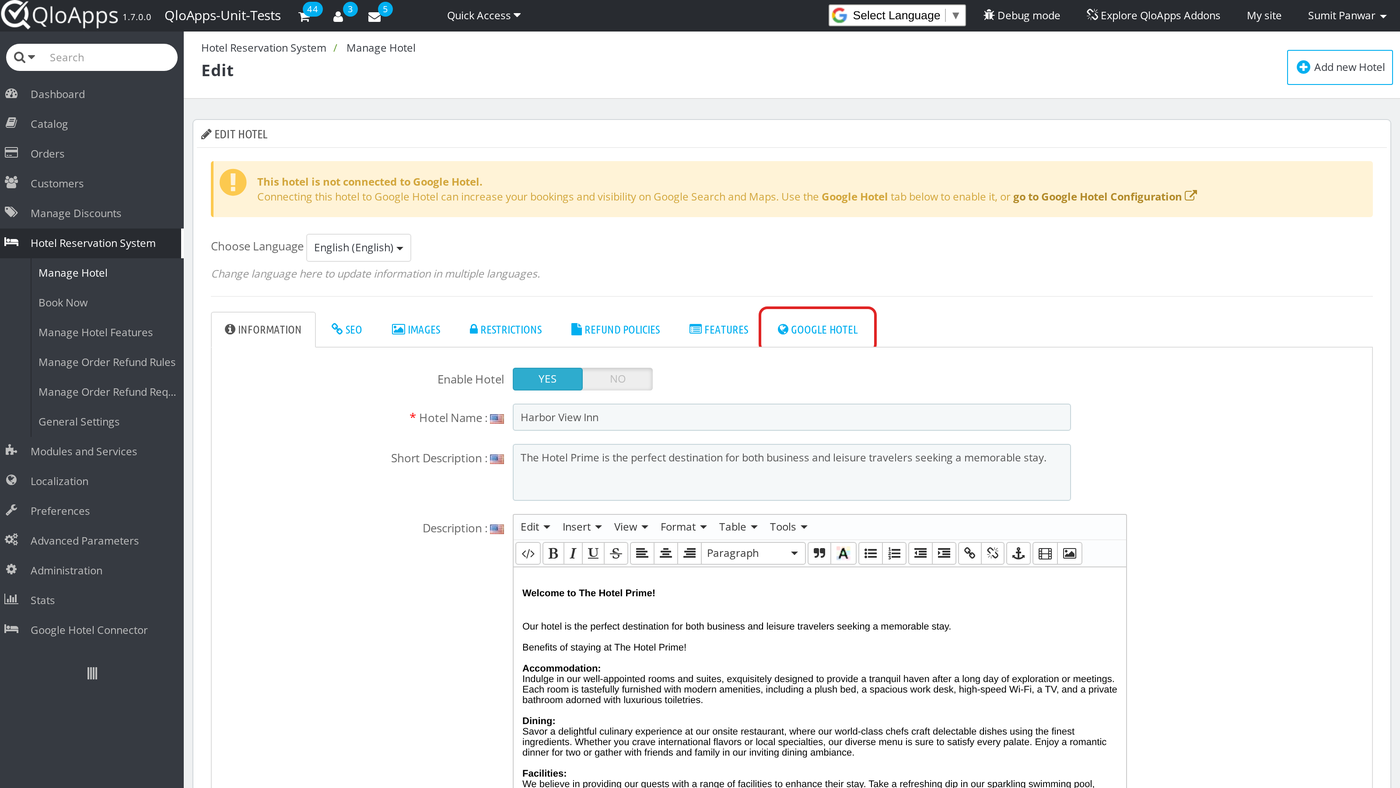
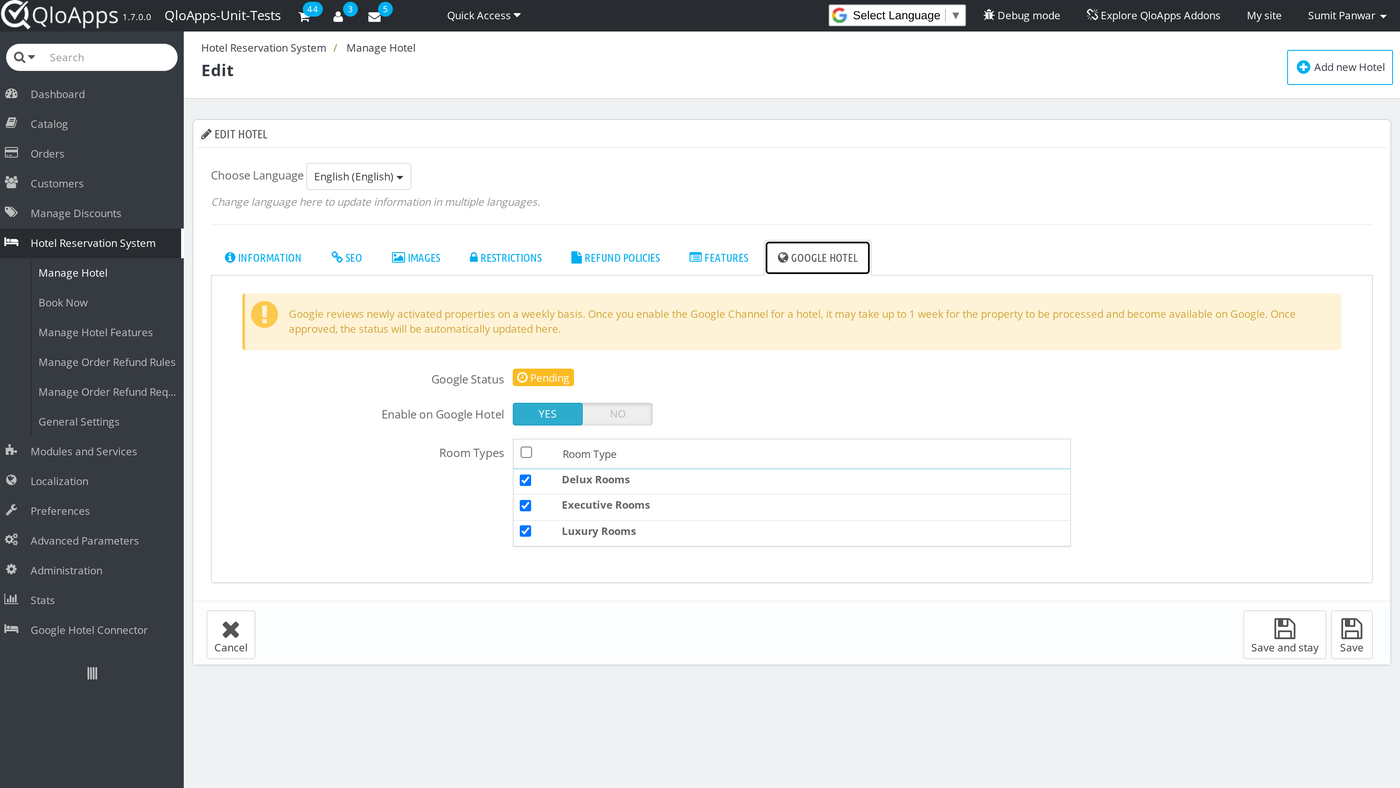
Go to Hotel Reservation System › Manage Hotel, click Edit on the hotel, and open the Google Hotel tab. If you have not connected the webservice key yet, this tab tells you so and links back to Configuration. Otherwise it shows:
- Google Status — Not Connected, Pending, Connected, or Failed. A newly enabled hotel starts Pending; Google reviews new properties weekly, so it can take up to a week to become Connected.
- Any missing required fields (street address, city, country, or state) — enabling stays locked off until you fill them in on the Information tab.
- Enable on Google Hotel — the Yes/No switch that turns syncing on for this hotel.
- Room Types — a checklist of the hotel’s room types. The module checks all of them by default once you enable the hotel, and only the checked room types sync to Google.
Save the hotel form to apply your changes.
Tracking Status from the Hotel List and Dashboard
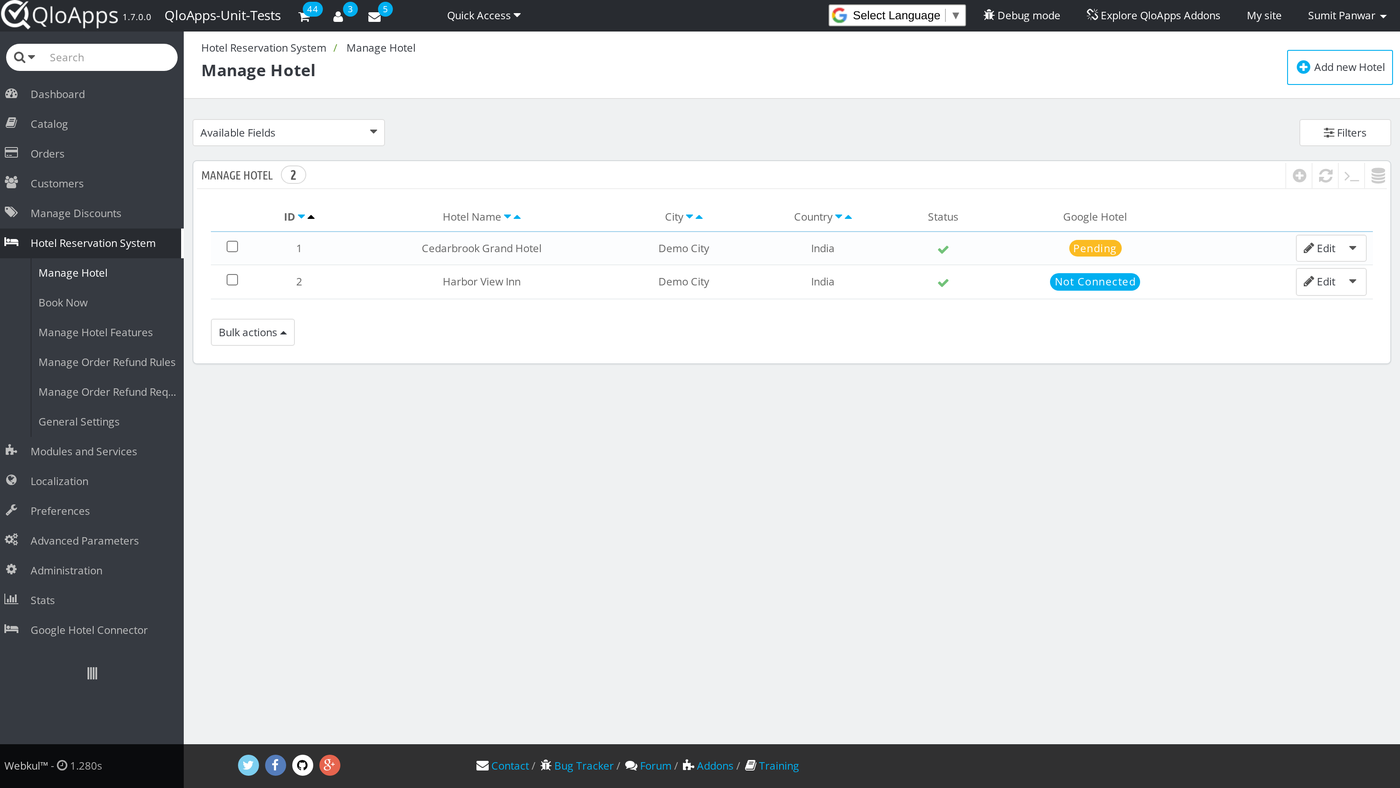
The Manage Hotel list carries a Google Hotel column showing each hotel’s status at a glance, so you don’t need to open every hotel to check.
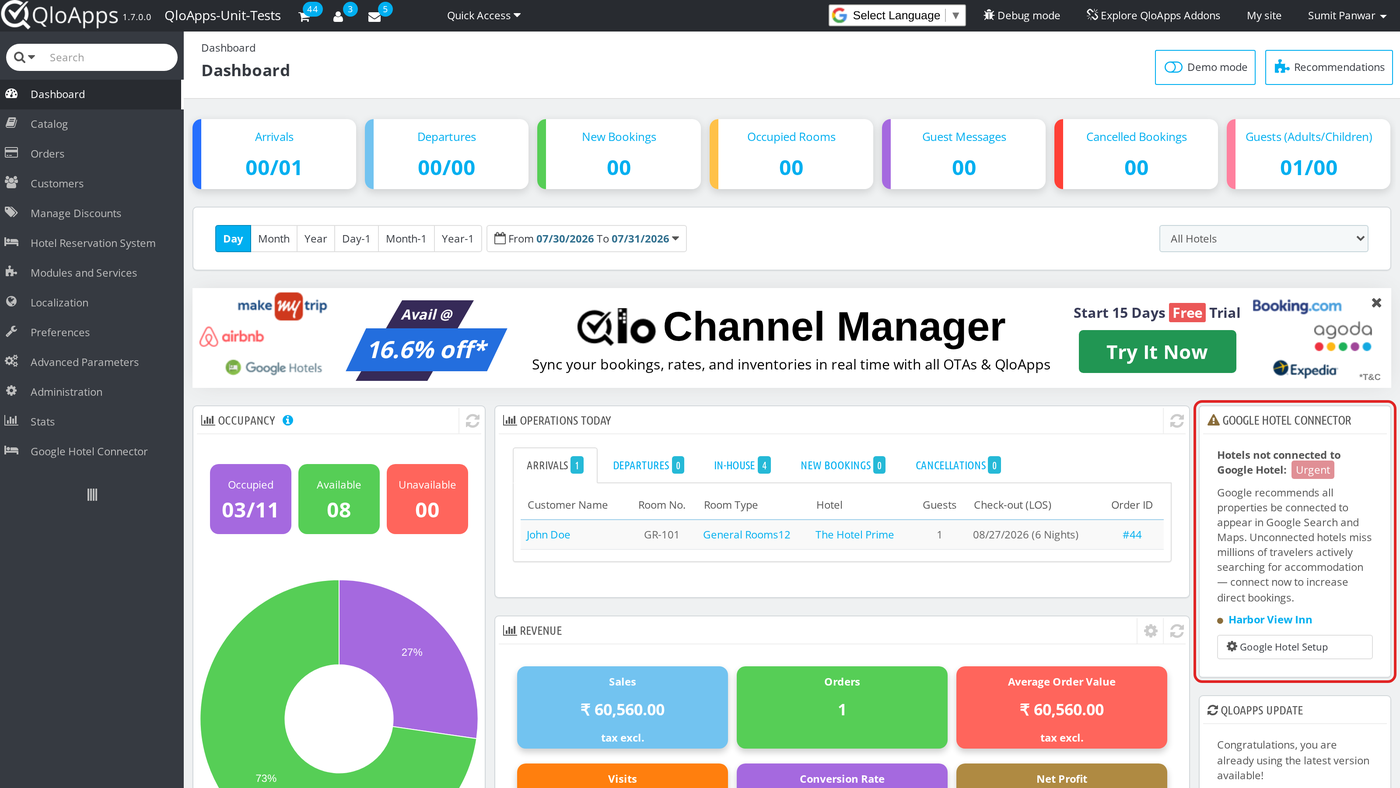
The Back Office dashboard also carries a Google Hotel Connector widget. It lists every hotel you have not yet connected, with a direct link to Configuration and to each hotel’s edit page.
Reviewing API Logs
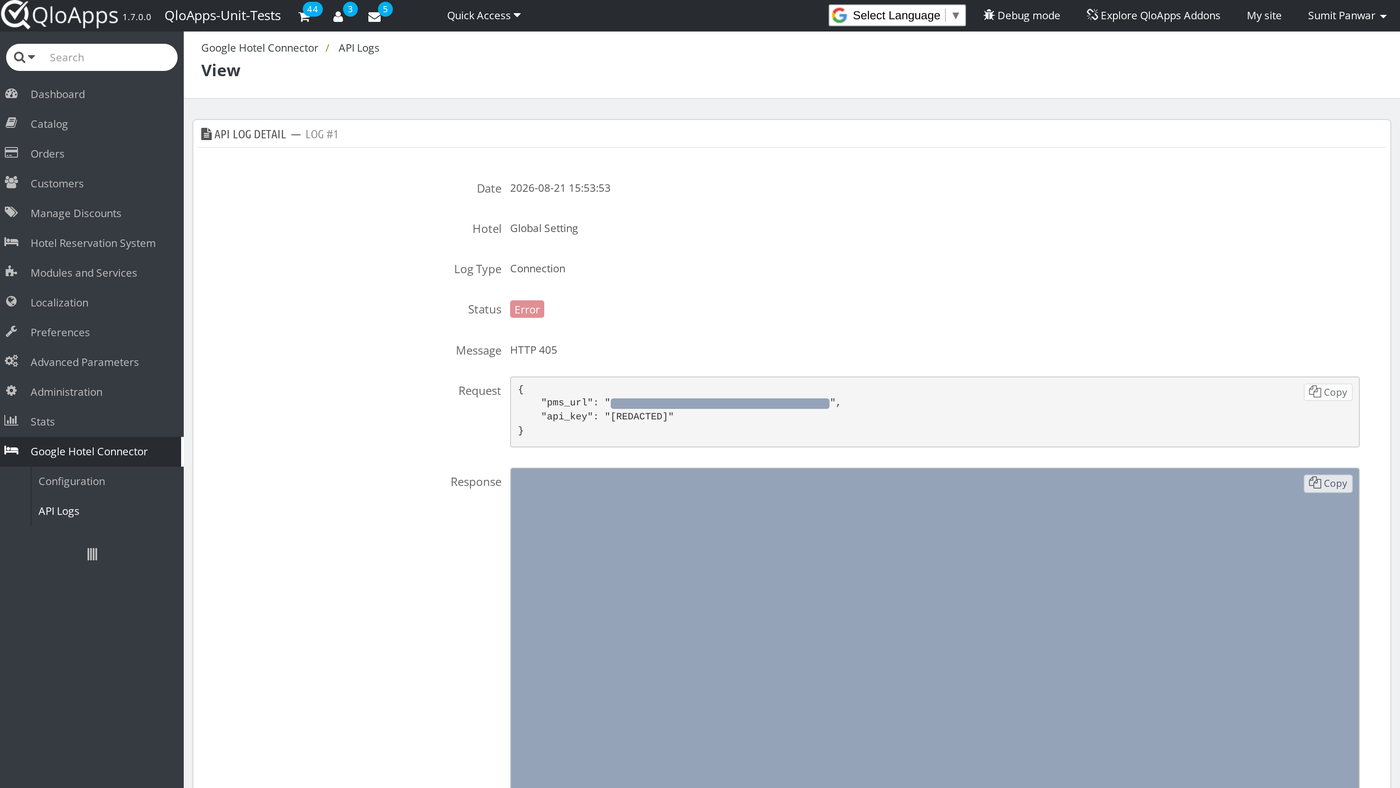
Go to Google Hotel Connector › API Logs to see every sync call the module has made — connections, availability and rate updates, property feeds, and Google status checks. Filter the list by hotel, log type, status, or date; entries for the account-wide connection itself show Global Setting instead of a hotel name.
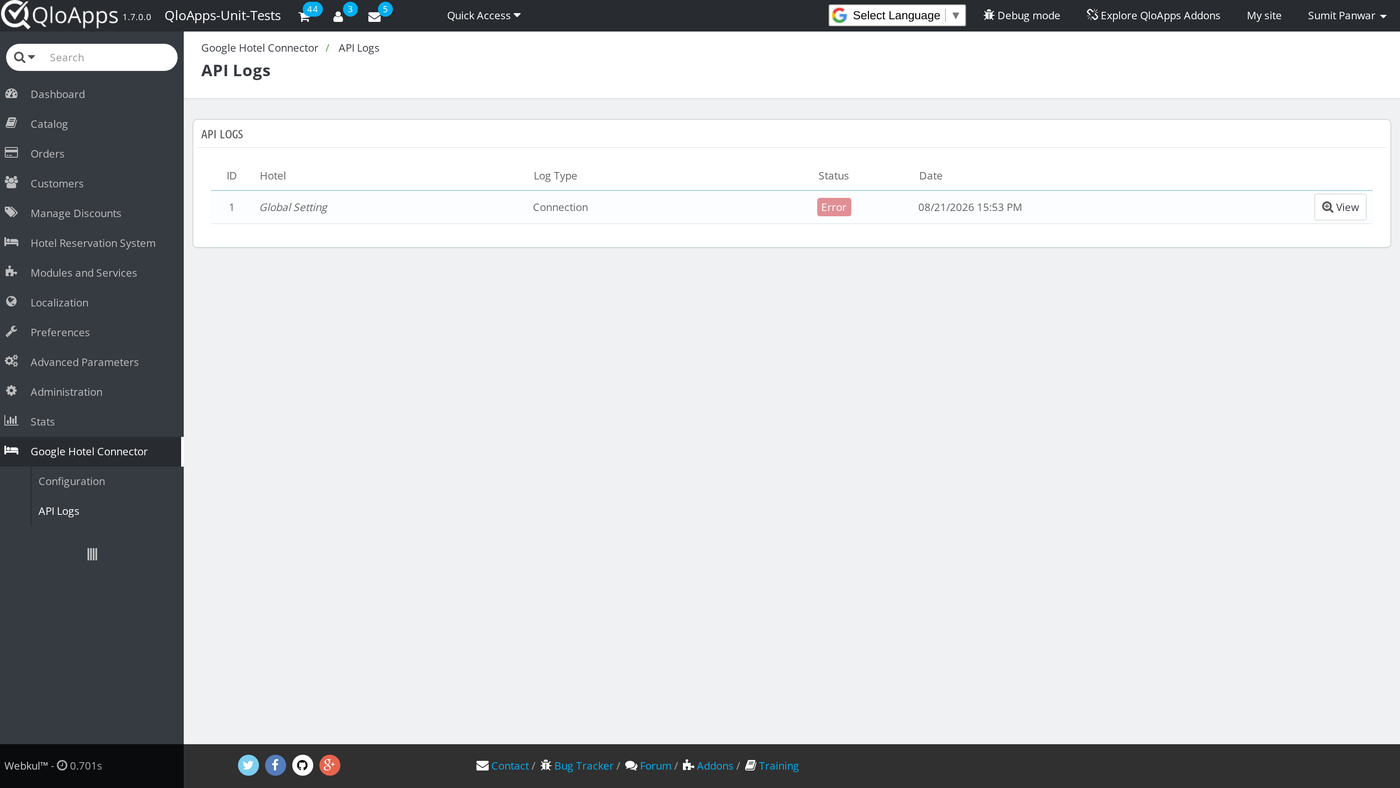
Click View on any row to see the full request and response, including any error message. The module masks sensitive values such as the webservice key before it ever writes them to the log.
Conclusion
QloApps Google Hotel Connector keeps your hotels’ availability, rates, and restrictions in sync with Google Hotel Center without manual re-entry. It also gives you a clear, per-hotel view of connection status, plus a full log of every sync call. This guide walked through connecting your property, listing on Google Business Profile, and enabling hotels and their room types. It also covered monitoring the result from the hotel list, dashboard, and API logs.
You can find QloApps Google Hotel Connector and other official modules on the QloApps Addons store.
Additionally, to learn more about the functionality of QloApps, you can visit this link: All-in-One Property Management System. For technical assistance, raise a ticket at QloApps Support. In case of any query, issue, or requirement, please feel free to raise it on the QloApps Forum.
Current Module Version: 1.0.0
Supported QloApps Versions: 1.6.x and 1.7.x