QloApps Booking Custom Emails
The QloApps Booking Custom Email module empowers hoteliers to automate their guest communications with customizable email templates triggered by specific booking events.
Whether you want to send a warm welcome right after a booking is created, a helpful reminder a few hours before check-in, or a review request days after check-out.
Key Features of QloApps Booking Custom Emails:
- Automatically trigger emails based on Check-in, Check-out, or Booking Creation events.
- Schedule emails to go out Minutes, Hours, or Days Before or After the event.
- Create Global Templates that can be imported into any hotel quickly and efficiently.
- Build Hotel-Specific Templates for targeted and property-level communication.
- Support multilingual email subjects and HTML bodies for international guests.
- Attach important files such as PDFs, guides, or images to automated emails.
- Restrict emails so they are only sent to guests who booked specific Room Types or purchased specific Extra Services.
How to Install the QloApps Booking Custom Emails Module:
The installation of any module is very simple in QloApps.
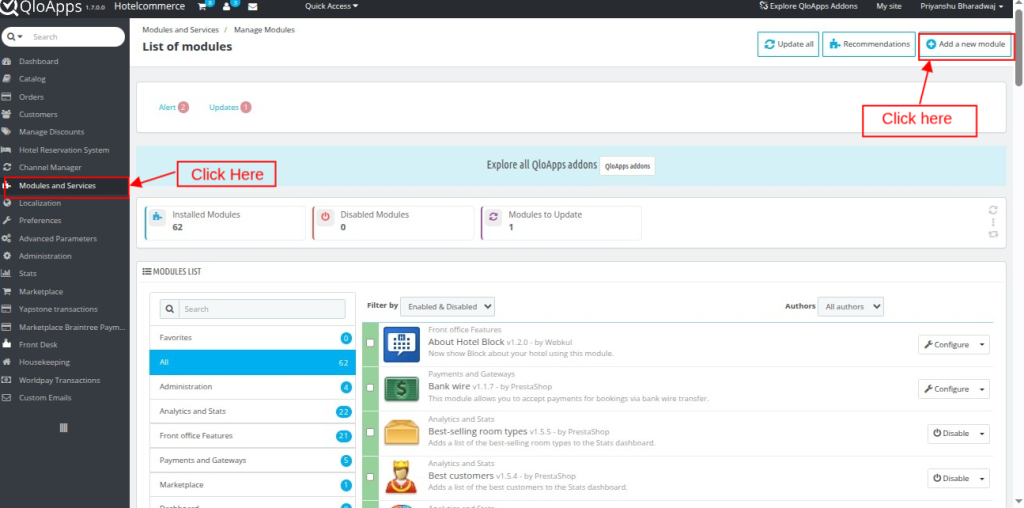
- Go to the Module and Services tab
- Click on Add New Module

- Now upload the Zip file of the Module and click on Install

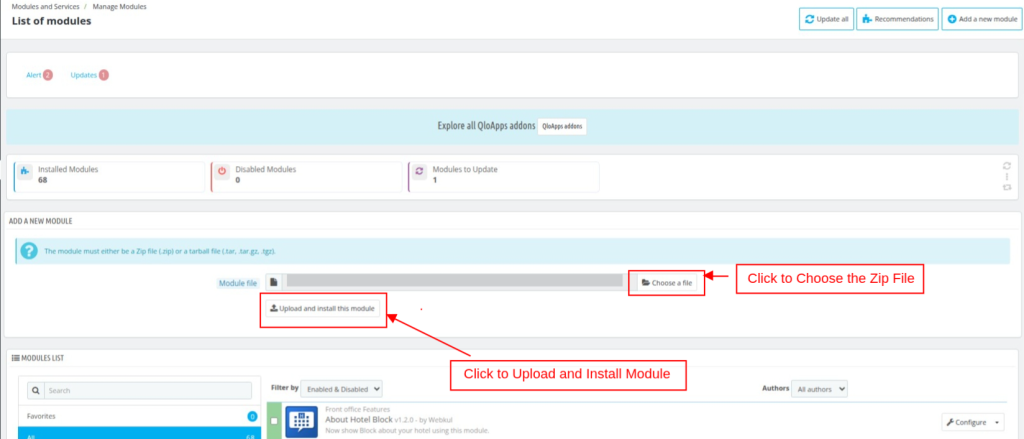
Once the installation is finished, it will confirm that it was successful, followed by a display of the installed module below.
The module is divided into four sections in the QloApps back office:
- Hotel-wise Event Emails
- Global Email Templates
- History
- Configuration
Hotel-wise Event Emails:
This is the main section where admin create and manage automated emails that are sent to guests.

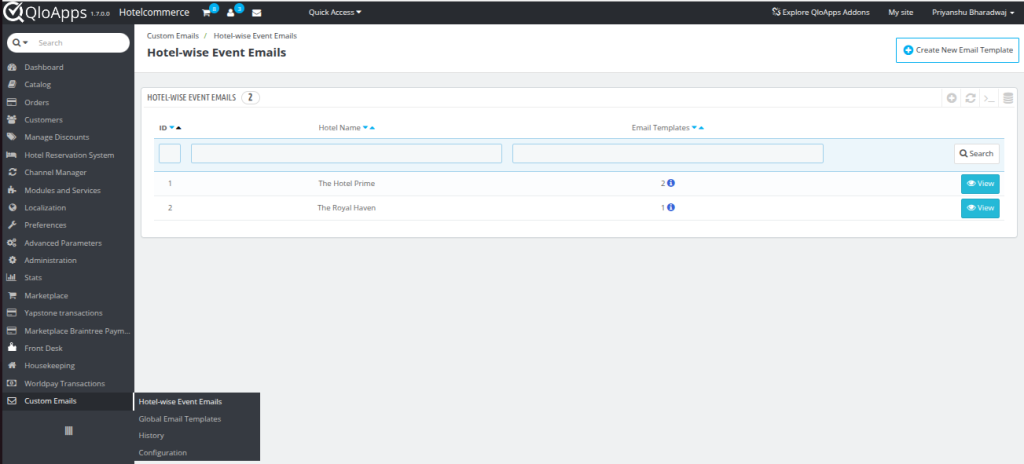
From this section, you can view a list of hotels along with the total number of email templates configured for each hotel.
You can also hover over the ‘i’ button to view the template title and event.

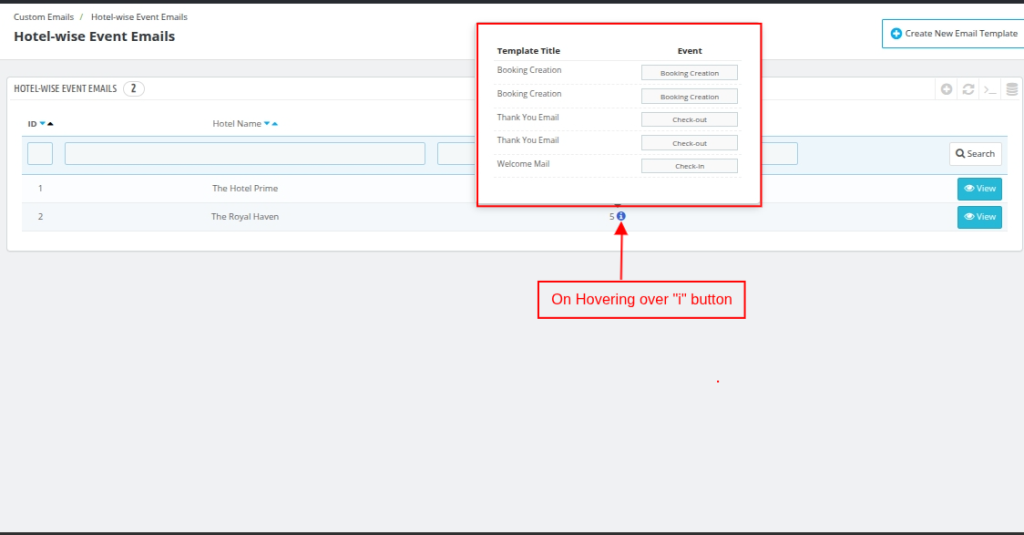
Clicking the View button allows the admin to see all email templates configured for that specific hotel.

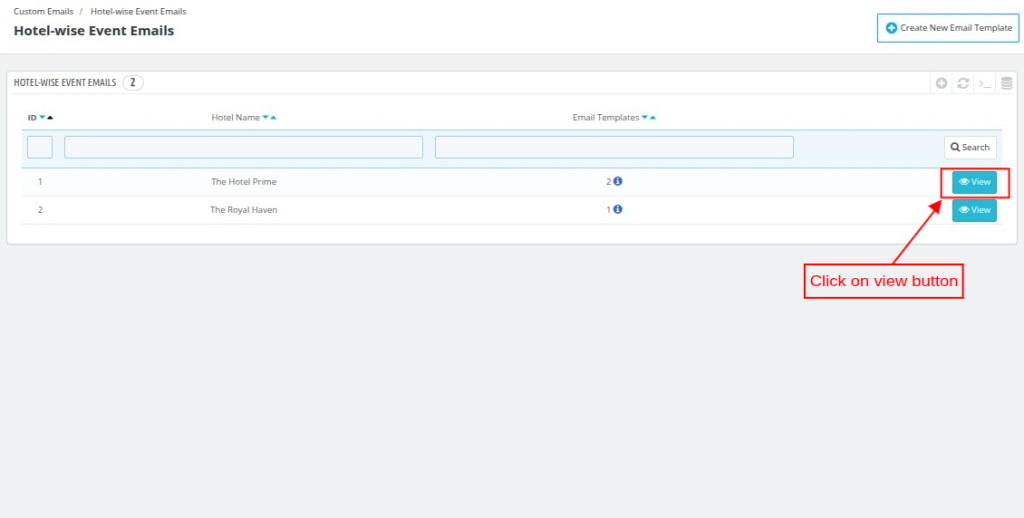
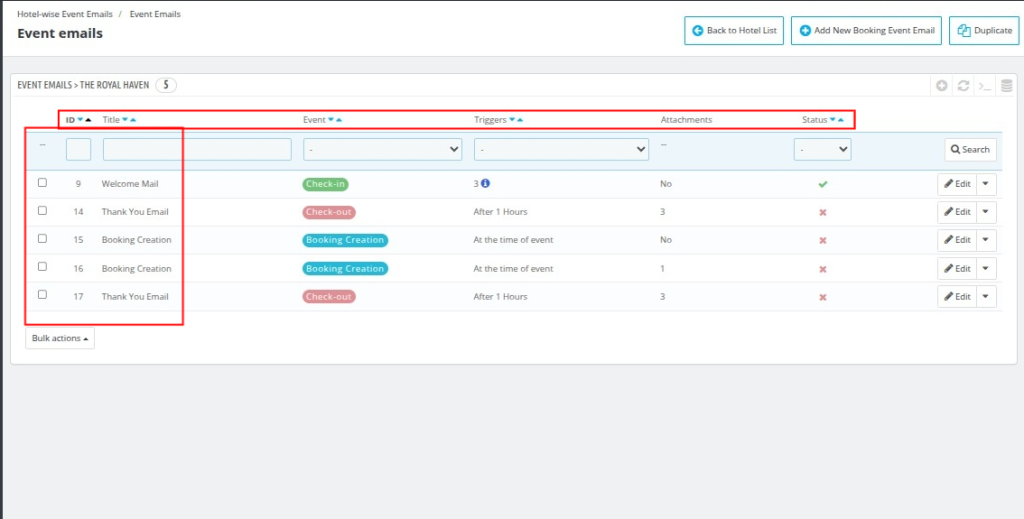
After clicking, the admin will be able to see the complete list of all email templates configured for that hotel.

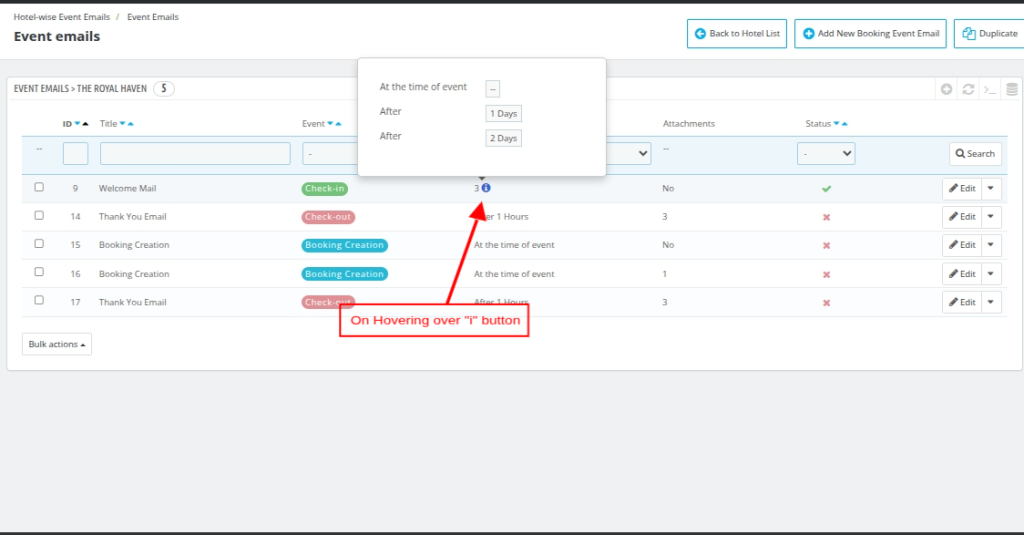
You can also hover over the “i” button to view the triggers configured for that email template.
On this page, you can:
- View all created event email templates for the selected hotel.
- Edit any existing template if changes are required.
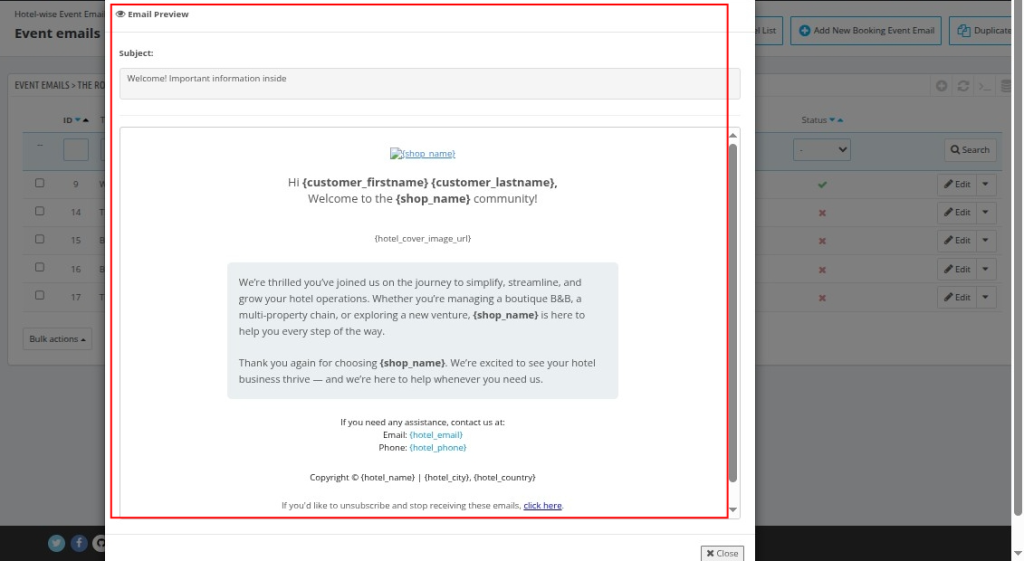
- Click on Preview.
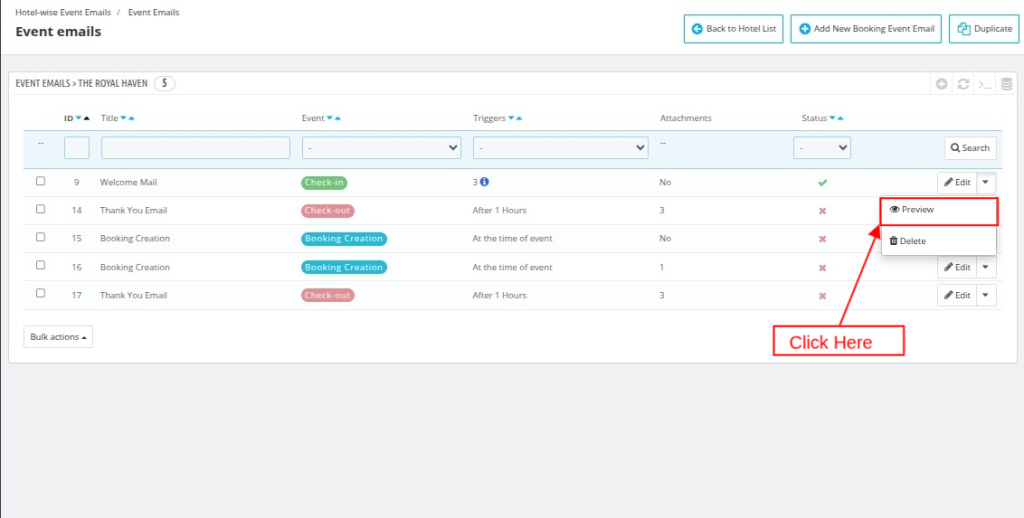
After clicking on Preview, the admin can see the content of the email and how it will appear to guests.

You can also select the existing email templates and click on Duplicate to copy them.

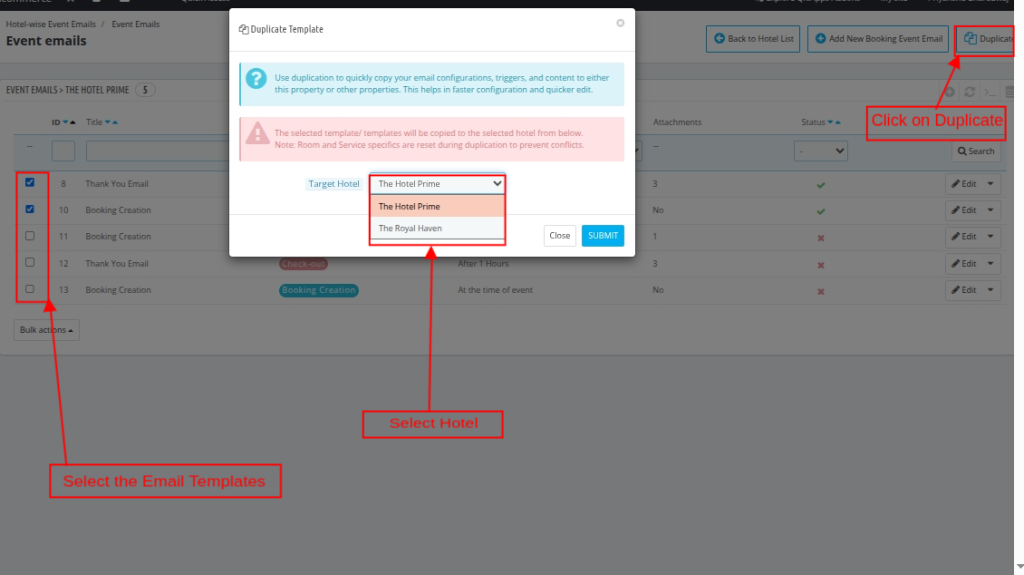
Using the duplicate feature, you can:
- Create the same template for the current hotel, or copy it to another hotel.
- All configurations—including subject, content, schedule triggers, and attachments—will be duplicated exactly as they are.
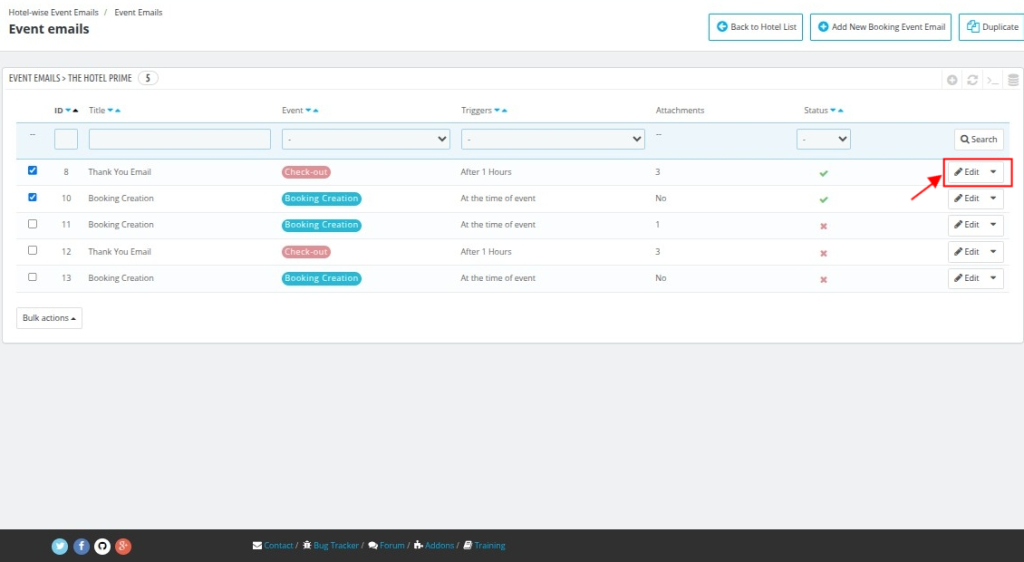
- You can click on “Edit” to modify a specific template for that particular hotel.

Inside the edit page, you also have the option to Duplicate the template. This works the same way as duplicating from the listing page.

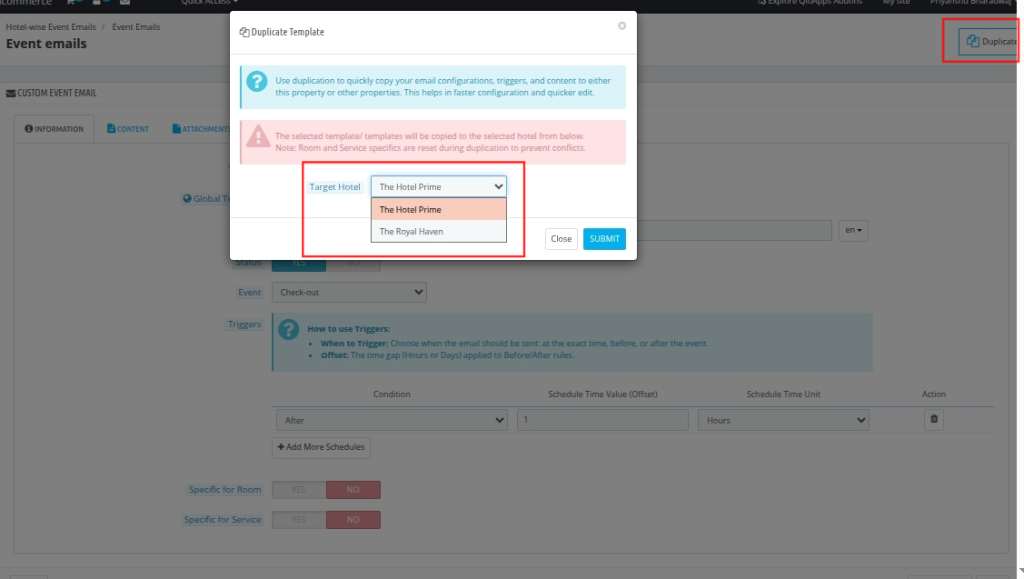
Note: While duplicating, the Specific for Rooms/Services configuration will be disabled by default. You can enable and reconfigure it later by editing the duplicated email template.
You can also add a new booking email template directly for that specific hotel from “Add New Booking Event Email”.

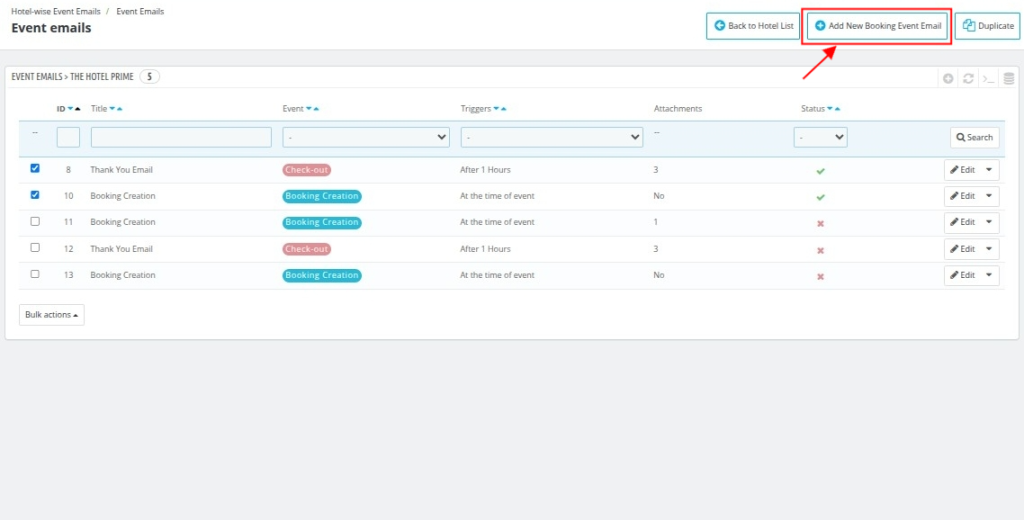
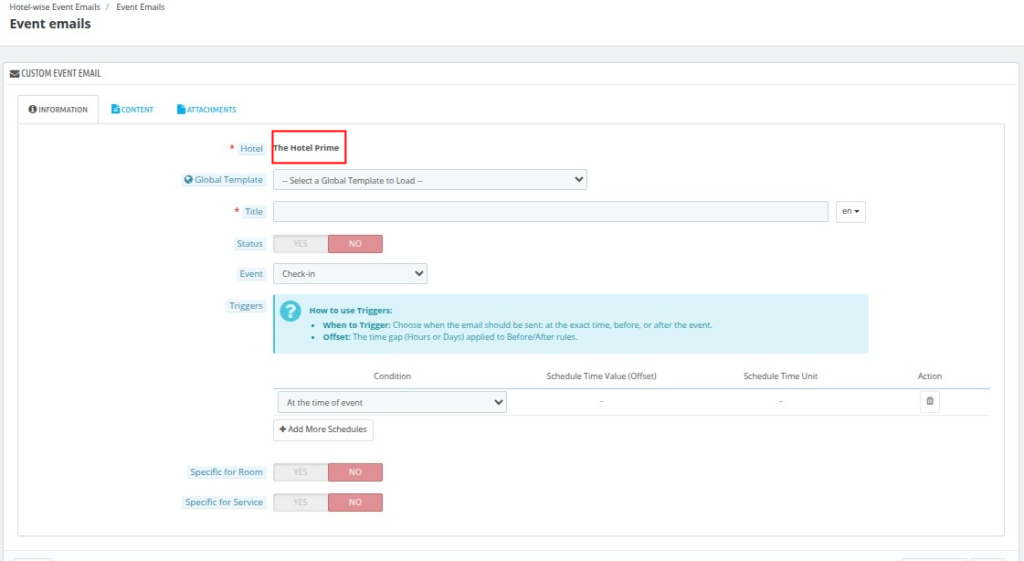
Fill in all the required information across all tabs; the complete steps are explained in the “Creation of New Email Template” section, where you can also select the hotel.
Creation of New Email Template:
Click on Create New Email Template.

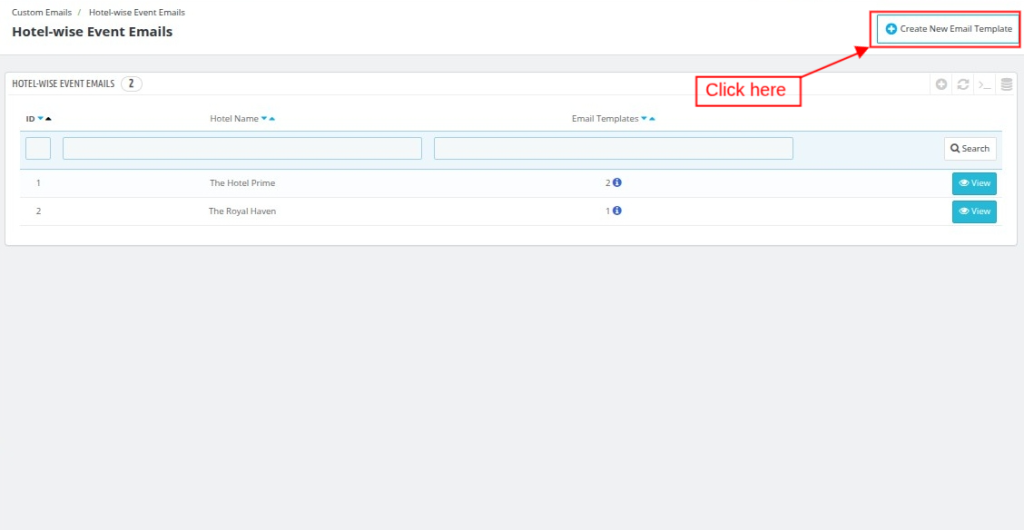
You will now see three tabs:

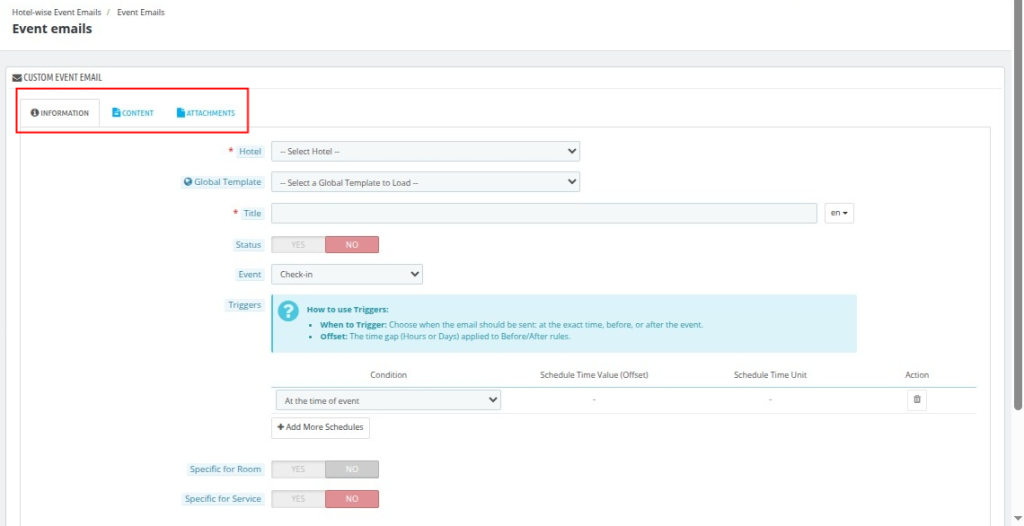
Information Tab:
First, select the Hotel for which you want to configure the event email.
After selecting the hotel, start filling in the required information.

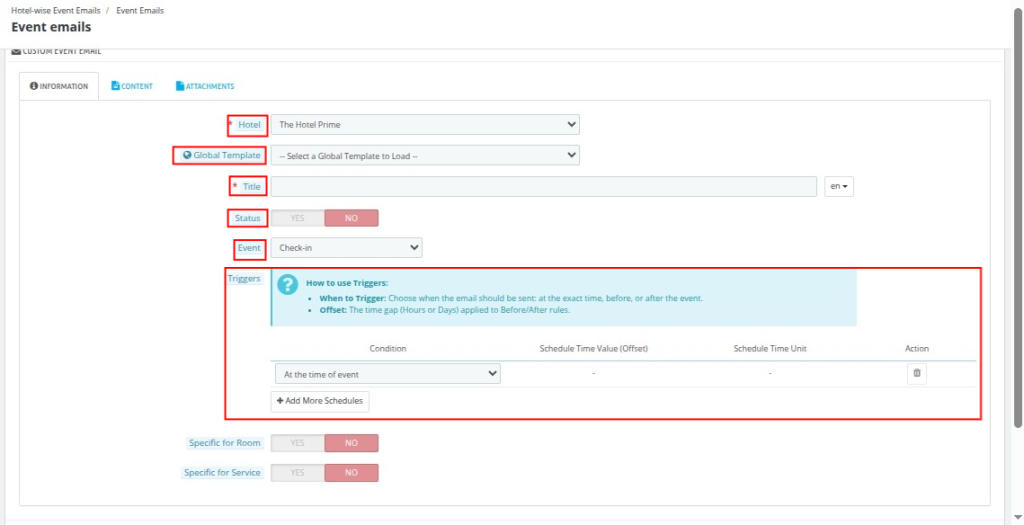
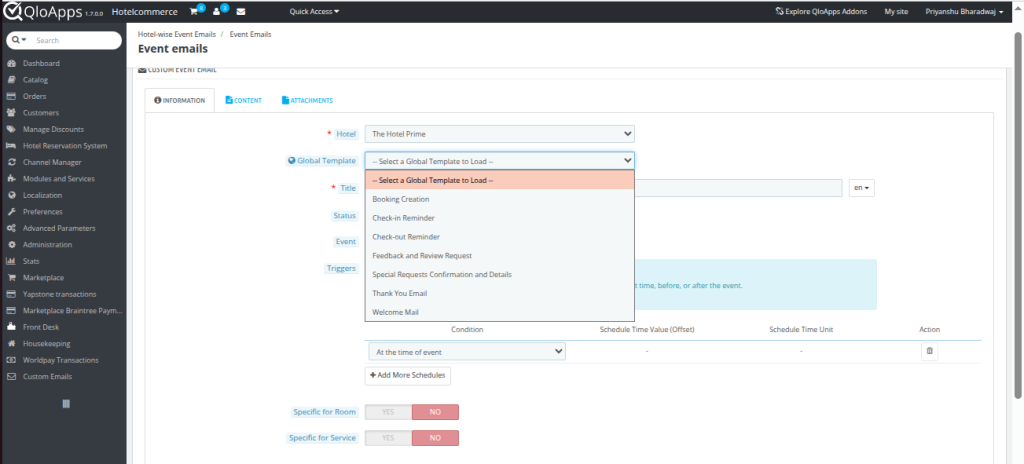
Also admin can Select a Global Template from the dropdown.
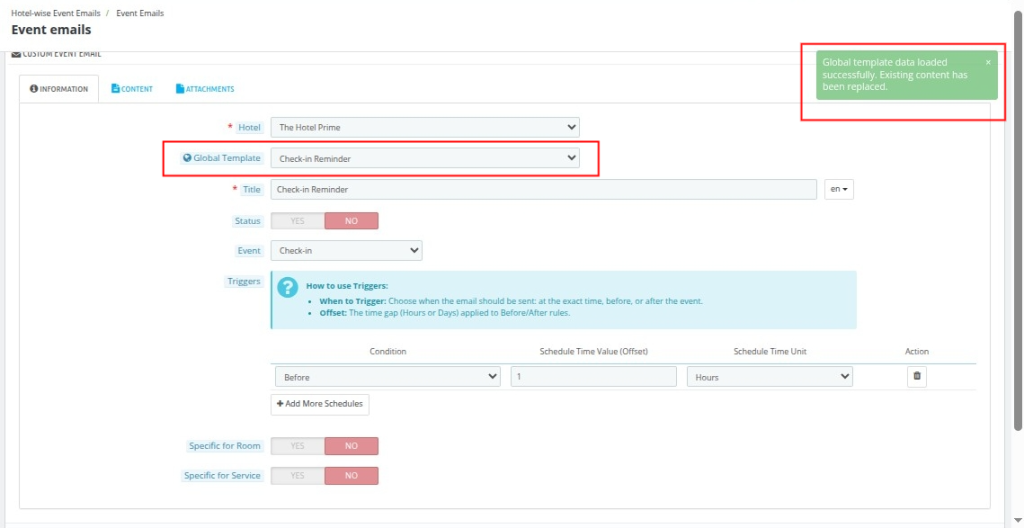
Once selected, all saved information from that template will automatically populate the fields.

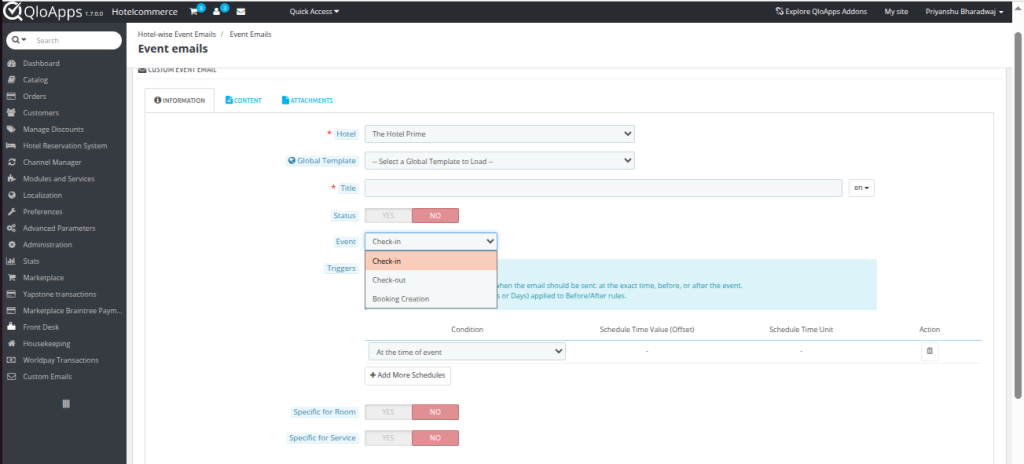
Select the event from the available options:
- Check-in
- Check-out
- Booking Creation
- Triggers: Triggers let you schedule emails at the event time or Minutes, Hours, or Days before or after the event—for example, send one email 2 Days before check-in, and also you can send another email 30 Minutes before the same event.
If selecting ‘At the time of event”

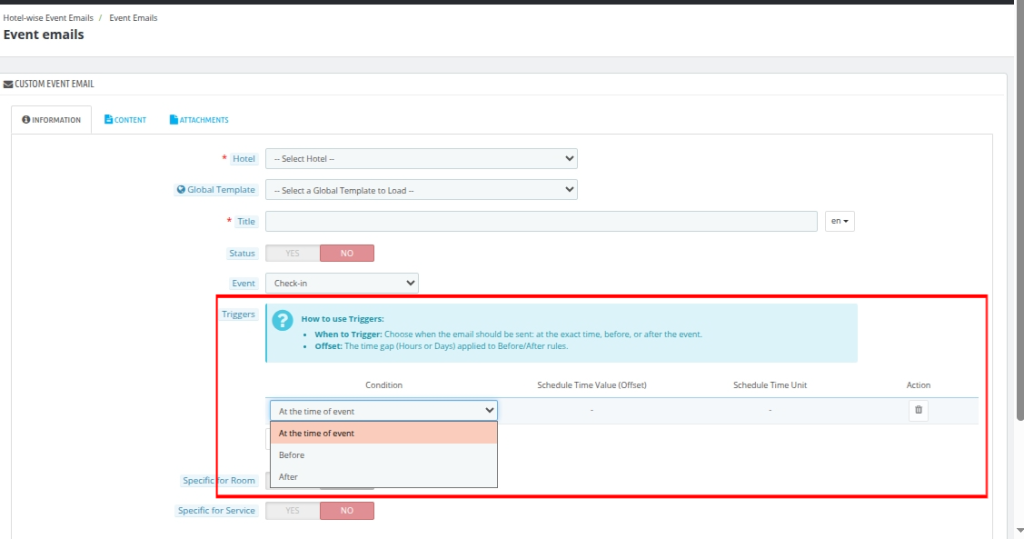
If selecting Before or After, you can define the Schedule time value and time gap using minutes, hours, or days.
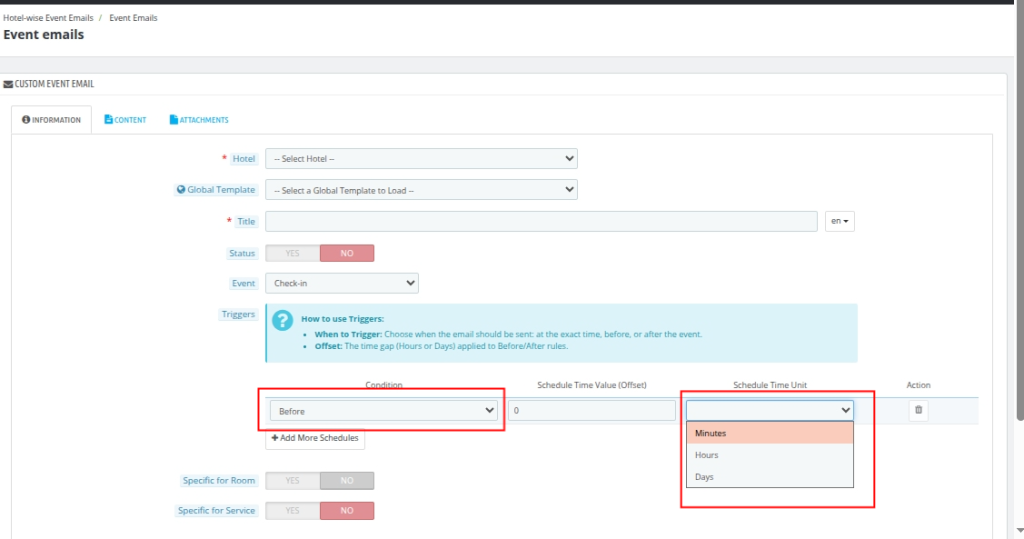
You can also add multiple schedules for the same email. For example, set one trigger for “Before 2 Days” and click Add More Schedules to add another trigger like “Before 30 Minutes”.
Specific for Rooms/Services:
Specific for Rooms:
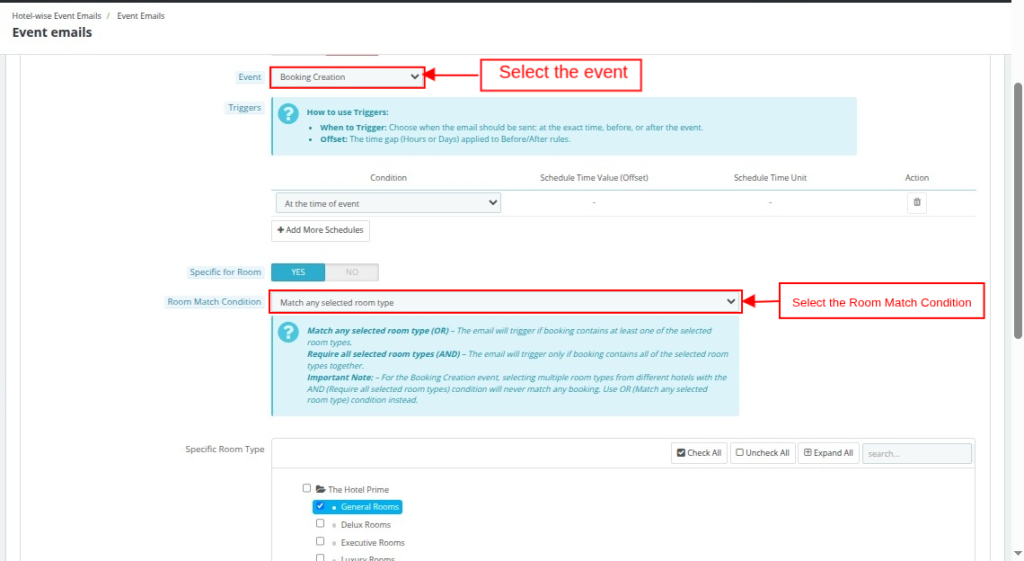
If this option is enabled for the Booking Creation event, the email will only trigger when the booking matches the selected room conditions.
You can define the matching logic as follows:
- Match any selected room type (OR) – The email will trigger if the booking contains at least one of the selected room types.
- Require all selected room types (AND) – The email will trigger only if the booking contains all of the selected room types together.
Important Note:
For the Booking Creation event, if you select multiple room types from different hotels and choose the AND (Require all selected room types) condition, the rule will never match any booking.
In such cases, you should use the OR (match any selected room type) condition instead.

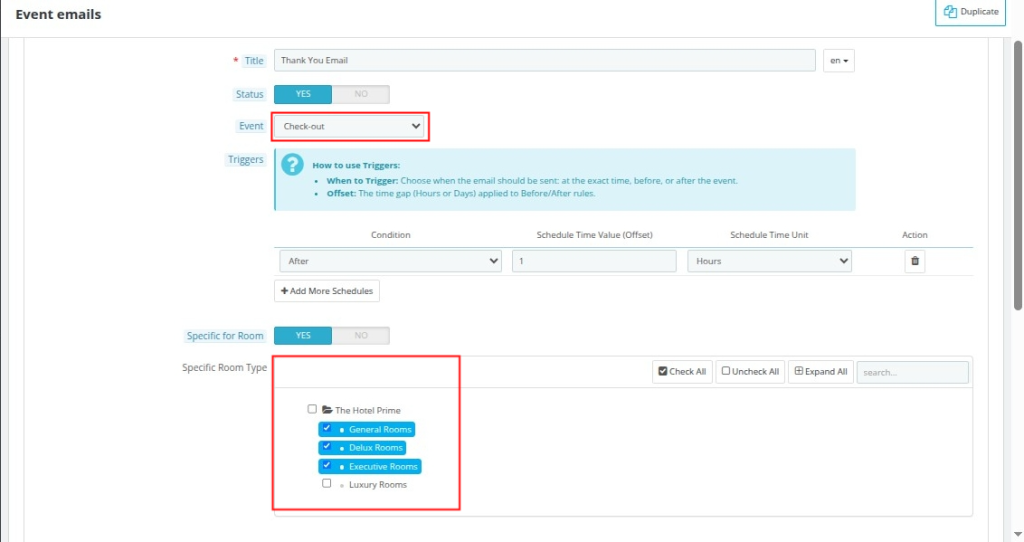
Note: For Check-in and Check-out events, the default OR condition applies. If multiple rooms are selected, the email triggers when any one room matches the booking.
Specific for Services:
Service Match Conditions:

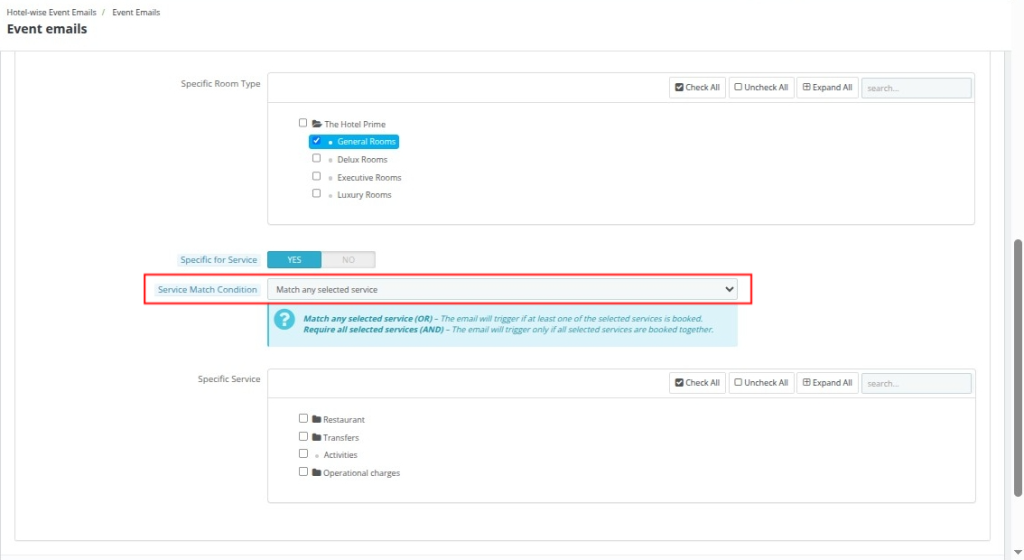
The same logic applies to extra services:
- Match any selected service (OR) – The email will trigger if the booking includes at least one of the selected services.
- Require all selected services (AND) – The email will trigger only if the booking includes all selected services together.
It will run for all events: Booking creation, check-in, and check-out events.
Content Tab:
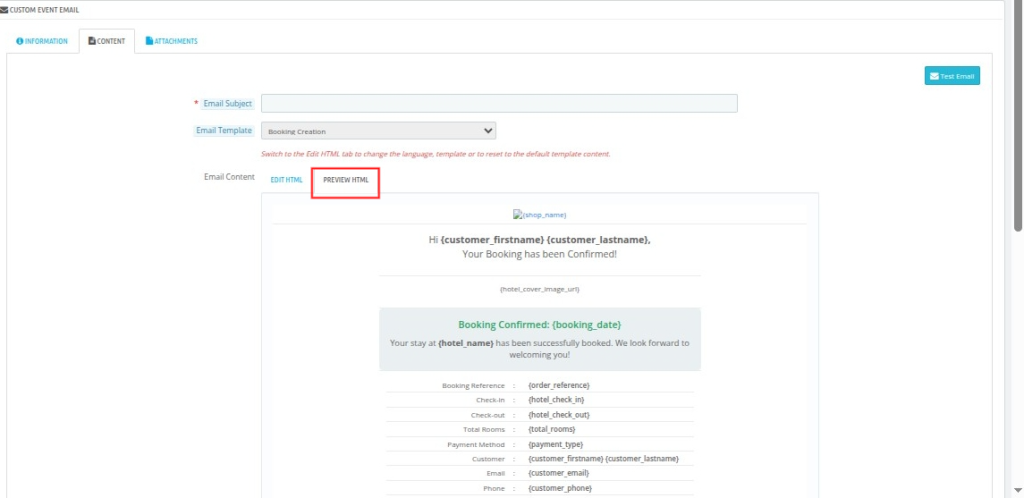
This tab is dedicated to the visual and textual presentation of the email. It handles what the customer actually reads.
Email Subject: The actual subject line that appears in the customer’s inbox. This field is fully multilingual, allowing you to enter different subjects for French, Arabic, English, etc.
Email Template: A dropdown list of pre-built, ready-to-use email layouts.

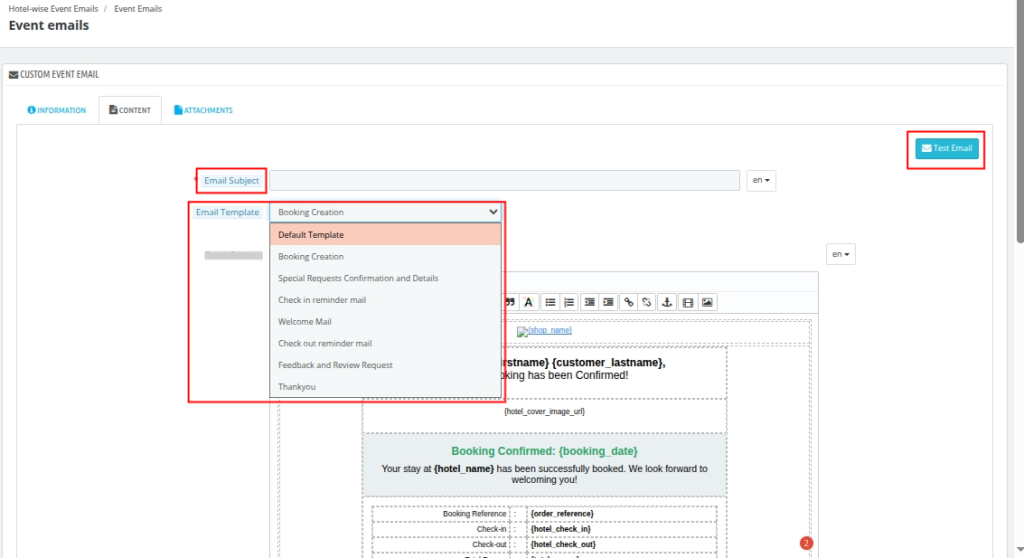
Test Email Button: A quick-access button that opens a modal, allowing the admin to send a test version of the current draft to their own inbox to verify the layout.
Note: You can select only one template—either the Default Template or the email content from any existing Global Template.
Note: If the event type is Booking Creation, you can only select a Booking Creation Email Template.
Similarly, for Check-in or Check-out events, you must select their respective Email Templates; otherwise, a validation error will occur.

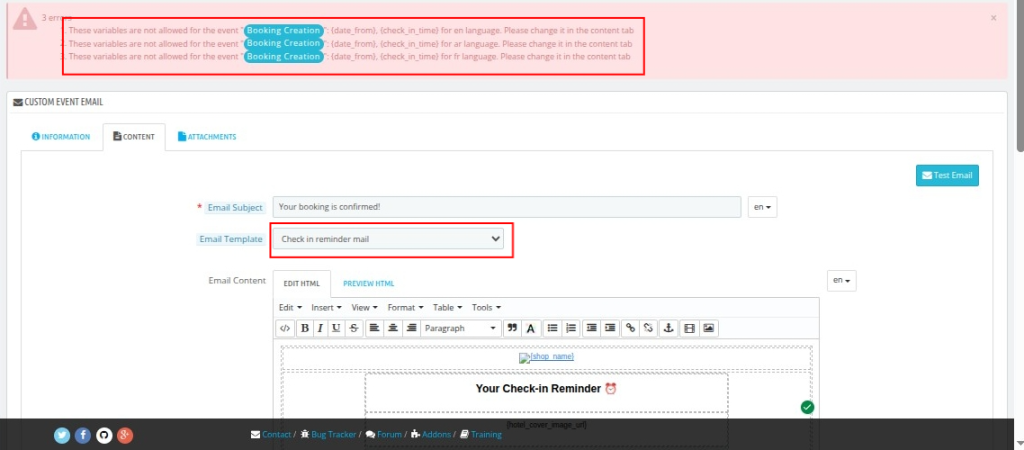
Note: The Default Template can be used for all event types without restriction.
Email Content: This section displays the actual message body to the customer.
Edit HTML: Here admin can format text, add links, and design your email body. It supports full HTML and multi-language tabs.

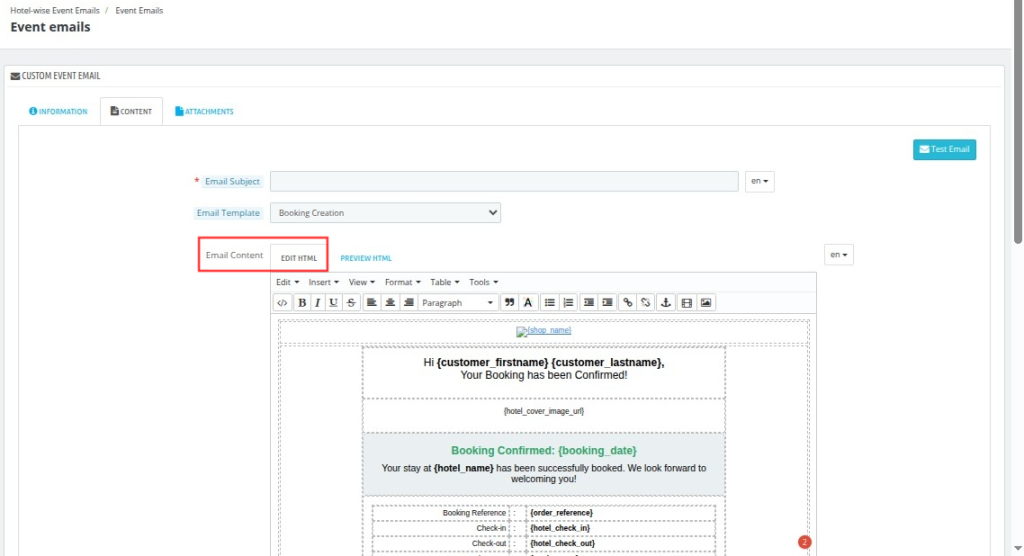
Preview HTML: A toggleable tab that renders a live, read-only preview of how the HTML will look.

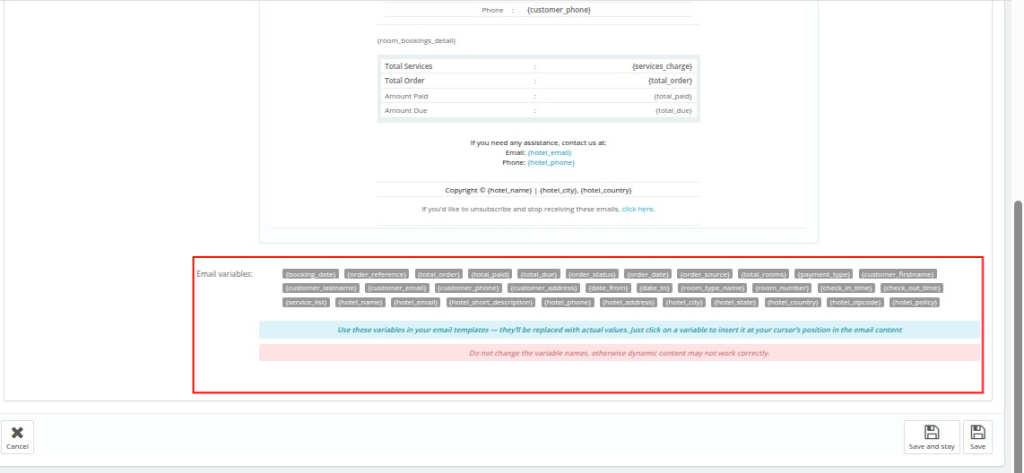
Email Variables: Use these variables in your email template; they auto-replace with real values. Click to insert, and don’t modify variable names or dynamic content may fail.

Attachments Tab:
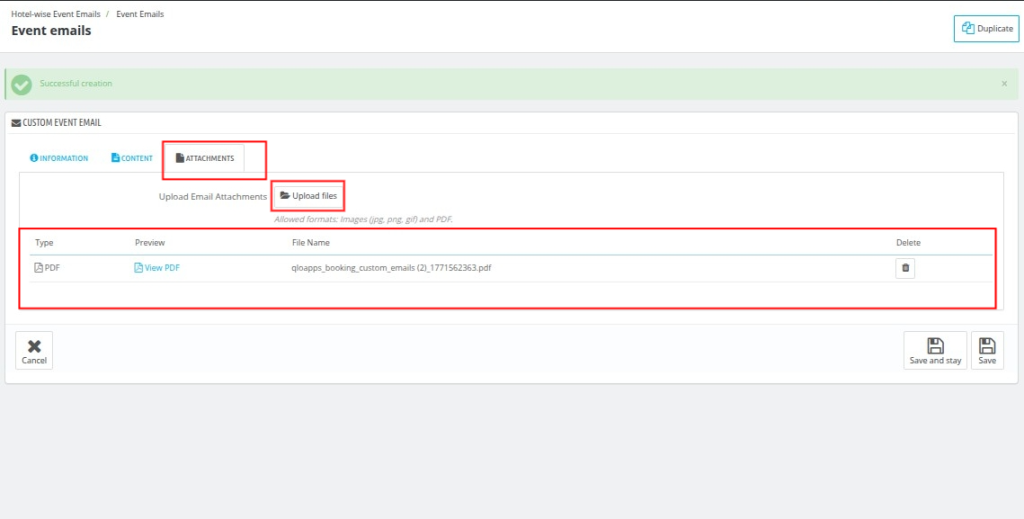
This tab allows you to securely attach files to your automated emails.. Click on the upload files option to browse and select files from your system.
The module only supports the formats jpg, png, gif, and PDF.
Once uploaded, all files will appear in the Attachments Data Table, where you can see Type, Preview, File Name, and Delete Option.
Global Email Template:
Global Email Templates allow admin to create reusable email templates that can be applied across multiple hotels.
When creating a Hotel-wise Event Email, admins can select a Global Template from the dropdown.
Once selected, the system automatically imports the title, event, email subject, email content, schedule triggers, and attachments.

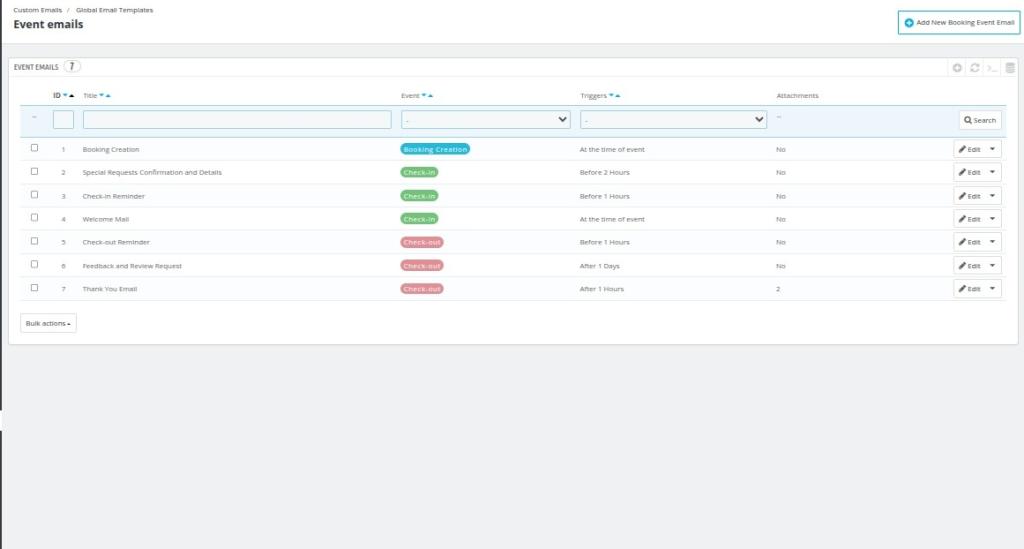
By default, the module provides 7 pre-configured global email templates.
Note: While selecting a global template, the Specific for Rooms/Services match condition is not configured automatically. The admin must enable and configure it manually later, if required.
Also admin can edit, preview, and delete the defined template.

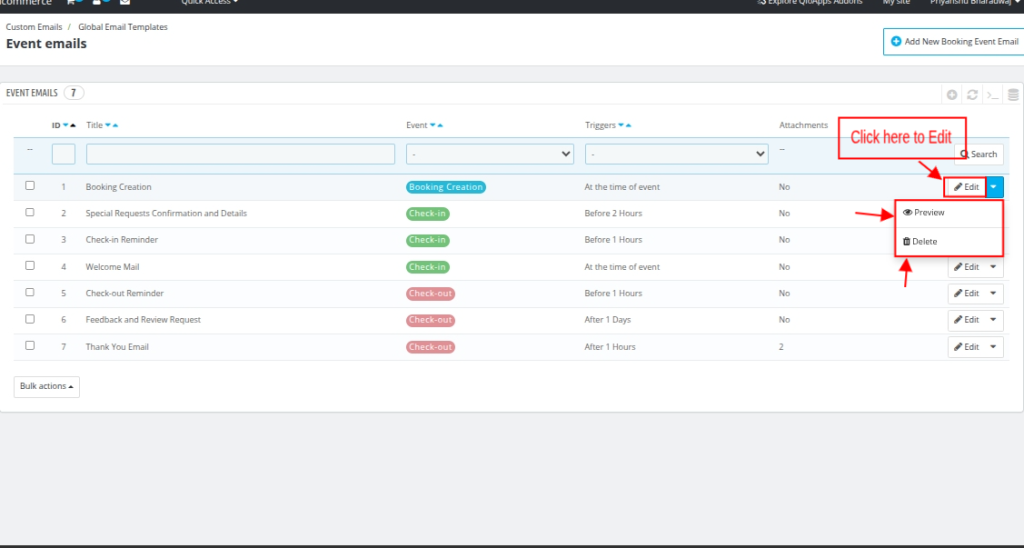
Clicking on Edit will redirect you to the page, where you can modify all previously filled details across the Information, Content, and Attachments tabs.

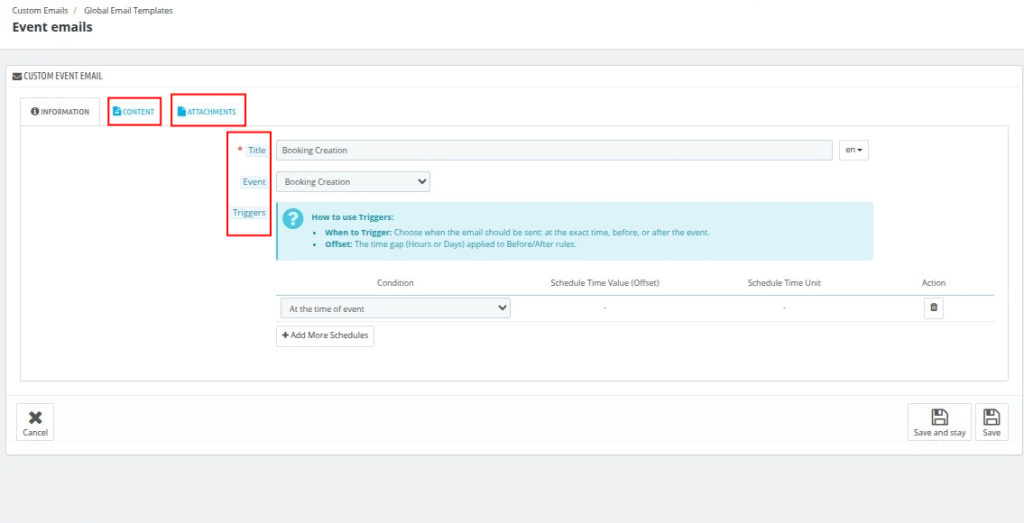
Note: Global Email Templates do not include the “Specific for Rooms/Services” option, as they are designed for universal use.
You can configure this setting only in the Hotel-wise Event Email section for individual hotels.
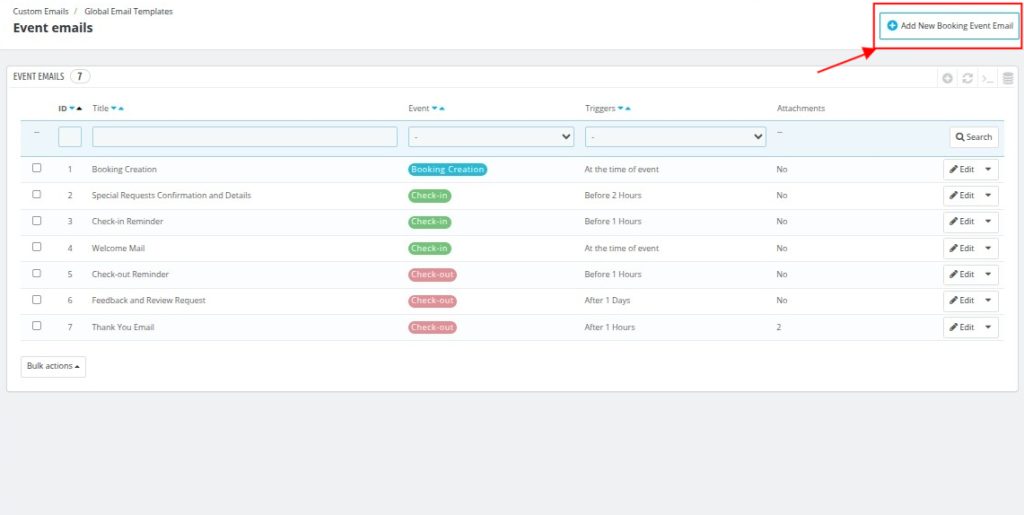
Similarly, you can “Add a new booking event email” template and fill in all the required details in the Information, Content, and Attachments tabs.


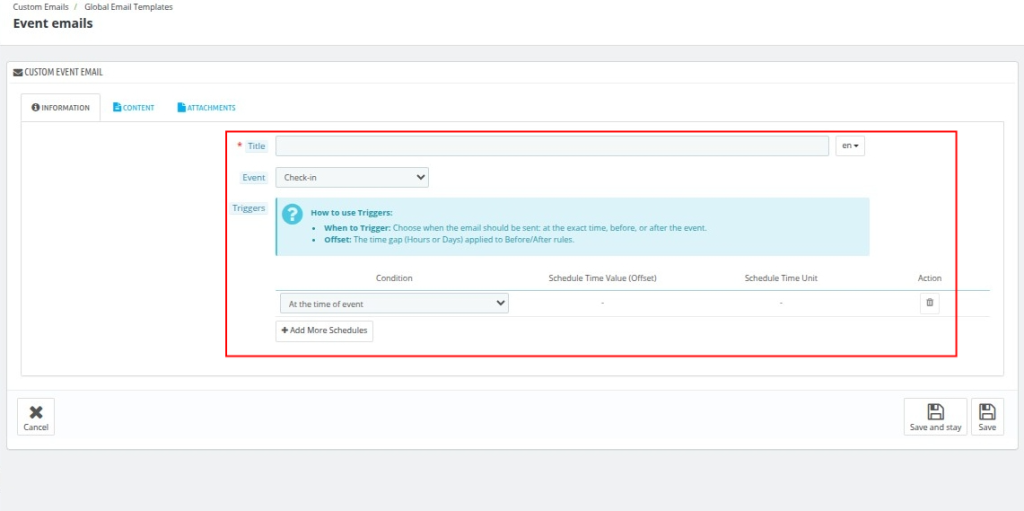
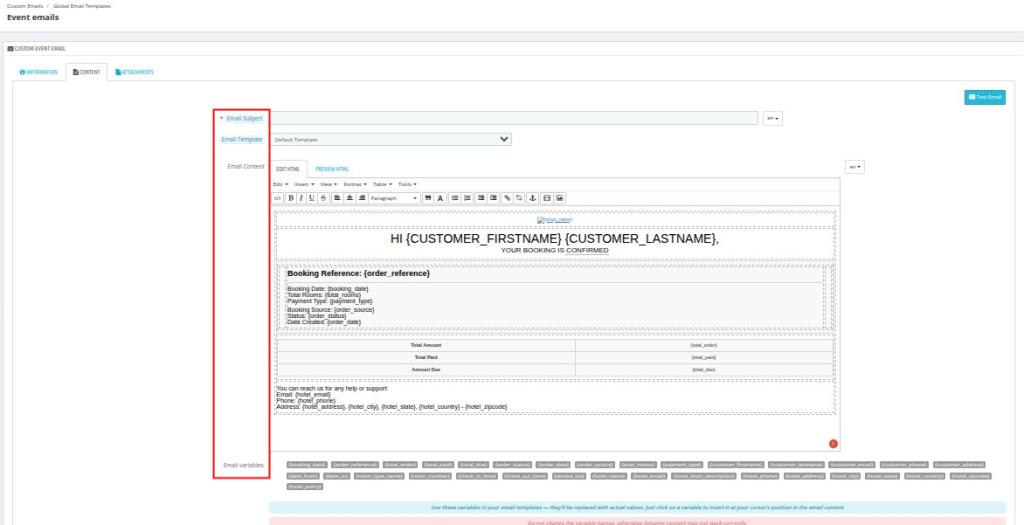
Configure all the information in the same way as you do in the Hotel-wise Event Emails section.
History:
The History section allows you to monitor and manage all automated emails sent through the module.

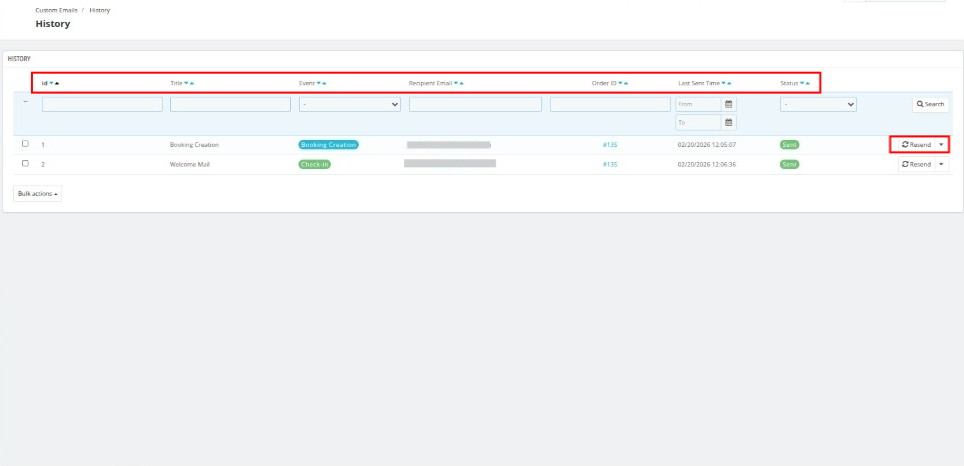
Here, you can view detailed records, including:
- ID – Unique identifier of the email record
- Title – Internal name of the email template
- Event – Trigger event (Check-in, Check-out, Booking Creation)
- Recipient Email – Guest’s email address
- Order ID – Associated booking reference
- Last Sent Time – Date and time the email was last triggered
- Status – Delivery status such as Processing, Sent, or Failed
You can also click on the Resend option to manually resend the email to the customer if required.
Configuration:
The Configuration section contains the essential technical setup required for the module to function properly.
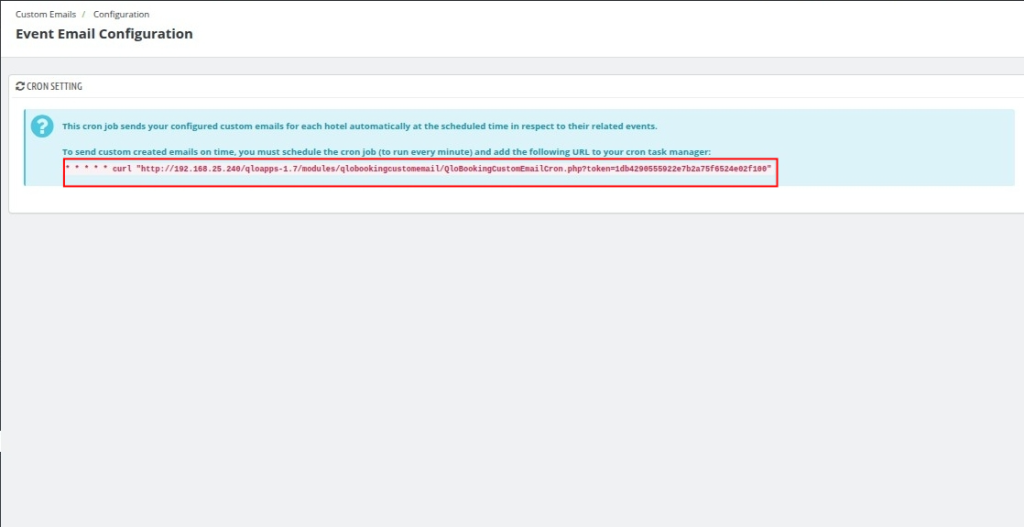
- Cron Job Setup
This cron job sends your configured custom emails for each hotel automatically at the scheduled time according to their related events.
Schedule the cron job to run every minute and add the secure URL to your server’s Cron Task Manager to send custom emails on time.
Once configured correctly, the system will automatically check for upcoming events and process the emails without any manual intervention.

Conclusion:
This is all about the QloApps Booking Custom Email Module — a complete solution to create, manage, and automate event-based emails directly from your QloApps back office.
Get In Touch
If you want to learn about the functionality of QloApps, then you can visit this link: Qlo Reservation System.
In case of any query, issue, or requirement, please feel free to raise it on the QloApps Forum.
Moreover, for any support, you can raise a ticket from here.
Current Product Version: 4.0.0
Supported Framework: QloApps 1.7.x & 1.6.x