QloApps Assa Abloy Smart Lock Connector
Hotels need a simple and secure way for guests to check-in. The QloApps Assa Abloy Smart Lock connector makes this easy by replacing old-fashioned keycards with a smart password system.
Now, hotel admins can create and send unique room passwords to guests enhancing the overall guest experience.
With quick and secure access to their rooms, guests enjoy a hassle-free check-in, improved security, and a more modern stay.
Features of QloApps Assa Abloy Smart Lock
- Guests can unlock their rooms using secured passwords
- Guests can check their room passwords via email.
- Unique passwords are automatically created for guests upon booking.
- Enhanced guest security with unique, time-sensitive passwords that ensure guest privacy
- Admins also have the flexibility to enable or disable the automation process based on their hotel’s operational needs.
- Admins can send passwords to guests via email automatically or manually, based on a module timeframe configuration (e.g., 2 days or 2 hours before check-in).
- Admins can schedule reminder emails also to be sent before check-in (e.g., X hours or days) as per module configuration
- Admins can easily manage, update, and revoke room passwords, ensuring security and flexibility for guests and staff.
- Improve security and streamline guest check-ins with Assa Abloy Smart Locks.
- Reduce staff workload and eliminate guest inconveniences with keyless digital access.
- Password is also automatically updated whenever a new booking is made for the same room, ensuring maximum security.
- Create a common area such as a gym or a pool, give it its own lock and choose which room types and rooms may use it.
- Guests open the common area with the same password as their room, so they remember one code per room.
- Choose when the lock is released: at the admin checkout, at the hotel checkout time, or a set time after it.
- Admins can revoke or regenerate the room and common area passwords of a room with one click.
- Passwords on the locks follow booking changes: new dates, cancellation, refund, room change, swap or deletion.
Prerequisite of QloApps Assa Abloy Smart Lock
Before using the QloApps Assa Abloy Smart Lock module, admins must configure essential settings and add the required hooks and code for smooth operation.
Making changes to the QloApps is super easy—just navigate to the specified path and insert the necessary hooks and code to ensure the module functions correctly.
Note: You only need to make these changes for QloApps version 1.6.X
Add in Hook 1 and Hook 2 Follow this Path
- .tpl file:- adminhtl/themes/default/template/controllers/products/configuration.tpl
Hook 1
Path:- adminhtl/themes/default/template/controllers/products/configuration.tpl
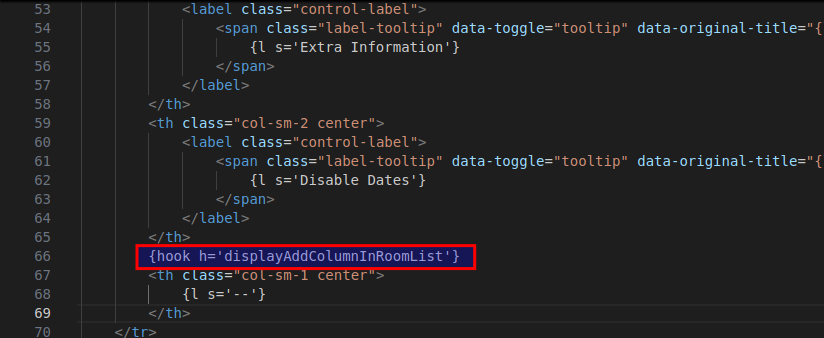
Locate the following path and add the mentioned hook at line number 66 (Line may vary).
Add Hook: – ‘{hook h=’displayAddColumnInRoomList’}’
Kindly Refer to the Screenshot

Hook 2
Path:- adminhtl/themes/default/template/controllers/products/configuration.tpl
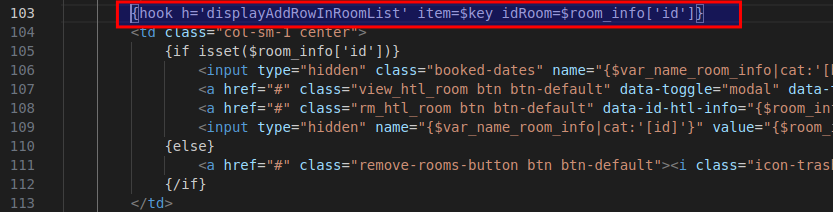
Locate the following path and add the mentioned hook at line number 103 (Line may vary).
Add Hook: ‘{hook h=’displayAddRowInRoomList’ item=$key idRoom=$room_info[‘id’]}’
Kindly Refer to the Screenshot

Add Line of Code for Code 1 to Code 4 Follow this Path
- .php file:- qloapps/modules/hotelreservationsystem/classes/HotelBookingDetail.php
Code 1
Path: qloapps/modules/hotelreservationsystem/classes/HotelBookingDetail.php
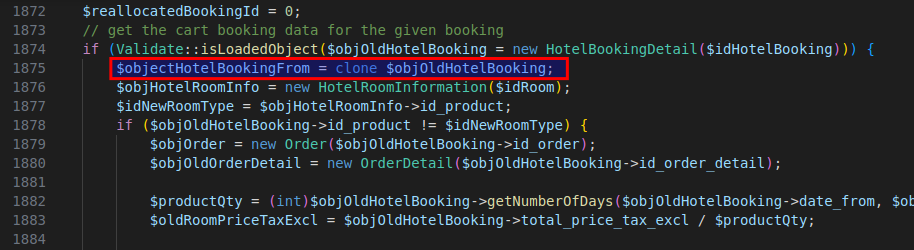
Locate the following path and add the hook mentioned at line 1875 (Line may vary).
Add Code: `$objectHotelBookingFrom = clone $objOldHotelBooking;`
Kindly Refer to the Screenshot

Code 2
Path: qloapps/modules/hotelreservationsystem/classes/HotelBookingDetail.php
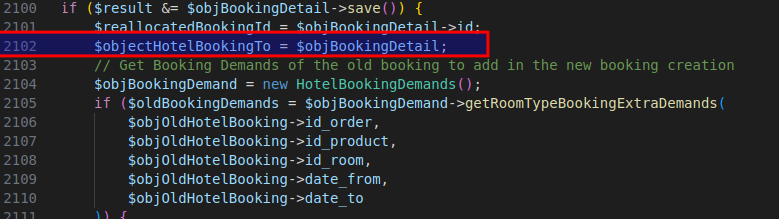
Locate the following path and add the mentioned at line number 2102 (Line may vary)
Add Code: ` $objectHotelBookingTo = $objBookingDetail;`
Kindly Refer to the Screenshot

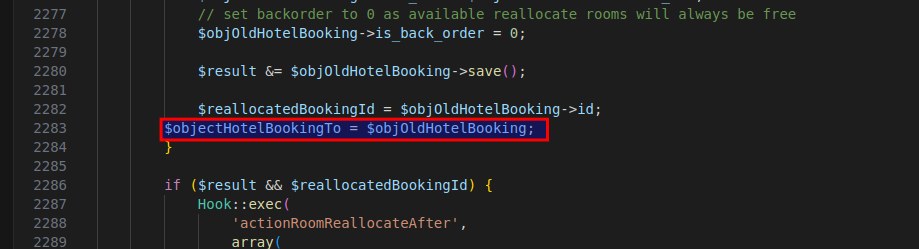
Code 3
Path: qloapps/modules/hotelreservationsystem/classes/HotelBookingDetail.php
Locate the following path and add the mentioned at line number 2283 (Line may vary)
Add Code: $objectHotelBookingTo = $objOldHotelBooking;`
Kindly Refer to the Screenshot

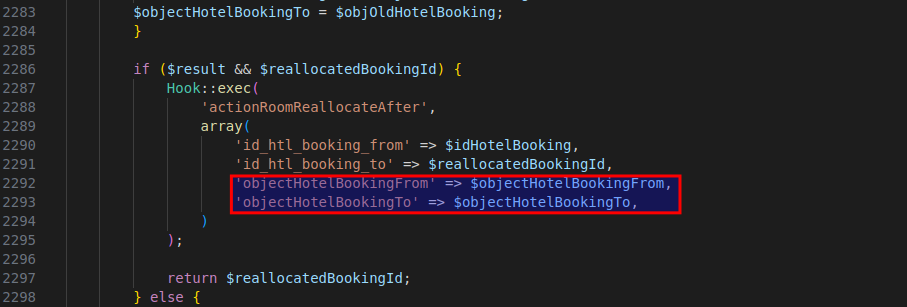
Code 4
Path: qloapps/modules/hotelreservationsystem/classes/HotelBookingDetail.php
Locate the following path and add the mentioned at line number 2292 (Line may vary)
Add Code: ` ‘objectHotelBookingFrom’ => $objectHotelBookingFrom,
‘objectHotelBookingTo’ => $objectHotelBookingTo,’
Kindly Refer to the Screenshot

How to Install the QloApps Assa Abloy Smart Lock Module
- Log in to your QloApps Admin Panel.
- Navigate to Modules & Services > Manage Module

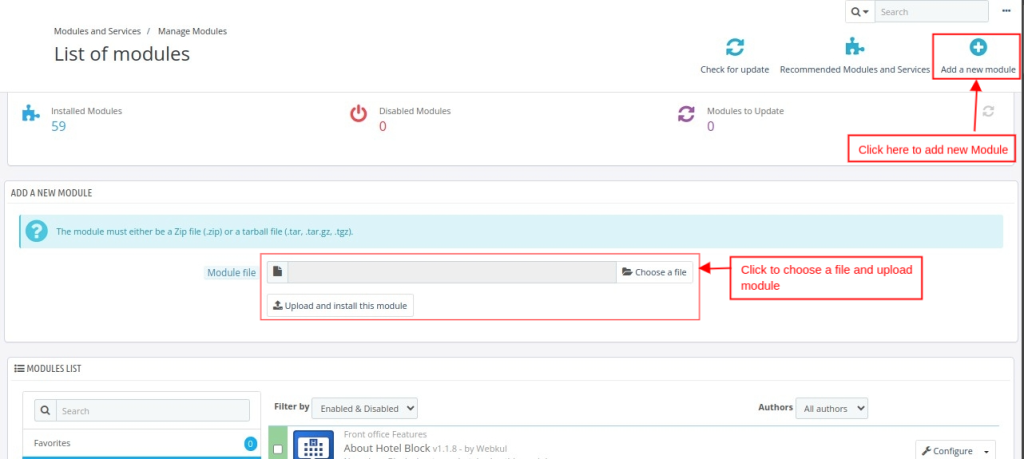
- Then Click Add a New Module
- Choose a File and Upload.
How to configure QloApps Assa Abloy Smart Lock Module
- Log in to your QloApps Admin Panel.
- Navigate to Modules & Services


- Then Search for your Module in Module List
- Click on Configure
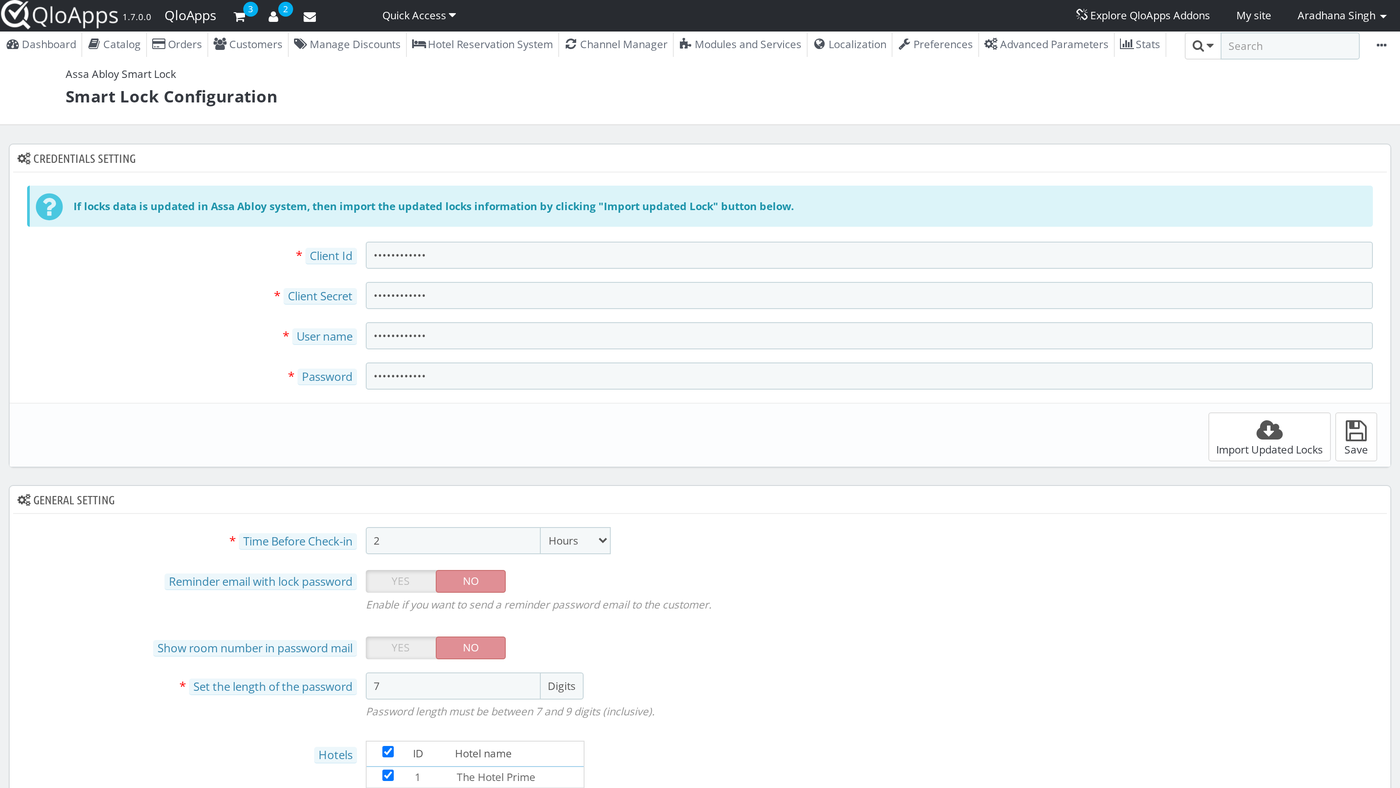
The admin must complete credentials and general settings to configure this module properly.
Credential Setting
- These are the authentication credentials required to connect the module that admin needs to fill
- Client Id: A unique identifier assigned to authenticate the integration.
- Client Secret: A secure key used for verifying API access.
- User name: The admin’s login credential for authentication
- Password: A secure code is required to access the module
- Admin needs to click on save.

- When Details are incorrect or incomplete then QloApps through an error “Failed to retrieve access token: Unknown error”

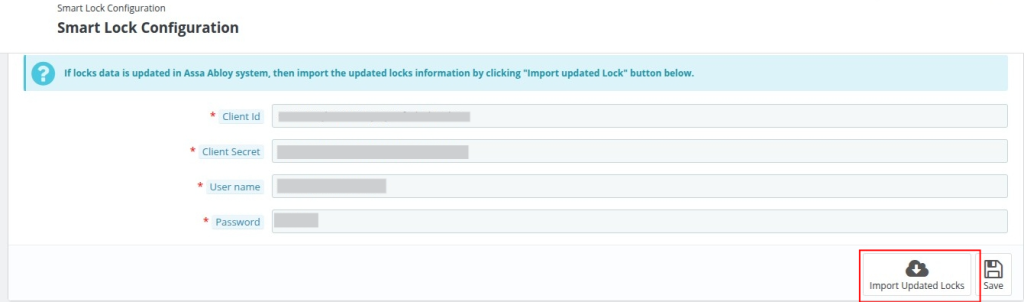
- If the details are correct, the system automatically imports the locks provided by the Assa Abloy Smart Lock at that time.
- Additionally, if new locks are added later, the admin can manually import them by clicking the “Import Updated Locks” button.
General Setting
In this setting, the Admin Can customize the mail and password length setting
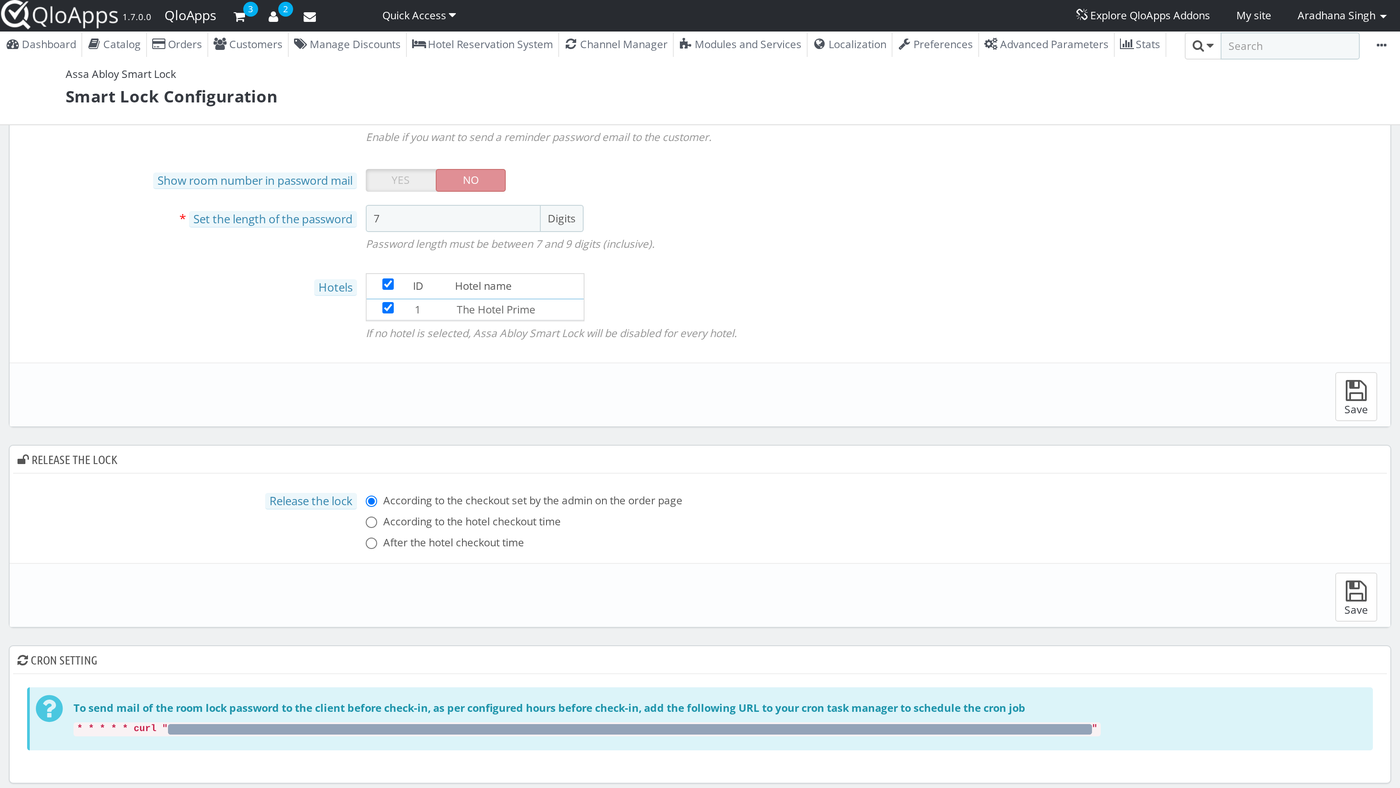
- Time Before Check-in: The admin can configure the reminder email timing to be sent before the guest’s check-in, such as 2 hours or 1 day in advance.
- Reminder email with lock password: The admin can choose to enable or disable the option to send the remainder of mail for the room Passwords.
- If Enabled, the remainder mail that contains the room password will be sent at the reminder time (e.g., 1 day or 2 hours before check-in).
- Show Room Number in Password Mail: Admin can enable or disable the display of the room number in the password email.
- Set Password Length: Define the password length, which must be between 7 and 9 digits. The default is 7.
- Hotels: Tick the hotels that use the smart locks. If no hotel is ticked, the module is switched off for every hotel. A hotel cannot be removed while locks are still assigned to its rooms or common areas.
Release the Lock
This setting decides when a guest password stops working. The admin picks one option and clicks Save.
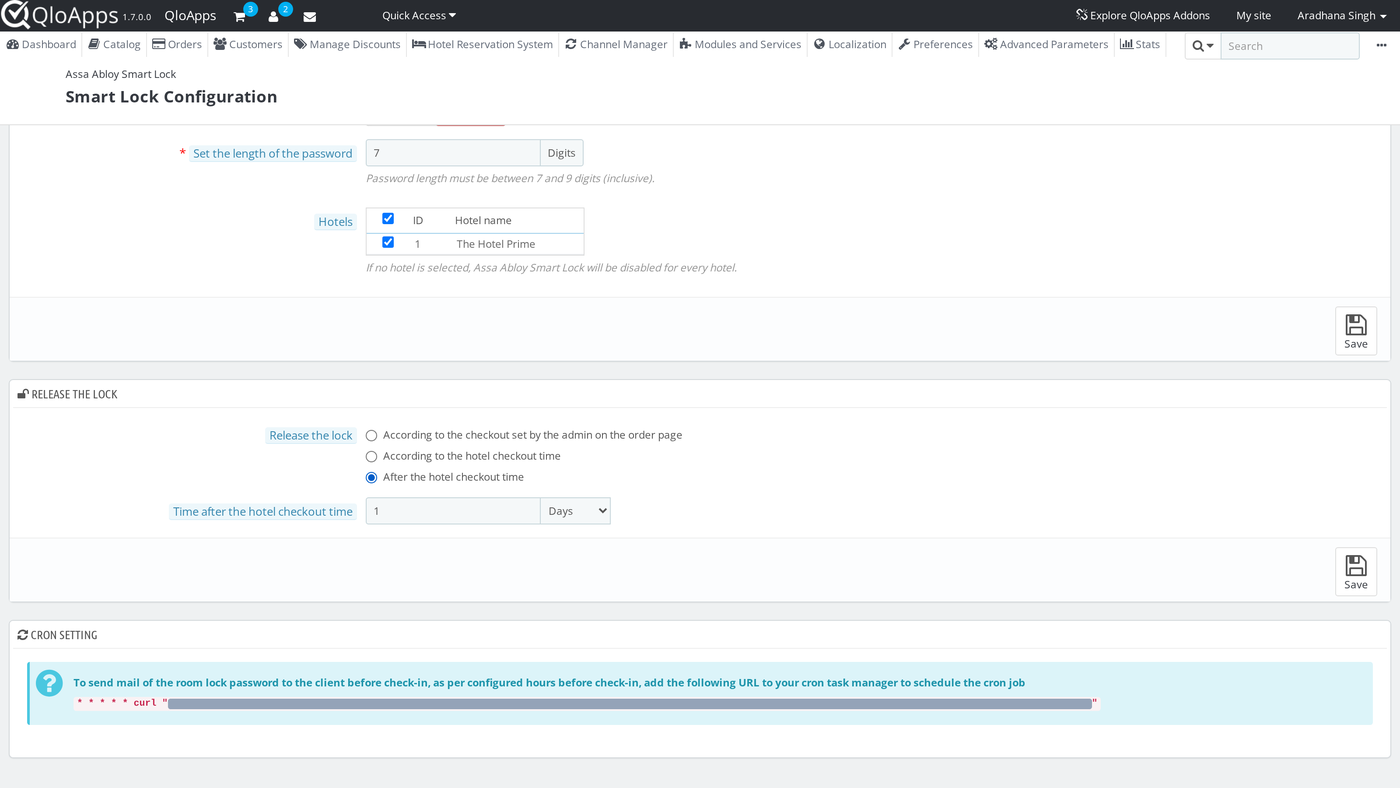
- According to the checkout set by the admin on the order page: the password stops when the admin sets the room to Checked out on the booking. If the admin forgets, it stops one day after the hotel check-out time.
- According to the hotel checkout time: the password stops at the hotel check-out time on the last day of the stay. This is the default.
- After the hotel checkout time: the password stops a set time after the hotel check-out time. When this option is picked, the field Time after the hotel checkout time appears. Enter a number and choose Hours or Days. The default is 1 Day.
With any option, setting the room to Checked out on the booking deletes its passwords at once. A change applies to passwords created or updated after it is saved.
Cron Setting
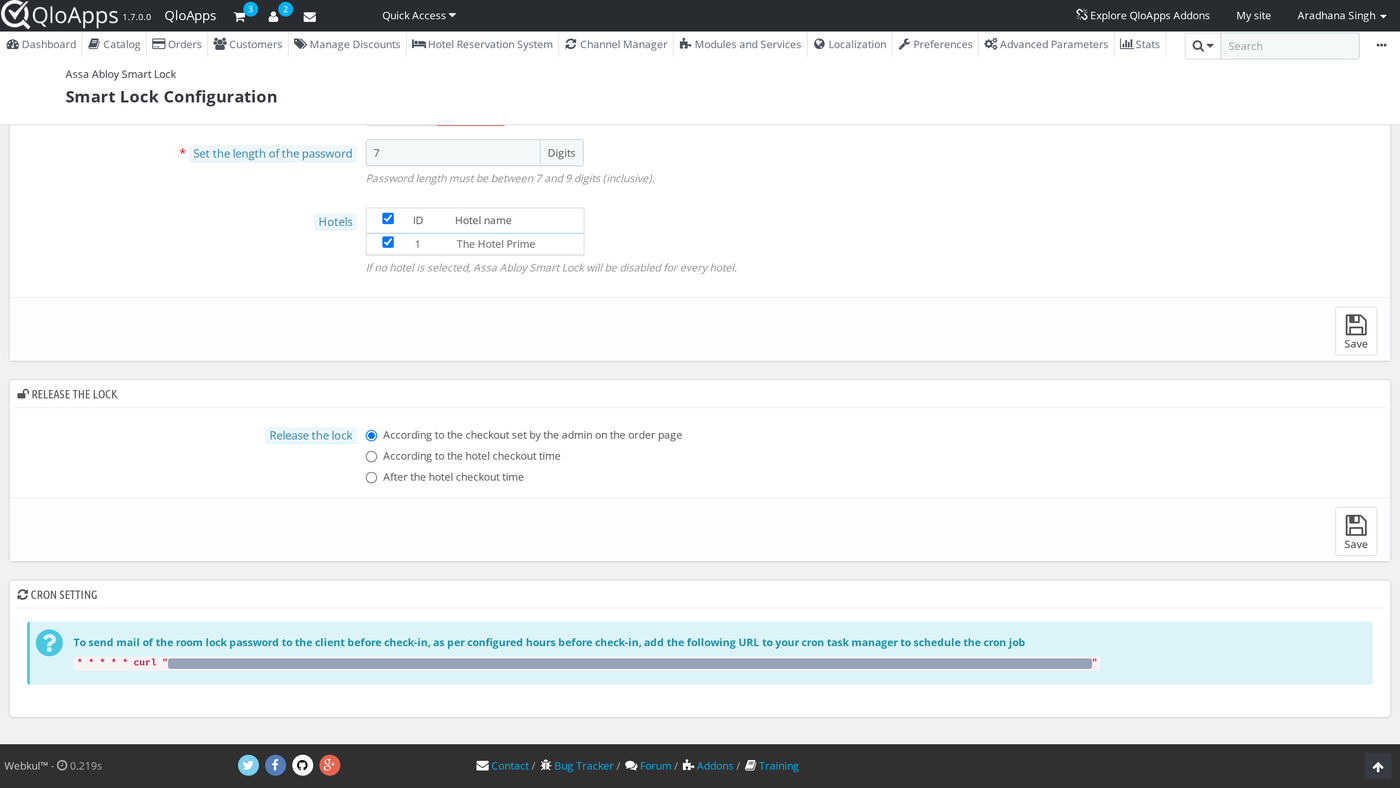
Cron settings in QloApps Assa Abloy Smart Lock automate email notifications, generate passwords reducing manual work and ensuring timely communication with guests.
In this, a cron job can be set to:
- Generate passwords for smart locks at the right time.
- Send emails to guests a few hours /days before check-in (as per module configuration in general setting).
Additionally, Remainder emails we can also send as per the configuration.
The cron job also repeats a delete that failed on a lock and removes passwords that have expired, so run it every minute.
Enable Cron Setting
You can add this link to your cron task scheduler to schedule and automate the cron job.
Why These configuration Matter
- For Admins: Full control over password security and guest communication, ensuring a seamless and secure experience.
- For Guests: Timely reminders and clear instructions for a stress-free check-in process
The admin must assign smart locks to their respective rooms, enabling guests to unlock their rooms using a password generated at the time of booking.
How Admins Can assign the smart locks to the rooms
- Log in to your QloApps Admin Panel.
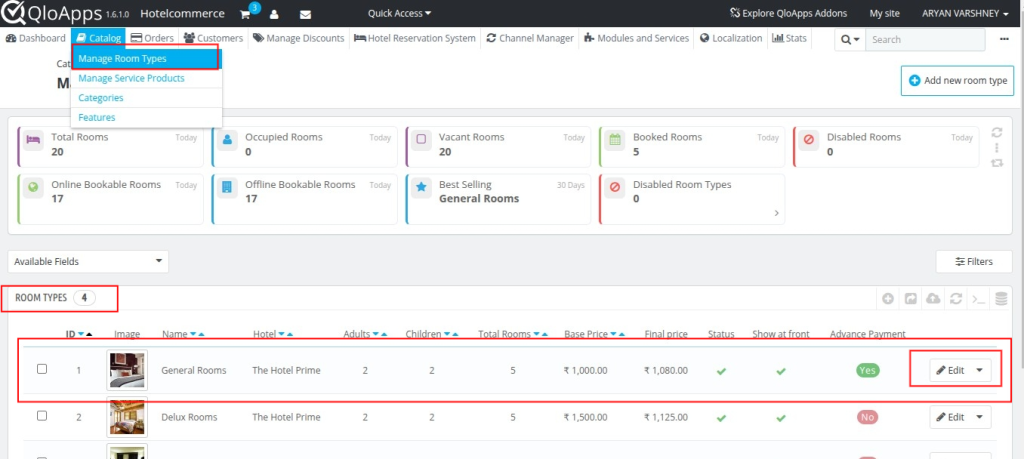
- Navigate to Catalog -> Manage Room Type
- Now Select the Room and Click on Edit

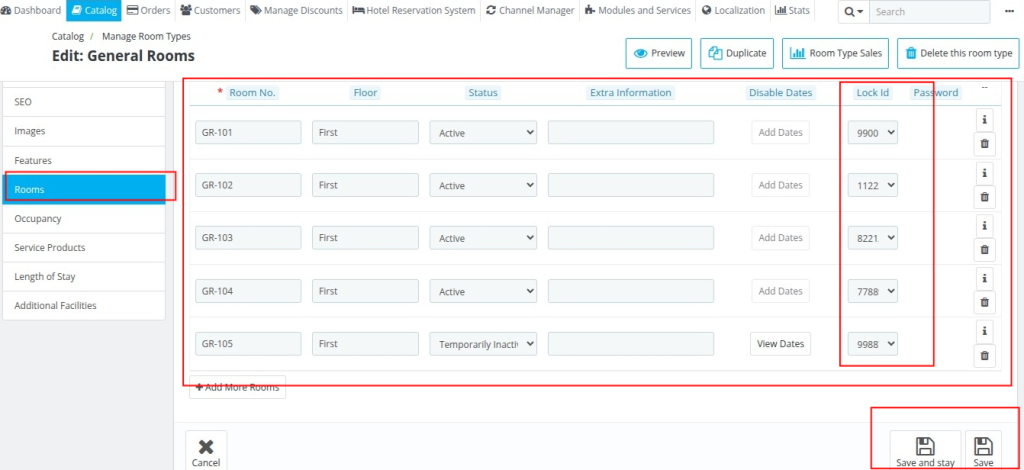
- In Edit Admin need to click on Rooms
- In each room, admin need to assign a lock ID and click on save.
- Then the system will show the assigned password for that specific room.
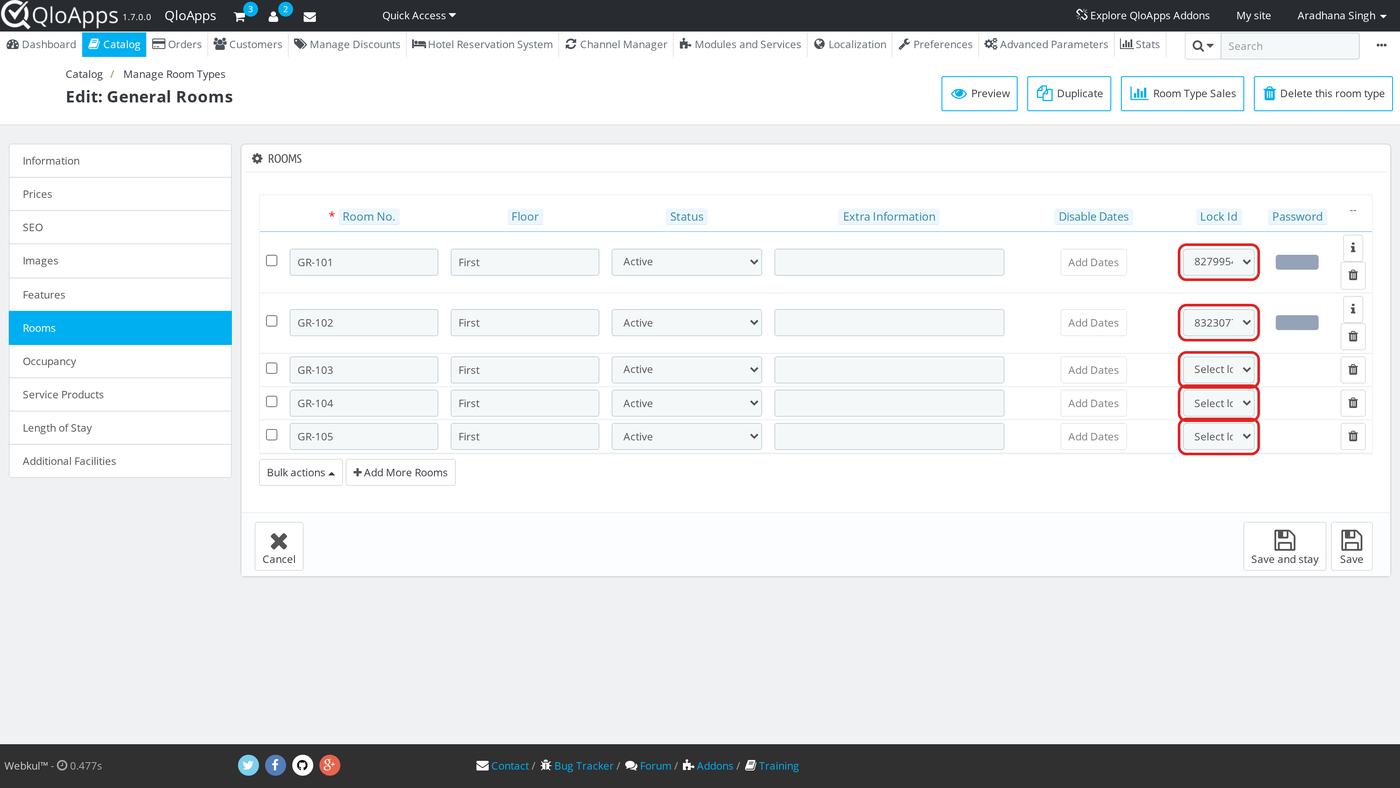
Note: Only rooms with a smart lock assigned will support password-based access for guests.Each time a guest books a room, a unique password is generated for them.
How to Set Up Common Areas
A common area is a shared door, such as a gym, a pool or a parking gate. Each common area belongs to one hotel and has its own lock.
- Go to Hotel Reservation System › Manage Hotel and edit the hotel.
- Open the Assa Abloy Common Areas tab.
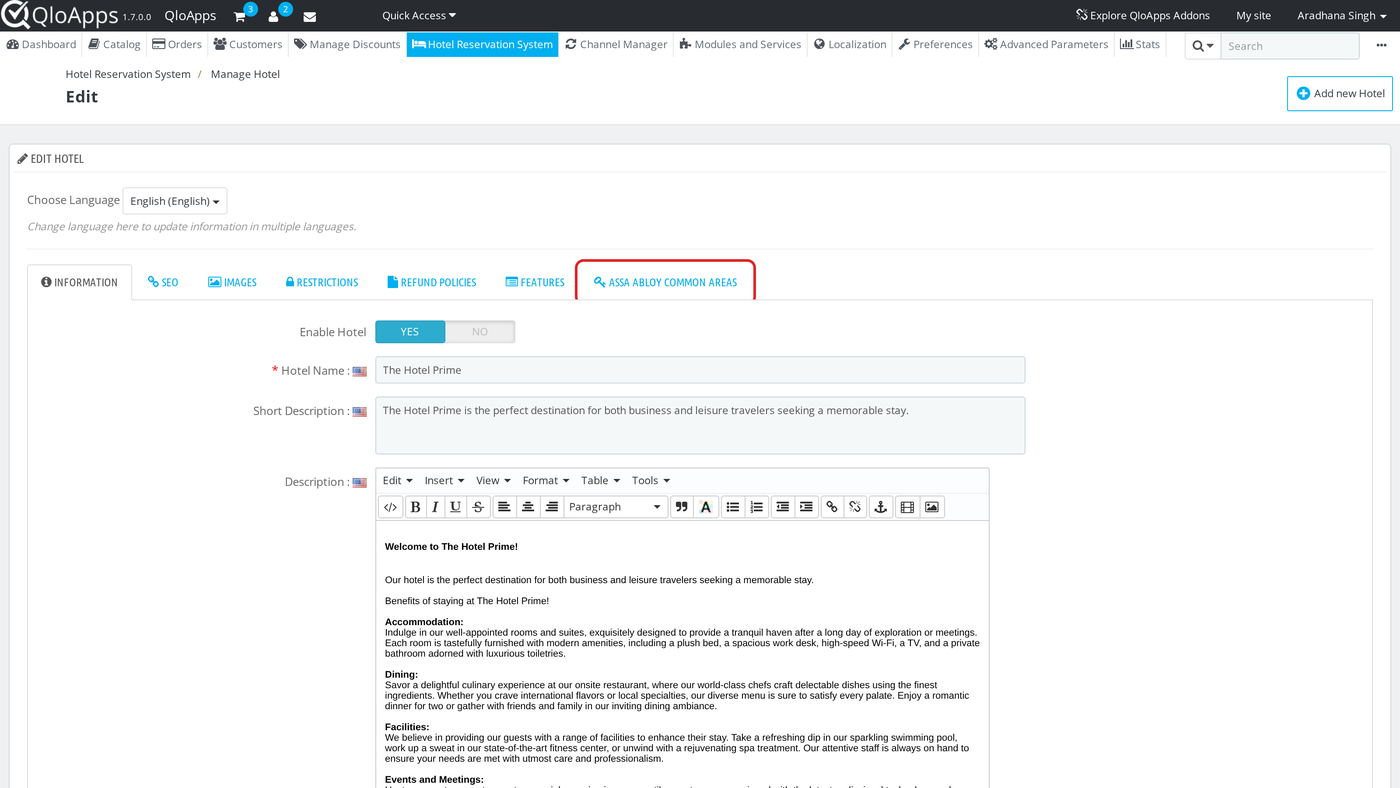
The tab lists the common areas of the hotel with their Id, Common area name, Lock Id, Password and Status. Use the arrows to sort, type in the filter row and click Search to filter, and click Reset to clear the filter. Click the status icon to enable or disable an area. Tick rows and open Bulk actions to select all, unselect all, enable, disable or delete them.
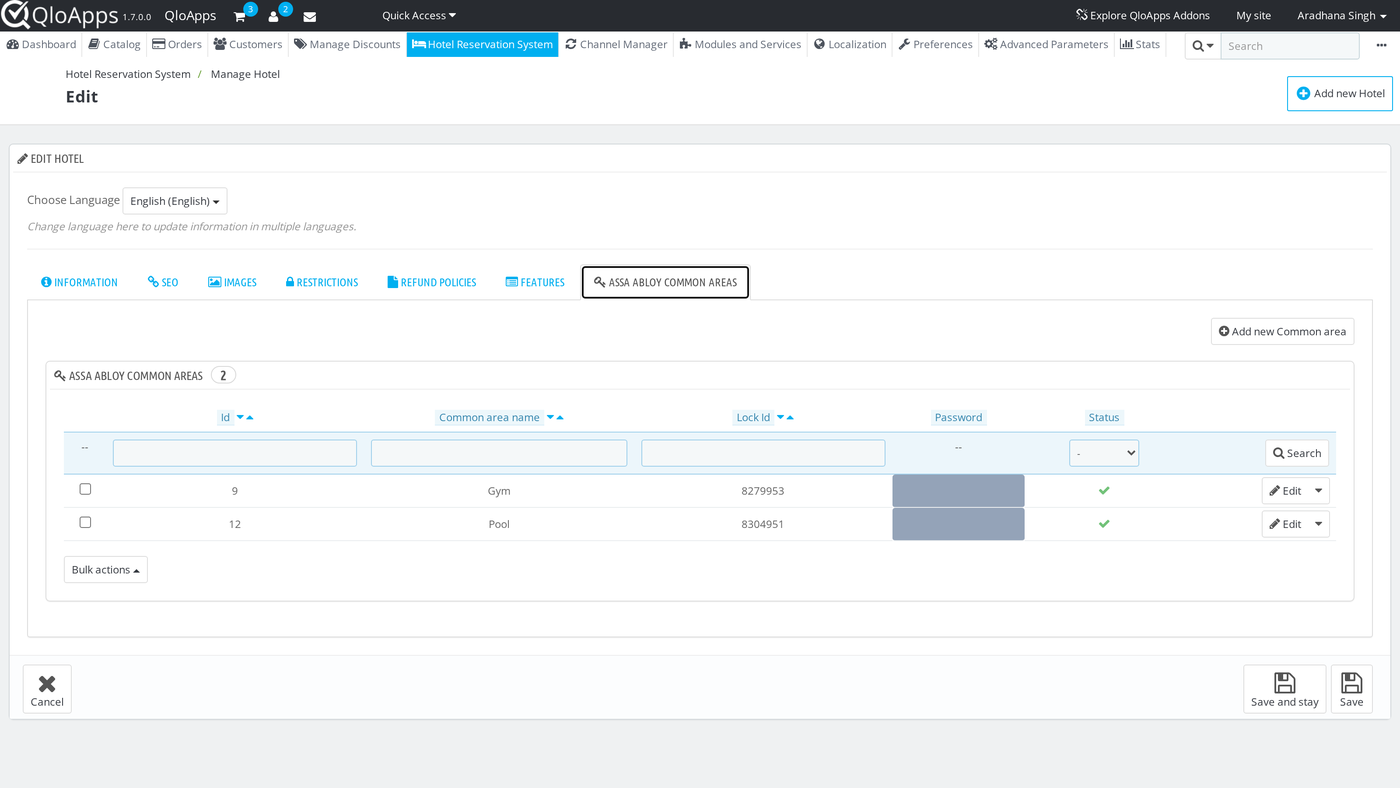
Click Add new Common area to create one:
- Enable common area: an area needs a lock before it can be enabled. The default is Yes.
- Common area name: the name the guest sees in the email. It is required.
- Select Smart lock: the lock of the area. It is required, and a lock cannot be used by a room or by another area.
- Rooms: the room types and rooms whose guests may use the area. All rooms are ticked by default. Untick the rooms that must not have access.
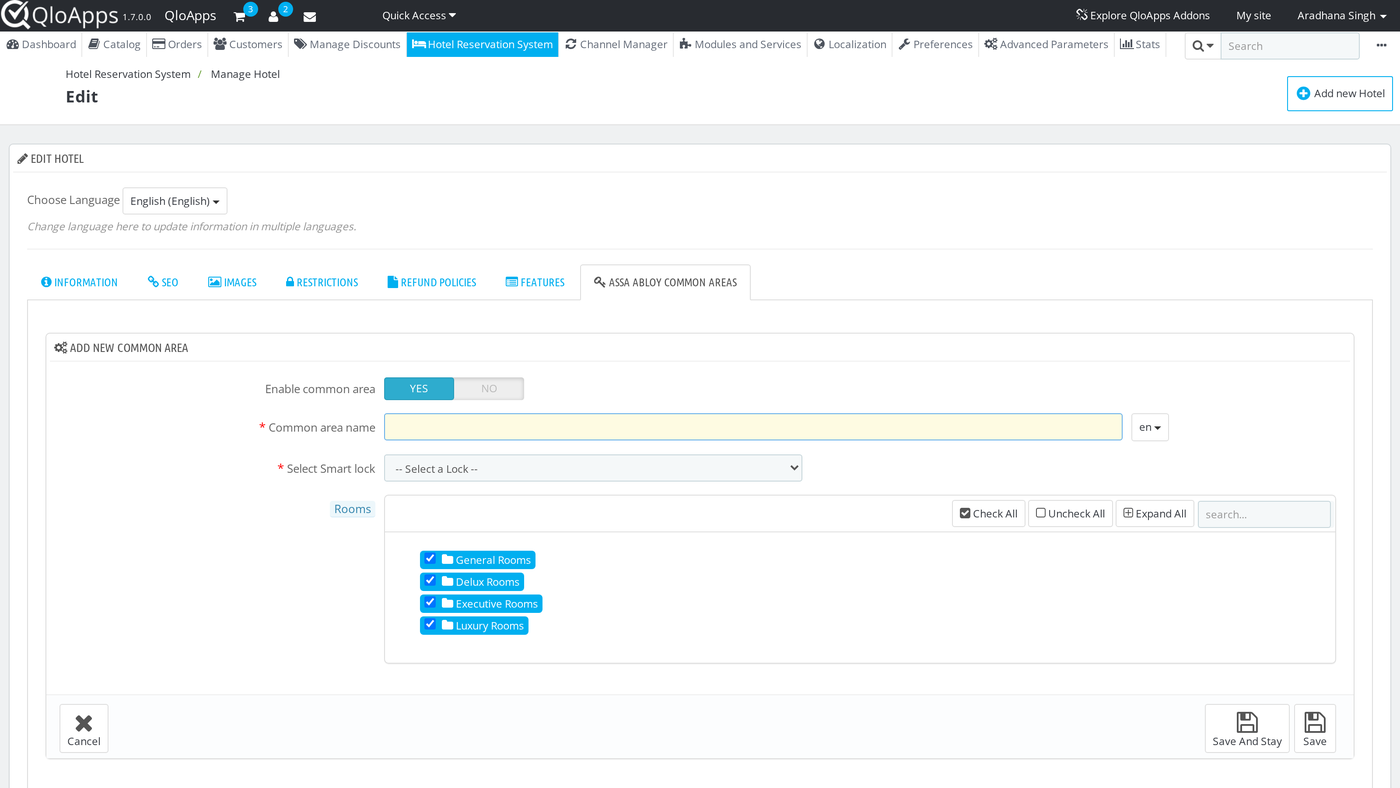
Click Save And Stay to keep the form open, or Save to go back to the list.
Same password for the room and the common area: the guest does not get a separate code for the gym. The password of the room is also set on the lock of every common area the room may use. A booking with three rooms has three passwords, and each one opens its own room and the common areas of that room. If the password of a room is regenerated, the common areas get the new password too.
How Guest Room Passwords Are Generated
- When a guest books a room, and the booking is confirmed, the system creates a secure password for the assigned room.
- The password can be sent to the guest automatically via email.
- Alternatively, the hotel admin can choose to send the email manually.
- The password is valid only for the guest’s stay duration, ensuring security and convenience.
- The guest uses the same password for the room and for the common areas allowed for that room.
How Admin and Guest Can Show the Room Passwords
For Admin
- Log in to your QloApps Admin Panel
- Navigate to Orders and select the specific order number

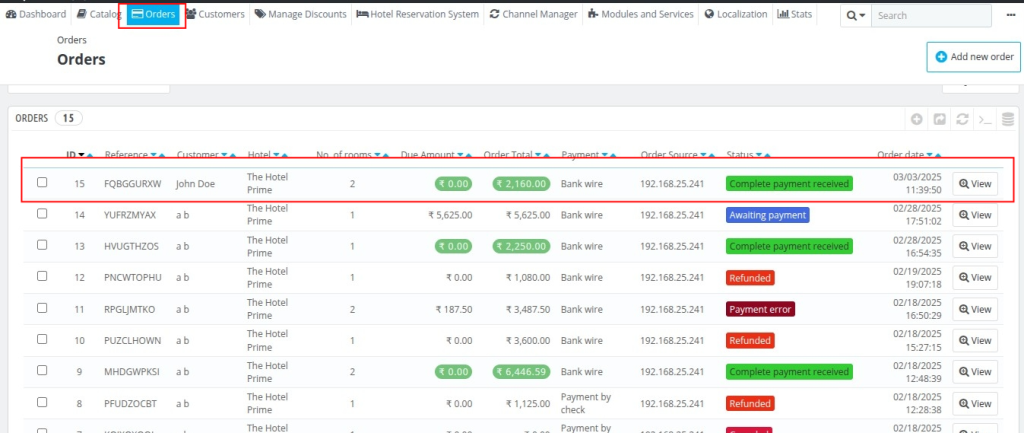
- Scroll down the order details page to find the ASSA ABLOY Lock Password section.
- The table lists every room of the booking that has a lock, with the room number, room type, dates, the room Password and the Common area password of each common area the room may use. A room shows Not Generated until the cron job creates its password.
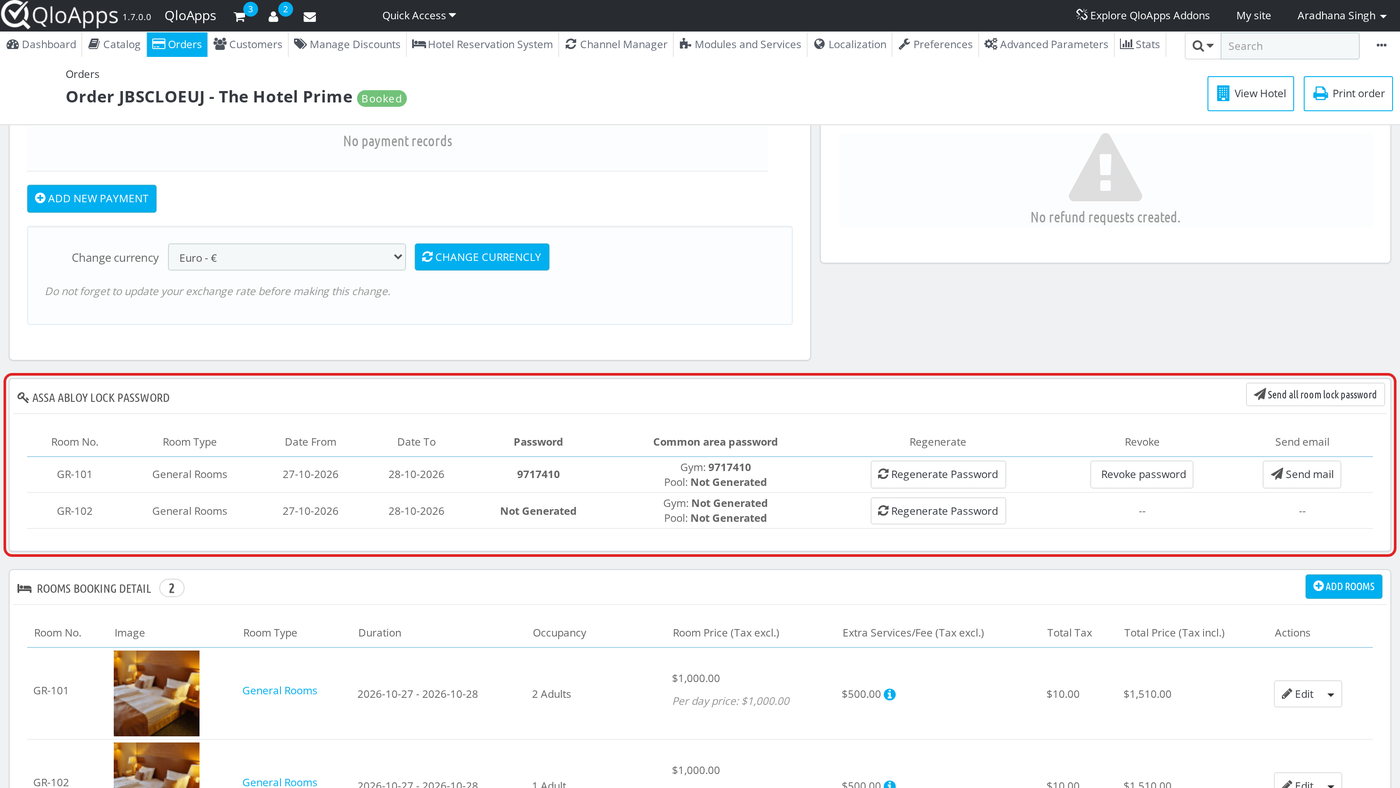
The admin can use these buttons:
- Regenerate Password: creates a new password for the room and sets the same password on its common areas.
- Revoke password: deletes the room password and the common area passwords of that room from the locks. The room then shows Revoked and the cron job does not create a new password. Use Regenerate Password to give the guest access again. If a lock refuses a change, the page names the lock that failed and the reason, for example that the lock is not connected to a gateway.
- Send mail: sends the room password email to the guest again.
- Send all room lock password: sends the passwords of all rooms of the booking in one email.
For Guest
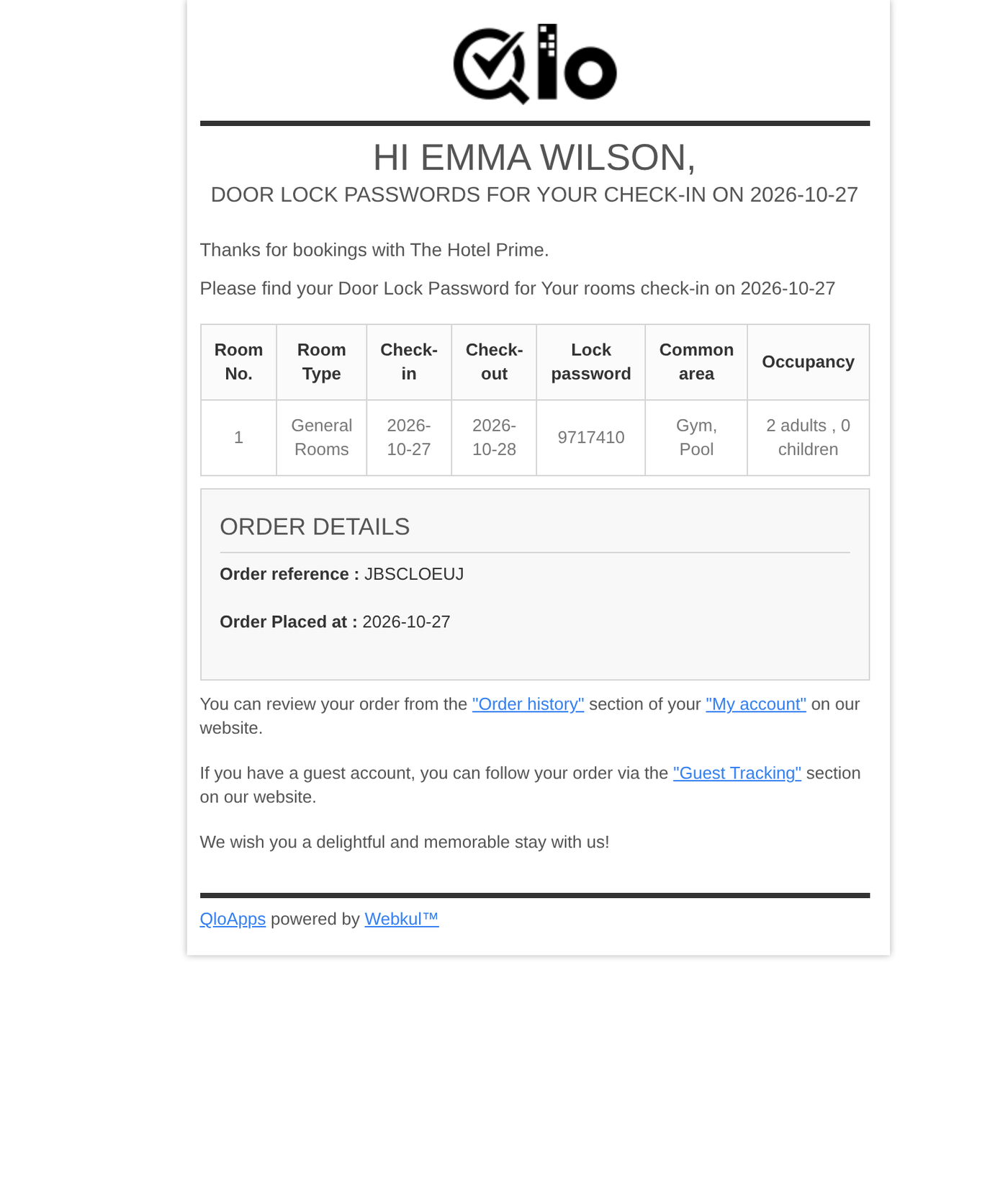
- The guest receives the email Room Lock Passwords for Your Stay when the time set in Time Before Check-in is reached. If the reminder is on, the guest gets it a second time at the reminder time.
The email greets the guest by name and shows the check-in date. One table lists each room with its room type, check-in and check-out dates, lock password, the Common area names the password also opens, and the occupancy. A booking with more than one room has one row for each room.
Room No. counts the rooms as 1, 2, 3. Switch on Show room number in password mail to show the real room number instead.

What Happens When a Booking Changes
The module keeps the passwords on the locks in step with the booking:
- Dates changed or stay extended: the room and common area passwords get the new dates on the lock. The password stays the same.
- Room set to Checked out: the room and common area passwords are deleted at once.
- Booking cancelled or refunded: the passwords are deleted from the locks. This covers a whole booking and a single room.
- Room changed inside the same room type: the guest keeps the password and it moves to the lock of the new room. If the new room has no lock, the cron job creates a new password and the guest receives it by email.
- Room type changed: the old passwords are deleted and the new room gets its own password.
- Two rooms swapped: the two passwords move to the new rooms.
- Room removed from the booking: its passwords are deleted from the locks.
After a room change, the module checks again which common areas the new room may use.
Conclusion
The QloApps Assa Abloy Smart Lock Connector transforms hotel security and enhances guest convenience.
By replacing traditional keycards with smart lock technology, hotels can improve security, streamline operations, and create a modern, hassle-free guest experience.
With this integration, admins manage passwords, automate emails, and ensure seamless check-ins. As a result, staff workload drops and security improves, giving guests a smooth, secure stay
To learn more about QloApps and its features, visit: QLO Reservation System – Free Open-Source Hotel Booking & Reservation System.
Need Help? Raise your queries on the QloApps Forum
Current Product Version – 1.0.3
Supported Framework Version- QloApps 1.6.1 And 1.7.x