QloApps AI Booking Assistant
QloApps AI Booking Assistant adds an intelligent virtual concierge to your hotel booking website.
It helps guests check room availability, view live pricing, and complete bookings anytime.
NOTE: This module is compatible with QloApps 1.7.0.0. An active API key from an AI provider is required for conversational AI features.
Features of QloApps AI Booking Assistant
- Provide continuous 24/7 automated booking assistance for hotel guests
- Search real-time room availability across selected check-in and check-out dates
- Display live room rates, amenities, and room capacity instantly
- Add selected rooms directly to the guest booking cart
- Retrieve existing booking details and order status via booking reference
- Answer common hotel questions regarding check-in times and house policies
- Operate in button-guided mode without external AI provider dependencies
- Connect with top AI models including OpenAI, Anthropic, and Google Gemini
- Track conversation statistics, popular inquiries, and token usage via built-in analytics
How to Install QloApps AI Booking Assistant
Installing the module takes only a few moments in your QloApps Back Office. Follow these simple steps to complete the installation.
- In your Back Office sidebar, navigate to Modules and Services › Modules and Services.
- Click on the Add a new module button located at the top right of the page.

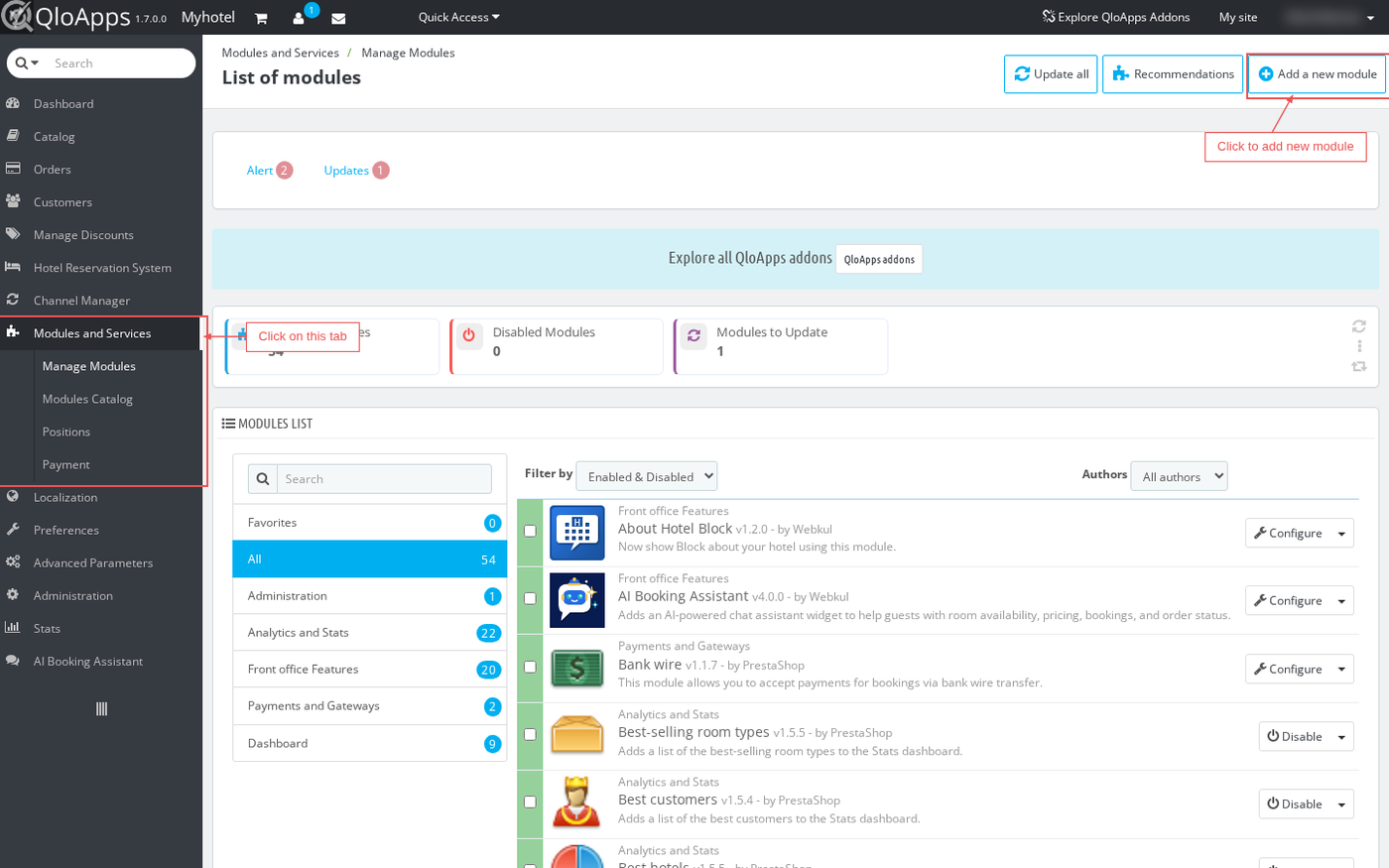
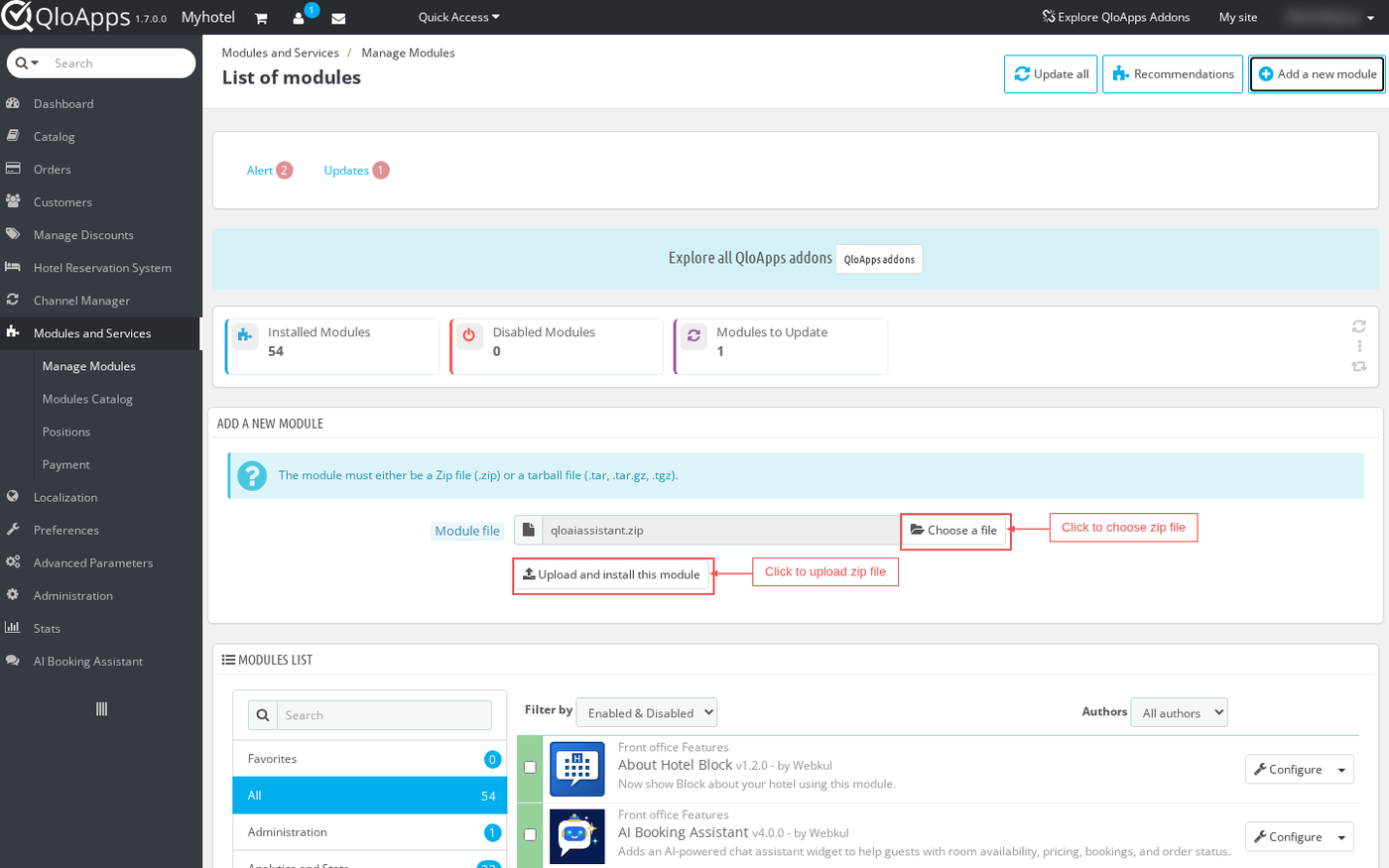
- Next, click Choose a file to select the module zip file from your computer.
- Then, click Upload and install this module to upload the archive.
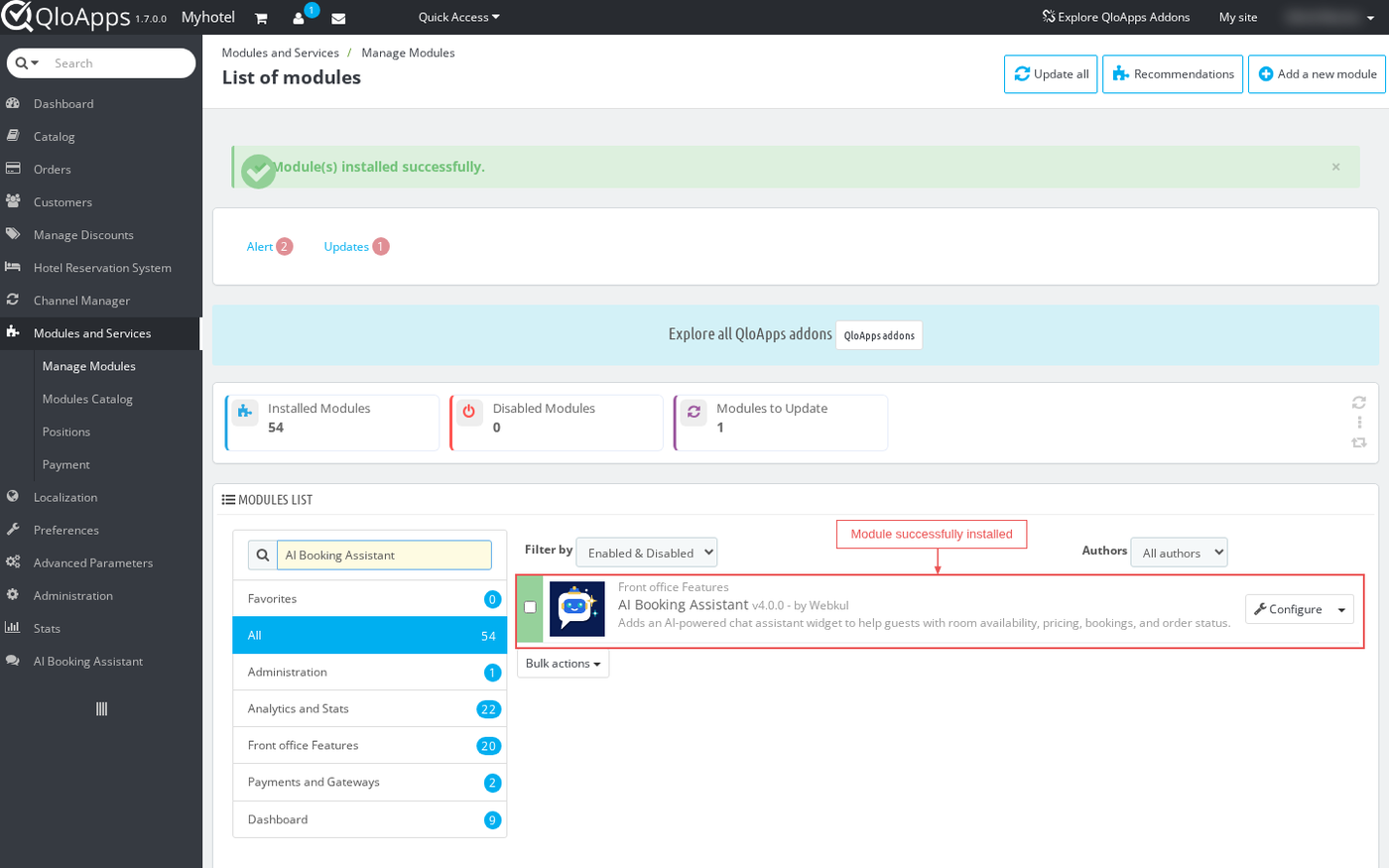
- Once the upload finishes, QloApps automatically installs the module. Locate AI Booking Assistant in the module list and click Configure.
Configuration of QloApps AI Booking Assistant
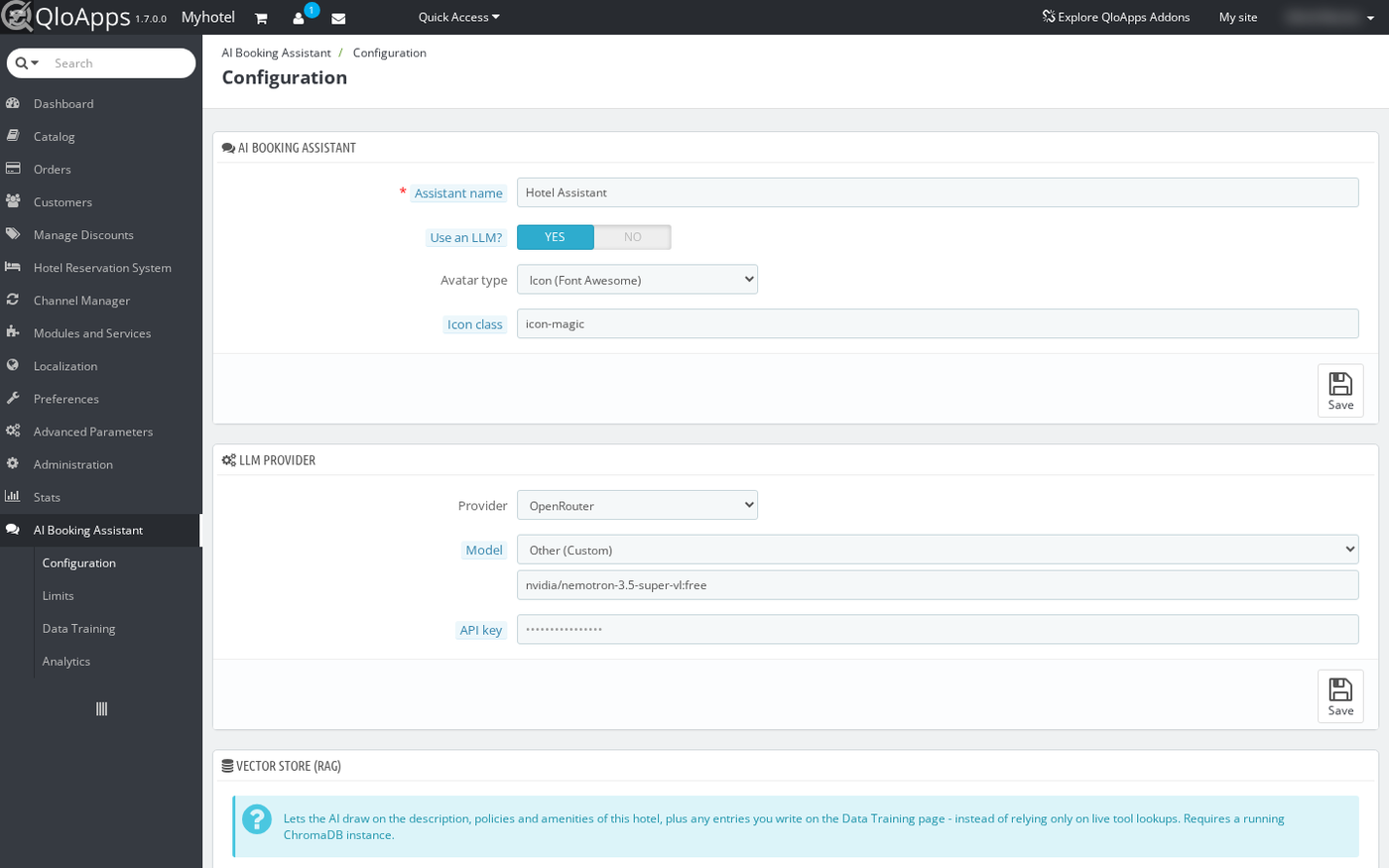
After installation, access the module settings by clicking Configure or navigating to AI Booking Assistant › Configuration.
The configuration area divides into dedicated panels to customize assistant identity, AI models, knowledge sources, and available tools.
General Assistant Identity
First, configure the visual appearance and name of your virtual concierge under the AI Booking Assistant panel.
You can set the Assistant Name displayed to website visitors. Next, choose whether to display an icon or an uploaded image for your assistant avatar.
Connecting Your AI Provider
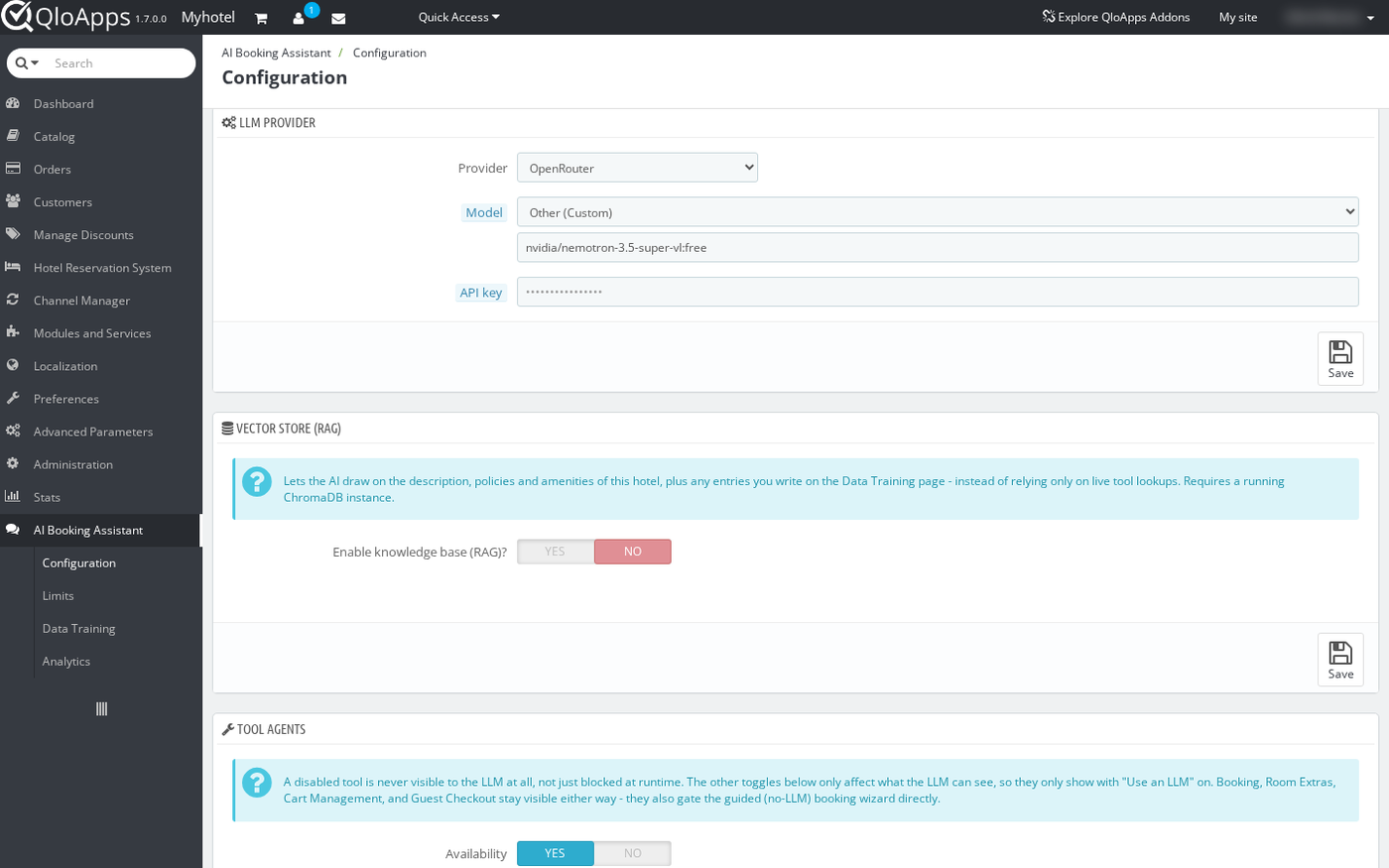
Next, set up the conversational AI engine under the LLM Provider panel to enable natural language interactions.
Switch the Enable AI Assistant toggle to Yes. Then, select your preferred provider such as OpenAI, Anthropic, Gemini, or a custom endpoint.
Enter your secure API key for the chosen provider. Furthermore, select the specific model version you wish to deploy for guest conversations.
Knowledge Base and Vector Store Settings
Hotels often need the assistant to answer questions about specific property policies, amenities, and house rules.
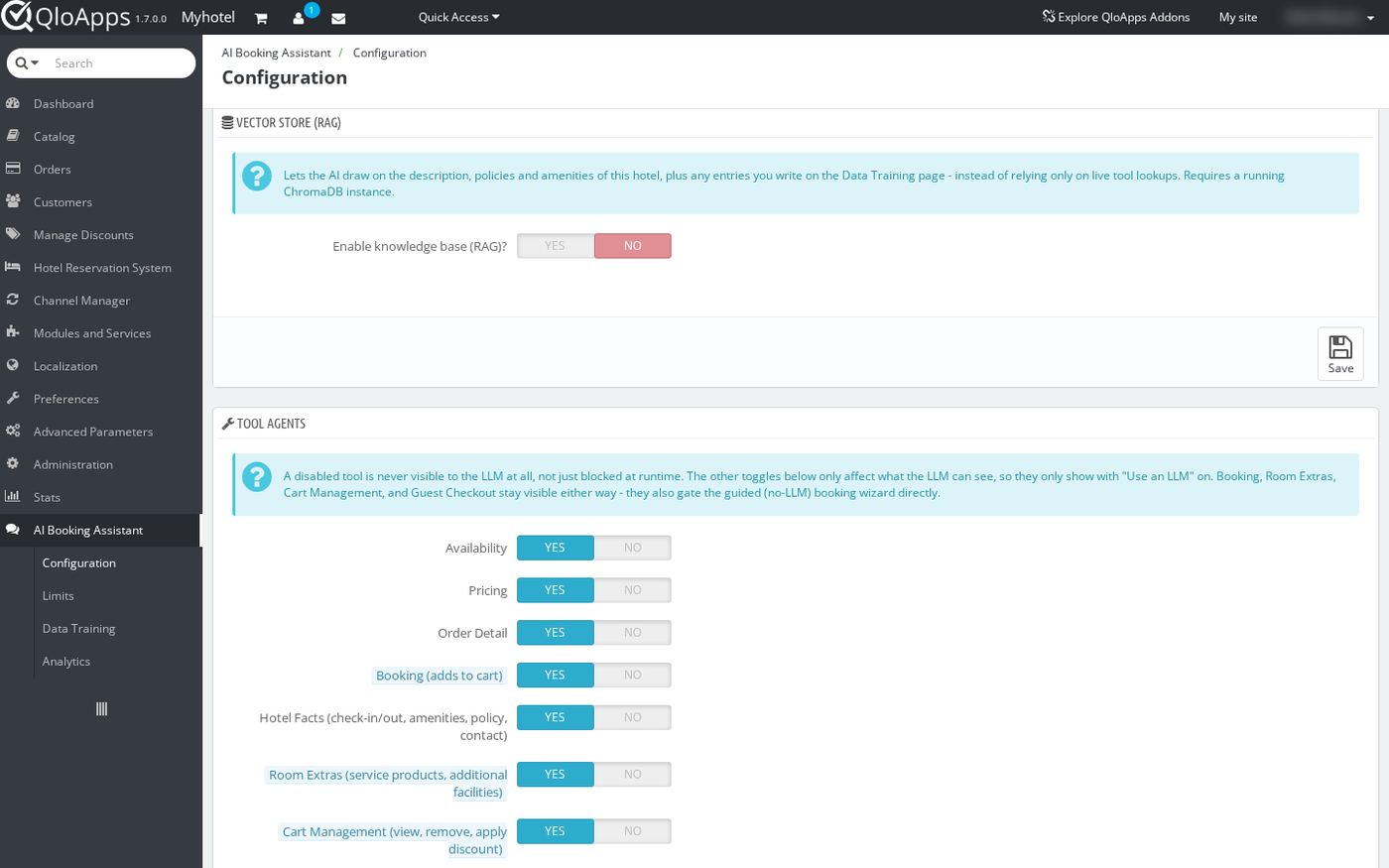
Configure the Vector Store (RAG) panel to connect your hotel knowledge base. Enter your ChromaDB host URL, collection name, and optional API key.
Moreover, ChromaDB stores high-dimensional vector representations of hotel information for fast similarity lookups.
Additionally, configure your embeddings provider settings below this panel. This enables the assistant to intelligently retrieve your exact hotel details during conversations.
Hoteliers can choose Auto to reuse their existing LLM provider key with OpenAI or Gemini. Alternatively, select a dedicated provider or enter a custom embeddings endpoint.
Also, changing your embeddings provider does not automatically update existing stored vectors. Existing knowledge entries retain vectors from the previous model until you synchronize again.
Consequently, search results could become mismatched or inaccurate. Therefore, always navigate to AI Booking Assistant › Data Training and click Sync Now after switching providers.
The subsequent sync re-embeds all records once for the new model before returning to standard incremental updates.
Enabling Assistant Capabilities and Tools
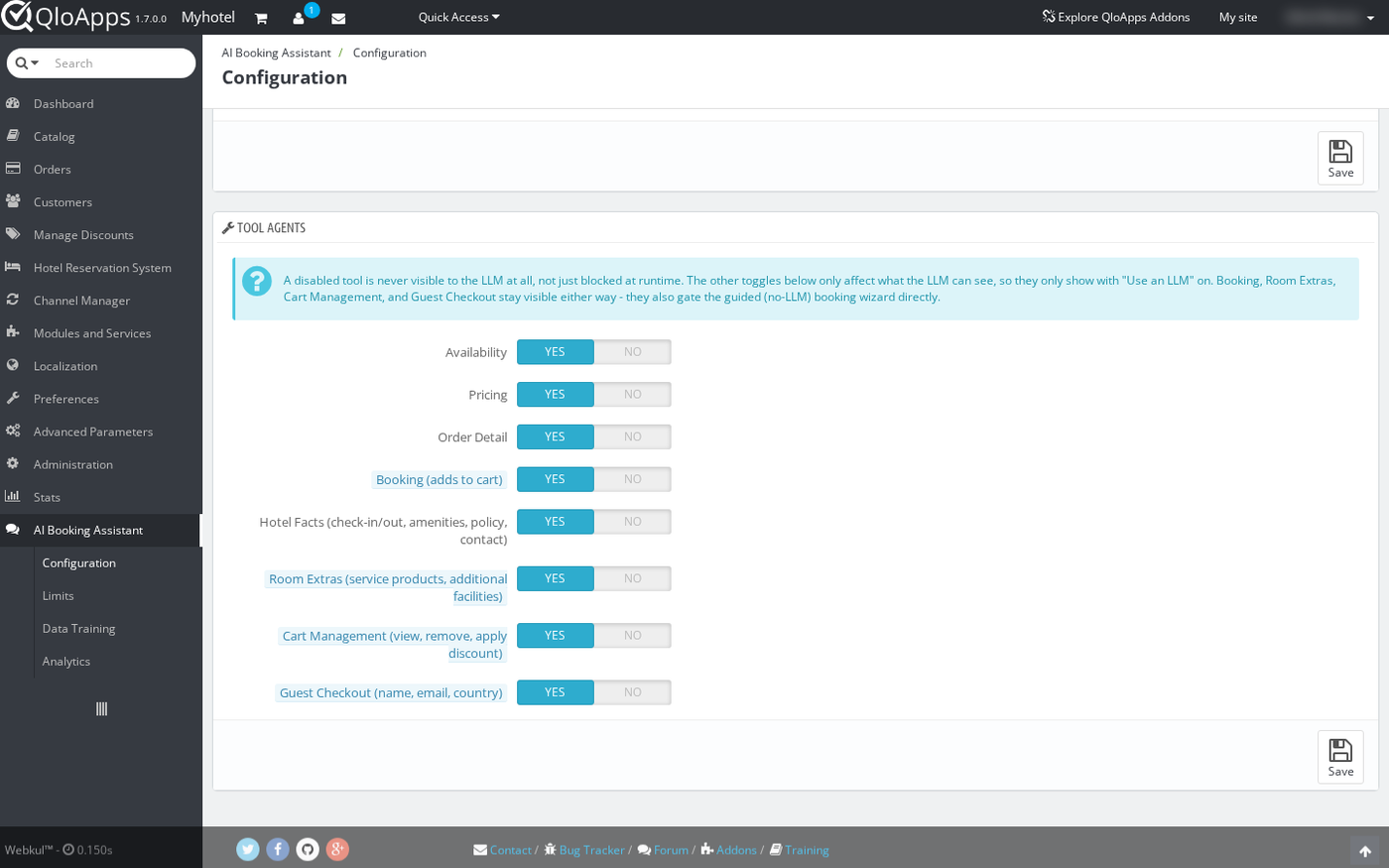
Hotel managers can precisely control which actions the assistant can perform under the Tool Agents panel.
Each tool toggle addresses a specific guest inquiry or booking task:
- Availability: Checks live room vacancy across selected check-in and check-out dates.
- Pricing: Displays accurate room rates, seasonal tariffs, and taxes instantly.
- Order Detail: Retrieves existing reservation status and booking records using a booking reference code.
- Booking (adds to cart): Adds chosen rooms directly to the guest booking cart and gates guided booking.
- Hotel Facts: Answers common guest questions about check-in policies, hotel rules, amenities, and contact numbers.
- Room Extras: Recommends additional amenities and optional paid services such as airport pickup or breakfast.
- Cart Management: Lets guests view cart contents, remove rooms, and apply promo discount vouchers in chat.
- Guest Checkout: Collects guest contact details to complete quick bookings without complex account forms.
Notice that disabled tools remain hidden from the AI agent at all times.
Additionally, Room Extras, Cart Management, and Guest Checkout require the Booking toggle to be active.
Managing Usage Limits and Guardrails
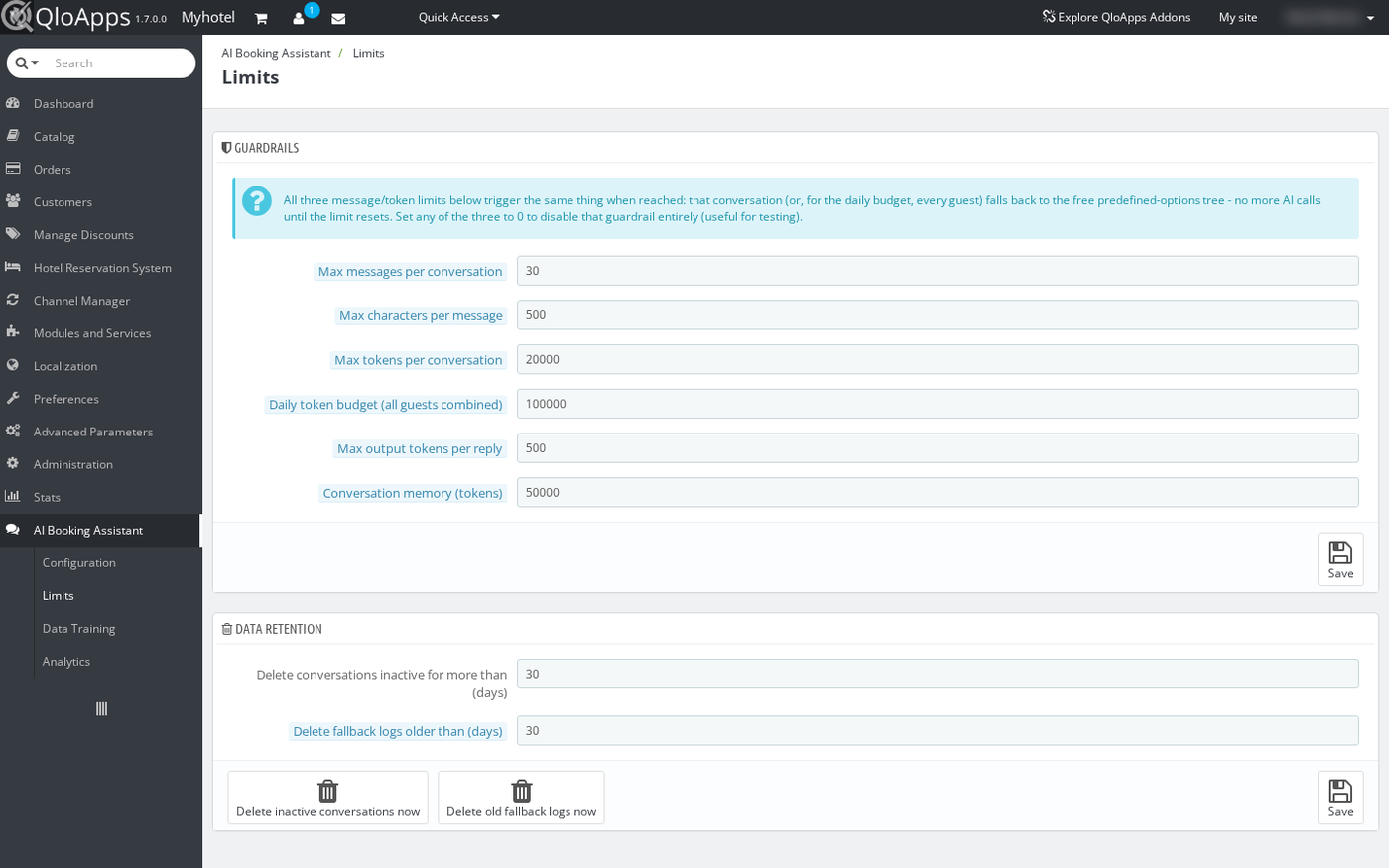
Hotel owners maintain total control over operational costs and data retention. Navigate to AI Booking Assistant › Limits to adjust these parameters.
Under the Guardrails panel, define maximum messages allowed per conversation. You can also specify token limits and daily spend thresholds.
Setting any guardrail to zero makes that limit unlimited. Consequently, the assistant gracefully falls back to button-guided mode whenever a limit is reached.
Under the Data Retention panel, set automatic pruning schedules for inactive chat logs. You can also manually delete old conversation records at any time.
Training Hotel Knowledge and Data
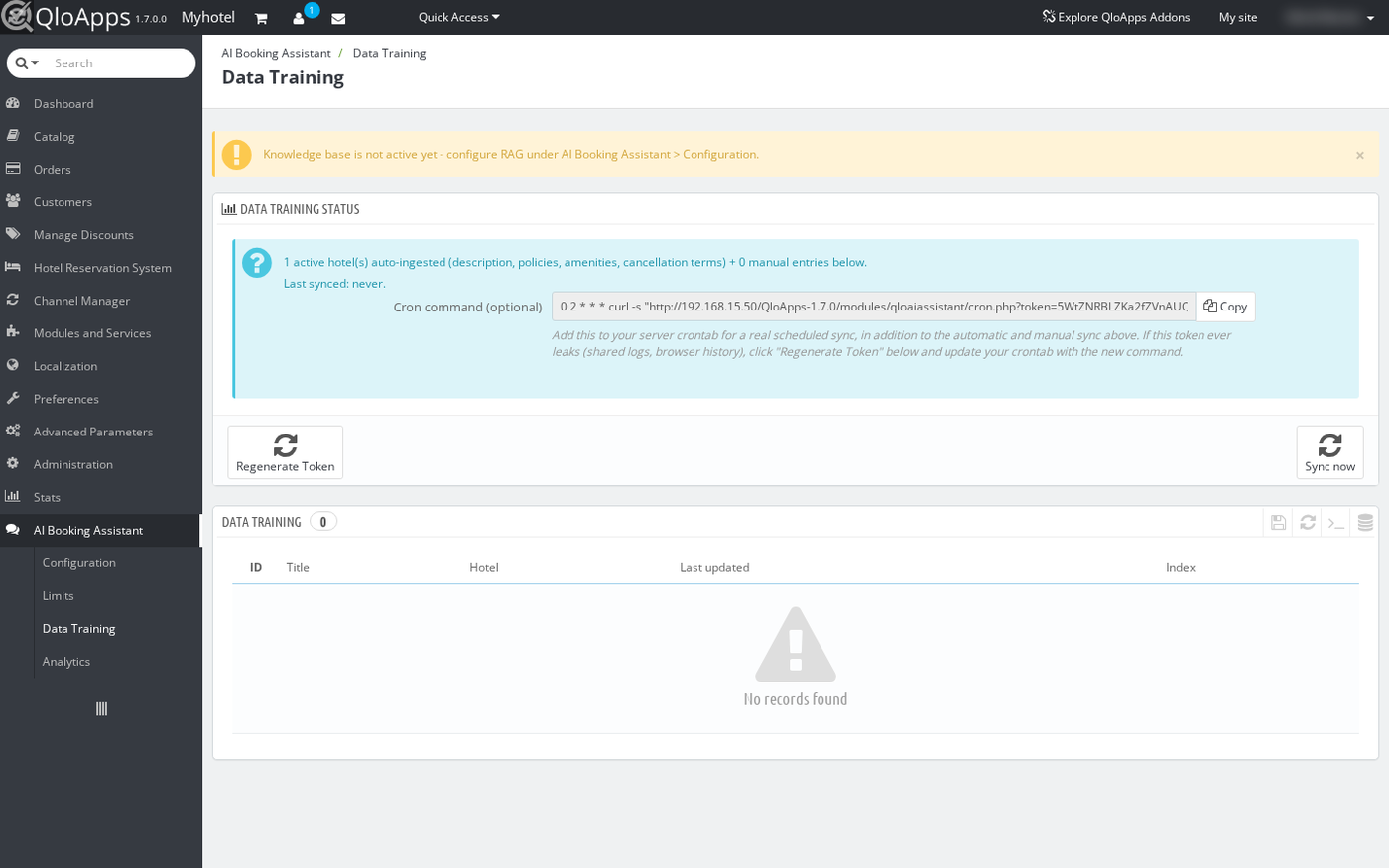
To ensure accurate guest answers, navigate to AI Booking Assistant › Data Training to manage your hotel knowledge base.
This dashboard displays active hotels, catalog room types, and the timestamp of your latest sync.
Click Sync Now to train the knowledge base with your current hotel policies and amenities. The system processes only modified items to optimize efficiency.
Furthermore, you can add custom question-and-answer entries to the list.
The module also provides a ready-to-use server cron command. By default, this cron job executes daily at 2:00 AM to sync updated hotel data automatically.
However, you can customize the cron schedule in your server crontab to fit your operational needs. For example, you can schedule hourly or weekly runs.
Additionally, the cron command includes a secure secret token to prevent unauthorized access. If this token ever leaks, simply click Regenerate Token and update your server crontab.
Tracking Conversations and Analytics
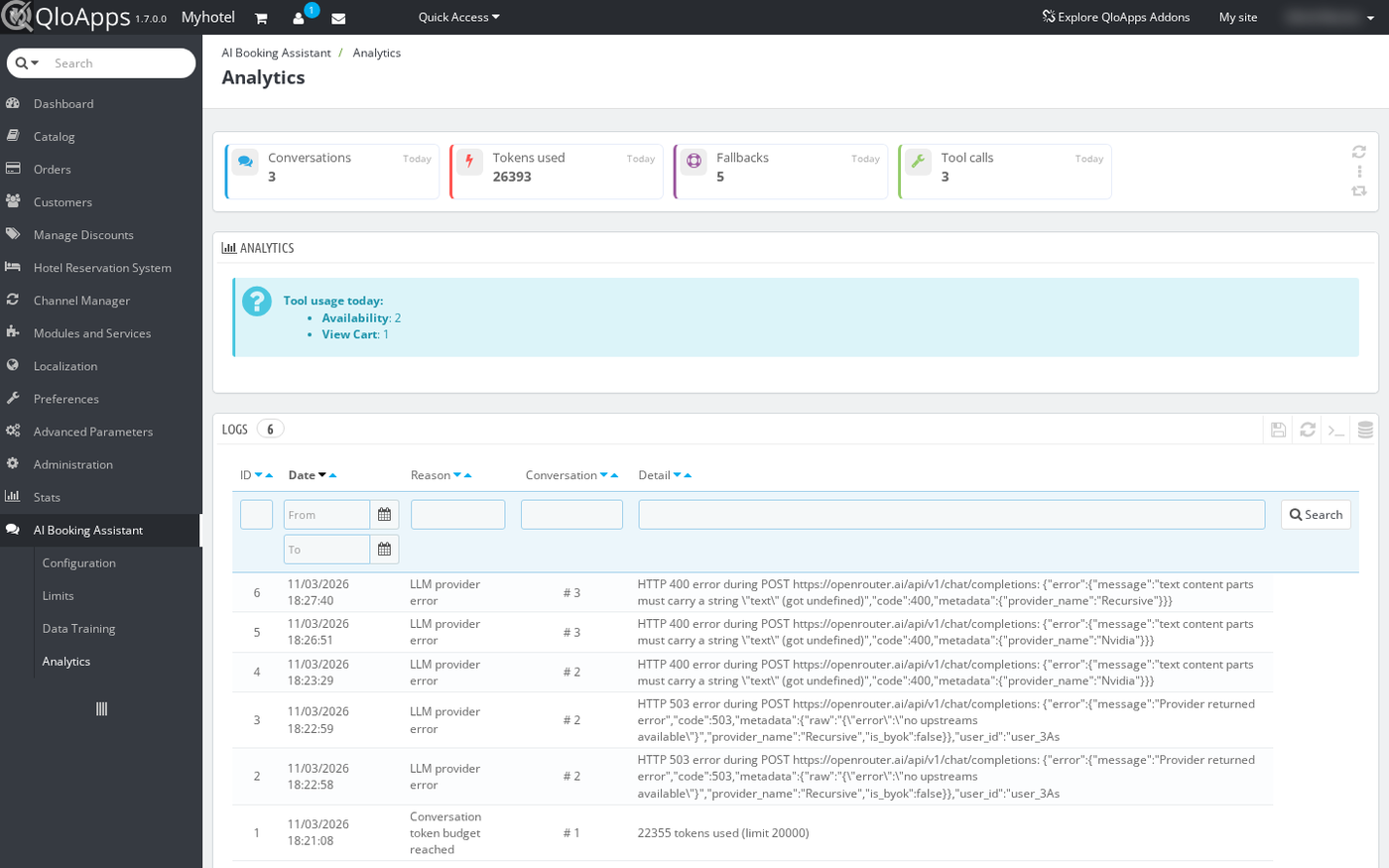
Review guest engagement and assistant performance by navigating to AI Booking Assistant › Analytics.
Four summary KPI cards present today’s conversations, token usage, fallback counts, and tool activations.
In addition, the dashboard displays a daily breakdown of tool executions such as room lookups and cart additions.
Below the metrics, the Logs table provides detailed diagnostic tracking for every fallback event.
Whenever an interaction encounters an issue, the system records the exact date, conversation ID, and reason.
Common log reasons include rate limits, exhausted conversation token budgets, and provider network errors.
Hoteliers can review exact error details such as HTTP error codes or token overages directly in this table.
Consequently, this helps you adjust token budgets or fix API credentials without disrupting guest browsing.
Therefore, hotel managers maintain clear operational visibility and continuous booking uptime across all interactions.
Front Office Guest Booking Experience
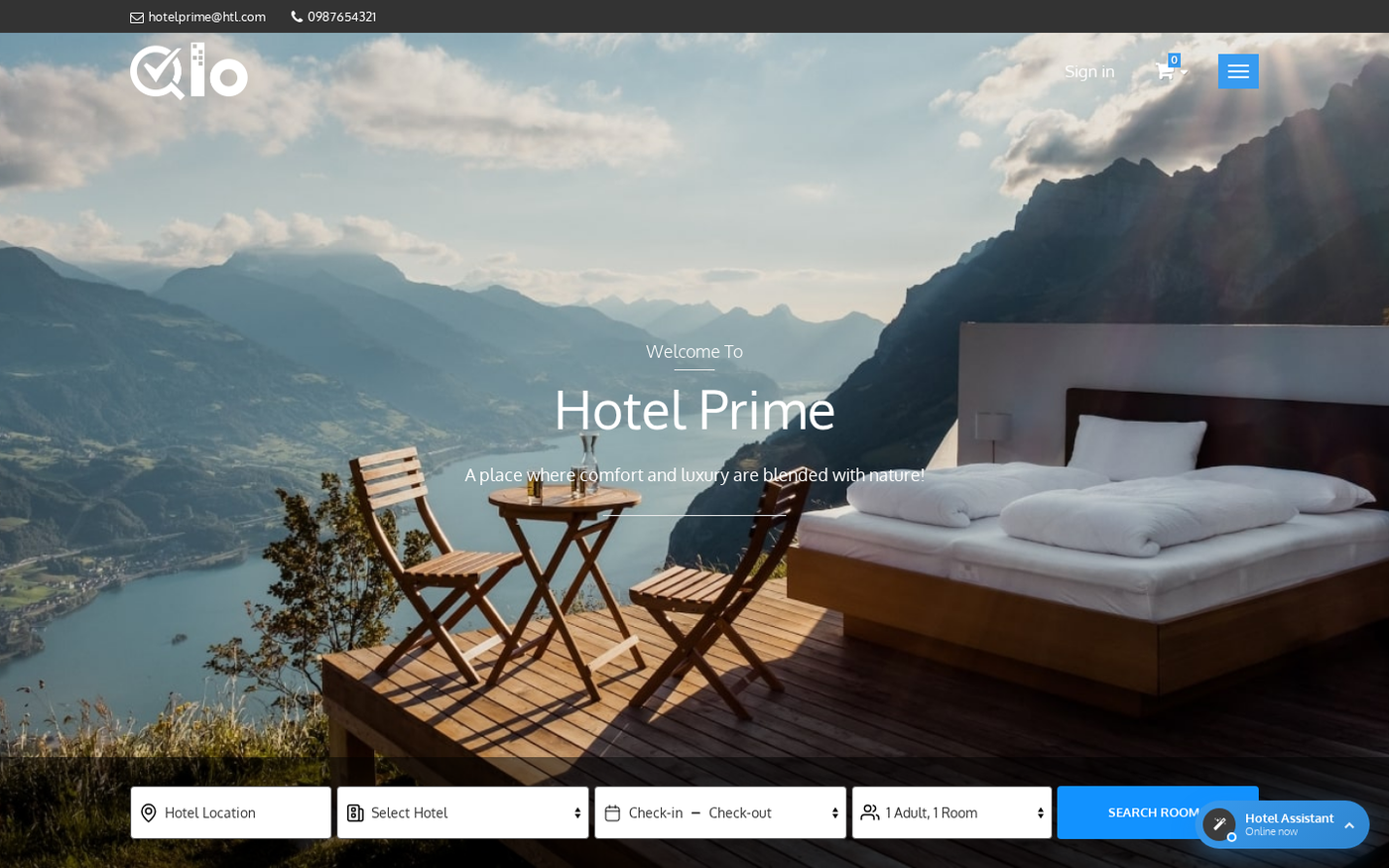
Once activated, the AI assistant appears on your hotel booking website as a sleek floating launcher button.
Guests can click this launcher from any page to open the virtual concierge without leaving their current browsing session.
Button-Guided Booking Assistance
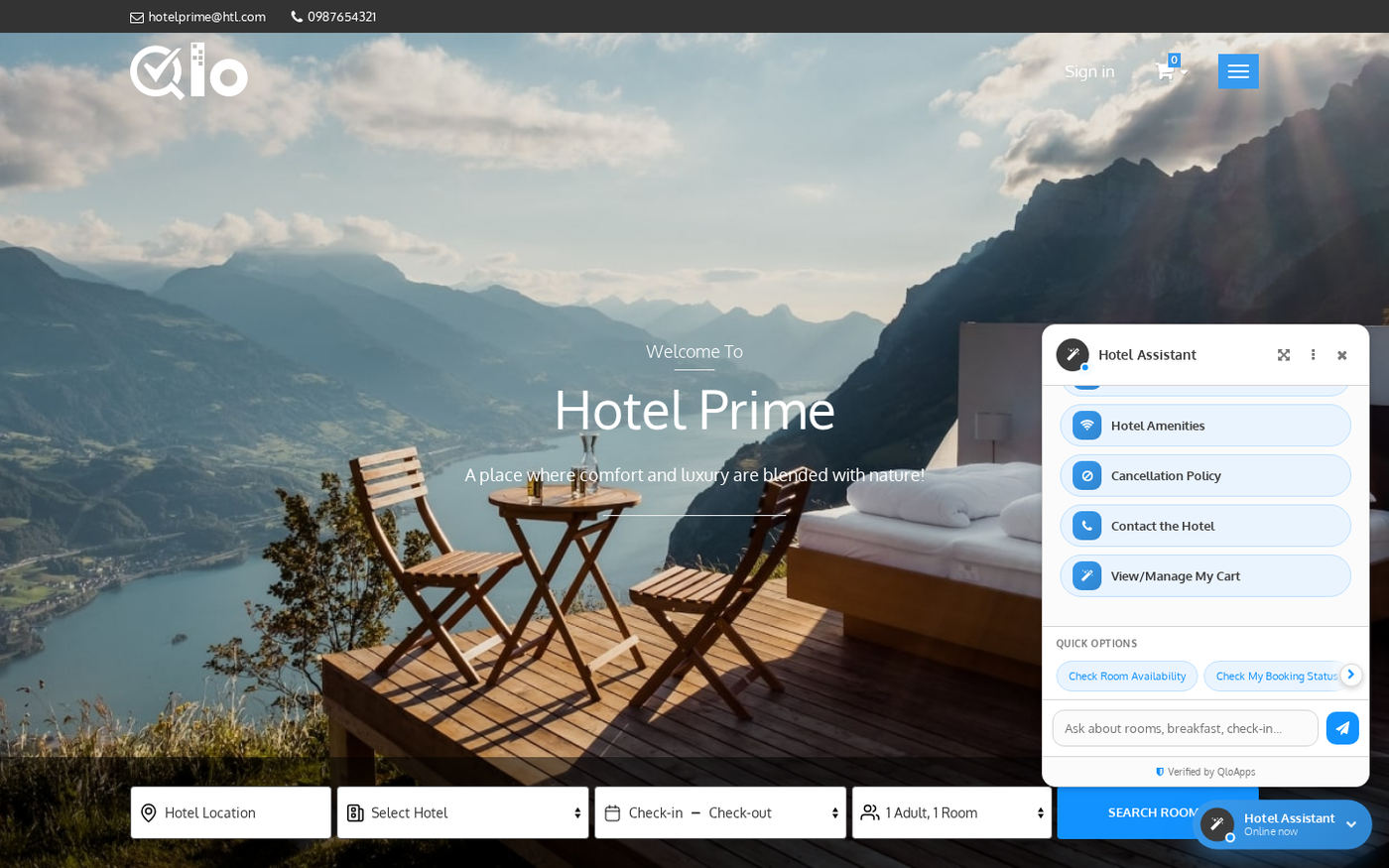
When opened, the assistant greets visitors warmly and presents convenient one-tap quick action buttons.
Guests can explore room availability, check amenities, or view booking rules without typing any text.
Consequently, visitors enjoy rapid navigation and effortless reservation assistance even on mobile devices.
Expansive Full-Screen Chat Mode
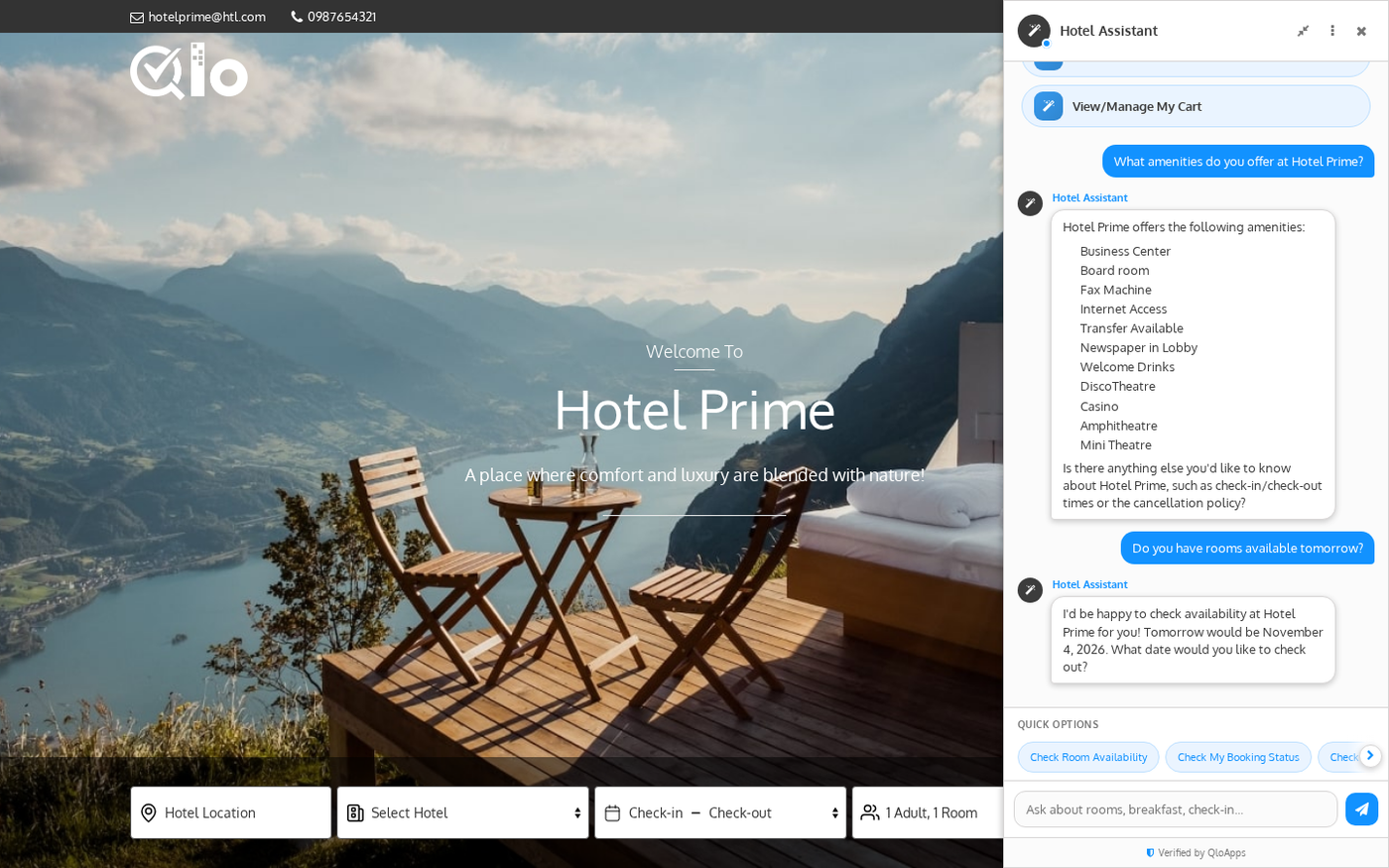
Guests can expand the chat window by clicking the expand icon in the top header.
This switches the assistant into an expansive full-screen view for maximum comfort.
Consequently, guests can comfortably read detailed room descriptions, inspect facility lists, and compare prices.
Furthermore, clicking the compress icon restores the assistant to its compact widget size anytime.
Live Promotional Deals and Offers
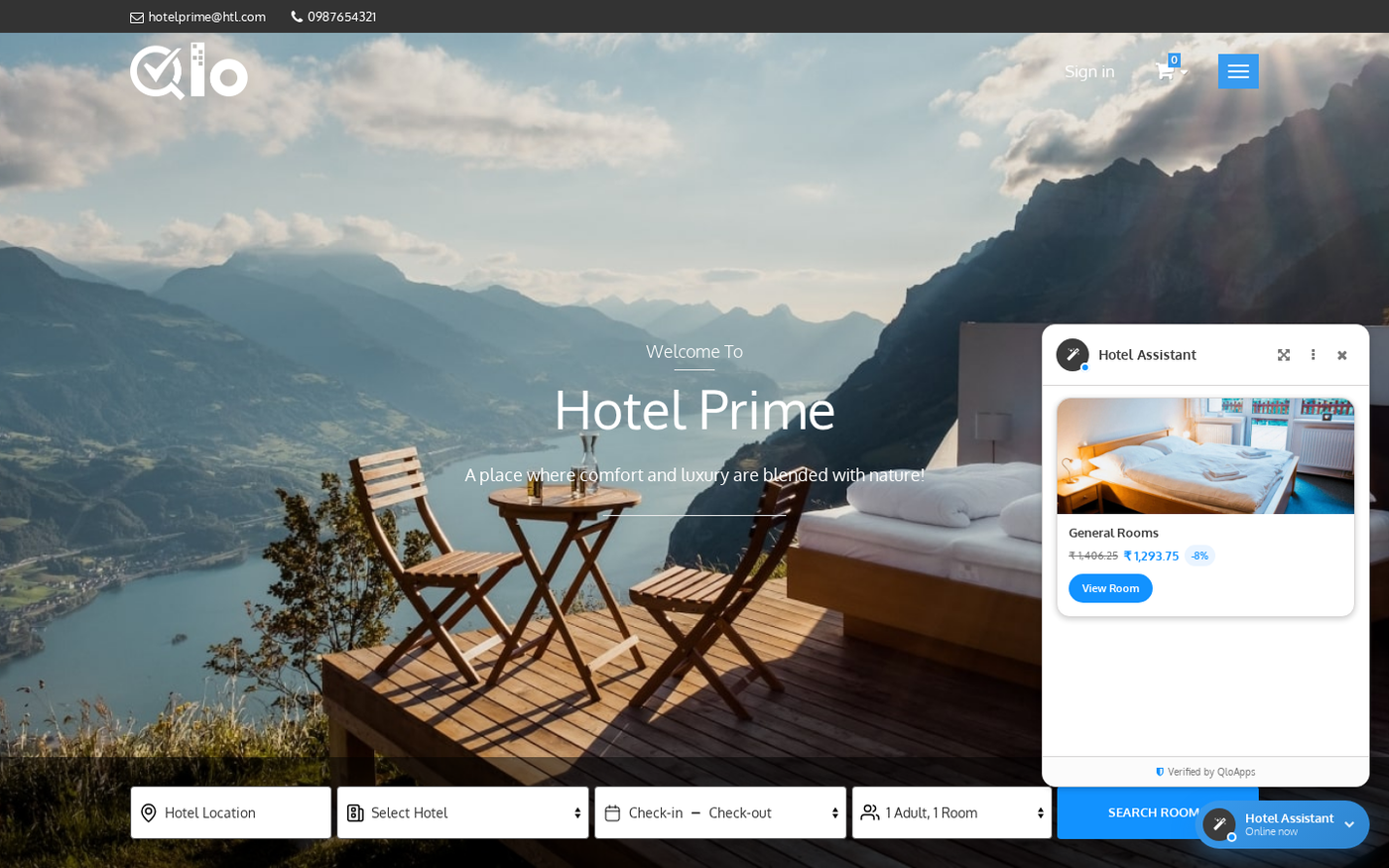
The assistant includes a dedicated Live Deals section to showcase discounted room packages.
Guests simply click the menu icon in the assistant header and select Live Deals.
The assistant presents an interactive carousel displaying discounted room photos, old and new prices, and savings badges.
Moreover, guests can click View Room to jump directly to the reservation page for that offer.
Hoteliers can easily enable and manage these deals through QloApps Advanced Price Rules.
Navigate to Hotel Reservation System › Manage Discounts › Advanced Price Rules in your Back Office.
Click Add new price rule and select your target hotel room type.
Next, specify your desired discount percentage or fixed price reduction and define the active date range.
Once saved, the module automatically identifies the discounted rooms and features them inside the live deals carousel.
Conversation History and Fresh Sessions
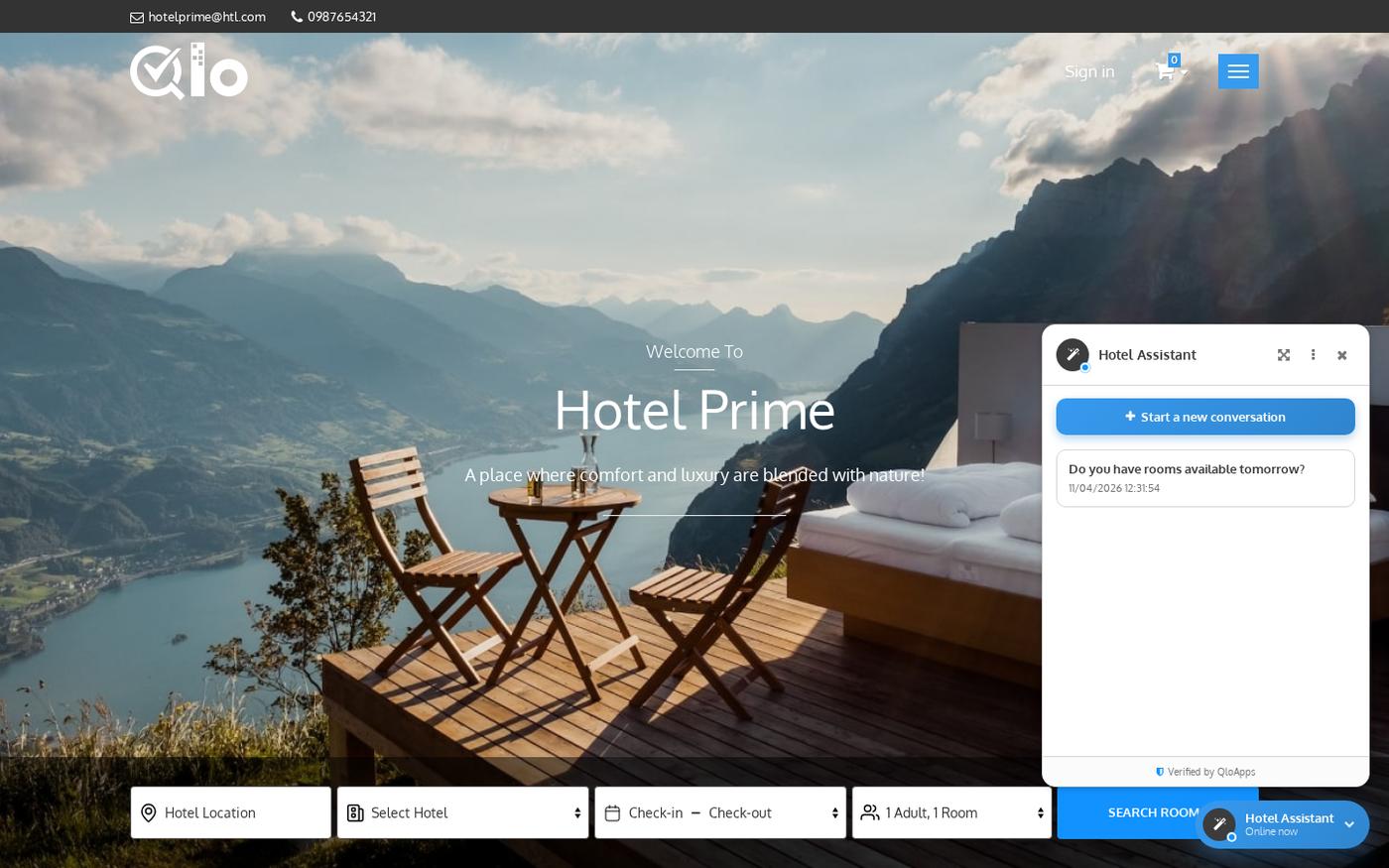
Guests can review prior inquiries by opening the Chat History tab from the header menu.
This screen lists previous chat sessions alongside helpful conversation snippets and exact timestamps.
Therefore, returning visitors can revisit earlier room quotes or re-read hotel guidelines with ease.
In addition, guests can click Start a new conversation at any time.
This immediately resets the dialogue context so guests can explore new booking inquiries cleanly.
Quick Navigation and Scroll to Bottom
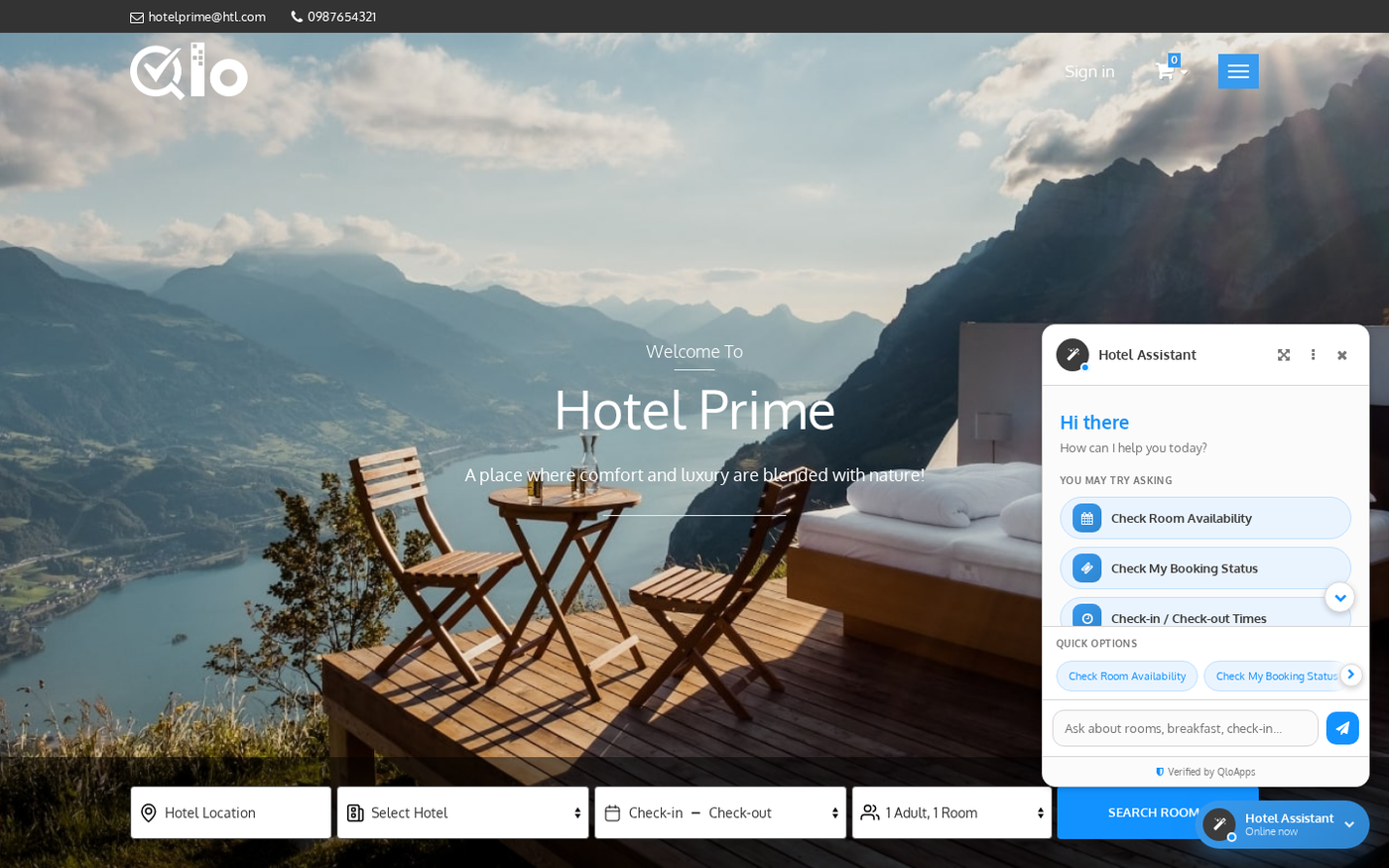
During longer conversations, guests often scroll upward to review previous answers or price details.
Whenever a guest scrolls up, a floating down-chevron button appears automatically above the input bar.
Clicking this button smoothly glides the chat view straight back to the latest message.
Consequently, guests never lose their place while navigating rich responses and booking options.
Conclusion
QloApps AI Booking Assistant transforms hotel websites into interactive, round-the-clock booking hubs. It boosts reservation conversions while reducing repetitive front-desk inquiries.
Finally, we hope this guide has helped you configure and use QloApps AI Booking Assistant with confidence.
Additionally, to learn more about the functionality of QloApps, you can visit this link: QloApps Reservation System
For any technical assistance, please raise a ticket at the Webkul UVdesk Support Portal. You can also share your valuable feedback or discuss ideas on the official QloApps Forum.
Current Module Version: 4.0.0 Supported QloApps Versions: 1.7.x