
Before integrating the Trip.com and Ctrip channels with QloApps Channel Manager, users must complete the mandatory steps for seamless connectivity.
Log in to your account on Trip.com.
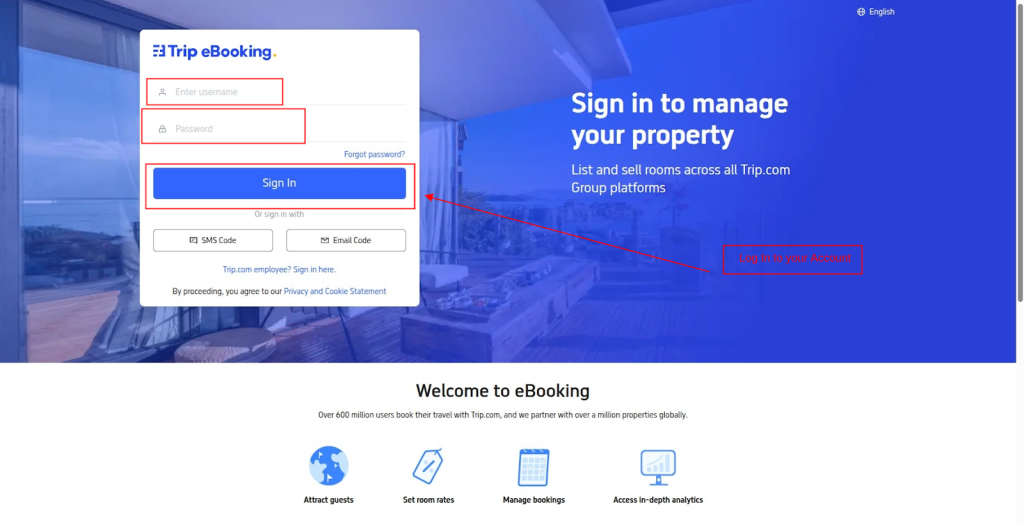
Choose QloApps as a Connectivity Provider
After Sign in or creating an account here: Trip.com and Ctrip.
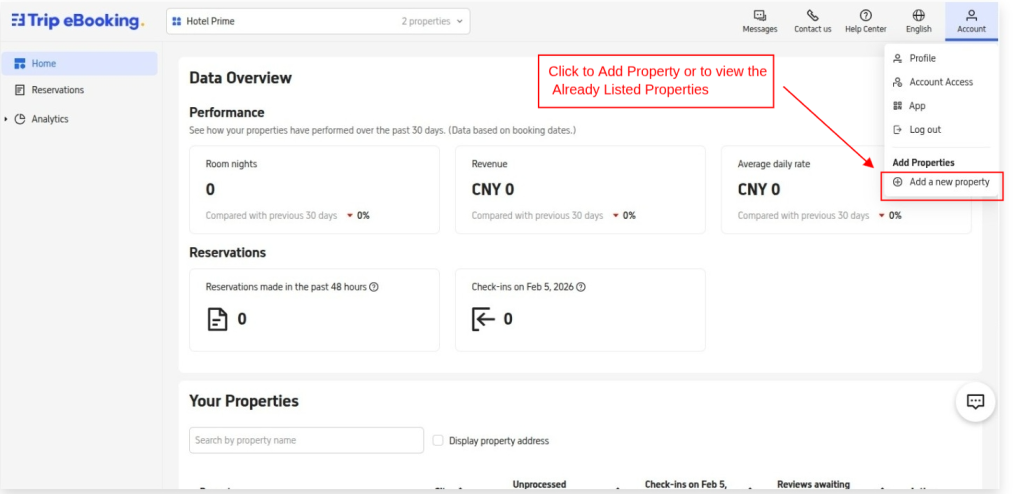
- Click on Add property option under Account.
- You Can Add a new property or you can also view all the listed properties.
- Select the Listed Property
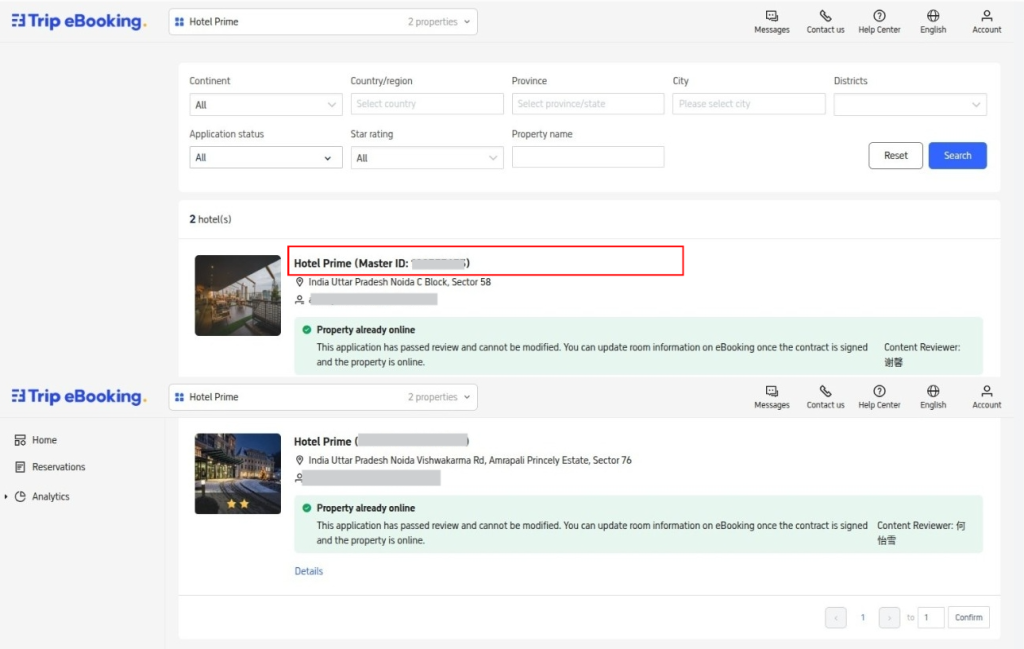
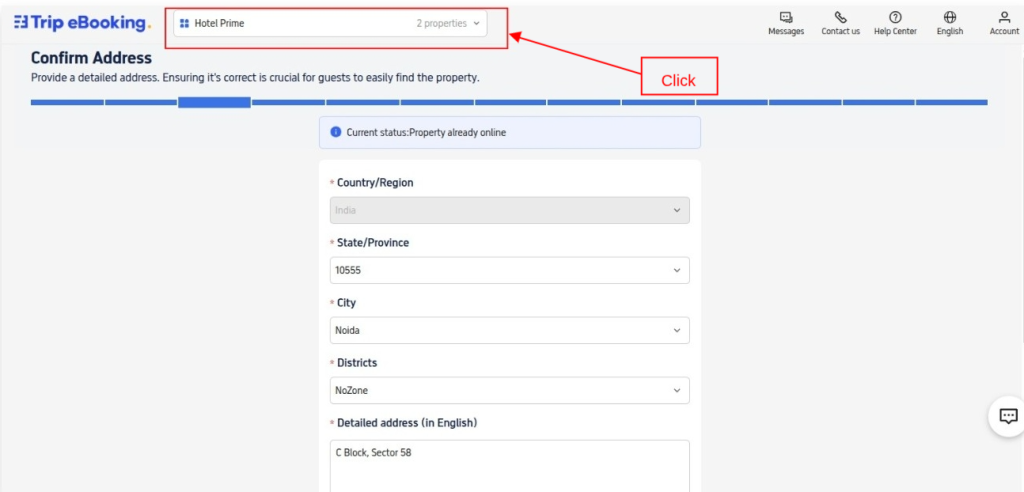
- Select Rates & Availability
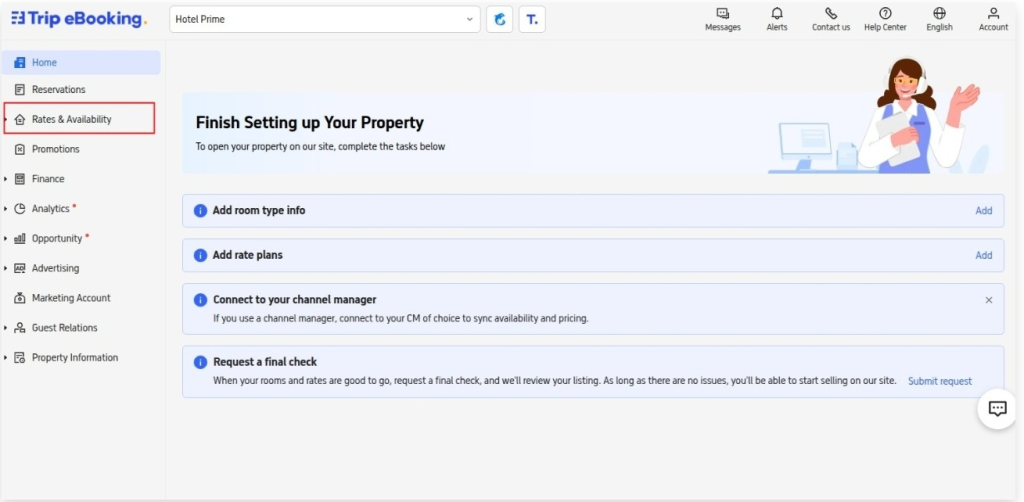
- Under Rates & Availability Click on Connectivity Settings.
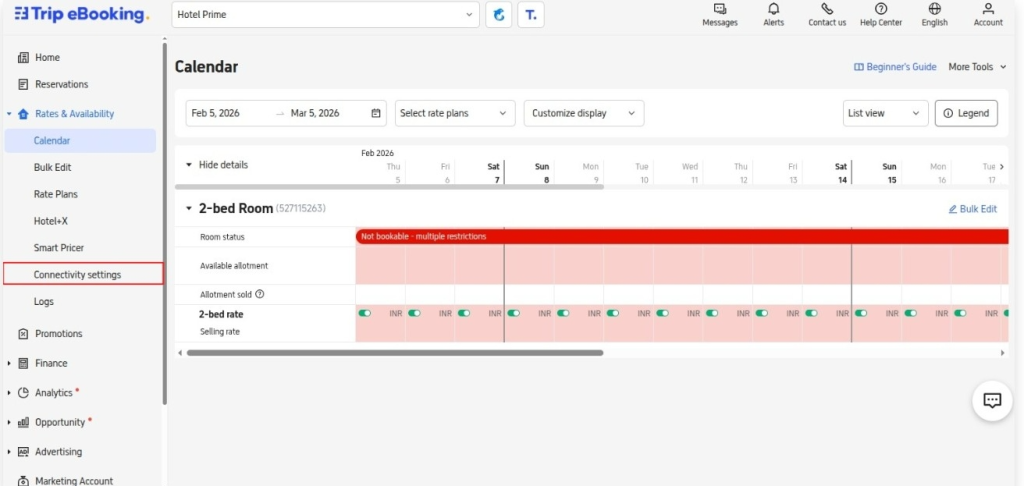
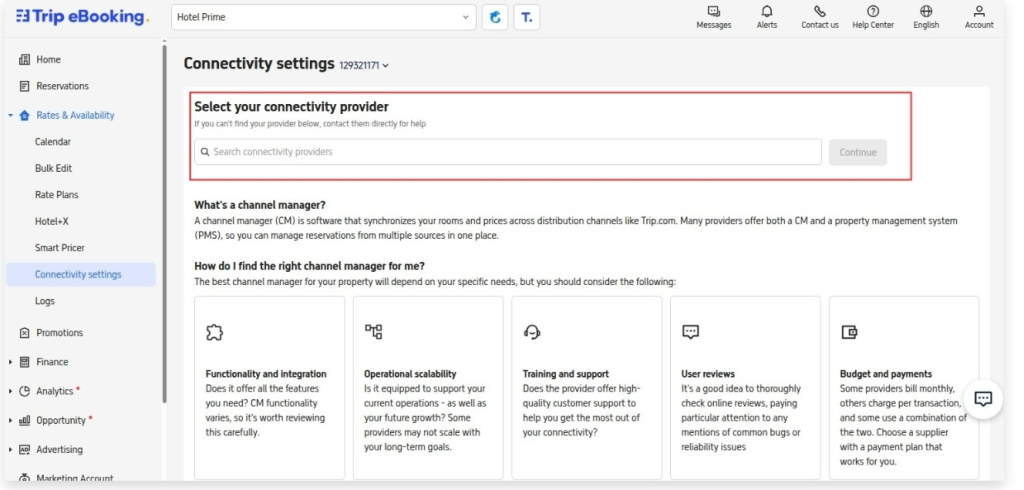
- Type QloApps in the Search Box
- Then, Click on Continue
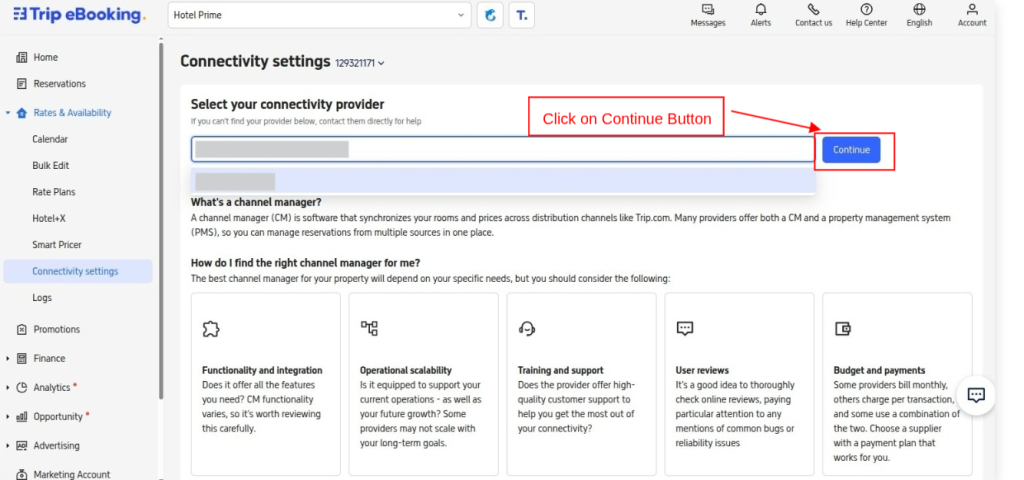
- Click on Connect
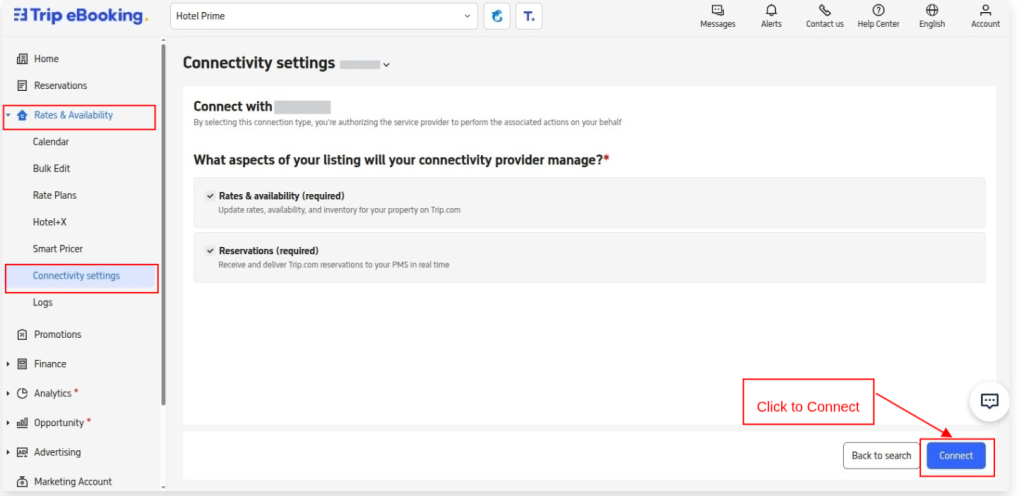
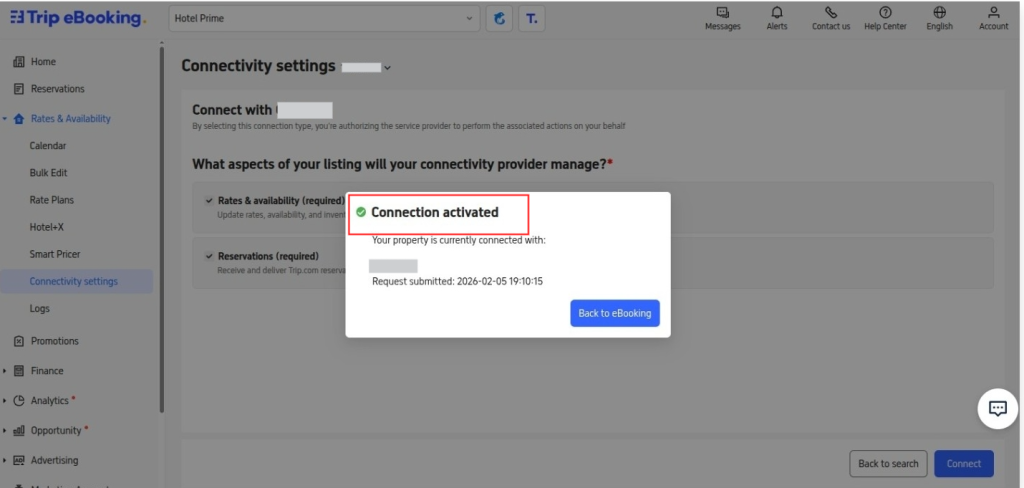
When your action is activated, then you can create a add Trip.com or Ctrip Channel in QloApps Channel Manager for your property.
Once the above steps are done Go to the QloApps Channel manager to add the Trip.com and Ctrip Online Travel Agency.
Add the Trip.com and Ctrip Channel in QloApps Channel Manager
Users can add Trip.com and Ctrip to the QloApps Channel Manager by following the given steps.
From the Main Menu:
- Log in to QloApps Channel Manager.
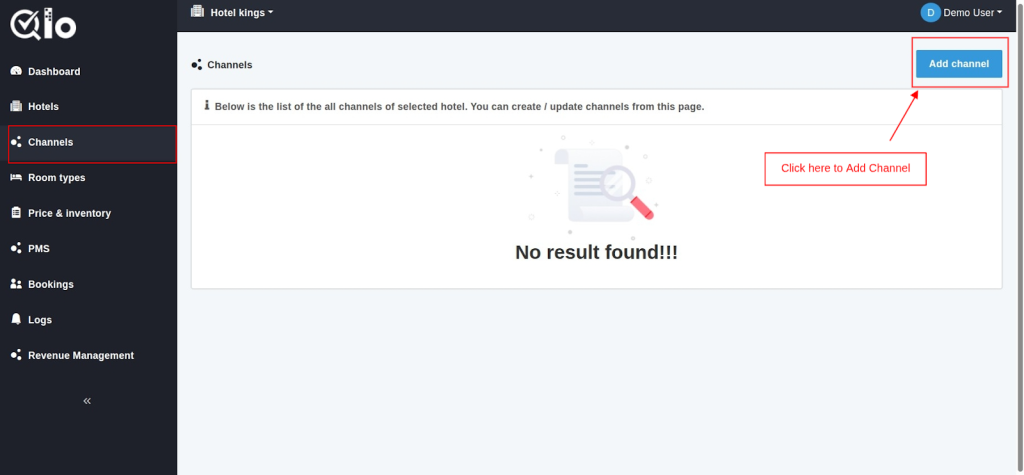
- Go to Channels Tab
- Click On Add Channel
- Here in the Select Channel from drop-down, click on CTrip.
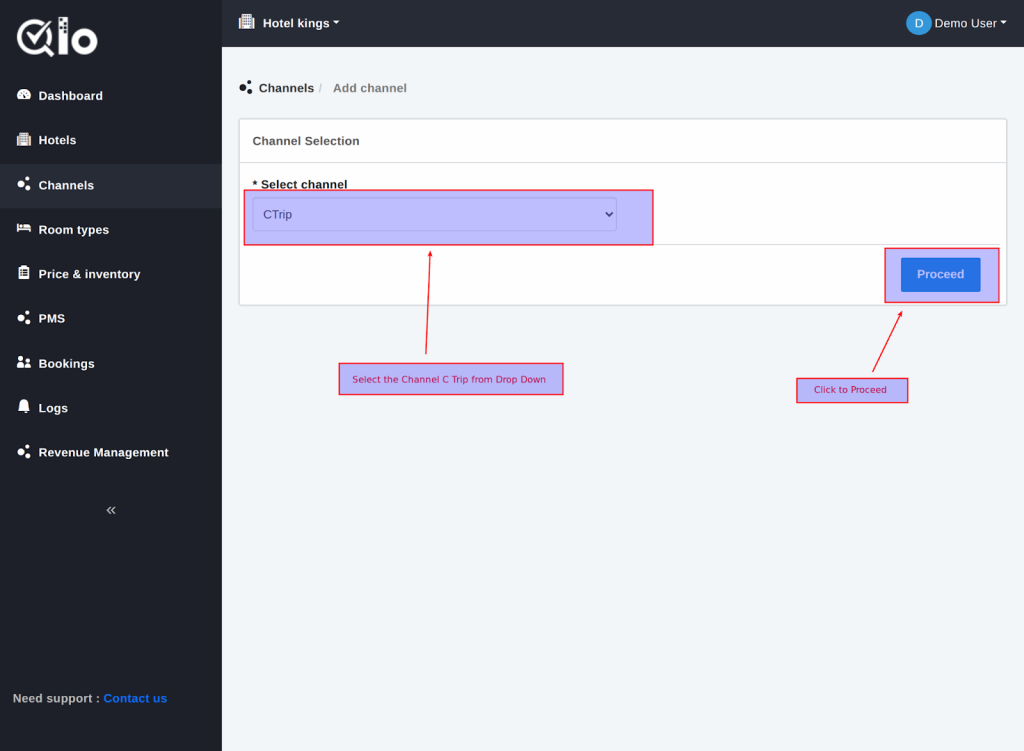
- Then click on Proceed.
Now fill in the General Settings.
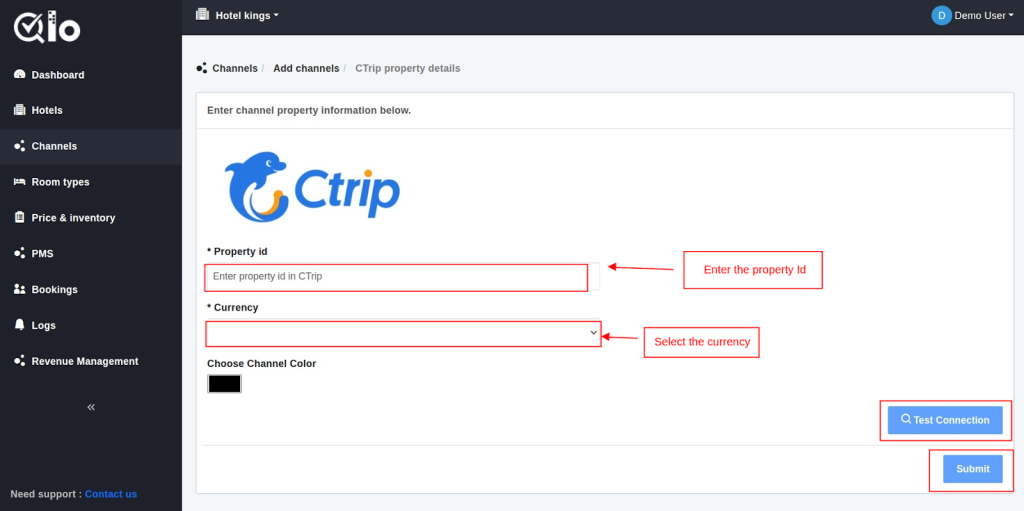
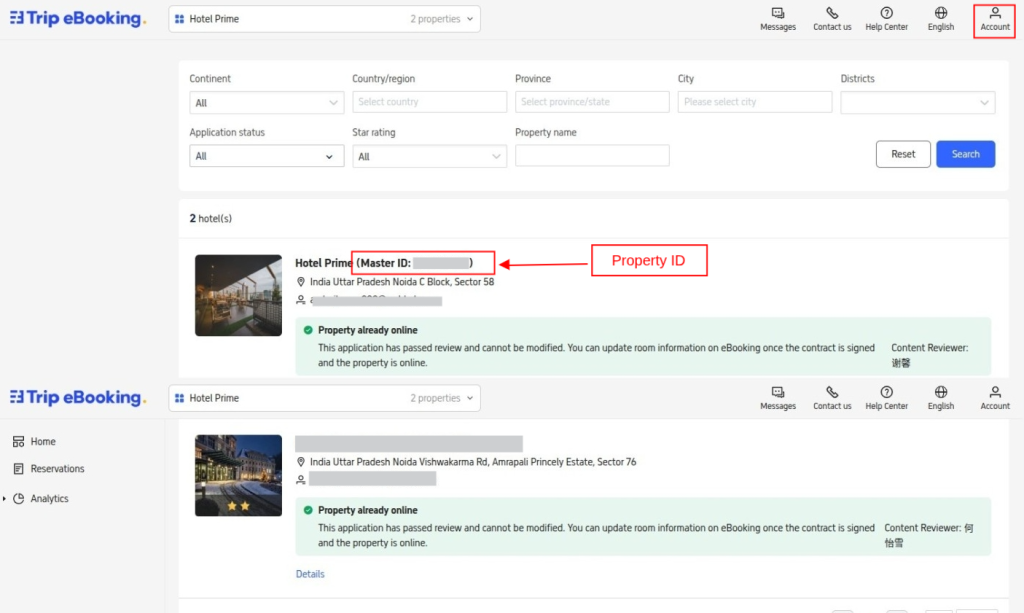
- Property ID: The ID of the Hotel used in the Trip.com and Ctrip OTA.
(Below Is the Reference Image To get the Property ID from Trip.com and Ctrip OTA)
- Currency: Currency used for the Property Trip.com and Ctrip OTA.
- Conversion Factor: Enter the currency conversion rate. This conversion rate is between the Trip.com and Ctrip OTA Property’s Currency and the QloApps Channel Manager Property’s Currency
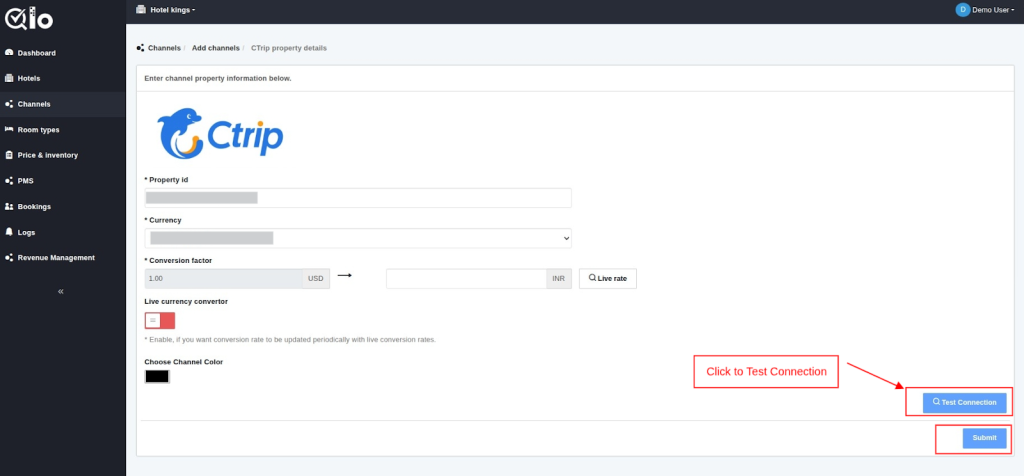
Live Currency Converter: Here, you can enable the live currency converter. This will automatically update the conversion rate. After that, click on Test Connection.
Test Connection: By clicking on test connection, we can check channel property is successfully established or not.
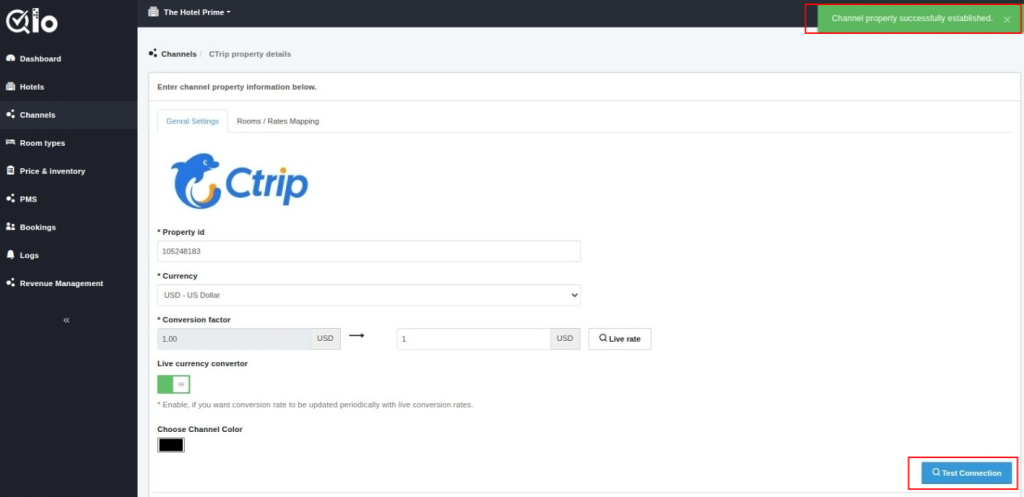
After that, once the connection is tested successfully user can click on the Submit Button to establish the channel and proceed with Mapping.
Room/Rates Mapping
Here the mapping is done between the QloApps channel manager room type and Trip.com and Ctrip OTA room type.
Also, between the QloApps Channel Manager room rate and the Trip.com or Ctrip OTA room rate.
For reference, see the image:
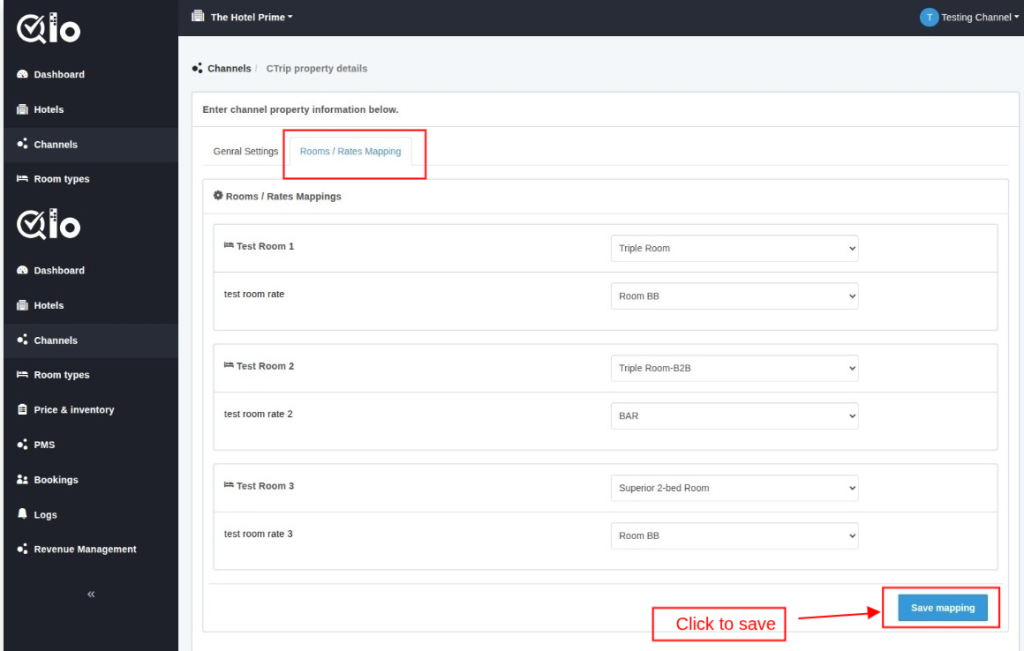
Then click on Save Mapping.
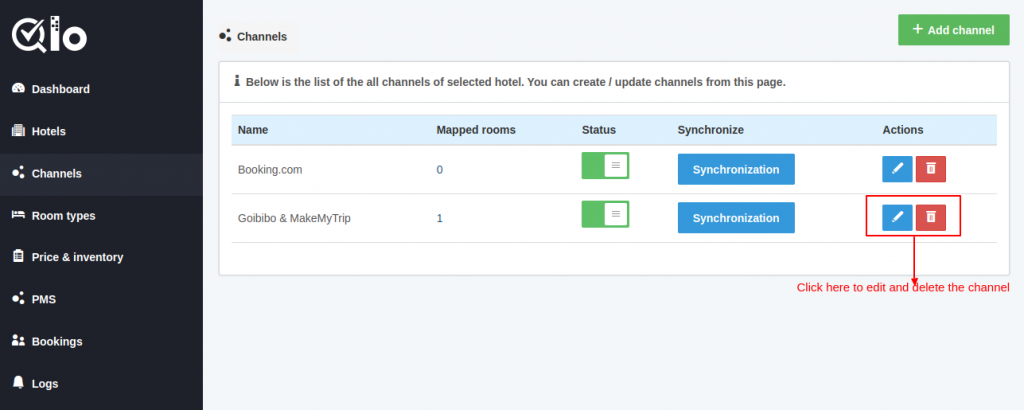
Once the channel is added successfully, and the mapping is done. The channel can be seen on the channel list page.
From Actions, column users can edit and delete the channel.
Note: The user can only delete the channel when the Status is Disabled.
Synchronization
The user can synchronize each channel by clicking on the synchronization button.
By clicking on the “synchronization” button, inventory, rates, and bookings will get synchronized.
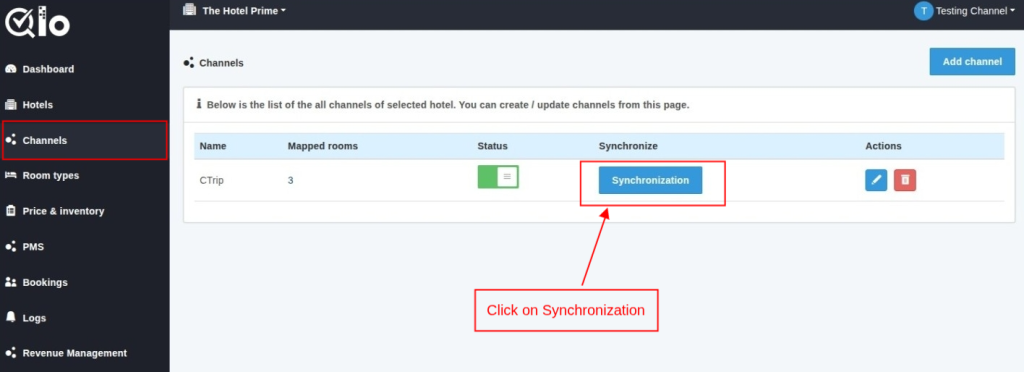
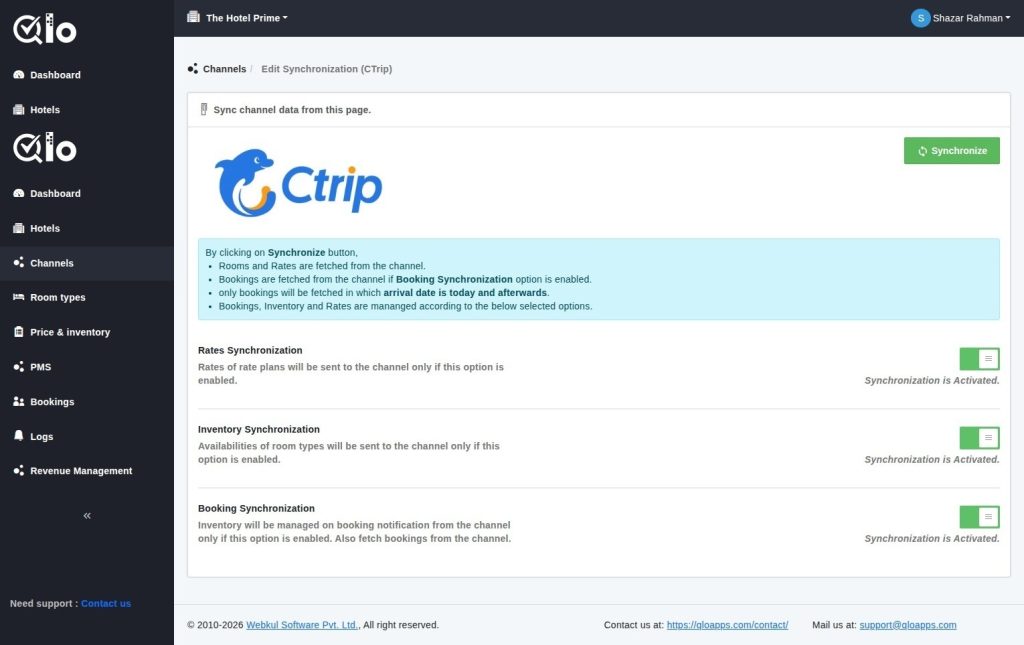
Given processes can be performed by clicking on the Synchronization button.
By clicking on the Synchronize button,
- Rooms and Rates are fetched from the channel.
- Bookings are fetched from the channel if the Booking Synchronization option is enabled.
- Only the bookings created after the connection between the channel and the QloApps Channel Manager is established will be fetched. Bookings made prior to the establishment of this connection will not be retrieved.
- Bookings, Inventory, and Rates get managed according to the selected options.
Rate Synchronization
Rates of rate plans will be sent to the channel only if this option is enabled.
Inventory Synchronization
Availabilities of room types will be sent to the channel only if this option is enabled.
Booking Synchronization
Inventory will get manage on booking notification from the channel only if this option is enabled. Also, fetch bookings from the channel.
Once you synchronized the channel successfully then you can proceed further for Price And Inventory In the QloApps Channel Manager.
Conclusion
This was all from the process of setting up Trip.com and Ctrip for the QloApps Channel Manager. I hope I was able to clarify it for you.
If you want to learn more about QloApps Channel Manager.
If you want to learn about the functionality of QloApps, then you can visit this link: QLO Reservation System – Free Open-Source Hotel Booking & Reservation System
In case of any query, issue, or requirement, please feel free to raise it on QloApps Forum

Be the first to comment.