
Introducing QloApps Yapstone Vacation Rent Payment Gateway, a seamless payment solution that significantly simplifies the checkout process for your hotel booking website.
It enables secure, fast, and reliable online payments, ensuring a smooth booking experience for guests.
With this integration, hoteliers can accept payments directly through their QloApps booking website, eliminating the need for third-party systems.
Easily collect payments online via debit/credit cards linked to Yapstone or directly through Yapstone wallets—offering your guests trusted, flexible payment options.
Features of QloApps Yapstone Payment | VRP
- Easily collect payments online via debit/credit cards linked to Yapstone or directly through Yapstone wallets—offering your guests trusted, flexible payment options.
- Easy and secure integration with QloApps for online payment acceptance
- Smooth credit and debit card payment support at checkout
- Secure ACH (Automated Clearing House) bank payment option
- Supports payments exclusively in USD currency
- Real-time payment processing with instant booking confirmation
- Simple Yapstone transaction management from QloApps admin panel
- Quick switch between test mode and live mode for setup validation
- Fully compatible with the latest QloApps version 1.7.0
How to install QloApps Yapstone Payment | VRP:
The installation of any module is very simple in QloApps.
- Go to the Module and Services tab
- Click on Add New Module
- Click on Choose a file and upload the zip file of the module.

After uploading the ZIP file, the module will start installing automatically.
Configuration of QloApps Yapstone Payment | VRP:
- Go to the Module and Services tab, and search; your module will be shown, then click on configure.

- To activate, you must enable at least one payment option in the Payment Configuration settings.

If you enable both options, guests will be able to choose between card payment and ACH payment while making their bookings.
Here, in the Yapstone configuration block, the admin needs to enter the following information:
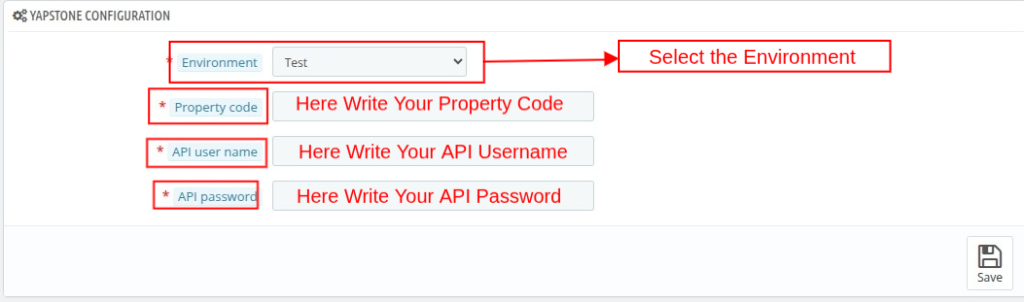
The admin needs to first select the appropriate environment for the configuration.
- Test Mode: For testing, select the sandbox.
- Production (Live Mode): For real-life transactions, select the production.
After selecting the environment, then enter the required details: Property Code, API User Name, and API Password.
Getting Yapstone Credentials
To configure the Yapstone Payment Gateway, you will need to enter your Property Code, API Username, and API Password.
Steps to Get Yapstone Credentials
- Open the official Yapstone website
- From the top menu, click on Solutions
- Under the Solutions section, select Vacation Rent Payment (VRP).

- After clicking, you will be redirected to the Vacation Rent Payment (VRP) page.
- On that page, click on the Contact option.

- You will get redirected to the Contact Form Page.

- Fill in all the mandatory fields in the contact form .
After submitting the form, the Yapstone team will provide you the Property Code, API Username, and API Password
Front-End Workflow:
At checkout, guests can pay through the QloApps Yapstone Payment Gateway, choosing either credit card or ACH payment for a secure and easy booking.
NOTE: The QloApps Yapstone Payment | VRP supports transactions only in USD, and the customer’s billing address must be within the United States to complete the payment successfully.

After clicking on the Yapstone Credit Card Payment option, the guest will be redirected to the card details page.

Please enter your card details to complete the payment securely.
Similarly, suppose the guest selects the Yapstone ACH Payment option.
They’ll be redirected to the ACH payment page to securely enter their bank details and complete the transaction.

After the guest completes the payment, the system redirects them to the booking confirmation page, where they can view their booking details and payment status.

Backend Workflow:
After the customer makes the payment on the front office, the transaction is recorded in the back office. The admin can see those transactions from the Yapstone Transaction Tab

Now the admin can click on the View button to see the details of a particular transaction.

Here are all the details related to the transaction.
Wrapping Up
This was all from the QloApps Yapstone Payment | VRP. We hope this guide is able to clarify the functioning of the module to you.
Get In Touch
If you want to learn about the functionality of QloApps, then you can visit this link: All-In-One Property Management System
In case of any query, issue, or requirement, please feel free to raise it on the QloApps Forum
Current product version: v4.0.0
Supported framework version: 1.7.0

Be the first to comment.