
Guests today expect quick check-ins, secure stays, and seamless movement across the property. QloApps TT Smart Lock Connector helps properties to deliver exactly that.
This module connects TT Smart Lock devices with your QloApps system, enabling you to manage room and common area access without traditional keys or manual effort.
It automates e-key generation, improves security, and makes guest check-ins completely hassle-free.
Key Features of QloApps TT Smart Lock Connector
- Admin can assign smart locks to rooms so that every guest receives a unique eKey for their stay
- Admin can assign smart locks to common areas such as gyms, pools, lounges, or business centers to control access
- Admin can configure general settings, including the time before check-in for eKey generation and reminder emails
- Admin can automate e-key generation and email notifications using cron jobs to reduce manual work
- Admin can view, regenerate and revoke eKeys to maintain security and manage guest access efficiently
- Admin can import updated locks to keep all TT Smart Locks synced with QloApps
- Guests receive app credentials for the TT Smart Lock mobile app where they can view their room and common area eKeys.
Installing the QloApps TT Smart Lock Connector
Follow these simple steps to install the module:
- Log in to your QloApps Admin Panel.
- Go to Modules & Services → Manage Modules.
- Click Add New Module and upload the ZIP file.
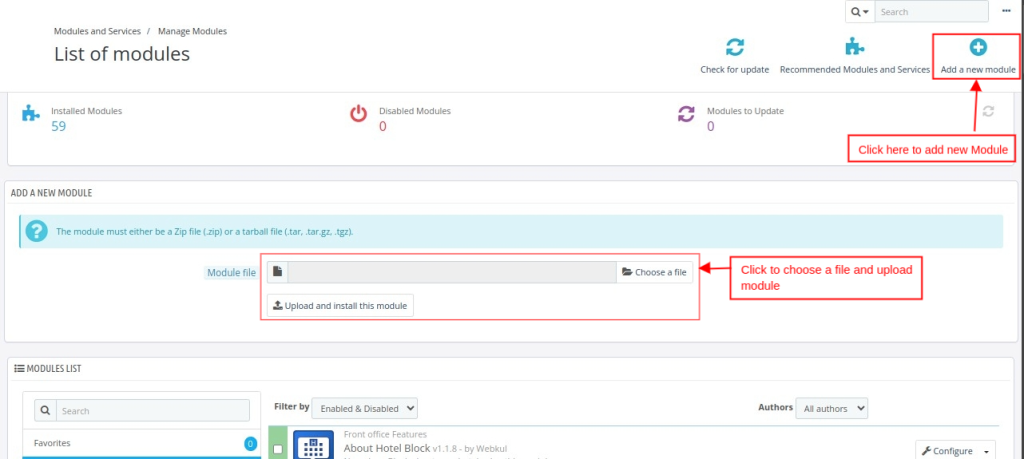
- Click Upload and Install this module to complete the setup.
Once installed, you’re ready to configure the module.
How to Configure the QloApps TT Smart Lock Connector
To configure the module:
- Log in to your QloApps Admin Panel.
- Go to Modules & Services.
- Click Module Configure.
- Search for QloApps TT Smart Lock Connector in the list.
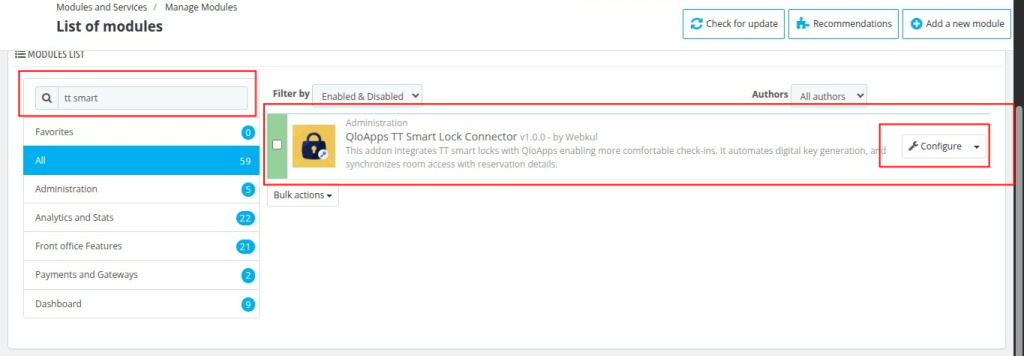
- Click Configure.
- Complete the Credential Settings and General Settings.
Credential Settings
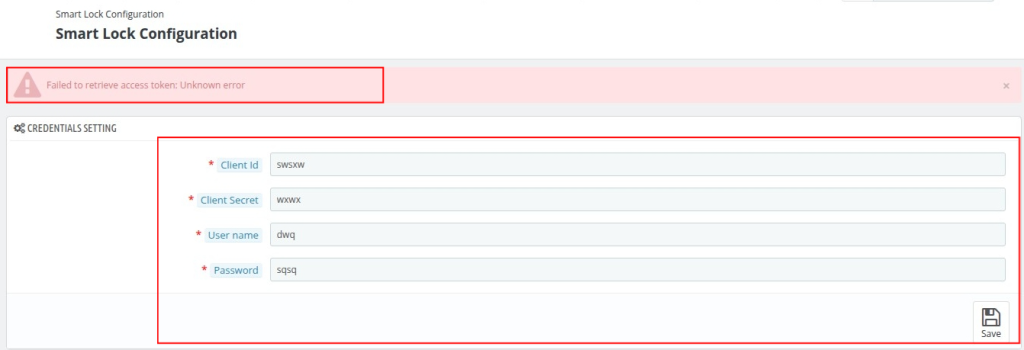
These are the authentication credentials required to connect the module with TT Smart Lock:
- Client ID – A unique identifier for integration authentication.
- Client Secret – A secure key used to verify API access.
- Username – Your TT account username for authentication.
- Password – A secure password to connect with TT services.
Click Save after entering the details.
Error Handling:
If credentials are incorrect or incomplete, you’ll see: “Failed to retrieve access token: Unknown error”
Import Locks
Once credentials are verified, the module automatically imports locks from your TT Smart Lock account.
If new locks are added later, you can manually import them by clicking Import Updated Locks.
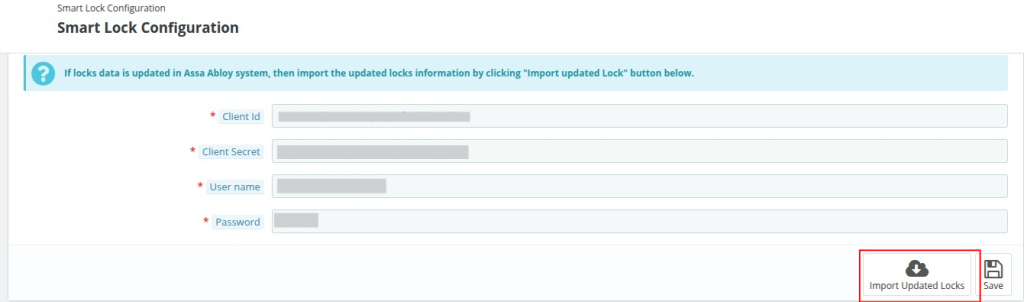
This ensures that all TT Smart Locks—both for rooms and common areas—are always synced with QloApps.
General Settings
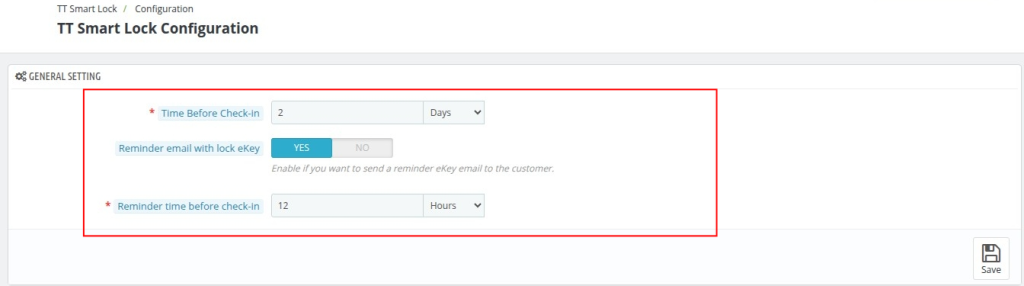
The general settings define how the TT Smart Lock automation works for guests.
- Time Before Check-in: Decide how early the eKey should be generated and sent. You can set this in hours or days.
Example: 2 hours before check-in ensures guests get their eKey at the right moment. - Reminder Email with Lock eKey: Enable this option to send a reminder email to guests with their eKey in case they missed the first one.
- Reminder Time Before Check-in: Specify how many hours before check-in the reminder email should be sent. This option is active only if reminders are enabled.
Cron Settings
The cron settings automate all time-based tasks for TT Smart Lock:
- Generate Smart Lock e-keys Automatically – Creates room access e-keys at the defined time, eliminating manual work.
- Send Guest Emails Before Check-in – Automatically sends initial eKey emails and reminders (if enabled).
- Automate Reminder Emails – Ensures guests always receive their digital keys on time.
Enable Cron Setting: Copy the generated cron URL into your server’s cron task scheduler. Once active, all tasks run automatically.

Why These Settings Matter:
- For Admins: Reduces workload, ensures security, and maintains consistent guest communication.
- For Guests: Smooth, hassle-free self-check-in with timely eKeys and reminders.
Common Area
The QloApps TT Smart Lock Connector allows hotel admins to extend secure, keyless access to common areas such as gyms, swimming pools, lounges, and business centres.
Admins can easily assign, enable, and monitor these locks.
Assigning Locks to Common Areas
- Log in to your QloApps Admin Panel.
- Navigate to TT Smart Lock → Common Areas.
- Click Add a Common Area.
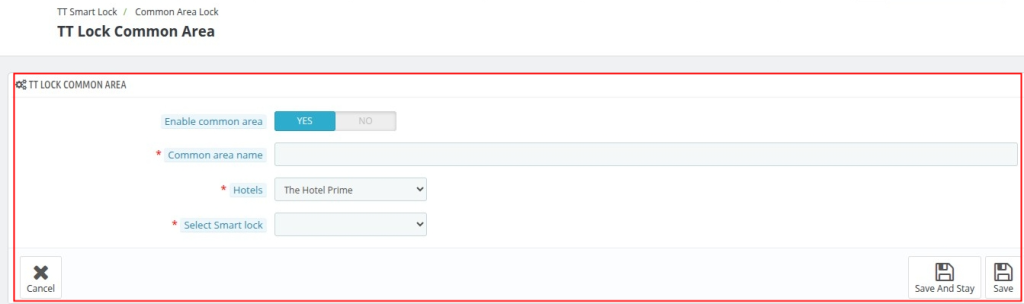
- Enable the common area (Yes / No) and enter its name (e.g., Swimming Pool, Gym).
- Select the hotel (for multi-property setups) and the smart lock from the list.
- Click Save.
Note: Access to common areas by e-Key is only available if a smart lock is assigned to that area.
How Admins Assign TT Smart Locks to Rooms
- Log in to your QloApps Admin Panel.
- Go to Catalog → Manage Room Type.
- Select the room type and click Edit.
- Navigate to the Rooms tab.
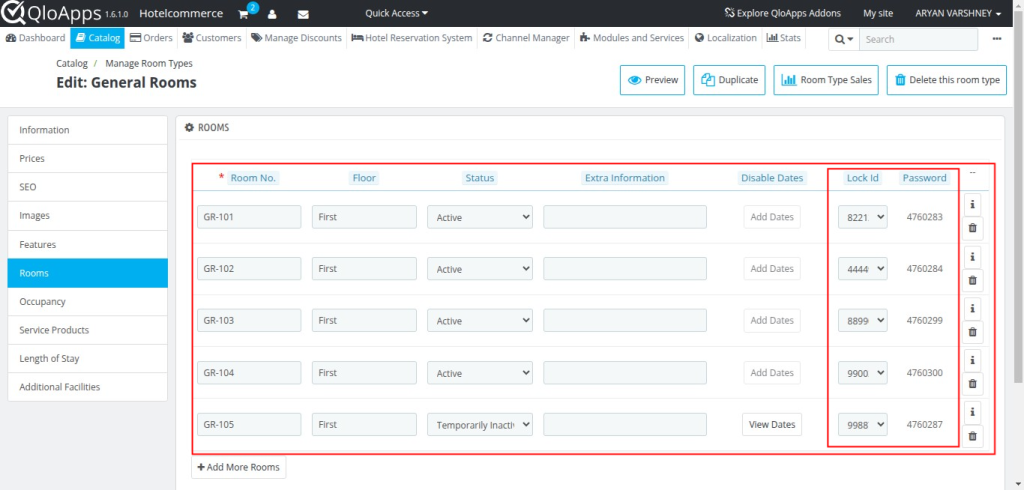
- Assign a Lock ID to each room from the imported TT Smart Locks list.
- Click Save.
Note: Only rooms with a smart lock assigned support eKey access.
How the Guest e-Key Is Generated
When a guest books a room and the booking is confirmed, QloApps automatically generates a secure, unique e-key for the smart lock assigned to that room.
This e-key ensures that only the guest can access the room & common areas during their stay.
The eKey (e-key application link) can be shared with the guest in two ways:
- Automatically via email, based on your cron and general settings
- Manually by the admin, if the hotel wishes to send it individually
This automation ensures timely, safe, and contactless room access for every guest.
How Admins Can View or Manage Room e-keys
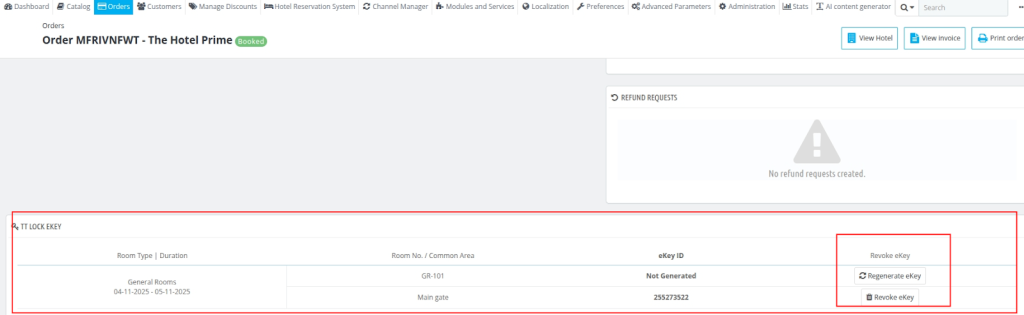
Admins can view, revoke, or resend e-keys directly from the order details:
- Log in to the Admin Panel.
- Navigate to Orders and select the required Order Number.
- Scroll down to TT Lock e-key.
Available Admin Action:
- Revoke eKey: Revoke the generated eKey if necessary for security or operational reasons.
- Regenerate eKey: Create a new eKey for a guest
How Guests View Their e-Key
Guests receive an email after booking containing:
- TT Smart Lock mobile app download link
- Username and password for login to the app
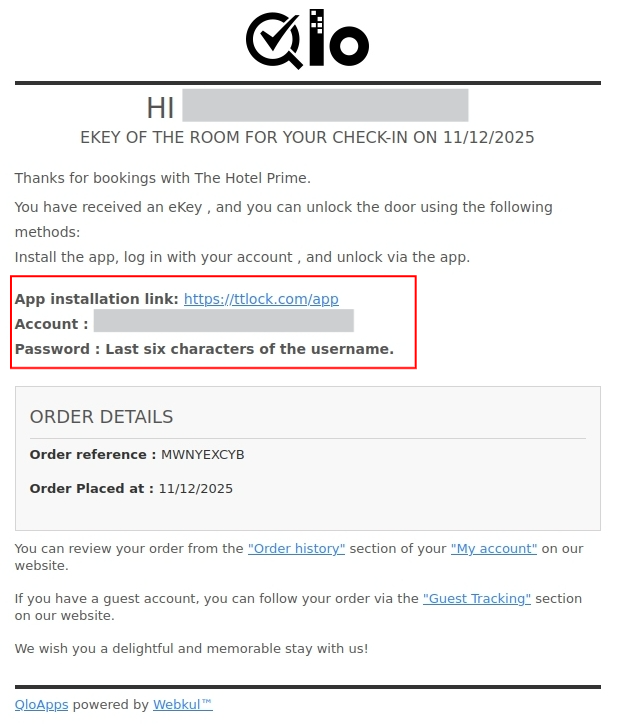
Important: The room e-key is accessed via the TT Smart Lock app. Guests must log in with the provided credentials to view their eKey and unlock the assigned rooms or common areas.
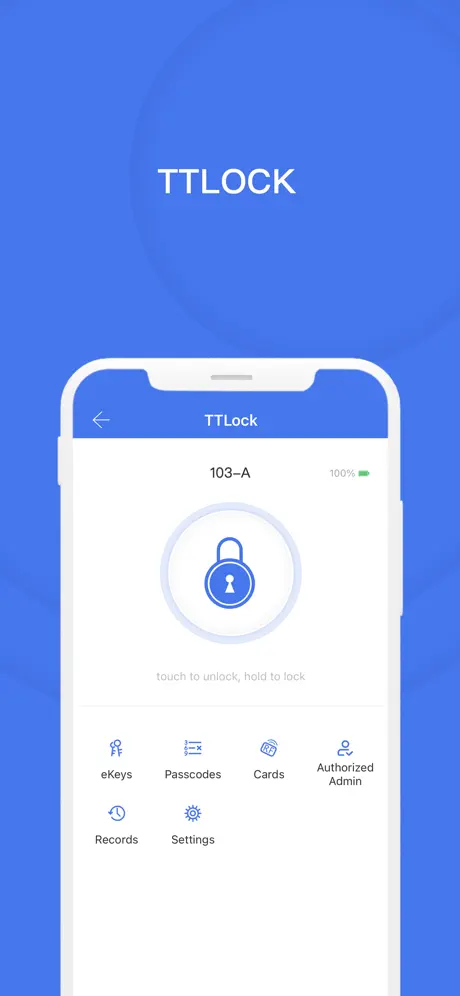
Note: Once the guest receives the email containing the TT Smart Lock app link, they must download the app on their smartphone.
Only after installing the app and logging in with the provided credentials, the guest will be able to view their eKey.
App URL:https://ttlock.com/app
Conclusion
The QloApps TT Smart Lock Connector enhances property operations by making them more secure, efficient, and guest-friendly.
By automating e-key generation and integrating smart locks for rooms and common areas, hotels can deliver seamless check-ins, reduce front-desk workload, and improve overall guest satisfaction.
With this module, your property embraces a modern, contactless, and highly secure guest experience—exactly what today’s travelers expect.
To learn more about QloApps and its features, visit: QLO Reservation System – Free Open-Source Hotel Booking & Reservation System.
Need Help? Raise your queries on the QloApps Forum
Current Product Version – 1.0.0
Supported Framework Version- QloApps 1.7.x And 1.6.1


Be the first to comment.