
The QloApps QuickBooks Connector allows hotel businesses to seamlessly integrate their QloApps Property Management System with QuickBooks.
By automating the synchronization of accounting data, the connector helps hotel owners eliminate manual bookkeeping, reduce accounting errors, and maintain accurate financial records.
The connector synchronizes important business data such as customers, hotels, room types, service products, orders, invoices, payments, and refunds between QloApps and QuickBooks.
This user guide explains how to install, configure, and use the QloApps QuickBooks Connector effectively.
Features of QloApps QuickBooks Connector
The QloApps QuickBooks Connector provides several powerful features that simplify accounting and bookkeeping operations.
- Connects QloApps directly with QuickBooks using OAuth authentication.
- Automatically synchronizes customer information.
- Synchronizes hotels and room types.
- Synchronizes service products.
- Automatically creates invoices in QuickBooks.
- Synchronizes booking payments.
- Supports refund synchronization.
- Allows manual synchronization whenever required.
- Supports automatic synchronization using CRON.
- Displays synchronization status for every record.
- Shows the last synchronization date and time.
- Reduces manual accounting work.
- Maintains accurate financial records.
- Improves operational efficiency.
How to Install the QloApps QuickBooks Connector
Installing the module is simple.
Go to the Modules and Services section from the QloApps Back Office.
Click Add a New Module.
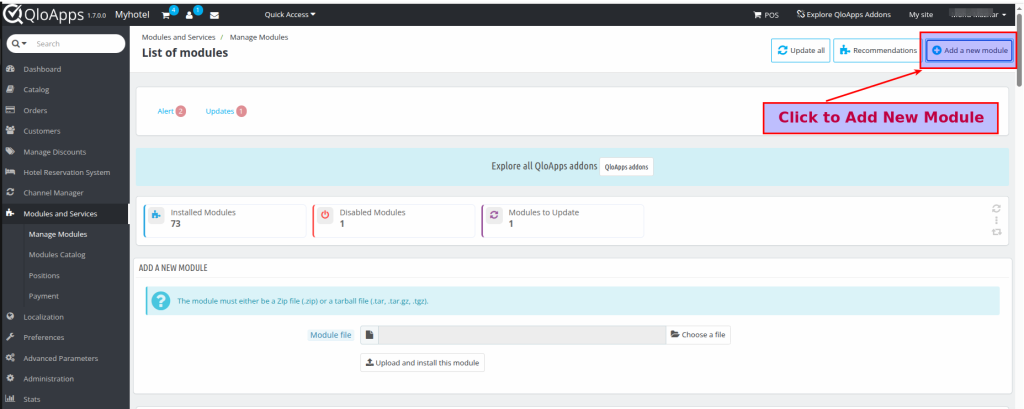
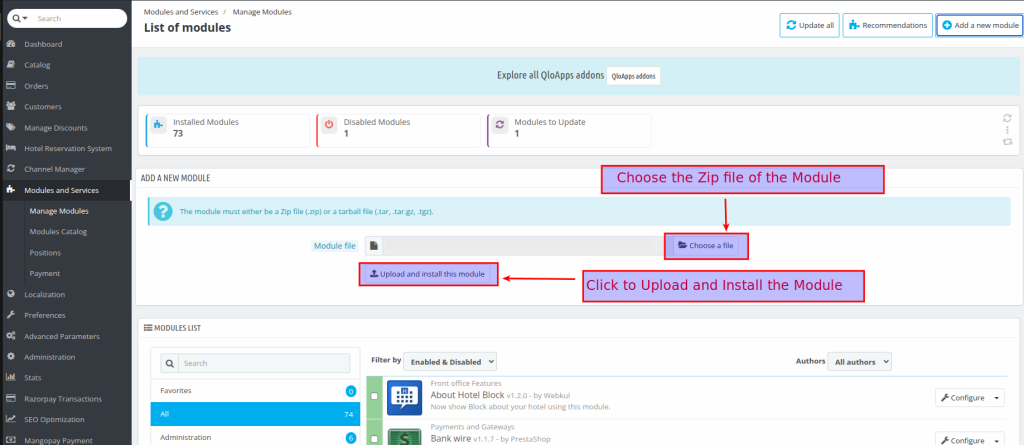
Upload the QuickBooks Connector ZIP file.
Click Install.
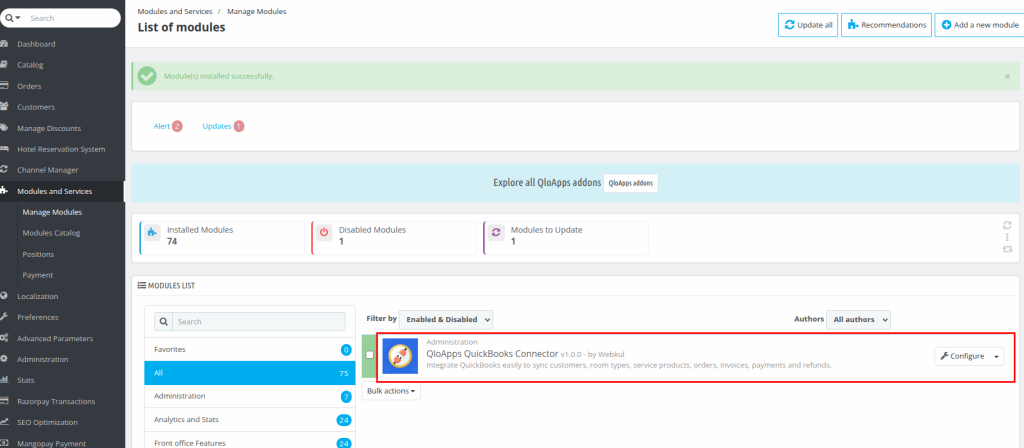
Once the installation is completed successfully, a new QuickBooks Connector menu will appear in the QloApps administration panel.
Before using the module, you must configure the QuickBooks account.
Configuration of QloApps QuickBooks Connector
Open the module configuration page by navigating to:
Modules and services > Module List > QloApps QuickBooks Connector > Configure
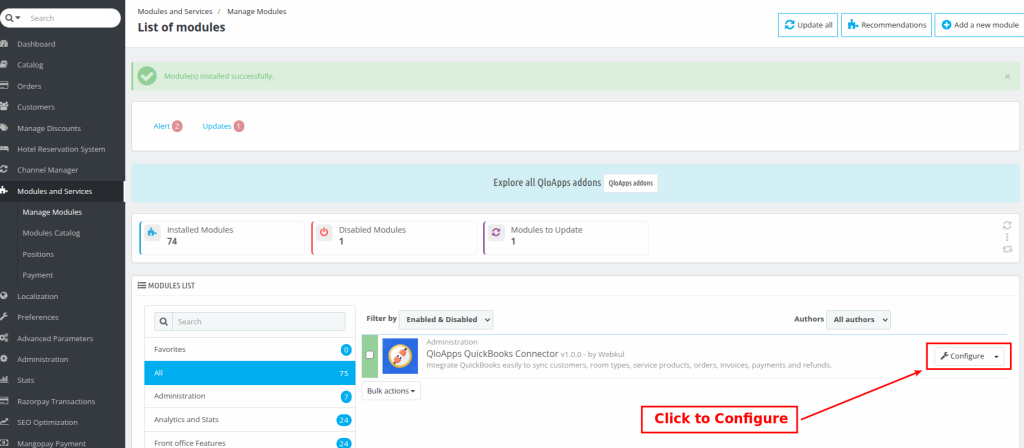
The configuration page contains multiple sections:
- API Configuration
- Customer Settings
- Hotel Settings
- Room Type Settings
- Service Product Settings
- Orders Settings
- CRON Configuration
Each section controls how information is synchronized between QloApps and QuickBooks.

Connecting QloApps with QuickBooks
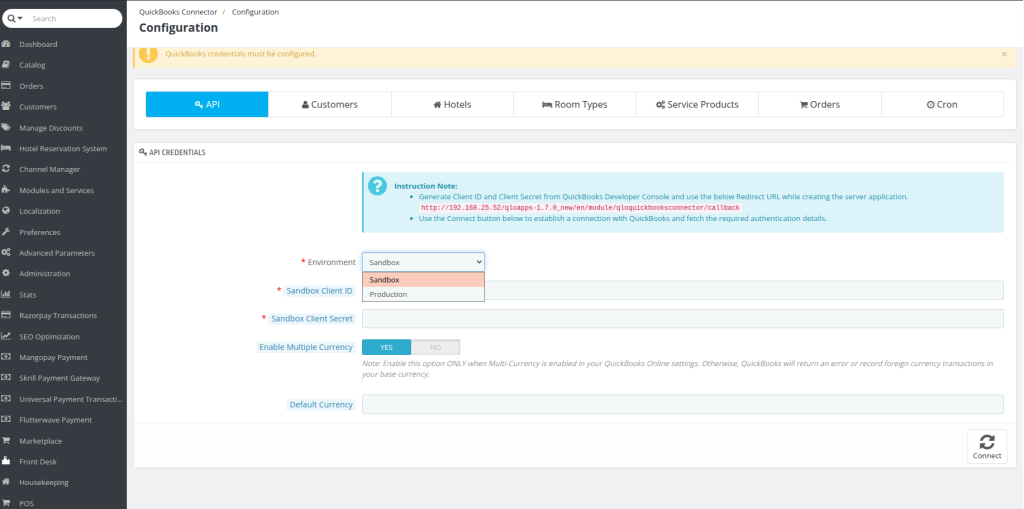
Before synchronization begins, connect your QuickBooks account.
The connector uses OAuth 2.0 authentication provided by Intuit.
You need the following information:
- Client ID
- Client Secret
- Redirect URI
- Realm ID (Company ID)
These credentials are generated from your QuickBooks Developer account.
Creating a QuickBooks Developer Account
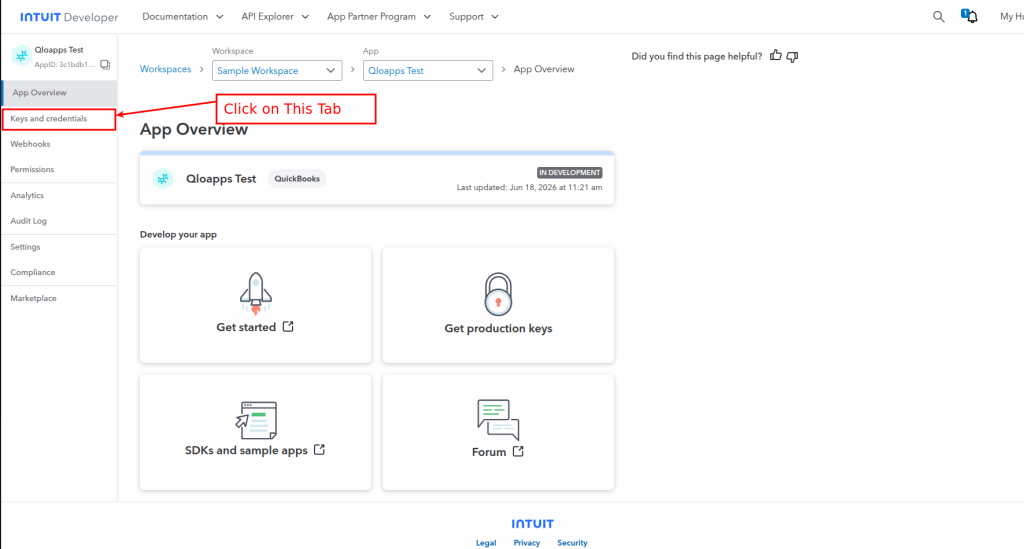
Visit the QuickBooks Developer Portal.
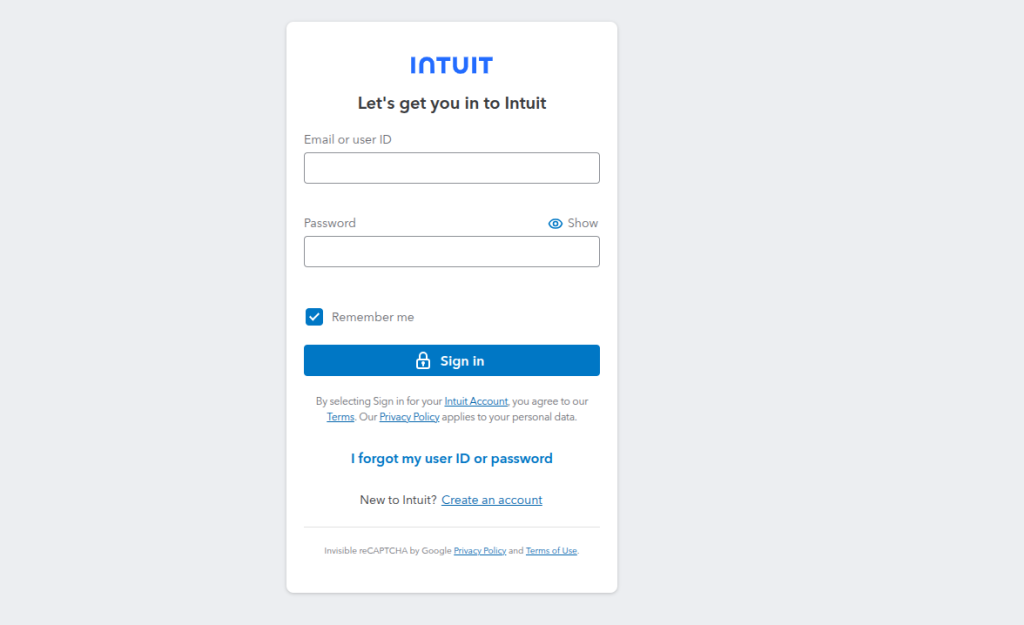
Sign in using your Intuit account.
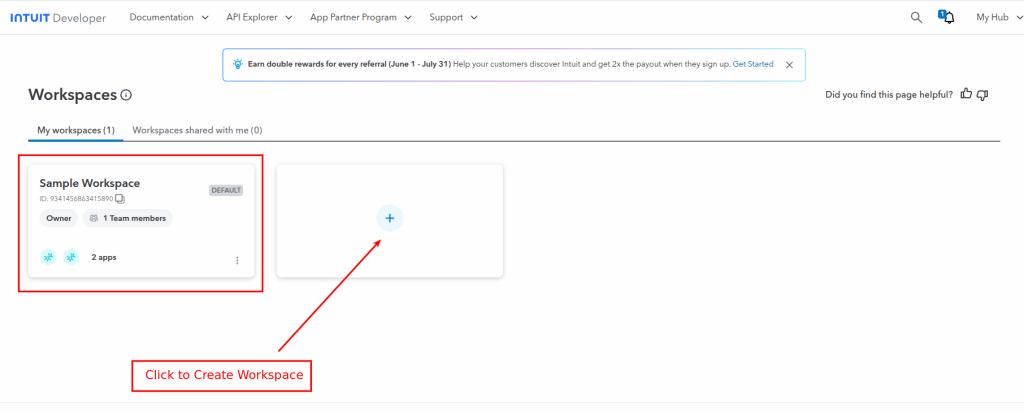
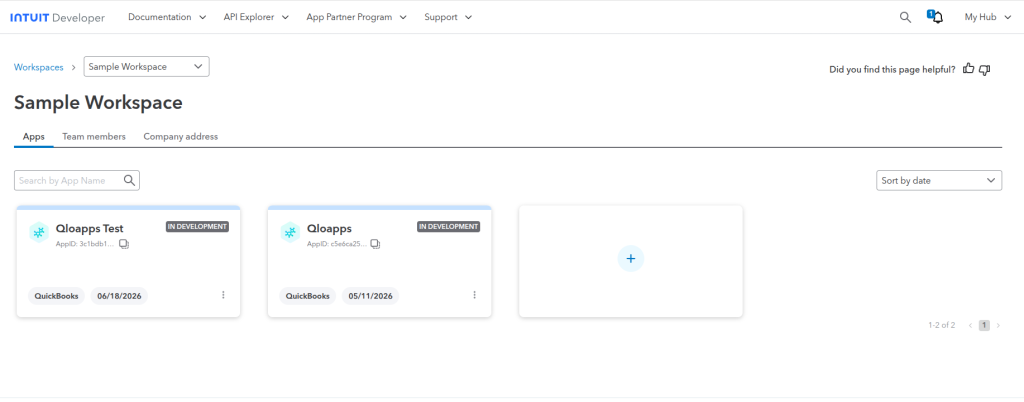
Click on the Key and Credential Tab
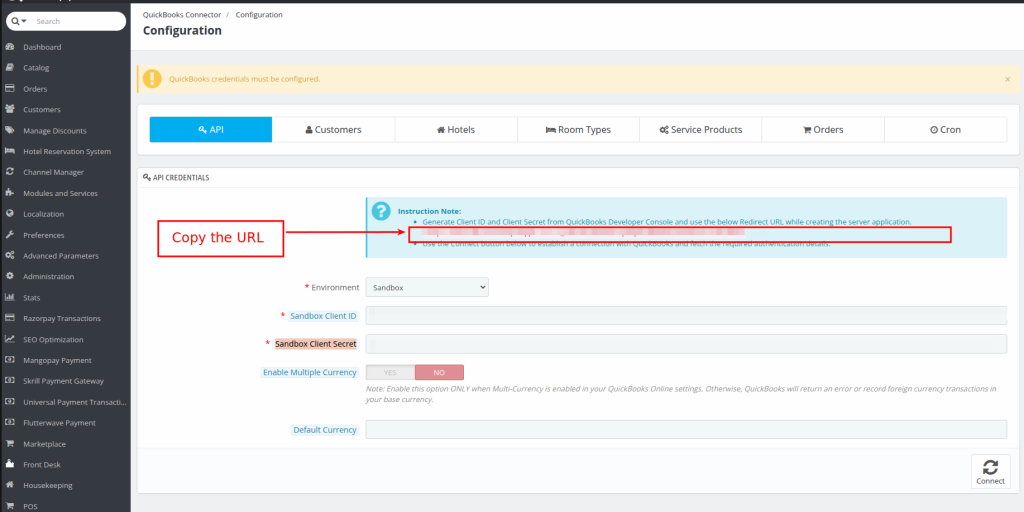
Paste the Client ID and Client Secret on the configuration page in Backoffice
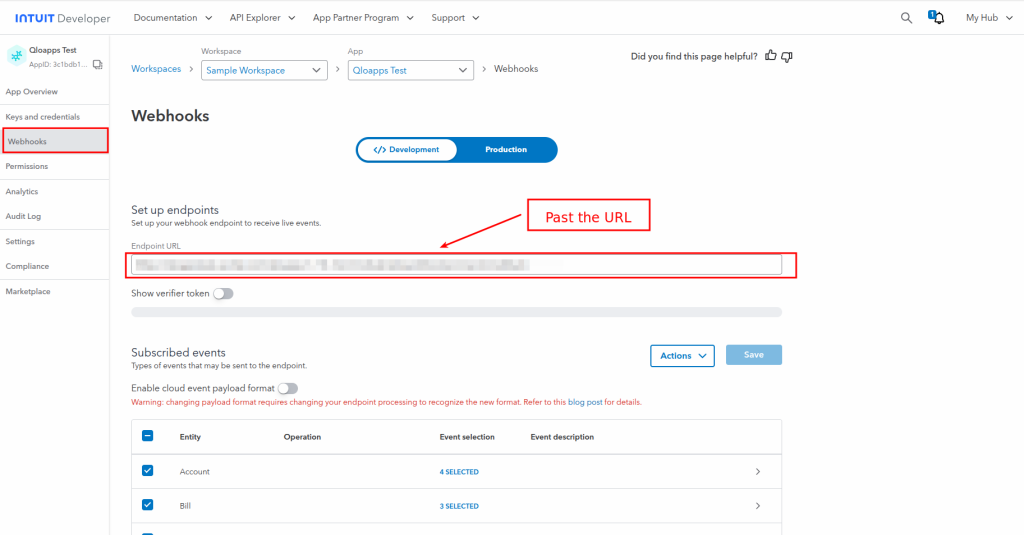
Then copy the Webhook URL from the configuration page and paste it in the webhook section as shown in the images below.
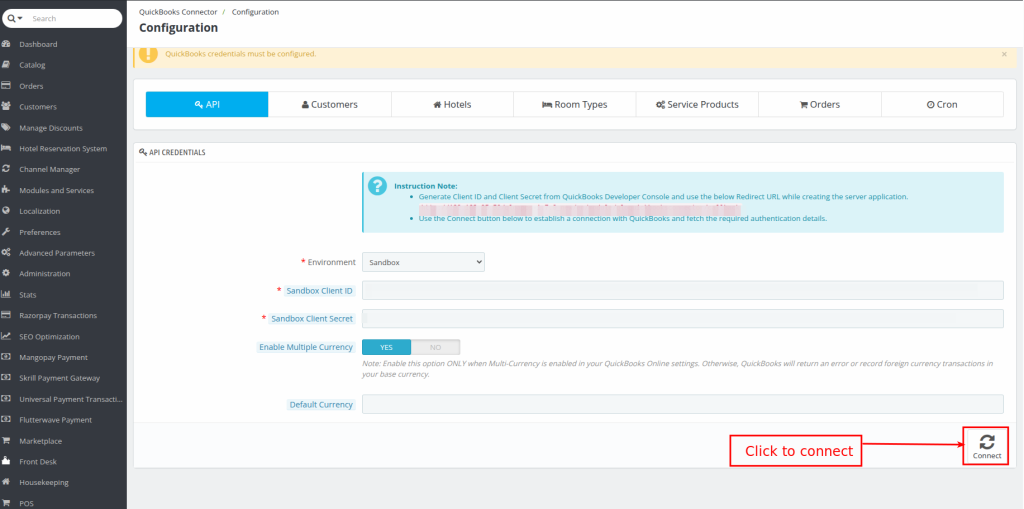
Enable Multiple Currency
Note: Enable this option ONLY when Multi-Currency is enabled in your QuickBooks Online settings.
Otherwise, QuickBooks will return an error or record foreign currency transactions in your base currency.
Default Currency: Choose the Default Currency
Click on the Connect Button
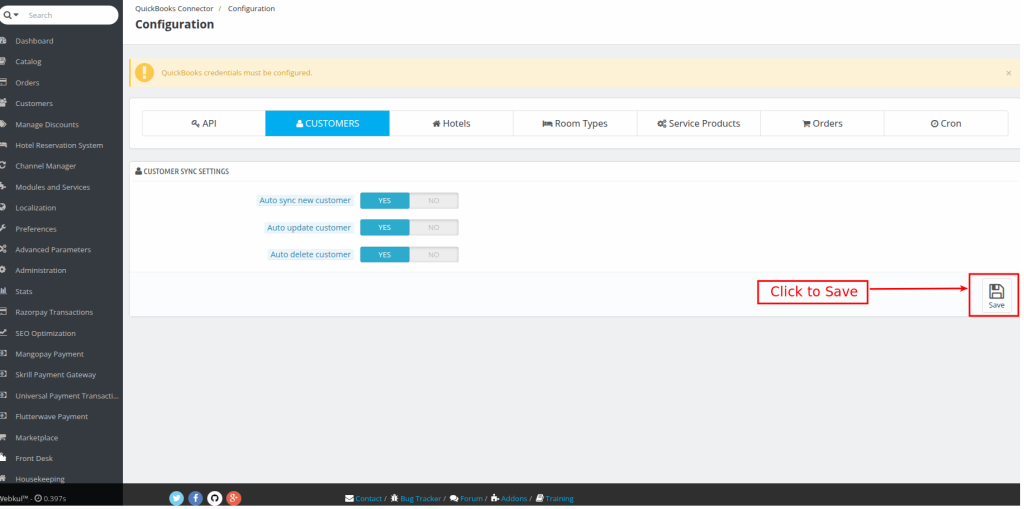
Customer Synchronization Settings
The Customer section manages synchronization of guest information.
Available options include:
Auto Sync New Customers
Automatically creates a customer in QuickBooks whenever a new customer is created in QloApps.
Auto Update Customers
Automatically updates customer information whenever customer details change in QloApps.
Auto Delete Customers
Automatically marks customer records inactive in QuickBooks whenever they are deleted or disabled in QloApps.
Customer synchronization is required before invoices can be synchronized successfully.
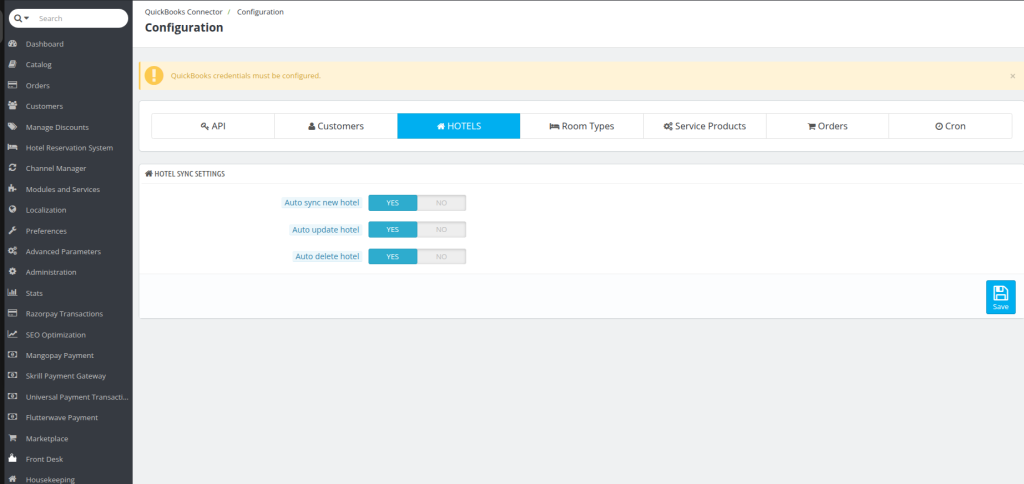
Hotel Synchronization Settings
This section controls synchronization of hotel information.
Available options include:
- Auto Sync New Hotels
- Auto Update Hotels
- Auto Delete Hotels
Whenever hotel information changes inside QloApps, the connector updates the corresponding information in QuickBooks automatically.
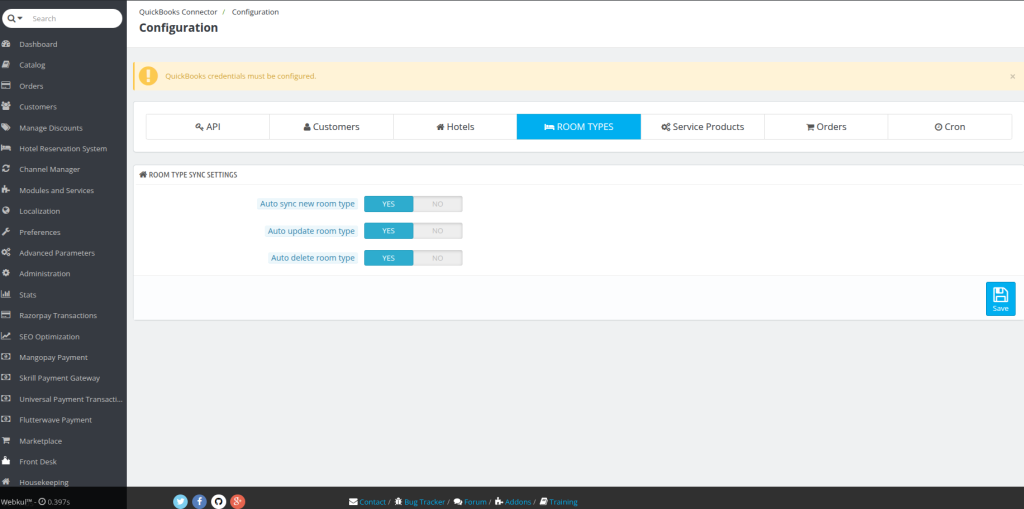
Room Type Synchronization
Room Types are synchronized as inventory items.
Configuration options include:
- Auto Sync New Room Types
- Auto Update Room Types
- Auto Delete Room Types
Whenever room types are modified, the connector updates QuickBooks accordingly.
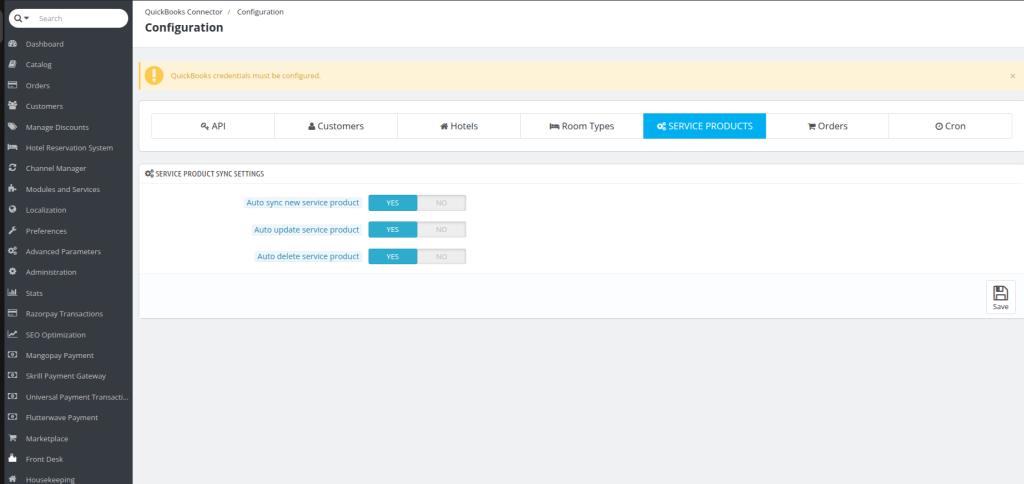
Service Product Synchronization
Additional hotel services can also be synchronized.
Examples include:
- Breakfast
- Spa
- Laundry
- Airport Pickup
- Restaurant Services
Available settings:
- Auto Sync New Service Products
- Auto Update Service Products
- Auto Delete Service Products
Order Synchronization
The Orders section controls booking synchronization.
Available options include:
- Auto Sync Orders
- Auto Update Orders
- Auto Sync Invoices
- Auto Sync Payments
- Auto Sync Refunds
Whenever a booking is confirmed, the connector automatically creates an invoice in QuickBooks.
When payment is received, the payment is also synchronized.
If a booking is cancelled or refunded, QuickBooks is updated accordingly.
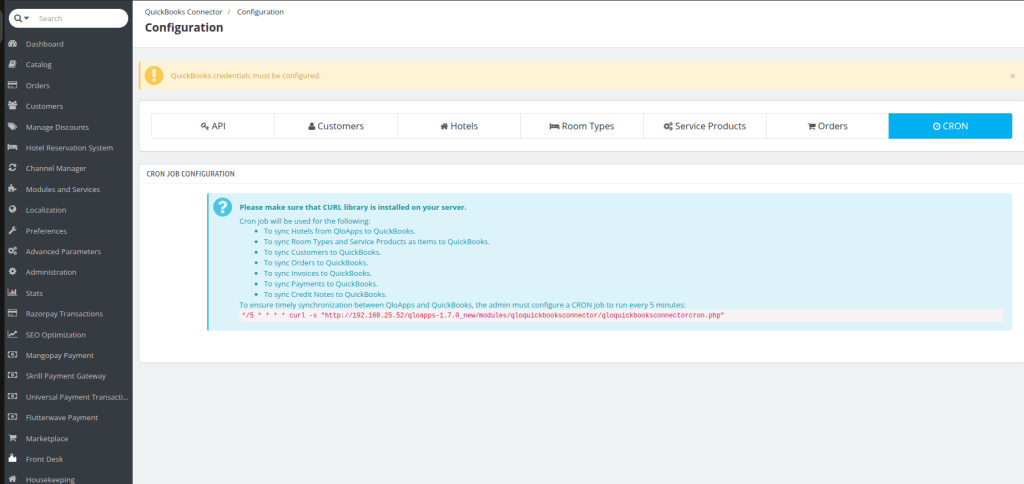
CRON Configuration
The connector supports automatic synchronization using CRON.
Configure the CRON URL on your server to execute every five minutes.
This allows the connector to synchronize all pending records automatically without administrator intervention.
Make sure the CURL library is enabled on your server before configuring the CRON job.
Synchronization Dashboard
After configuration is completed, open the Synchronization section.
This page displays all synchronization records.
The dashboard contains separate tabs for:
- Hotels
- Room Types
- Service Products
- Customers
- Orders
Each tab displays:
- Record Name
- QuickBooks ID
- Synchronization Status
- Last Sync Date
- Last Sync Time
- Manual Sync Button
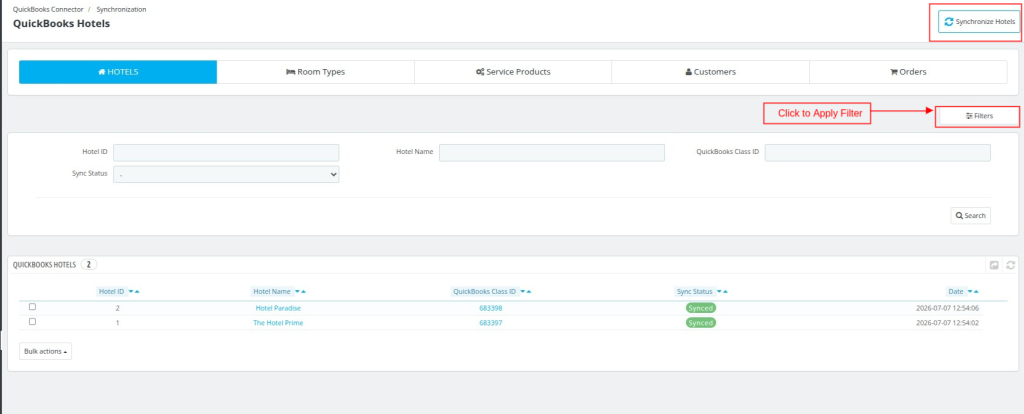
Synchronizing Hotels
The Hotels page displays every hotel available in QloApps.
Initially, click Initialize to import existing hotels.
The synchronization status changes from Pending to Synced after successful synchronization.
Administrators can synchronize individual hotels manually using the Sync button or synchronize all hotels together.
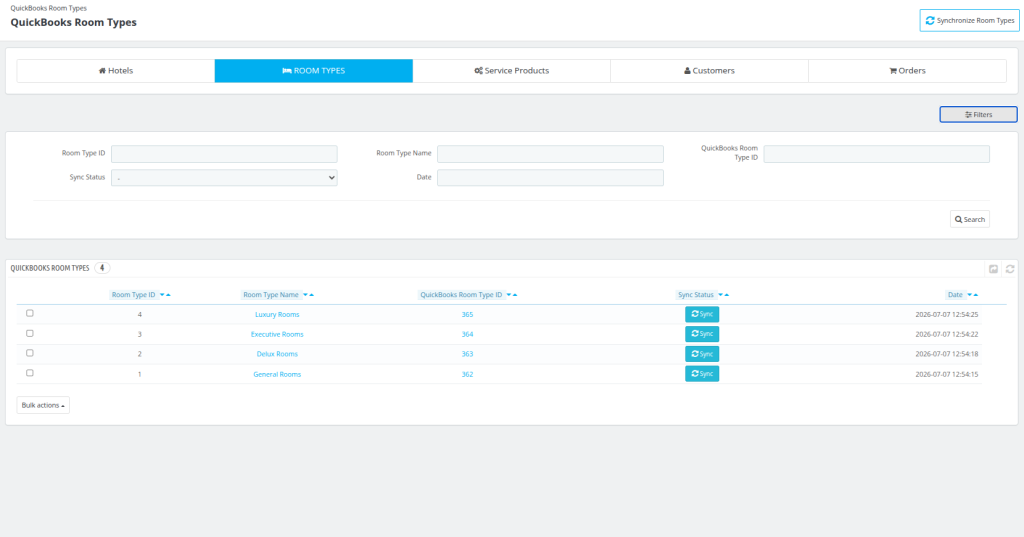
Synchronizing Room Types
The Room Types section works similarly.
Initialize existing room types.
Synchronize them individually or in bulk.
Whenever room details change in QloApps, the connector updates the corresponding records in QuickBooks automatically.
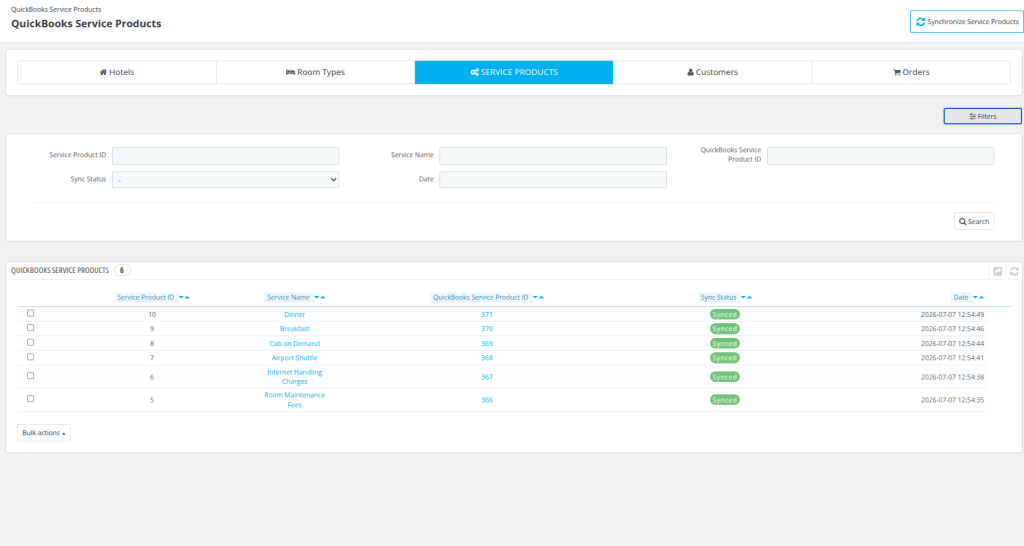
Synchronizing Service Products
This section synchronizes additional hotel services.
Service products can be synchronized manually or automatically using CRON.
The synchronization status is updated after every successful operation.
Synchronizing Customers
Customer records are synchronized before invoices are generated.
If automatic synchronization is enabled, every newly registered guest is automatically created inside QuickBooks.
Manual synchronization is also available whenever required.
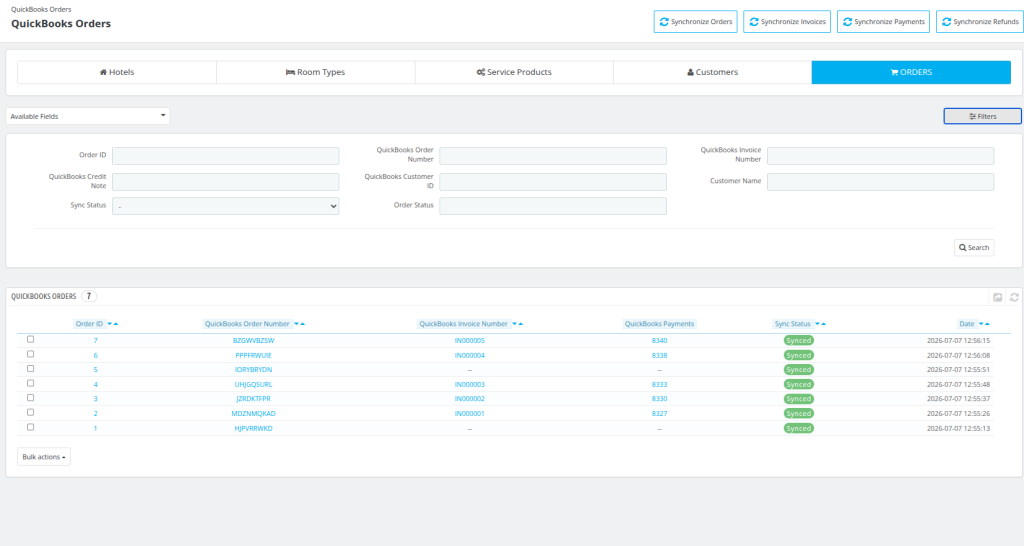
Synchronizing Orders
Order synchronization follows multiple stages.
Initially, the booking is synchronized.
Next, the invoice is created.
After payment is received, the payment is synchronized.
Finally, the synchronization status changes to Synced.
If a booking is cancelled or refunded, the connector updates the transaction in QuickBooks automatically.
Manual Synchronization
Besides automatic synchronization, administrators can manually synchronize records.
Simply click the Sync button beside any record.
Bulk synchronization options are also available for every section.
This provides greater control whenever immediate synchronization is required.
Conclusion
The QloApps QuickBooks Connector is an efficient accounting integration that automates financial data synchronization between QloApps and QuickBooks.
By synchronizing customers, hotels, room types, service products, and bookings, the connector helps hotel businesses maintain accurate accounting records while reducing manual work.
Finally, we hope this guide has helped you configure and use the connector with confidence. For any questions or technical assistance, feel free to contact the QloApps Support Team.
Additionally, to learn more about the functionality of QloApps, you can visit this link: All-in-One Property Management System.
In case of any query, issue, or requirement, please feel free to raise it on the QloApps Forum.
Current Module Version: 1.0.0
Supported QloApps Versions: 1.6.x and 1.7.x

Be the first to comment.