
The QloApps Mosler Smart Lock Connector links your hotel’s bookings to Mosler smart locks. As a result, a guest’s eKey or passcode gets created and revoked automatically as their stay moves through its lifecycle. This guide covers mapping hotels and rooms to Mosler, restricting common-area access by room type, configuring guest access emails, and managing a single booking’s lock status from the order page.
NOTE: You need an active Mosler account first, plus a v4 API key, a callback webhook URL, and an HMAC secret from Mosler. The module also needs a scheduled cron job, because without it access emails and expired-booking revocation only happen when someone loads a Back Office page that happens to trigger them.
Features of QloApps Mosler Smart Lock Connector
- Map each hotel to a Mosler site and building, and each physical room to a Mosler room
- Restrict a common area’s lock access to specific room types, or leave it open to every guest at the hotel
- Issue guest eKey and passcode access automatically once you confirm a booking
- Revoke lock access automatically at checkout, on cancellation, or after a configurable grace period
- Update lock access automatically on date changes, room reallocation, and room swaps
- Send guests an access email before check-in, with an optional separate reminder email
- Remotely unlock, revoke, or regenerate a guest’s access from the booking’s order page
- Verify the Mosler callback URL with a one-click test ping before going live
- Revoke expired bookings and send pending access emails on a schedule through a cron job
How to Install QloApps Mosler Smart Lock Connector
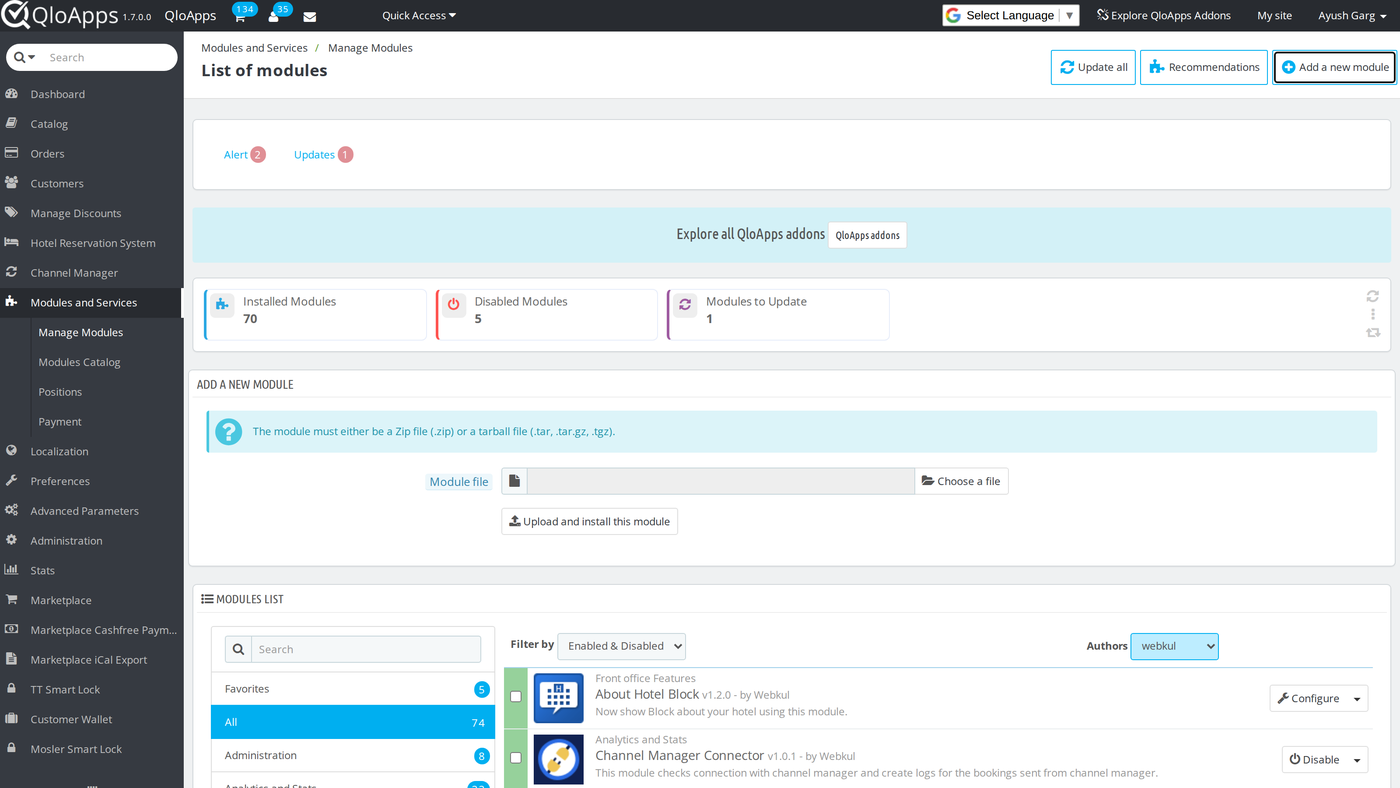
- In the Back Office go to Modules and Services › Modules and Services and click Add a new module.
- Choose the module ZIP under Module file.
- Click Upload and install this module. QloApps uploads and installs the module in one step.
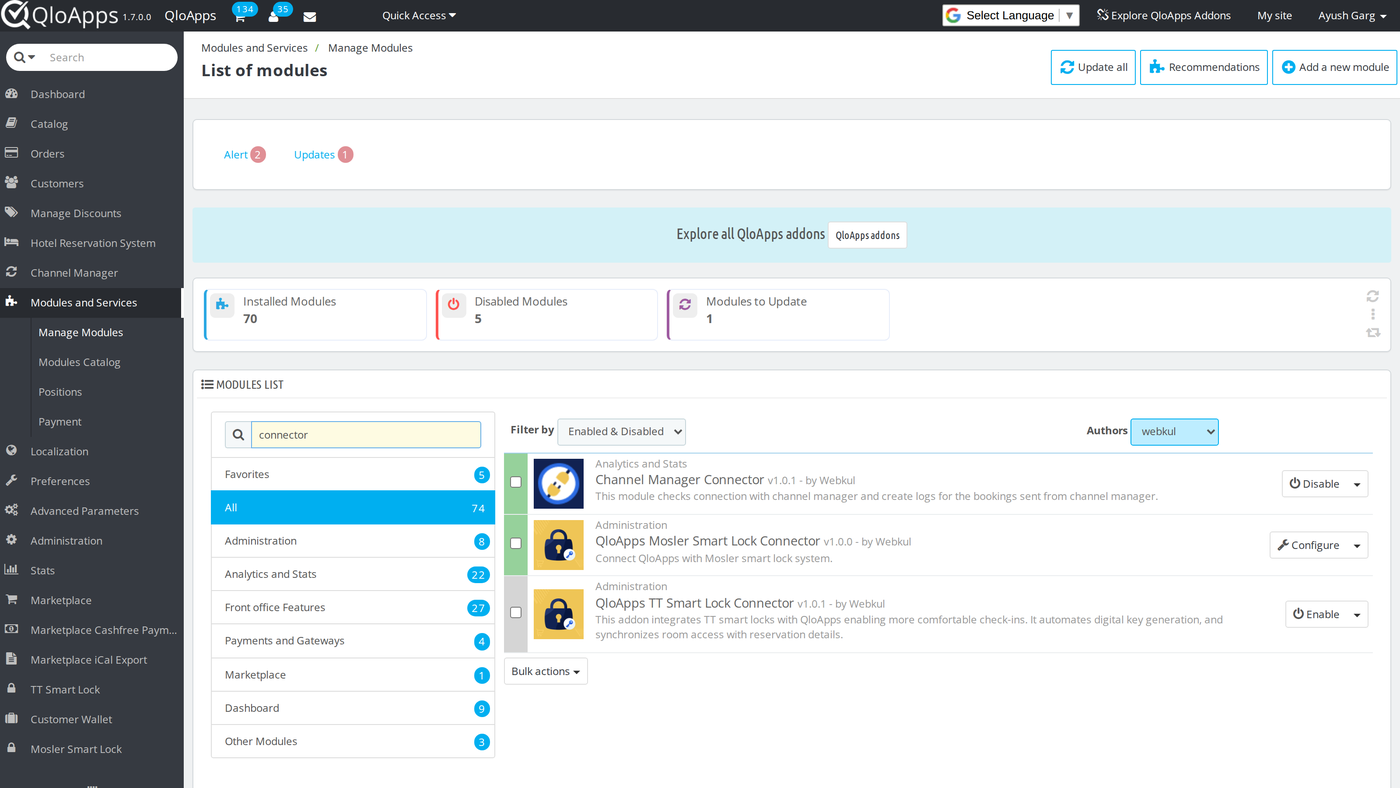
Once installed, search for it in the modules list to confirm — it shows up under Administration, by Webkul.
Once installed, the module adds a Mosler Smart Lock entry to the Back Office main menu, with a Common Area submenu underneath it.
Configuration of QloApps Mosler Smart Lock Connector
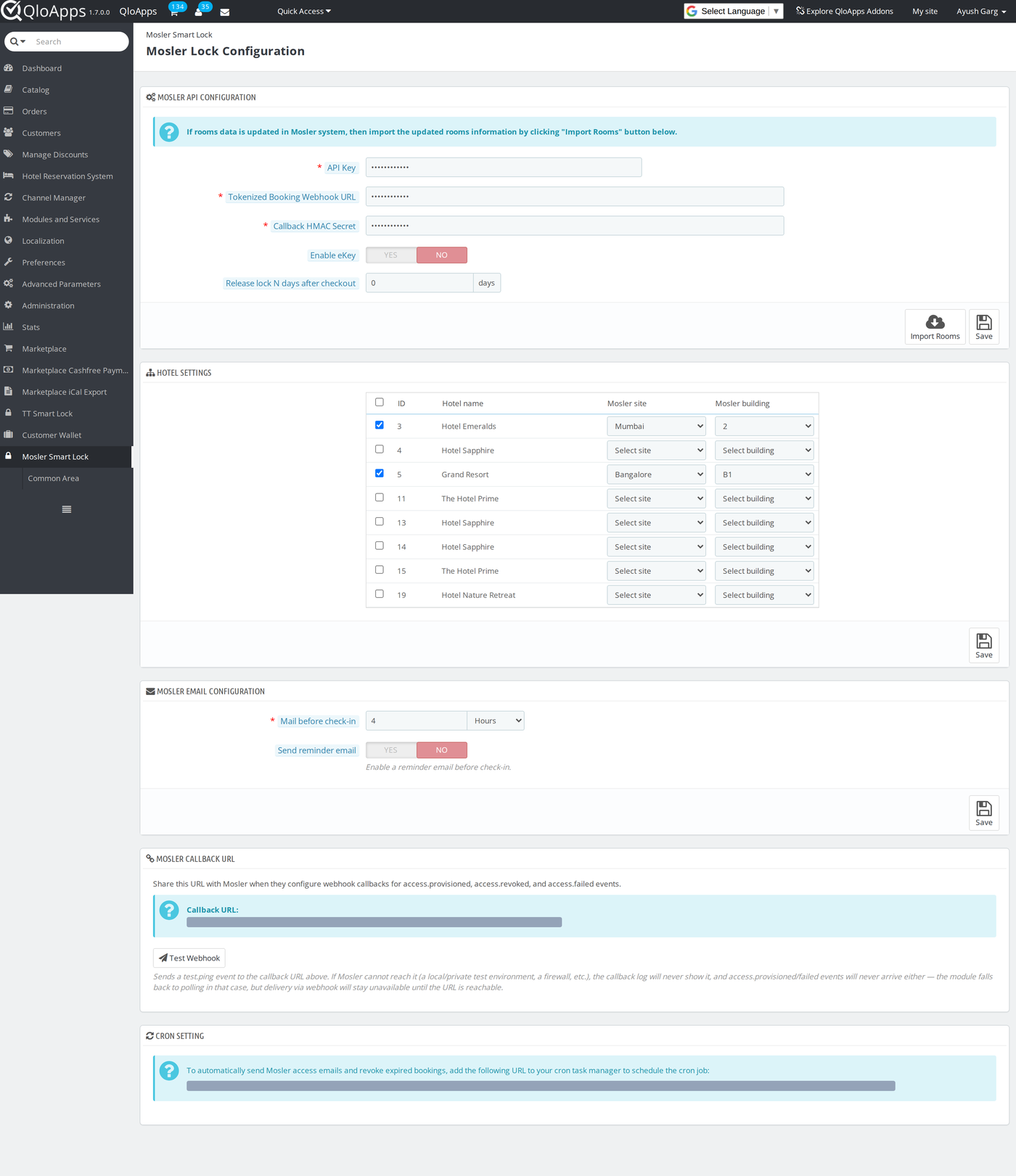
Open Mosler Smart Lock in the main Back Office menu. The configuration page is a single screen made up of several panels — walk through them top to bottom the first time you configure the module.
General Configuration
The Mosler API Configuration panel holds the credentials Mosler gives you when they set up your integration:
- API Key — the API key for your Mosler account. Required.
- Tokenized Booking Webhook URL — the URL Mosler gave you for sending booking create, update, and cancel events. Required.
- Callback HMAC Secret — the secret Mosler gave you for signing callback events. Required, because the callback endpoint rejects any event it cannot verify.
- Enable eKey — a switch. On, booking events request both PASSCODE and EKEY access types. Off (the default), only PASSCODE is requested.
- Release lock N days after checkout — a grace period, in days, added after the guest’s checkout date before the cron job revokes lock access. Defaults to 0, which revokes access exactly at checkout time.
Once you save the API key, webhook URL, and HMAC secret, an Import Rooms button appears on this panel. Click it whenever your room, building, or site data changes in Mosler, so the latest list pulls into QloApps.
Hotel Settings
Below the API panel, the Hotel Settings table lists every hotel in your property. For each hotel you want to use Mosler locks in:
- Check the box in the first column to enable Mosler for that hotel.
- Pick the matching Mosler site from the dropdown.
- Pick the matching Mosler building from the dropdown, scoped to the site you picked.
You can only map a building to one hotel, so the form blocks a save that would map the same building twice. Click Save at the bottom of this panel to apply hotel mappings.
Email Configuration
The Mosler Email Configuration panel controls the access email sent to guests:
- Mail before check-in — how long before check-in the access email goes out, as a number plus a unit dropdown (Hours or Days). Required.
- Send reminder email — a switch, off by default. When on, a second Reminder time before check-in field (number plus Hours/Days unit) appears. Set it to less time than the main “mail before check-in” value, since a later reminder than the first email makes no sense.
Callback URL and Cron Setting
The last two panels are read-only reference information plus one action:
- Mosler Callback URL shows the URL to give Mosler for
access.provisioned,access.revoked, andaccess.failedevents, and a Test Webhook button that sends atest.pingevent to that URL. When the test succeeds, it writes a “Mosler callback received” log entry withevent: test.ping. - Cron Setting shows the exact cron command, including your module’s cron token, to add to your server’s scheduler. This is what actually sends pending access emails and revokes expired bookings, so set it up before relying on the module in production.
Mosler Setup
This module talks to a Mosler v4 account that Mosler configures for you — there is no self-service signup screen inside QloApps.
- Contact Mosler to set up your v4 API integration. They then provide an API Key, a Tokenized Booking Webhook URL, and a Callback HMAC Secret for your account.
- Enter all three into the Mosler API Configuration panel described above and save.
- Copy the Mosler Callback URL shown lower on the same page and send it back to Mosler, so they know where to deliver
access.provisioned,access.revoked, andaccess.failedevents. - Click Test Webhook to send a
test.pingevent and confirm Mosler can reach your callback URL before you rely on it for real bookings.
If your QloApps install isn’t reachable from the public internet, for example on a local or private test environment, the test and every real event after it will never arrive. The module then falls back to polling Mosler directly, but webhook delivery stays unavailable until the URL is reachable.
Mapping Hotels, Rooms, and Common Areas
With Mosler credentials saved and rooms imported, connect your QloApps hotel data to Mosler’s:
- On the Mosler Smart Lock configuration page, map each hotel to its Mosler site and building in Hotel Settings, as described above.
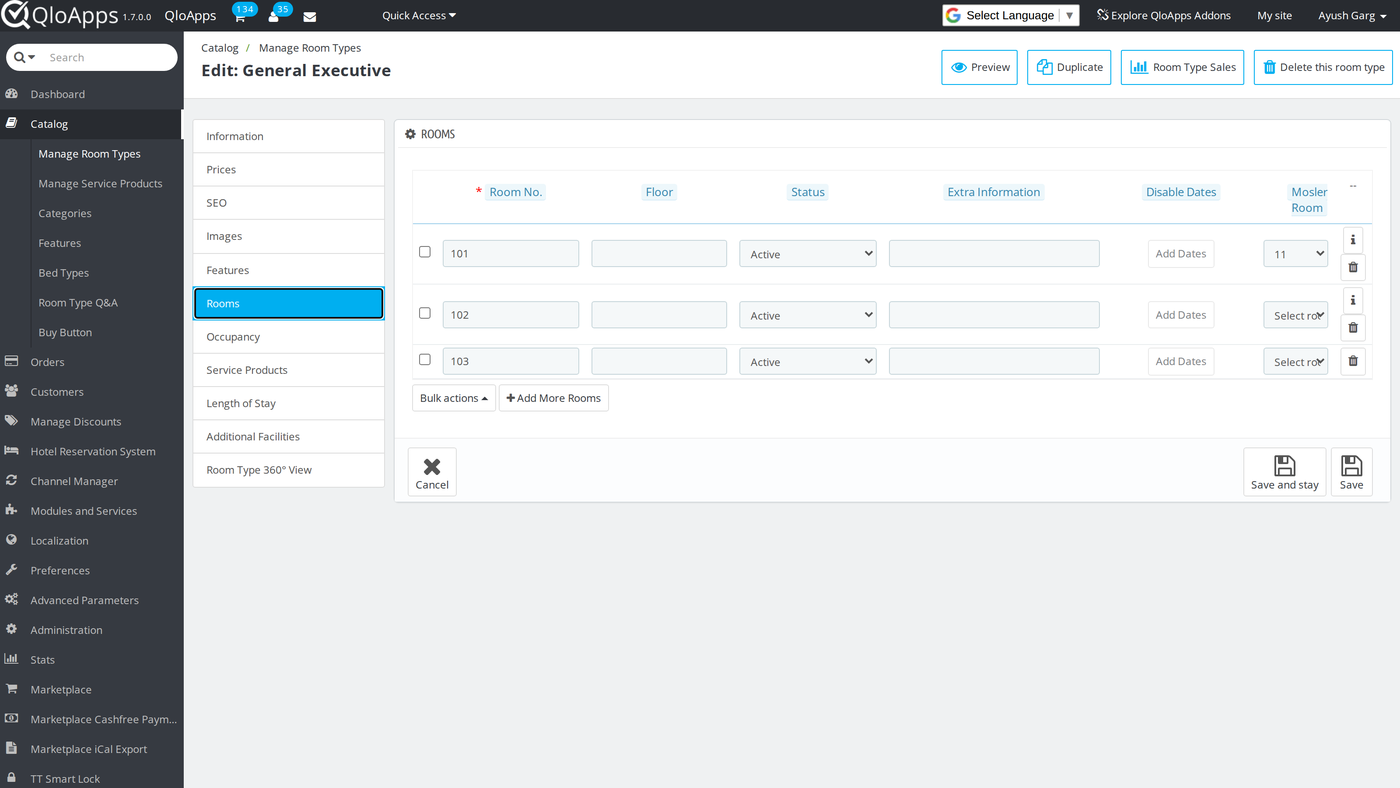
- Go to Catalog › Manage Room Types, open a room type that belongs to a Mosler-enabled hotel, and switch to the Rooms tab. Each physical room row now has a Mosler Room dropdown — pick the Mosler room that corresponds to that physical room, then save.
- Go to Hotel Reservation System › Manage Hotel and open a Mosler-enabled hotel. Once the hotel is enabled and mapped, a Mosler Smart Lock tab appears on its edit form.
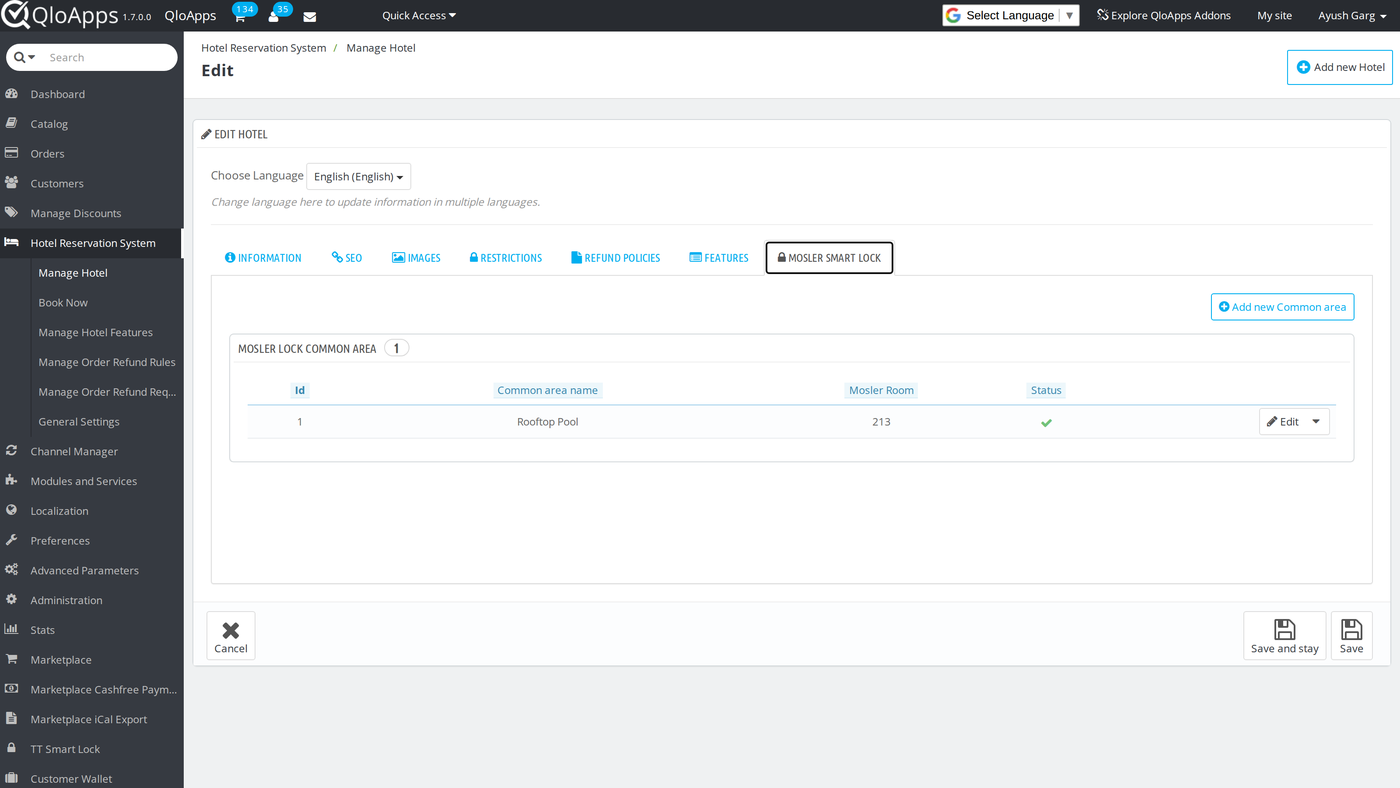
- Inside that tab, click Add new Common area to create a common area (a gym, a pool, a lounge) for this hotel. You can also reach the same list directly at Mosler Smart Lock › Common Area.
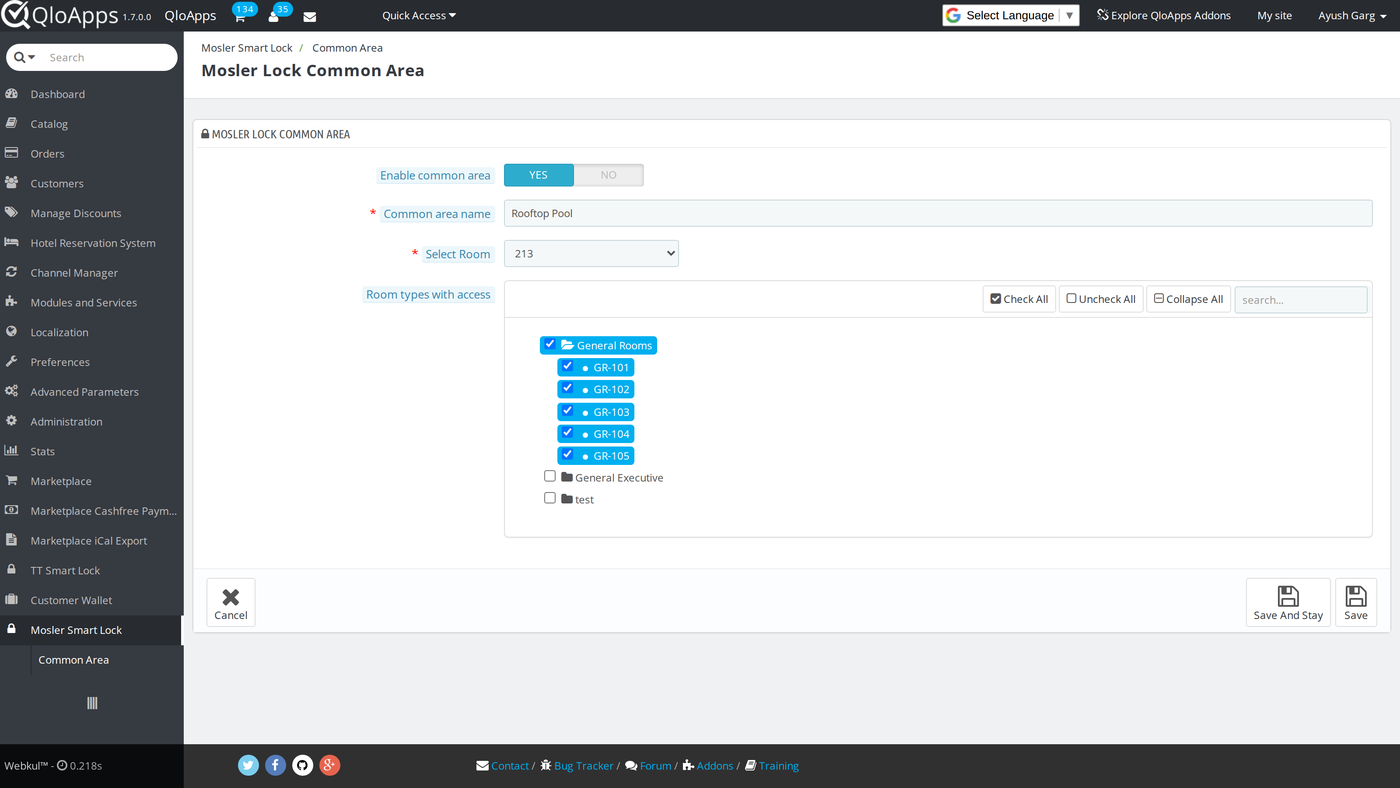
- On the common area form, set the fields below.
- Enable common area — a switch, on by default.
- Common area name — a free-text label for identification.
- Select Room — the Mosler room mapped to this common area’s lock. Required.
- Room types with access — a checkbox tree of the hotel’s room types. Check the room types whose guests should get access to this common area. Leave every box unchecked to allow every room type at the hotel, with no restriction.
Managing Guest Access on a Booking
Every booking’s order page shows a Mosler Access panel with one row per room or common area the guest has access to:
- Room Type | Duration and QloApps Room / Common Area identify what the row is for.
- Mosler Room shows the mapped Mosler room, or Not Generated if the room still needs mapping.
- eKey, Lock ID, and Passcode show whatever Mosler has issued for that row, or Not Generated.
- Action shows the row’s live status and lets staff act on it: Mapping Required when no Mosler room is mapped yet, Scheduled or Generating… while a request is in progress, Remote Unlock and Revoke Access once access is active. If a row needs recreating, use Regenerate Access instead.
- Send email resends the access email for that row once access is active.
For example, a Send all access email button at the top of the panel resends every active row’s access email in one click.
Conclusion
The QloApps Mosler Smart Lock Connector keeps guest lock access in sync with your bookings, from the first hotel-to-site mapping through automatic eKey issuance. It also handles common-area restrictions and revocation at checkout. This guide walked through installing the module, entering your Mosler credentials, mapping hotels, rooms, and common areas, and then managing access on individual bookings from the order page.
Additionally, to learn more about the functionality of QloApps, you can visit this link: All-in-One Property Management System. For technical assistance, raise a ticket at QloApps Support. In case of any query, issue, or requirement, please feel free to raise it on the QloApps Forum.
Current Module Version: 1.0.0
Supported QloApps Versions: 1.6.x and 1.7.x

Be the first to comment.