
QloApps Maya Payment Gateway is an add-on module that enables customers to make secure online payments through the Maya (formerly PayMaya) payment gateway on your QloApps hotel booking website.
By installing this module, customers can complete their reservations using secure card payments and other supported payment methods provided by Maya.
This module ensures fast, secure, and seamless online transactions directly integrated with your QloApps booking system.
Features
- Admin can accept secure online payments via the Maya gateway
- Supports credit/debit card payments
- Secure redirection to Maya-hosted payment page
- Automatic order status update after successful payment
- Real-time transaction validation
- Admin can view transaction details in the back office
- Sandbox (Test) and Production (Live) mode support
- Secure payment verification via webhook/callback
Installation
Installation of the module in QloApps is very simple.
Step 1:
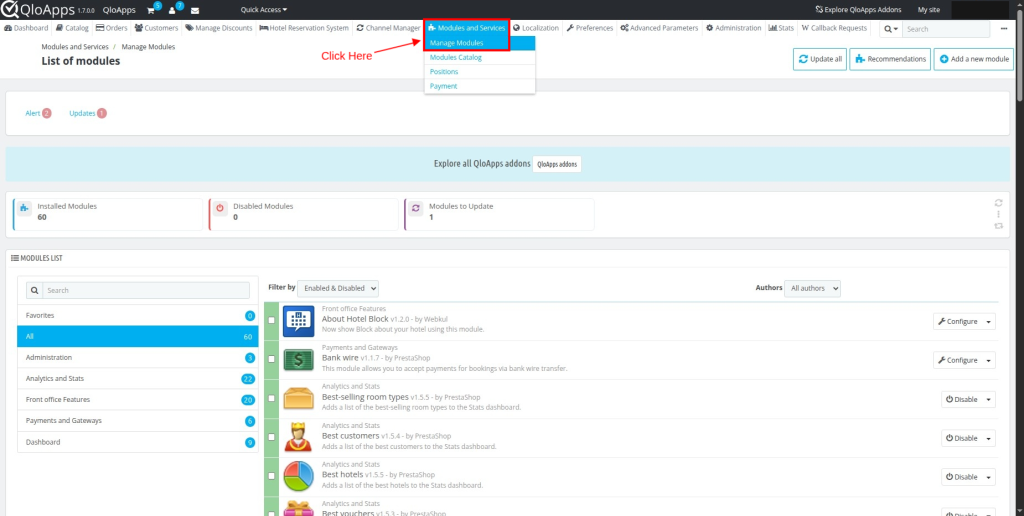
Go to Modules & Services
Step 2:
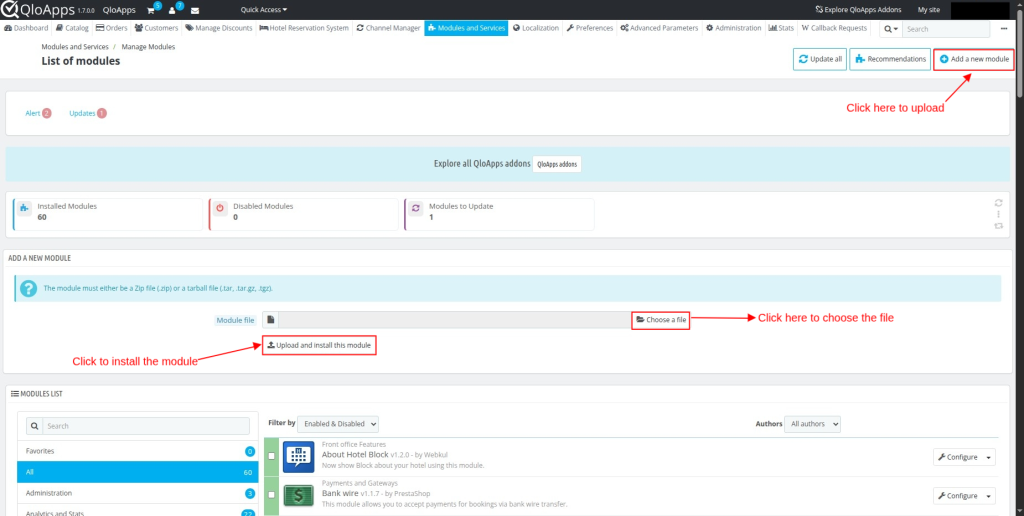
Click on Add New Module
Step 3:
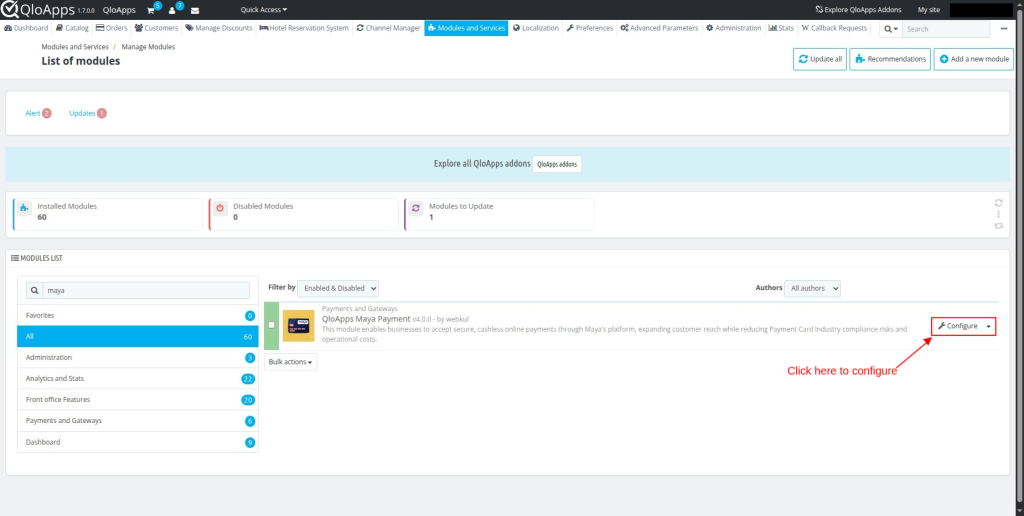
Click Install, and after successful installation, click Configure.
Configuration of QloApps Maya Payment Gateway
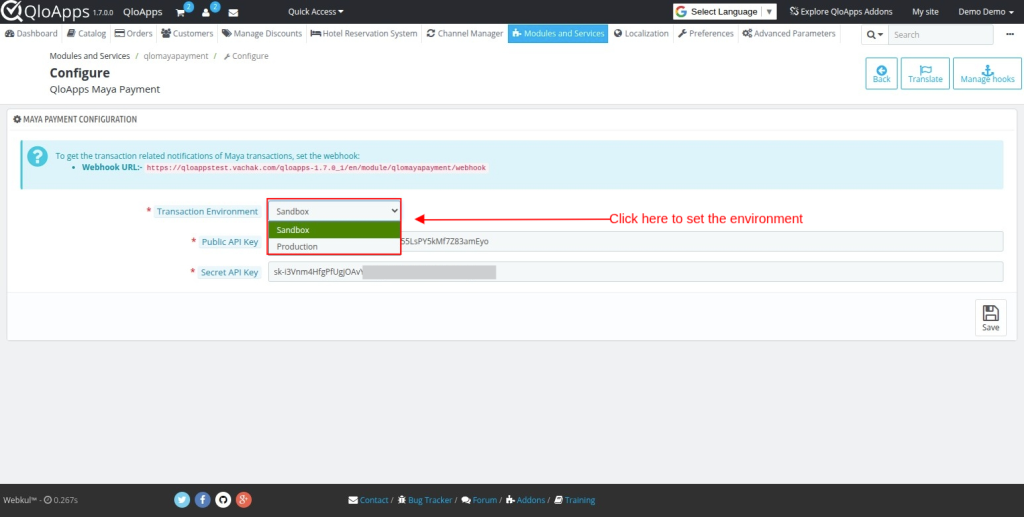
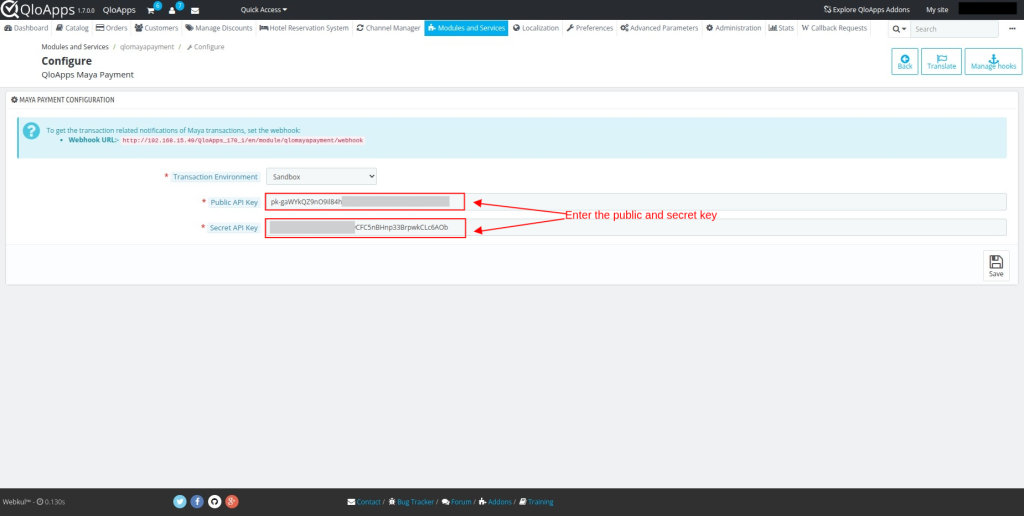
After clicking Configure, the admin will see the Maya configuration panel.
The following credentials are required from your Maya Merchant Account:
- Environment Mode (Sandbox / Production)
- Public API Key
- Secret API Key
Configuration Settings
Environment Mode
- Sandbox Mode (Testing)
- Production Mode (Live Transactions)
API Credentials
Enter the Public and secret API keys provided by Maya.
How to Get API Keys from the Maya Payment Dashboard
To configure the QloApps Maya Payment Gateway module, you need API credentials from your Maya Business (PayMaya) merchant account.
Follow the steps below:
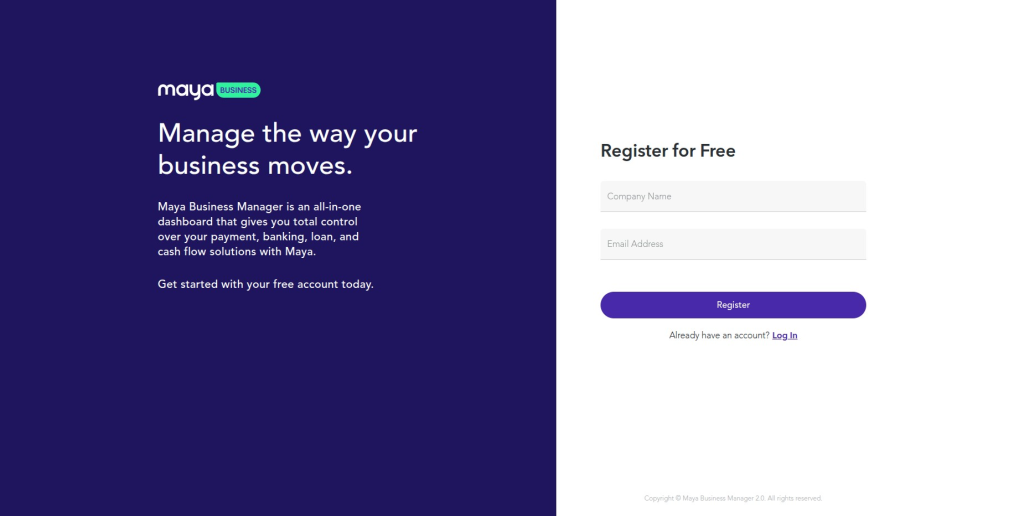
Step 1: Log in to Maya Business Manager
Go to:
👉 https://pbm.paymaya.com/
Log in using your Maya Merchant account credentials.
Step 2: Navigate to the Applications Section
After logging in:
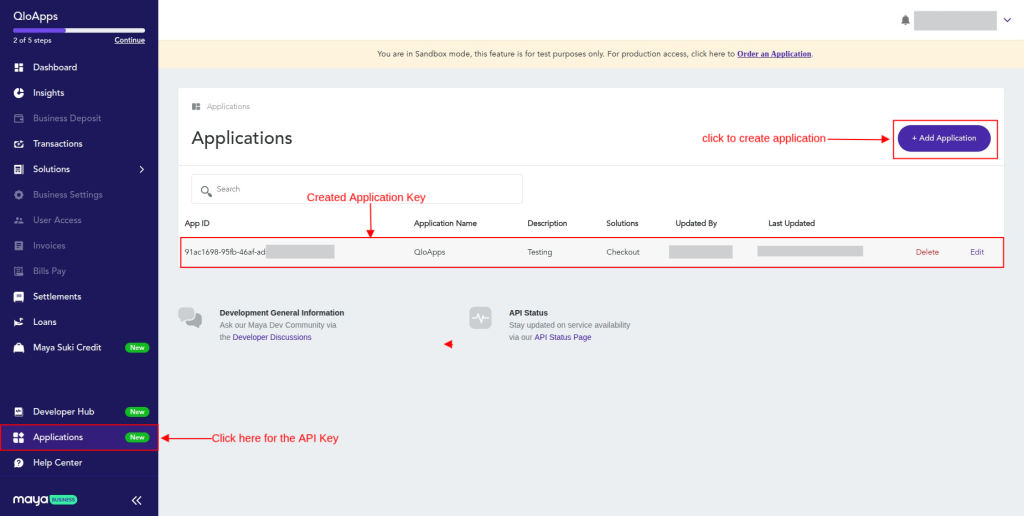
- Click on the “Applications” tab from the dashboard menu.
- Select “Add Application” (to create a new application).
Step 3: Create a New Application
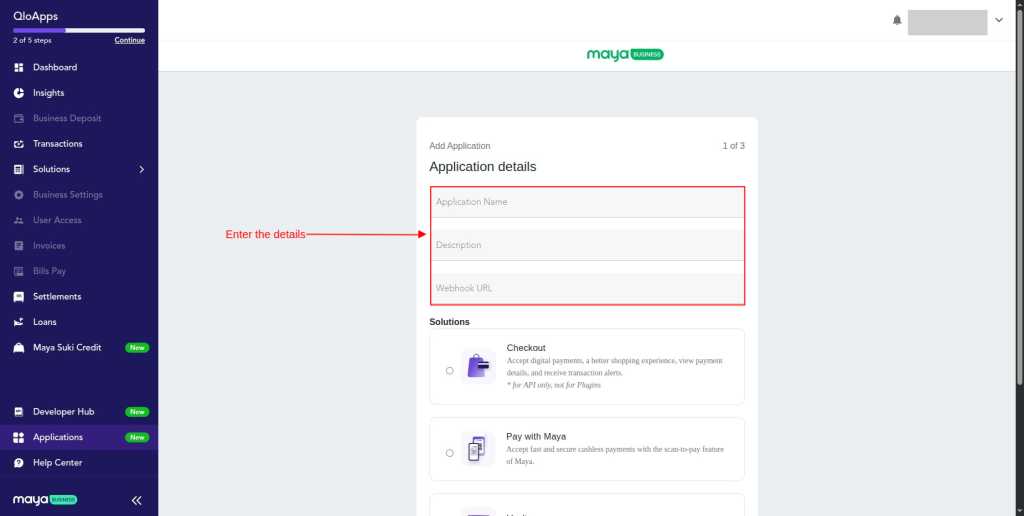
Fill in the required details:
- Application Name (e.g., QloApps Hotel Website)
- Description
- Webhook URL
Enter the webhook URL provided in your QloApps Maya module configuration panel.
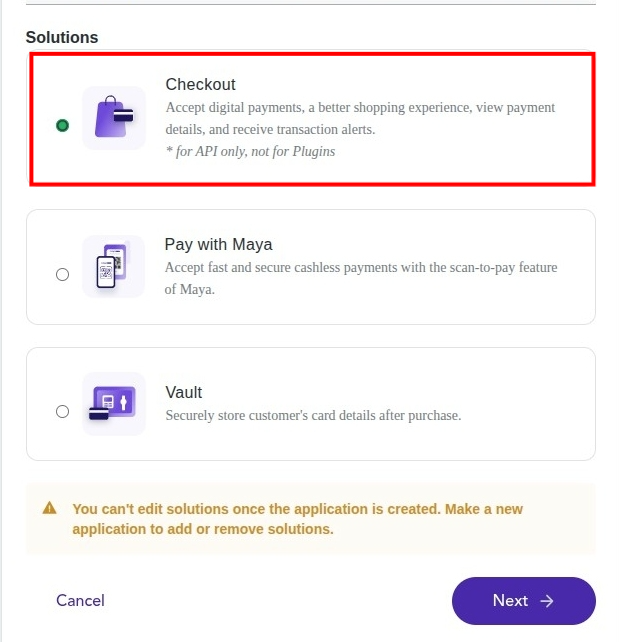
Step 4: Select the Solution type
Once you have entered the Application Name, Description, and Webhook URL.
Select “Checkout” as the solution option and click “Next.”
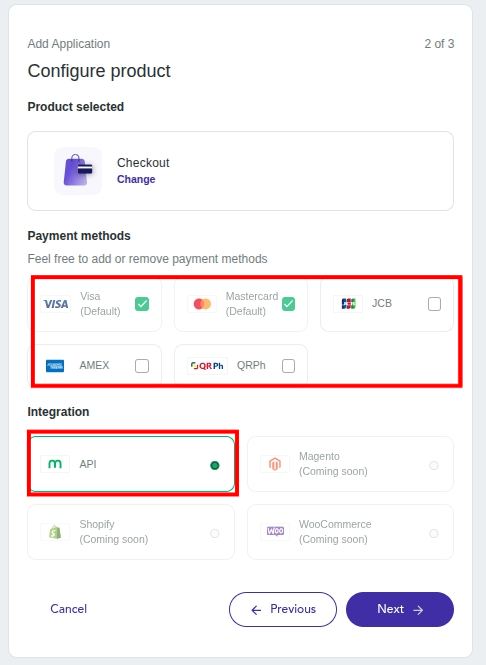
Step 5: Select the Payment Method and Integration type
Please select the suitable payment method and API as the Integration type, and then hit “Next”.
Step 6: Retrieve API Credentials
Once the application is successfully created, you will be able to view:
- Public API Key
- Secret API Key
Copy these credentials and paste them into the QloApps Maya Payment Gateway configuration fields.
Front-End Workflow
After successful configuration, customers will see Maya Payment Gateway as a payment option at checkout.
The customer selects a room and proceeds to checkout, then selects Maya Payment Gateway.
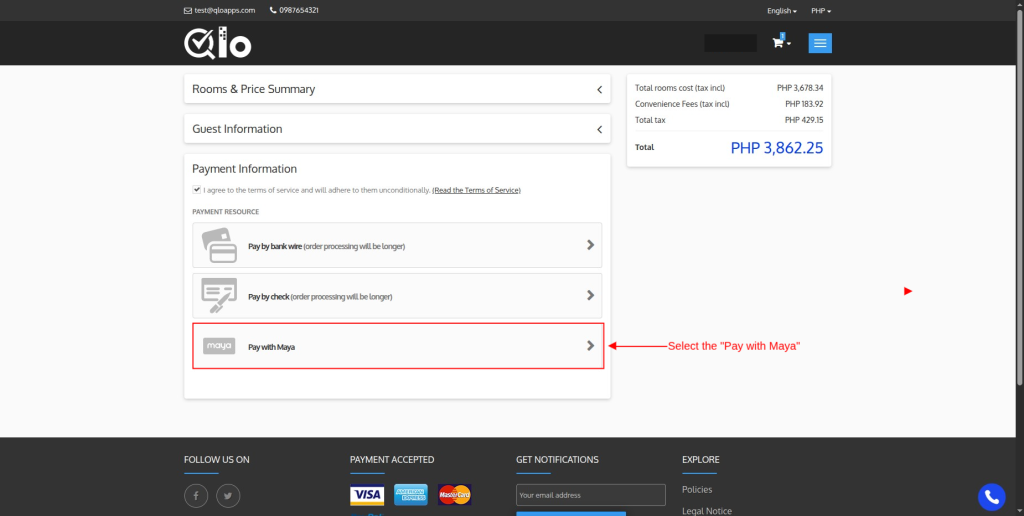
Customer is redirected securely to Maya’s payment page.
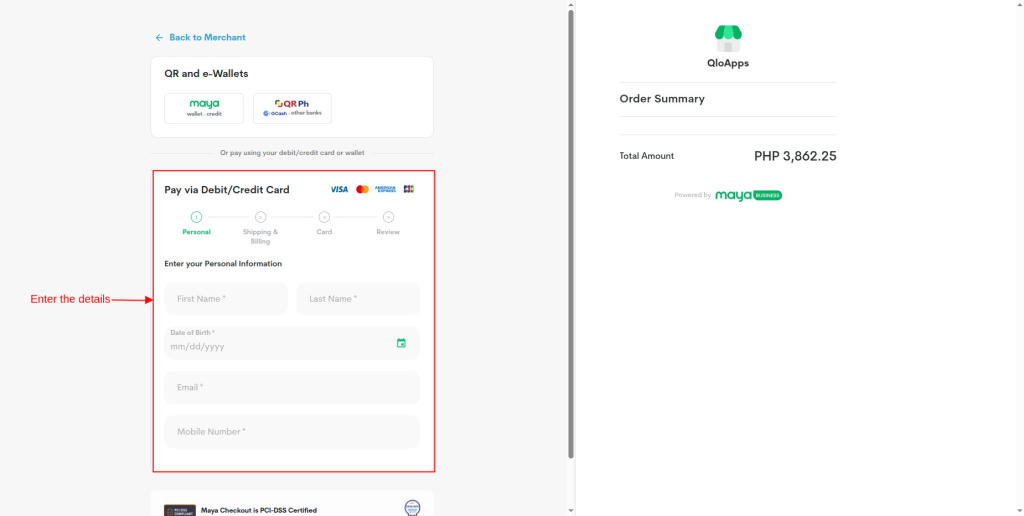
The customer enters the card details and completes payment using the card or a supported payment method.
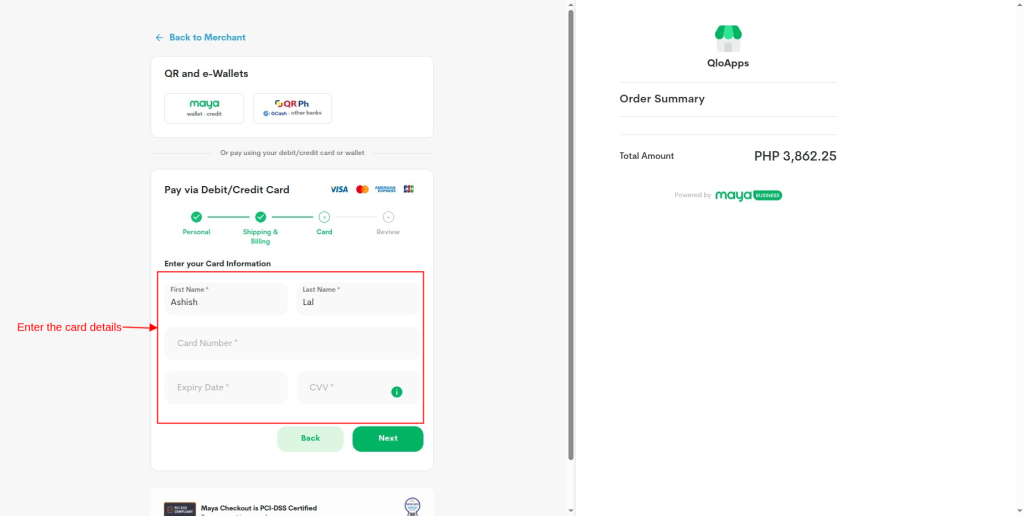
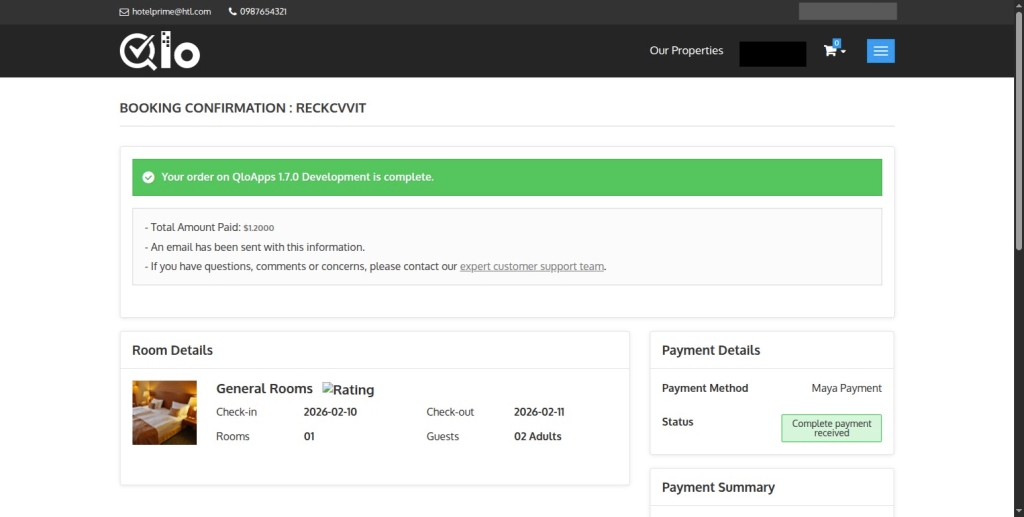
The customer receives a successful status on the payment gateway.
The booking confirmation page is displayed. The order status updates automatically upon successful payment verification.
Backend Transaction Management
The admin can easily monitor payment status and transaction details from the Payment Gateway Transactions tab in the back office.
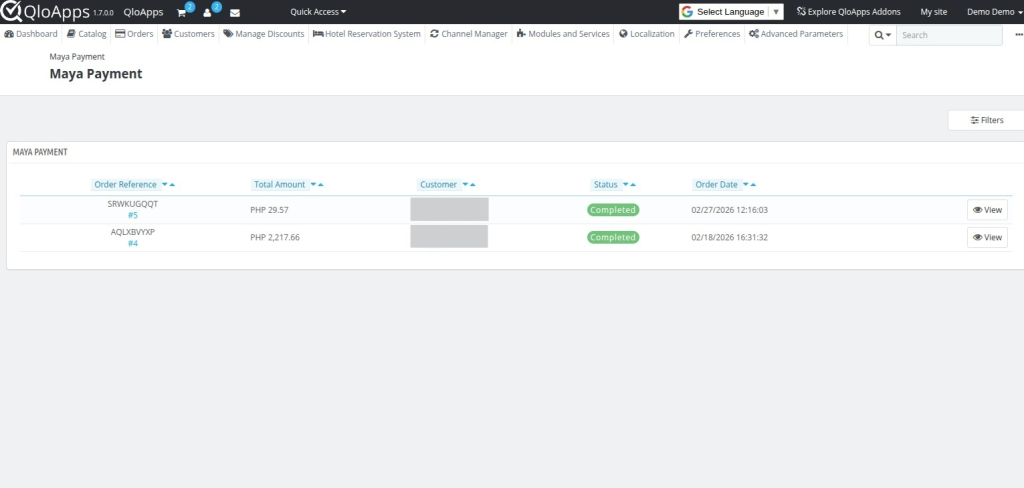
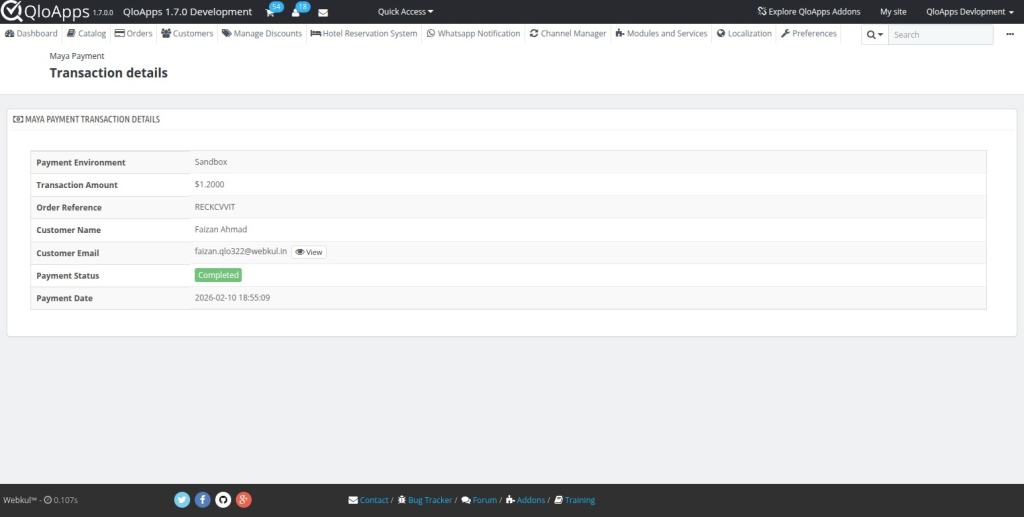
To view complete information for a specific transaction, simply click on View.
This will display detailed transaction data, including payment reference, status, amount, and related order information.
Conclusion
That was all about the “QloApps Maya Payment Gateway” module.
Above all, if you want to learn more about the functionality of QloApps, you can visit this link:
All In One Property Management System – https://qloapps.com/qlo-reservation-system/
In case of any query, issue, or requirement, please feel free to contact our support team.
I hope this blog helped you understand the working and configuration of the QloApps Maya Payment Gateway Module.
Current Product Version – 1.0.1 & 4.0.1
Supported Framework Version – QloApps 1.6. x & 1.7.x

Be the first to comment.