
Running a hotel means constantly asking the same questions. Who is arriving tomorrow? How full were we last week? How much did we actually collect after refunds and tax? QloApps Marketplace Hotel Reports answers them from one place: all your hotel reports, ready-made and added straight to the Stats section of your back office.
If you run a marketplace, your sellers get the same reports too, limited to their own hotels. Sellers open them from their account, and you decide whether they can download the data as CSV. No exports to stitch together, no spreadsheets to rebuild every morning.
Compatibility
- QloApps v1.7.0.0 and above
- Requires the Marketplace module to be installed
Features
- All reports in the back-office Stats menu, each as its own tab: reservations, revenue, occupancy, channels, guests and property.
- Filter by hotel and room type on every booking, revenue and occupancy report.
- Filter reservations by booking status, booking source and order status.
- Property Source filter (All / Admin / Sellers) and a Seller filter, so you can separate your own hotels from marketplace hotels.
- Totals at the bottom of the report tables.
- Revenue figures such as ADR (Average Daily Rate) and RevPAR (Revenue Per Available Room).
- Room status view: vacant, occupied, under maintenance and out of order.
- CSV Export button on the reports.
- Stats page for marketplace sellers, limited to the seller’s own hotels.
- Allow or deny seller CSV export for all sellers or for individual sellers.
Installation
- Go to Modules and Services > Manage Modules.
- Click Add a new module.
- Click Choose a file and select the module zip.
- Click Upload and install this module.
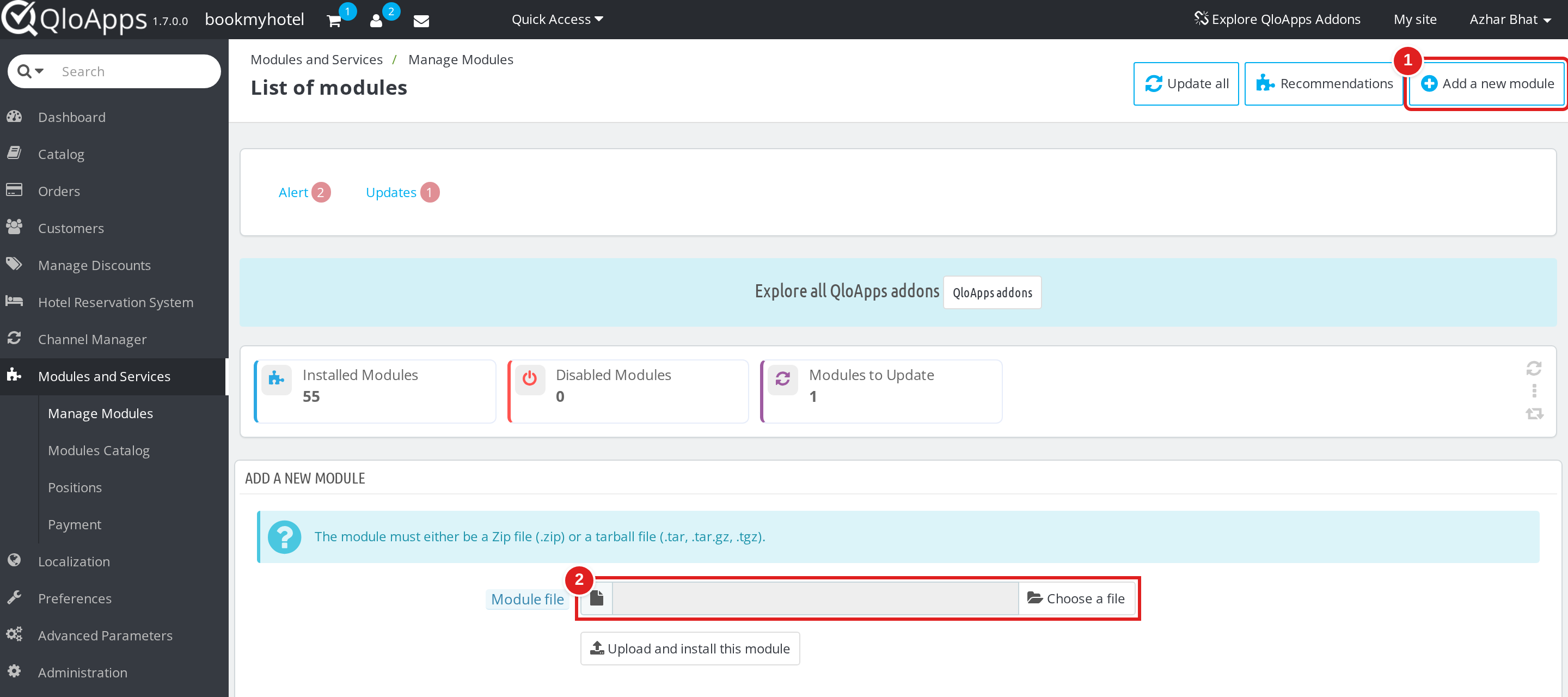
Once installed, the module appears in your module list under Analytics and Stats.

Configuration
Click Configure on the module. The configuration page has one panel, Seller CSV export, which controls whether marketplace sellers can download their reports as CSV.
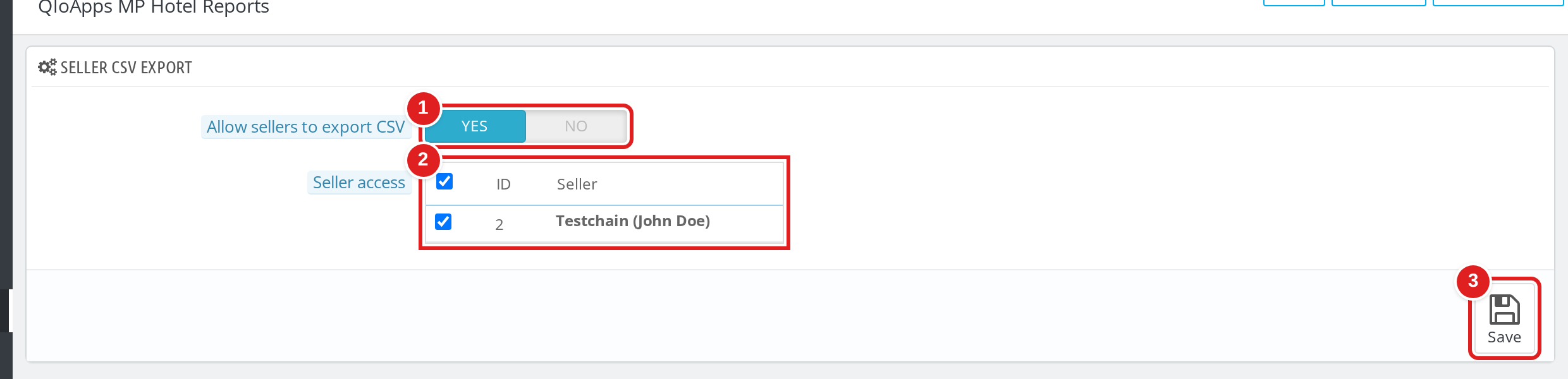
Allow sellers to export CSV (①)
This is the master switch. Set it to No and no seller sees the CSV Export button, whatever is selected below.
Seller access (②)
Choose which sellers can export. Only the sellers you tick see the CSV Export button. Use the checkbox in the table header to select every seller at once. Only active sellers are listed.
Save (③)
Click Save. You will see the “Settings updated.” confirmation.
Reports in Your Back Office
Open Stats in the back office. All reports are listed in the left menu, below the standard QloApps stats.
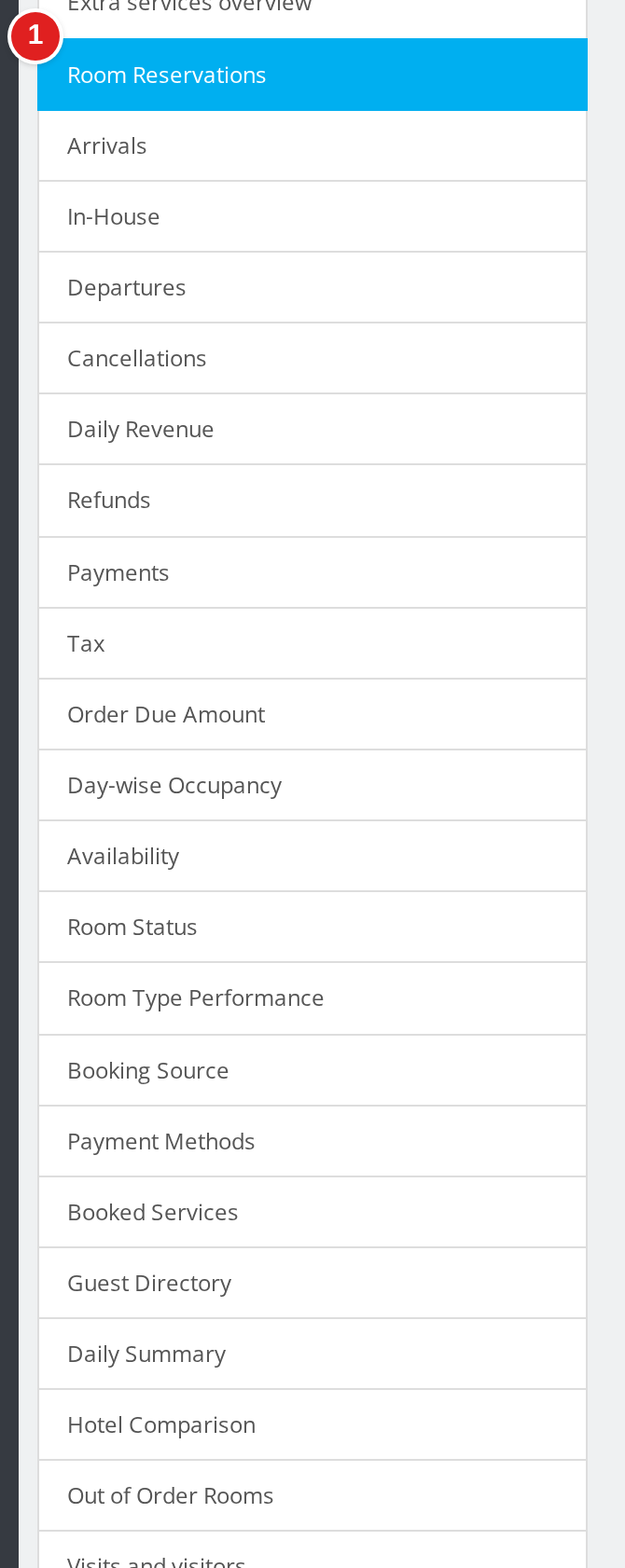
Every report uses the date range bar at the top of the Stats page. Pick a range, press Save, and every report follows it.
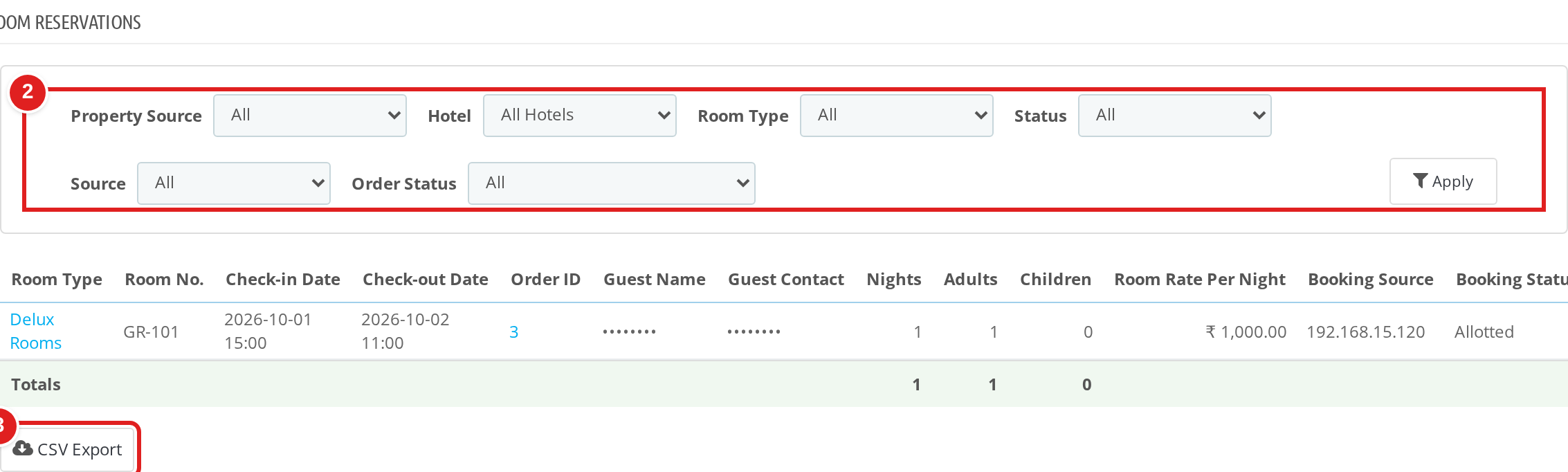
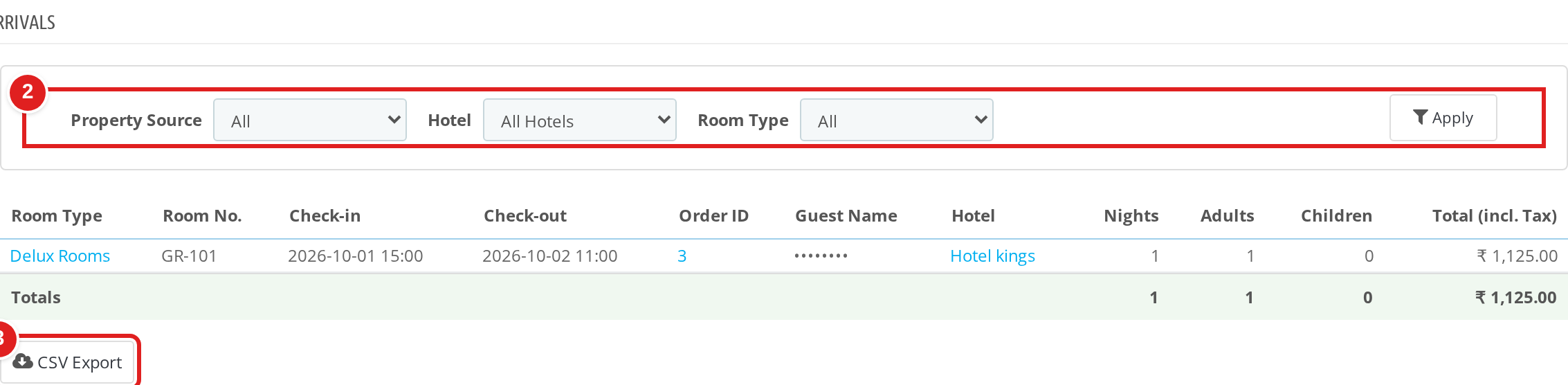
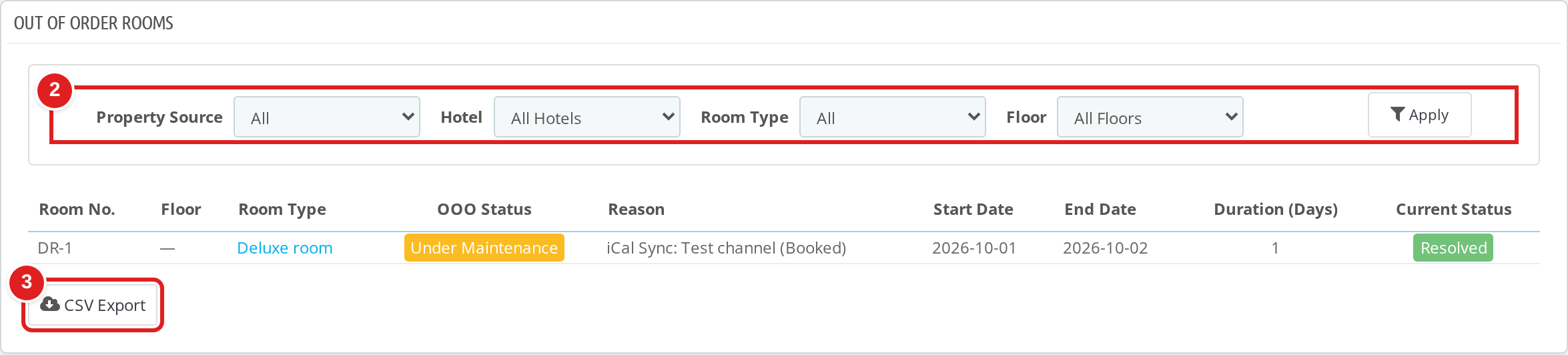
Most reports start with the same filter panel: Property Source, Hotel and Room Type. Click Apply after changing a filter. The CSV Export button sits under each table.
Bookings
Five reports cover the booking flow: Room Reservations, Arrivals, In-House, Departures and Cancellations.
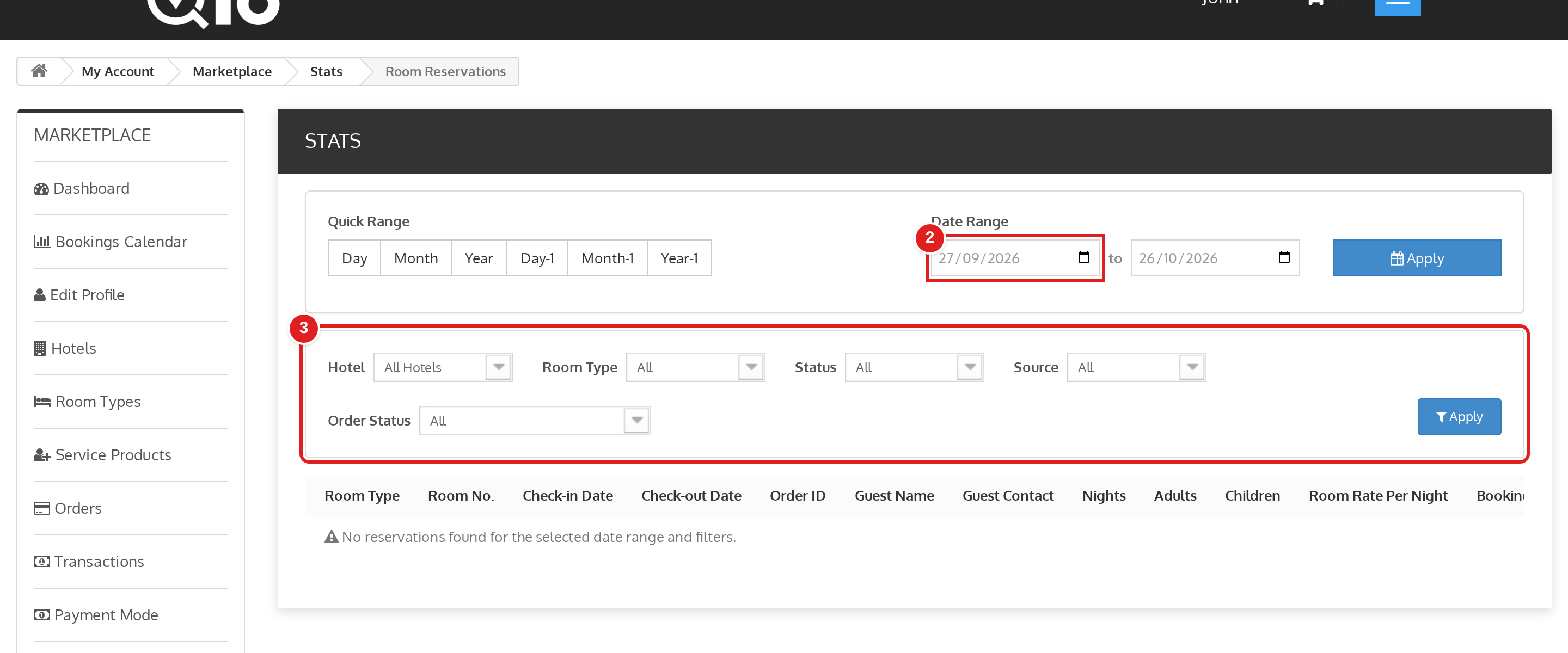
Room Reservations lists every booked room with its room type, room number, check-in and check-out dates, order ID, guest details, nights, adults, children and rate. On this report only, you can also filter by Status, Source and Order Status (②).
Arrivals shows who is checking in during your date range, so front desk staff know what to prepare.
Revenue and Payments
Five reports cover the money side: Daily Revenue, Refunds, Payments, Tax and Order Due Amount.
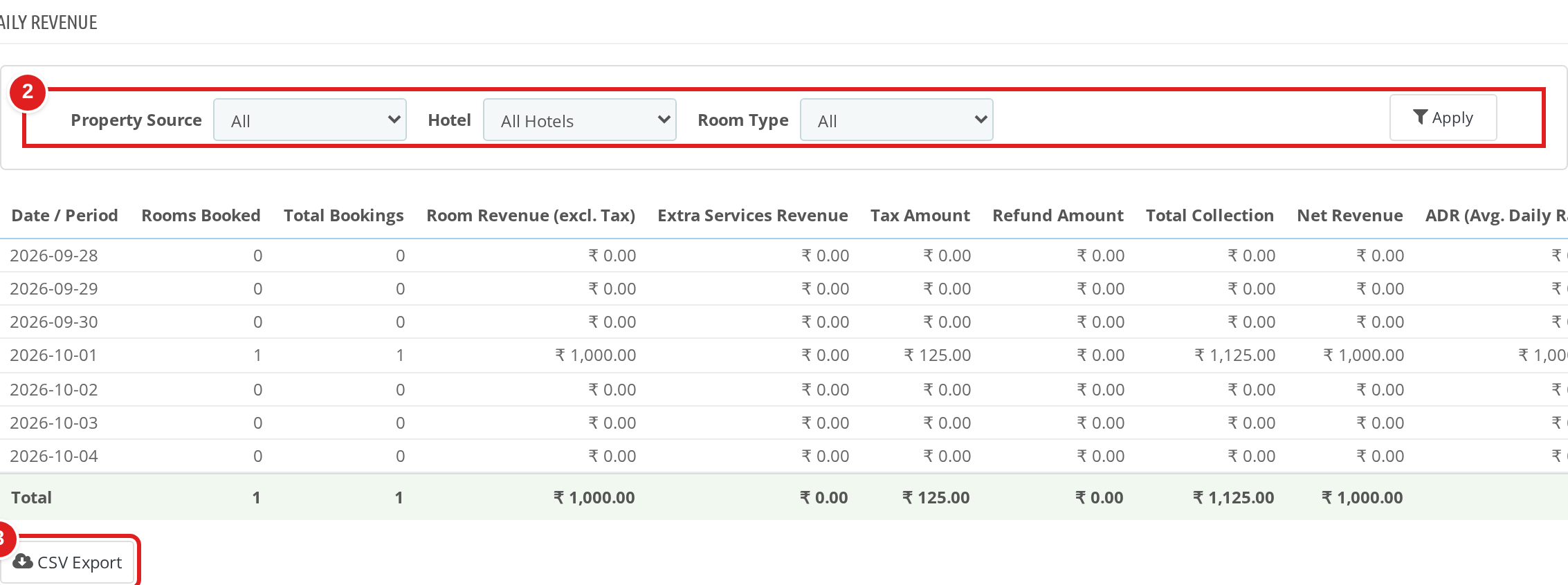
Daily Revenue breaks each day into rooms booked, total bookings, room revenue (excluding tax), extra services revenue, tax, refunds, total collection, net revenue and ADR. A totals row sums the period.
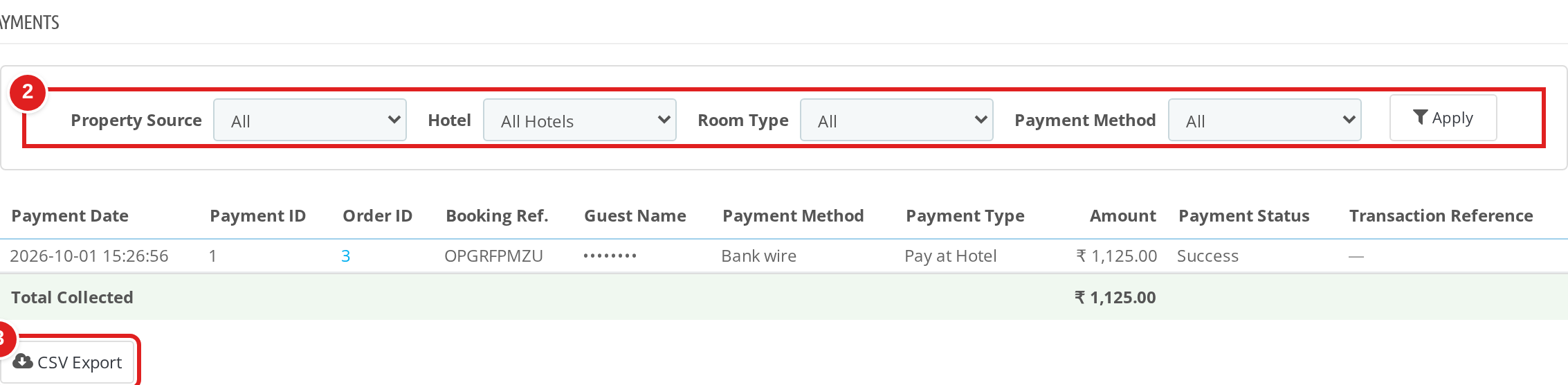
Payments lists each payment with its method, type, status and transaction reference. Tax summarises taxable amount and tax collected, with a summary by tax type. Order Due Amount shows outstanding balances so you can follow up on unpaid bookings.
Occupancy and Availability
Four reports show how full the property is: Day-wise Occupancy, Availability, Room Status and Room Type Performance.
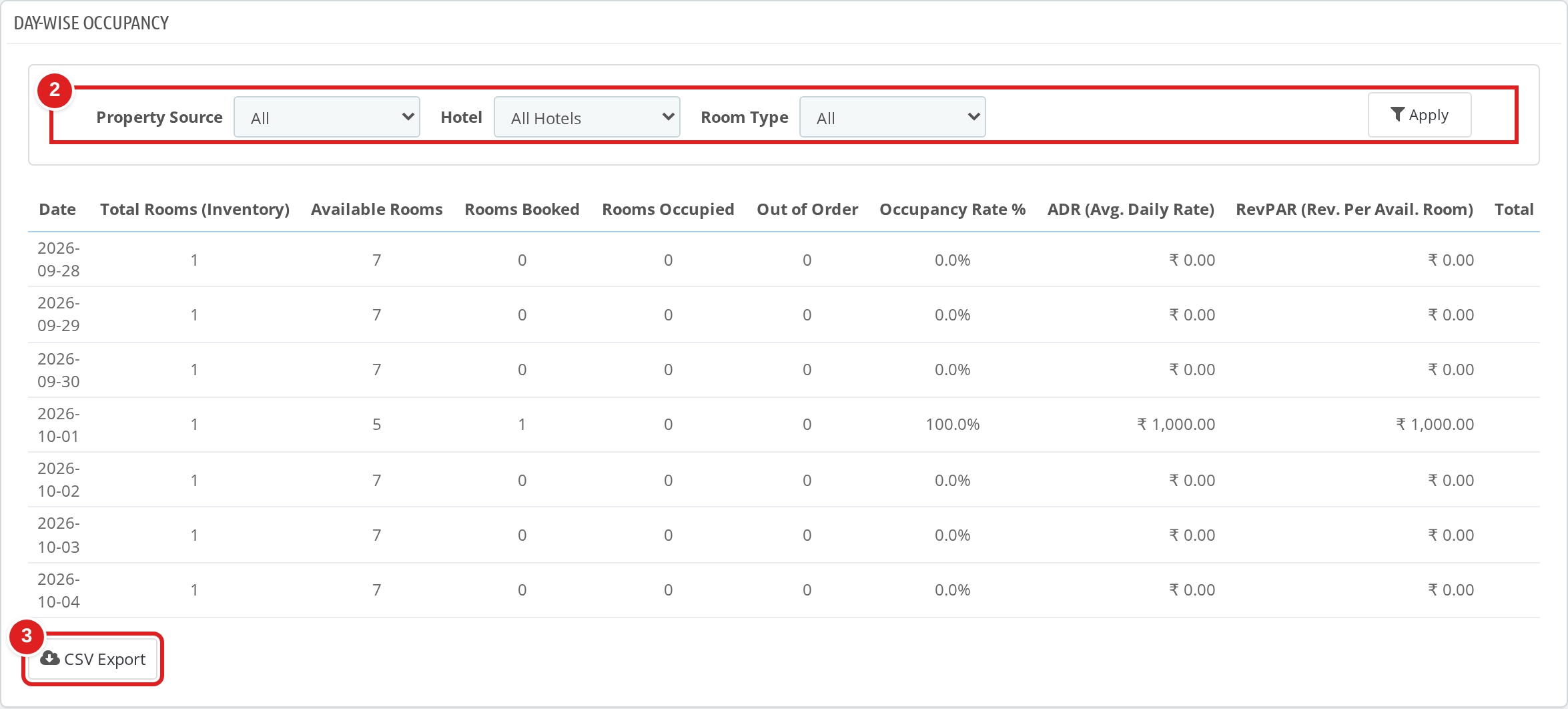
Day-wise Occupancy shows, per date, your inventory, available rooms, rooms booked, rooms occupied, out-of-order rooms, occupancy rate, ADR and RevPAR.
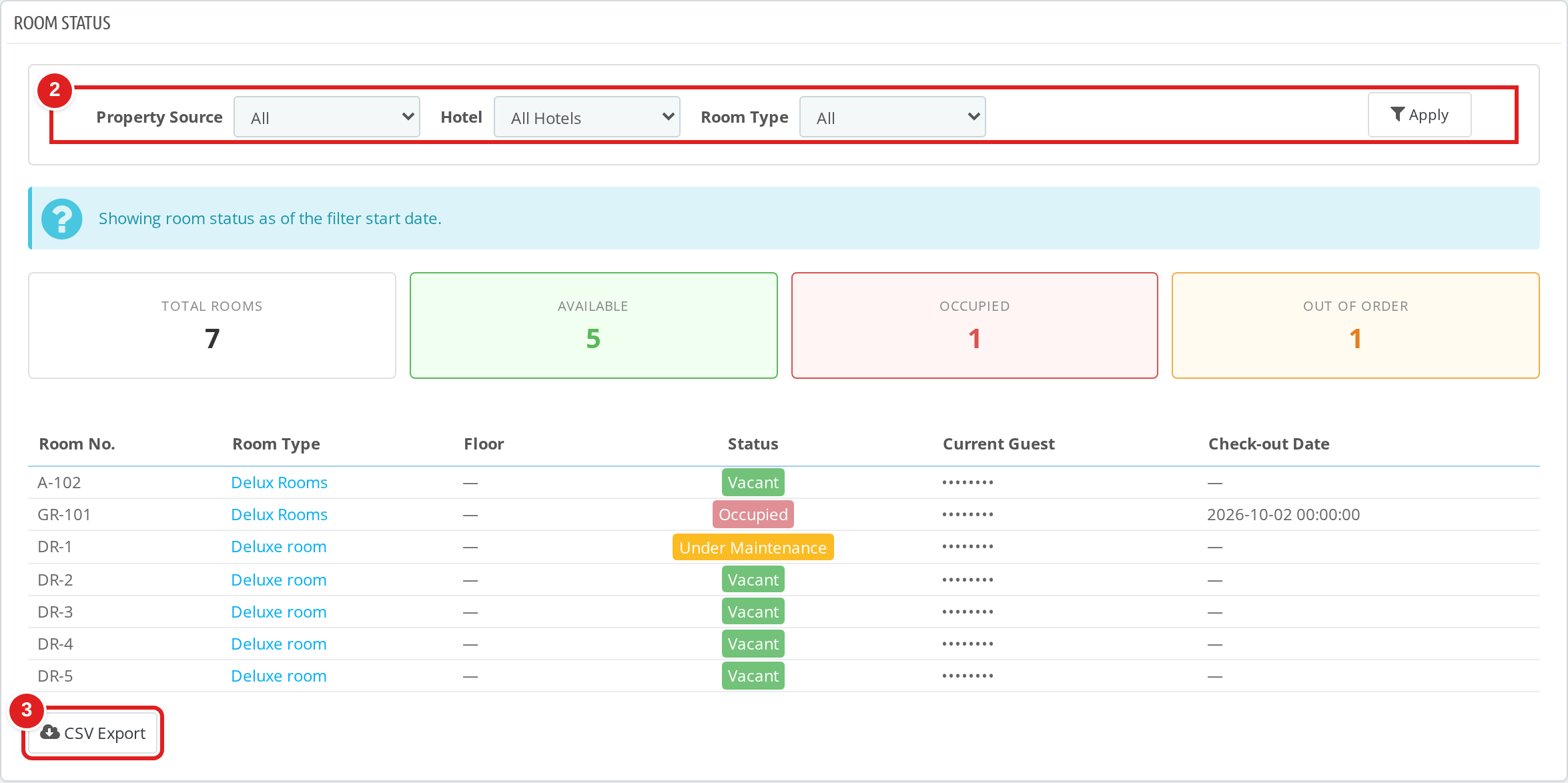
Room Status shows the state of every room as of the start of your date range. Summary cards give you total, available, occupied and out-of-order rooms at a glance, and the table marks each room as Vacant, Occupied or Under Maintenance.
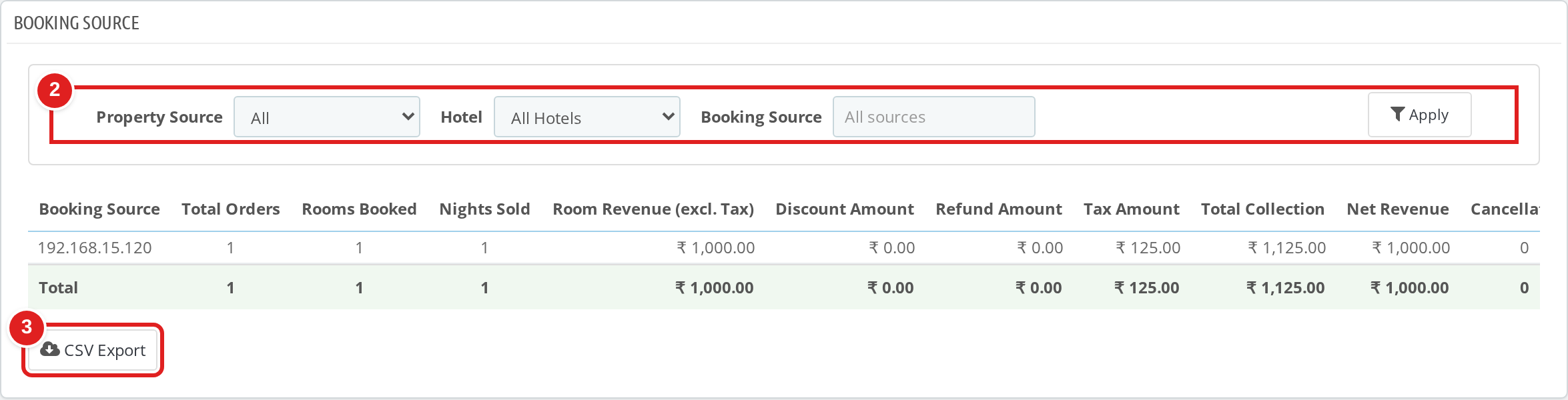
Booking Channels
Booking Source and Payment Methods show where your bookings come from and how guests pay.
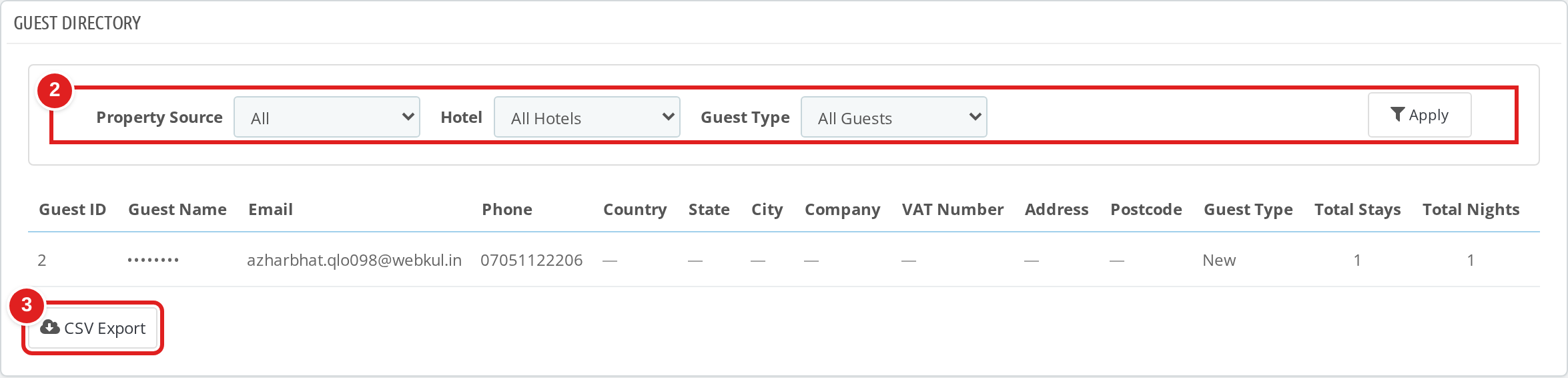
Guests
Booked Services and Guest Directory cover what guests buy and who they are.
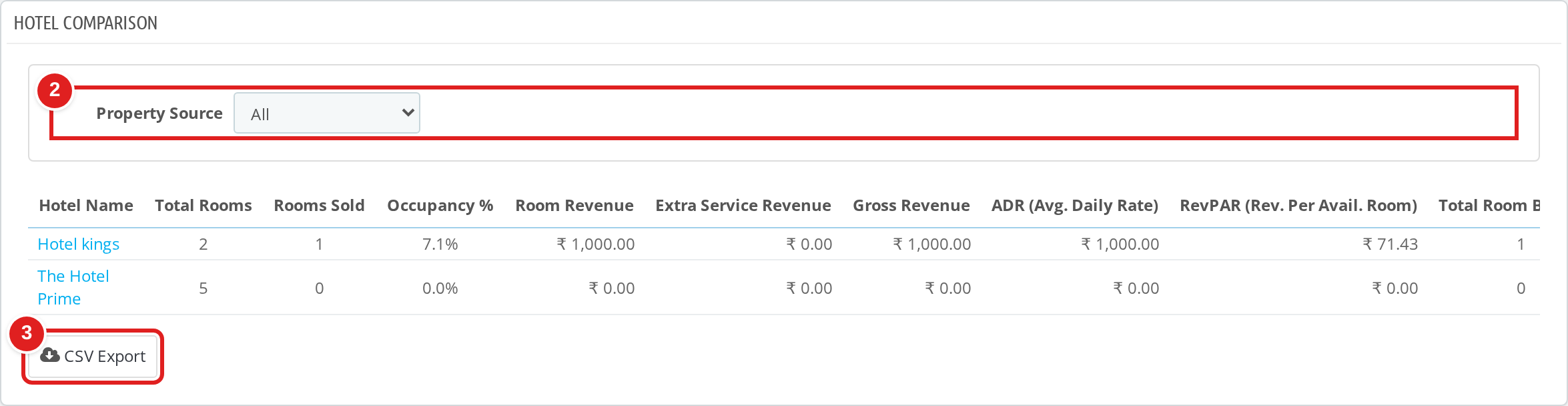
Property Overview
Daily Summary, Hotel Comparison and Out of Order Rooms give a whole-property view.
Hotel Comparison puts your hotels side by side: total rooms, rooms sold, occupancy, room revenue, extra service revenue, gross revenue, ADR and RevPAR.
Out of Order Rooms lists rooms that are unavailable, with their status and reason, so housekeeping and maintenance stay in sync with the booking team.
Exporting a report
Every report has a CSV Export button (③) under its table. Apply your filters first, then export, to download the report as a CSV file.
Reports for Marketplace Sellers
If you run the Marketplace module, your sellers get a Stats page of their own. Sellers only see reports for their own hotels.
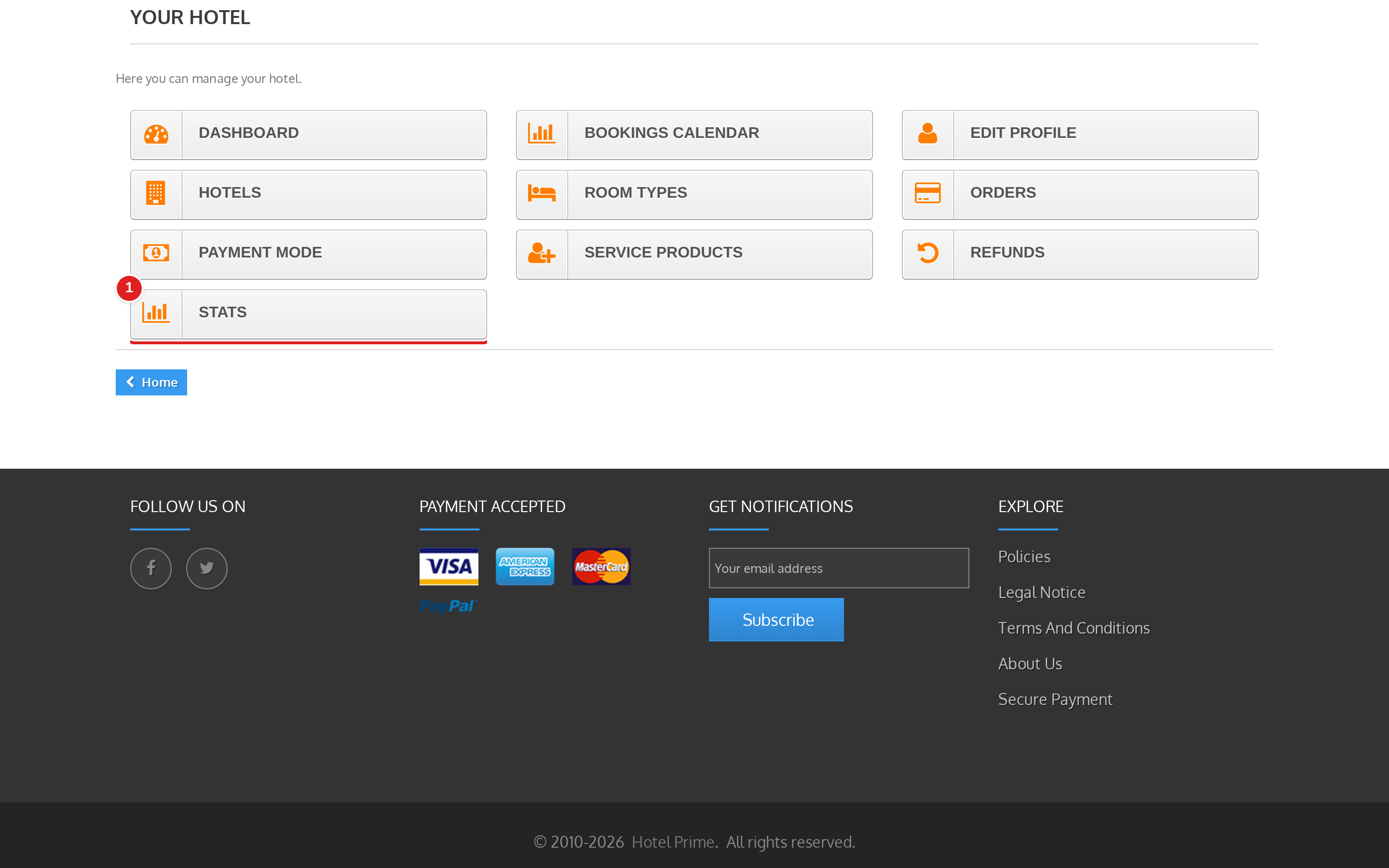
On the seller’s account page, a Stats tile appears in the Your Hotel section (①). Only active sellers see it.
The Stats page opens inside the familiar Marketplace layout. The left menu lists each report under Stats. At the top, the seller picks a quick range (Day, Month, Year, Day-1, Month-1, Year-1) or enters a custom date range (②). Below it, filters narrow the report by hotel, room type, status, source and order status (③).
Sellers can only see the CSV Export button if you allowed it in the module configuration, either for all sellers or just for the ones you chose.
Conclusion
QloApps Marketplace Hotel Reports gives you the numbers you need to run the property every day: arrivals, occupancy, revenue, refunds, tax and room status. It does this without leaving the back office, and your marketplace sellers get the same view for their own hotels. You stay in control of who can export data.
For help with the module, visit the Webkul support page.

Be the first to comment.