
QloApps Marketplace Cashfree Payment lets a hotelier running a marketplace take booking payments through Cashfree.
It splits every payment between the hotel sellers and the marketplace admin automatically.
This guide covers the Back Office settings, the seller onboarding form, the guest checkout, the transaction and refund screens, and the Cashfree panel on the booking page.
NOTE: This module needs the QloApps Marketplace module (version 5.0.0 or later) installed first, and a Cashfree account.
It shows the Cashfree option at checkout only when the booking currency is INR and the guest has a phone number on their address.
Cashfree sends payment, settlement and refund updates to a webhook, and that webhook works only on a server that Cashfree can reach over the internet.
Features of QloApps Marketplace Cashfree Payment
- Accept booking payments through Cashfree from the checkout page
- Switch between Cashfree Test and Live mode with a separate App ID and Secret Key for each
- Split every payment between the sellers’ hotels and the admin commission using Cashfree EasySplit
- Choose Standard or Delayed settlement for seller payouts
- Let sellers connect their own Cashfree account from the front office with bank or UPI payout details and KYC
- Check seller account status from the Back Office, from the seller’s own page, or with a cron job
- Track every Cashfree transaction with its payment status and settlement status
- Refund a transaction in full or in part, with Standard or Instant refund speed
- Update booking payment, settlement and refund status from Cashfree webhooks
How to Install QloApps Marketplace Cashfree Payment
Install and set up the Marketplace module before you start, because the Cashfree module refuses to install without it. It also needs Marketplace version 5.0.0 or later.
- In the Back Office go to Modules and Services › Modules and Services and click Add a new module.
- Click Choose a file next to Module file and select the module ZIP that you downloaded from the Webkul Store.
- Click Upload and install this module. When the upload finishes, search the list for “Cashfree” to confirm that the module is installed.
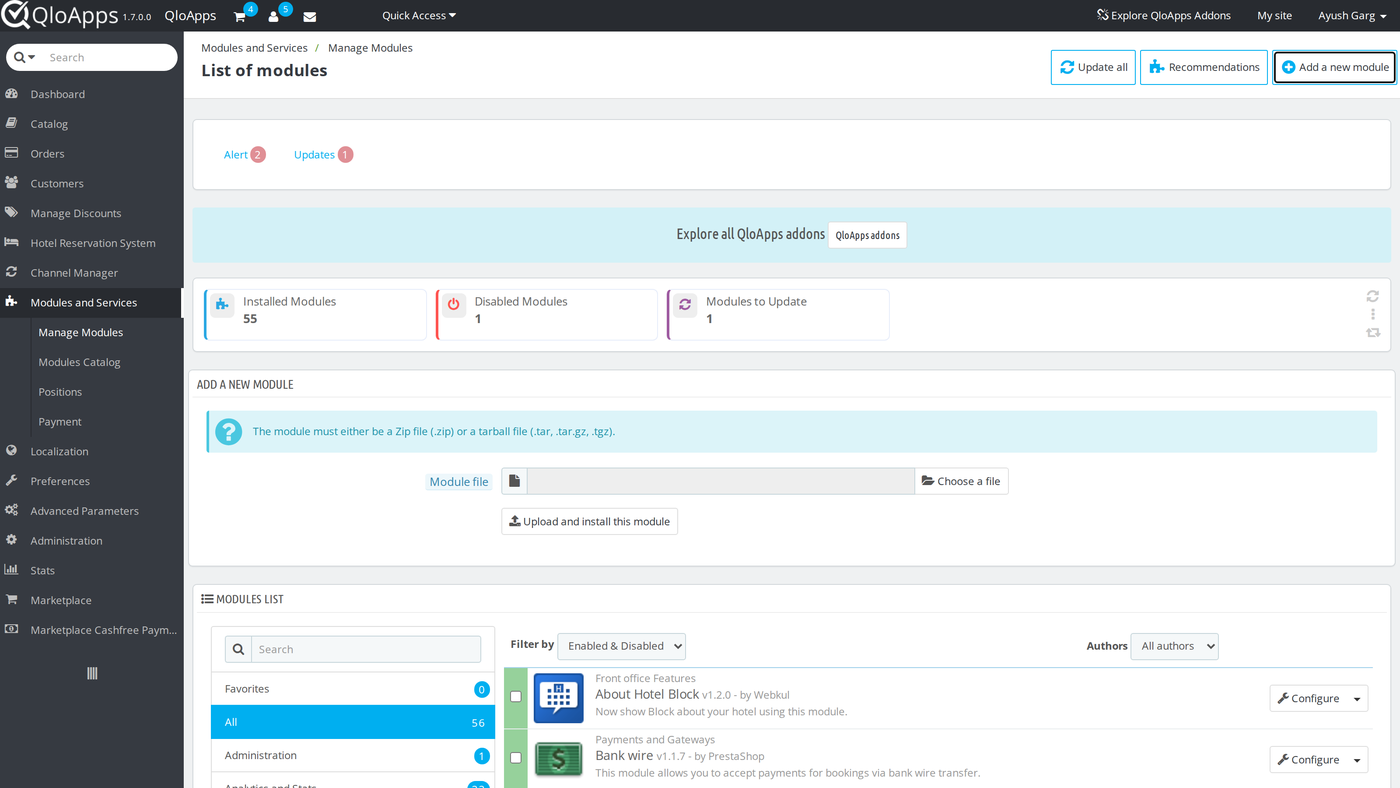
After the install, the module appears in the module list. Click Configure to open its settings, or use the new menu in the left sidebar.
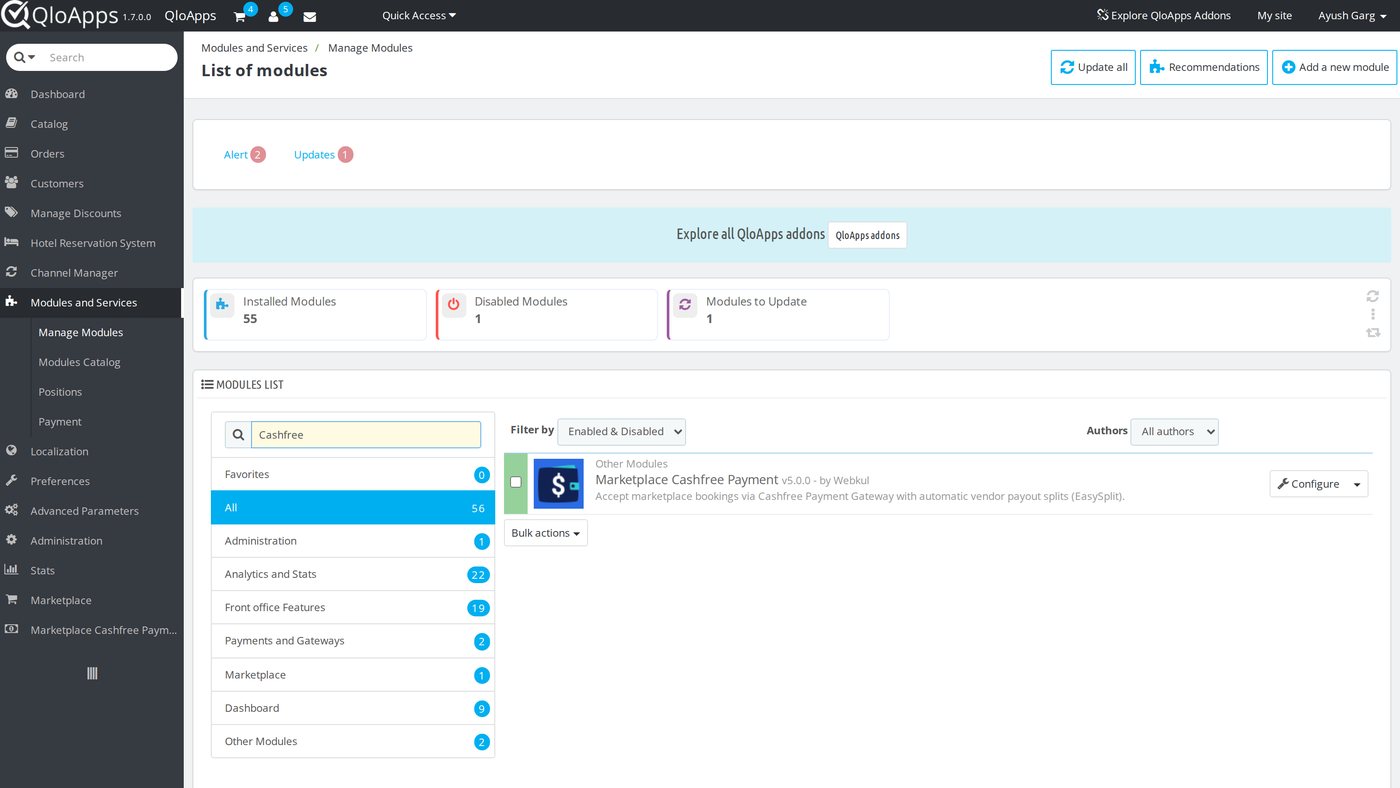
The install adds a new sidebar menu, Marketplace Cashfree Payment, with three entries: Transactions, Sellers onboarding and Configuration.
It also sets these defaults: Cashfree disabled, Test environment, Standard settlement, a settlement delay of 1 day, the seller sync switch on, and the cron job off.
Configuration of QloApps Marketplace Cashfree Payment
Go to Marketplace Cashfree Payment › Configuration. The page has three forms, and each form has its own Save button. As a result, saving one form does not save the others.
After each save, QloApps shows “Configuration Values Updated Successfully!”.
General Configuration
The top of the page shows an Important Information box with three reminders. Cashfree service charges apply on the Live environment according to your Cashfree pricing plan.
A guest phone number is required for Cashfree payments, so make the phone number a required field for guests.
Sellers can only be offboarded from the Cashfree Dashboard by deleting or blocking the seller account.
Below it, the Cashfree Configuration form has these fields:
- Enable Cashfree: turns the Cashfree payment option on or off at checkout. The default is No.
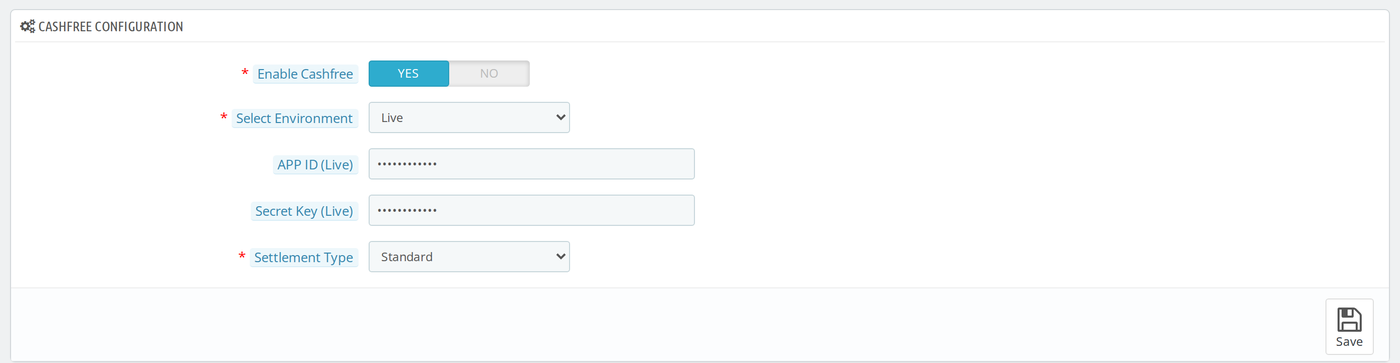
- Select Environment: choose Test for trial payments or Live for real payments. The default is Test. The form shows only the App ID and Secret Key fields for the environment you pick.
- APP ID (Test) and Secret Key (Test): the sandbox keys from your Cashfree account. Both are empty by default.
- APP ID (Live) and Secret Key (Live): the production keys from your Cashfree account. Both are empty by default.
- Settlement Type: how Cashfree pays the sellers. The default is Standard.
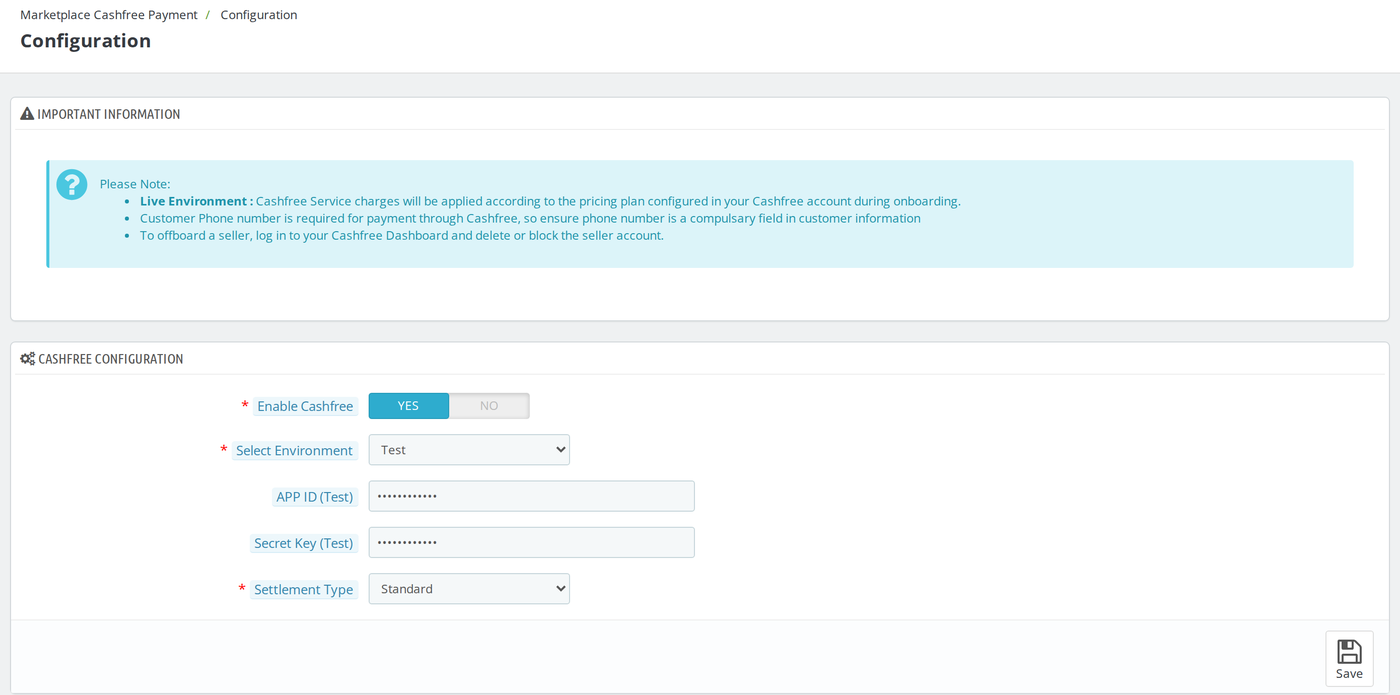
When you save with Enable Cashfree set to Yes, the App ID and Secret Key for the selected environment must not be empty.
In addition, both can contain only letters, numbers, hyphens and underscores, and they cannot be the same value.
Test and Live Environments
Select Live and the Test keys disappear and the Live keys appear:
Settlement Options
Set Settlement Type to Standard and Cashfree starts the seller settlement within 1 to 2 business days of the payment. Set it to Delayed and a new field appears:
- Settlement Delay (Days): the number of days Cashfree waits after a successful payment before it settles the seller. The default is 1. It must be a positive number, and it cannot be more than the “Delayed Days” limit in your Cashfree dashboard.
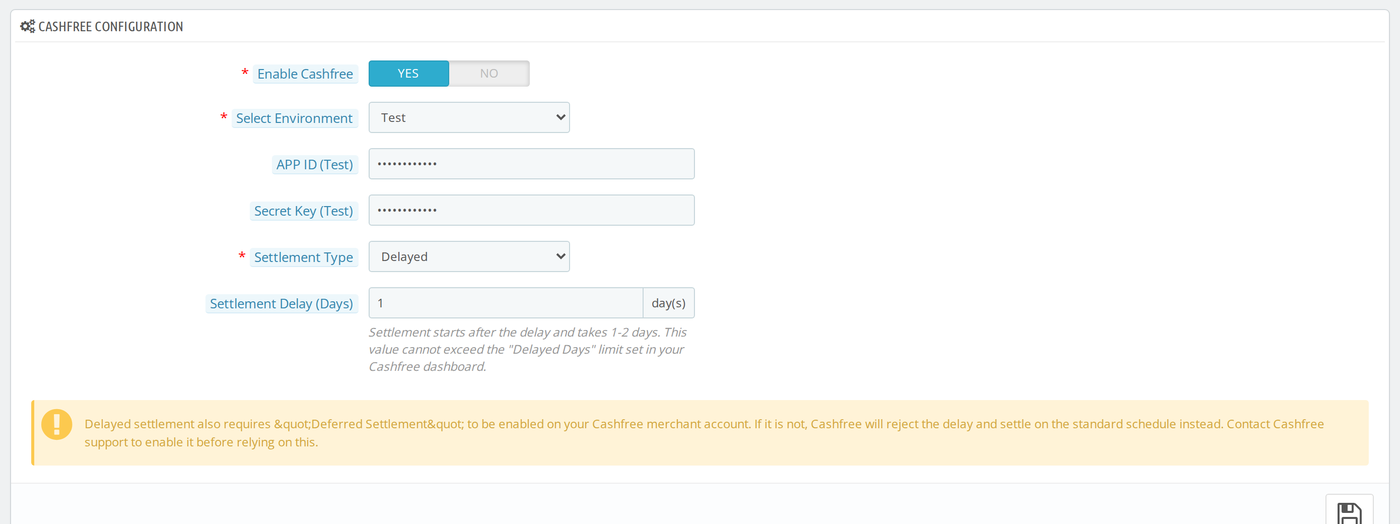
The yellow warning under the field is a reminder that Delayed settlement also needs “Deferred Settlement” turned on in your Cashfree account.
However, the module cannot check this setting.
If it is off, Cashfree ignores the delay and settles on the standard schedule, so ask Cashfree support to turn it on before you rely on a delay.
Seller Onboarding and Cron Job Configuration
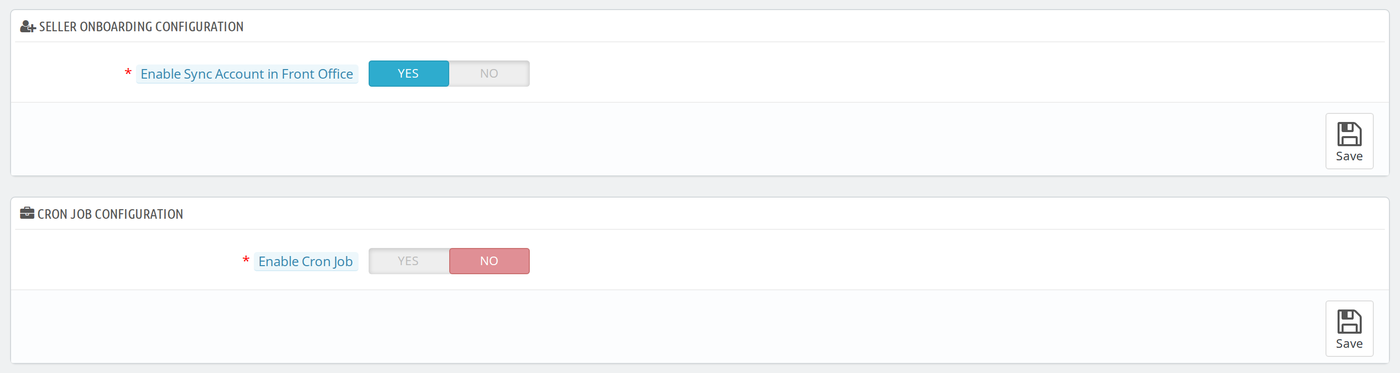
Two more forms sit below the main form:
- Enable Sync Account in Front Office: shows the Sync Account button on the seller’s Cashfree page in the front office. The default is Yes.
- Enable Cron Job: lets the cron job described below run. The default is No.
Cron Job and Webhook Details
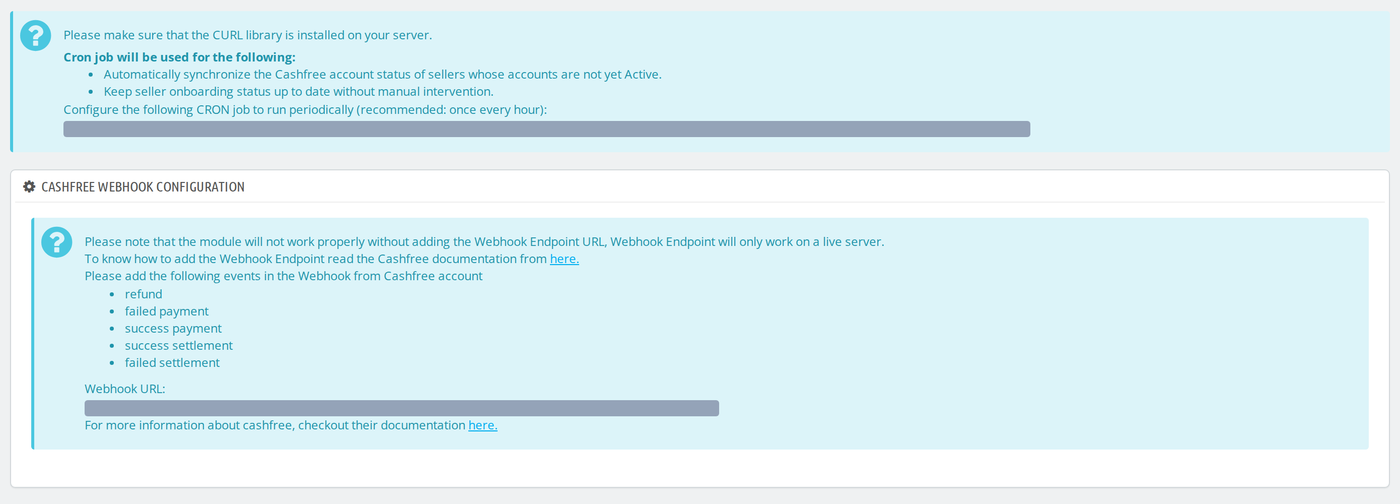
At the bottom of the page, two information boxes give you the values to register outside QloApps. Both boxes print the full URLs on the page, and the screenshot hides them.
The cron box says to make sure the cURL library is installed on your server.
It checks every seller whose Cashfree account is not yet Active and updates their status in QloApps, so you do not have to sync each seller by hand.
Add the line shown in the box to your server’s crontab. The text recommends running it once every hour, but the line the page prints runs once a day, at midnight:
0 0 * * * curl URL-from-the-pageFor an hourly run, change the first five fields so the line reads:
0 * * * * curl URL-from-the-pageAlso, the job does nothing while Enable Cron Job is No.
The Cashfree Webhook Configuration box shows the Webhook URL and the events to turn on in Cashfree: refund, failed payment, success payment, success settlement and failed settlement.
The module does not work properly without the webhook, because Cashfree uses it to confirm payments and settlements.
Cashfree Setup
Do these steps in your Cashfree account, then come back to QloApps. Cashfree describes the screens in its own documentation, linked from the webhook box: Configure webhooks.
- Create or sign in to your Cashfree account. The module creates and pays sellers through the Cashfree EasySplit service, so make sure EasySplit is available on the account.
- Copy the App ID and Secret Key for the Test (sandbox) environment. Paste them into APP ID (Test) and Secret Key (Test) in Marketplace Cashfree Payment › Configuration and click Save. When you are ready for real payments, repeat this with the Live keys, select Live, and click Save again.
- In Cashfree, add a webhook endpoint. Paste the Webhook URL from the configuration page and select the five events listed in the webhook box. If you skip this step, Cashfree cannot tell QloApps that a payment succeeded, so bookings are not confirmed and settlement and refund statuses do not update.
- If you use Delayed settlement, ask Cashfree to turn on “Deferred Settlement” and check the maximum delay your account allows.
- Set Enable Cashfree to Yes and click Save.
Keep your Secret Key private, so never paste it into a support ticket or a screenshot.
Connect Sellers to Cashfree
Each seller needs a Cashfree account link before they can receive a share of a payment. The seller does this in the front office.
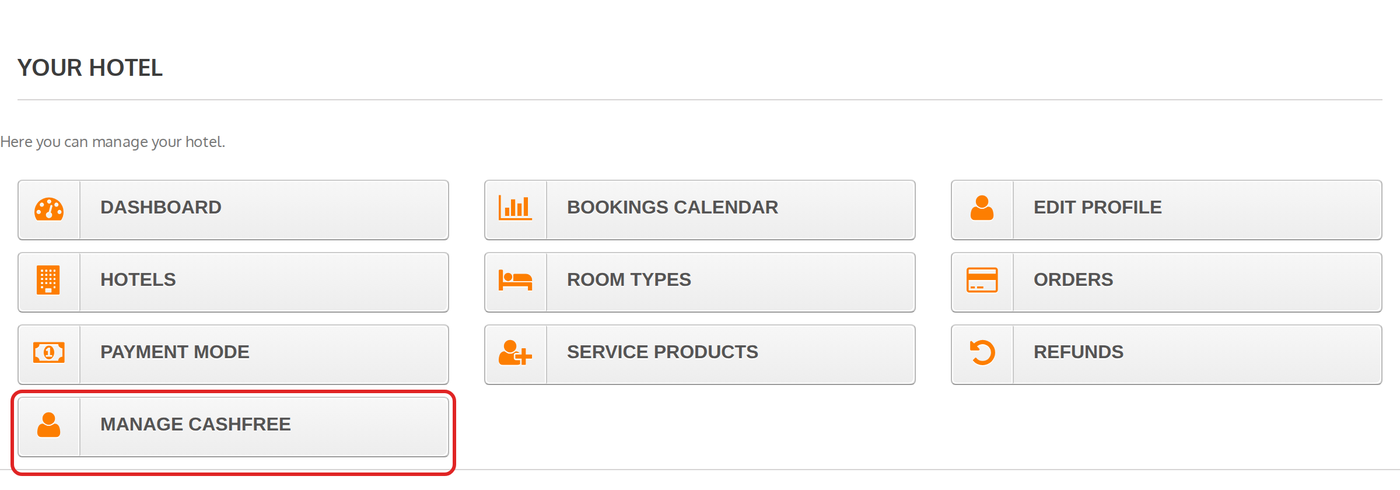
A seller whose Marketplace profile is active sees a Manage Cashfree tile in the Your Hotel section of My Account, and a Manage Cashfree link in the Marketplace sidebar.
Both appear only while Enable Cashfree is Yes.
A seller who is not connected yet sees the message “Connect your Cashfree account to start receiving payouts for your bookings.” and a Connect with Cashfree button.
The button opens the form below. A seller who is already connected sees a status badge instead:
- Connected with Cashfree account: the account is verified and active.
- Account Setup in Progress: Cashfree is still creating the account.
- Bank Details Under Review: Cashfree is checking the bank details, and changes are locked until the check ends.
- Verification Failed: the seller must contact the marketplace admin.
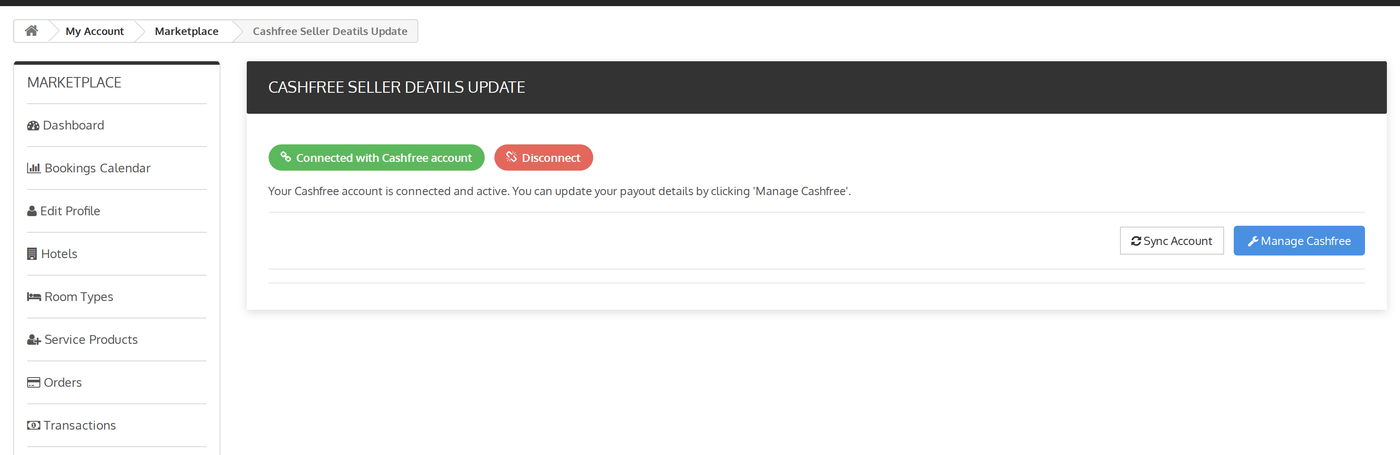
The Sync Account button asks Cashfree for the latest status and updates the badge. It appears only while Enable Sync Account in Front Office is Yes.
The Disconnect button does not disconnect anything. Instead, it shows a message that only the marketplace admin can offboard a seller.
Fill In the Seller Form
Next, click Manage Cashfree to open the form. Fields marked with a star are required.
- Seller Details: Full Name, Email and Phone Number.
- Payout Method: tick Bank Account, UPI, or both. You need at least one. For a bank account, fill in Account Number, Account Holder Name and IFSC Code. For UPI, fill in UPI VPA and Account Holder Name.
- KYC Details: Account Type (Individual or Business), Line of Business, GST Number and PAN. A Business account also needs a CIN. An Individual account needs an Aadhaar (UIDAI) number of 12 digits, or a Passport Number.
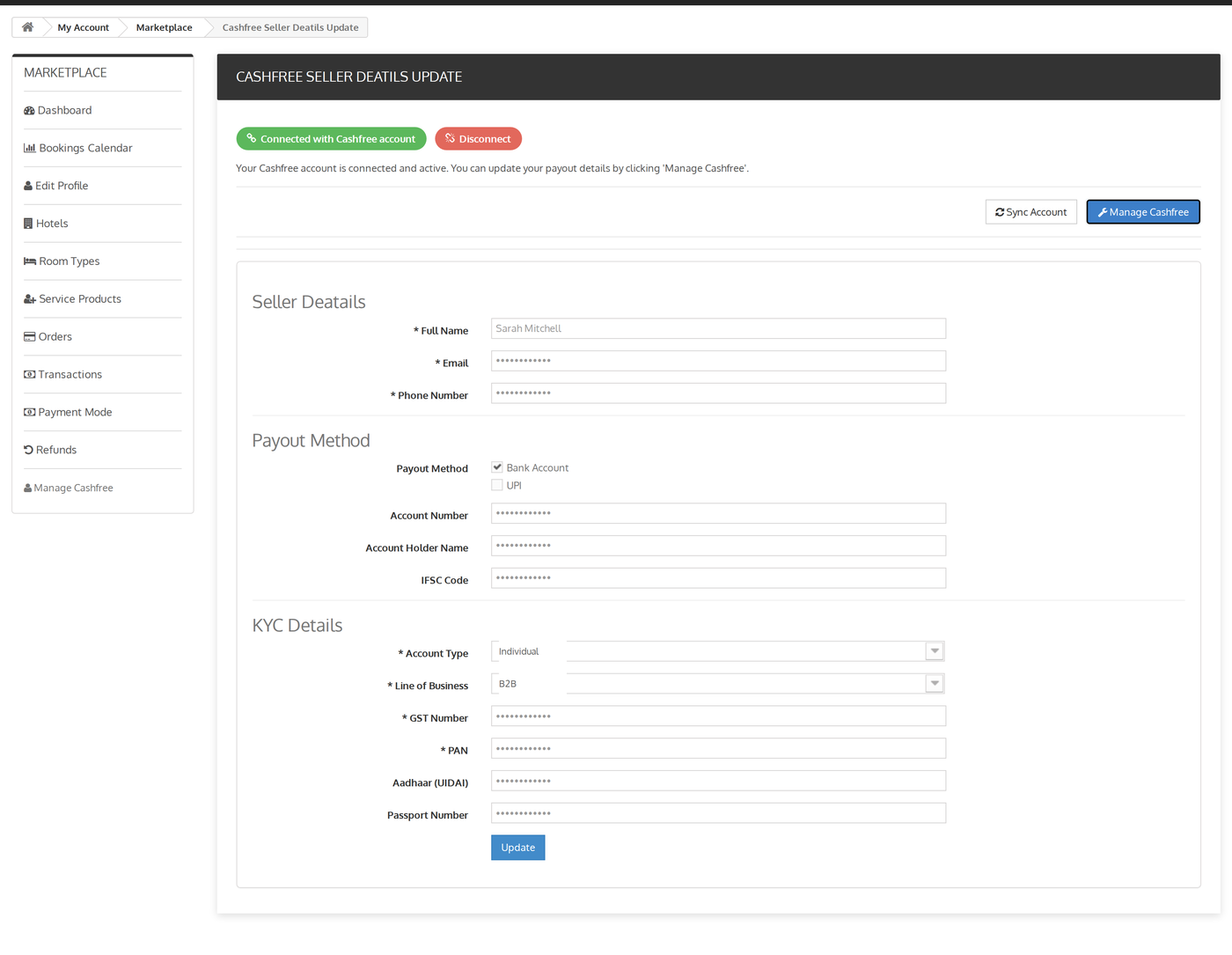
After that, click Save for a new connection, or Update for an existing one.
The module sends the details to Cashfree and shows a success message, or a plain-language error if Cashfree rejects a value.
Only sellers whose status is Active or Account Setup in Progress receive a share of a payment, so a seller who is still under bank review is skipped until the status changes.
Review Seller Accounts in the Back Office
Go to Marketplace Cashfree Payment › Sellers onboarding to see every seller connected for the environment you selected in the configuration.
The list shows ID, Cashfree Seller ID, Seller, Account Status, Document Uploaded, Total Order Value and Total Settlement Paid.
Use Filters to search the list, and click the seller’s name to open the Marketplace seller page.
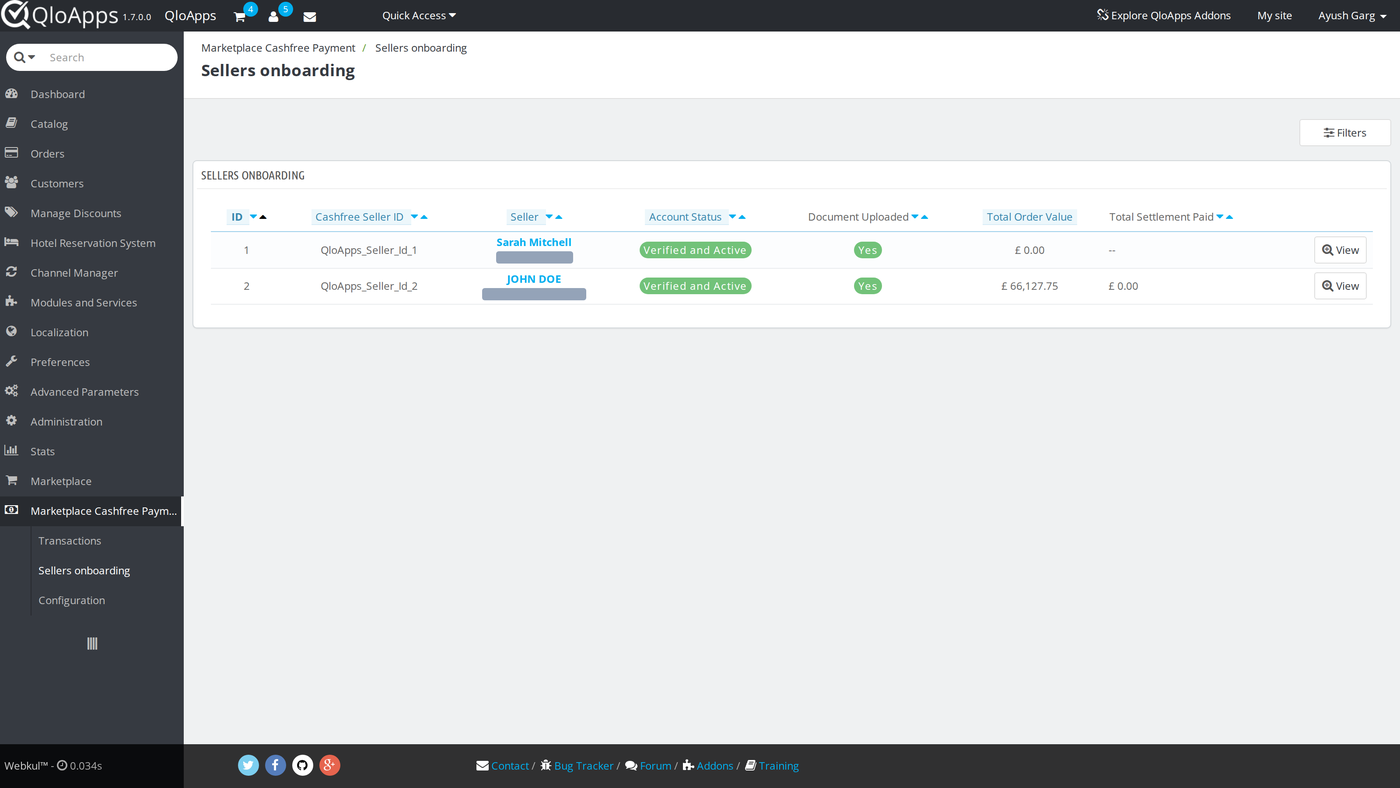
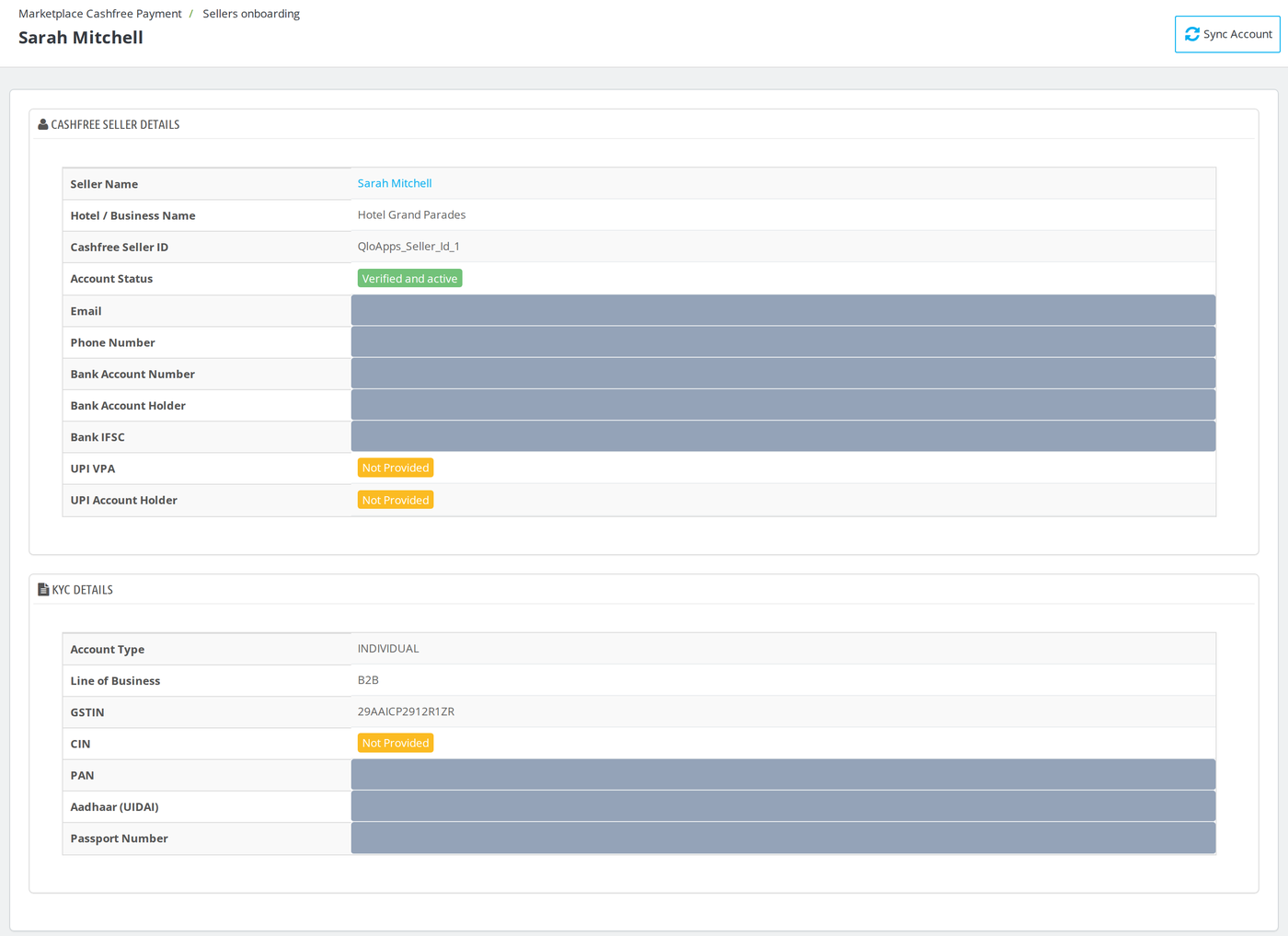
Click View on a row to see the seller’s Cashfree Seller Details and KYC Details. Items the seller left empty show Not Provided.
Click Sync Account at the top right to refresh the status from Cashfree. To remove a seller from Cashfree, use the Cashfree Dashboard: delete or block the seller account there.
Guest Checkout with Cashfree
On the booking website, the Pay using Cashfree option appears in the Payment Information step when all of these are true:
- Enable Cashfree is Yes
- the booking currency is INR
- the guest has a phone number on their address
If the currency is not INR or the phone number is missing, the option does not appear, and the guest sees only the other payment methods.
Next, the guest ticks the terms of service box and clicks Pay using Cashfree.
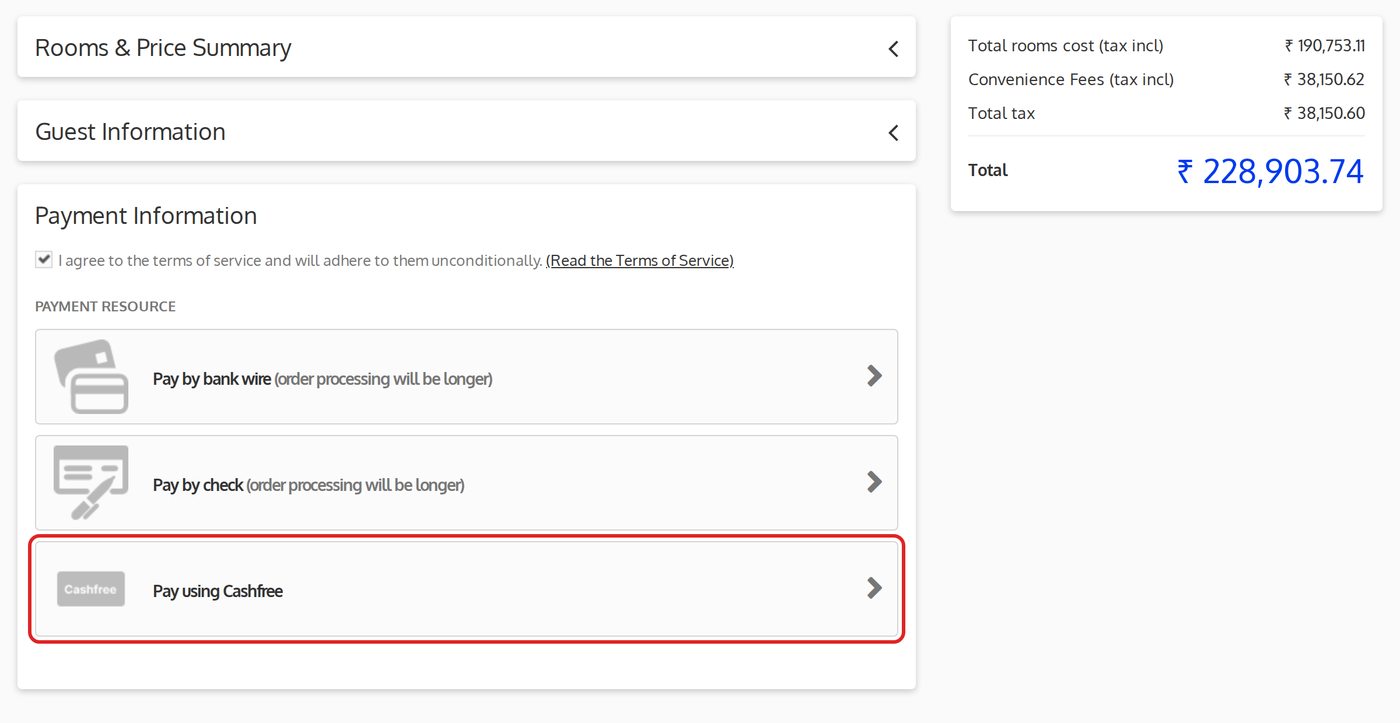
The module then splits the amount between the sellers and the admin, creates the Cashfree payment, and opens the Cashfree payment window on top of the checkout page.
Inside that window, the guest pays. When the payment is confirmed, QloApps creates the booking and shows the confirmation: “Your order on your hotel name is complete.”
followed by the booking reference. If the guest closes the window or the payment fails, the checkout page shows an error such as “Payment was not completed. You can try again.”
and the guest can retry. If a payment cannot be confirmed when the guest returns to the booking website, the checkout page shows “You have cancelled payment by Cashfree.
You can retry with Cashfree or try a different payment method.”
View Transactions
Go to Marketplace Cashfree Payment › Transactions. Each row is one Cashfree payment, newest first.
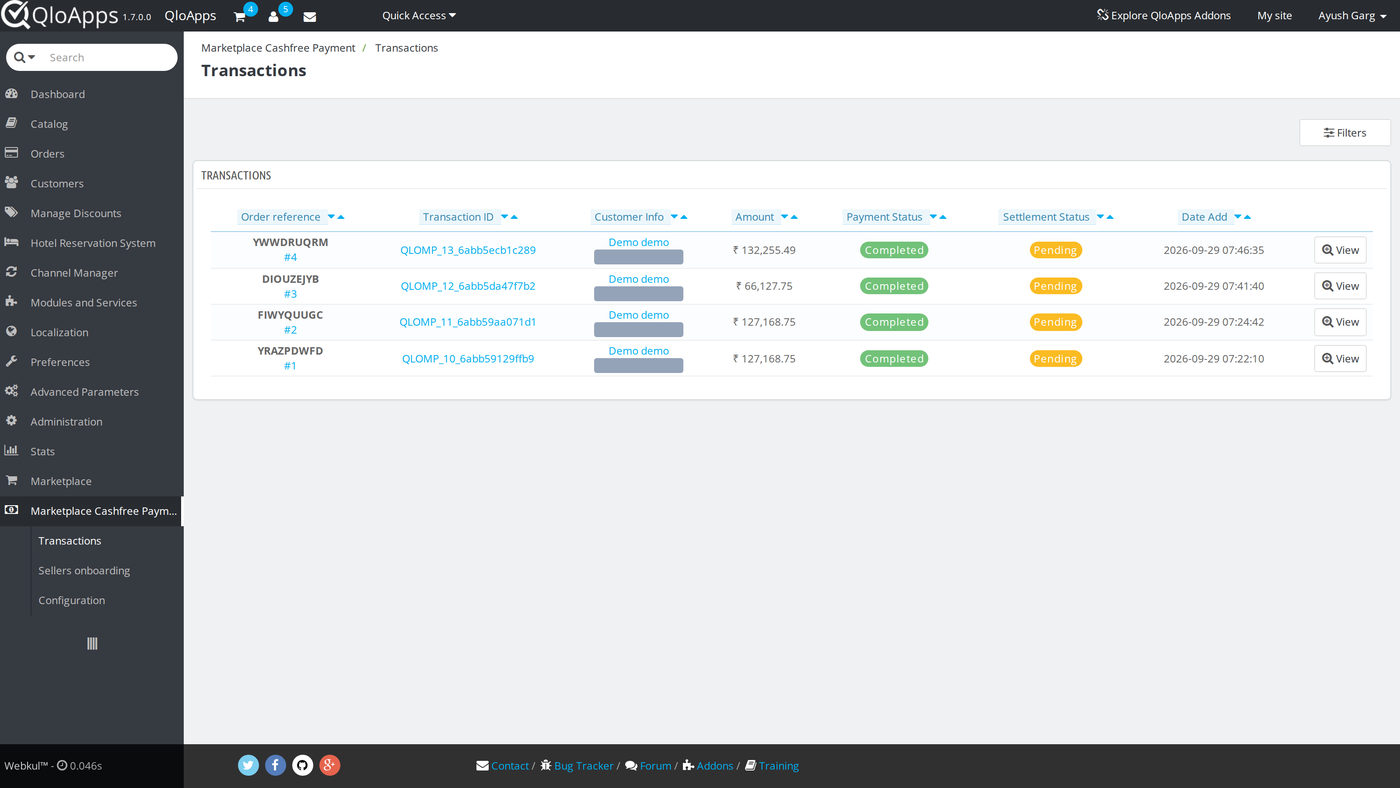
The columns are Order reference (links to the booking), Transaction ID, Customer Info, Amount, Payment Status, Settlement Status and Date Add.
Payment Status is Completed, Processing, Partial or Failed. Settlement Status is Pending, Settled, Failed or Reversed. Click Filters to search the list.
An employee whose profile is limited to some hotels sees only the transactions for those hotels.
Then click View to open Transaction Details.
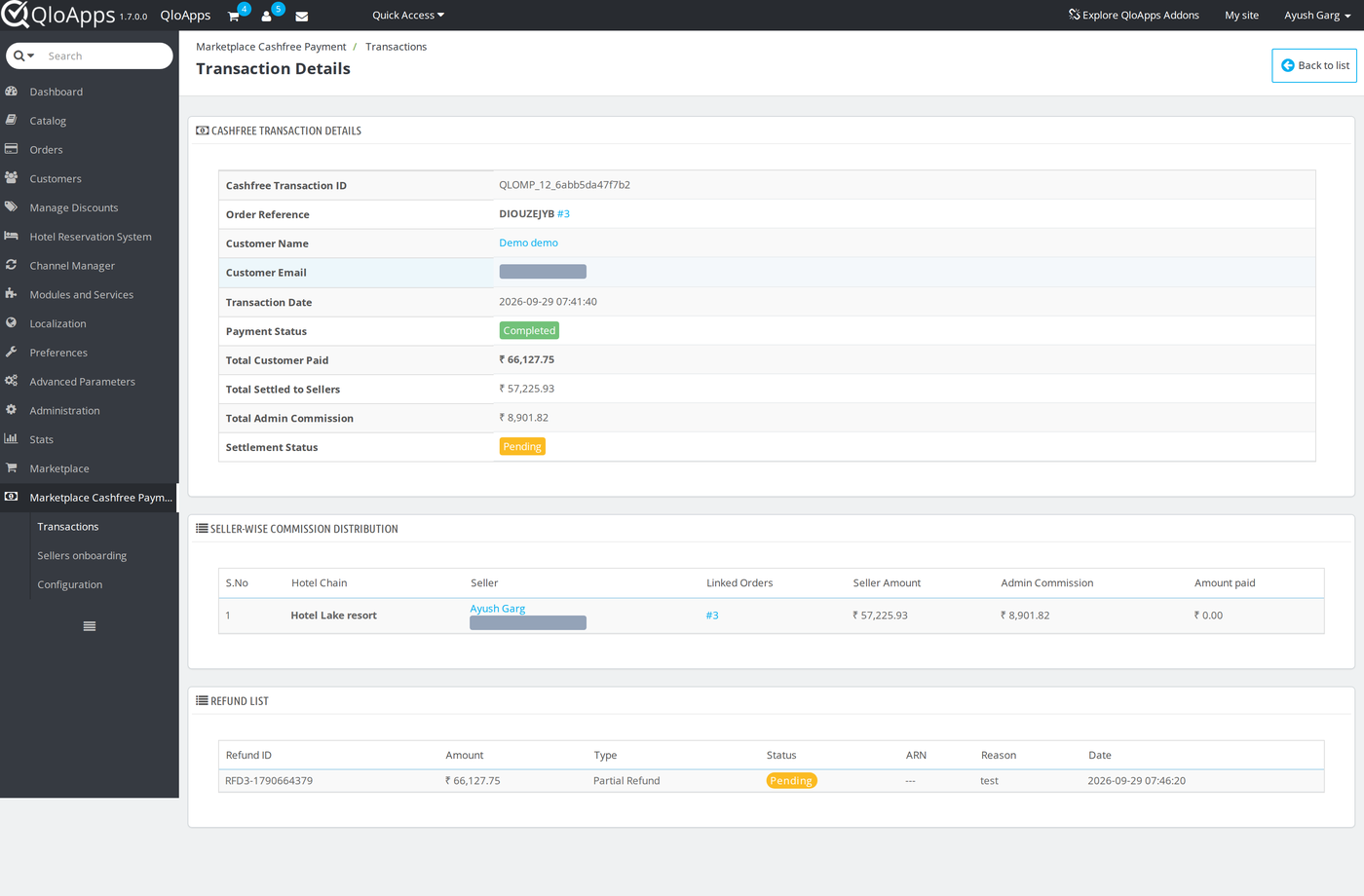
The first box shows the Cashfree transaction ID, the booking reference, the guest and the dates.
It also shows Total Customer Paid, Total Settled to Sellers, Total Admin Commission and the overall Settlement Status.
The Seller-wise Commission Distribution table shows, for each seller, the hotel chain, the linked bookings, Seller Amount, Admin Commission and Amount paid.
Refund a Payment
Open Transaction Details for a transaction. The Refund Transaction box appears for a transaction with the Completed payment status.
Cashfree does not refund its own service charges, and the box says so.
- Choose Refund Mode. Standard refund is the default. Instant refund may cost extra on the Cashfree side.
- Choose Refund Type. Full Refund returns the whole remaining amount. Partial Refund shows a Refund Amount field, filled with the remaining amount, so you can type a smaller one. The amount must be greater than 0, can have up to two decimals, and cannot be more than the amount still refundable.
- Then enter a Refund Remark. It is required and can be up to 255 characters.
- Finally, click Process refund.
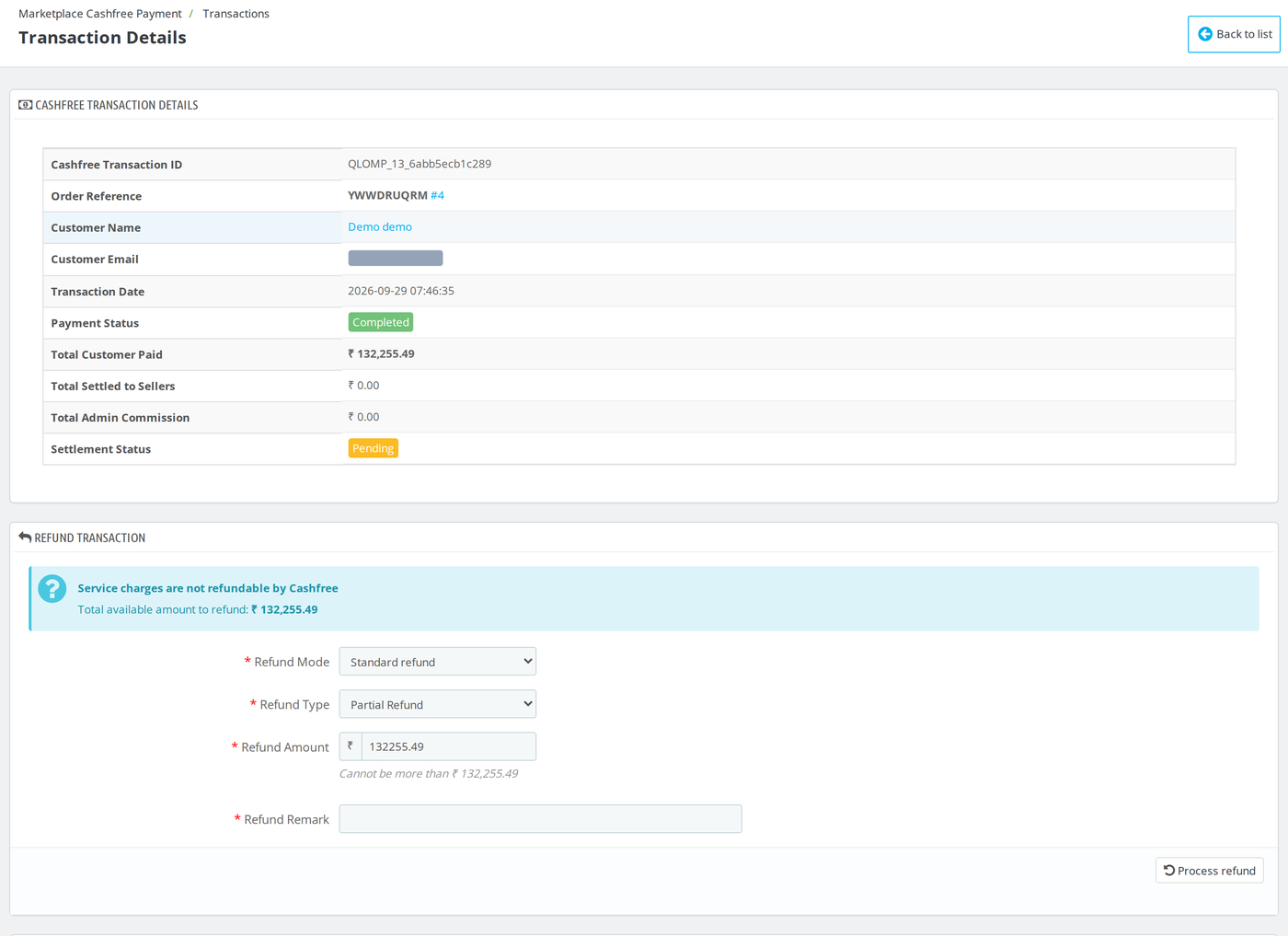
The module asks Cashfree for the refund and adds a row to the Refund List at the bottom of the page with its Refund ID, Amount, Type, Status, ARN, Reason and Date.
The status starts as Pending and changes when Cashfree sends the refund webhook. Each seller gives back the same share of the refund that it received of the payment.
For example, a seller paid 90 percent of the payment returns 90 percent of every refund. When refunds add up to the full payment, QloApps moves the booking to the Refunded order status.
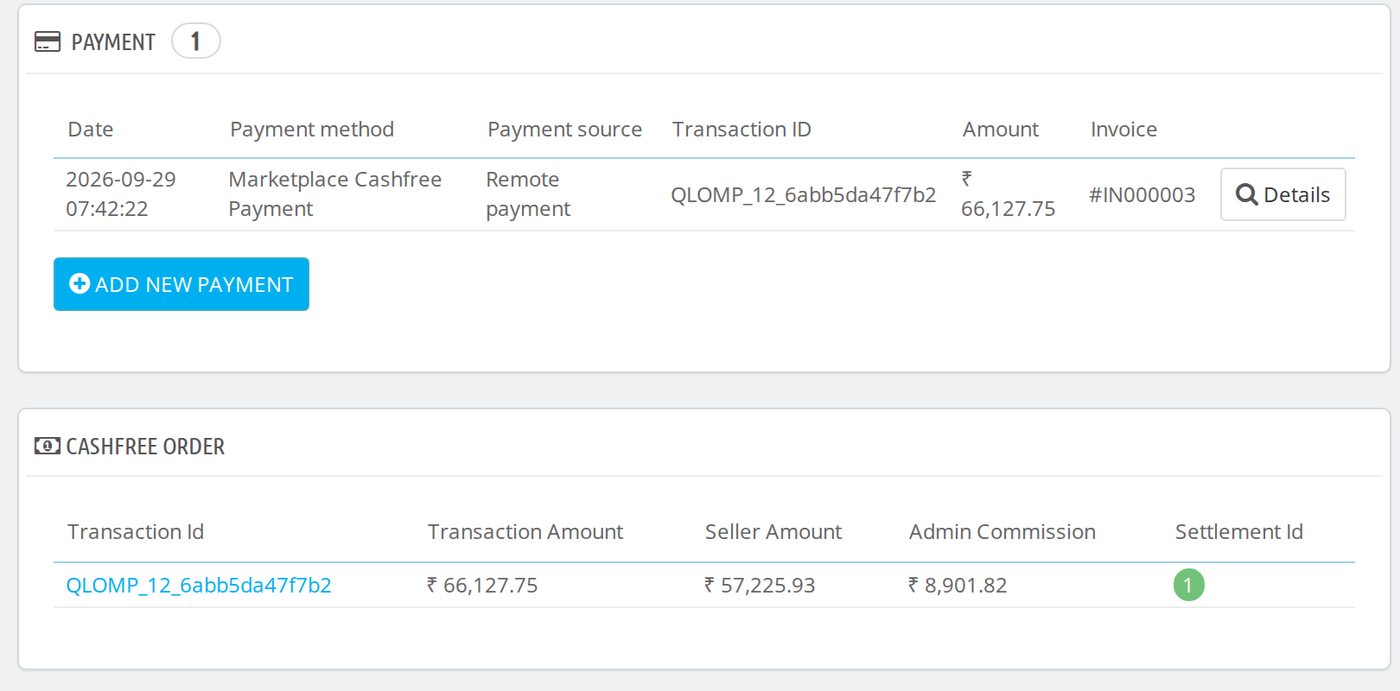
Cashfree Panel on the Booking Page
Open a booking from Orders › Orders. When the booking was paid with Cashfree, a Cashfree Order box shows the Transaction Id (a link to the transaction page).
It also shows Transaction Amount, Seller Amount, Admin Commission and the Settlement Id once Cashfree has settled the seller.
Conclusion
QloApps Marketplace Cashfree Payment connects a QloApps marketplace to Cashfree.
It takes booking payments in INR, splits each payment between the sellers and the admin, and tracks settlements and refunds.
This guide covered the install, the three configuration forms, the Cashfree account setup, seller onboarding, the checkout, the transaction list and the refund form.
Finally, we hope this guide has helped you configure and use QloApps Marketplace Cashfree Payment with confidence.
Additionally, to learn more about the functionality of QloApps, you can visit this link: All-in-One Property Management System.
For technical assistance, raise a ticket at QloApps Support. In case of any query, issue, or requirement, please feel free to raise it on the QloApps Forum.
Current Module Version: 5.0.0
Supported QloApps Versions: 1.7.x

Be the first to comment.