
Running a hotel means answering the same questions every day. Who is arriving today? How full were we last week? How much did we actually collect, and how much is still due? QloApps Hotel Reports puts the answers inside the Stats page you already use in the back office, so you don’t need a separate tool or a spreadsheet export just to see how the property is doing.
The module adds a full set of ready-made reports, grouped around bookings, revenue, occupancy, booking channels, guests and the property as a whole. Every report uses the same date range bar and hotel filter, and every report can be downloaded as a CSV file. It doesn’t create any database tables of its own. It reads the bookings, orders and rooms you already have.
Compatibility
- QloApps v1.6.1.
- QloApps v1.7.0.
Features
- All your reports in one place, each with its own entry in the Stats menu.
- One shared date range for every report, using the same Day / Month / Year bar as the rest of the Stats page.
- Hotel filter on every report, so you can look at one property or all of them together.
- Report-specific filters such as room type, booking status, booking source, order status, payment method, refund status, tax, guest type, service category and floor.
- Totals rows on the booking, revenue and channel reports, so you don’t need a calculator.
- Hospitality metrics built in: occupancy rate, ADR (average daily rate), RevPAR (revenue per available room), average length of stay and cancel rate.
- Filters that depend on each other update without reloading the page. Change the hotel and the room type list follows.
- CSV export on each report.
- Respects employee permissions. An employee only sees the hotels their profile has access to.
Installation
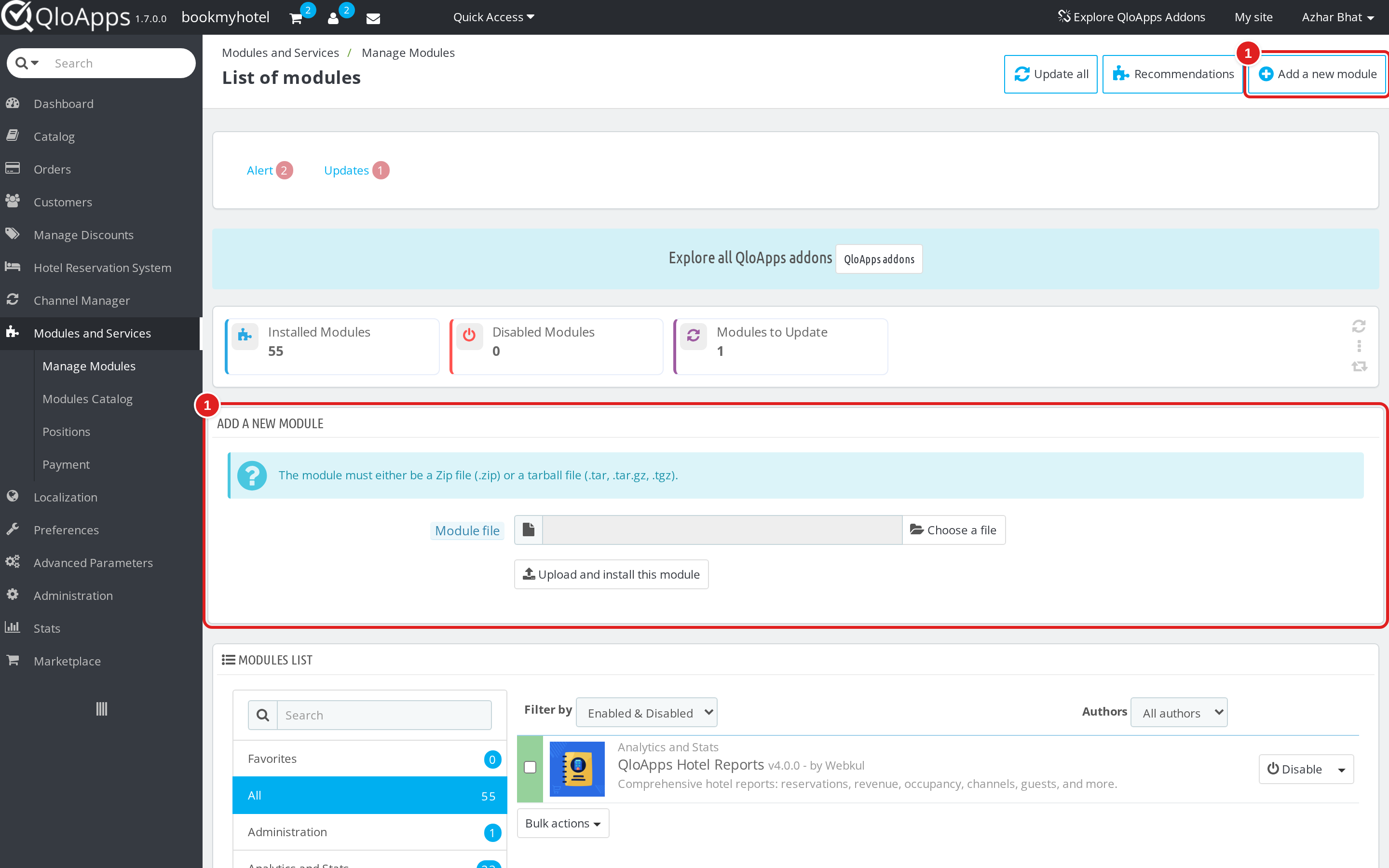
- Log in to your QloApps back office and go to Modules and Services > Manage Modules.
- Click Add a new module.

- Choose the module package (a .zip, .tar, .tar.gz or .tgz file) with Choose a file, then click Upload and install this module.
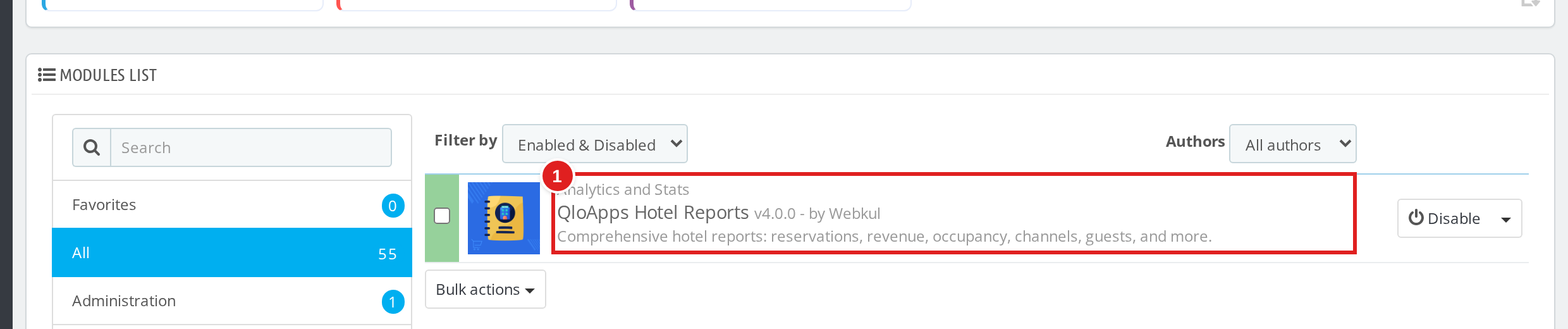
- Once the upload finishes, the module shows up in the list as QloApps Hotel Reports under Analytics and Stats.
There is nothing to configure after installation. The module has no settings page. Open Stats and the reports are ready.
Finding the Reports
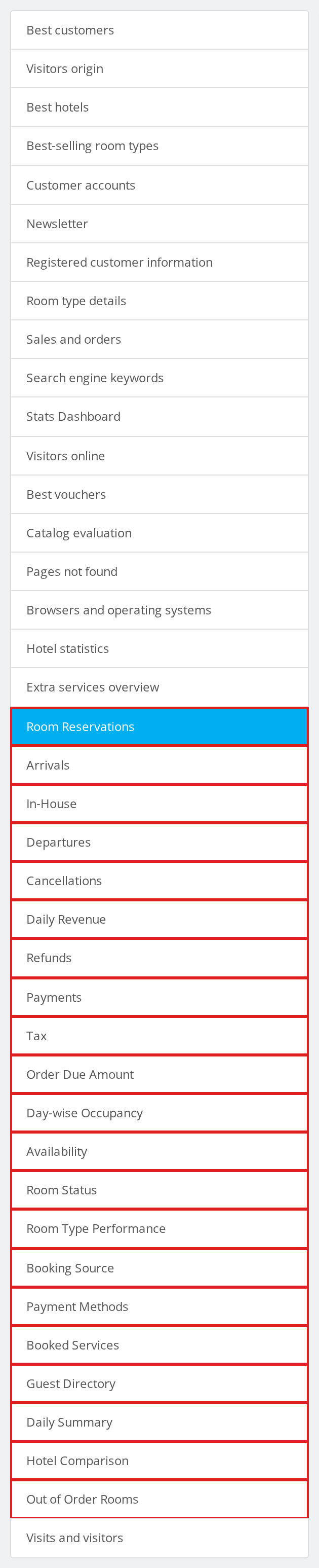
Open Stats from the back office menu. The reports appear as a block of entries in the left-hand list of the Stats page, alongside the stats modules that were already there. Click any entry to open that report.
Choosing a Date Range and Filters
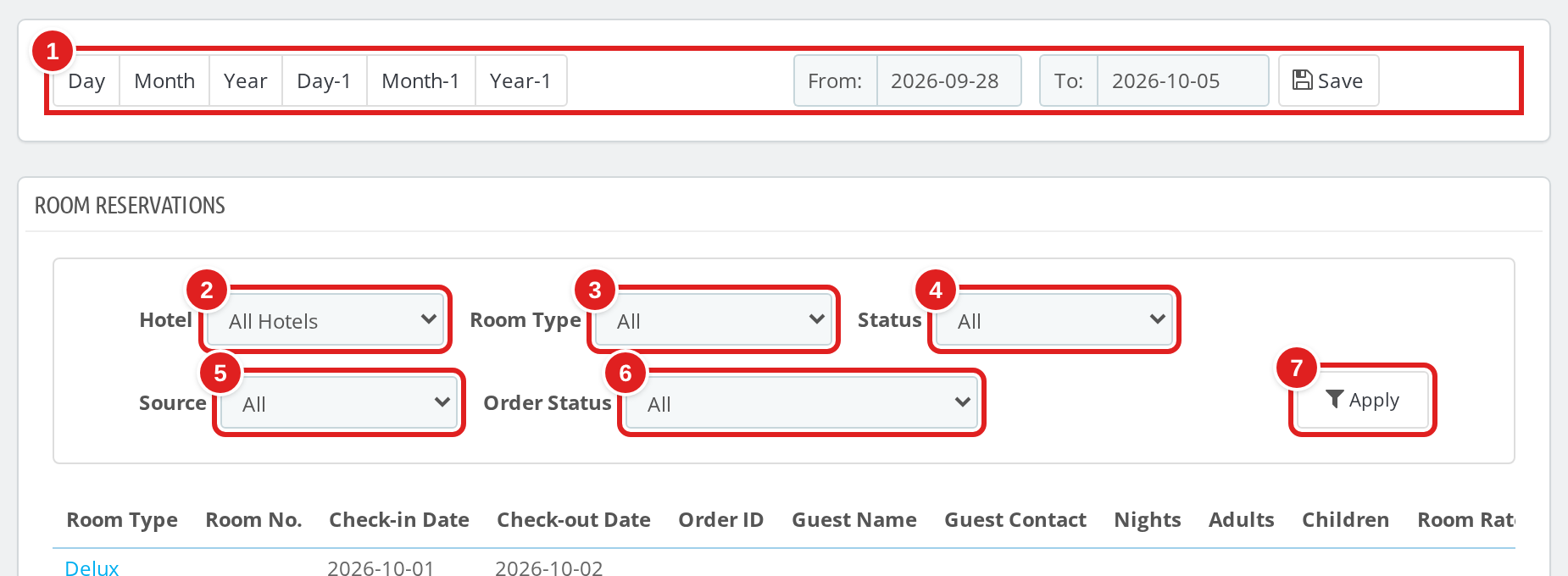
Every report follows the date range at the top of the Stats page. Use the Day, Month or Year buttons (or Day-1, Month-1, Year-1 for the previous period), or type your own dates in From and To and click Save, as shown in ①.
Under the report title you’ll find the filters for that report. Pick what you need in ② to ⑥ and click Apply ⑦. The report only changes when you click Apply, so you can set several filters first.
Note: the date range you save is stored on your employee account, so the next report you open uses the same dates.
Exporting to CSV
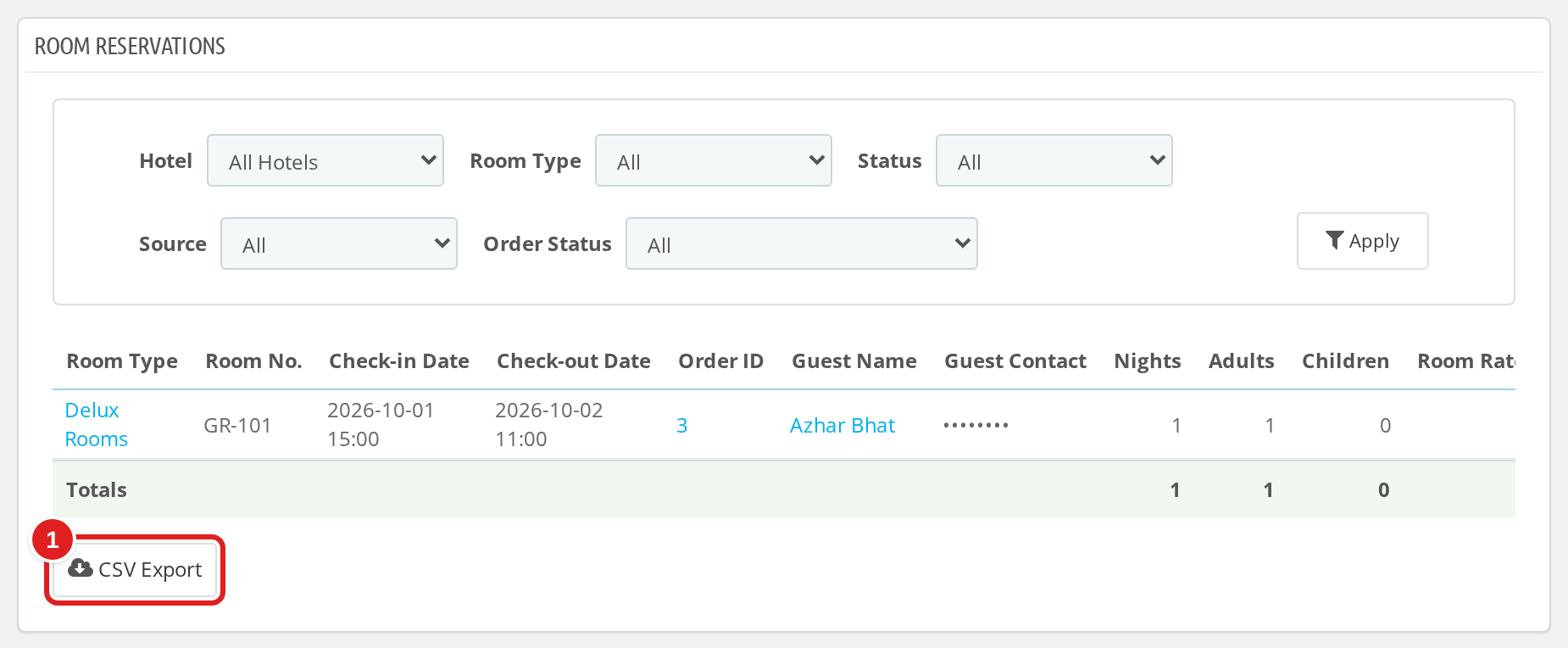
Every report ends with a CSV Export button. Click it to download what you’re looking at, for the same date range and hotel, as a CSV file you can open in a spreadsheet.
Booking Reports
Five reports cover the guest journey from booking to cancellation.
Room Reservations
Every room booking in the date range, one row per room. You can see the room type and number, check-in and check-out dates, order ID, guest name and contact, nights, adults, children, the nightly rate, booking source, booking status, price before tax, tax, grand total, who created the booking and when. The filters are Hotel, Room Type, Status (Allotted, Checked In, Checked Out), Source (Online / Direct or Walk-in / Admin) and Order Status. A totals row adds up nights, guests and amounts. Order IDs and guest names link straight to the order and the customer in the back office.
Arrivals, In-House and Departures
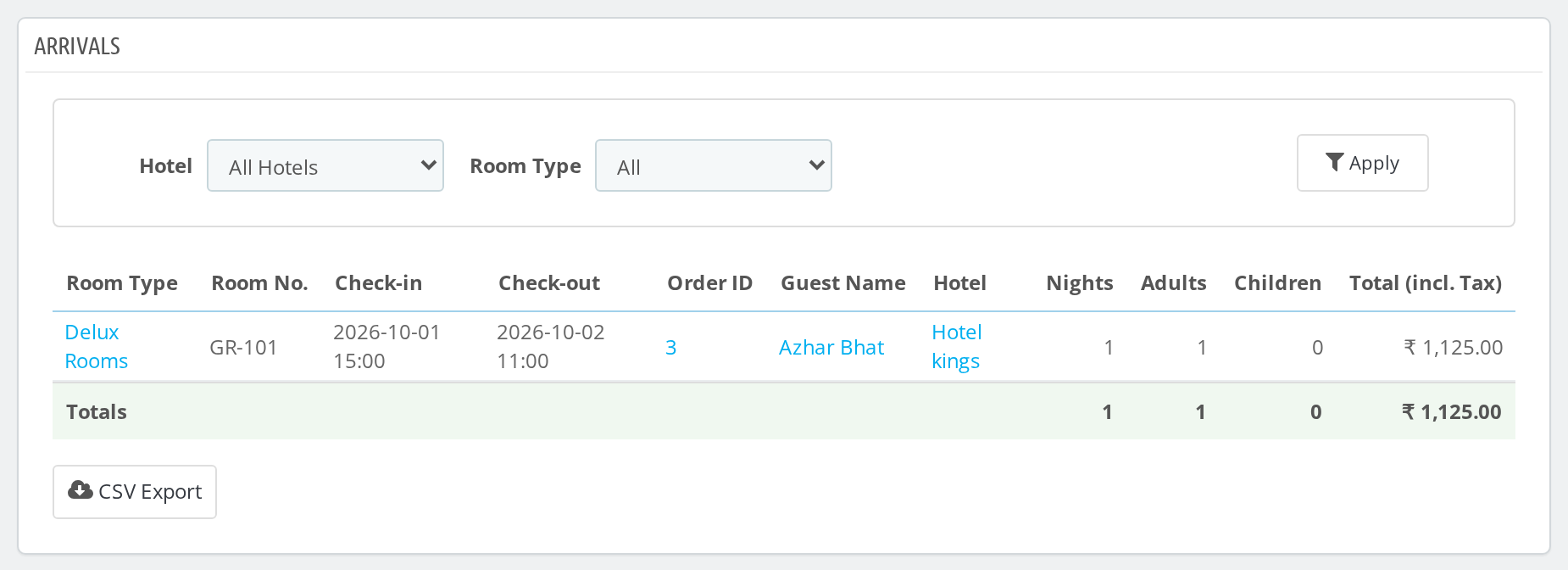
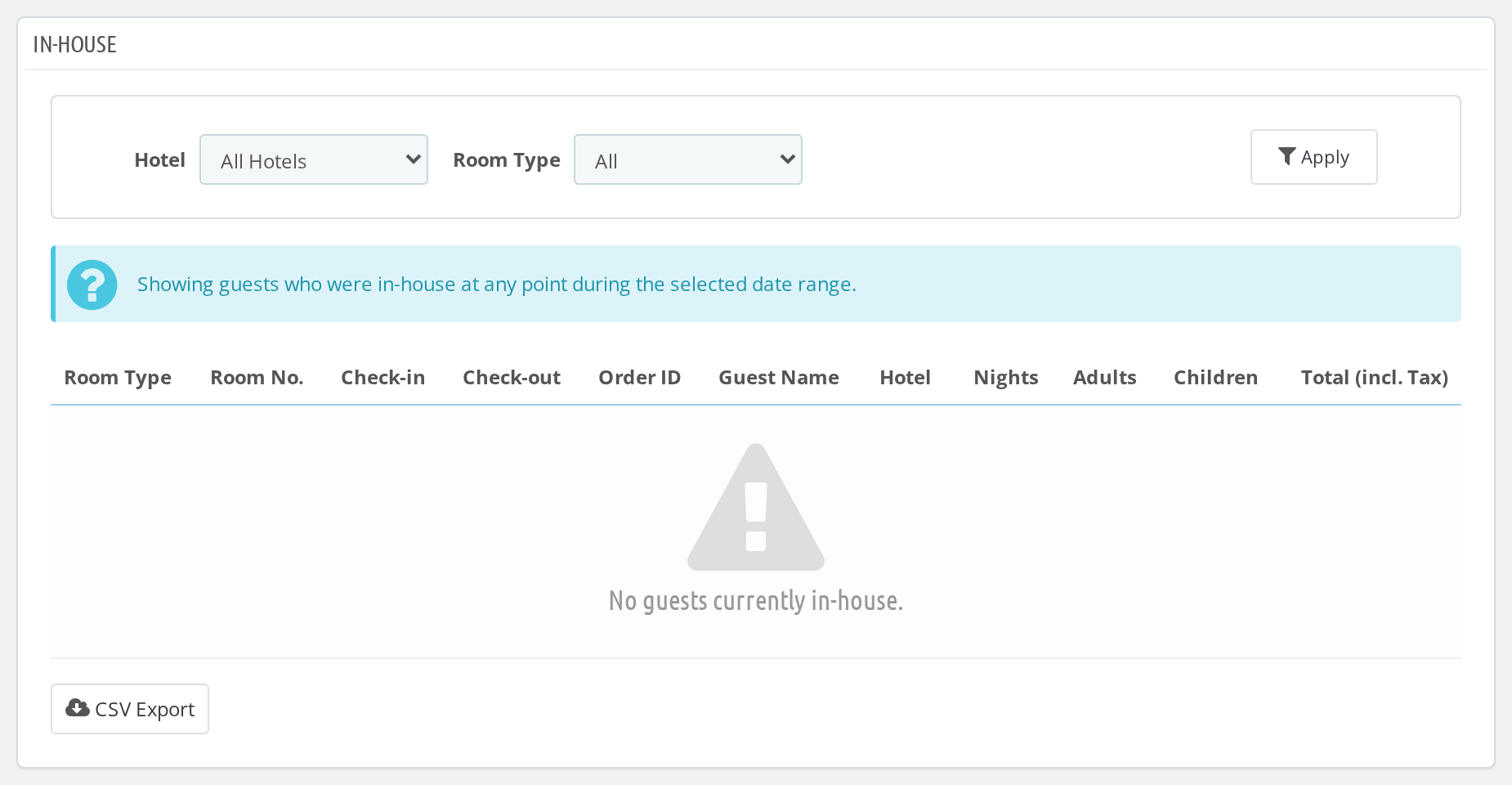
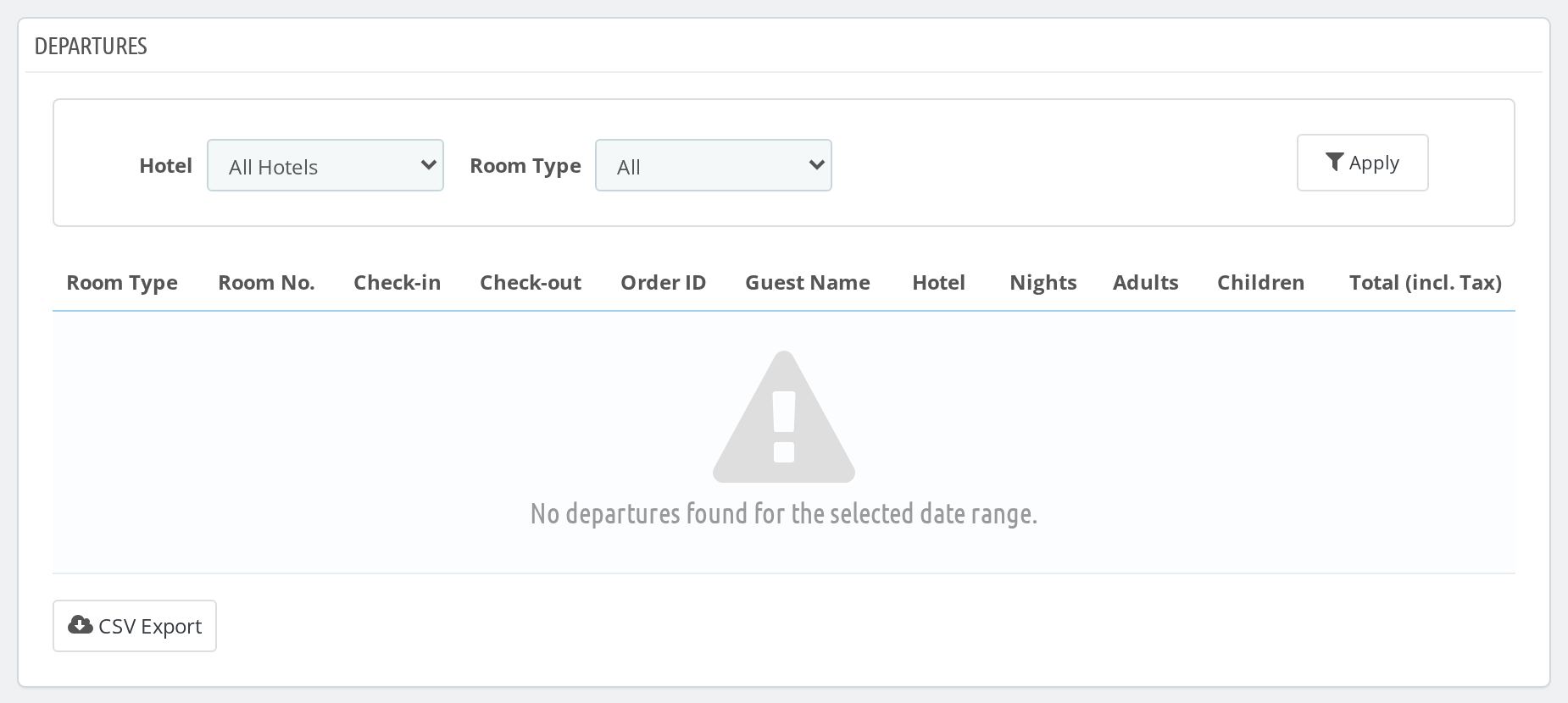
Three focused lists for front-desk work: guests arriving, guests currently staying, and guests leaving. Each shows room type, room number, check-in and check-out, order ID, guest, hotel, nights, adults, children and the total including tax.
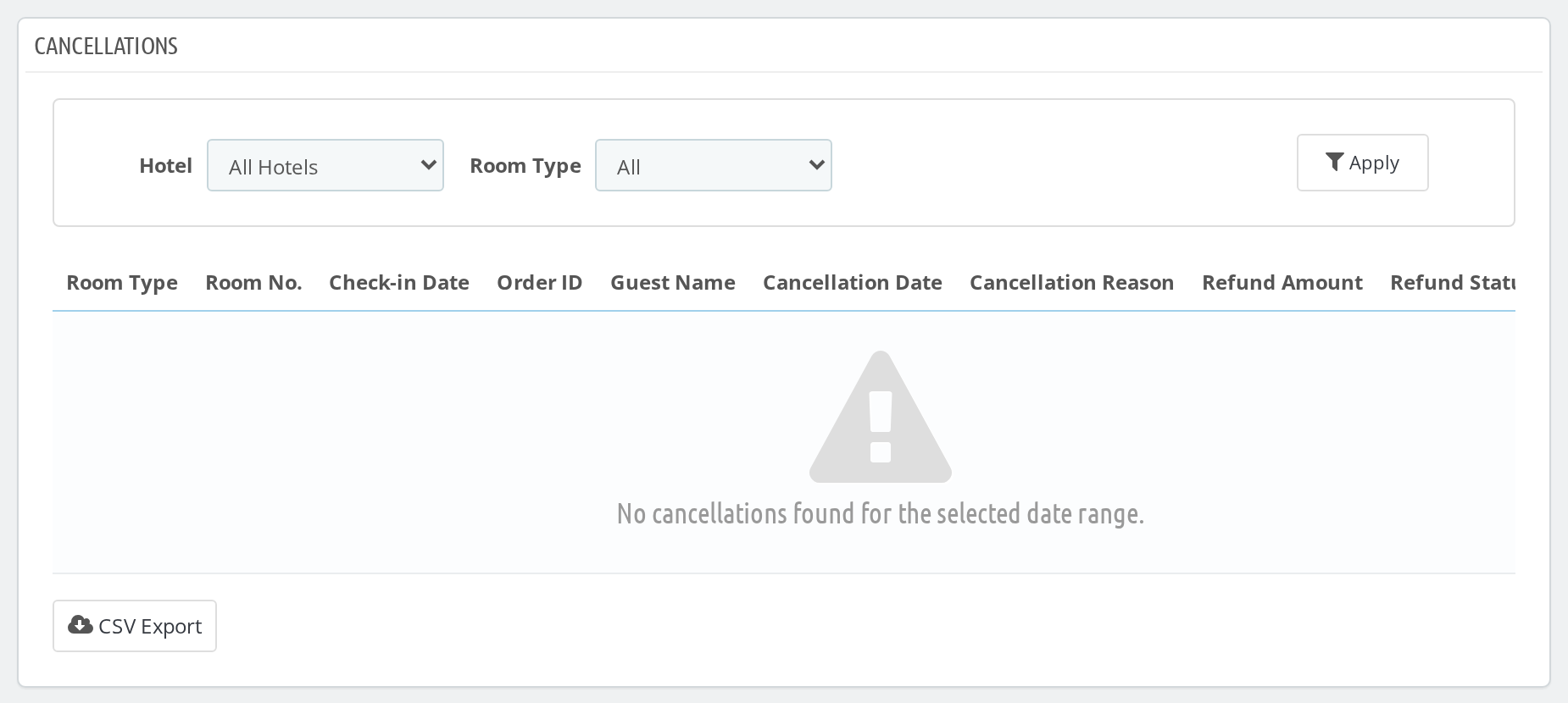
Cancellations
See which bookings were cancelled, when, and why, along with the refund amount and refund status for each one.
Revenue Reports
Five reports track money in and money out.
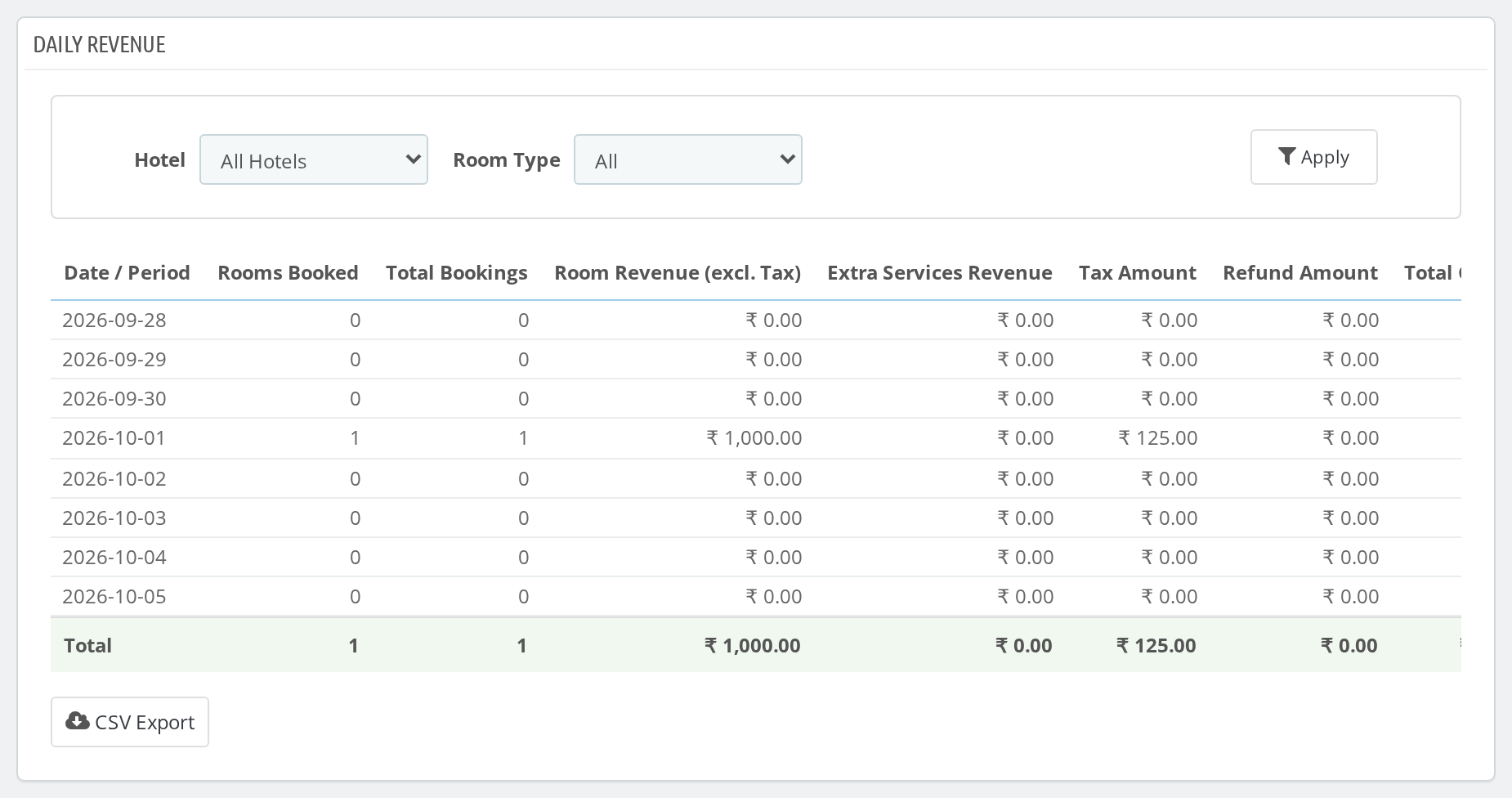
Daily Revenue
One row per day: rooms booked, total bookings, room revenue (excluding tax), extra services revenue, tax, refunds, total collection, net revenue and ADR. You can filter by hotel and room type.
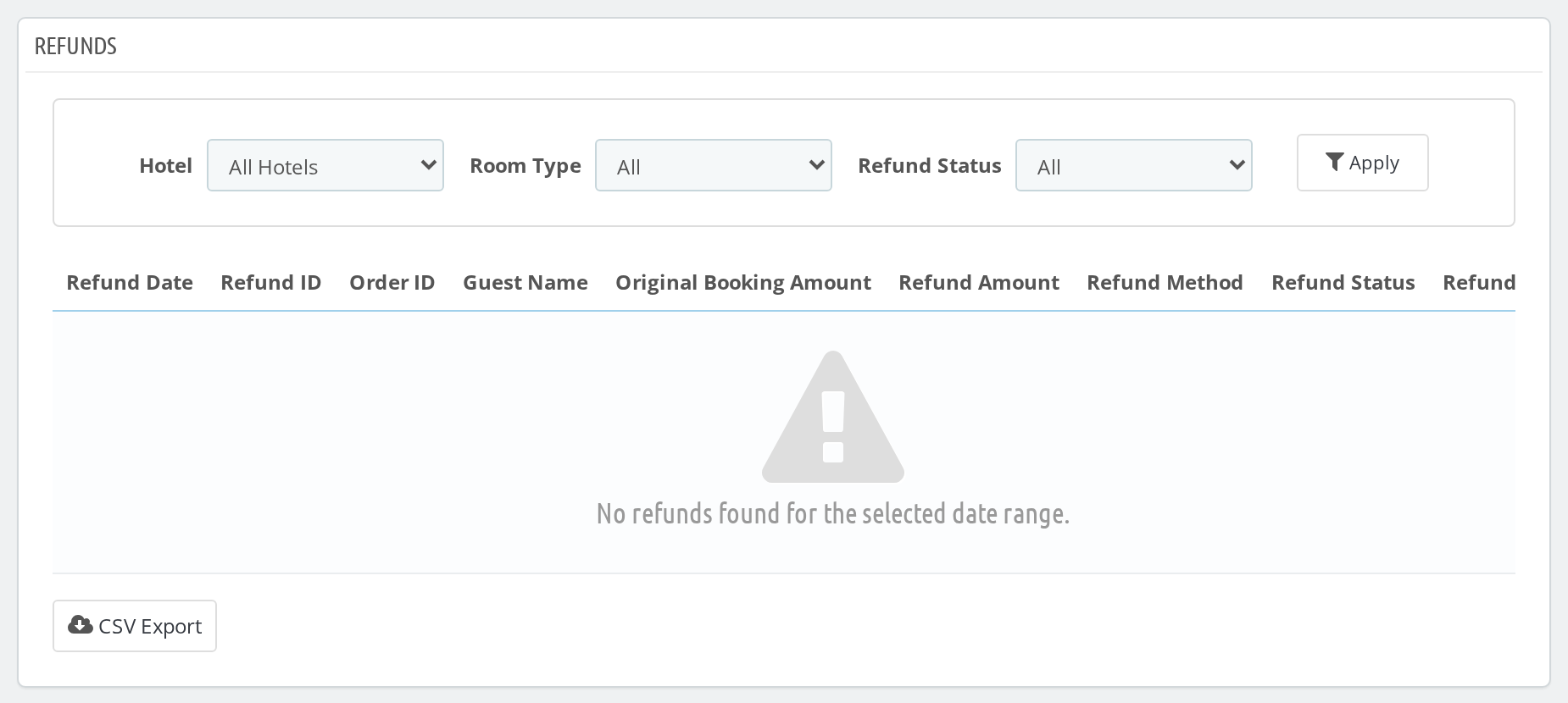
Refunds
Every refund with its date, refund ID, order, guest, the original booking amount, the amount refunded, the refund method and any remark. Filter by hotel and by refund status. A Total Refunded row sits at the bottom.
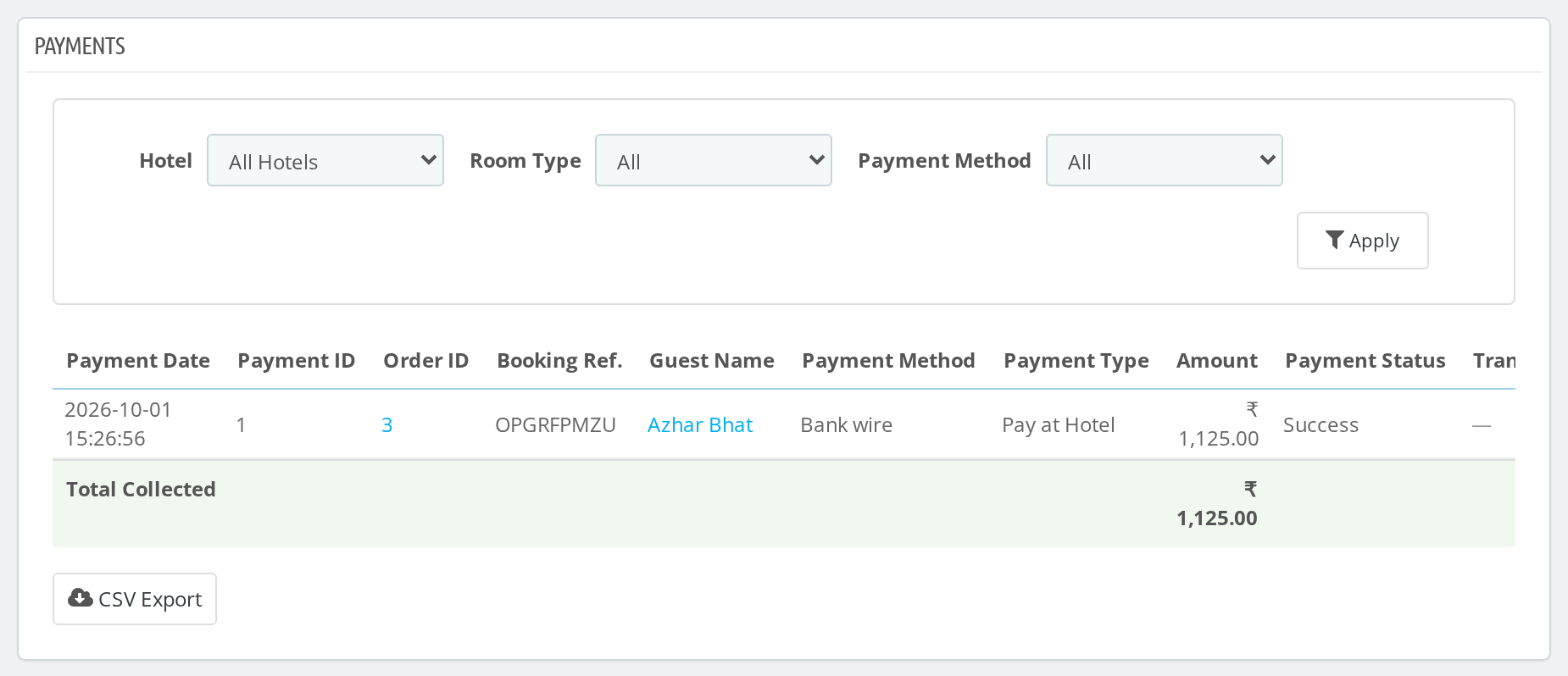
Payments
Each payment taken, with its date, payment ID, booking reference, payment type, amount, status and transaction reference. You can narrow the list by payment method and see Total Collected at the bottom.
Tax
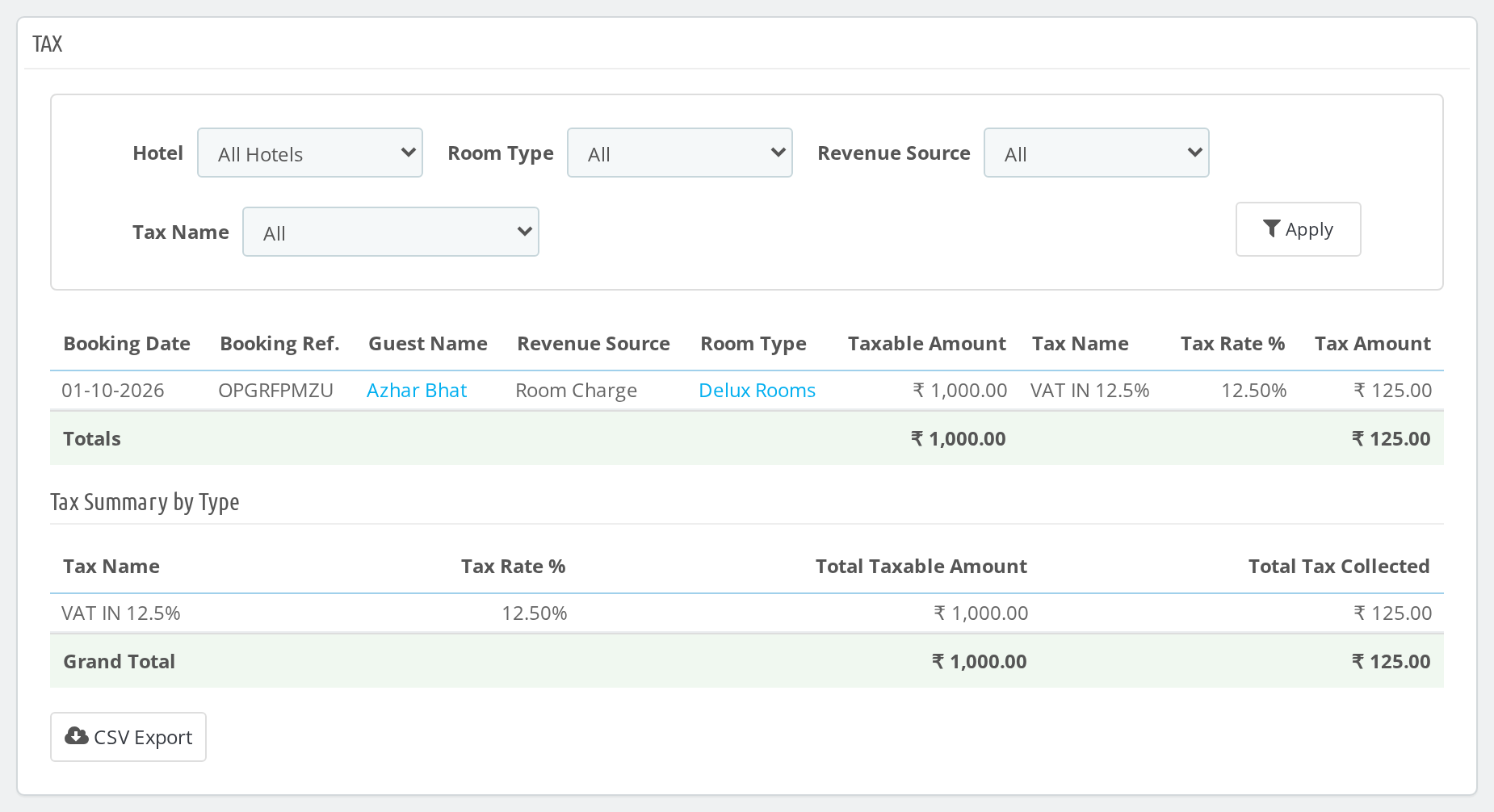
Tax collected per booking, with the taxable amount, tax name and rate, and whether it came from room charges or service charges. Filter by tax and by revenue source (All, Room Charges or Service Charges). A Tax Summary by Type gives you the total taxable amount and the total tax collected for your filing.
Order Due Amount
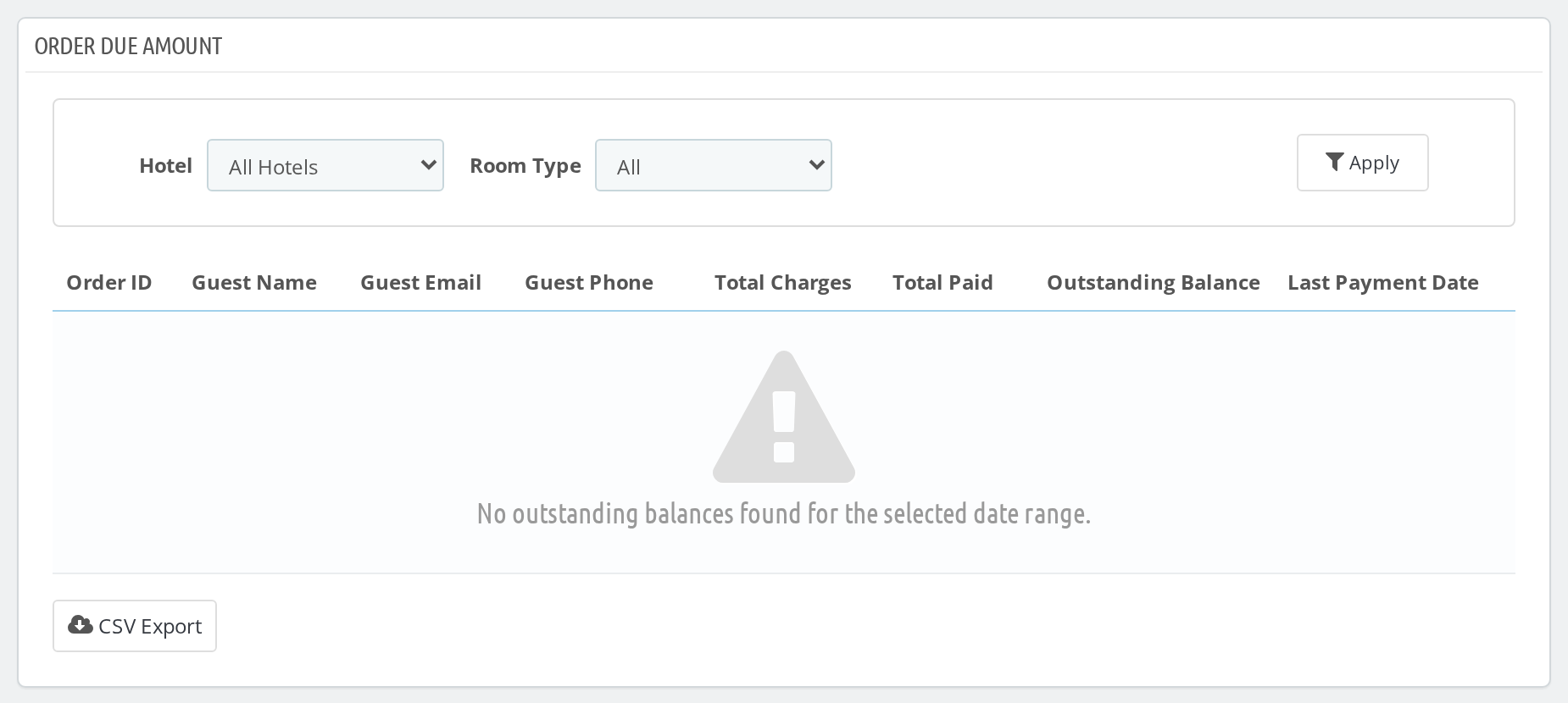
Which orders still have money outstanding: total charges, total paid, the outstanding balance, the last payment date, and the guest’s email and phone so you know who to follow up with. A Total Outstanding row adds it up.
Occupancy and Inventory Reports
Day-wise Occupancy
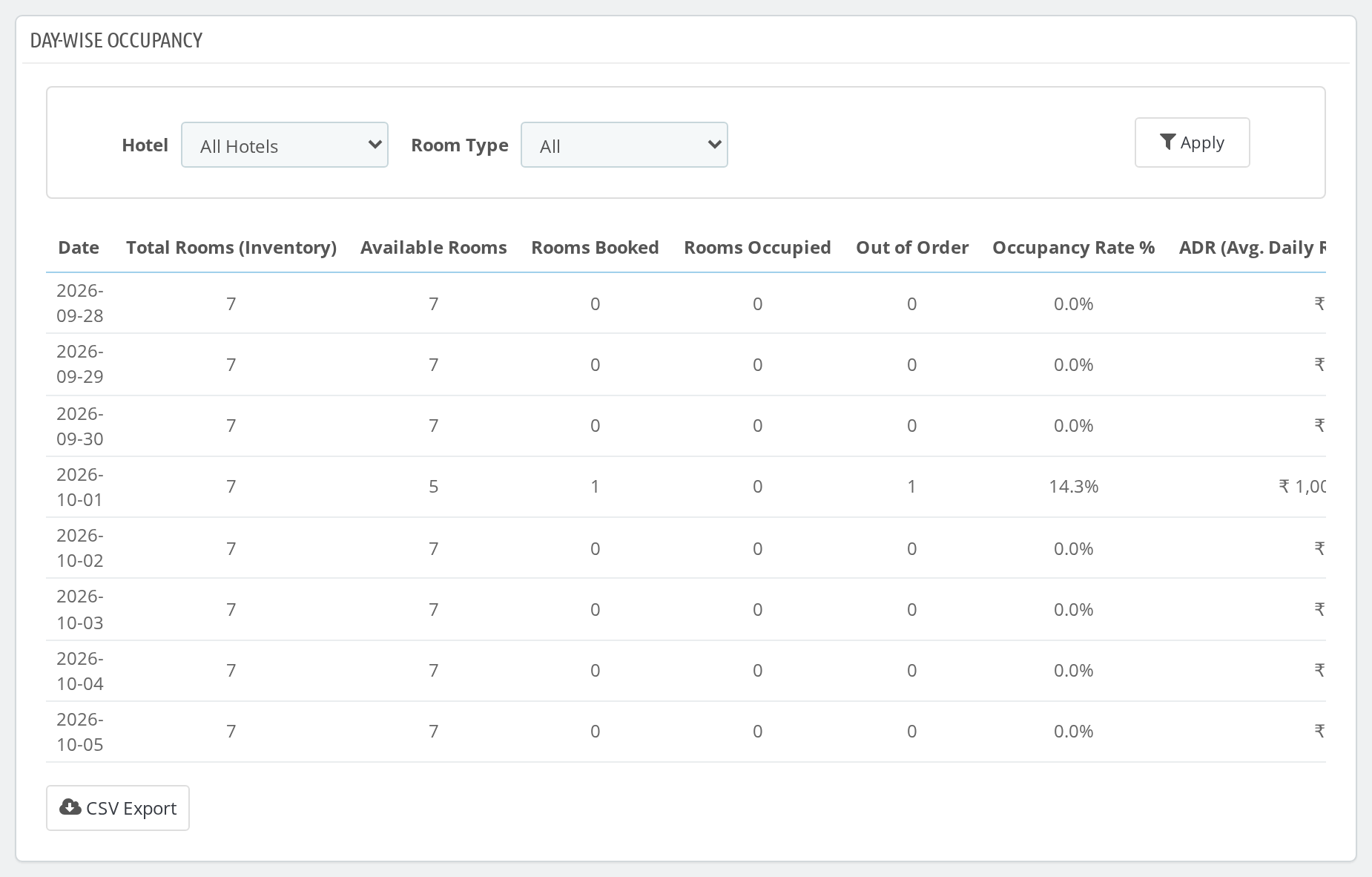
For every day in the range: total rooms, available rooms, rooms booked, rooms occupied, rooms out of order, occupancy rate, ADR, RevPAR and total room revenue. This is the report to open when you want to know how full the hotel was, or will be.
Availability
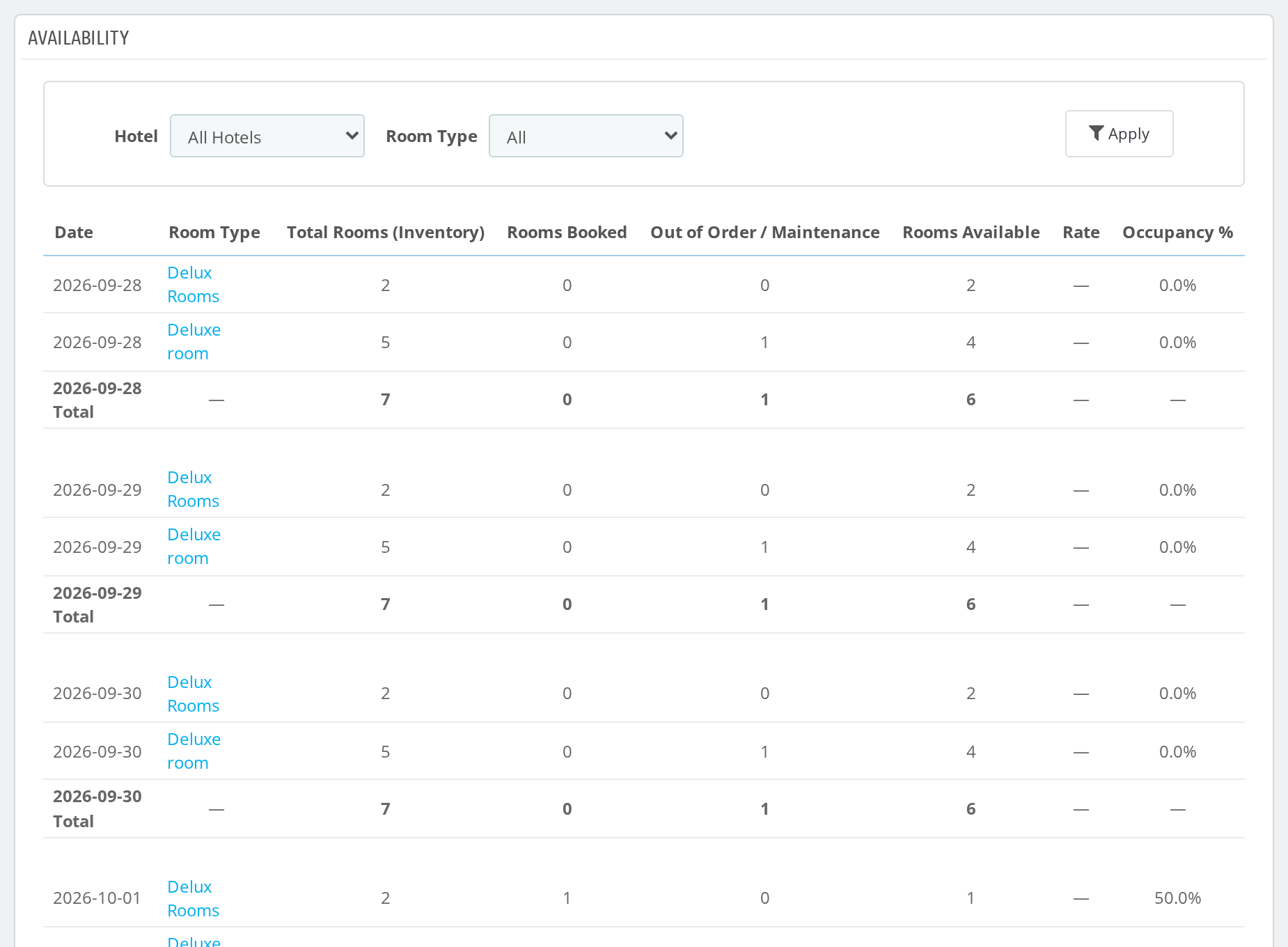
A day-by-day view of how many rooms are available, so you can spot quiet dates and busy ones at a glance.
Room Status
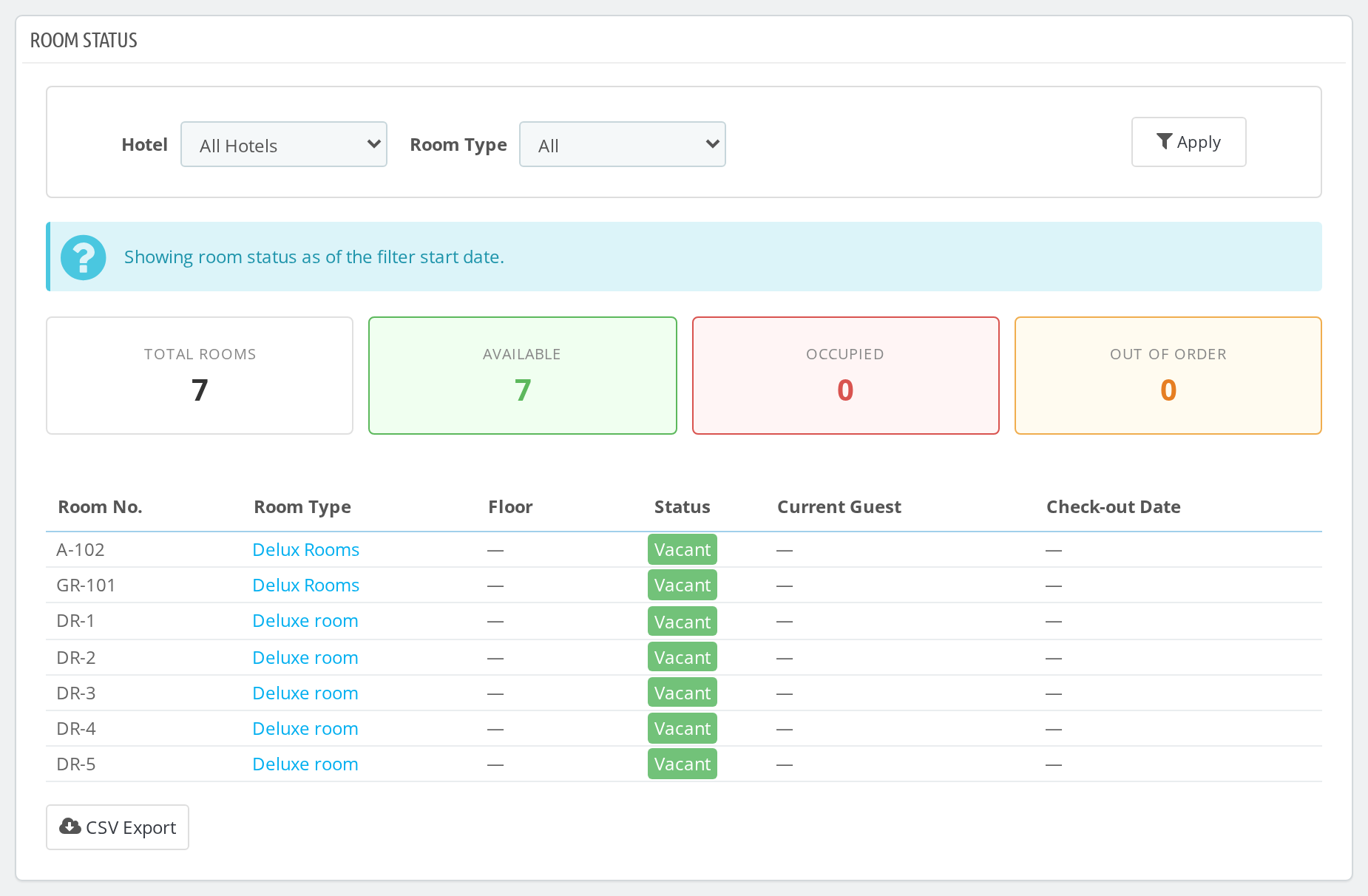
A snapshot of every room as of the start date of your range: how many rooms are available, occupied or out of order, followed by a room-by-room list with floor, status, housekeeping status, the current guest and the check-out date. Rooms with no guest show as Vacant. The list is paged when you have many rooms.
Room Type Performance
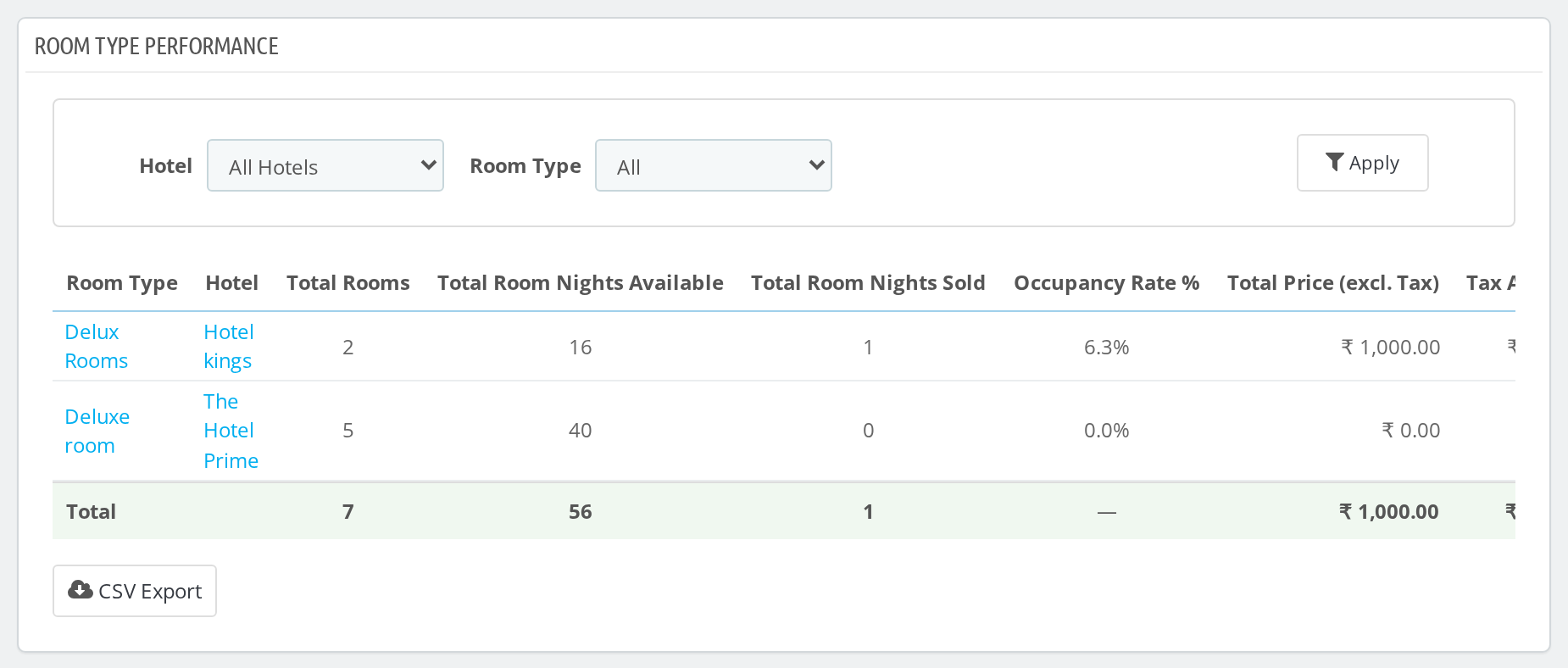
How each room type earns its keep: room nights available and sold, occupancy, total price before tax, tax, total revenue, ADR, RevPAR, cancellation count and average length of stay.
Booking Channel Reports
Booking Source
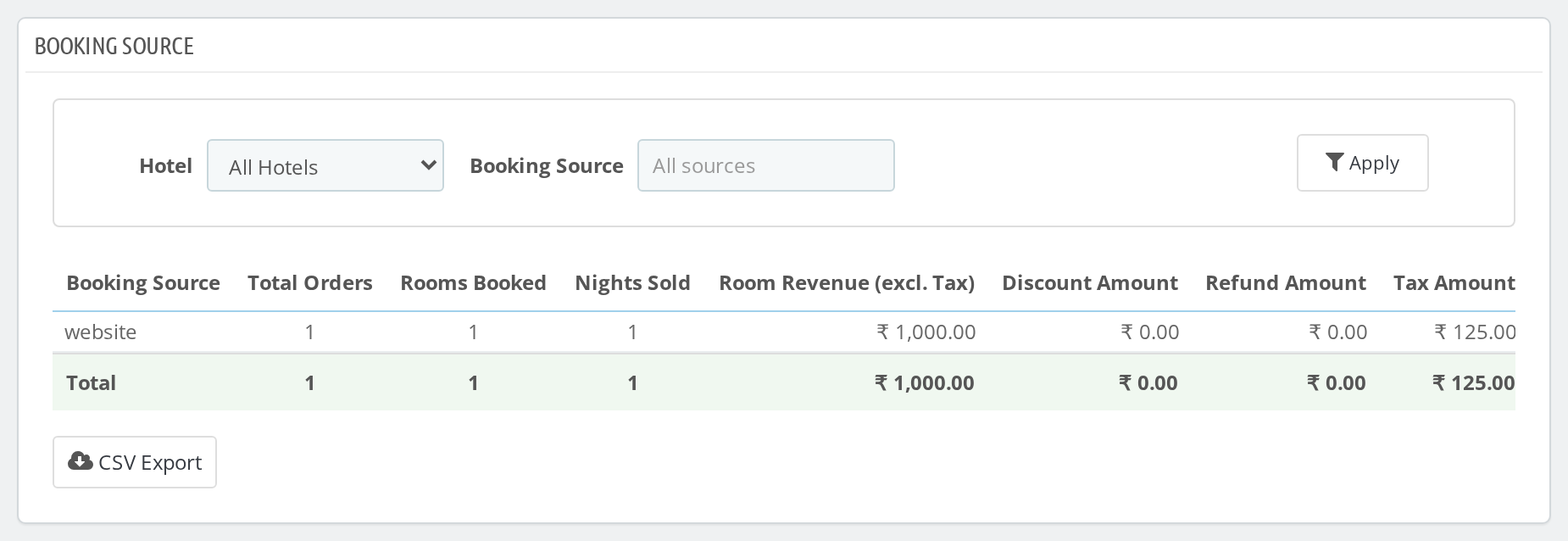
See where your business comes from. For each booking source you get total orders, rooms booked, nights sold, room revenue, discounts, refunds, tax, total collection, net revenue, cancellations, cancel rate, ADR and each source’s Contribution % to your revenue.
Payment Methods
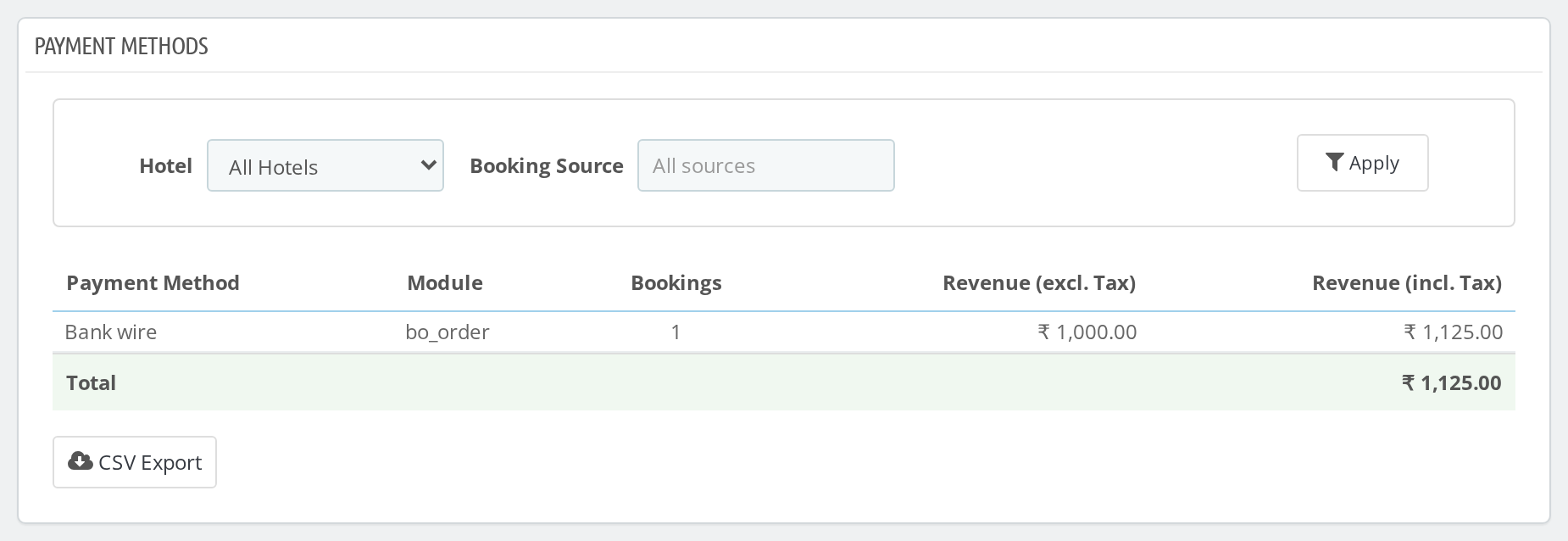
Which payment methods guests actually use, with the number of bookings and the revenue (before and after tax) for each.
Guest and Service Reports
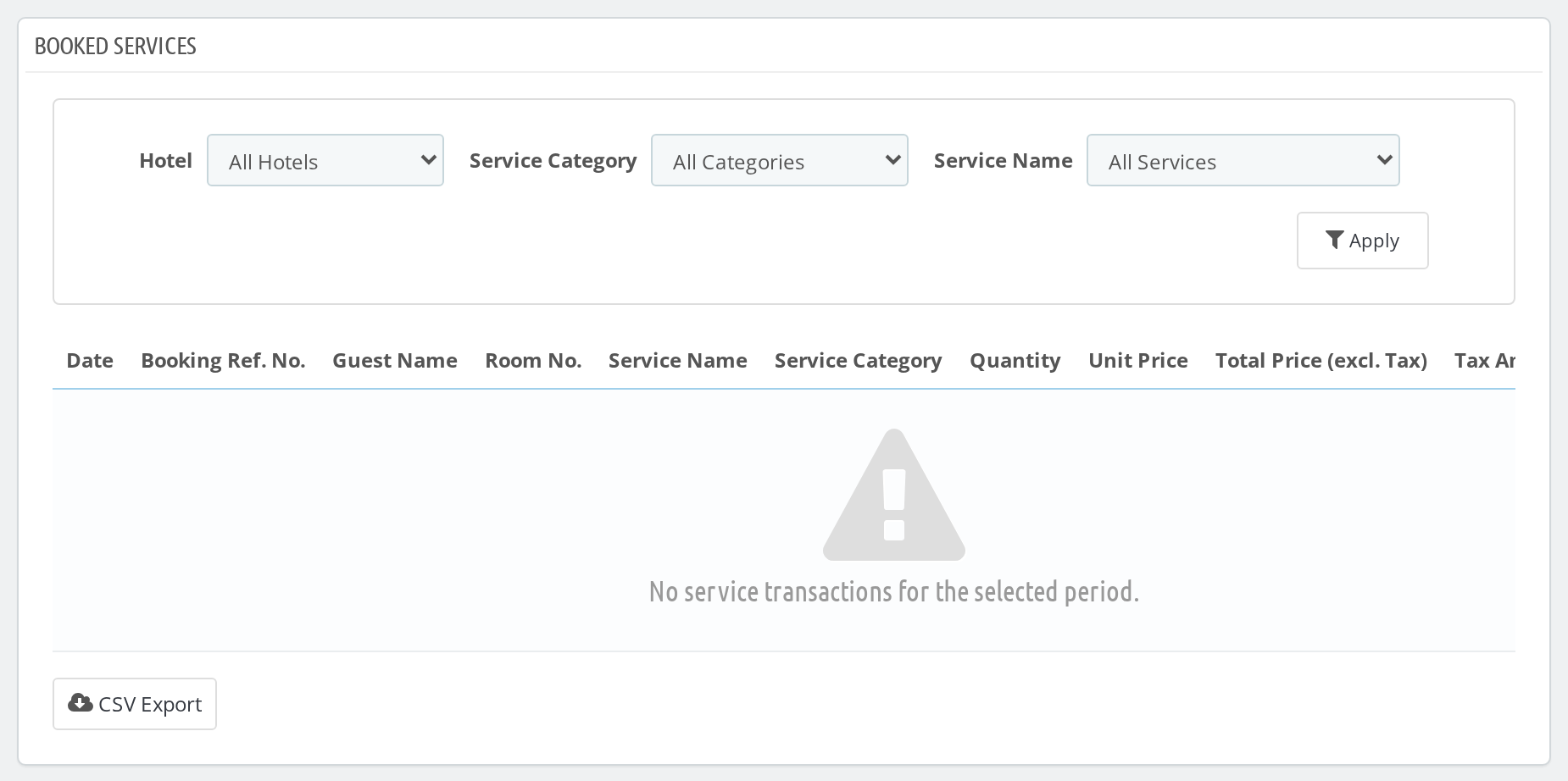
Booked Services
Every extra service sold with a booking, with date, booking reference, guest, room number, quantity, unit price, price before tax, tax and grand total. Filter by service category and by service name.
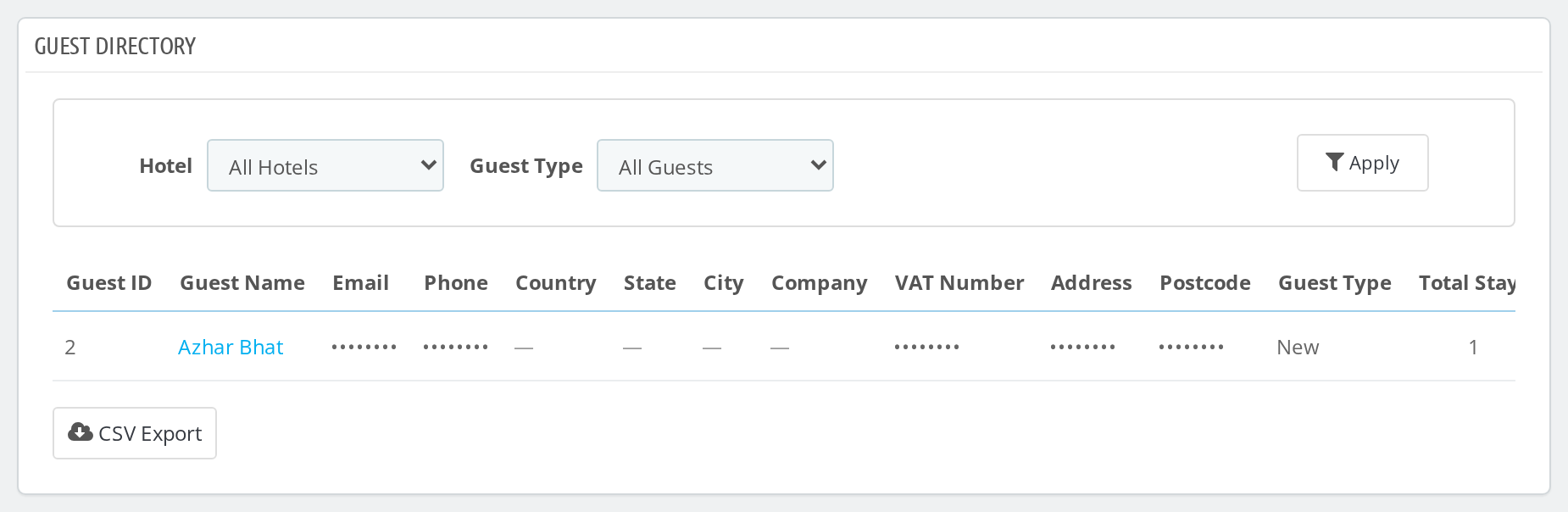
Guest Directory
Your guests in one list: name, email, phone, country, state, city, company, VAT number, address and postcode, plus total stays, total nights, last stay date, lifetime revenue and average spend per stay. Each guest is tagged New or Returning, and you can filter by guest type to see only one of the two.
Property Reports
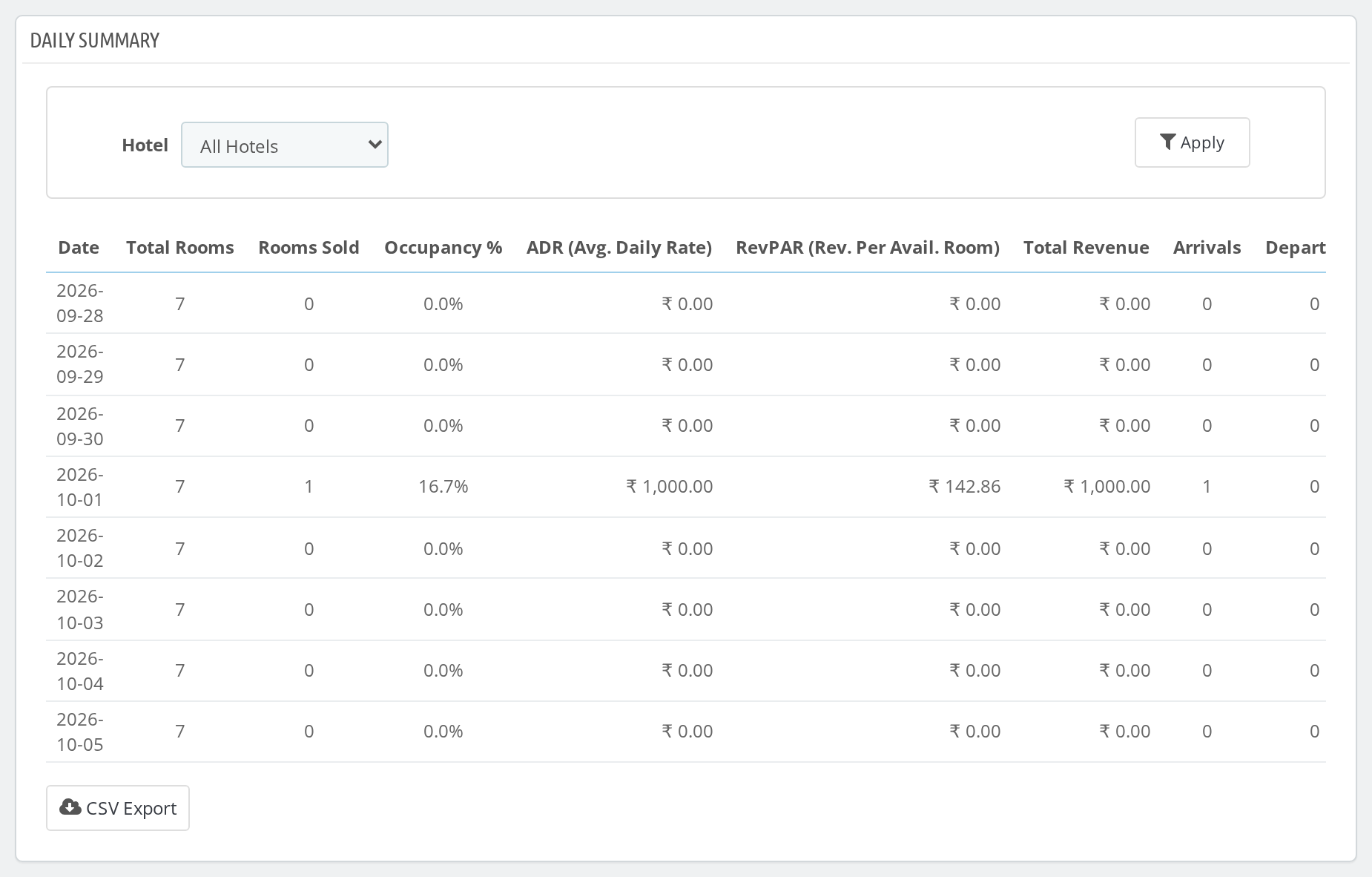
Daily Summary
One line per day for the whole property: total rooms, rooms sold, occupancy, ADR, RevPAR, total revenue, arrivals, departures, in-house guests and cancellations. You can filter by hotel, room type and floor.
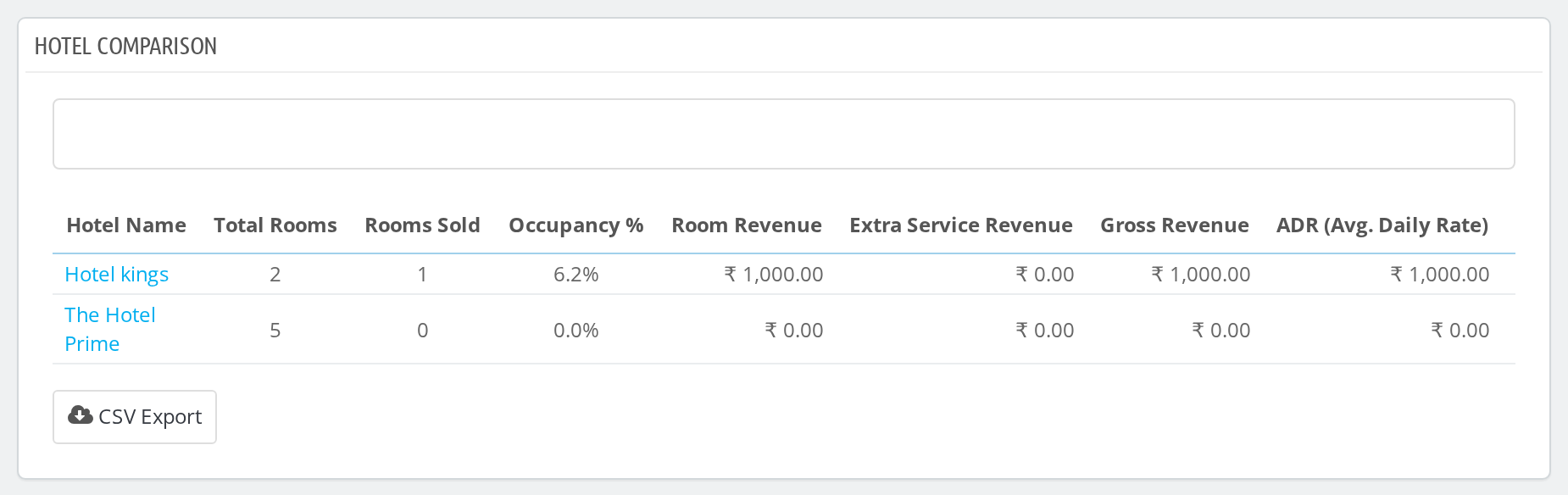
Hotel Comparison
Running more than one hotel? This report puts them side by side: room revenue, extra service revenue, gross revenue, total room bookings, cancellations, cancel rate, occupancy, ADR, RevPAR, average length of stay and the amount still due.
Out of Order Rooms
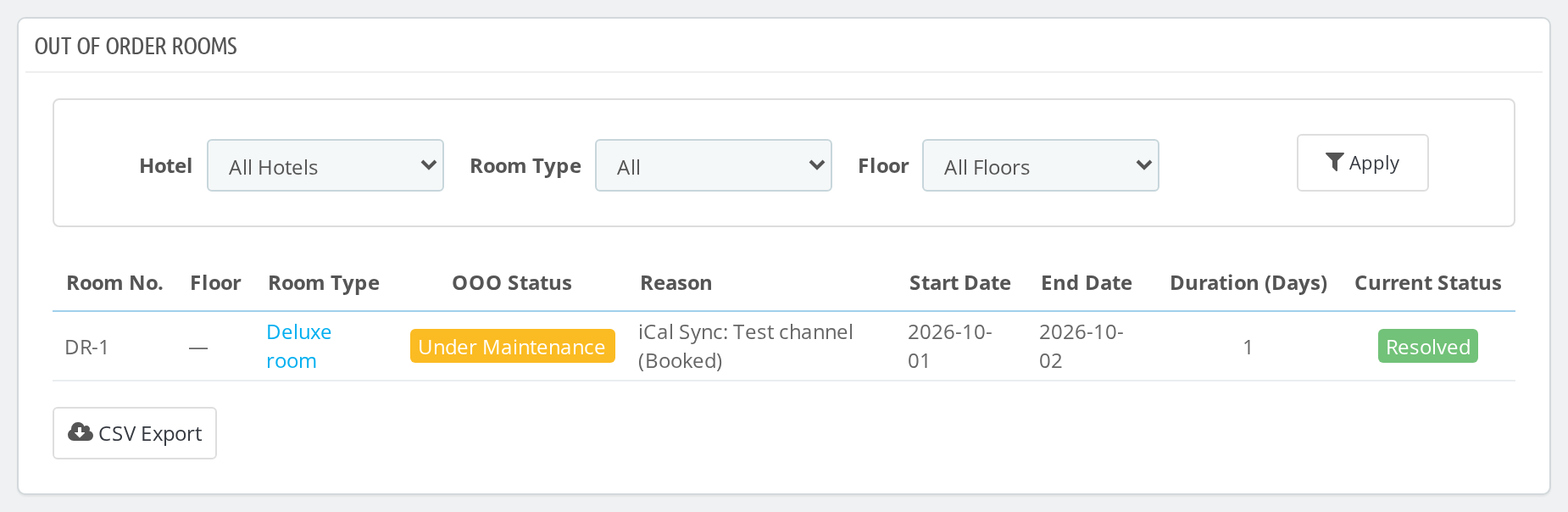
A record of rooms taken out of service: the room, its status, the reason, start and end dates, how many days it was or has been unavailable, and whether the issue is Ongoing or Resolved.
Conclusion
QloApps Hotel Reports gives you the daily numbers a hotel runs on, without leaving the Stats page. Front desk staff can check arrivals and departures, managers can follow occupancy, ADR and RevPAR, and accounts can pull tax, payment and outstanding-balance figures straight to CSV. If you manage several properties, the hotel filter and the Hotel Comparison report let you look at each one on its own or all of them together.
Need help? See the Webkul support policy.
Current Product Version: 4.0.0 (verified on QloApps 1.7.0)
Tags: reports, analytics, stats, occupancy, revenue, hotel management
Category: Analytics and Stats

Be the first to comment.