
The Channel Manager subscription allows hotels to manage their room types and rate plans across connected booking channels.
Each subscription plan includes a predefined number of room types and rate plans per property.
QloApps Channel Manager limits define the number of room types and rate plans you can manage for each property.
If a property exceeds the included limits, the subscription incurs additional charges called overage fees.
This channel manager limits document explains:
- How to upgrade the Channel Manager subscription
- How to select a subscription plan
- How to configure the number of properties
- How to adjust room type and rate plan limits
- The included limits and applicable overage fees
- Example pricing calculations
1. Upgrading the Subscription Plan
You can upgrade your subscription from the trial plan or an existing subscription.
Follow these steps:
- Log in to the Channel Manager account.
- Click the Account/Profile icon in the top-right corner.
- Navigate to Subscriptions.
- Click Upgrade Plan.
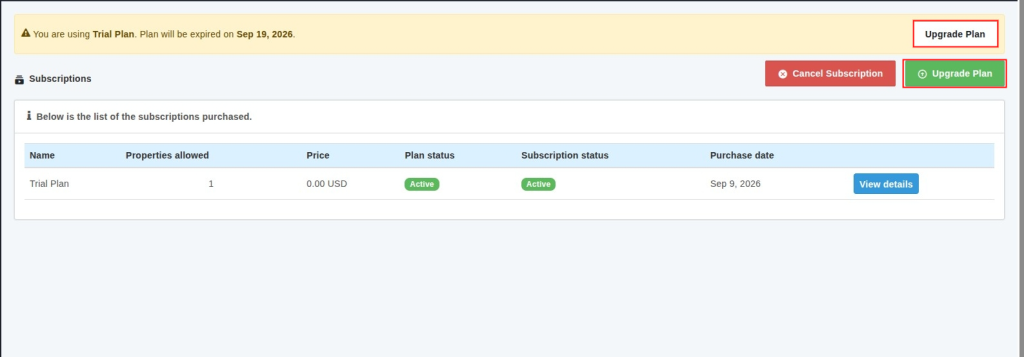
The Subscriptions page displays the currently active subscription and the available option to upgrade the plan.
2. Selecting a Subscription Plan
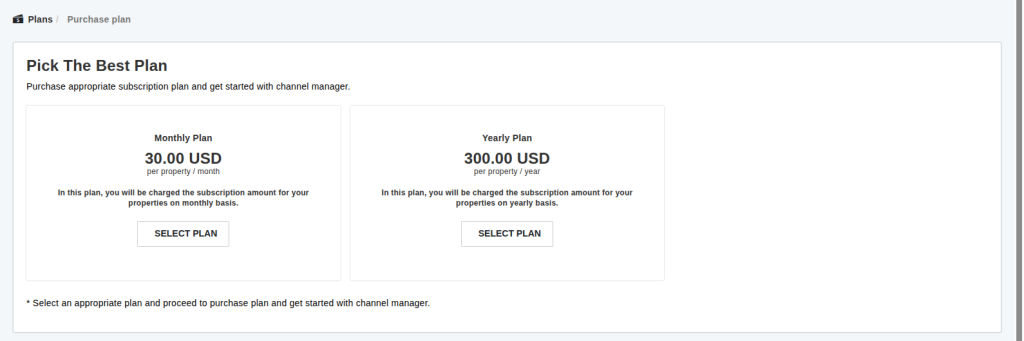
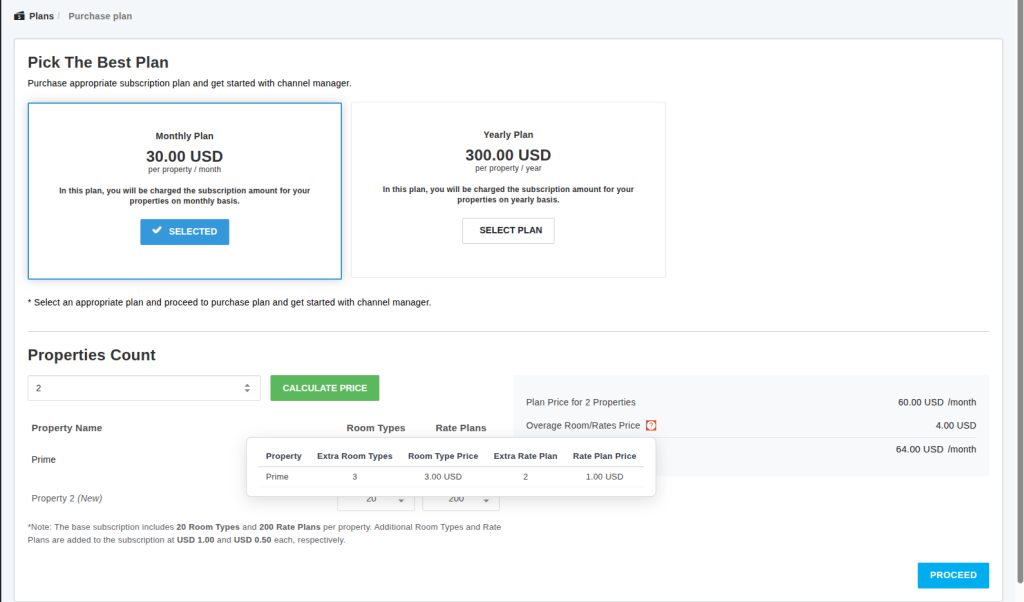
After clicking Upgrade Plan, the Purchase Plan page opens. Next, you can choose between two subscription options.
| Plan | Price | Billing Frequency |
| Monthly Plan | USD 30.00 per property | Monthly |
| Yearly Plan | USD 300.00 per property | Yearly |
Select the plan that best suits your business requirements.
3. Configuring the Number of Properties
Under Properties Count, enter the number of properties that you want to include in the subscription.
- Enter the required number of properties.
- Click Calculate Price.
- The system displays the property-wise room type and rate plan fields.
- Configure the room type and rate plan limits for each property.
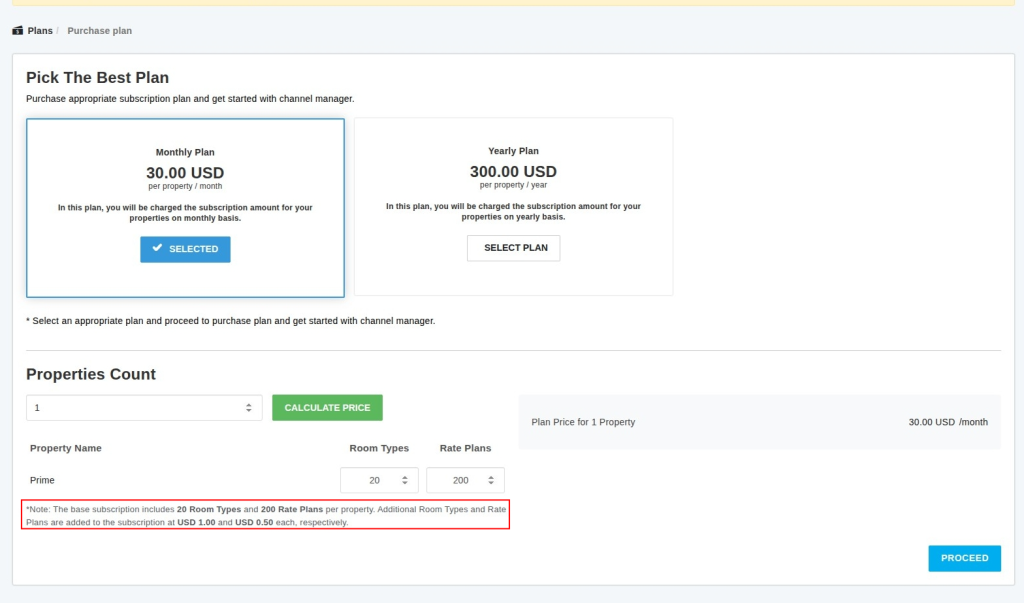
By default, the system includes:
- 20 Room Types per property
- 200 Rate Plans per property
You can increase these limits according to your property’s requirements.
Note: The base subscription includes 20 Room Types and 200 Rate Plans per property. Additional Room Types and Rate Plans are charged at USD 1.00 and USD 0.50 each, respectively.
4. Adjusting Room Types and Rate Plans
After you select the number of properties, the system displays separate configuration fields for each property.
For every property, you can configure:
- Room Types: The number of room types required for the property
- Rate Plans: The number of rate plans required for the property
Therefore, you can configure different limits for different properties based on their operational requirements.
Example
| Property | Room Types | Rate Plans |
| Prime | 23 | 202 |
| Property 2 | 20 | 200 |
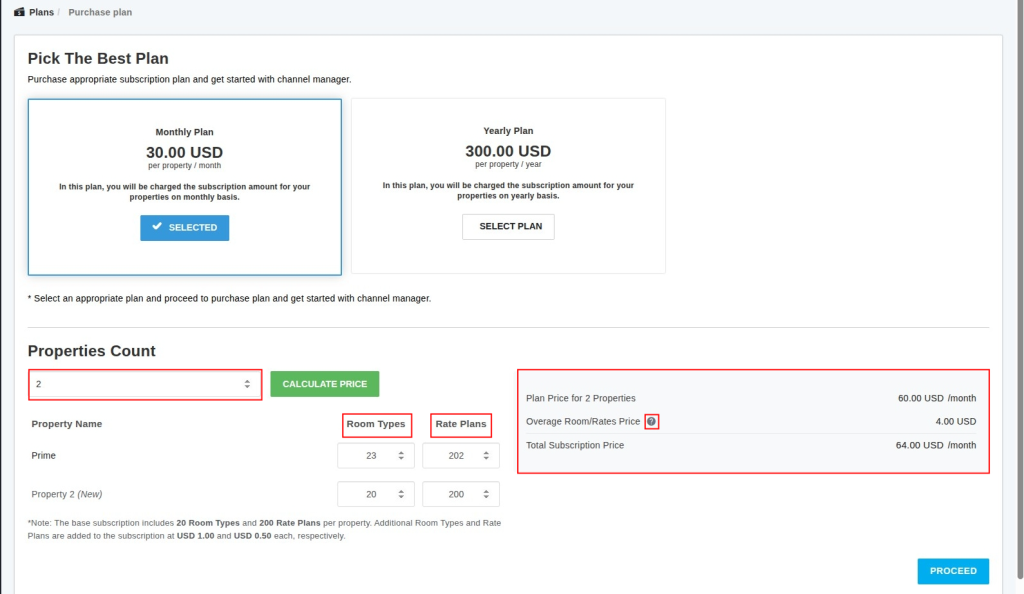
In this example:
- Prime uses 3 additional room types and 2 additional rate plans.
- Property 2 remains within the included limits.
You can also click the ⓘ (information) icon to view details about the pricing distribution.
5. Room Type and Rate Plan Limits
The base subscription limit is calculated separately for each property.
| Resource | Included per Property | Overage Fee |
| Room Types | 20 | USD 1.00 per additional room type |
| Rate Plans | 200 | USD 0.50 per additional rate plan |
Important Points
- The included limits apply per property.
- Overage fees are calculated separately for each property.
- Room type and rate plan limits can be configured independently.
- Increasing the number of properties increases the base subscription amount.
- Increasing room types or rate plans beyond the included limits increases the subscription amount through overage fees.
6. Overage Fee Calculation
The subscription price is calculated using the following formula:
Monthly Subscription
Total Subscription Amount = Base Plan Price × Number of Properties + Room Type Overage Fees + Rate Plan Overage Fees
Overage Fee Formula
Room Type Overage Fee
Room Type Overage Fee = (Total Room Types − 20) × USD 1.00
Rate Plan Overage Fee
Rate Plan Overage Fee = (Total Rate Plans − 200) × USD 0.50
If the total room types or rate plans remain within the included limits, no overage fee applies. Therefore, you only pay additional charges when you exceed the included limits.
Total Subscription Amount
| Description | Amount |
| Prime Property Total | USD 34.00 |
| Property 2 Total | USD 30.00 |
| Total Subscription Amount | USD 64.00 |
7. Reviewing the Subscription Plan Summary
Once you configure the properties, room types, and rate plans, click Proceed to view the Subscription Plan Summary.
The summary displays the selected plan, customer details, number of properties, and the Subscription Price Breakdown.
Subscription Price Breakdown
The breakdown provides property-wise pricing details:
- Property: Name of the property included in the subscription.
- Base Plan Price ($): Base subscription price for the property.
- Total Room Types: Total room types configured for the property.
- Extra Room Types (+$1.00 each): Additional room types beyond the included limit and applicable overage fee.
- Total Rate Plans: Total rate plans configured for the property.
- Extra Rate Plans (+$0.50 each): Additional rate plans beyond the included limit and applicable overage fee.
- Property Total ($): Total cost for the property, including the base price and applicable overage fees.
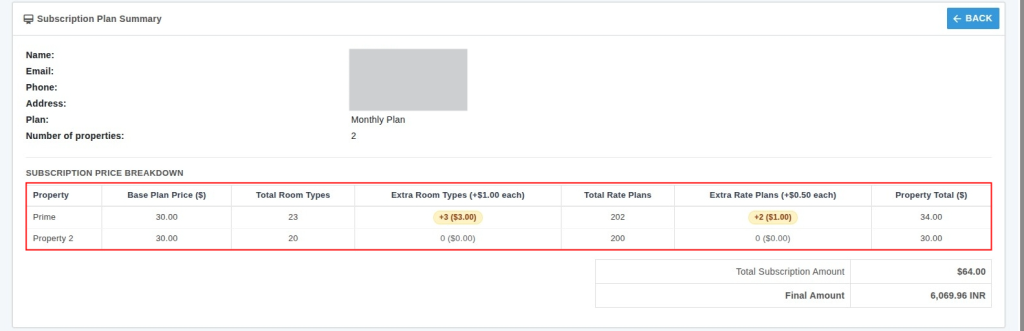
Review the subscription details carefully before proceeding to billing.
8. Billing Address and Payment
After reviewing the subscription summary:
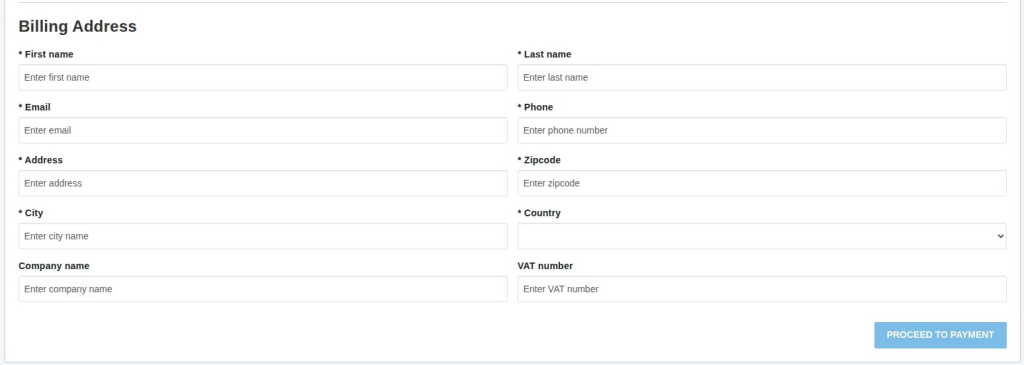
- Enter the required billing details.
- Provide the first name and last name.
- Enter the email address and phone number.
- Enter the billing address, city, country, and zipcode.
- Add the company name and VAT number, if applicable.
- Click Proceed to Payment.
- Complete the payment process to activate the subscription.
9. Adding a Hotel
After purchasing the subscription, you can add hotels based on the number of properties included in your subscription.

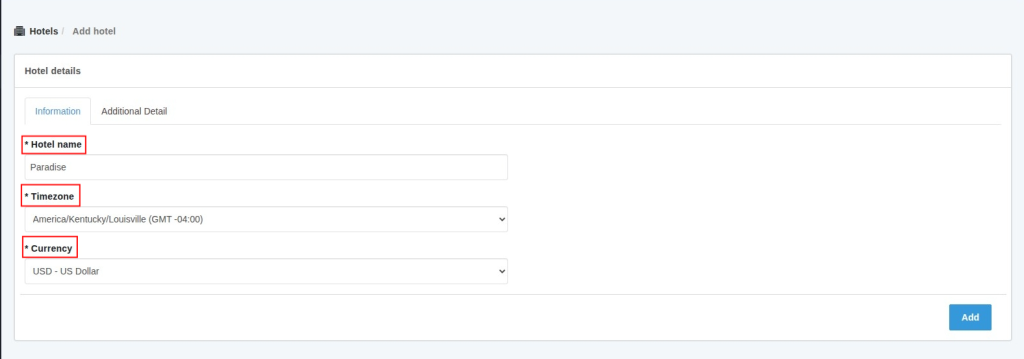
To add a hotel:
- Click Hotels in the left-side menu.
- Click Add Hotel.
- Enter the required hotel details.
- Click Add to create the new hotel.
Assign Property Limit
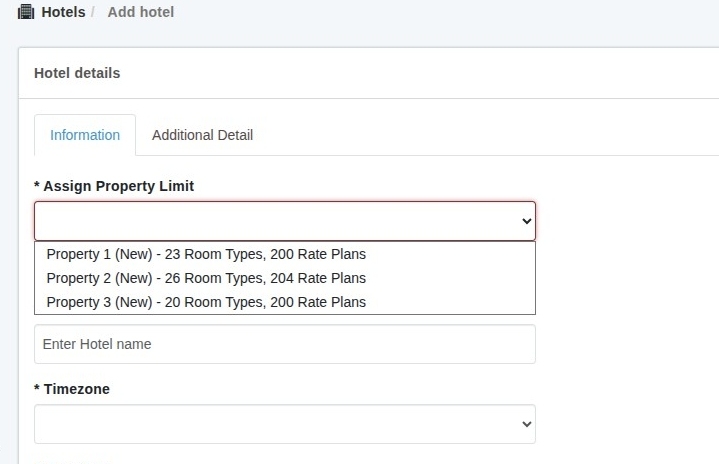
If you purchase multiple properties with different room type and rate plan configurations, an additional “Assign Property Limit” column will be displayed.
This column allows you to assign the appropriate property limit to each hotel based on the configured Room Types and Rate Plans.
10. Adding Room Types
To add room types for a hotel:
- Click Room Types in the left-side menu.
- Select the required hotel, if applicable.
- Click Add Room Type.
- Enter the required room type details.
- Save the room type.
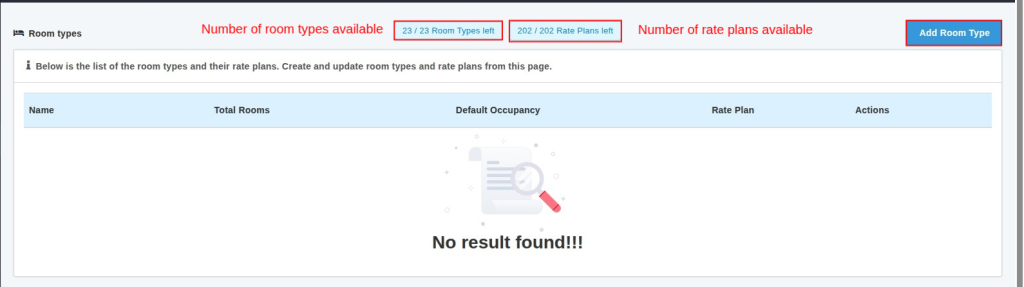

The number of room types that can be added depends on the room type limit configured for the property.
11. Adding Rate Plans
To add rate plans:
- Click Room Types in the left-side menu.
- Select the required hotel or room type, if applicable.
- Click Add Room Plan.
- Enter the required rate plan details.
- Save the rate plan.
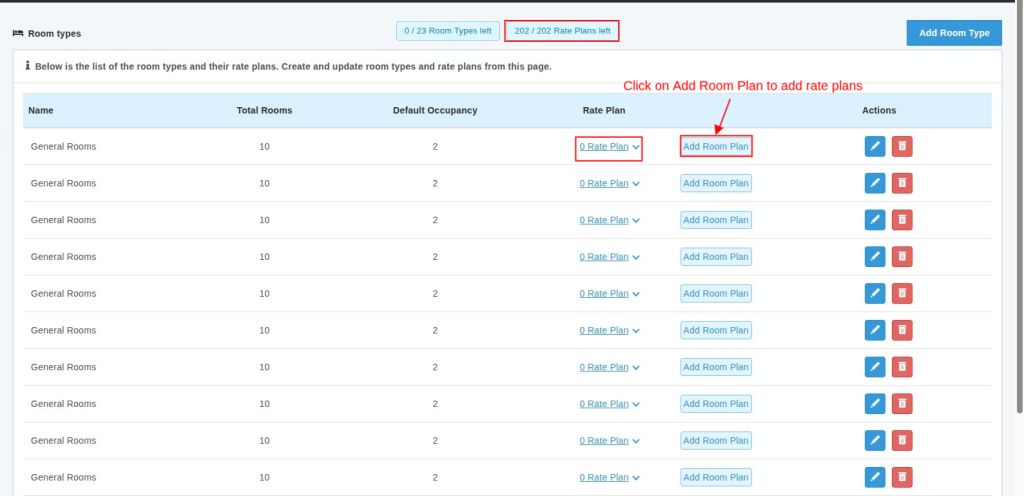
The number of rate plans that can be added depends on the rate plan limit configured for the property.
12. What Happens When a Limit Is Reached?
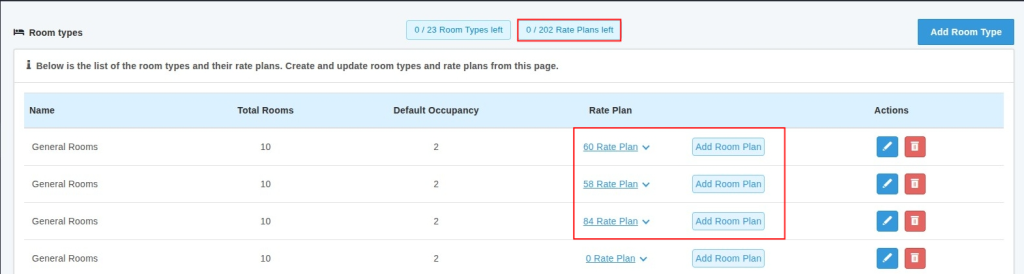
When the configured number of room types reaches the maximum limit allowed under the current plan, the system displays a Limit Reached message.
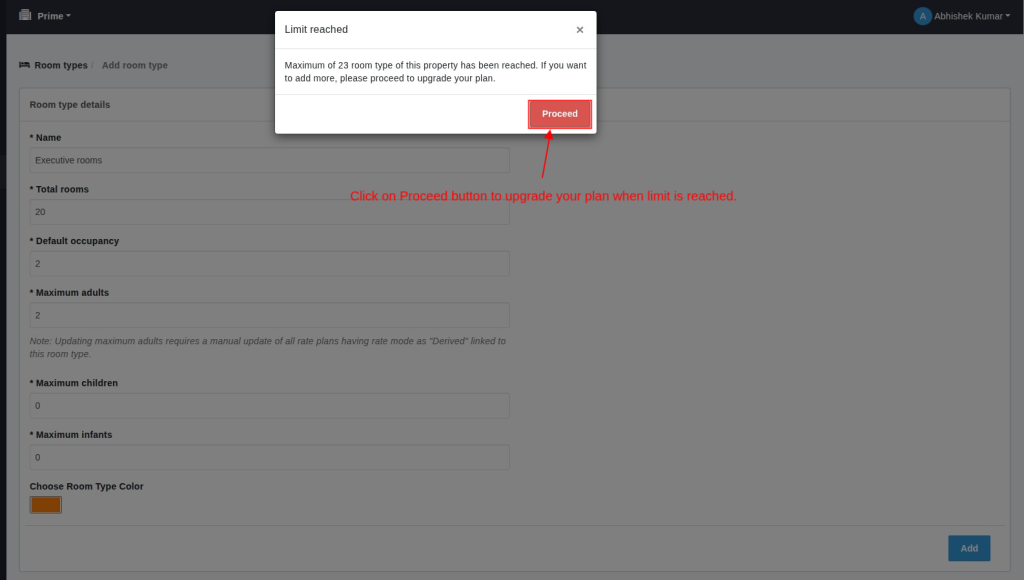
The message informs the user that the maximum number of room types for the property has been reached and that an upgrade is required to add more.
To Increase the Limit
- Click Proceed in the Limit Reached message.
- The system redirects you to the subscription plan upgrade process.
- Select the appropriate subscription plan.
- Increase the room type limit as required.
- Review the updated pricing and proceed with the upgrade.
13. Plan Upgrade or Downgrade and Balance Compensation
If you upgrade or downgrade your subscription plan, the Balance Compensation Plan adjusts the applicable balance.
For more information, refer to the QloApps Balance Compensation Plan for Subscription Upgrade.
After configuring the properties, room types, and rate plans, click Proceed to review the subscription summary and continue for billing.
If you have upgraded or downgrade the plan, your balance will be compensated as shared in this https://qloapps.com/balance-compensation-plan-upgrade/
14. Final Review
Before completing the purchase or subscription change, verify the following:
- Correct subscription plan is selected.
- Number of properties is correct.
- Room type limits are configured correctly for each property.
- Rate plan limits are configured correctly for each property.
- Any applicable overage fees are understood.
- The final subscription amount is correct.
- Billing information is accurate.
- Any applicable balance compensation has been considered.
15. Conclusion
This was all from the QloApps Channel Manager. I hope this guide has helped you understand the subscription plans, property configuration, room types, rate plans, and overage fee calculation.
If you want to learn about the functionality of QloApps then you can visit this link: QLO Reservation System – Free Open-Source Hotel Booking & Reservation System
In case of any query, issue, or requirement please feel free to raise it on QloApps Forum
Current Product Version – v4.0.0
Supported Framework Version – QloApps 1.7.x

Be the first to comment.