
The QloApps Marketplace Front Desk System has been upgraded to version, making it easier for sellers to manage daily hotel operations directly from their seller account.
From handling guest reservations to managing check-ins, check-outs, room allocation, and walk-in bookings, sellers can perform front desk operations quickly.
The Marketplace Front Desk helps sellers manage marketplace bookings, room operations, and guest activities efficiently from a single interface.
A Redesigned Marketplace Front Desk Page
The new interface is designed to help sellers manage room bookings and front desk activities more efficiently with a clear and organized view.
The design features include:
- Rows for rooms and columns for dates, creating a structured and clear display.
- An interactive calendar that allows easy tracking of bookings, rates, and inventory.
- A streamlined interface for quick access to essential booking details.
With an easy-to-understand workflow, the Marketplace Front Desk module helps sellers manage day-to-day hotel operations more conveniently while improving booking management efficiency.
Key Features of QloApps Marketplace Front Desk
- A dedicated Front Desk page provides a structured interface for sellers to manage reservations, room occupancy, and hotel operations easily.
- The marketplace admin can configure global front desk settings for standardized hotel operations.
- Only the admin can configure booking status settings, their name, and colour.
- Sellers can overwrite global configurations based on their hotel operational needs.
- Sellers can view arrivals, departures, occupied rooms, and total bookings for a selected calendar date.
- Show real-time updates on availability and rate
- Seller can Reallocate or Swap Rooms from the Calendar itself
- Sellers can apply calendar filters like 7 days or 14 days to get a quick booking overview.
- Sellers can change booking dates easily using drag-and-drop functionality.
Note: Sellers can only create bookings directly from the Marketplace Front Desk only after installing the Marketplace On-Desk Booking module.
Compatibility Information
- QloApps Marketplace Front Desk v5.0.0 is compatible with QloApps version v1.7.x
- QloApps Marketplace Front Desk v4.0.0 is compatible with QloApps version v1.7.x
- QloApps Marketplace Front Desk v2.0.0 is compatible with QloApps version v1.6.x
- QloApps Marketplace Front Desk v1.0.0 is compatible with QloApps version v1.6.x
Comprehensive Booking Statuses
The marketplace admin can configure these booking statuses for all seller properties.
- Reserved – The room is booked, but the reservation is not yet confirmed
- Confirmed Reserved – The room is booked, and the reservation is confirmed
- Check-in – The guest is arriving today
- Occupied – The guest has checked in and is currently staying in the room
- Due Out – Guests are checking out today
- Check-out – The guest has already left the room
- Out of Order – The room is temporarily unavailable for maintenance or other reasons
Booking Indicators
- Group Booking: Multiple rooms in the same booking for the same date range
- Payment Pending: Bookings with unpaid balances
- Stop Room Move: Indicates that the room was manually assigned
Booking Tooltip Information
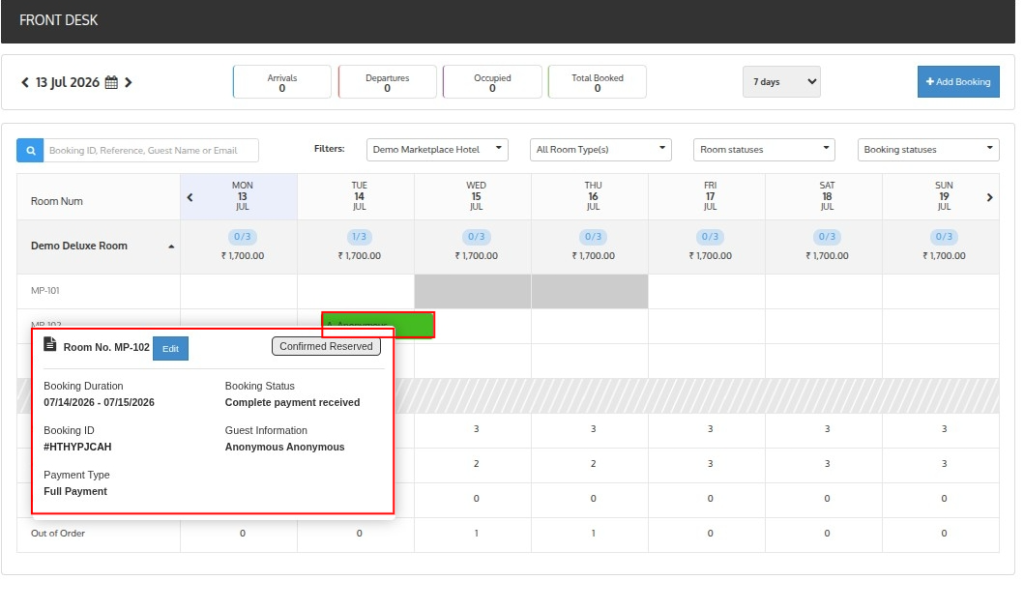
The booking tooltip provides quick reservation details in a single view, including:
- Room number and room details
- Booking duration (check-in and check-out dates)
- Booking status
- Booking ID
- Guest information
- Payment type
- Booking indicators (such as payment pending)
Calendar-Based Global Statistics
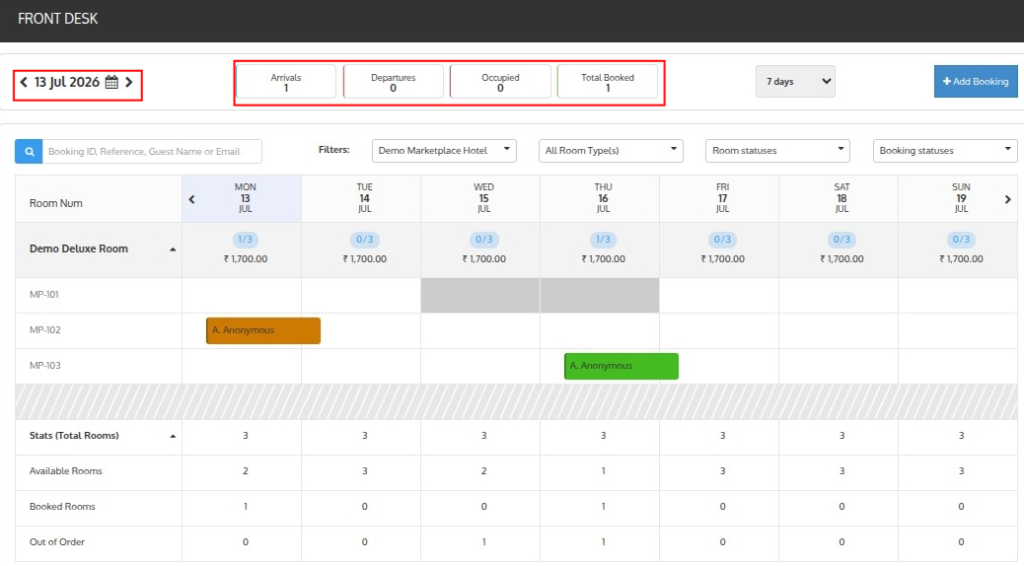
Sellers can select a specific calendar date to view important booking statistics for that day, helping them quickly understand hotel occupancy and reservation activity.
The section displays:
- Arrivals for the selected day
- Departures for the selected day
- Occupied rooms count
- Total booked rooms count
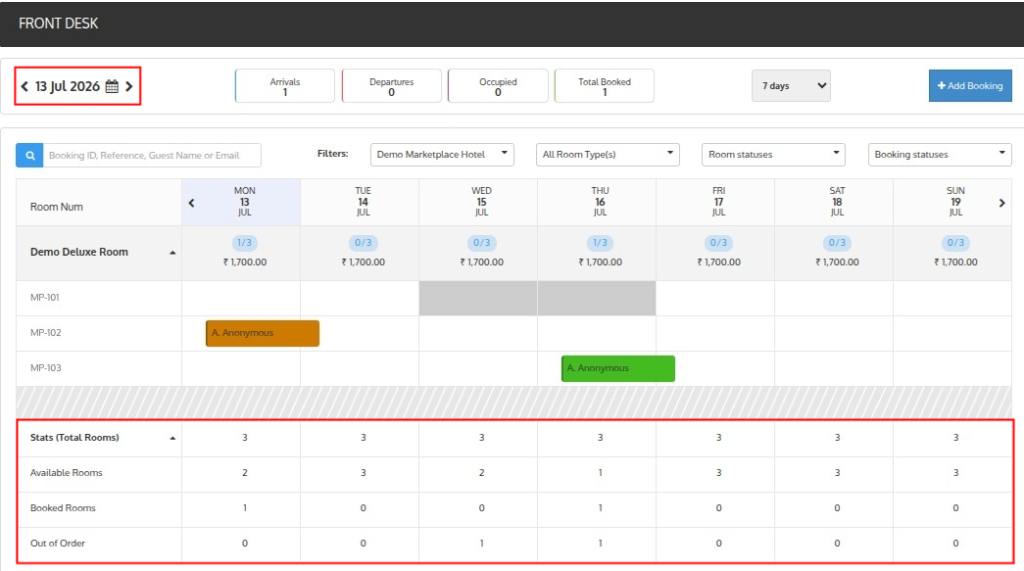
Sellers can also view room statistics at the bottom for better room availability tracking, including:
- Total rooms count
- Available rooms count
- Booked rooms count
- Out of order rooms count
Advanced Booking Filters
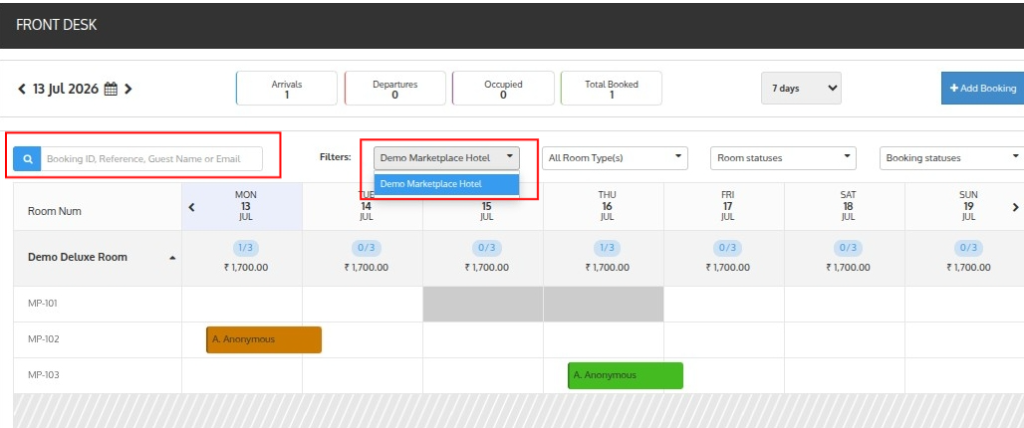
The Marketplace Front Desk module provides advanced booking filters that help sellers quickly find reservations and manage booking data more efficiently.
Sellers can filter bookings using customer and booking information, including:
- Booking ID
- Booking reference
- Guest name
- Guest email
Sellers can also filter bookings based on hotel and room type for better reservation management.
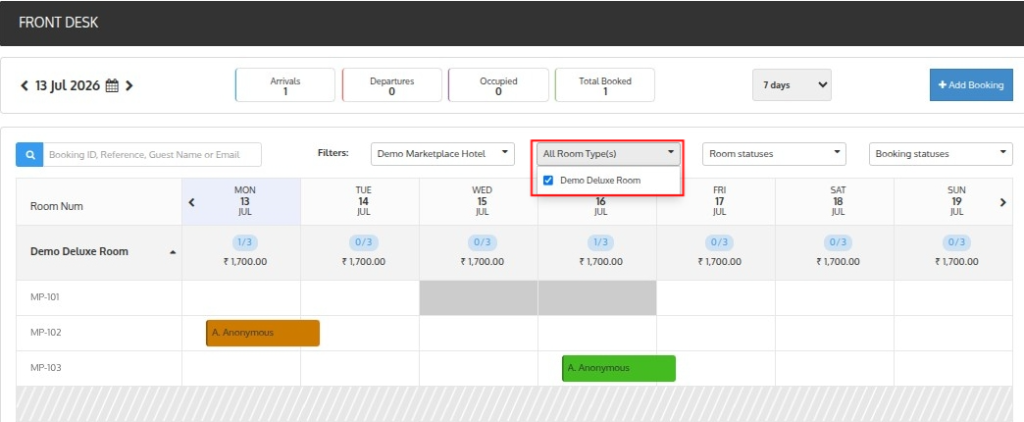
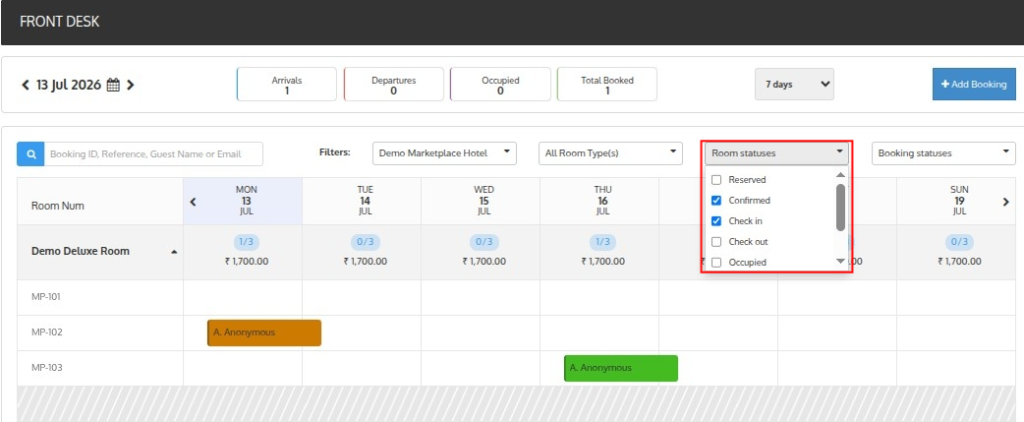
The module also provides room status filters to quickly identify bookings based on their current status:
- Reserved – Displays rooms that are booked, but the reservation is not yet confirmed.
- Confirmed Reserved – Displays rooms with confirmed reservations.
- Check-in – Displays rooms where guest check-in is scheduled.
- Occupied – Displays rooms currently occupied by guests.
- Due Out – Displays rooms expected to be vacated on the selected day.
- Check-out – Displays rooms where guests have already completed check-out.
- Out of Order – Displays rooms temporarily unavailable due to maintenance or operational issues.
Installation of QloApps Marketplace Front Desk Module
Install the QloApps Marketplace Front Desk module in just a few simple steps.
- Go to the Modules and Services section in the admin panel.
- Click on Add New Module.
- Upload the ZIP file of the Marketplace Front Desk module.
- Click on Install to complete the module installation.
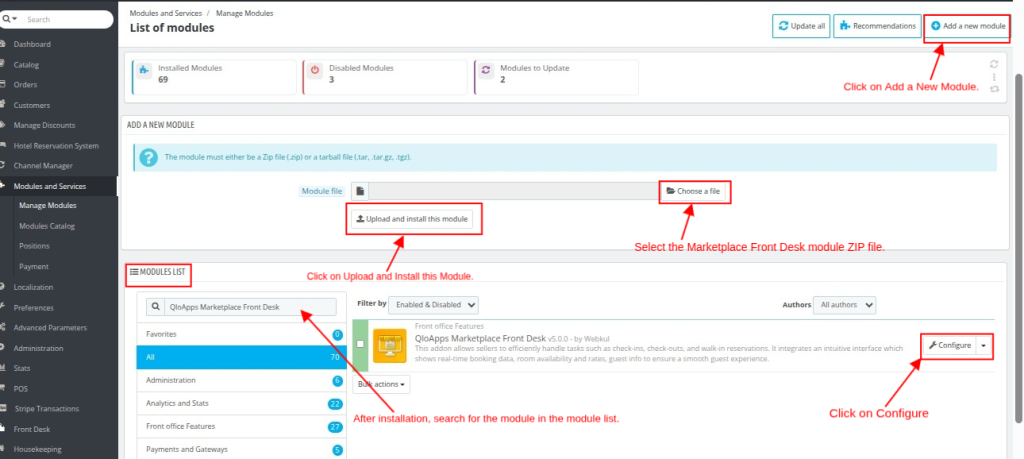
After installation, admins can configure the module, and sellers can access Front Desk operations from their seller account.
Configuration of QloApps Marketplace Front Desk Module
The QloApps Marketplace Front Desk module provides two types of configuration options that help admins manage front desk operations and booking workflows more efficiently.
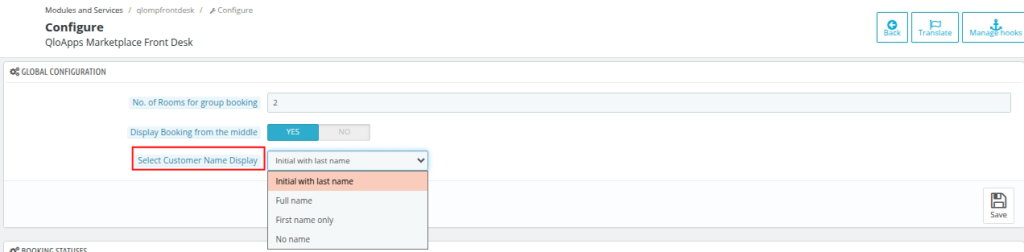
1. Global Configuration
The marketplace admin can configure global front desk settings for all seller properties.
Sellers also have the flexibility to overwrite these global configurations from their seller account based on their hotel operational requirements.
It includes the following options:
- Number of Rooms for Group Booking – Define the minimum number of rooms booked within the same date range for a reservation to be considered a group booking.
- Display Booking from the Middle – If enabled, bookings are displayed with partial width on check-in and check-out dates for better visibility in the calendar view.
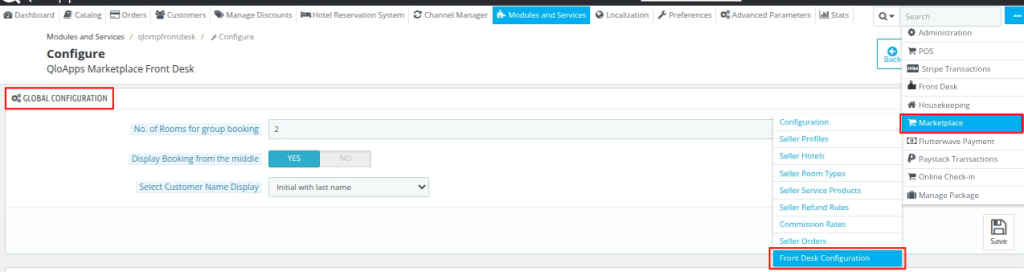
- Customer Name Display Format – Configure how guest names appear in booking details. Available options include:
- Initial with last name (Example: J. Smith)
- Full name (Example: John Smith)
- First name only (Example: John)
- No name displayed
2. Booking Status Configuration
The Booking Status Configuration section allows only the marketplace admin to configure booking statuses displayed in the Front Desk calendar.
By default, the module includes booking statuses such as:
- Reserved
- Confirmed Reserved
- Check-in
- Occupied
- Due Out
- Check-out
- Out of Order
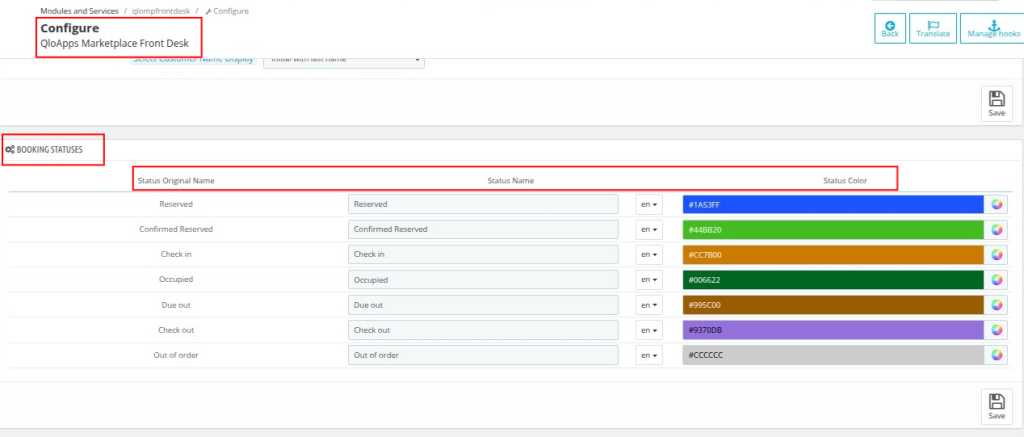
The admin can customize booking status names and assign colors to improve booking identification and operational visibility.
The selected colors are reflected directly in the Front Desk calendar, making it easier for sellers to identify room occupancy, booking progress, and reservation statuses at a glance.
Front Desk Access Control for Sellers
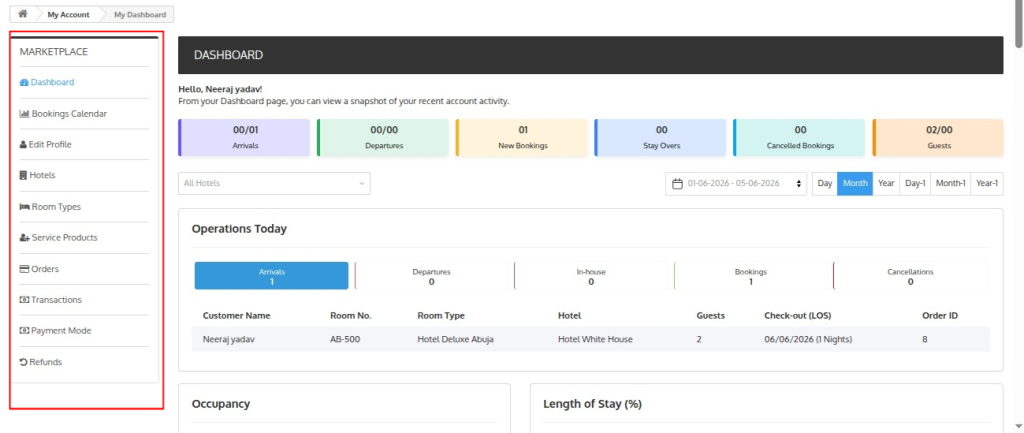
The Marketplace Front Desk module gives admins complete control over seller access.
From the seller profile page in the admin panel, the admin can enable or disable Front Desk access for any seller.
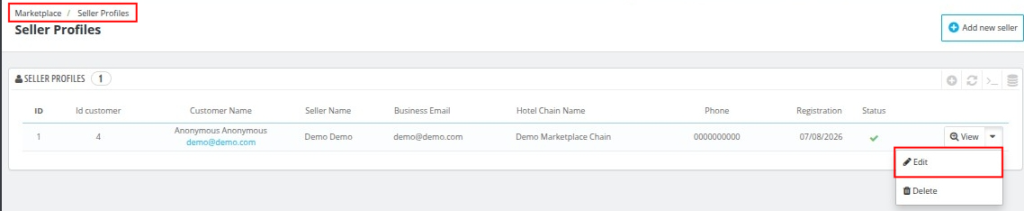
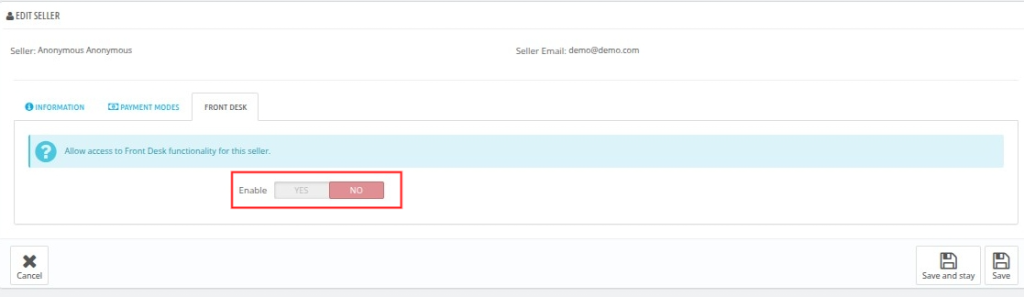
This allows the marketplace admin to decide which sellers can use the Front Desk module and manage hotel operations from their seller account.
If Front Desk access is disabled for a seller, the Front Desk functionality will not be available in their seller panel.
Working of QloApps Marketplace Front Desk Module
Once the QloApps Marketplace Front Desk module is configured by the admin, sellers can access and manage front desk operations directly from their seller account.
The module allows sellers to efficiently handle reservations, room management, inventory tracking, and booking operations from a structured calendar interface.
Let us understand each functionality one by one.
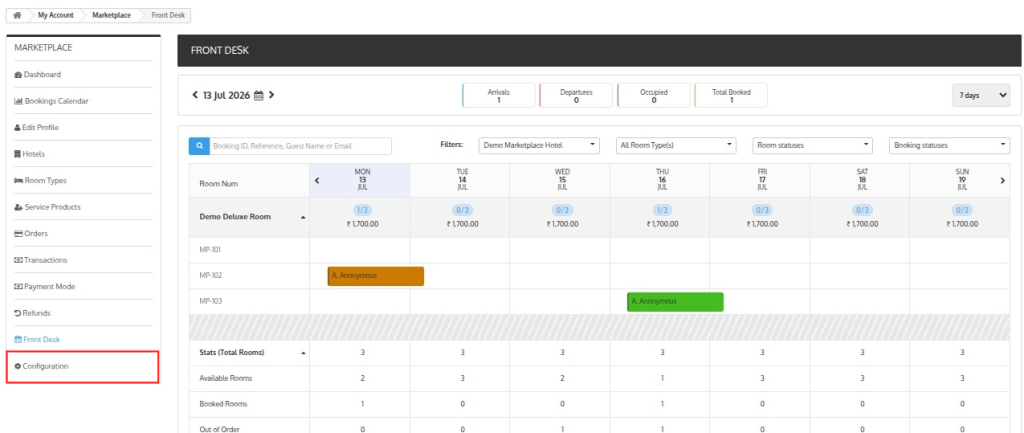
Configuration
Sellers can configure front desk settings from their seller account according to their hotel operational needs. Similar to the admin configuration, sellers can overwrite global settings.
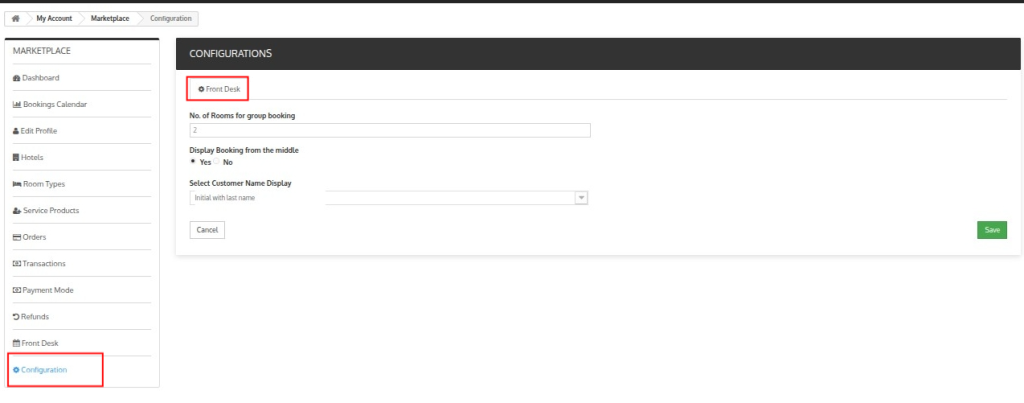
It includes the following options:
- Number of Rooms for Group Booking – Define the minimum number of rooms booked within the same date range for a reservation to be considered a group booking.
- Display Booking from the Middle – If enabled, bookings are displayed with partial width on check-in and check-out dates for better visibility in the calendar view.
- Customer Name Display Format – Configure how guest names appear in booking details.
Real-Time Rate and Inventory Update
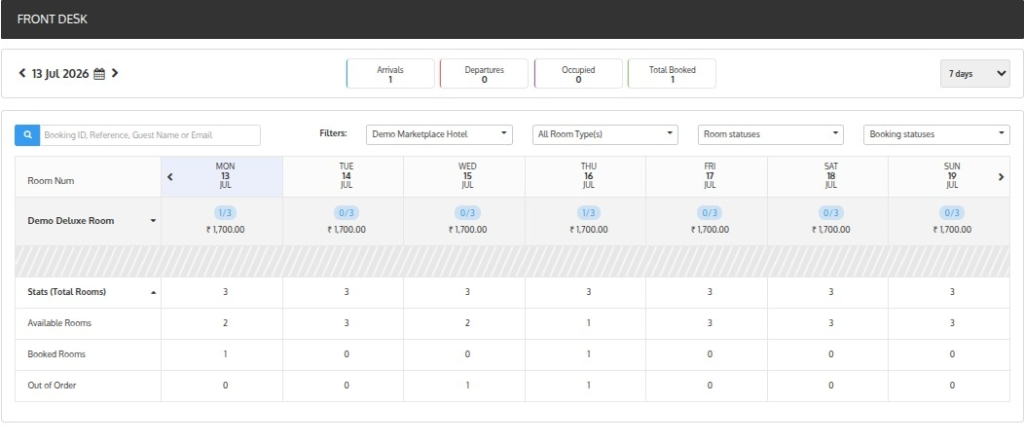
The Marketplace Front Desk calendar displays real-time room rates and inventory information, helping sellers monitor room availability and pricing without switching between multiple sections.
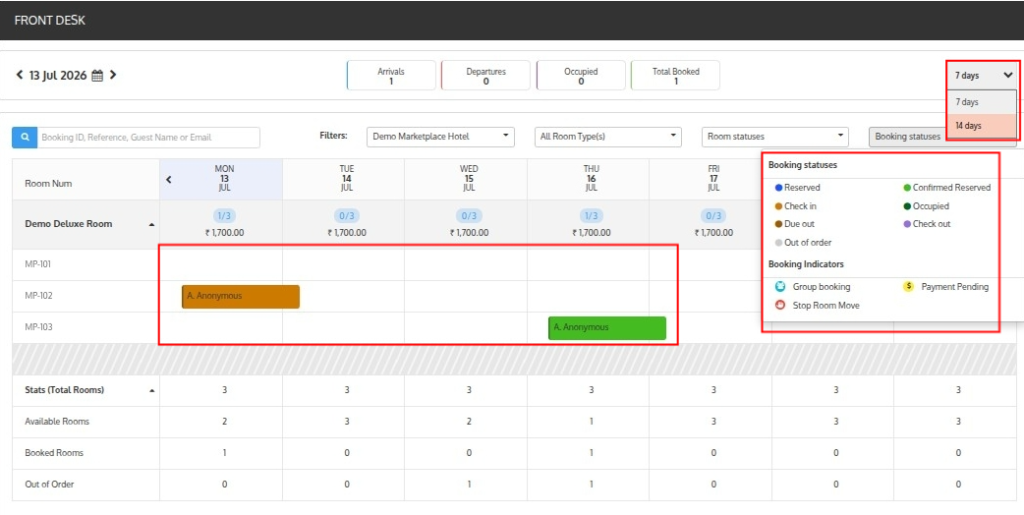
Comprehensive Booking Display
All bookings are displayed on the front desk calendar with guest details, statuses, and indicators
Booking statuses are visually represented to enhance clarity
Seller can see the booking for 7 days/14 days
Detailed Booking Statuses for Quick Identification
To improve reservation management, bookings are categorized under different statuses:
- Reserved – Rooms booked but booking status is not yet confirmed.
- Confirmed Reserved – Rooms booked with confirmed reservation status.
- Check-in – Rooms scheduled for guest arrival.
- Occupied – Rooms currently occupied by guests who have not checked out yet.
- Due Out – Rooms scheduled for check-out on the selected day.
- Check-out – Rooms where guests have already checked out.
- Out of Order – Rooms temporarily unavailable due to maintenance or operational reasons.
Booking Indicators for Additional Information
- Group Booking – Identifies multiple rooms booked under the same reservation.
- Payment Pending – Highlights bookings with pending payments.
- Stop Room Move – Indicates that the room was manually assigned
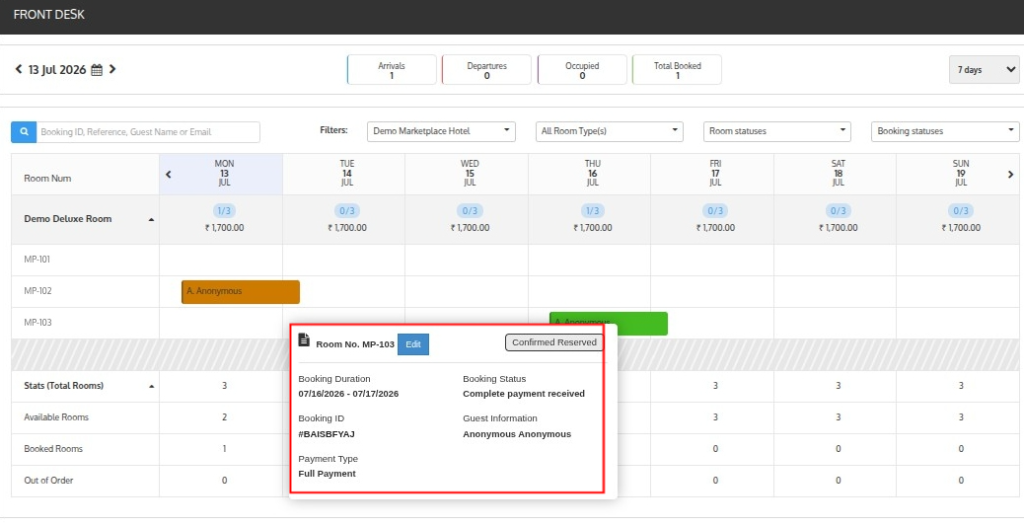
Booking Information Tooltip
The seller can hover over any booking in the calendar to view quick reservation details, including:
- Booking duration
- Booking status and booking ID
- Payment type
- Guest information
- Booking indicators
Sellers can modify booking dates directly from the calendar using drag-and-drop functionality, making reservation changes faster and easier to manage.
Sellers can drag and drop bookings to reassign room numbers or swap room types according to operational requirements.
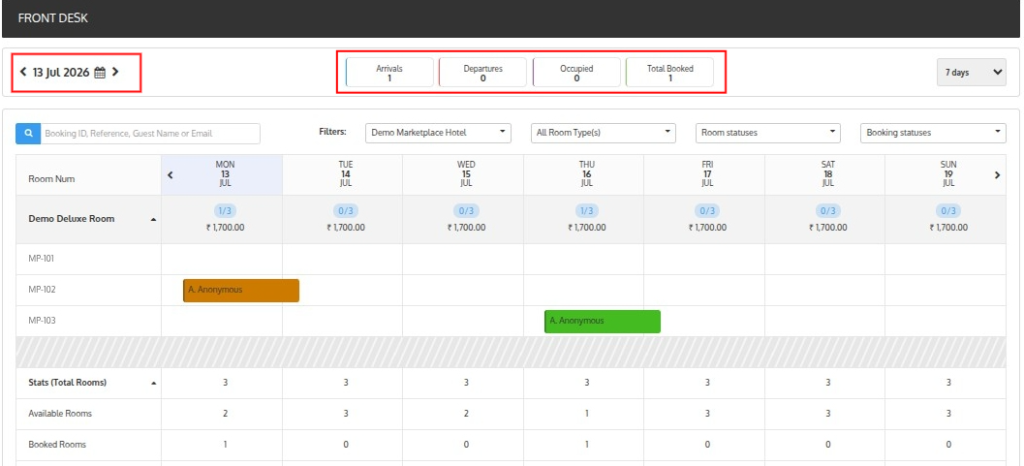
Date-Based Booking Overview
The Marketplace Front Desk calendar allows sellers to select any specific date and instantly view important booking insights for that day.
The section displays:
- Arrivals
- Departures
- Occupied rooms
- Total booked rooms
Sellers can select any calendar date to view booking information and room activity for that specific day.
Advanced Booking Filters
The Marketplace Front Desk module provides advanced filters that help sellers quickly find and manage reservations with better control.
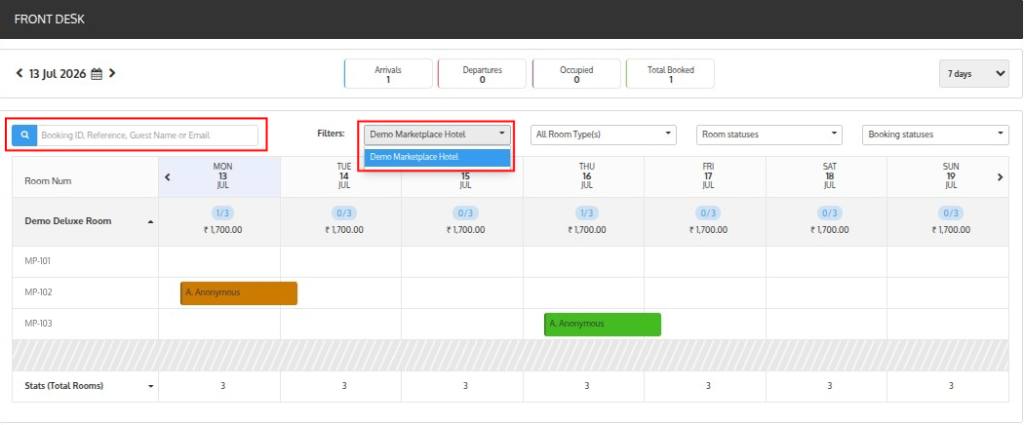
Sellers can filter bookings using:
- Room Status – Reserved, Confirmed Reserved, Check-in, Occupied, Due Out, Check-out, and Out of Order.
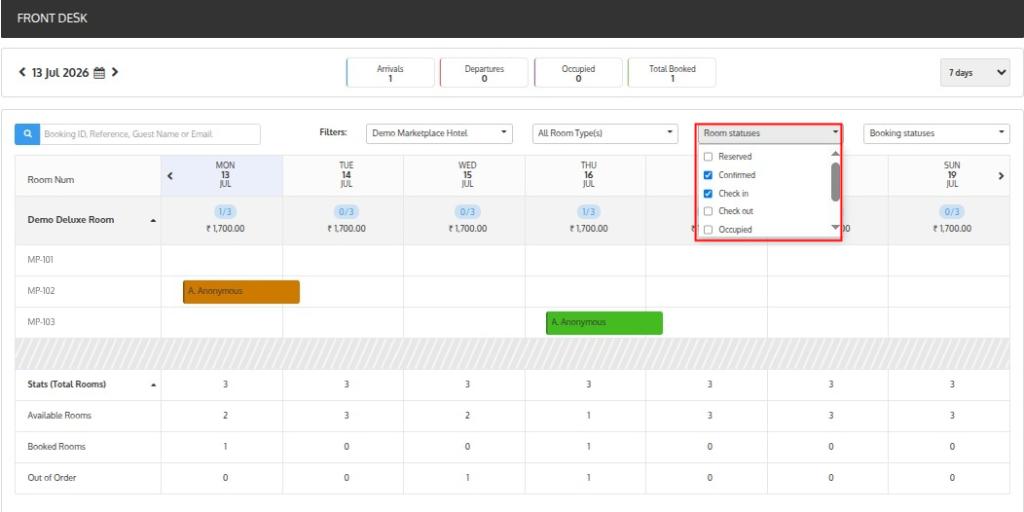
- Hotel and Room Type – Filter reservations based on hotel or specific room categories.
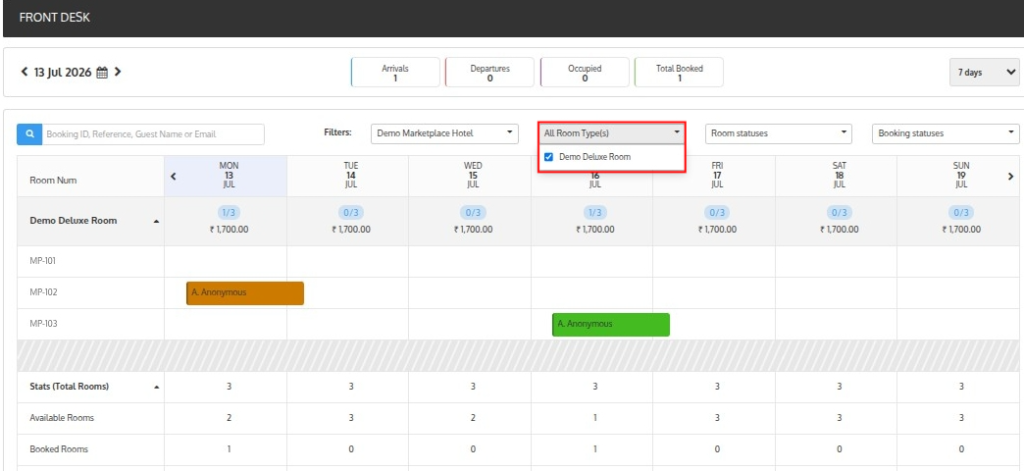
- Booking and Guest Details – Search bookings using Booking ID, Booking Reference, Guest Name, or Guest Email.
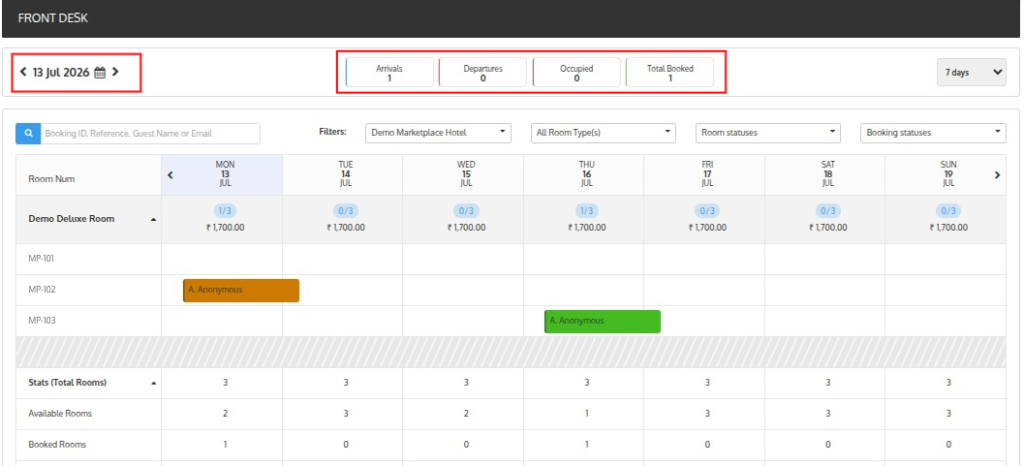
Calendar-Based Global Statistics
Sellers can view booking and room statistics for a selected calendar date to better understand hotel occupancy and reservation activity.
The statistics section includes:
- Arrivals
- Departures
- Occupied rooms
- Total booked rooms
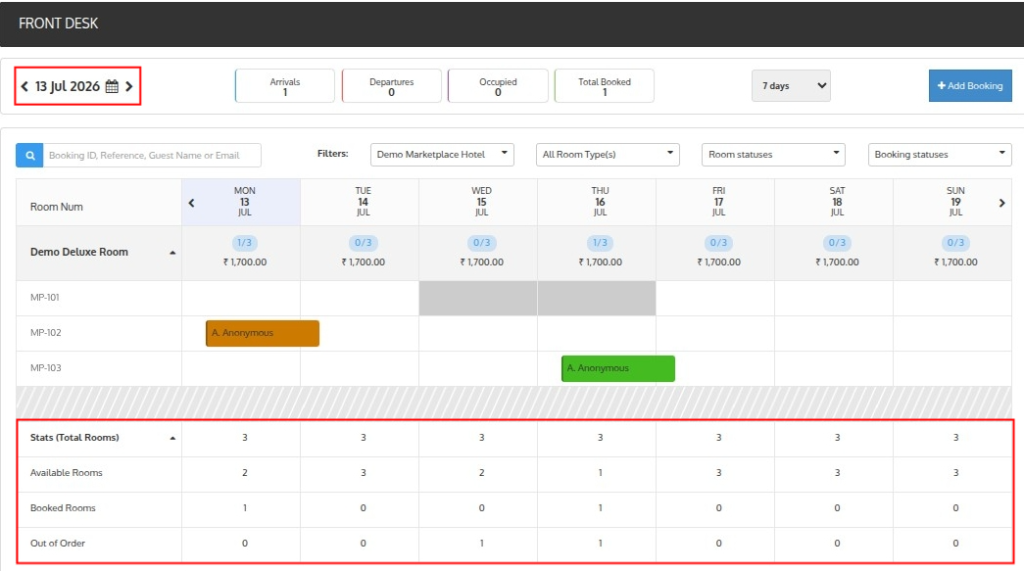
Sellers can also view room statistics at the bottom of the calendar for better room availability tracking, including:
- Total rooms count
- Available rooms count
- Booked rooms count
- Out of order rooms count
Drag-and-Drop Booking Management
The Marketplace Front Desk module provides drag-and-drop functionality that helps sellers manage reservations more quickly and efficiently directly from the calendar view.
Using drag-and-drop, sellers can:
- Change Booking Date:
Change booking dates by dragging and dropping reservations on the calendar, without manually editing booking details.
- Reallocate Rooms
Reassign room numbers by dragging and dropping bookings between available rooms without manually updating reservation details.
- Changing Room Types
Change room types by dragging and dropping bookings between room categories without manually updating reservation details.
Enable or Disable Rooms from Front Desk
The Marketplace Front Desk module allows sellers to quickly enable or disable rooms directly from the Front Desk calendar for better room availability management.
When a seller drags on an empty space in the calendar, a popup appears with room management options.
Using drag and drop functionality, sellers can select a single room or multiple rooms at once and enable or disable them based on operational requirements.
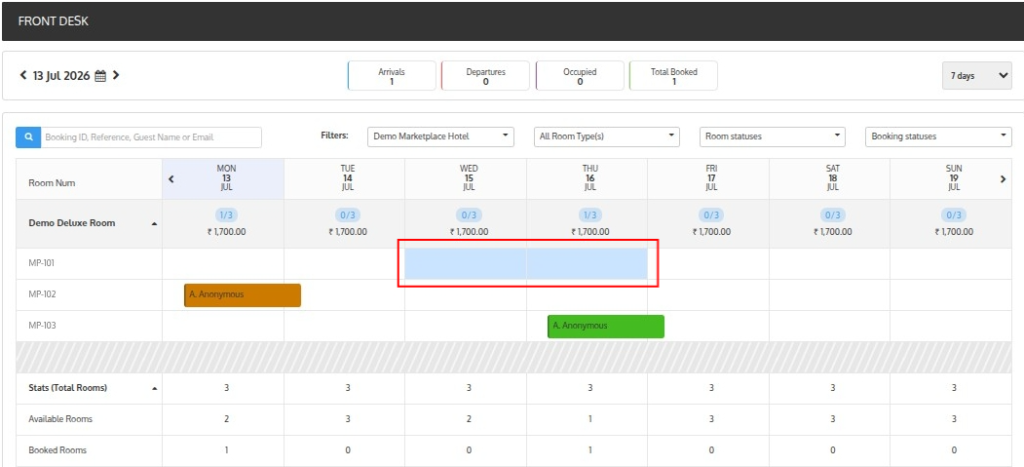
This functionality helps sellers temporarily block rooms for maintenance or operational reasons or make rooms available again without manually updating room settings one by one.
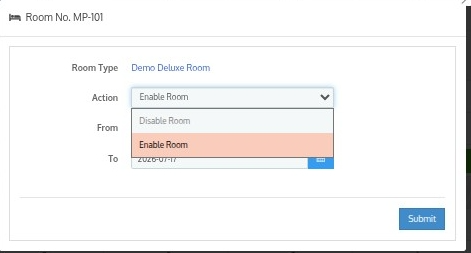
Booking Rooms from Marketplace Front Desk
The QloApps Marketplace Front Desk module also allows sellers to create room bookings directly from the Front Desk interface, making reservation management faster and more convenient.
Sellers can quickly create bookings for guests without switching to different sections, helping manage walk-in reservations and direct bookings more efficiently.
To enable room booking functionality, sellers must first install and enable the Marketplace On Desk Booking module.
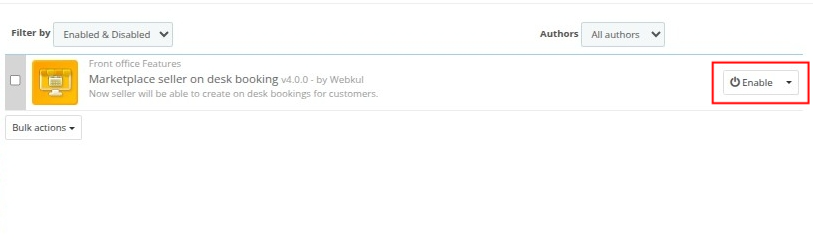
Once configured, sellers will see an Add Booking option within the Front Desk interface.
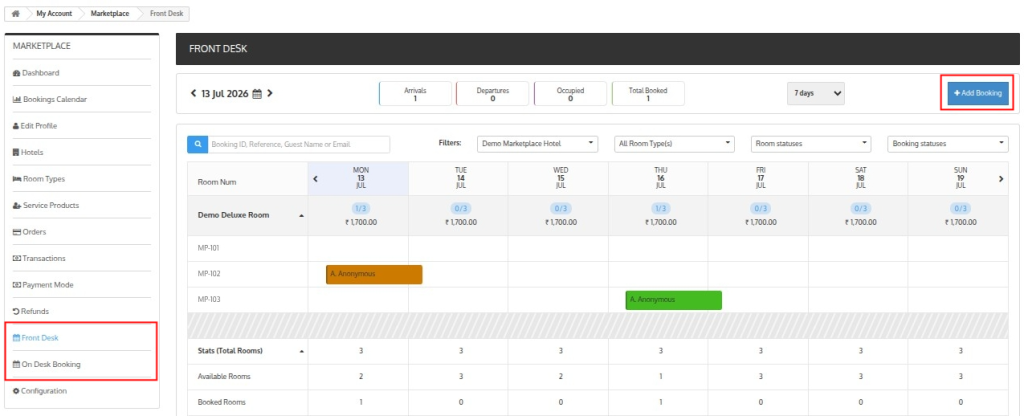
Sellers can drag across an empty calendar column to access room actions and create bookings directly from the Front Desk.
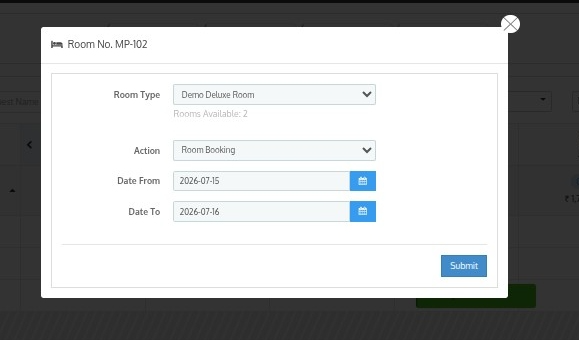
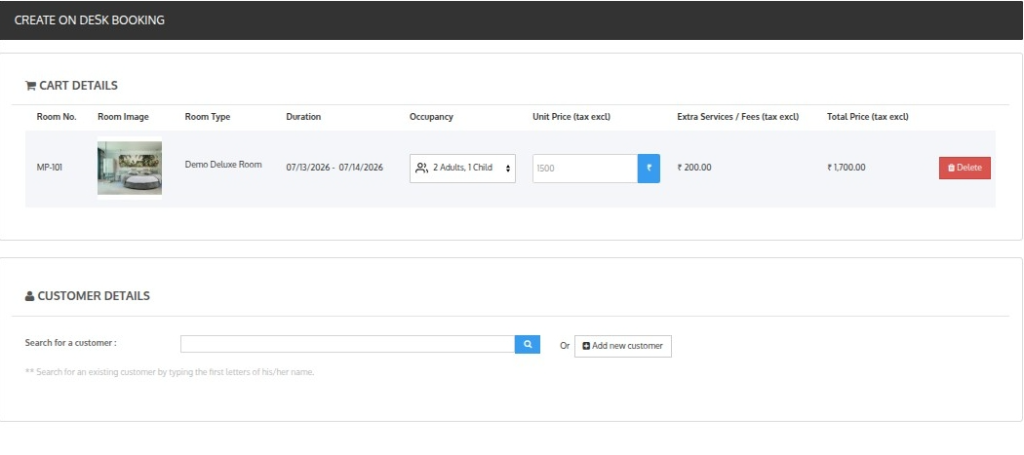
Clicking this option redirects the seller to the Marketplace On Desk Booking interface, where they can quickly create and manage bookings for guests.
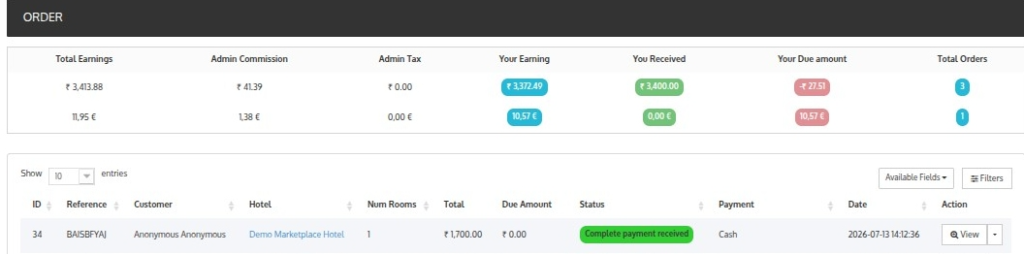
Once sellers create a booking, they can view and manage it directly from the Orders tab.
Wrapping Up
The QloApps Marketplace Front Desk module helps sellers manage hotel operations more efficiently from their seller account.
Sellers can manage bookings, room allocation, availability, calendar insights, and front desk operations from a single interface.
With a structured workflow and easy room management, the module simplifies reservation handling and improves overall operational efficiency.
Get In Touch
If you want to learn about the functionality of QloApps, then you can visit this link: All-In-One Property Management System
In case of any query, issue, or requirement, please feel free to raise it on the QloApps Forum
Current Product Version – 5.0.0 & 2.0.0
Supported Framework Version – QloApps 1.7.x & 1.6.x

Be the first to comment.