
QloApps Location Wise Search lets your guests find a hotel from one search box by typing a hotel name, a city, a state or a country.
It replaces the standard search panel on your booking website and adds a Hotel List page with prices, filters and sorting, so guests can narrow down many properties quickly.
NOTE: While this module is enabled, it takes over the hotel search, so the standard search panel settings in General Settings are ignored. Guests must pick a location and both dates.
Features of QloApps Location wise Search
- Search hotels by hotel name, city, state or country from a single search box
- Show matching hotels and destinations as the guest types, with the typed letters underlined
- Collect check-in and check-out dates and the number of rooms, adults and children in the same search bar
- List every matching hotel on a Hotel List page with its rating, location, description and photos
- Show a per-night price on each hotel card, taken from the cheapest room or from a starting price you set per hotel
- Filter the Hotel List by amenities, star rating and price range
- Sort hotels by best selling, price, or reviews
- Choose from one settings page which hotel card details and filters guests see
- Add the same search box to the hotel page and the room type page
How to Install QloApps Location Wise Search
- In the Back Office go to Modules and Services › Modules and Services and click Add a new module.
- Choose the module ZIP under Module file, then click Upload and install this module.
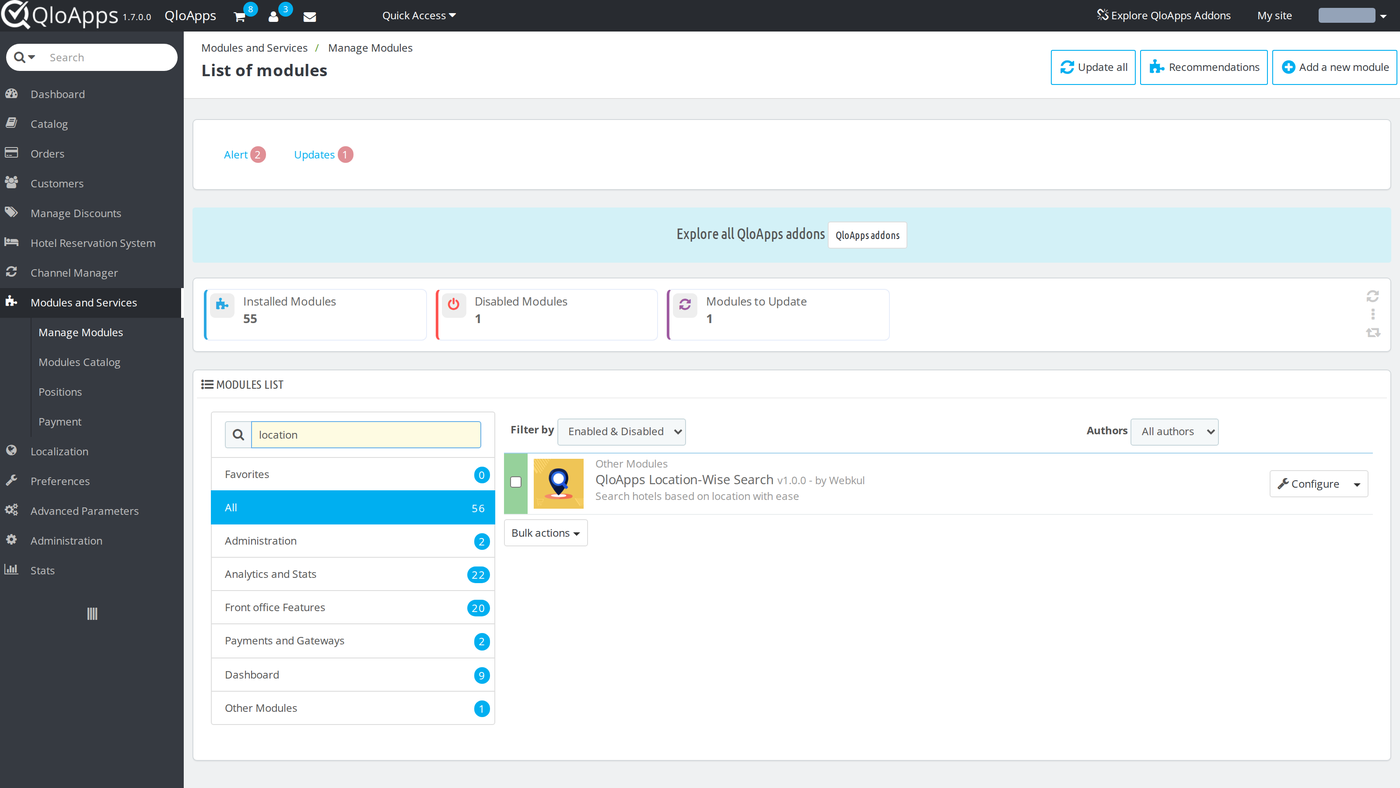
- Find QloApps Location Wise Search in the modules list. If it is not installed yet, click Install and confirm.
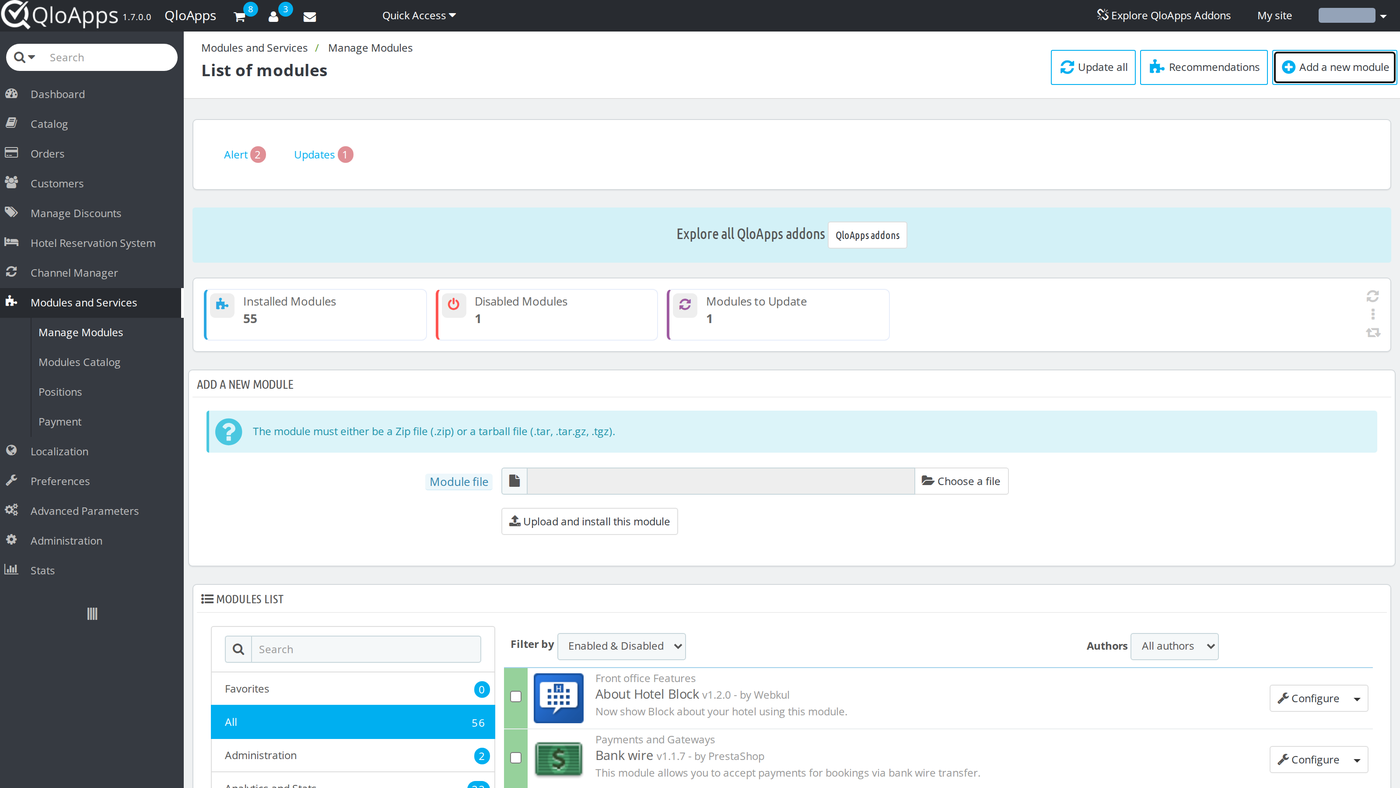
When the install finishes, Location Wise Search is on, so every setting below starts at its default value.
The module also builds a price cache for your room types so the first search is not slow.
Configuration of QloApps Location Wise Search
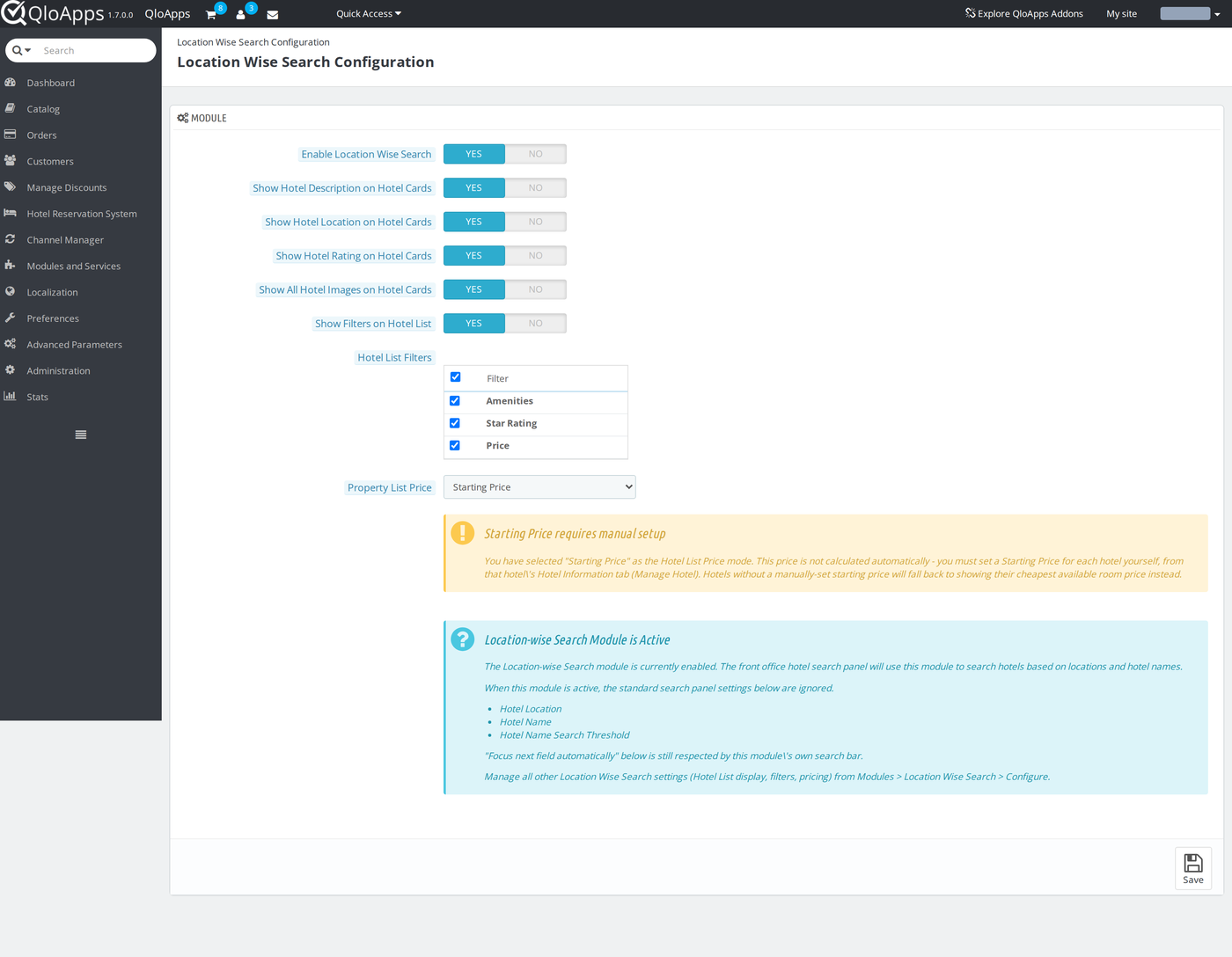
The settings live on one page named Location Wise Search Configuration. The module has no entry in the left menu, so you open the page from the modules list.
Go to Modules and Services › Modules and Services, find QloApps Location Wise Search and click Configure.
General Configuration
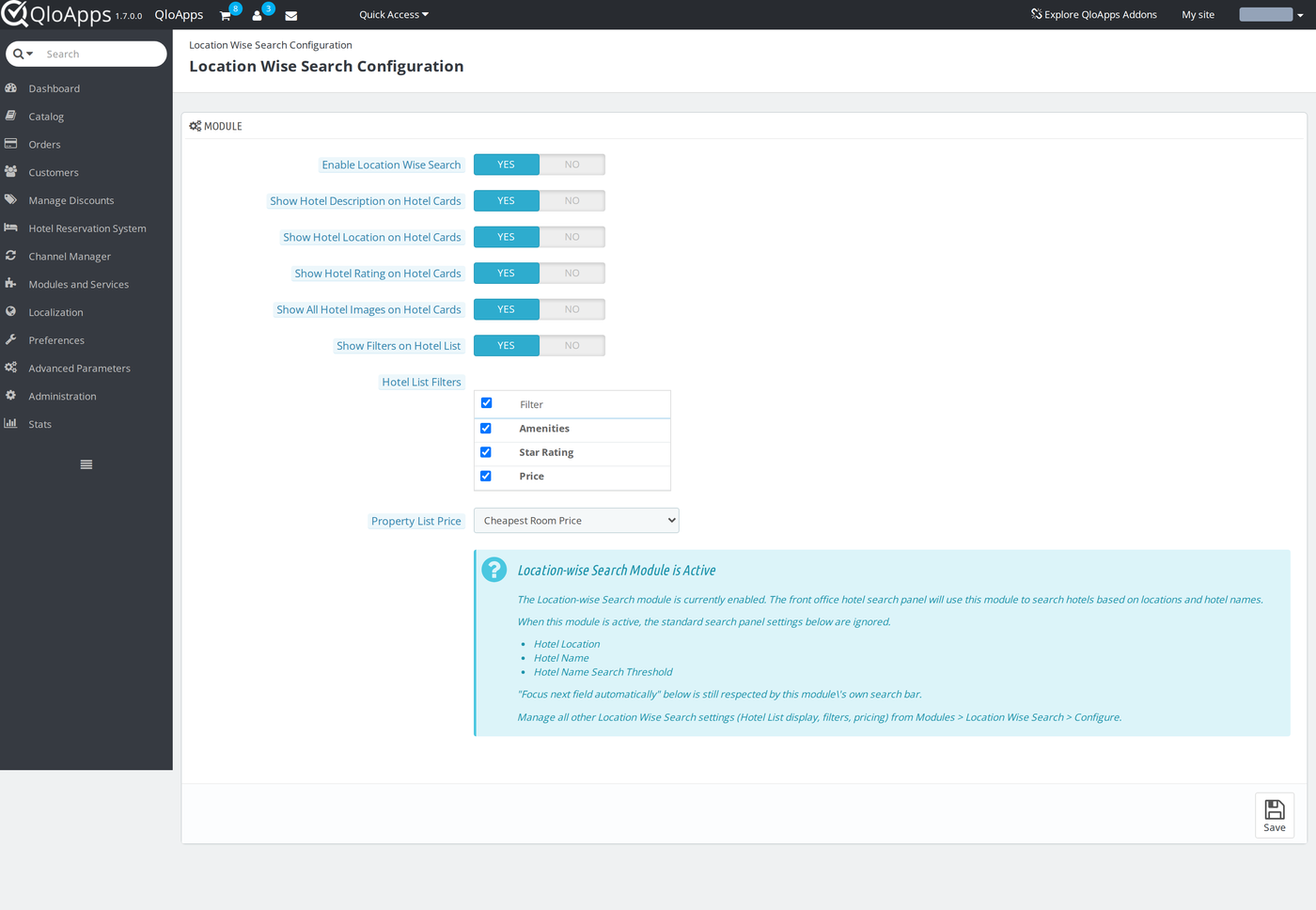
The page has one panel, Module. Fields appear in this order:
- Enable Location Wise Search – Turns the module on for the booking website. When it is off, guests see the standard QloApps search. Default: Yes.
- Show Hotel Description on Hotel Cards – Shows the hotel’s short description on each card of the Hotel List. Default: Yes.
- Show Hotel Location on Hotel Cards – Shows the city, state and country on each card. Default: Yes.
- Show Hotel Rating on Hotel Cards – Shows the star rating badge on each card. Default: Yes.
- Show All Hotel Images on Hotel Cards – When Yes, each card is an image slider with all of the hotel’s photos. When No, it shows only the cover image. Default: Yes.
- Show Filters on Hotel List – The master switch for the filters sidebar. Default: Yes.
- Hotel List Filters – A table of checkboxes that appears when the filters switch is Yes. Tick Amenities, Star Rating and Price to choose which filters guests get. All three are ticked by default.
Finally, click Save after you change anything.
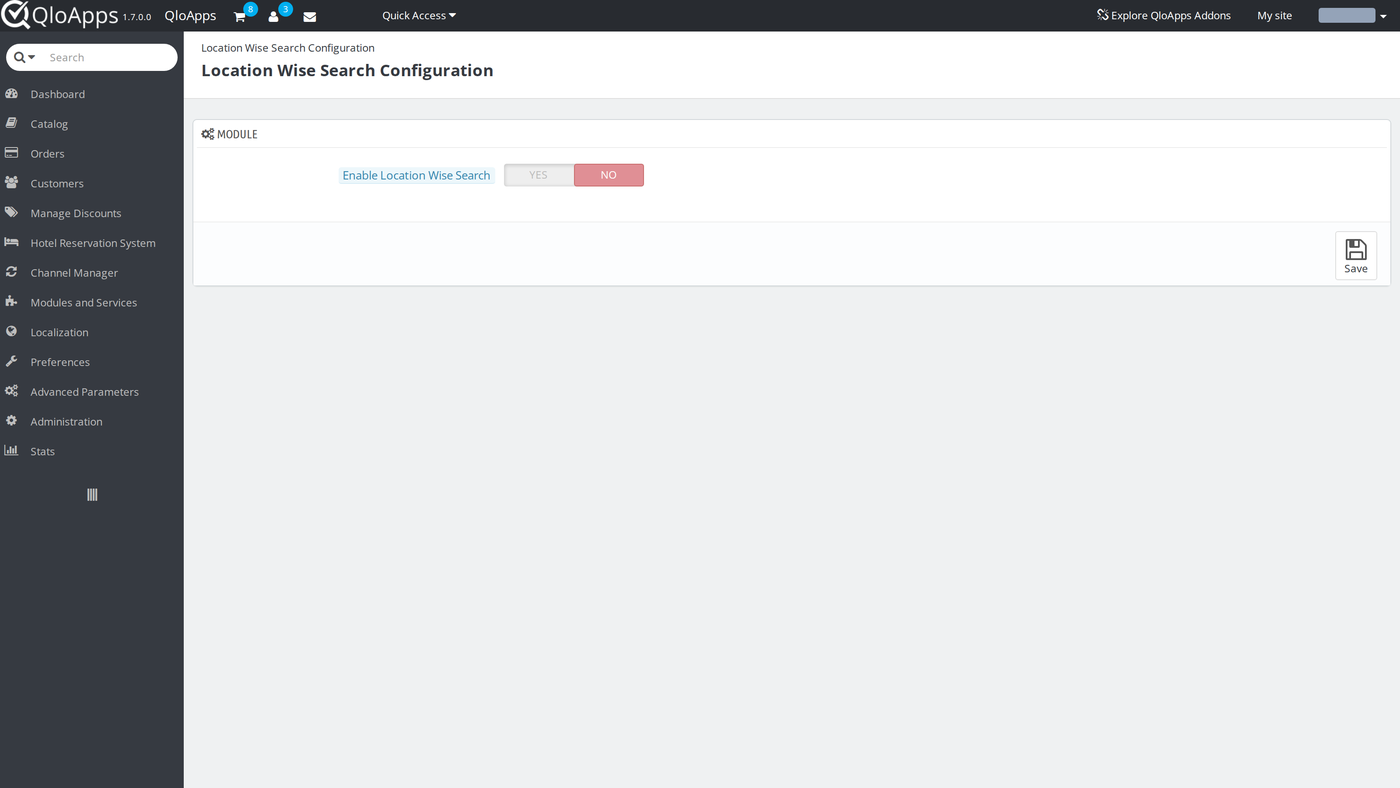
When you set Enable Location Wise Search to No, every other field on the page is hidden, because none of them apply. Set it back to Yes to show them again.
Property List Price
Property List Price decides which price appears on each hotel card. It has two options:
- Cheapest Room Price – The price of the cheapest available room type for the hotel and the dates searched. This is the default, so it needs no extra setup.
- Starting Price – A price you type in for each hotel yourself. However, the module does not calculate it.
When you pick Starting Price, the page shows a Starting Price requires manual setup warning.
However, a hotel with no starting price still shows its cheapest room price. Next, see “Set a Starting Price for a Hotel” below to find where to type the value.
Search Panel Settings in General Settings
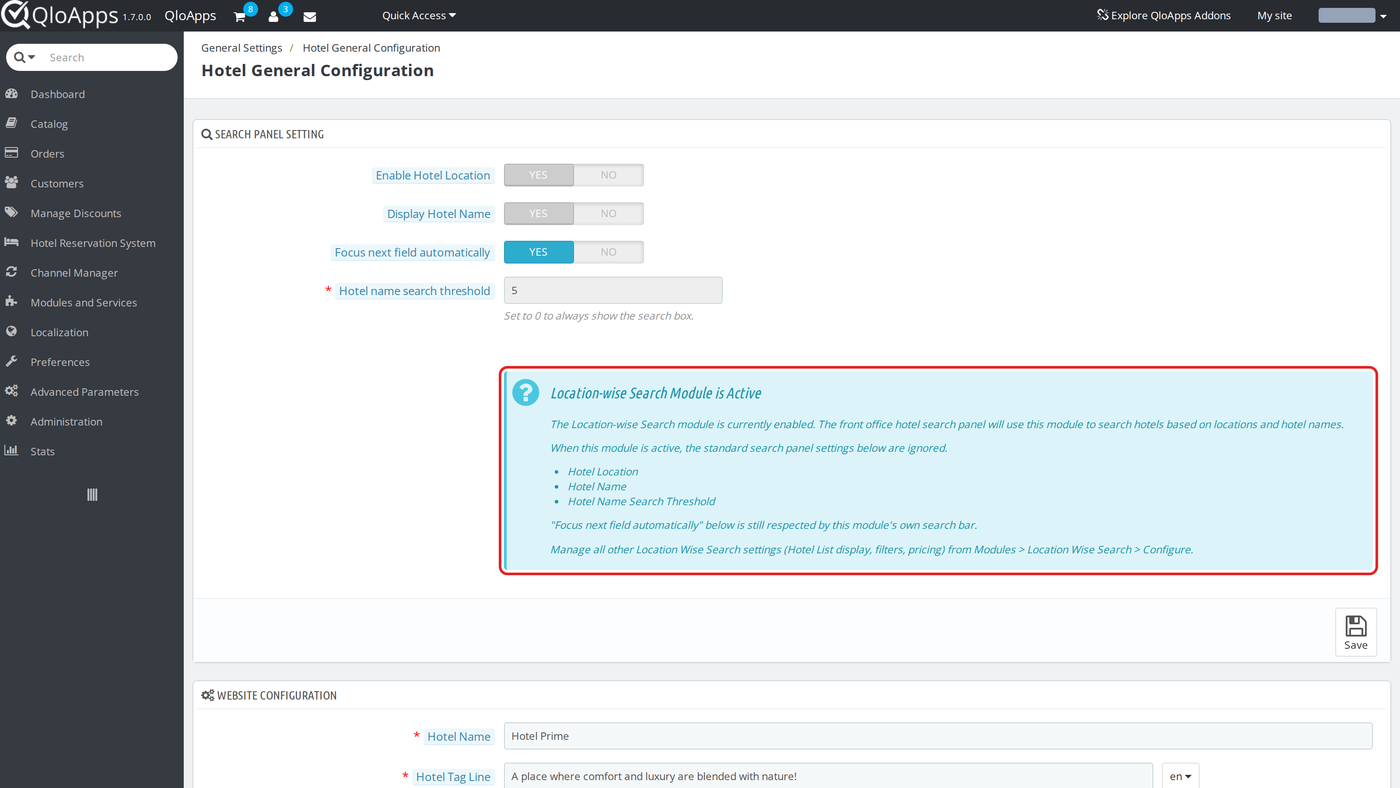
The module also changes one panel in the core settings. Go to Hotel Reservation System › General Settings, then open General Settings. In the Search Panel Setting panel:
- Enable Hotel Location, Display Hotel Name and Hotel name search threshold are locked while the module is on, because the module’s search box already covers hotel names and locations.
- Focus next field automatically still works. When it is Yes, the search bar moves the cursor to the next field after the guest fills in one.
- A blue box, Location wise Search Module is Active, explains this and points you back to the module’s own settings page.
Set a Starting Price for a Hotel
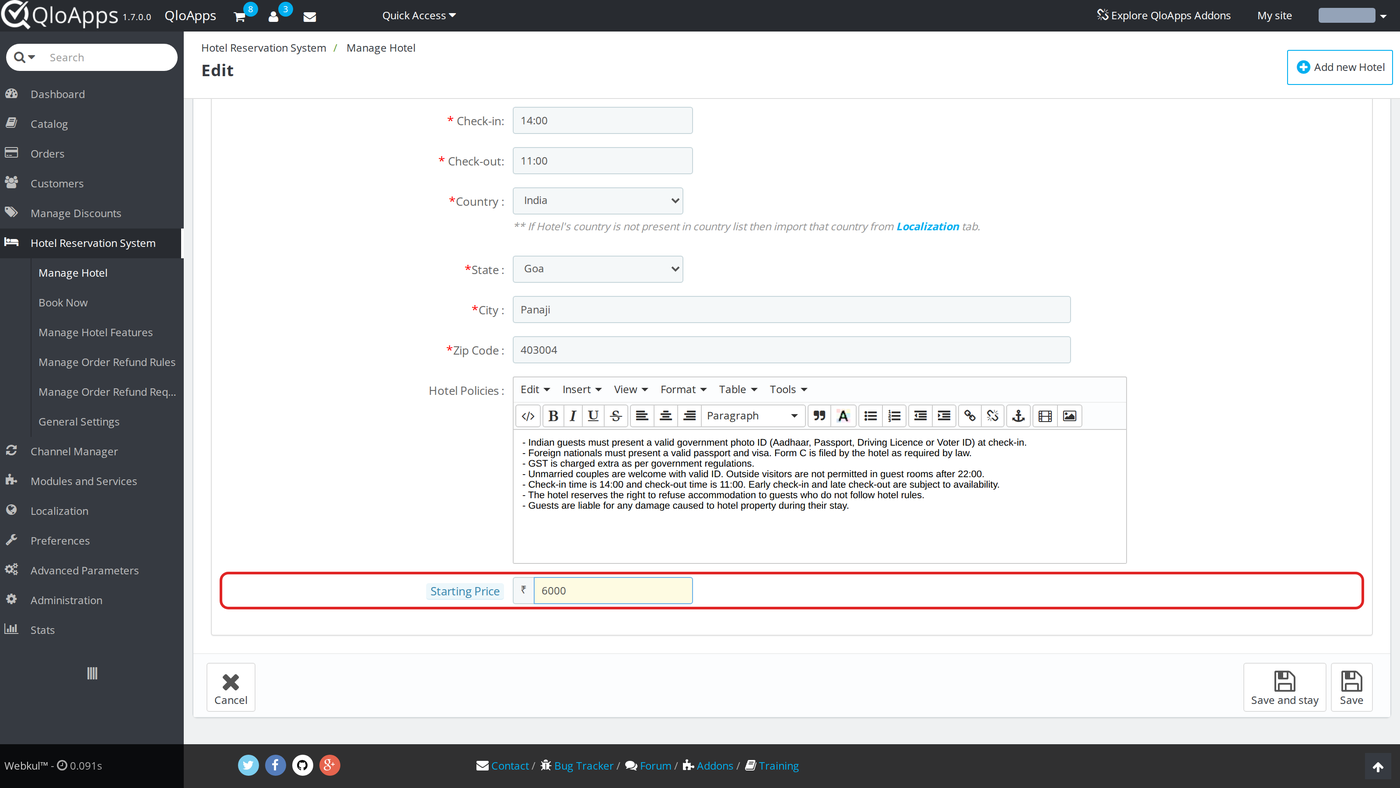
Use this only when Property List Price is set to Starting Price, because the field does not show up in any other mode.
- Go to Hotel Reservation System › Manage Hotel and click the edit button for the hotel.
- On the hotel’s information tab, scroll to the bottom, below Hotel Policies.
- Type the price per night in Starting Price. The currency symbol shown is your default currency, so you type the number only.
- Click Save or Save and stay.
If you leave Starting Price empty, the Hotel List shows the hotel’s cheapest available room price instead.
Search for Hotels on the Booking Website
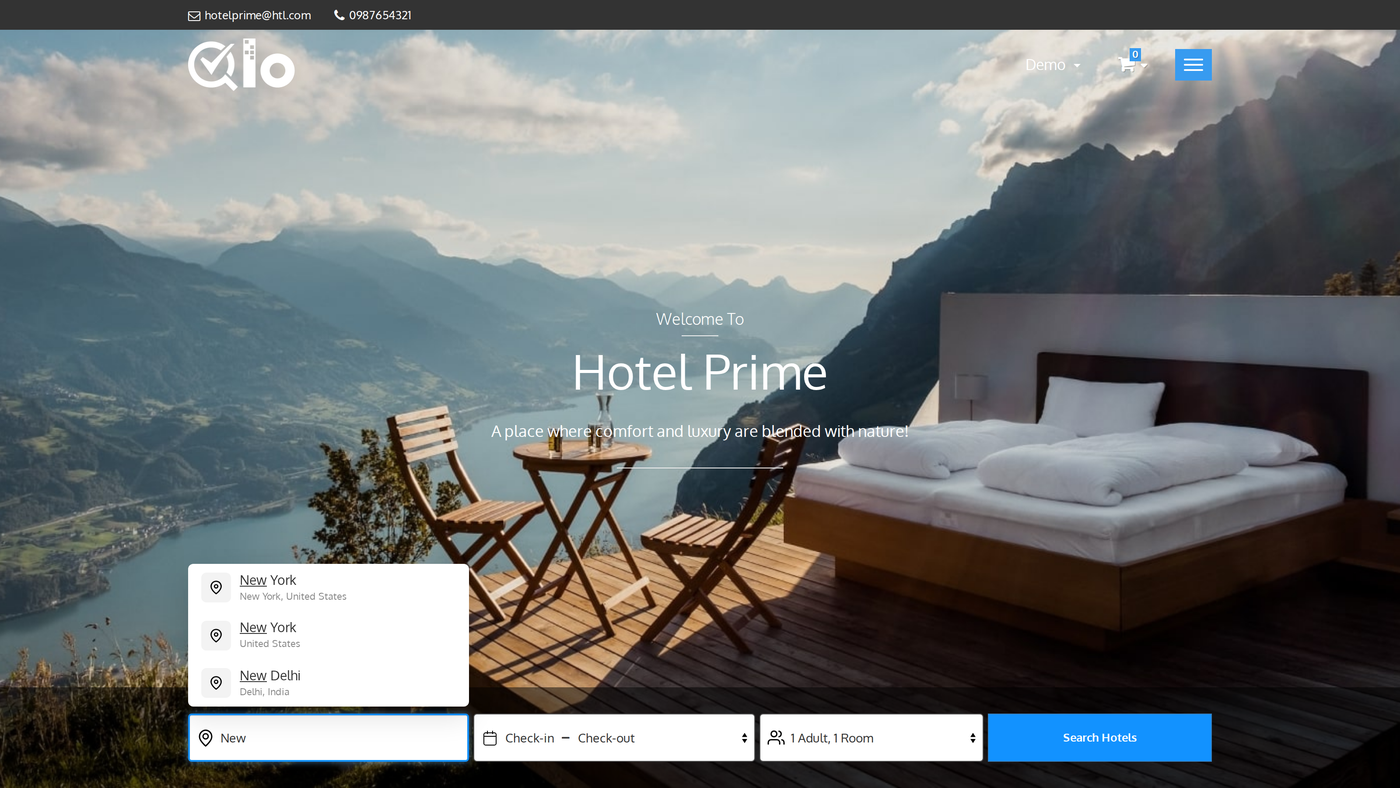
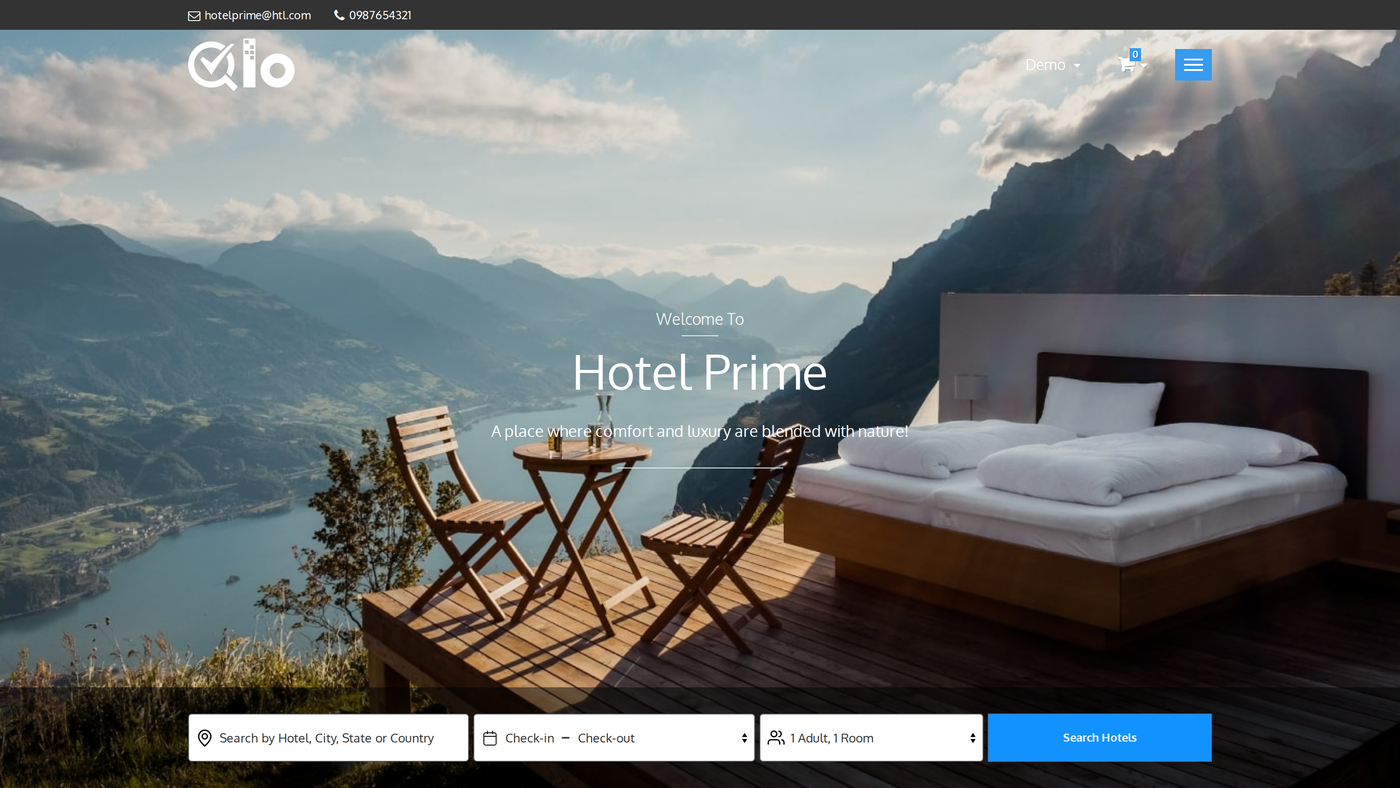
The new search bar appears on the home page of your booking website. It has four parts: a location box, a check-in and check-out field, a guests field and the Search Hotels button.
Find a hotel or a destination
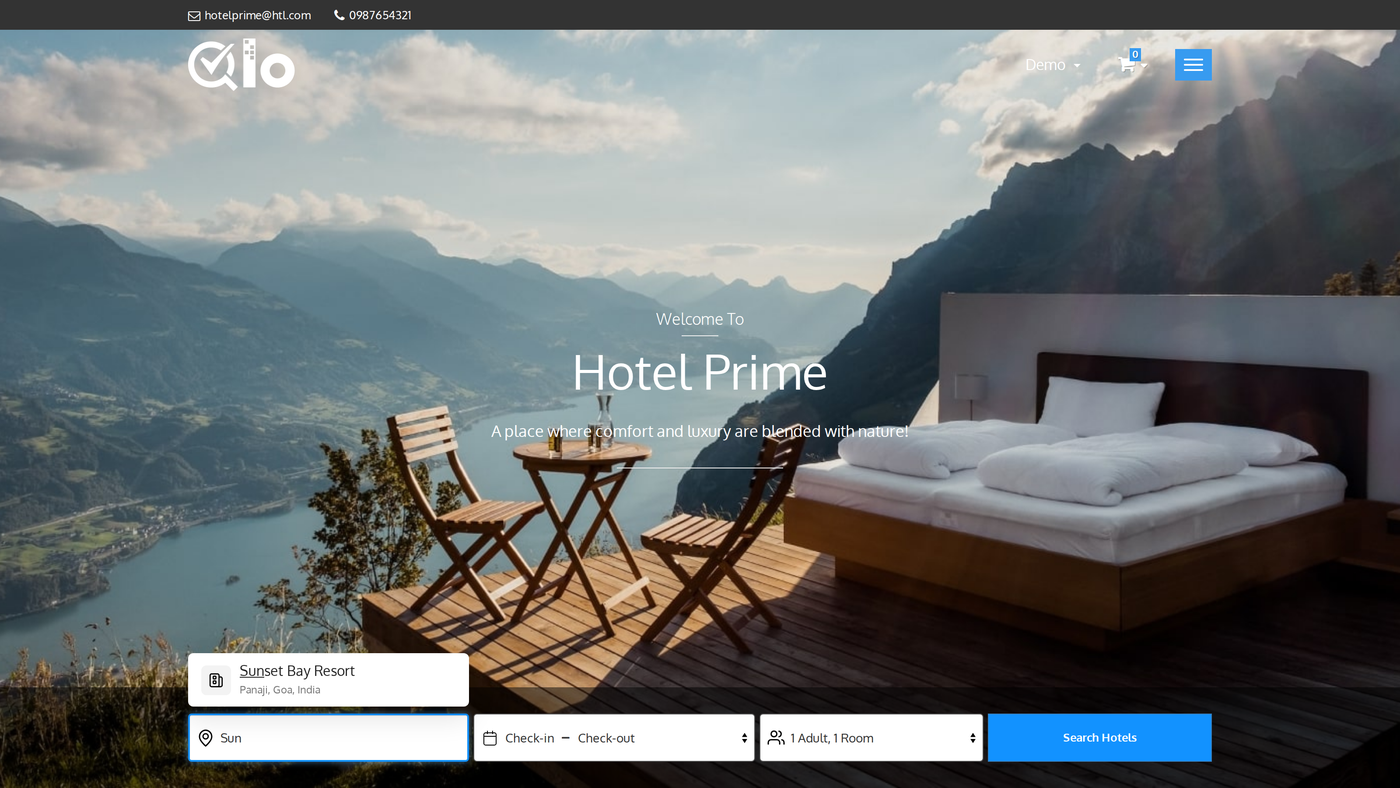
Click the location box, which reads Search by Hotel, City, State or Country, and type at least two letters.
A list opens under the box with destinations (cities, states and countries) first, each with its region underneath, such as “Delhi, India”.
Hotels come next, each with its city, state and country. The list shows up to five destinations and five hotels, and the letters the guest typed are underlined.
Click a result to select it.
Pick dates and guests
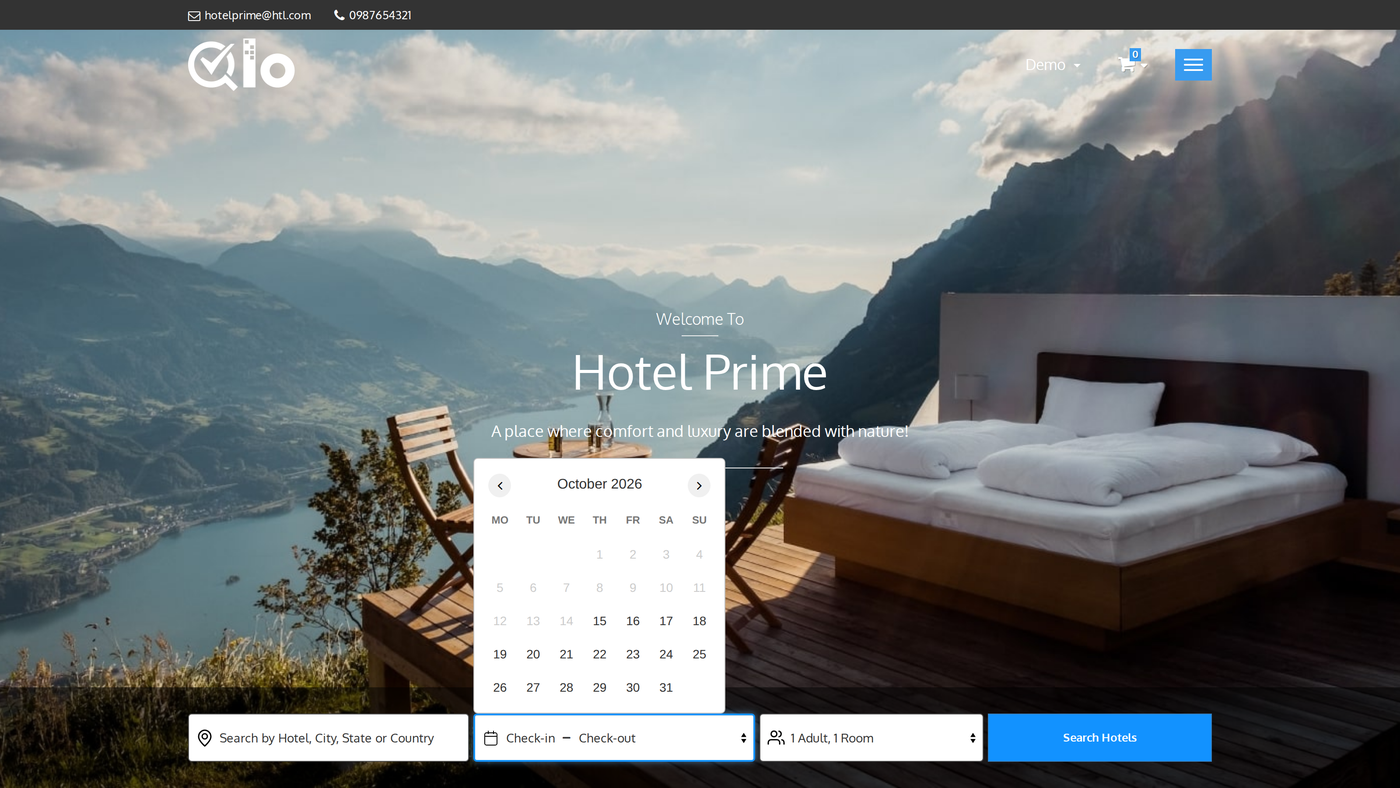
Click Check-in – Check-out to open the calendar. Then pick the check-in date and the check-out date.
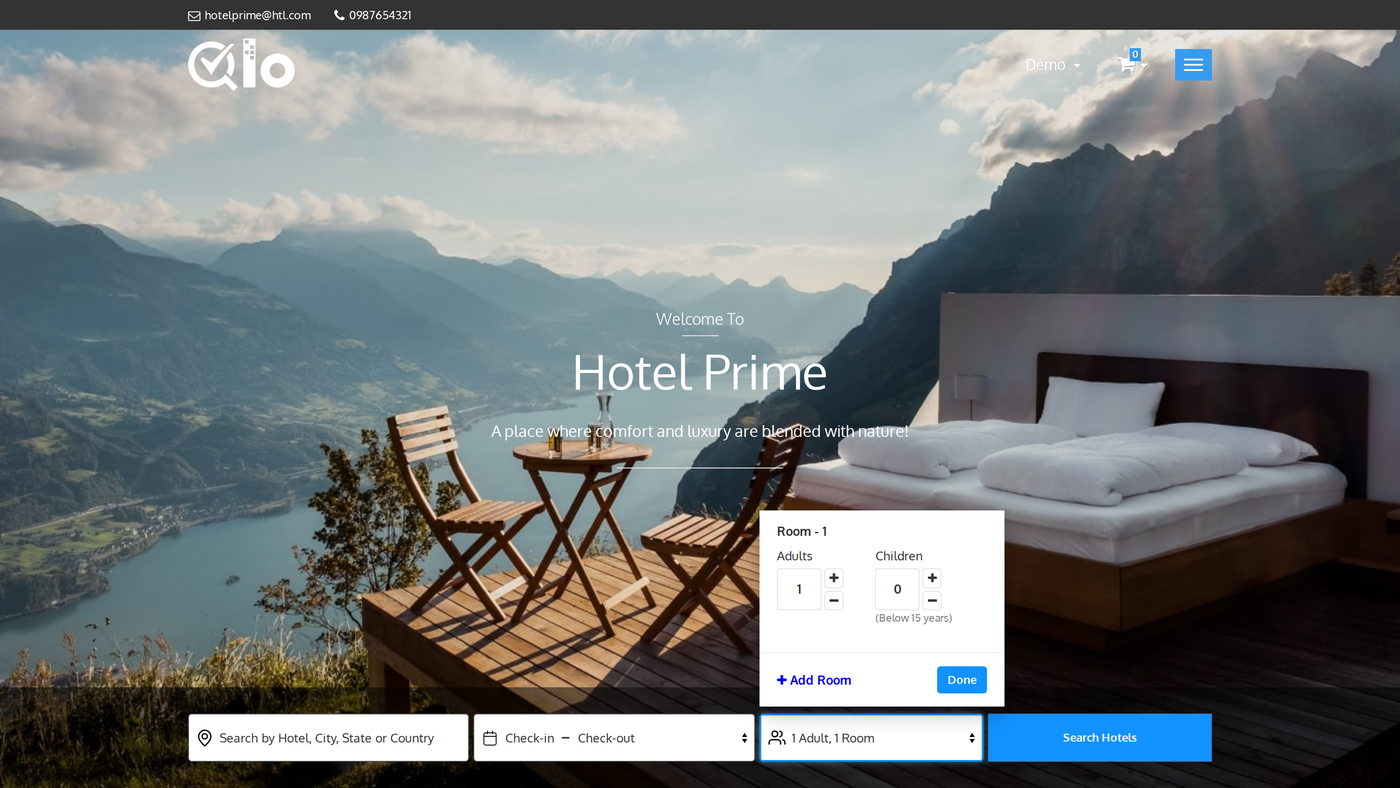
To set the occupancy, use the guests field, which reads 1 Adult, 1 Room by default. For each room, set the number of Adults and Children, and choose an age for each child.
To search for more than one room, click Add Room, or click Remove to take a room off. Finally, click Done to close the panel.
Run the search
Click Search Hotels. However, if the guest has not picked a location, or has left a date empty, the empty field gets a red border and the search does not run. Otherwise:
- If the guest selected a hotel, they go straight to that hotel’s page.
- If the guest selected a city, state or country, they go to the Hotel List page with every hotel in that place.
Browse the Hotel List
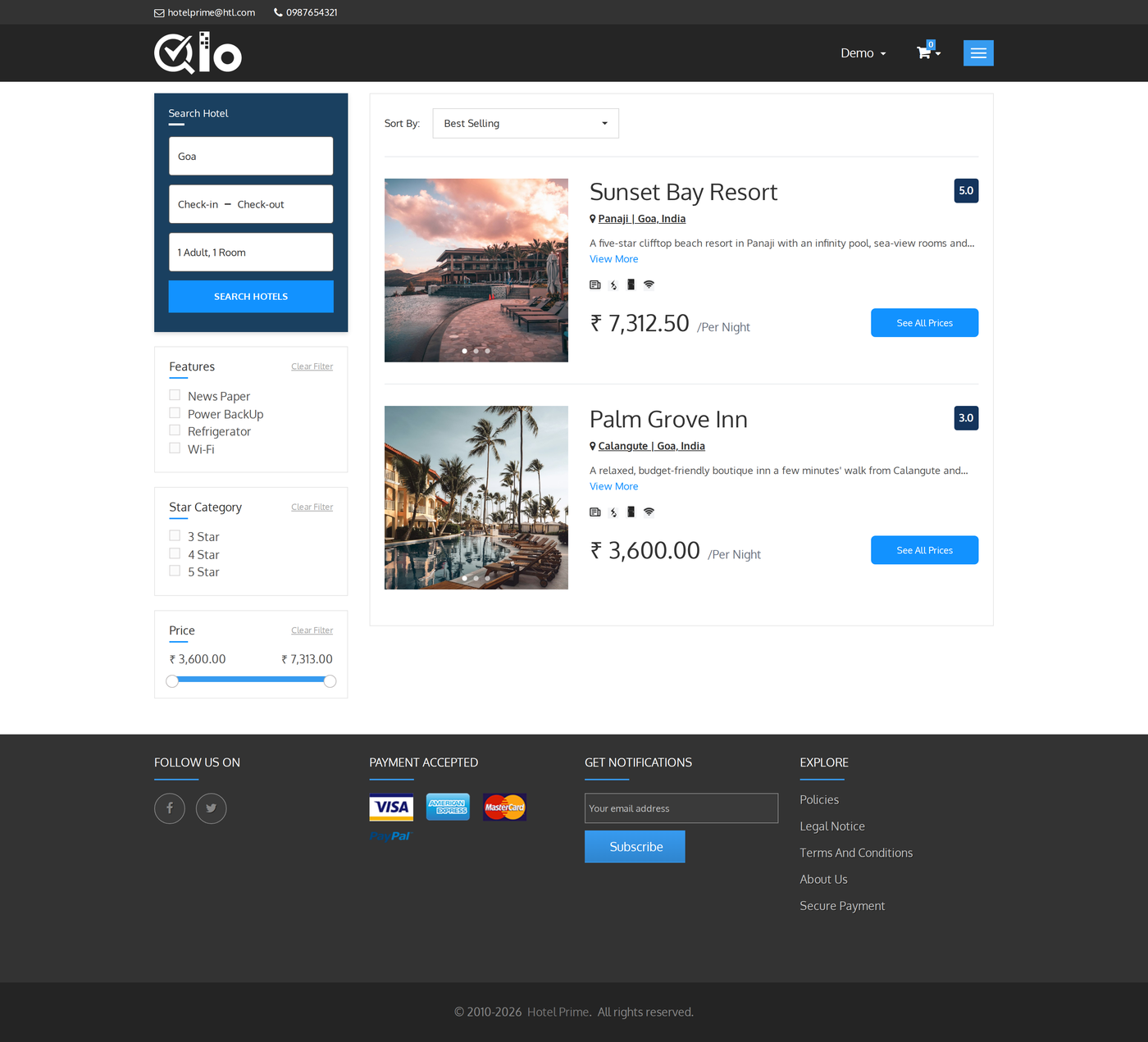
The Hotel List shows one card for each matching hotel. A card can include:
- The hotel photos as a slider, or the cover image only, depending on Show All Hotel Images on Hotel Cards
- The hotel name and its star rating badge
- The city, state and country
- The short description, with a View More link
- The hotel’s amenity icons
- The price per night, marked /Per Night
- Hurry! and the number of rooms left, when five rooms or fewer remain
- The See All Prices button, which opens the hotel’s page with all of its room types
The page shows 24 hotels at a time, so a long result is split into pages. Under the list, Previous and Next move between pages.
A line such as “Showing 1 – 24 of 30 hotels” shows where the guest is. If nothing matches, the page says No hotels found for this search.
Above the cards, Sort By offers Best Selling, Price : Lowest First, Price : Highest First and Reviews.
The left column repeats the search panel under Search Hotel, so the guest can change the place, dates or guests without going back to the home page.
Narrow the list with filters
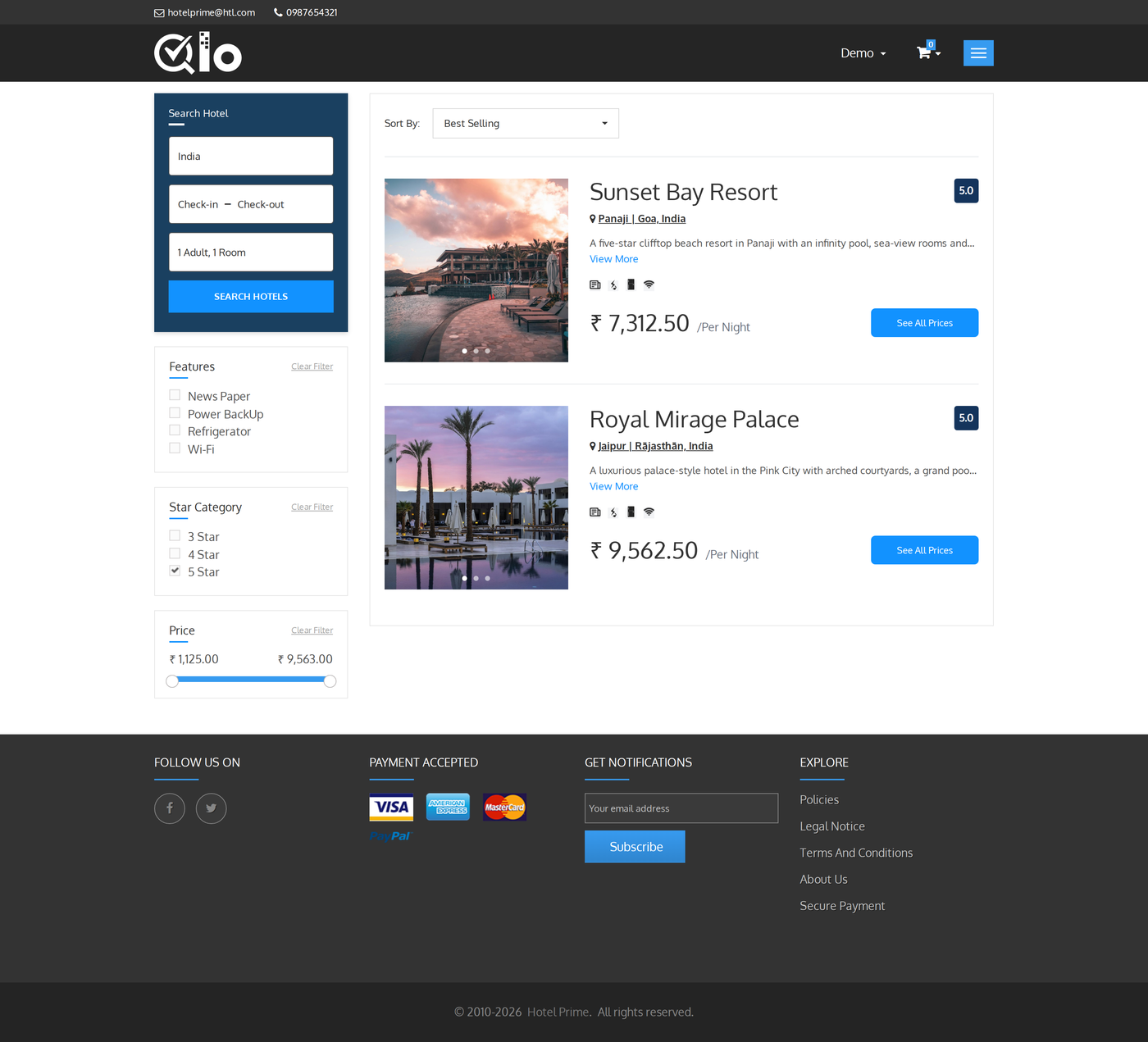
Because you choose the filters in the configuration, only those appear below the search panel. Each one also has a Clear Filter link.
- Features lists the amenities that the hotels in the current results offer. As a result, a hotel stays in the list only if it has every amenity the guest ticks.
- Star Category offers 3 Star, 4 Star and 5 Star.
- Price is a slider from the lowest to the highest price in the current results, but it only appears when the hotels have different prices.
The list refreshes as soon as the guest ticks a box.
Search from a Hotel Page and a Room Type Page
The module also replaces the search box on the other two pages where guests search.
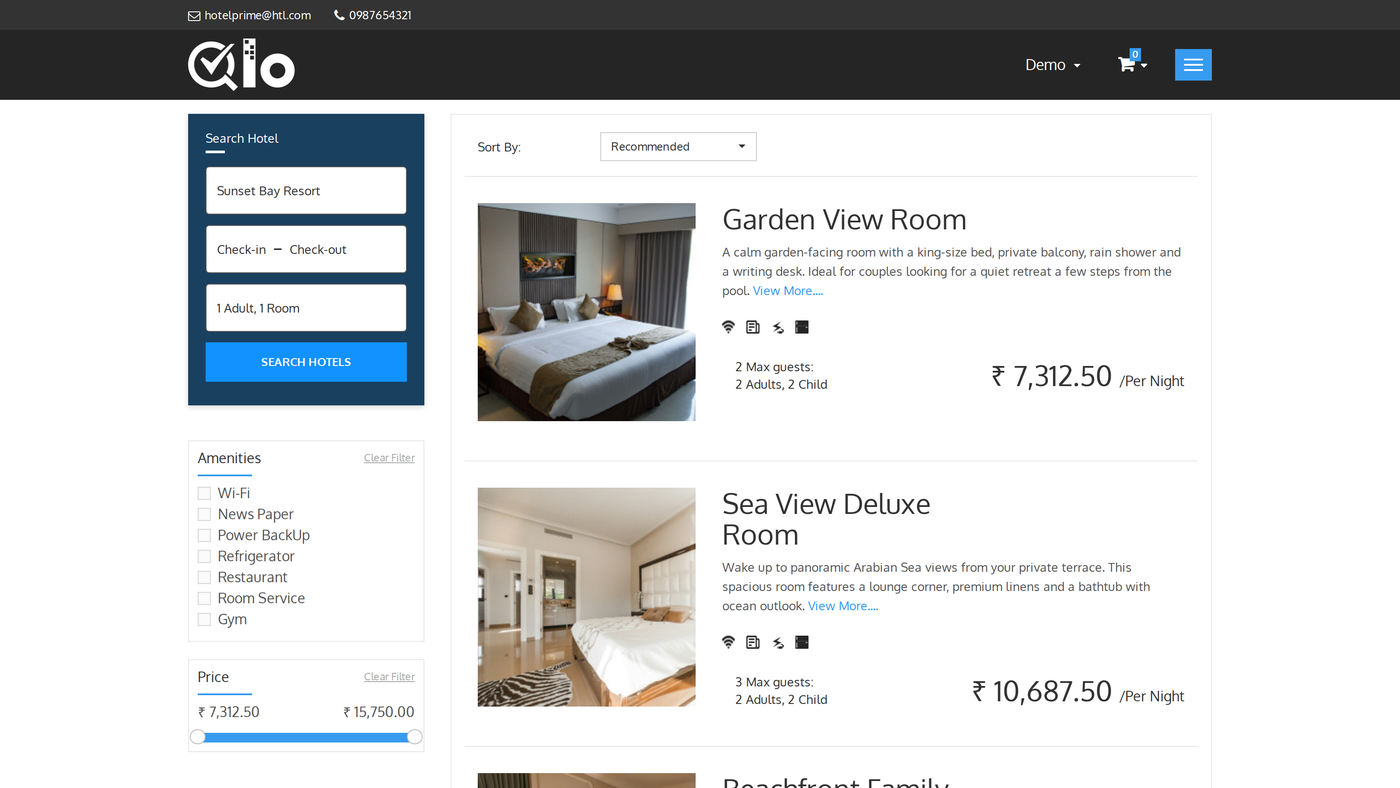
On a hotel page, the search panel already shows that hotel’s name, so the guest only has to check the dates.
The page lists the hotel’s room types with their prices for the dates selected. The guest can then change the dates or guests and search again.
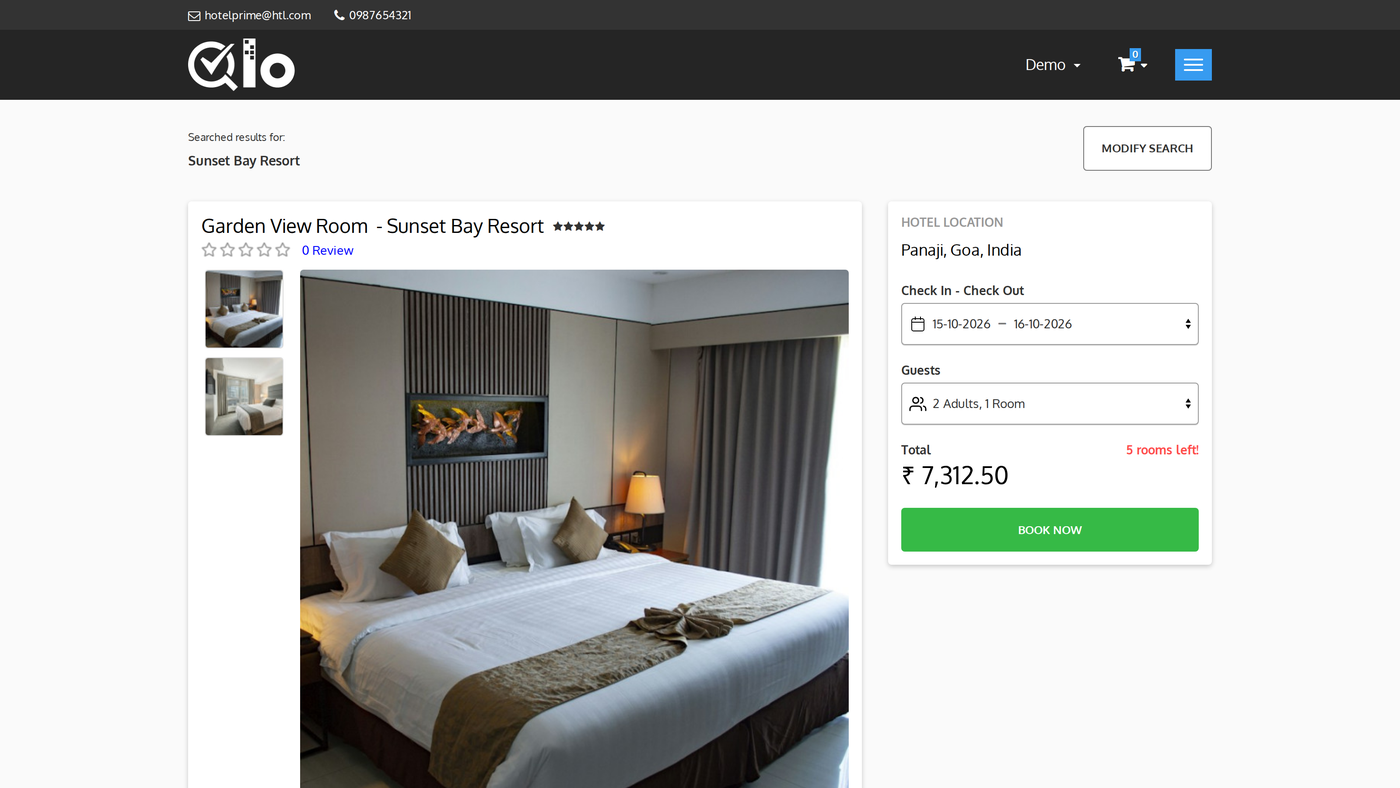
On a room type page, the top of the page reads Searched results for and the hotel name. The Modify Search button opens the search box so the guest can change the hotel, dates or guests.
Conclusion
QloApps Location Wise Search gives your booking website one search box for hotel names, cities, states and countries, followed by a Hotel List with prices, filters and sorting.
This guide covered installing the module, its configuration page, and the changes to General Settings.
It also covered the optional starting price for each hotel and the search and Hotel List screens that your guests use.
Finally, we hope this guide has helped you configure and use QloApps Location Wise Search with confidence.
Additionally, to learn more about the functionality of QloApps, you can visit this link: All-in-One Property Management System.
For technical assistance, raise a ticket at QloApps Support.
In case of any query, issue, or requirement, please feel free to raise it on the QloApps Forum.
Current Module Version: 1.0.0
Supported QloApps Versions: QloApps 1.6.x and 1.7.x

Be the first to comment.