
QloApps Google Hotel Connector publishes your direct booking links on Google Hotel Center without manual inventory maintenance.
This guide explains how to connect your property, enable room types, and monitor synchronization through detailed API logs.
NOTE: Before connecting your hotel, verify your Google Business Profile listing and complete the property address inside QloApps.
Features of QloApps Google Hotel Connector
- Publish direct free booking links on Google Hotel Center
- Synchronize room availability, rates, and stay restrictions automatically
- Track every booking update and queue changes for Google
- Display property connection status directly on the hotel list
- Configure room type participation per individual hotel branch
- Inspect comprehensive API request and response communication logs
- Inject structured schema data into booking pages for Google Search
How to Install QloApps Google Hotel Connector
Hoteliers can complete this straightforward installation process directly through the administrative interface by following these steps:
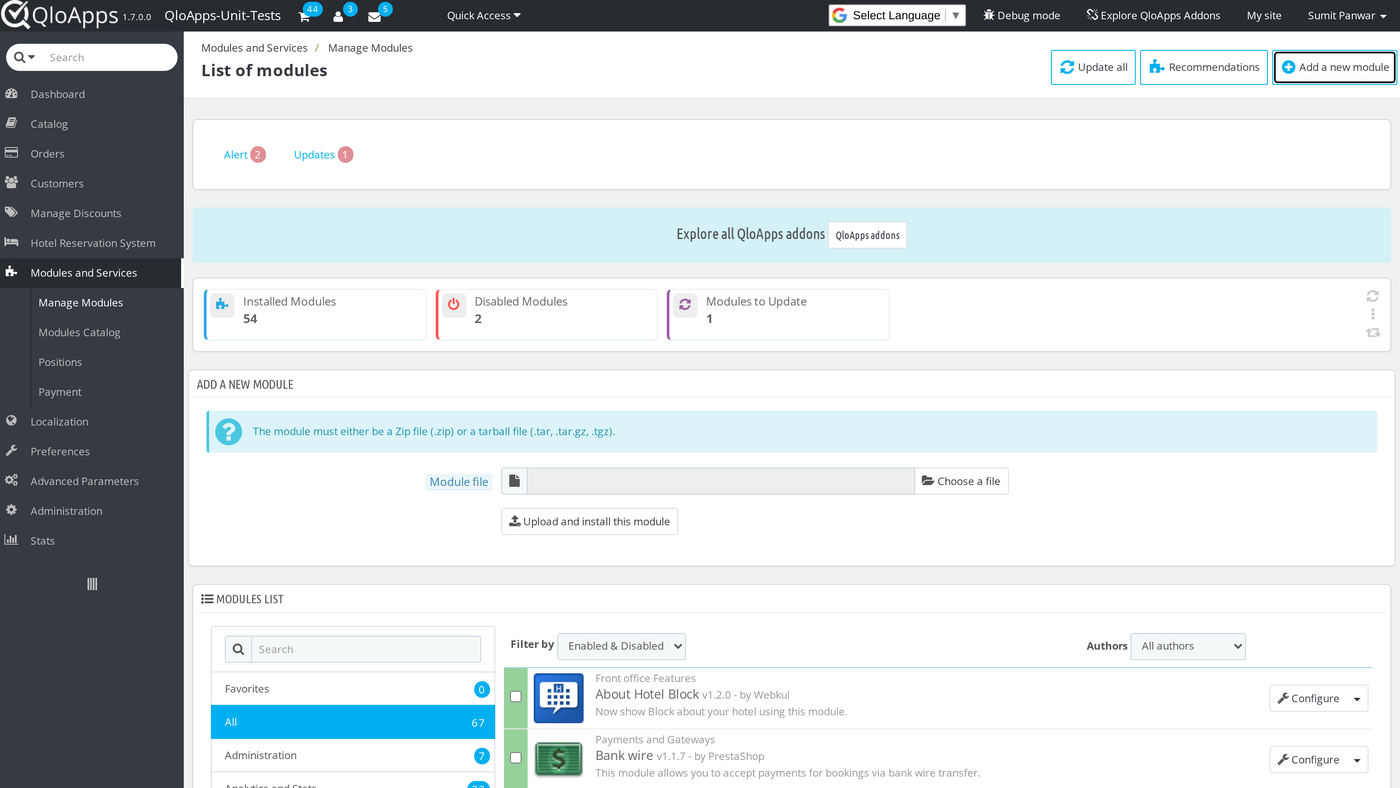
- In the Back Office navigate to Modules and Services › Modules and Services and click Add a new module.
- Select the downloaded module ZIP file under Module file, then click Upload and install this module.
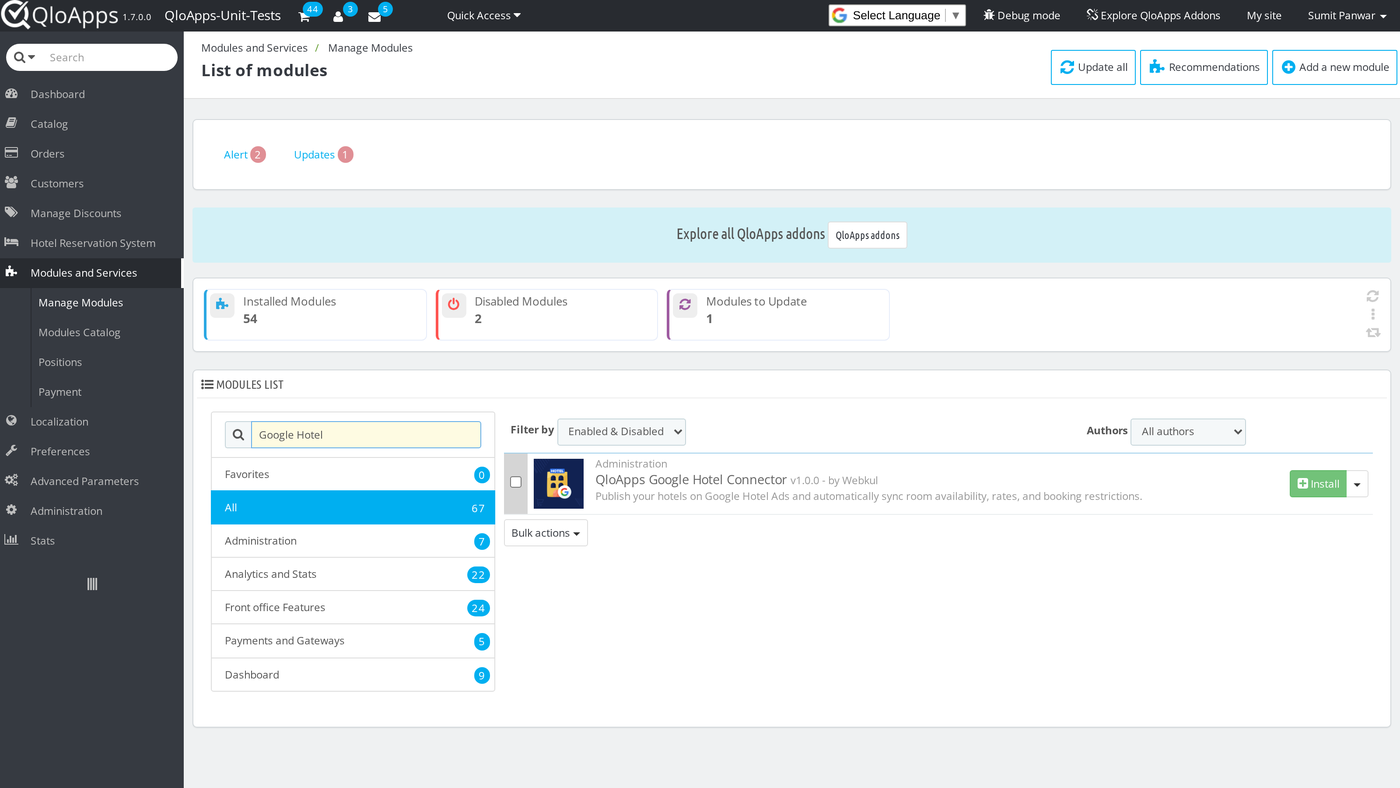
- Locate QloApps Google Hotel Connector in the modules list and click Install to activate the integration.
Configuration of QloApps Google Hotel Connector
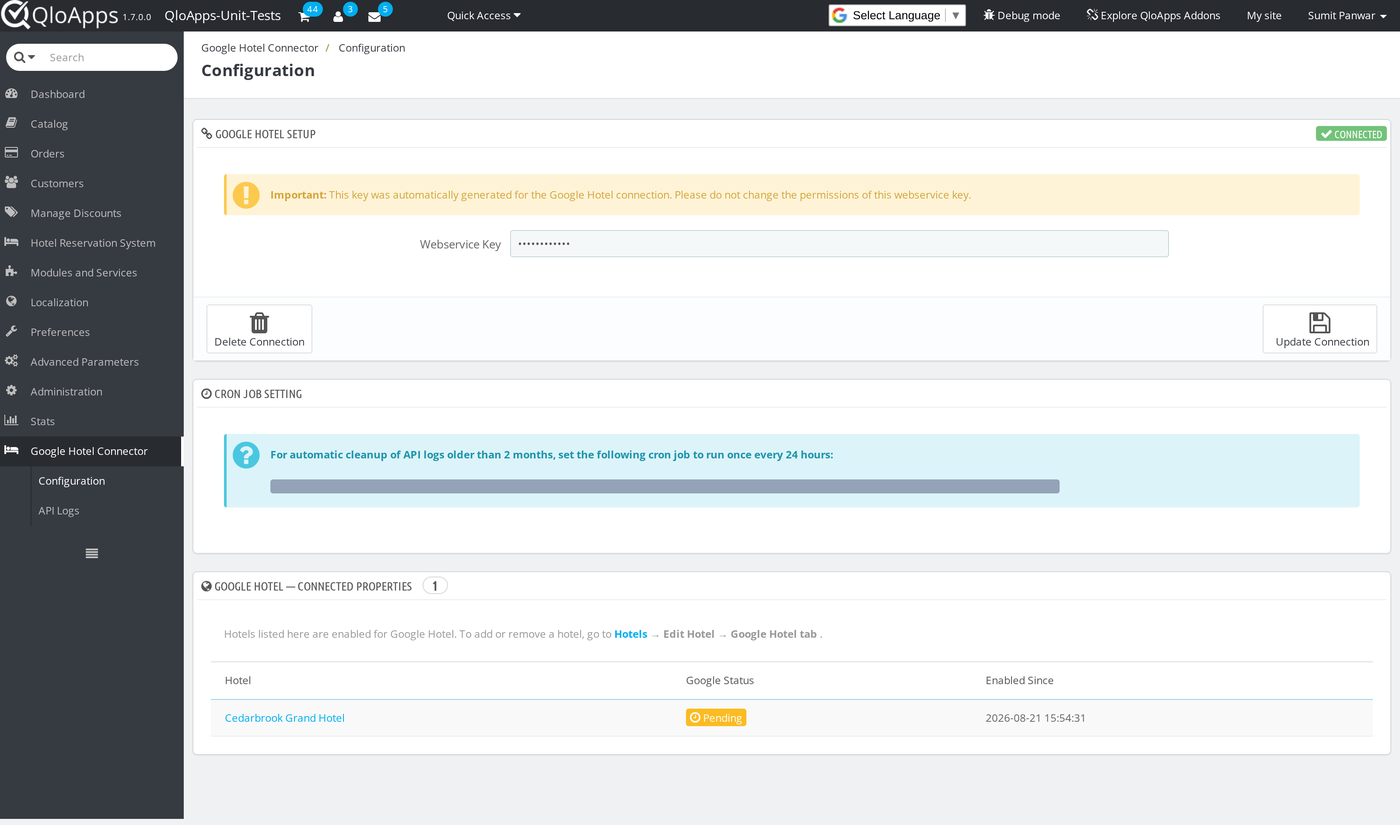
Once installation finishes, navigate to Google Hotel Connector › Configuration to manage the module.
This screen acts as your central dashboard for webservice credentials and synchronization tasks.
First, the Google Hotel Setup panel displays your automatically generated Webservice Key.
The module restricts this key strictly to Google Hotel resources for optimum security.
Next, click the Create Connection button to register your hotel property with Google.
When registration succeeds, the status badge switches from Not Connected to Connected.
Afterward, the action button changes its label to Update Connection.
A Delete Connection option also appears alongside the primary button.
However, you must disable every hotel before attempting connection deletion.
Additionally, the Cron Job Settings panel provides a command to purge old logs nightly.
Finally, the Connected Properties table lists all active hotels with their enrollment dates.
Google Business Profile Setup
Before connecting any property, you must verify your hotel on Google Business Profile.
Google Hotel Center requires this verification before accepting room rates or availability feeds.
First, claim your official Google Business Profile and complete Google’s verification steps.
Next, ensure your hotel name, address, and phone number match your QloApps records exactly.
Google reviews these matching details before approving your hotel for live search placement.
When your data matches accurately, Google approves your property listing much faster.
Furthermore, this module does not create or edit your Google Business Profile.
Instead, it pushes live rates, room inventory, and booking links once your profile exists.
Hotel managers should confirm that their map pins and phone numbers remain accurate online.
Consequently, travelers searching on Google Maps discover authentic pricing and direct booking links.
This accurate presentation increases guest trust and prevents booking confusion.
Enabling a Hotel for Google Hotel
Until you configure a property, its edit form displays a prominent reminder across the top.
This alert guides hoteliers toward the dedicated Google Hotel tab to finalize setup.
In addition, the banner prevents administrators from missing essential configuration steps.
Once you open the property, this notice highlights mandatory location details.
Hotel managers must verify postal codes, state selections, and contact numbers thoroughly.
If any address field remains empty, Google rejects the feed during weekly validation.
Therefore, fixing these details early ensures swift authorization from Google.
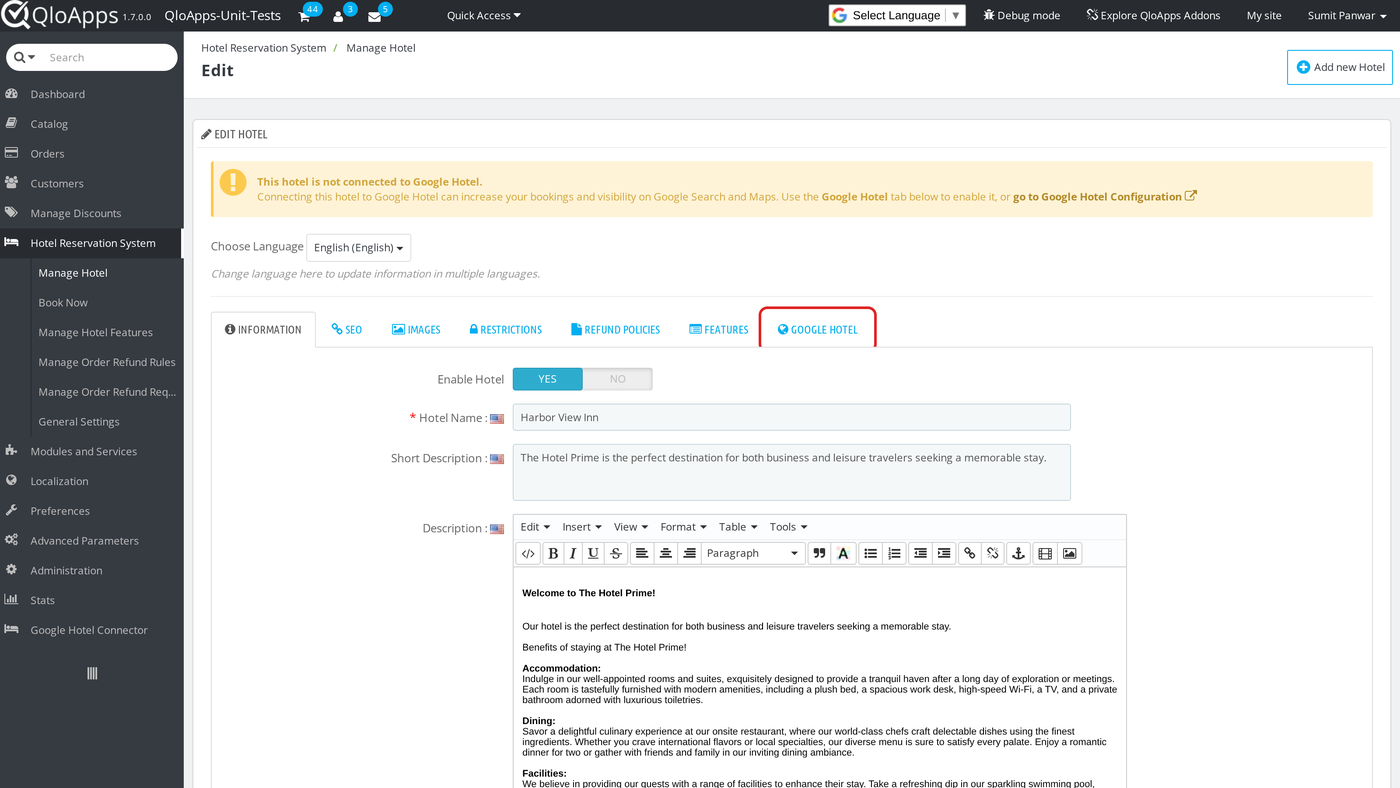
To configure a property, navigate to Hotel Reservation System › Manage Hotel and click Edit.
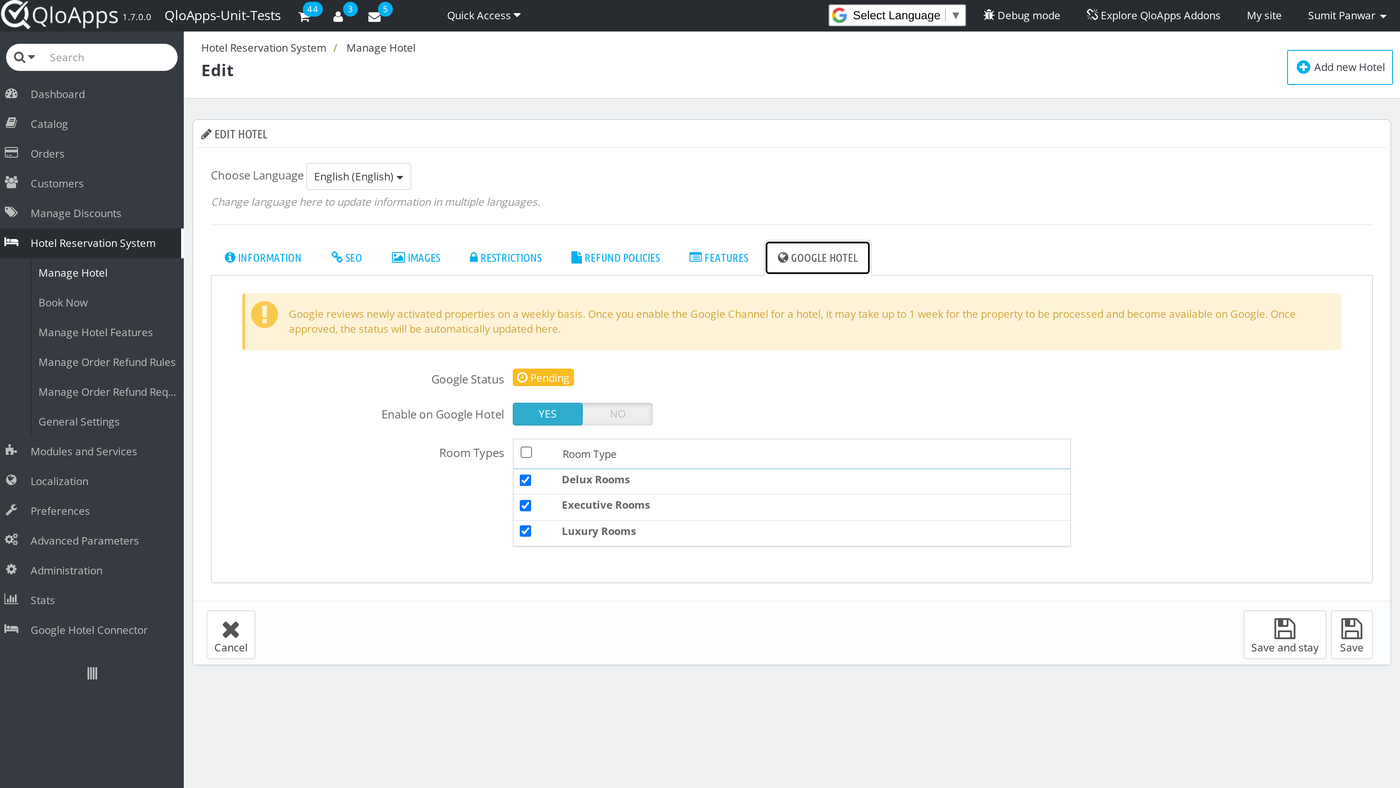
Next, open the Google Hotel tab to review synchronization settings and hotel parameters.
First, inspect the Google Status indicator for Not Connected, Pending, or Connected.
Newly added properties start in Pending status because Google reviews feeds on weekly intervals.
Furthermore, the tab flags missing address details such as street, city, country, or state.
You must supply these details on the Information tab before activating the integration.
Then, switch the Enable on Google Hotel toggle to Yes to turn on automated synchronization.
Below this switch, review the room types checklist to choose participating rooms.
By default, the module checks all active room types for immediate publishing.
Hotel managers can also uncheck specific room categories to keep them offline.
Finally, save the hotel form to store your choices and start data transmission.
Tracking Status from the Hotel List and Dashboard
Hoteliers can monitor property health without opening individual hotel records.
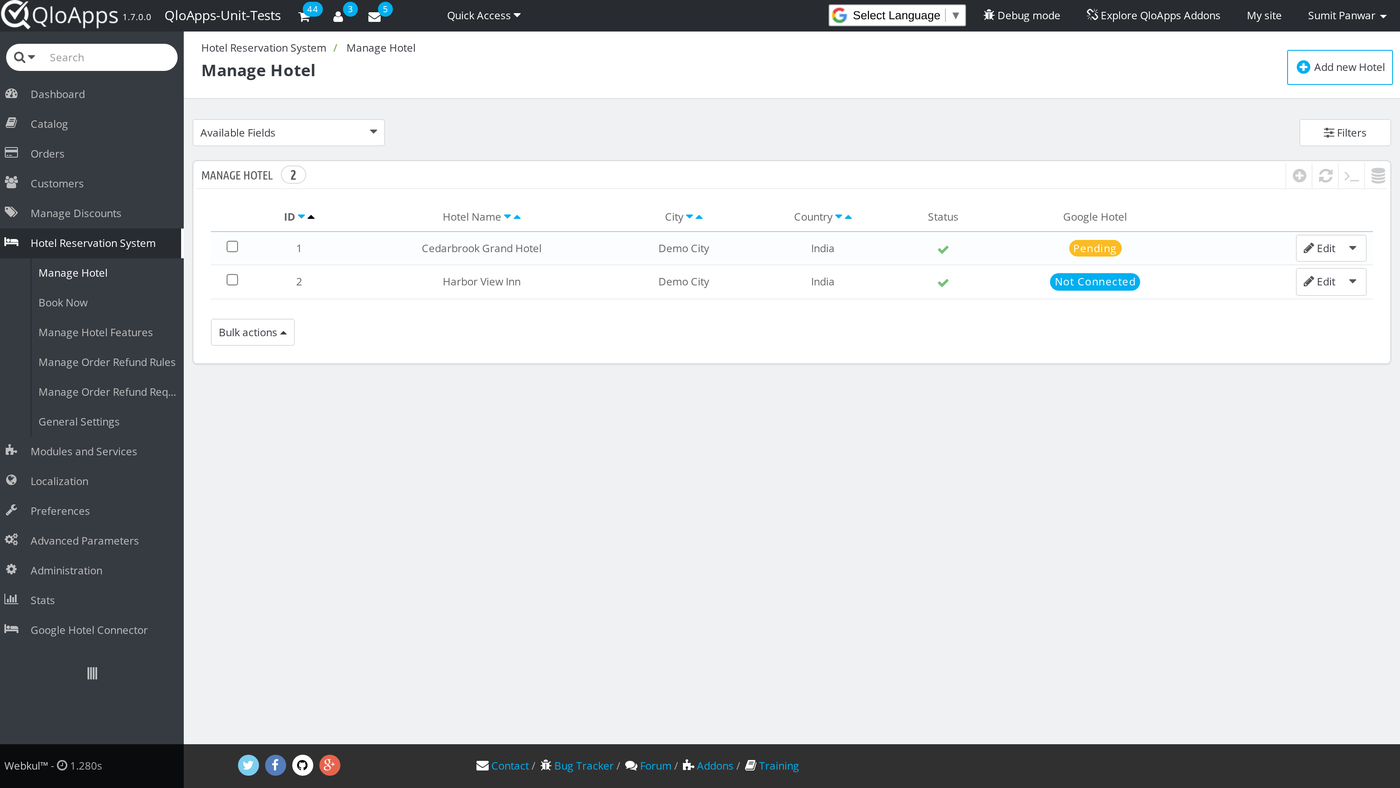
First, navigate to Hotel Reservation System › Manage Hotel to inspect your hotels.
The table features a dedicated Google Hotel column showing connection states at a glance.
Therefore, hotel managers can spot pending approvals or sync errors immediately.
In addition, this summary view saves valuable time when managing multiple hotel branches.
You can identify which properties require corrections without manual guesswork.
When all hotels display active badges, your inventory flows smoothly to Google.
Furthermore, colored badges clarify sync stages so staff understand update schedules.
As a result, properties transition smoothly into fully active direct booking channels.
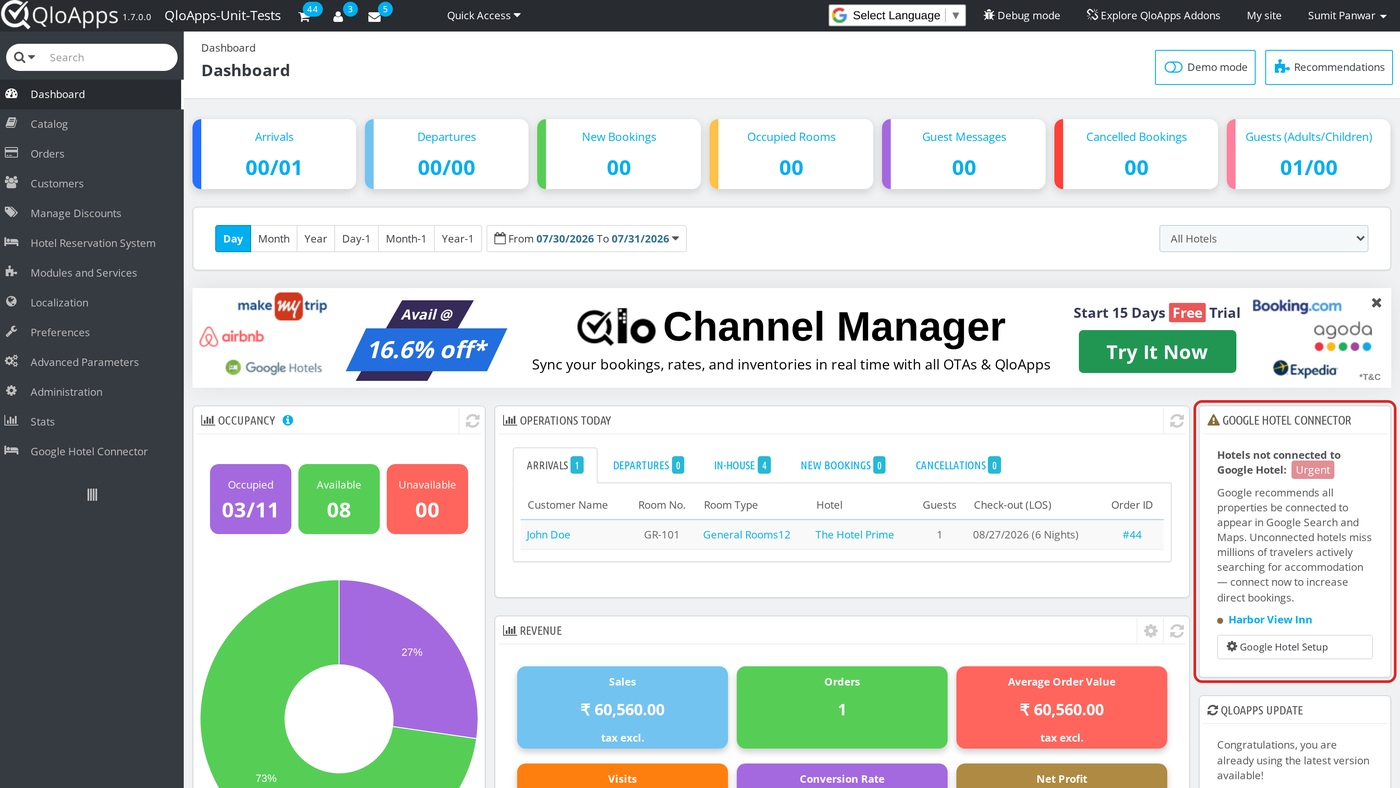
Additionally, the Back Office dashboard includes a Google Hotel summary widget.
This dashboard block highlights all properties that still require connection to Google.
Furthermore, each item provides direct links to configuration and edit screens.
Consequently, staff can resolve incomplete setups without searching through menus.
The widget refreshes automatically whenever hoteliers update property settings.
Thus, teams stay informed about Google distribution whenever they sign in.
This proactive overview prevents forgotten property activations after renovations.
In effect, hotel operators retain total control over channel distribution.
Reviewing API Logs
The module records every communication exchange between QloApps and Google Hotel Center.
To inspect these records, navigate to Google Hotel Connector › API Logs in the sidebar.
First, the log list displays connection attempts, inventory syncs, and rate updates.
Hoteliers can filter records by property, log category, execution status, or date range.
Additionally, global account events display Global Setting instead of a hotel name.
This separation helps technical teams differentiate hotel updates from account calls.
Furthermore, the search filters help administrators locate historical entries quickly.
Therefore, property managers can verify that pricing updates reached Google on schedule.
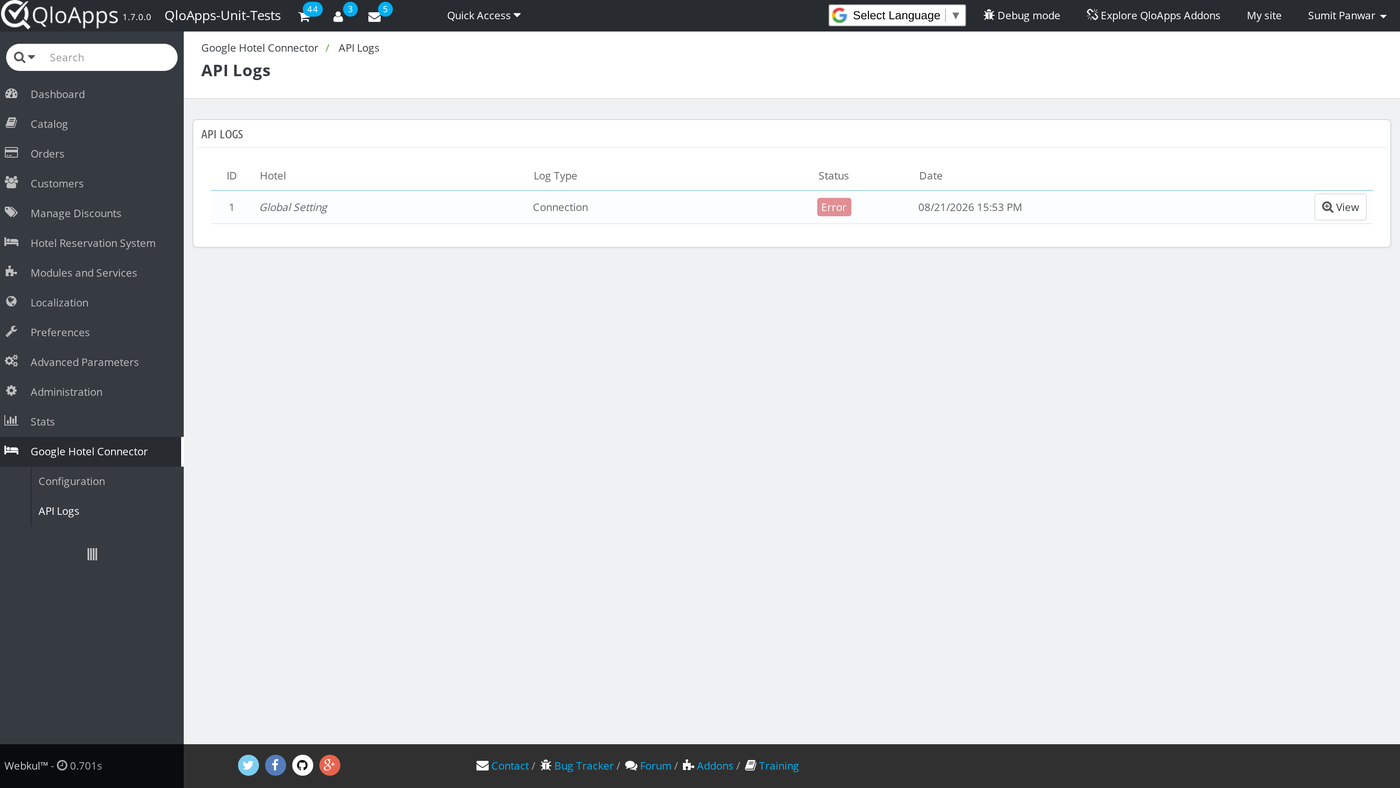
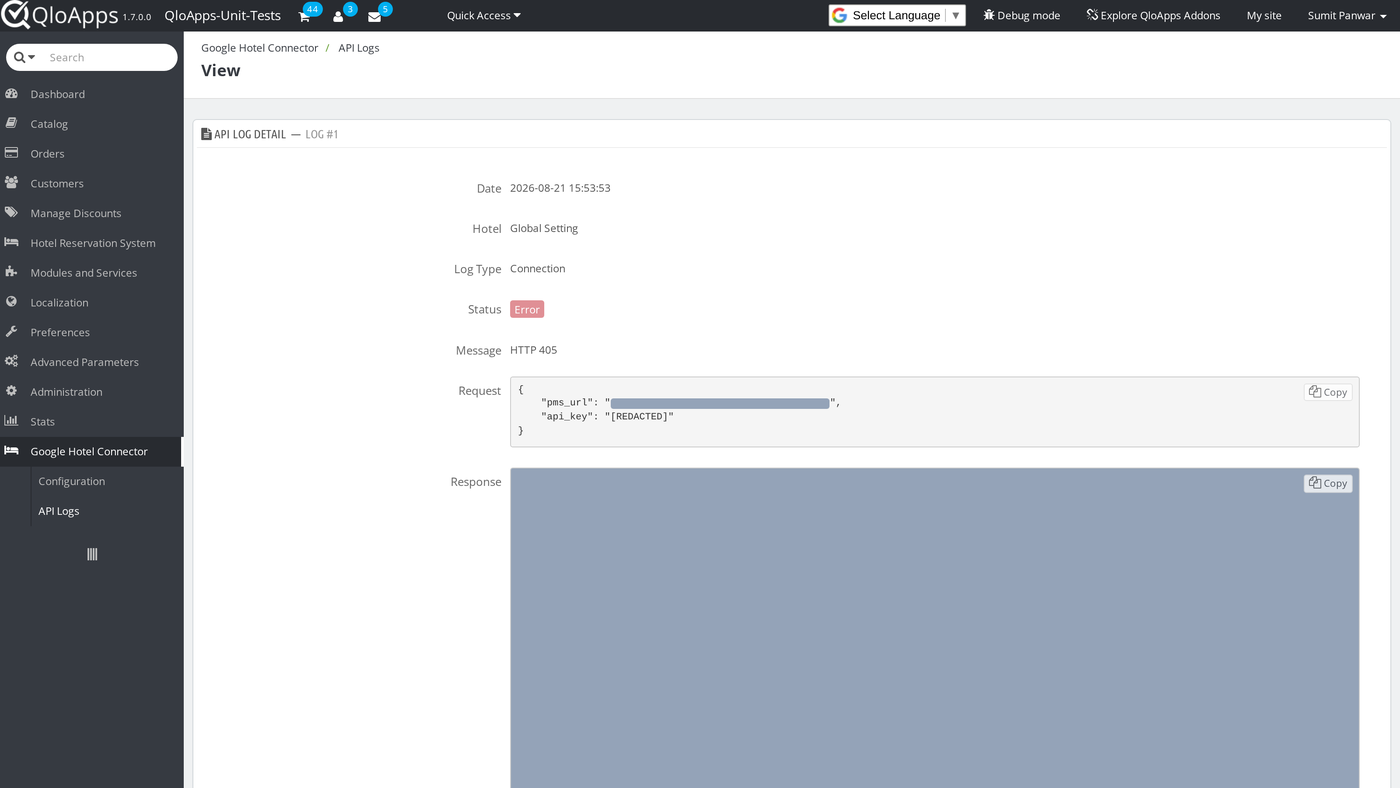
Next, click View on any record row to examine the complete payload details.
The detail modal presents request headers, request body, and response codes.
Furthermore, the module masks sensitive credentials to protect server security.
If Google rejects an update, the error description pinpoints the exact field to fix.
Consequently, technical teams can troubleshoot sync issues without raw server files.
Regular log reviews also ensure nightly price updates reach Google travelers reliably.
When sync issues arise, developers can copy the XML payload for quick debugging.
Finally, this detailed audit trail gives hoteliers complete confidence in rate delivery.
Conclusion
QloApps Google Hotel Connector automates property synchronization with Google Hotel Center.
The module eliminates manual rate updates while providing real-time room availability.
Moreover, direct booking links bring travelers straight to your website without commissions.
Throughout this guide, we covered module installation, account setup, and hotel activation.
Furthermore, we examined status monitoring tools, dashboard widgets, and detailed API logs.
With this setup, your hotel maintains strong visibility across Google Search and Maps.
You can find QloApps Google Hotel Connector and other official modules on the QloApps Addons store.
Additionally, to learn more about the functionality of QloApps, visit All-in-One Property Management System.
For technical assistance, raise a ticket at QloApps Support.
In case of any query, please feel free to raise it on the QloApps Forum.
Current Module Version: 1.0.0
Supported QloApps Versions: 1.6.x and 1.7.x

Be the first to comment.