
QloApps SendGrid Mail lets your hotel send its emails through the SendGrid Web API instead of SMTP or the server’s mail function. It adds one option and one API key field to Advanced Parameters › E-mail, and the booking confirmations, password resets and other emails QloApps sends use that option.
NOTE: You need a SendGrid account, an API key with the Mail Send permission, and a verified Sender Identity for the address your hotel sends from. The module also needs two small additions to the core file
classes/Mail.php, described in the install steps. It works with QloApps 1.7.x.
Features of QloApps SendGrid Mail
- Send QloApps emails through the SendGrid v3 Web API instead of SMTP or the server mail function
- Add Use SendGrid Web API as a fourth mail method on Advanced Parameters › E-mail
- Store the SendGrid API key in a password field that never shows the saved key
- Keep the saved key when you leave the key field blank on a later save
- Reject keys that contain characters a SendGrid key does not use
- Refuse to save the SendGrid mail method while no key is stored
- Test the connection with the standard Send a test email button
- Show the SendGrid error message in the Back Office when a send fails
- Switch the mail method to Never send emails when you disable or uninstall the module
Prerequisite: Core File Changes
Before using the module, you must add two lines of code to the core file classes/Mail.php so QloApps actually switches to the SendGrid transport. Without these two additions the new option appears on the E-mail page, but QloApps keeps sending through the old transport.
Note: Line numbers may vary slightly between QloApps installs.
Add Line of Code for Code 1 and Code 2 Follow this Path
.php file:- classes/Mail.php
Code 1
Path:- classes/Mail.php
Locate the Send() method and add the mentioned code at line number 269 (Line may vary), just before $mailer = new Mailer($transport);.
Add Code:
} else {
    $transport = new SendmailTransport();
}

Hook::exec('actionMailAlterTransportBeforeSend', array(
    'configuration' => $configuration,
    'transport' => &$transport,
));

$mailer = new Mailer($transport);
Code 2
Path:- classes/Mail.php
Locate the sendMailTest() method and add the mentioned code at line number 530 (Line may vary), just before $mailer = new Mailer($transport);. This one passes the saved mail method, so the test button works with SendGrid.
Add Code:
Hook::exec('actionMailAlterTransportBeforeSend', array(
    'configuration' => array('PS_MAIL_METHOD' => Configuration::get('PS_MAIL_METHOD')),
    'transport' => &$transport,
));

$mailer = new Mailer($transport);
How to Install QloApps SendGrid Mail
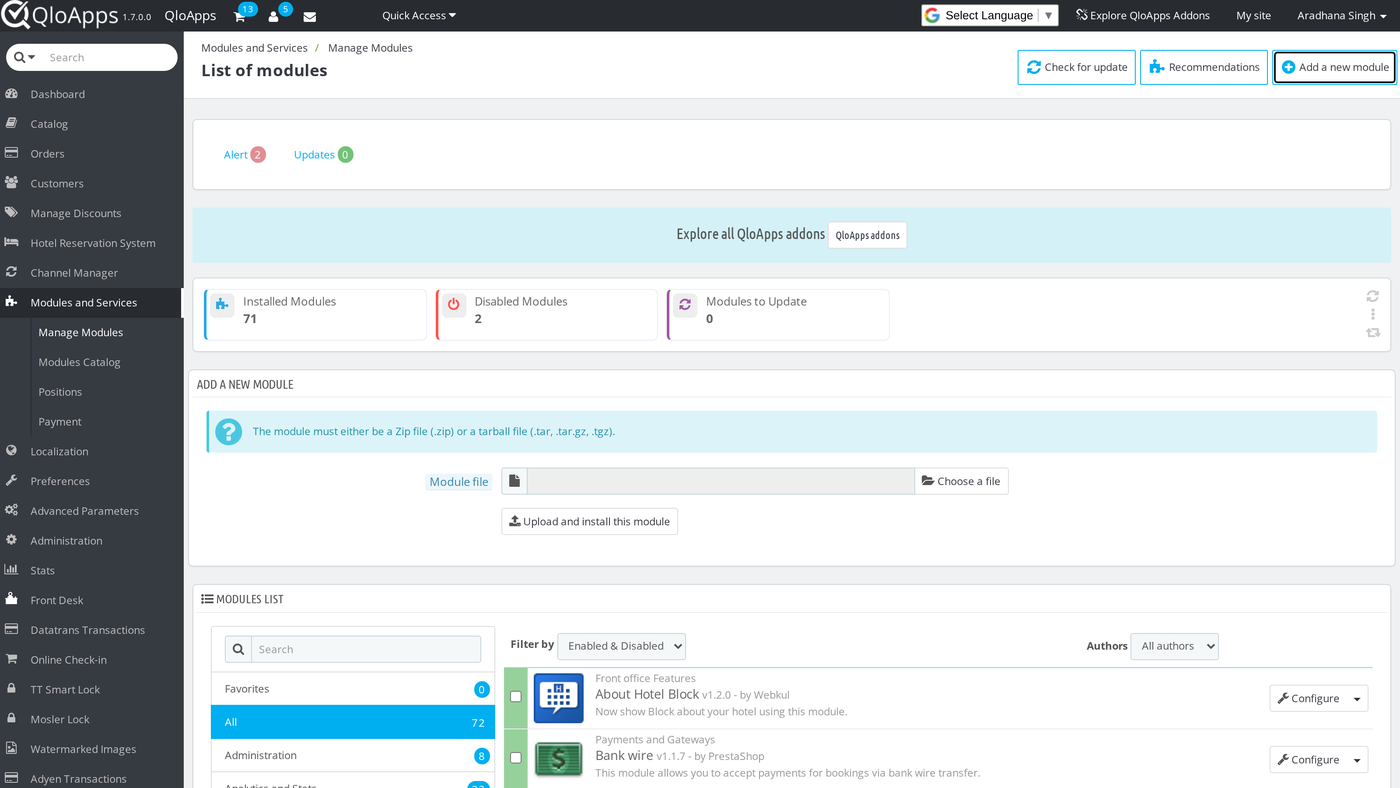
- In the Back Office go to Modules and Services › Manage Modules and click Add a new module.
- Choose the module ZIP under Module file, then click Upload and install this module.
- QloApps installs the module and registers its four hooks. If the module appears in the list without being installed, click Install.
Configuration of QloApps SendGrid Mail
The module has no menu entry of its own. Its settings sit on the standard E-mail page at Advanced Parameters › E-mail.
General Configuration
Open Advanced Parameters › E-mail. The first panel lists the mail methods. After the install, Use SendGrid Web API is the fourth choice, below Never send emails (may be useful for testing purposes). The module does not change your current method when you install it, so the page keeps showing your existing choice until you pick a new one.
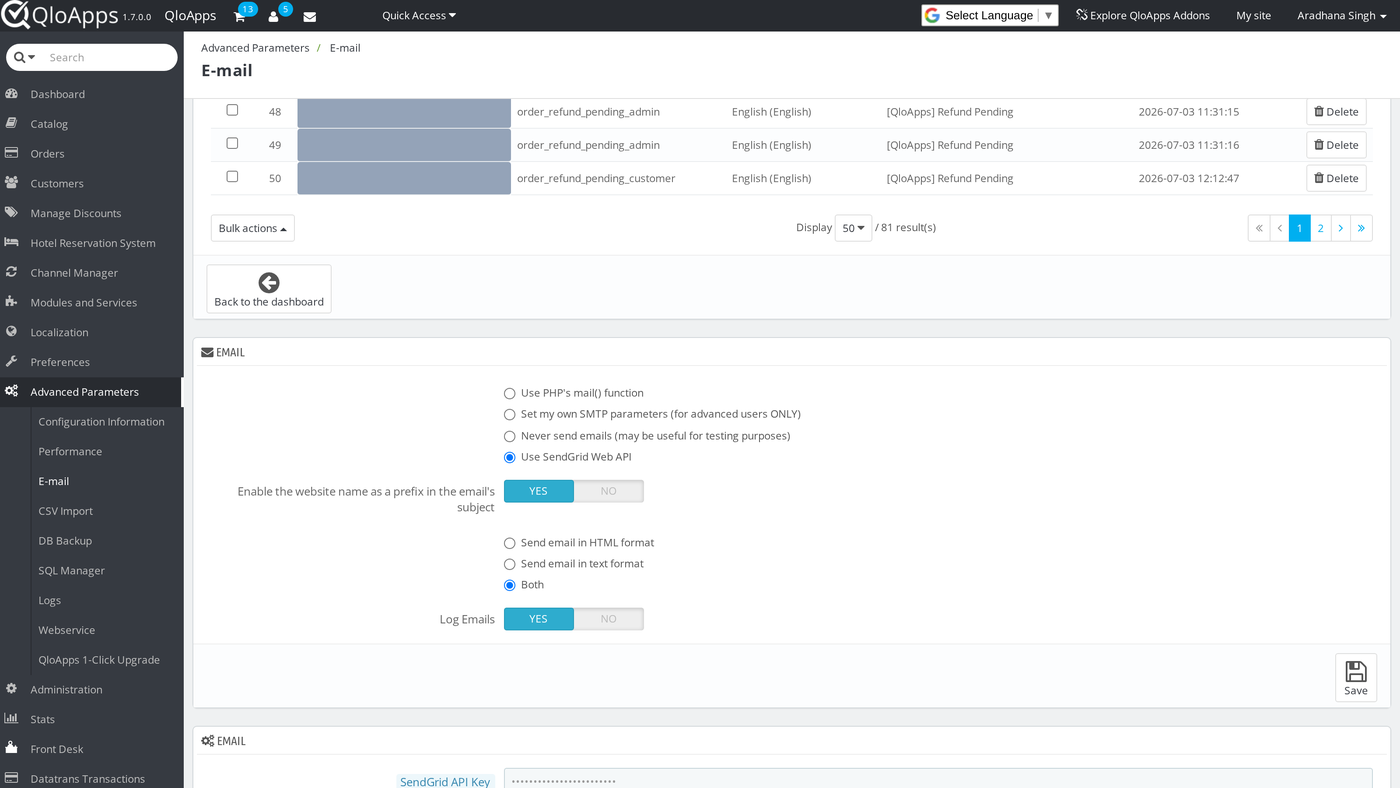
Select Use SendGrid Web API. A second panel slides open below the first one with one field:
- SendGrid API Key: a password field, empty by default. The hint under it says to create the key in SendGrid at Settings › API Keys with the Mail Send permission. The key must be 10 to 255 characters and may contain only letters, numbers, dots, underscores and hyphens.
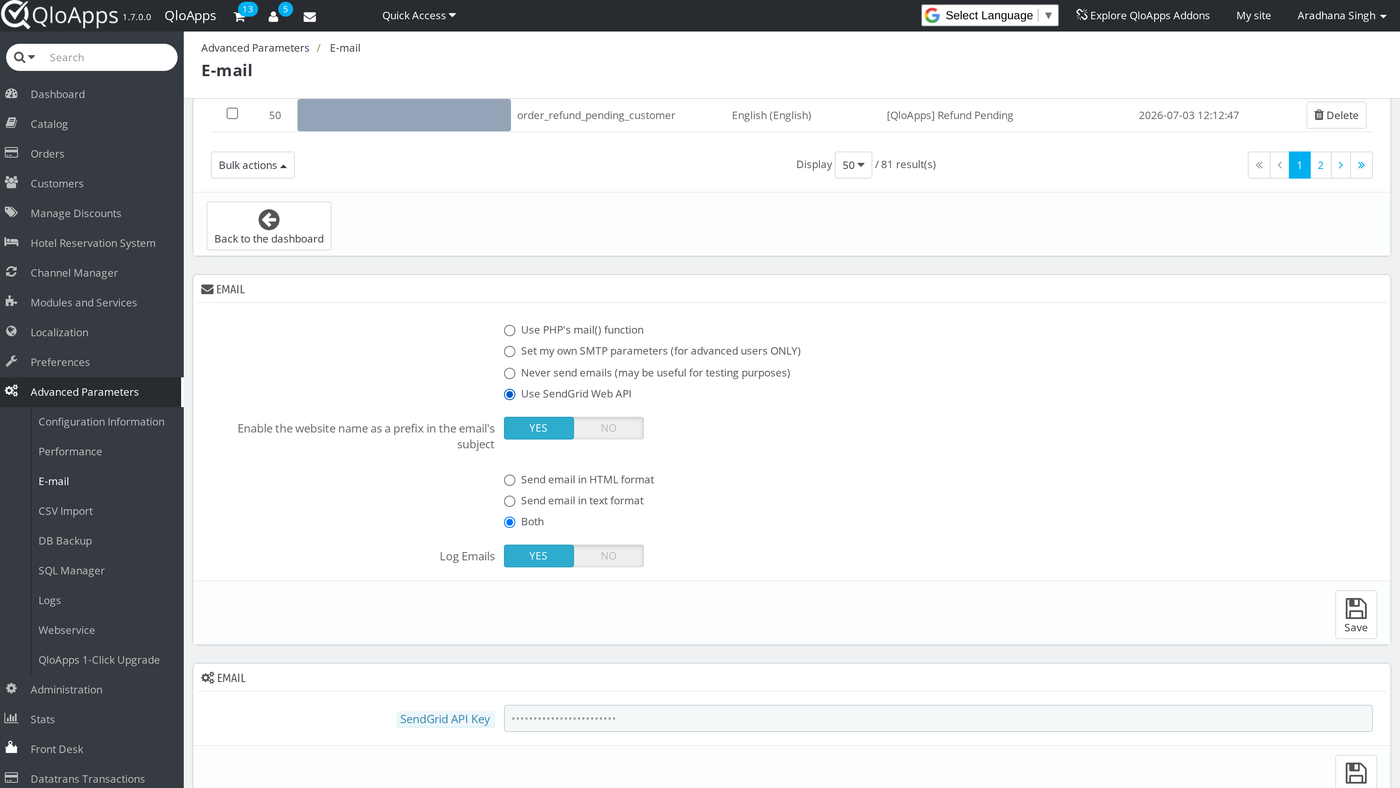
Paste the key and click Save in that panel. QloApps stores the key and never prints it back. When a key is already saved, the field stays empty and shows dots as a placeholder. Leave it blank on later saves to keep the stored key, or type a new key to replace it.
QloApps shows an error and does not save in two cases:
- The key contains other characters: “The SendGrid API Key is not valid – it should only contain letters, numbers, dots, underscores and hyphens.”
- You chose SendGrid with no key stored: “You must enter a SendGrid API Key to use “Use SendGrid Web API”.”
The other settings in the first panel, such as the HTML or text format and Log Emails, keep working as before.
SendGrid Setup
Complete these steps in your SendGrid account before you send a test email.
- In SendGrid go to Settings › API Keys and click Create API Key.
- Choose Restricted Access and enable Mail Send. Nothing else is needed.
- Copy the key when SendGrid shows it. SendGrid shows it only once. Paste it into the SendGrid API Key field in QloApps.
- Go to Settings › Sender Authentication and verify the email address your hotel sends from. This is the website email address of your QloApps install, the same one the test panel on the E-mail page fills in for you.
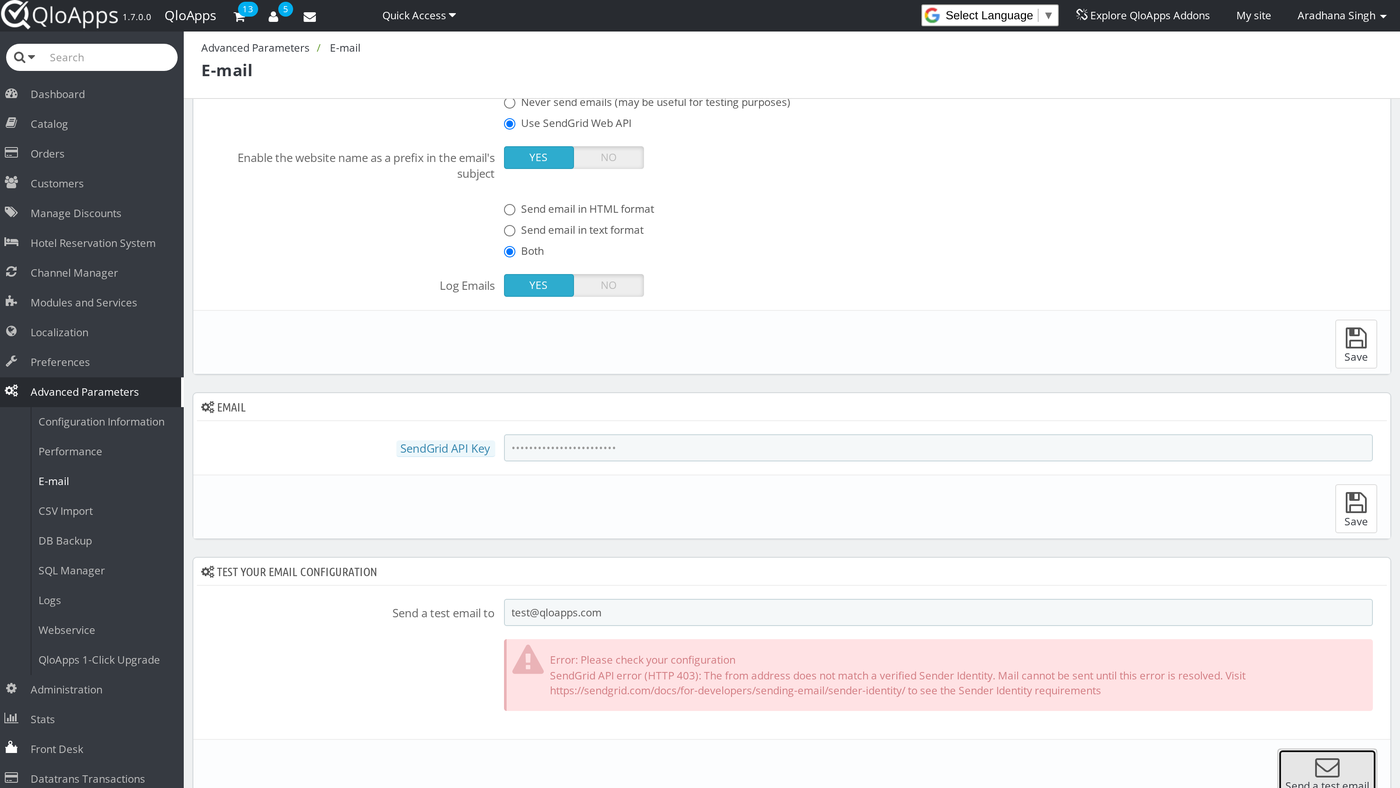
If the sender address is not verified, SendGrid refuses every message. QloApps then shows this error on the E-mail page: “SendGrid API error (HTTP 403): The from address does not match a verified Sender Identity.” Verify the address in SendGrid and send the test again.
Sending a Test Email
Use the test panel to confirm that the key and the sender identity work before a guest depends on them.
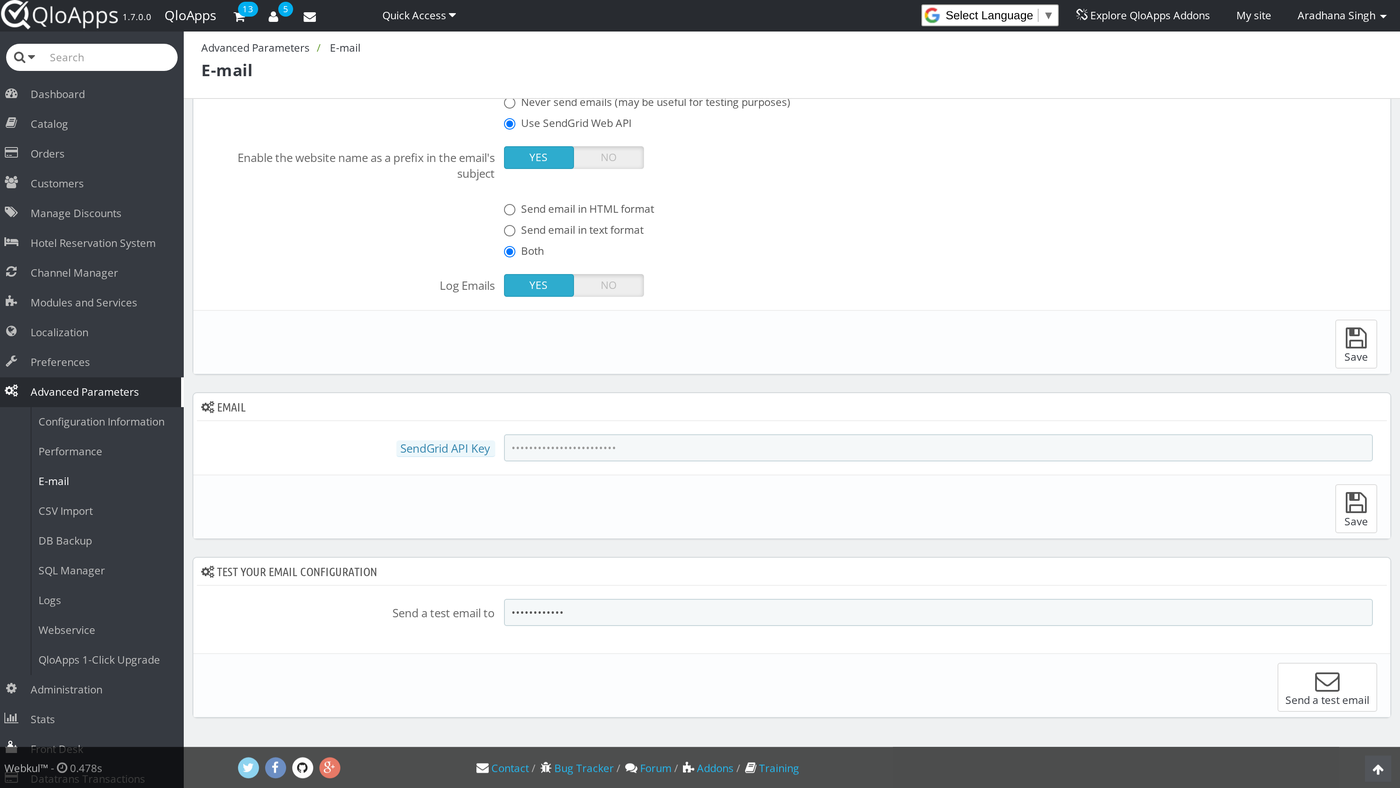
- Open Advanced Parameters › E-mail and scroll to Test your email configuration.
- In Send a test email to, enter an address you can read. The field starts with the website email address.
- Click Send a test email.
QloApps shows “A test email has been sent to the email address you provided.” when SendGrid accepts the message. If SendGrid refuses it, the message under the field includes the HTTP status and SendGrid’s own reason, so you can fix the key or the sender and try again.
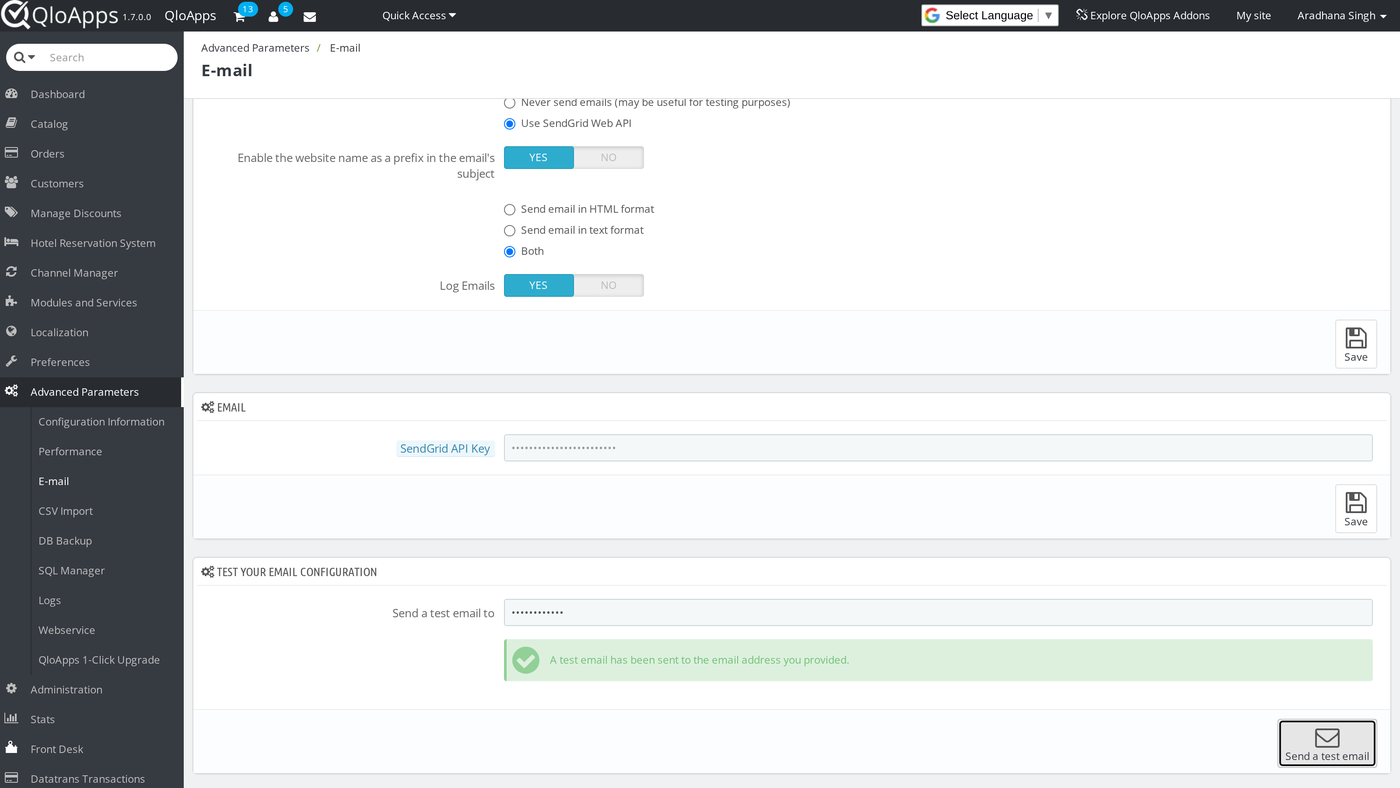
From this point, booking confirmations, password reset emails and every other message QloApps sends go through SendGrid. With Log Emails set to Yes, they still appear in the email log at the top of the page.
Disabling or Removing the Module
If you disable or uninstall the module while SendGrid is the active method, the module switches the mail method to Never send emails so QloApps does not try to use a transport that no longer exists. Uninstalling also deletes the stored API key. Choose another mail method on the E-mail page afterwards, or your hotel sends no email.
Conclusion
QloApps SendGrid Mail adds the SendGrid Web API as a mail method on Advanced Parameters › E-mail. This guide covered the install and the two changes to classes/Mail.php, the API key field and its checks, the SendGrid account steps, and the test email. Finally, we hope this guide has helped you configure and use QloApps SendGrid Mail with confidence.
Additionally, to learn more about the functionality of QloApps, you can visit this link: All-in-One Property Management System. For technical assistance, raise a ticket at QloApps Support. In case of any query, issue, or requirement, please feel free to raise it on the QloApps Forum.
Current Module Version: 4.0.0
Supported QloApps Versions: 1.7.x

Be the first to comment.