
The QloApps Elegance Theme gives your hotel booking website a fresh look.
Also, it delivers an easy booking flow for all types of accommodations worldwide.
Guests get clean typography, clear room photos, and quick checkout steps.
Furthermore, you can find this theme on the Webkul Store.
NOTE: Clear your system cache after theme setup so all new styles display properly.
Features of QloApps Elegance Theme
- Build a clean visual style made for all types of hotels and accommodations
- Add a floating room search box right over the main hero photo banner
- Show available room types inside an interactive slide show with price tags
- Present hotel perks with a fresh magazine style layout and large photos
- Maintain full core harmony with native Bootstrap files across all modules
- Include a four column dark footer with email signups and payment badges
- Provide a smooth mobile view tested across smartphones and modern tablets
Installation of QloApps Elegance Theme
Installing the QloApps Elegance Theme takes only a few quick steps in the Back Office.
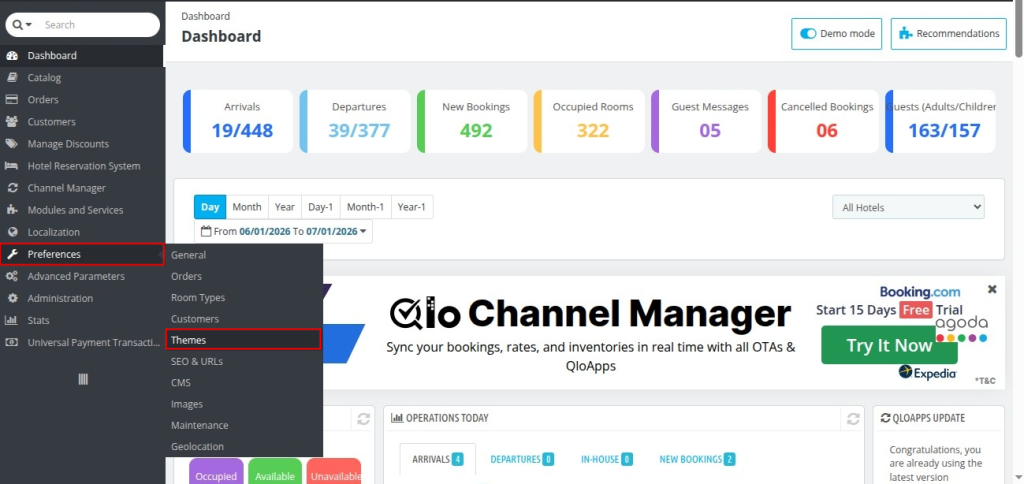
- Go to Preferences › Themes in your Back Office menu.
- Click on the Add New Theme button at the top of your screen.
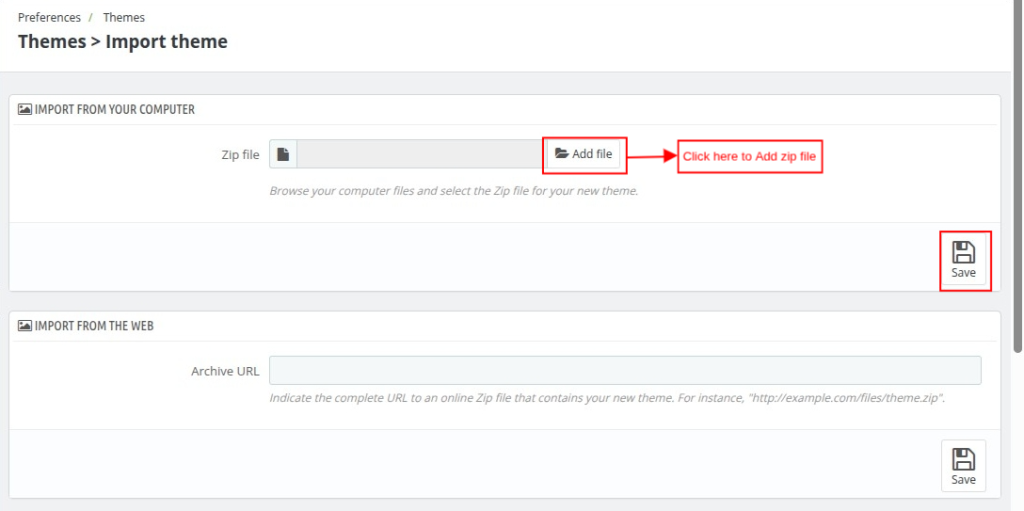
- Under the Import from your computer section, click Add file, select your theme zip, and click Save.
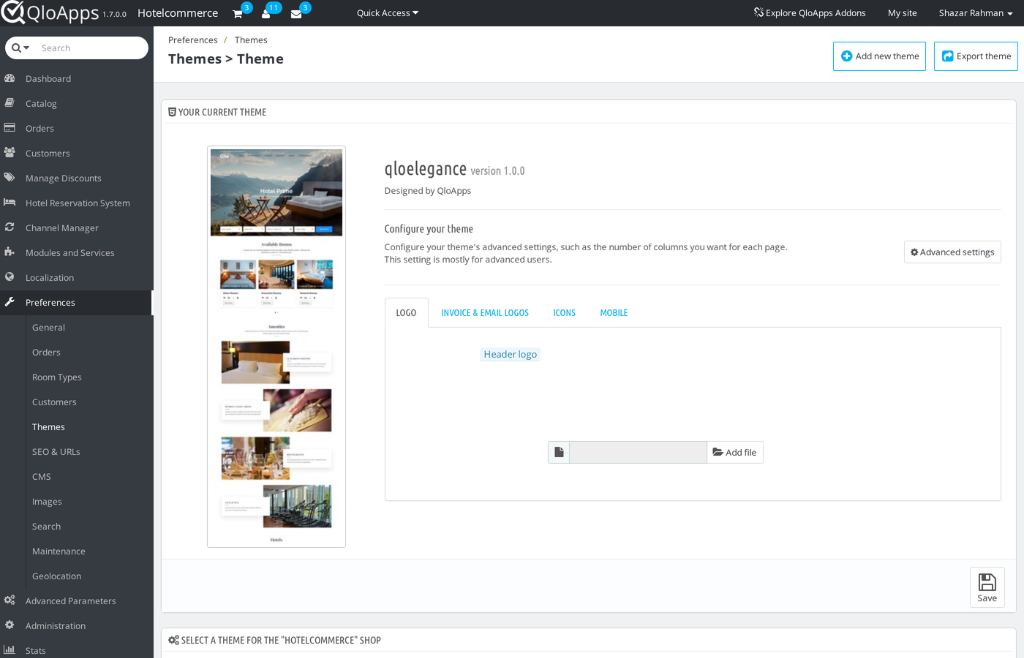
- Once uploaded successfully, locate the theme in your theme list and click it to activate it.
Then, visit Advanced Parameters › Performance to clear the cache.
Finally, check your website front office to confirm the new design is live.
Configuration of QloApps Elegance Theme Modules
Standard setups use basic default blocks.
To give guests a luxury stay, five custom tools were built.
All five tools use the qloelg prefix name.
Also, they turn off by safe steps if you change themes.
- qloelgroomdisplay: Room cards slider on the home screen
- qloelghotelshowcase: Property branch slider on the home screen
- qloelgofferings: Guest perks slider for spa and dining
- qloelgmap: Live map with hotel pins on the home screen
- qloelghotelbanner: Top hero photo grid and rate card on hotel pages
– Room Display Module (qloelgroomdisplay)
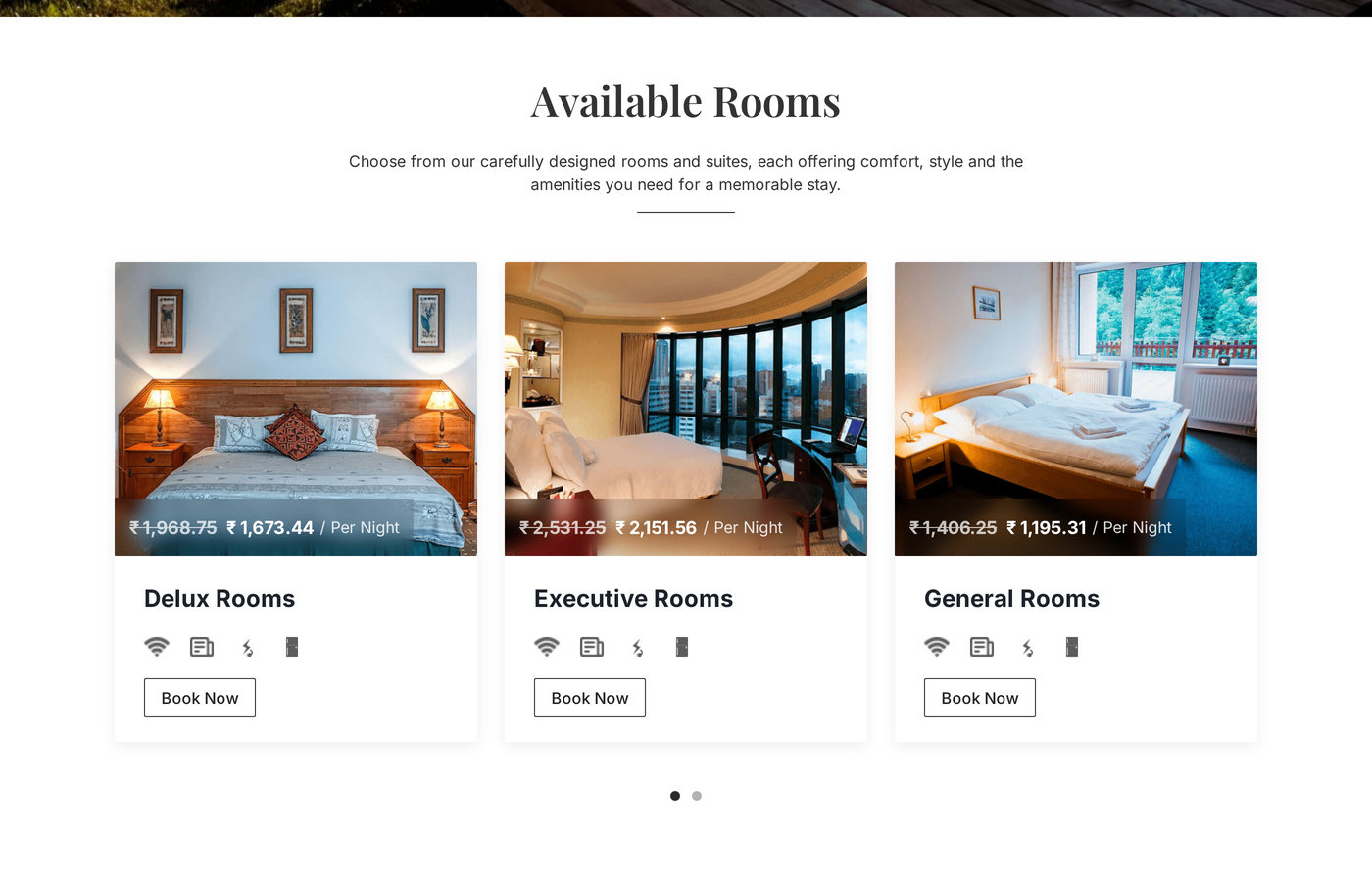
The Room Display tool shows a room slider on your home page.
Each room card shows the photo, room name, and nightly price.
Also, cards show active deals and perk icons for fast review.
Guests can click Book Now to open the room page right away.
Room data comes from Catalog › Manage Room Types.
Meanwhile, rates and deals come from Hotel Reservation System › Feature Price Rules.
To set up this block, open Modules and Services › Modules and find qloelgroomdisplay.
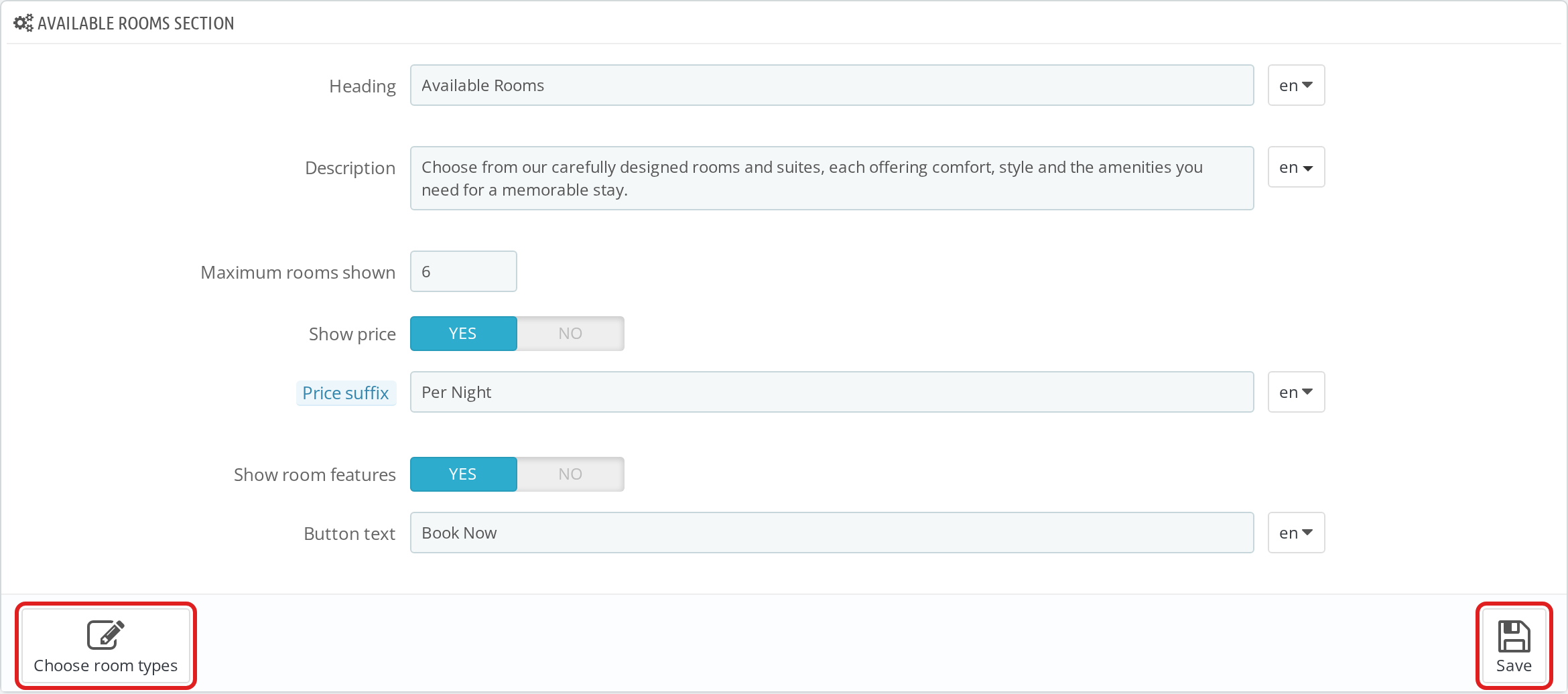
Next, click Configure to edit titles and subtitles.
You can set the maximum number of rooms shown in the slider.
Also, you can show or hide nightly prices and perk icons.
Click Choose room types to pick rooms and set display order.
If all rooms are hidden, the section folds away cleanly.
– Hotel Showcase Module (qloelghotelshowcase)
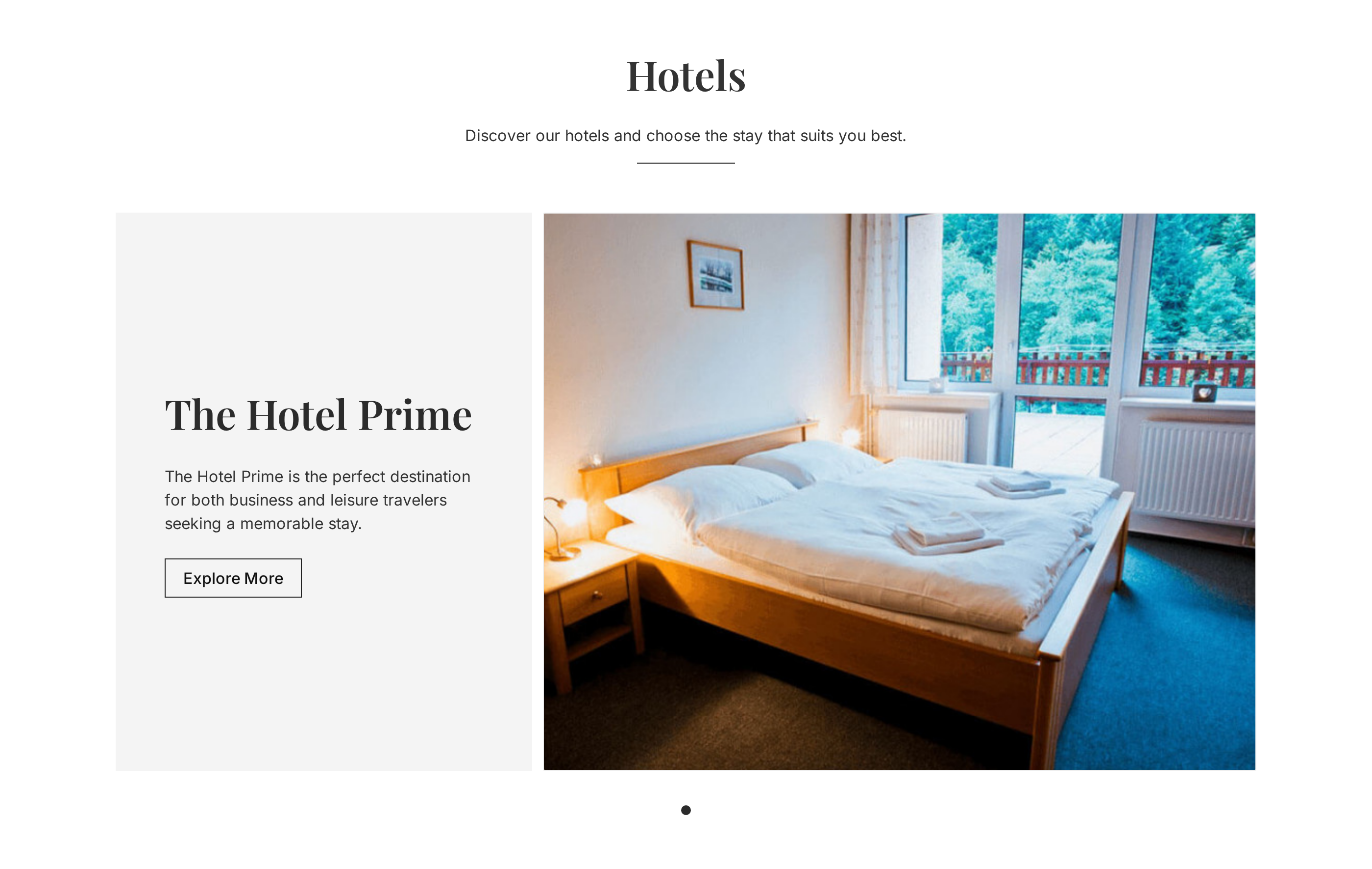
The Hotel Showcase tool shows your hotel branches in a clean slider.
Each slide shows the cover photo, hotel name, and city.
Also, a short text helps guests learn about each property.
An Explore Hotel button leads guests right to that hotel page.
This tool reads property data from Hotel Reservation System › Manage Hotel.
Therefore, every active hotel branch becomes a slide right away.
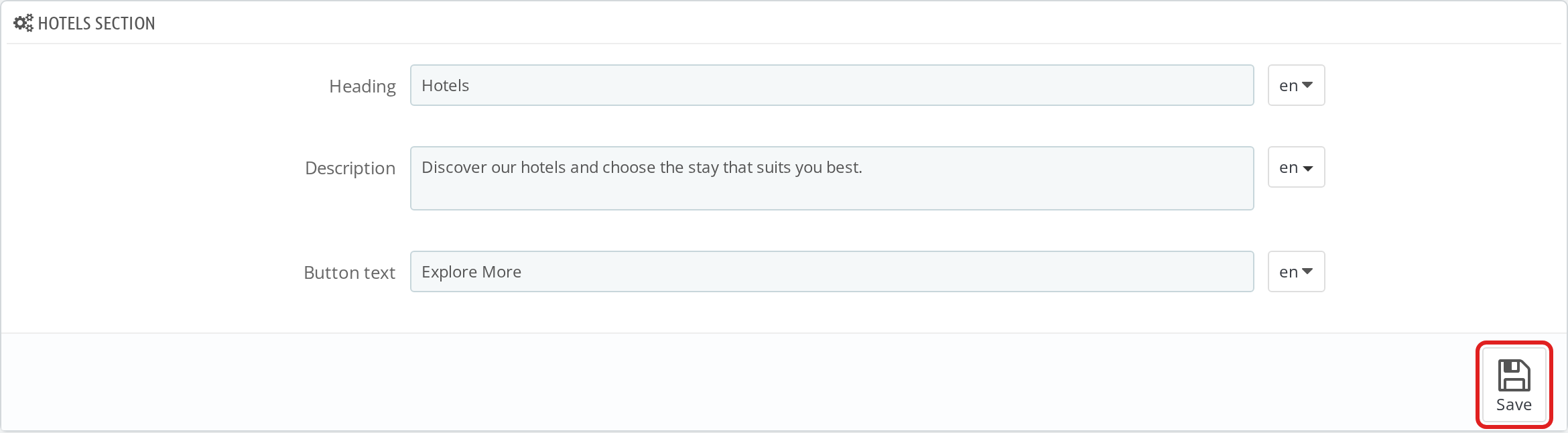
To manage this block, open Modules and Services › Modules and find qloelghotelshowcase.
Then, click Configure to edit headings and button text.
To update hotel photos or names, visit Hotel Reservation System › Manage Hotel.
If a branch lacks photos, the tool uses the first room cover photo.
Thus, your home page never shows broken image icons.
– Hotel Offerings Module (qloelgofferings)
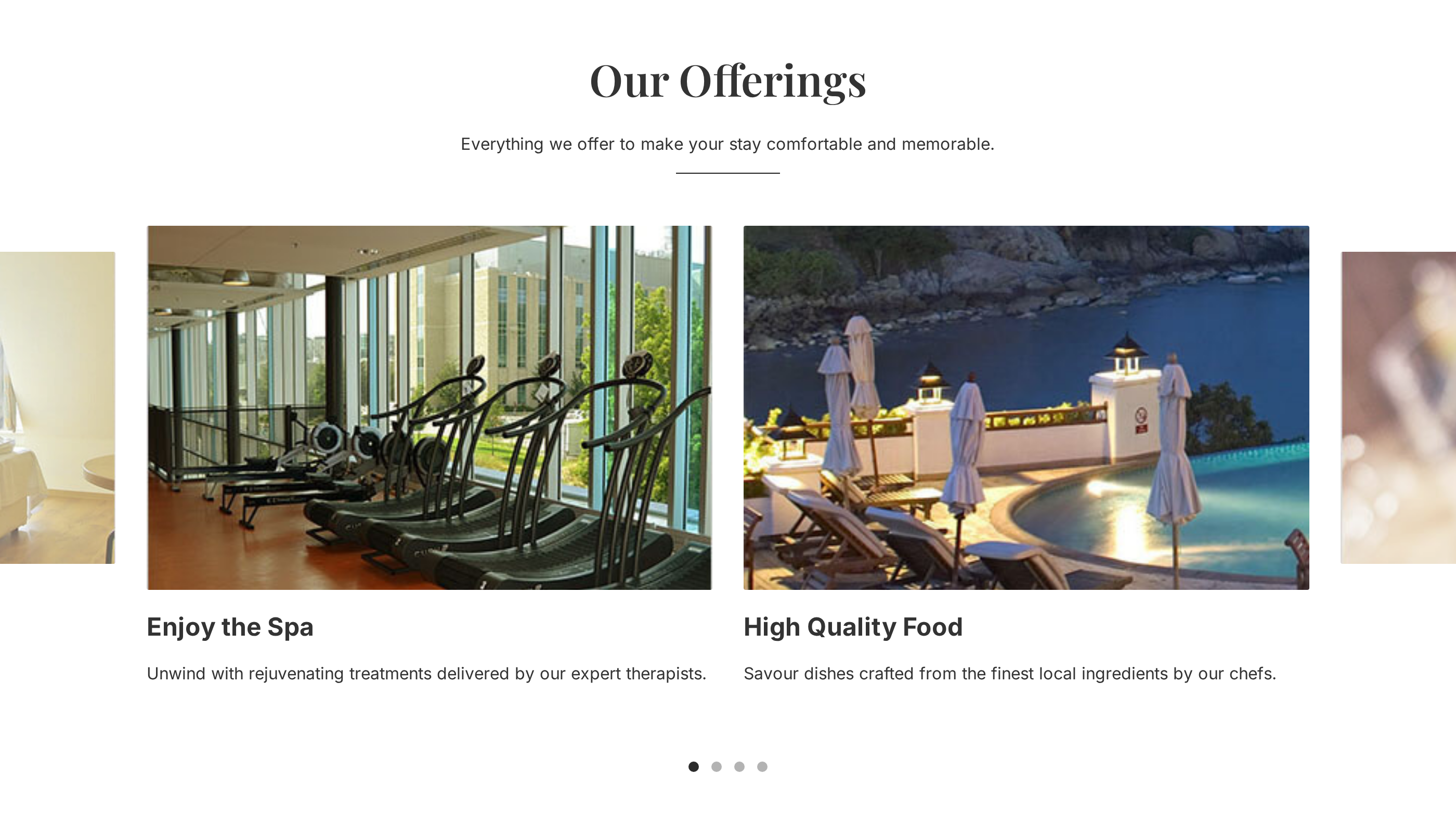
The Offerings tool shows lifestyle perks right on your home screen.
It highlights spas, fine dining, pools, and fitness rooms.
Because core setups only track rooms, this tool adds lifestyle perks.
This tool stores its own records in the database.
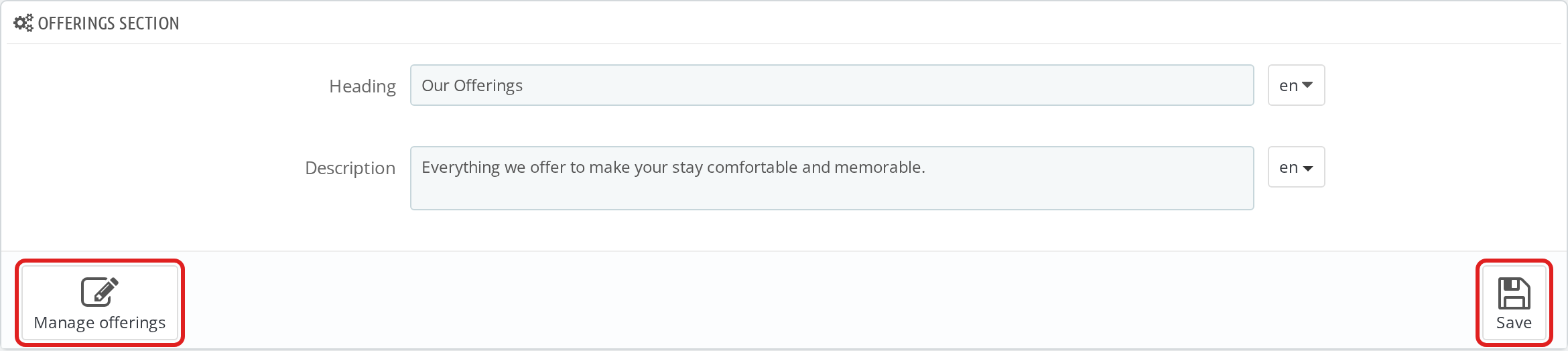
To set up this block, open Modules and Services › Modules and find qloelgofferings.
Click Configure to edit section title and description text.
Then, click Manage offerings to see your perks list.
Click Add New Offering to add titles, text, and landscape photos.
Next, set position numbers and toggle the status switch to active.
If no perks are active, the section hides cleanly from view.
– Hotels Map Module (qloelgmap)
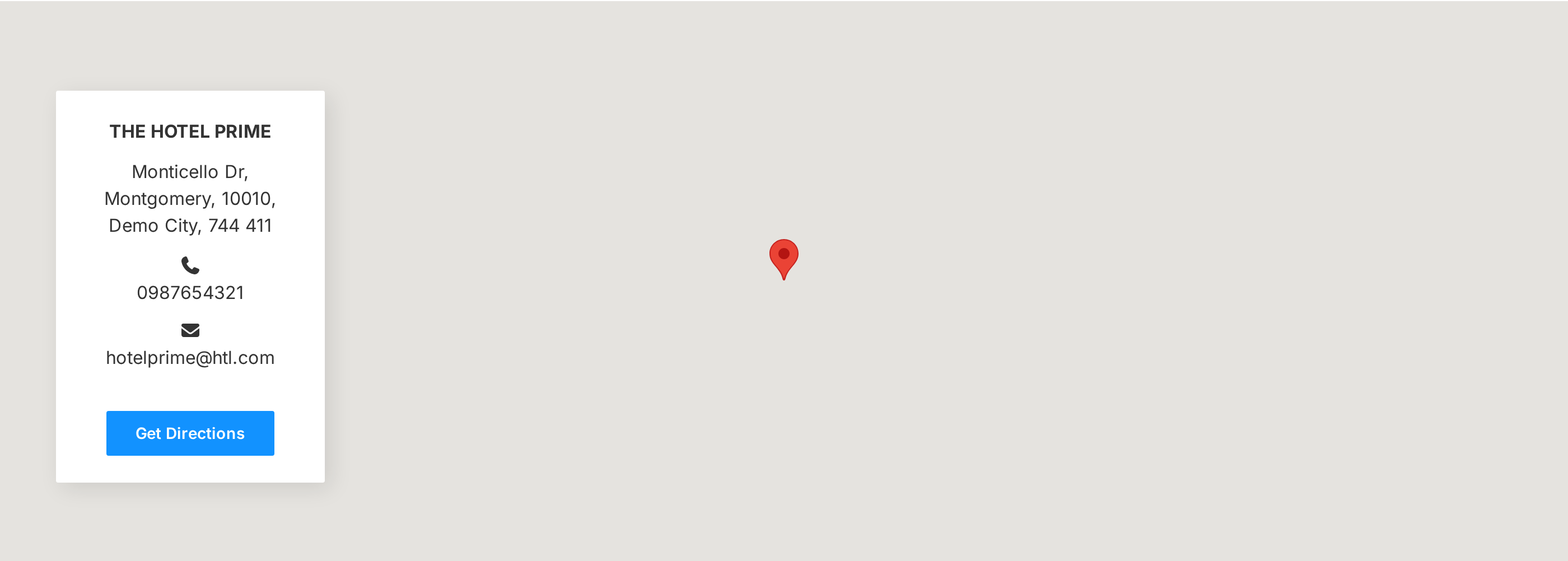
The Hotels Map tool shows a live Google Map on your home screen.
It shows custom map pins for all your hotel branches.
When guests click a pin, an info card shows the address and city.
Also, a directions link opens Google Maps with route details.
Map coordinates come from latitude and longitude in Manage Hotel.
Meanwhile, map keys come from Hotel Reservation System › Hotel Configuration.
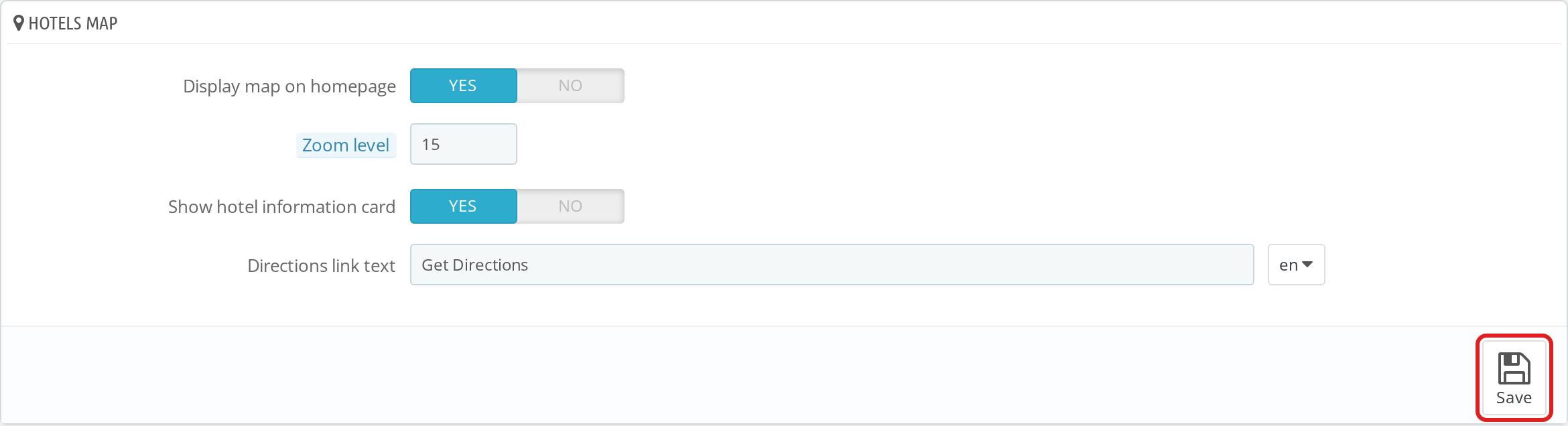
To manage this block, open Modules and Services › Modules and find qloelgmap.
Click Configure to turn the map display on or off.
Next, pick your map zoom level and toggle the hotel card.
Also, you can change the directions link text for all languages.
If no map key or coordinates exist, the block hides cleanly.
Therefore, guests never see broken script errors or alerts.
– Hotel Banner & Showcase Module (qloelghotelbanner)
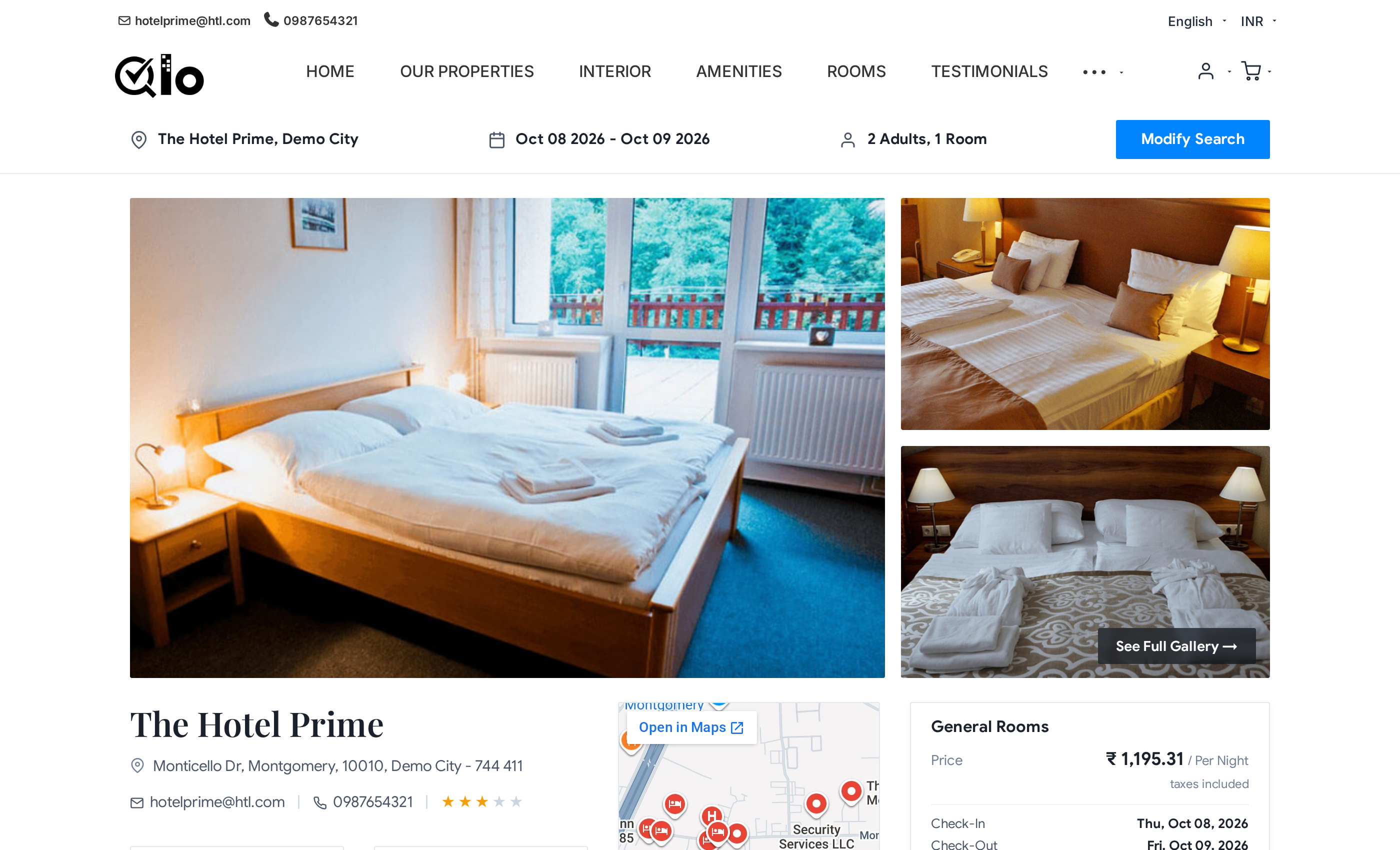
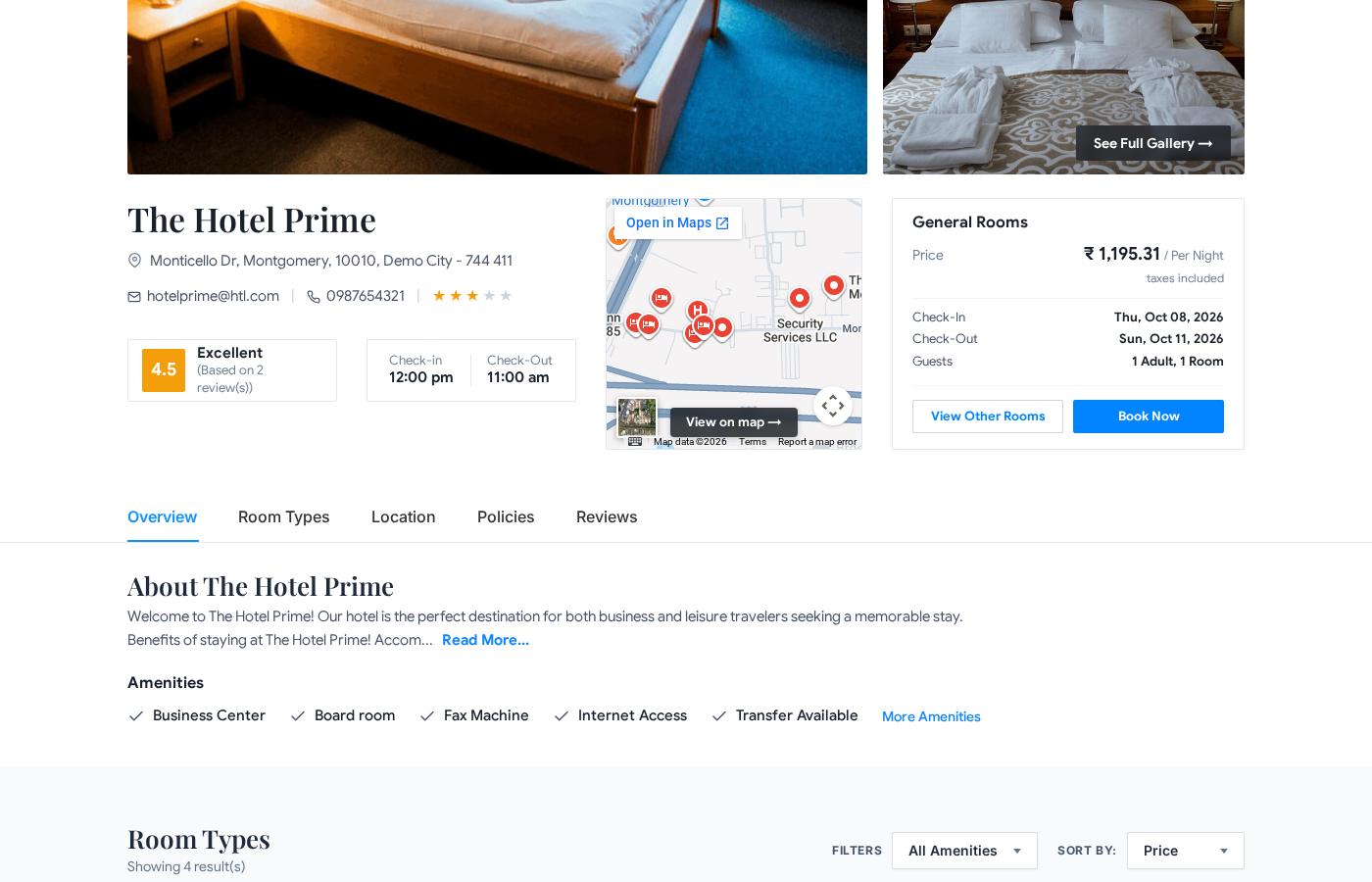
The Hotel Banner tool powers the top part of hotel category pages.
It creates a photo mosaic with a full image popup.
Also, it displays star ratings, check-in times, and hotel addresses.
A Quick Booking Summary card shows the lowest room rate.
Moreover, the card updates rates based on chosen stay dates.
When rooms are open, the button displays Book Now for guests.
If rooms sell out, the button turns to Modify Dates at once.
In addition, sticky menu tabs let guests jump to policies and rooms.
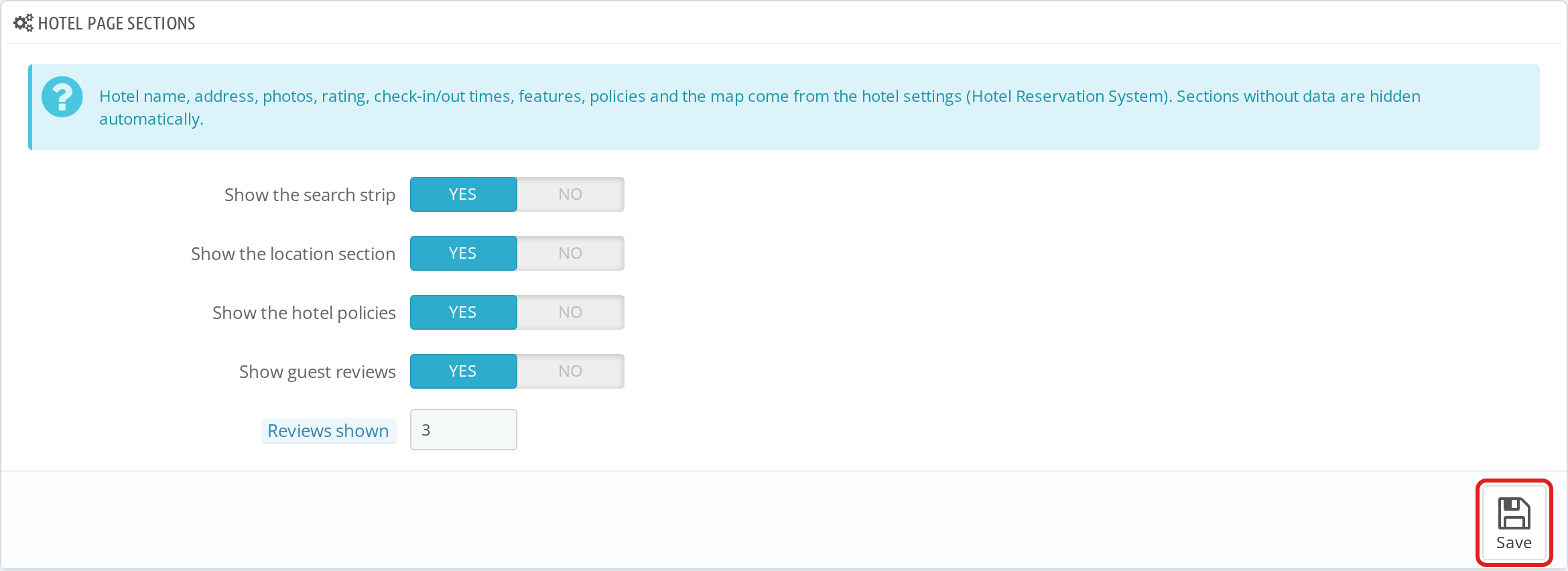
To edit settings, open Modules and Services › Modules and find qloelghotelbanner.
Click Configure to toggle the search bar and map section.
Also, you can toggle hotel rules and guest review blocks.
If a hotel has no written rules, that block hides cleanly.
Thus, category pages always stay clean for every property.
Front End of QloApps Elegance Theme
The front office welcomes guests with an inviting visual space.
Therefore, travelers can check room rates and book stays without trouble.
Also, the clean design keeps focus on your rooms and property amenities.
– Header Section
The top header bar displays your brand logo and primary menu links.
In addition, visitors can easily find your contact phone and email address.
Guests also see quick links for language options and currency pickers.
Meanwhile, a top cart button lets travelers view pending bookings anytime.
– Hero Banner & Room Search Section
The hero banner highlights your best property photography with bold titles.
Additionally, a floating search bar sits right below the headline text.
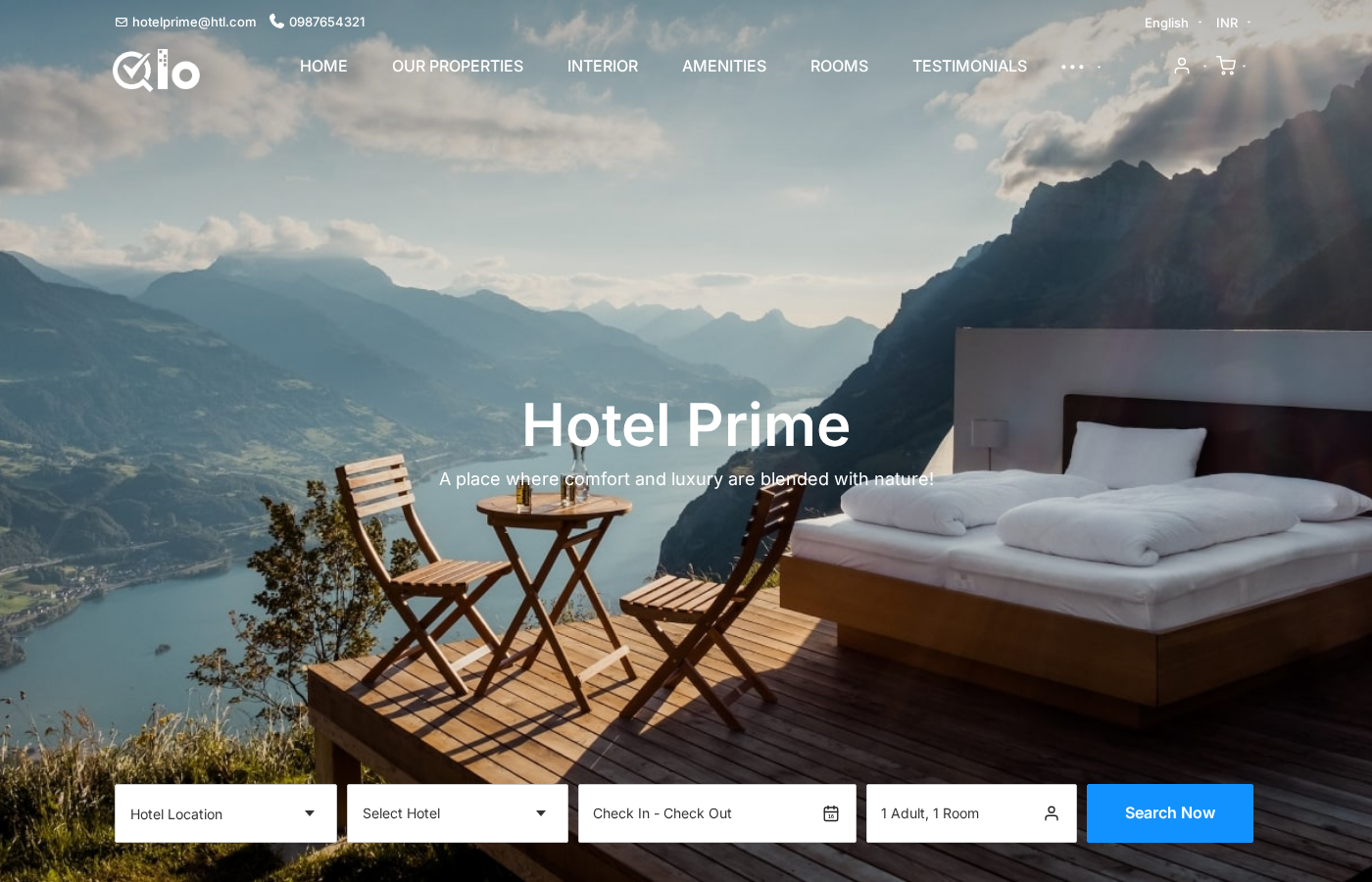
Guests can pick hotel branch locations and select their arrival dates.
Next, they choose the number of adults, children, and rooms needed.
Then, travelers click the bright blue search button to find open rooms.
Thus, guests start their booking path directly from your home screen.
– Hotel Amenities Section
The amenities section shows your best hotel facilities with large photos.
Furthermore, it pairs photos with short text notes for each guest service.
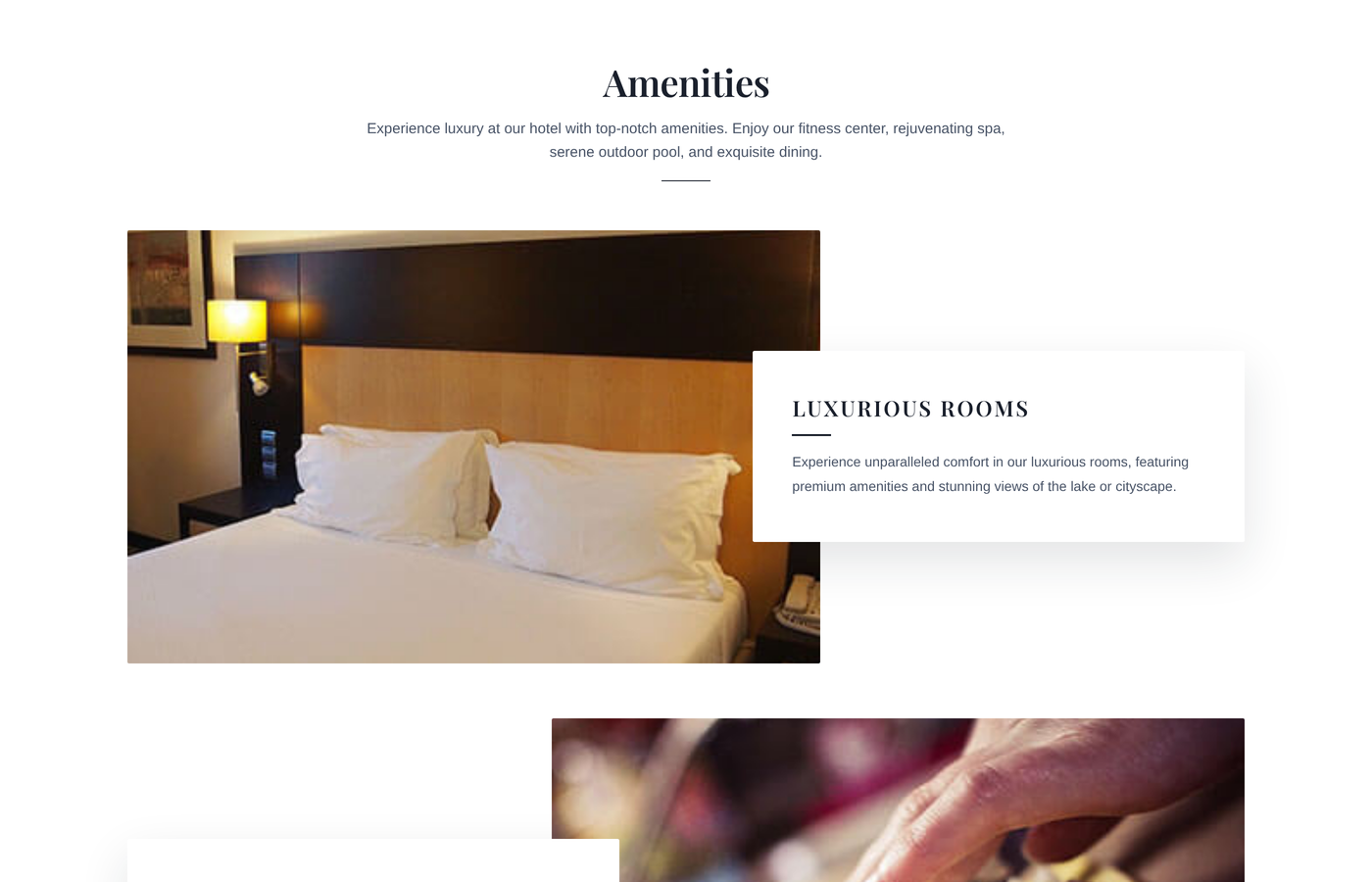
This section highlights swimming pools, dining halls, and wellness areas.
Because of this layout, guests learn about all your top property perks.
As a result, travelers get excited about staying at your property.
– Search Results Page
When visitors run a room search, the results page displays matching suites.
In addition, each room listing shows night rates, bed sizes, and room perks.
Guests can filter room choices to find ideal suites right away.
Also, a simple card design makes comparing prices very easy for guests.
Travelers can click any room card to open the full room profile.
– Room Type Detail Page
Opening a room type shows the complete room profile and gallery photos.
Also, an image popup lets visitors view full size pictures of each room.
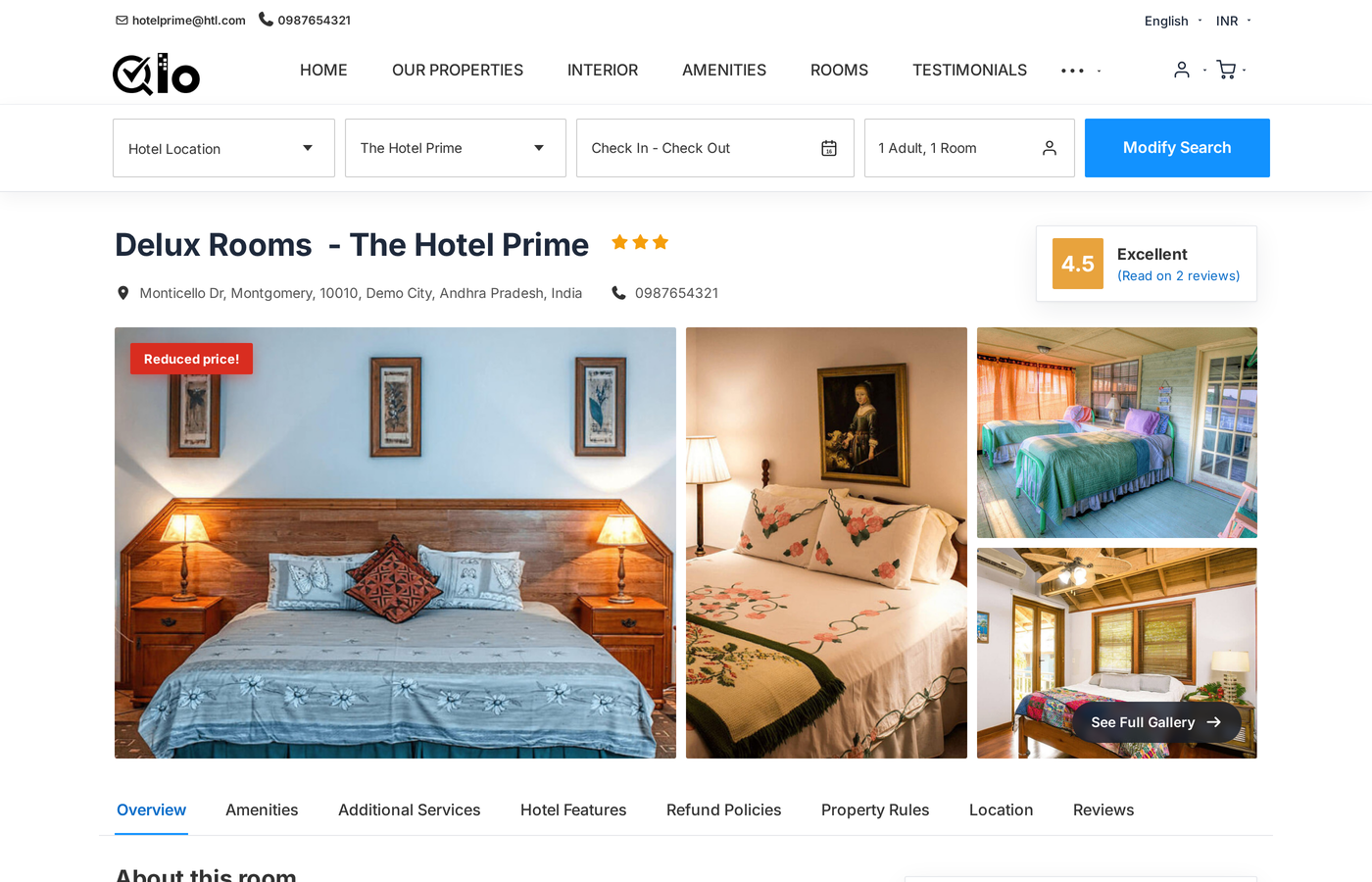
Clear tabs display check-in times, room policies, and extra hotel services.
Therefore, travelers know all stay terms before making their final choice.
Next, guests choose their stay dates and click to confirm the suite.
– Booking Summary & Quick Checkout
The booking page summarizes stay dates, room totals, and tax fees clearly.
Moreover, travelers can enter discount codes and fill in guest details.
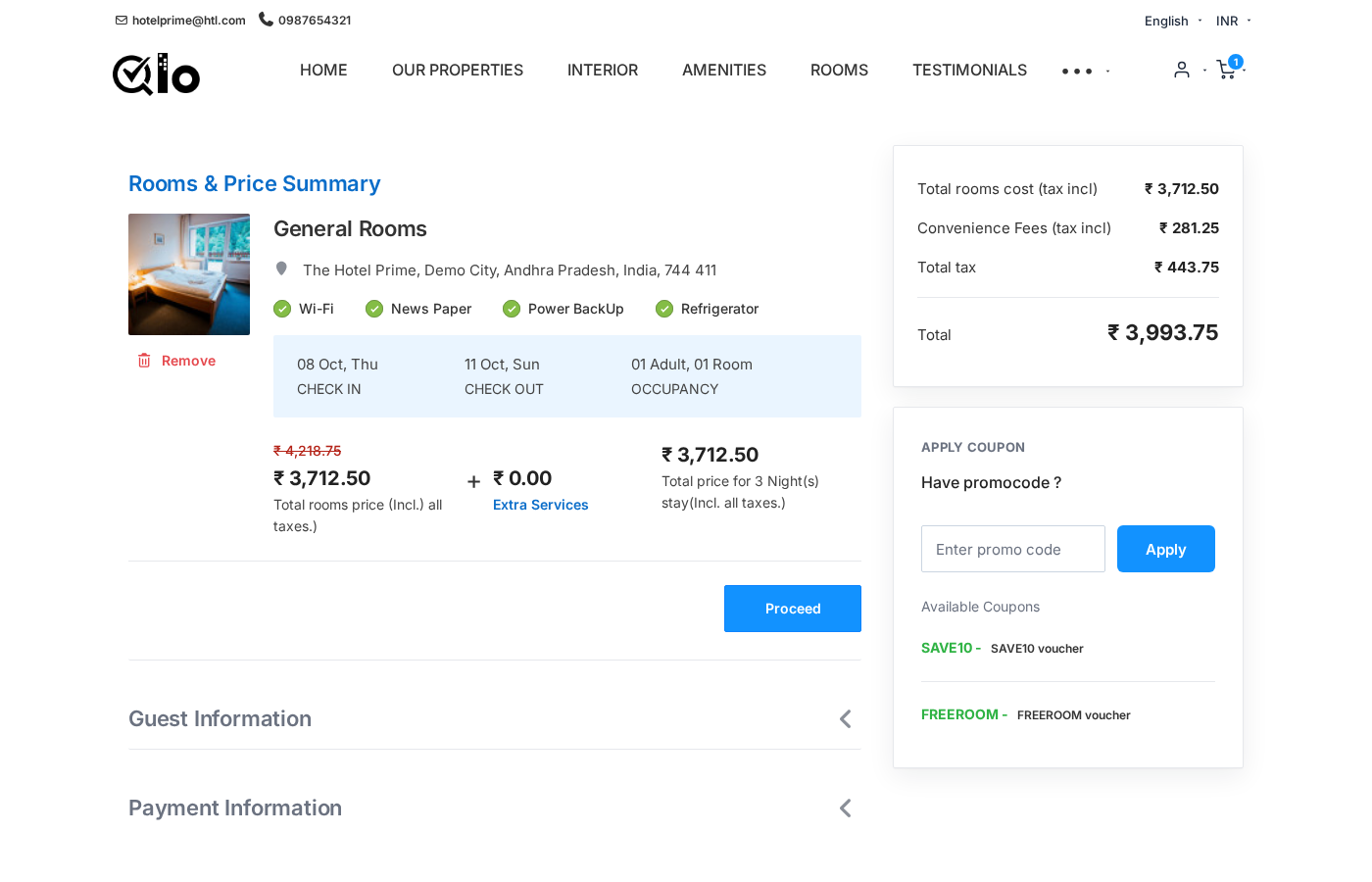
Clear price lines remove doubts during the final reservation step.
Hence, booking drop-offs go down as travelers finish orders with trust.
Then, guests pick their favored payment method and finalize the order.
– Column Luxury Footer
The theme includes a stylish four-column dark footer on every page.
Moreover, it displays key contact information and quick navigation links.
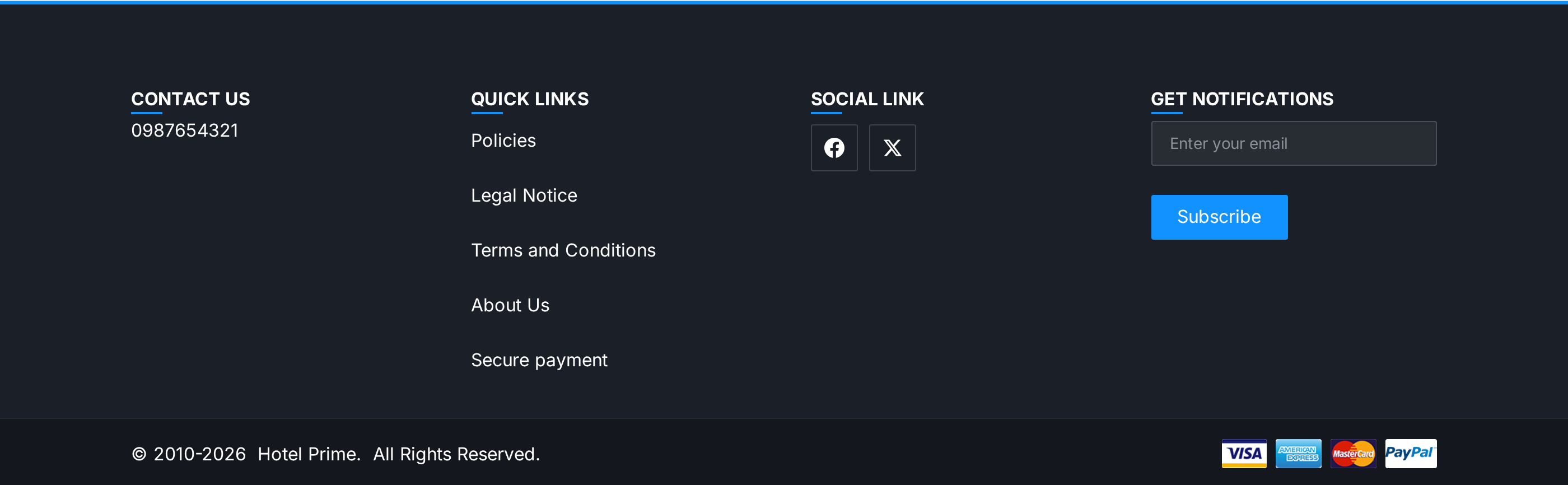
Guests can also subscribe to email updates for news and seasonal offers.
In addition, direct social links connect guests with your online channels.
Finally, recognized payment badges give travelers confidence during checkout.
– Mobile Responsive Experience
The layout adjusts smoothly to fit any smartphone or tablet screen.
Furthermore, touch buttons and slide menus make mobile visits simple.
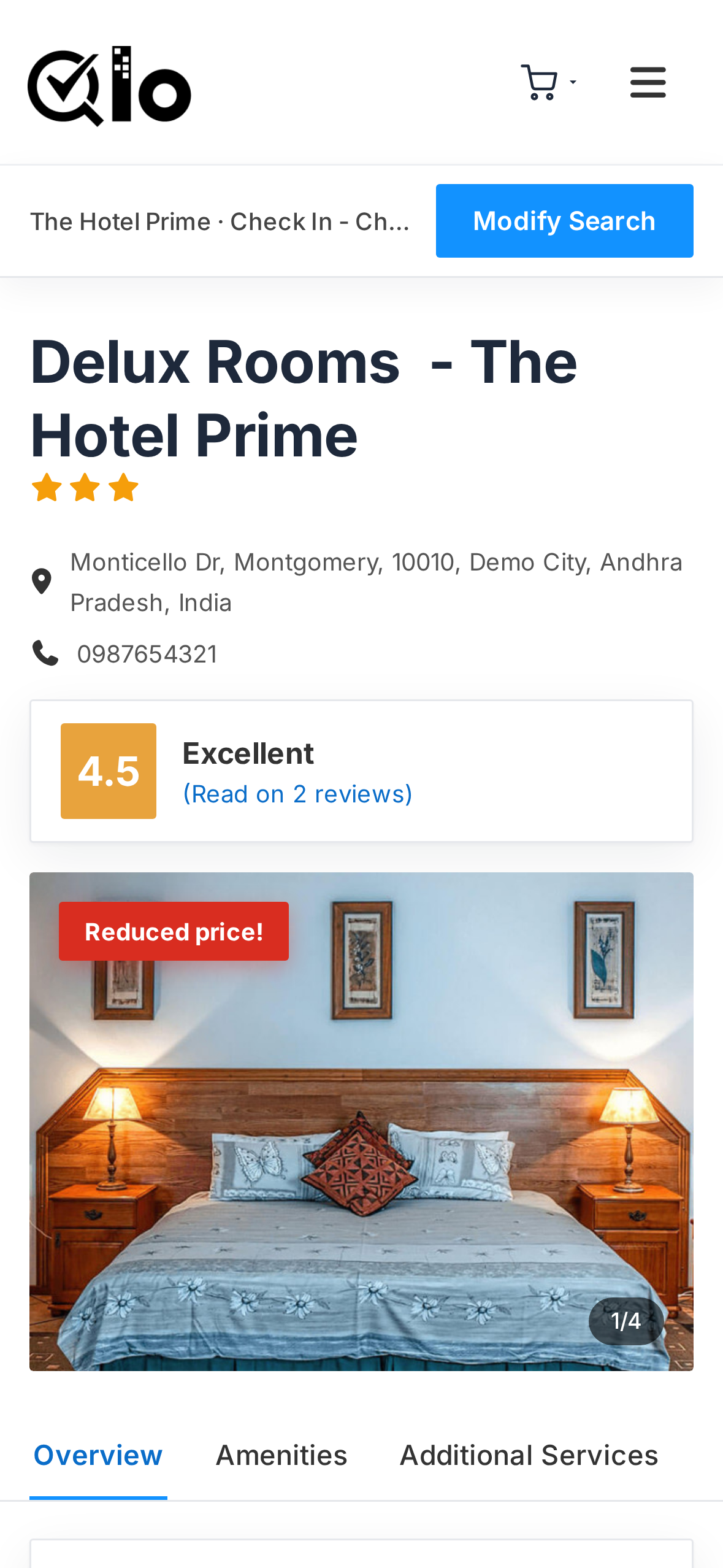
Travelers can search room dates and book hotel stays while on the go.
Because the theme is fast, mobile users enjoy quick loading pages.
Thus, your hotel captures more direct bookings from mobile guests.
Conclusion
The QloApps Elegance Theme gives your hotel site a fresh and modern style.
Also, it blends strong visuals with fast speeds and full module harmony.
Hoteliers can present suites neatly, engage guests, and gain more bookings.
If you have questions, join talks on the QloApps Forum.
You can also test our main All-in-One PMS solution.
For setup help, submit a ticket at UVdesk Support.
Current Theme Version: 1.0.0 Supported QloApps Versions: 1.7.x

Be the first to comment.