
QloApps Quotation and Proforma Invoice helps hoteliers create and send booking quotes from the Back Office.
Also, it sends auto email reminders, adds house rules, and prints PDF proforma bills.
You can get this module from the Webkul Store.
NOTE: For QloApps 1.7.x, verify that admin hooks exist in your theme files so quote buttons show on order pages.
Features of QloApps Quotation and Proforma Invoice
- Create custom booking quotes with room types, stay dates, and extra fees from the Back Office
- Generate PDF proforma bills with hotel data, guest details, and full tax lines
- Send quote emails to guests with payment links and stay details
- Set up auto quote reminder emails with custom time gaps and limits
- Attach hotel policies and refund terms to quote emails
- Turn active booking carts into official quotes with custom remarks
- Track and manage quote records in one central Back Office list
How to Install QloApps Quotation and Proforma Invoice
- In the Back Office, go to Modules and Services › Modules and Services and click Add a new module.
- Click Choose a file to pick the module ZIP, then click Upload this module.
- Find the module in the list and click Install. Then confirm the prompt to finish.
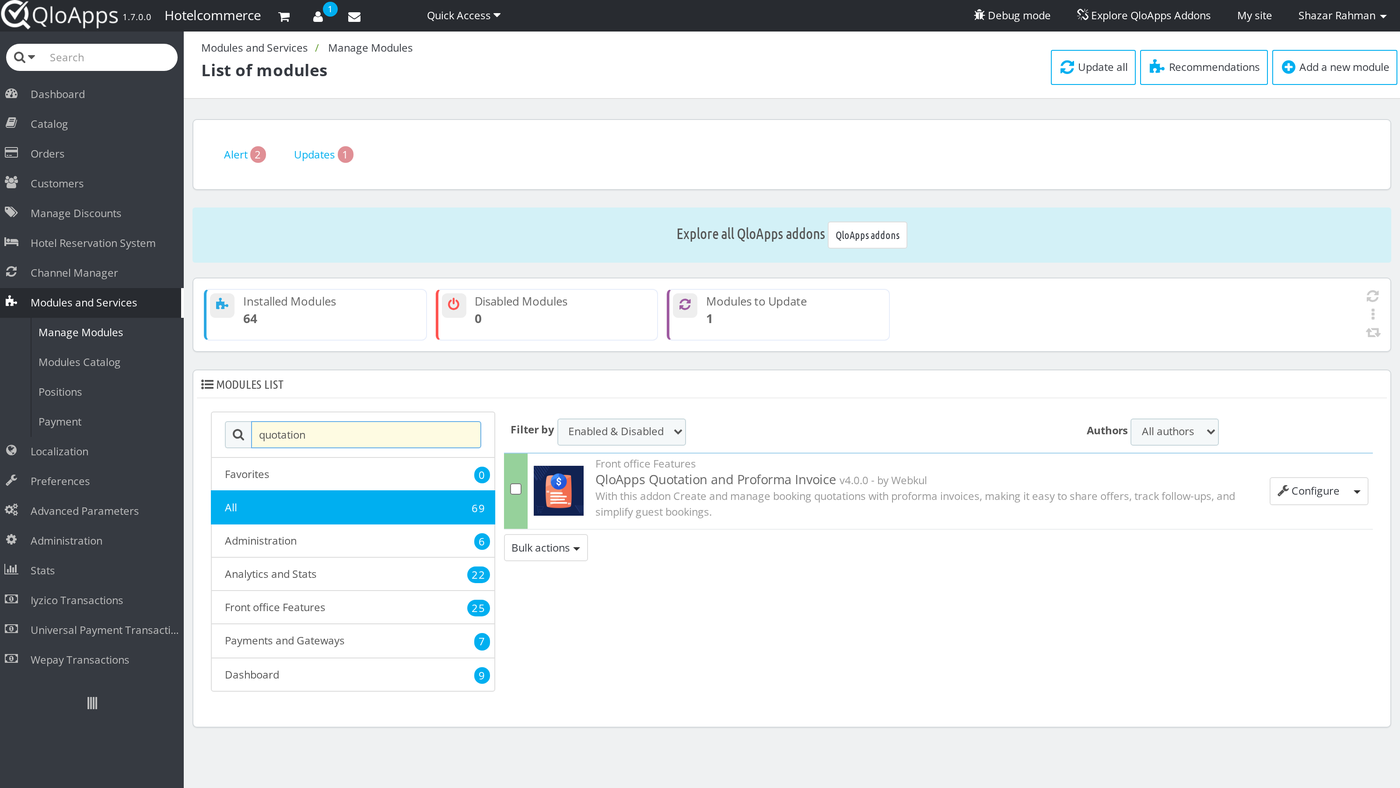
Configuration of QloApps Quotation and Proforma Invoice
To set up the module, go to Modules and Services › Modules and Services.
Then click Configure next to QloApps Quotation and Proforma Invoice.
The settings page has two main parts: General Configuration and Cron Configuration.
General Configuration
The General Configuration screen controls reminder emails, pay options, and hotel policy notes.
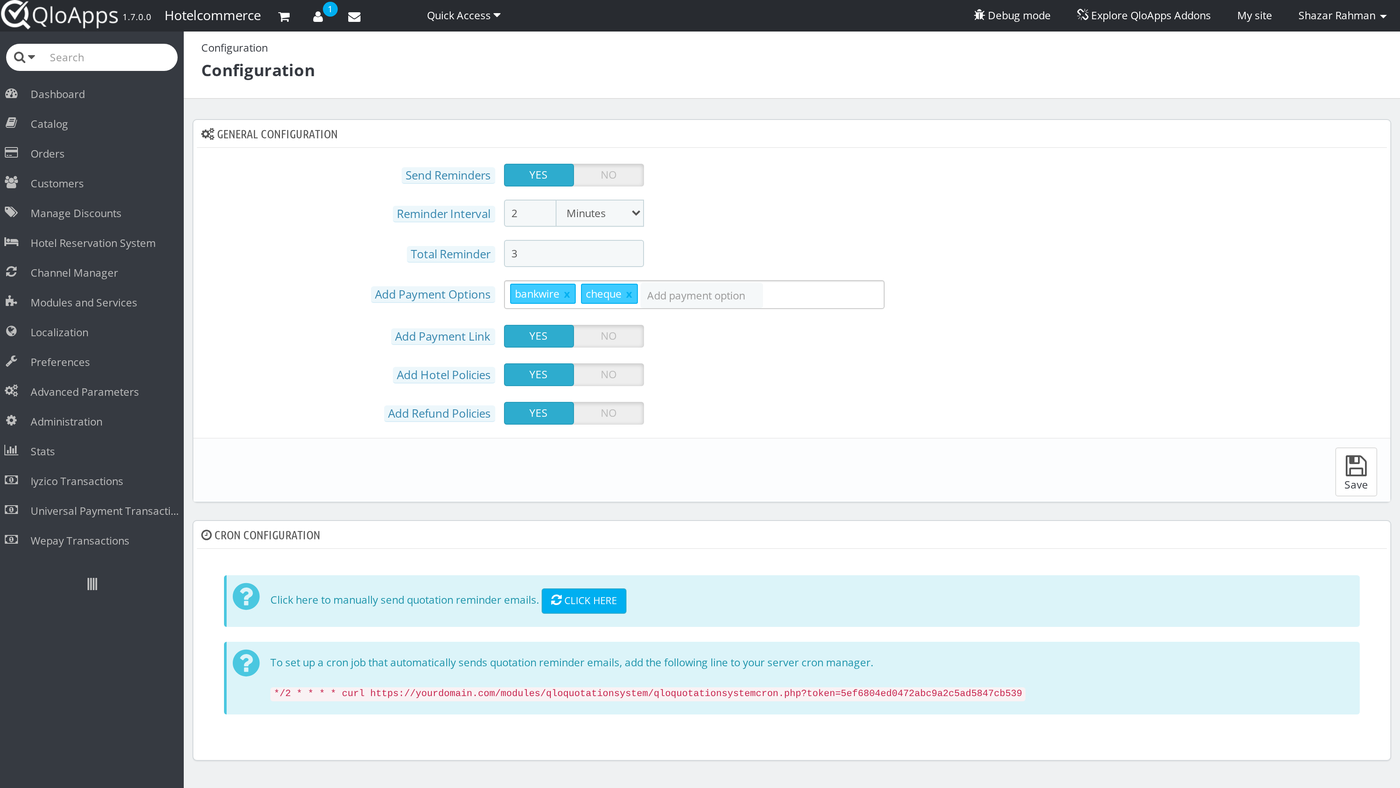
Reminder Settings
- Send Reminders: Turns on auto email reminders for open quotes. It defaults to YES.
- Reminder Interval: Sets the wait time between each reminder email. You can pick Minutes, Hours, or Days. It defaults to 2 Minutes.
- Total Reminder: Sets the maximum number of reminder emails for each guest. It defaults to 3.
Payment and Policy Preferences
- Add Payment Options: Sets the pay methods shown on quotes and proforma bills, such as bank wire and check.
- Add Payment Link: Adds a pay link in emails so guests can pay online. It defaults to YES.
- Add Hotel Policies: Adds hotel rules in quote emails and bills. It defaults to YES.
- Add Refund Policies: Shows refund rules to guests before they book. It defaults to YES.
After changing these options, click Save to keep your new settings.
Cron Configuration
Hoteliers can send reminder emails with a server cron job or run them by hand.
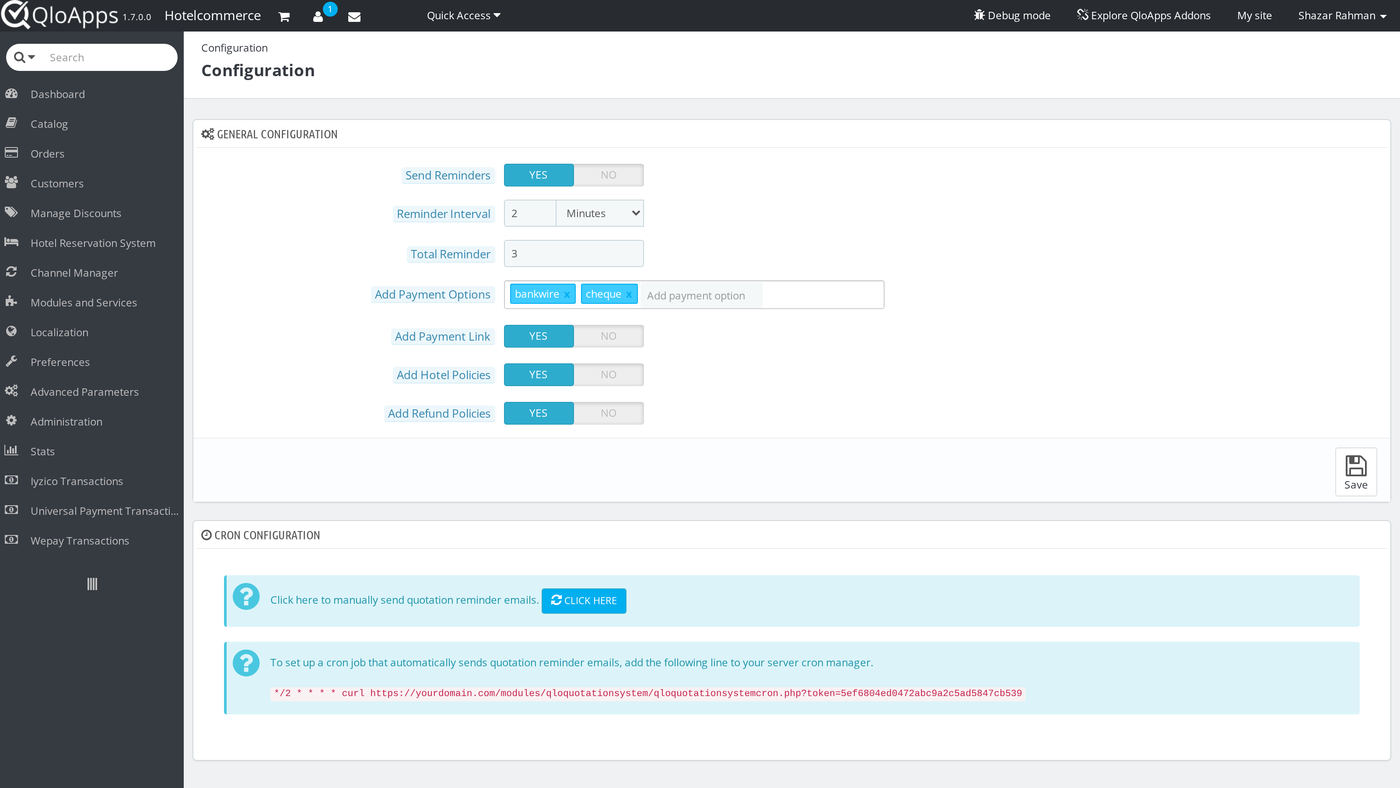
Automated Cron Task
To send reminder emails on time, copy the cron link from the Back Office.
Then add it to your server crontab.
The cron job checks open quotes and sends out due reminder emails.
Manual Trigger
Also, hoteliers can click the CLICK HERE button.
This sends all pending reminder emails right away without waiting for cron.
Creating a Booking Quotation
Hoteliers can create a quote when guests ask for custom rates or group stays.
To start a new quote, go to Orders › Orders and click Add new order.
Adding Customer and Room Details
First, pick an existing guest or click Add new customer to create one.
Next, add the desired room types to the booking cart.
Choose check-in and check-out dates, room counts, guest counts, and room rates.
Also, you can add extra hotel services to rooms using the Services button.
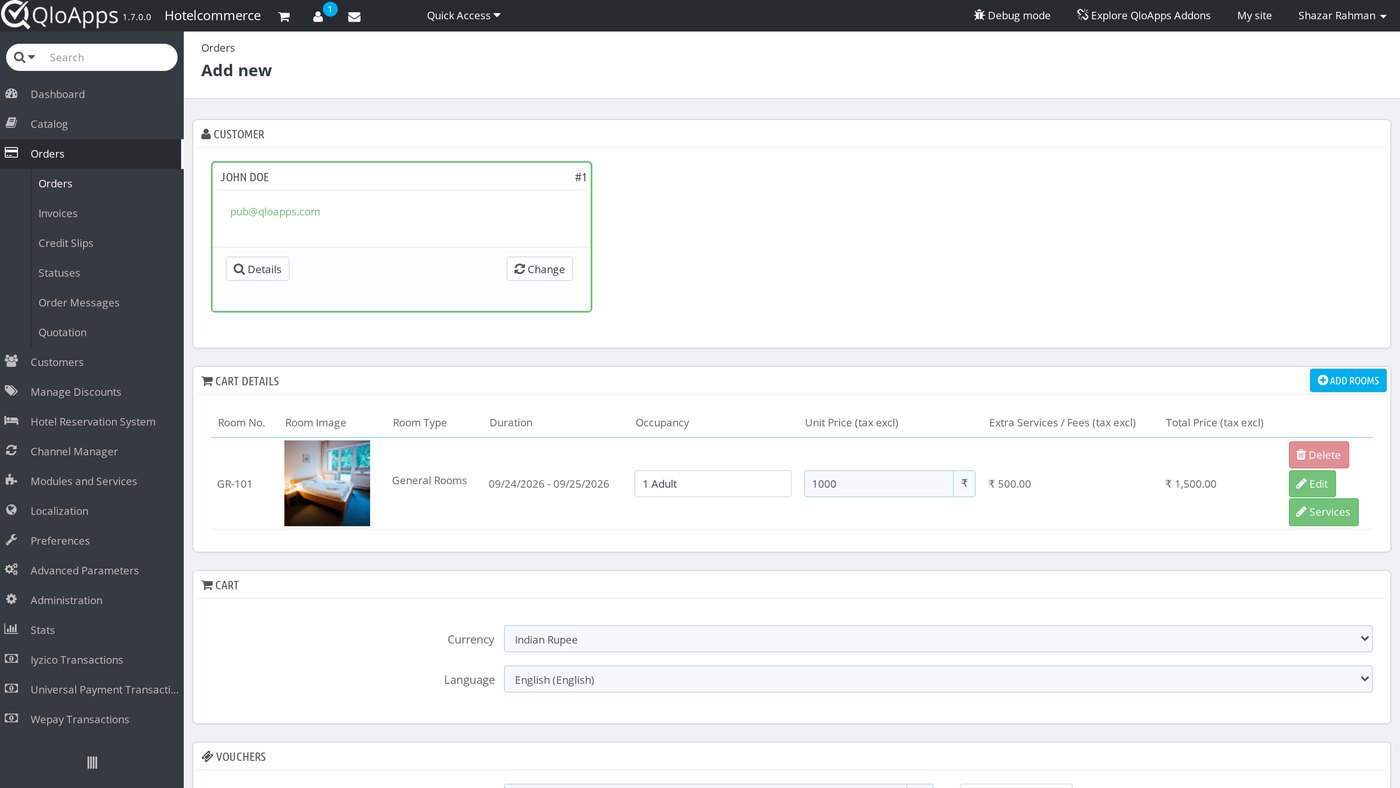
The cart details grid shows room pictures, stay dates, rates, and added services.
Next, pick the booking currency and language.
If the guest has a voucher code, enter it in the Vouchers area.
Finalizing the Quotation Summary
Scroll down to the SUMMARY box to check the total amounts.
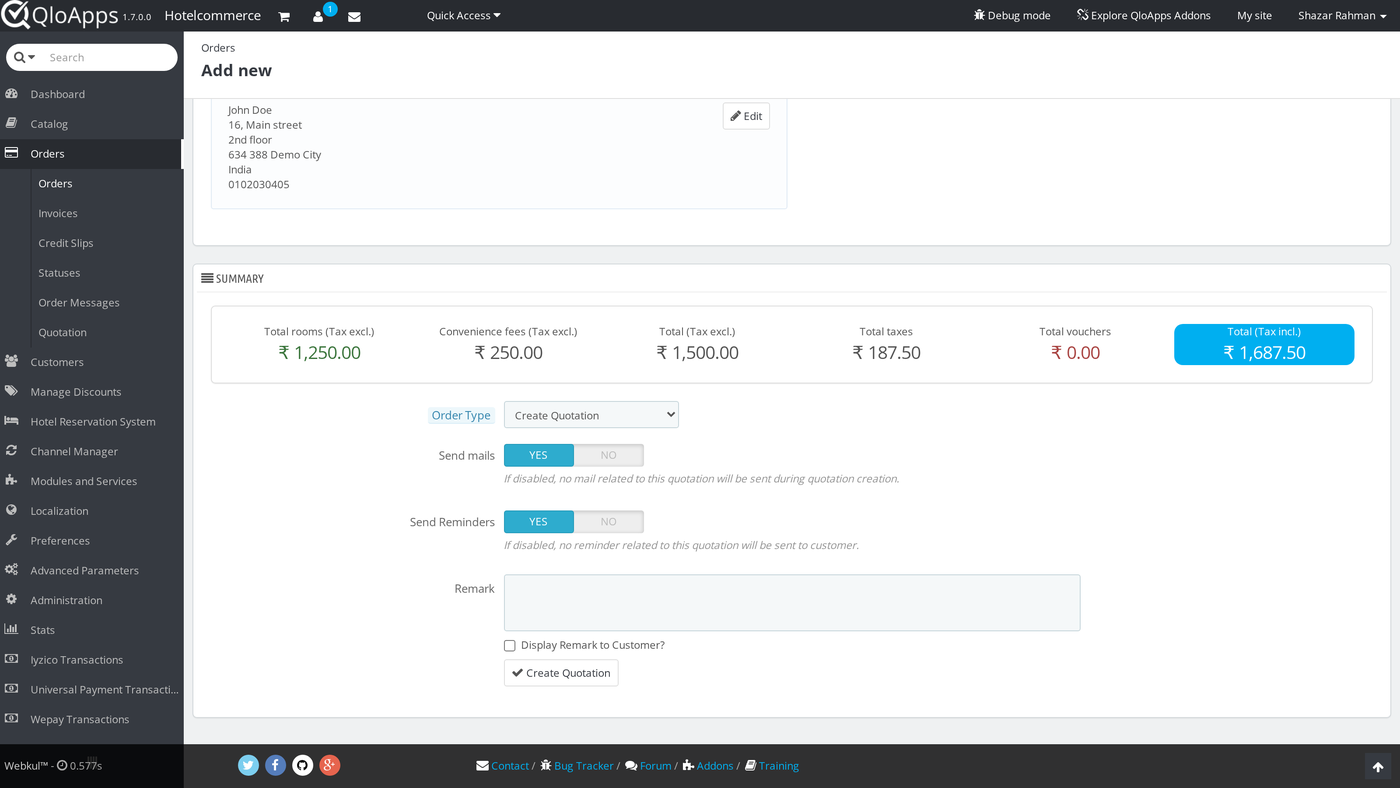
The summary box shows room rates, service fees, taxes, and the grand total.
Next, set up the quote options:
- Order Type: Pick Create Quotation from the menu to save this cart as a quote.
- Send mails: Set to YES to send the quote email to the guest right away.
- Send Reminders: Set to YES to send auto reminder emails for this quote.
- Remark: Type any notes, pay terms, or custom instructions for the guest.
- Display Remark to Customer: Check this box to show your note to the guest.
Finally, click Create Quotation to save the quote.
Managing Quotations in the Back Office
Hoteliers can see and manage all quotes from one list.
Go to Orders › Quotation in the Back Office to open the list.
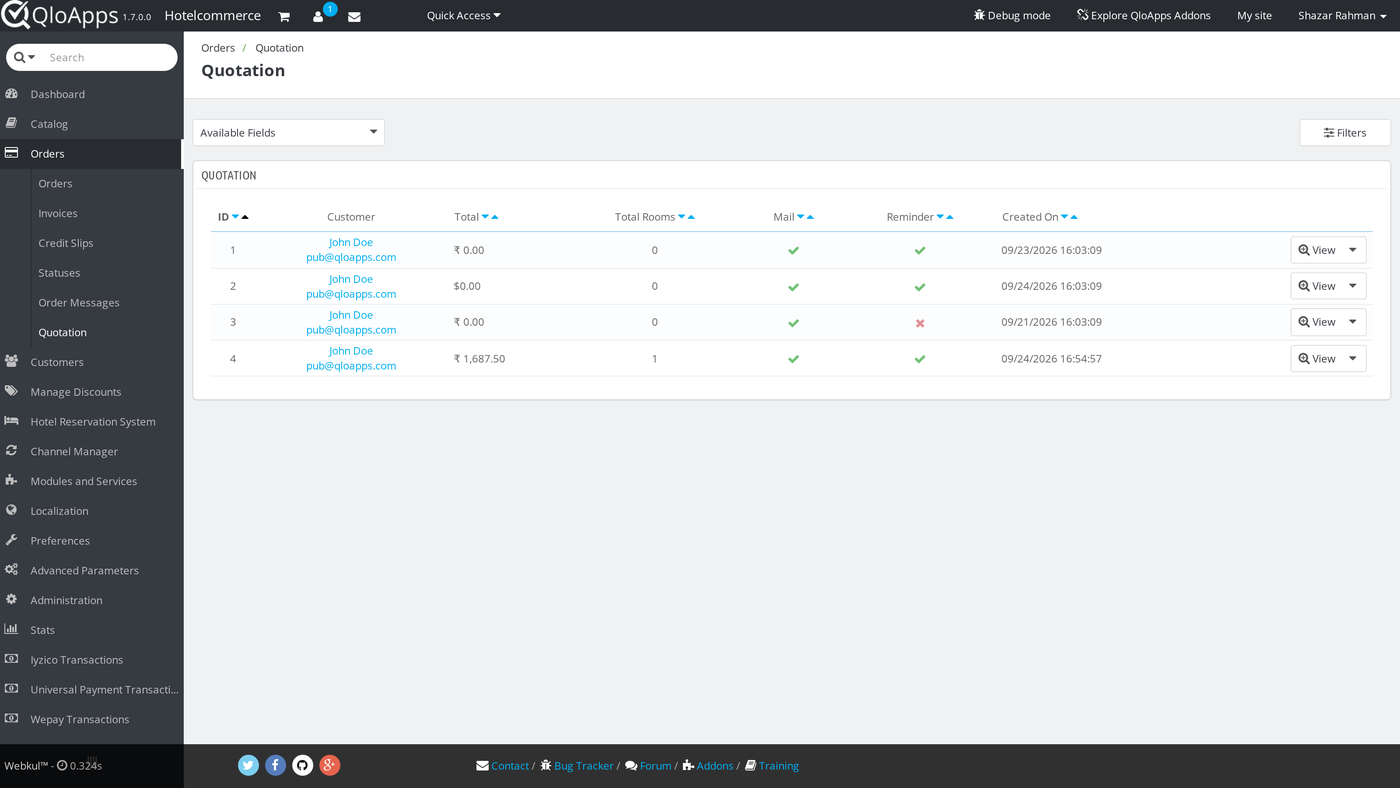
The quotation list table displays key data for each quote:
- ID: The unique ID for the quote.
- Customer: The guest name and email address for this quote.
- Total: The total booking price with taxes.
- Total Rooms: The count of rooms booked in the quote.
- Mail: Shows if the quote email went to the guest.
- Reminder: Shows if reminder emails are active for this quote.
- Created On: The date and time when the quote was made.
Also, use the action menu on each row to view details, edit the quote, download the proforma bill, or delete it.
Viewing and Updating Quotations
Click View on any row to open the quote details screen.
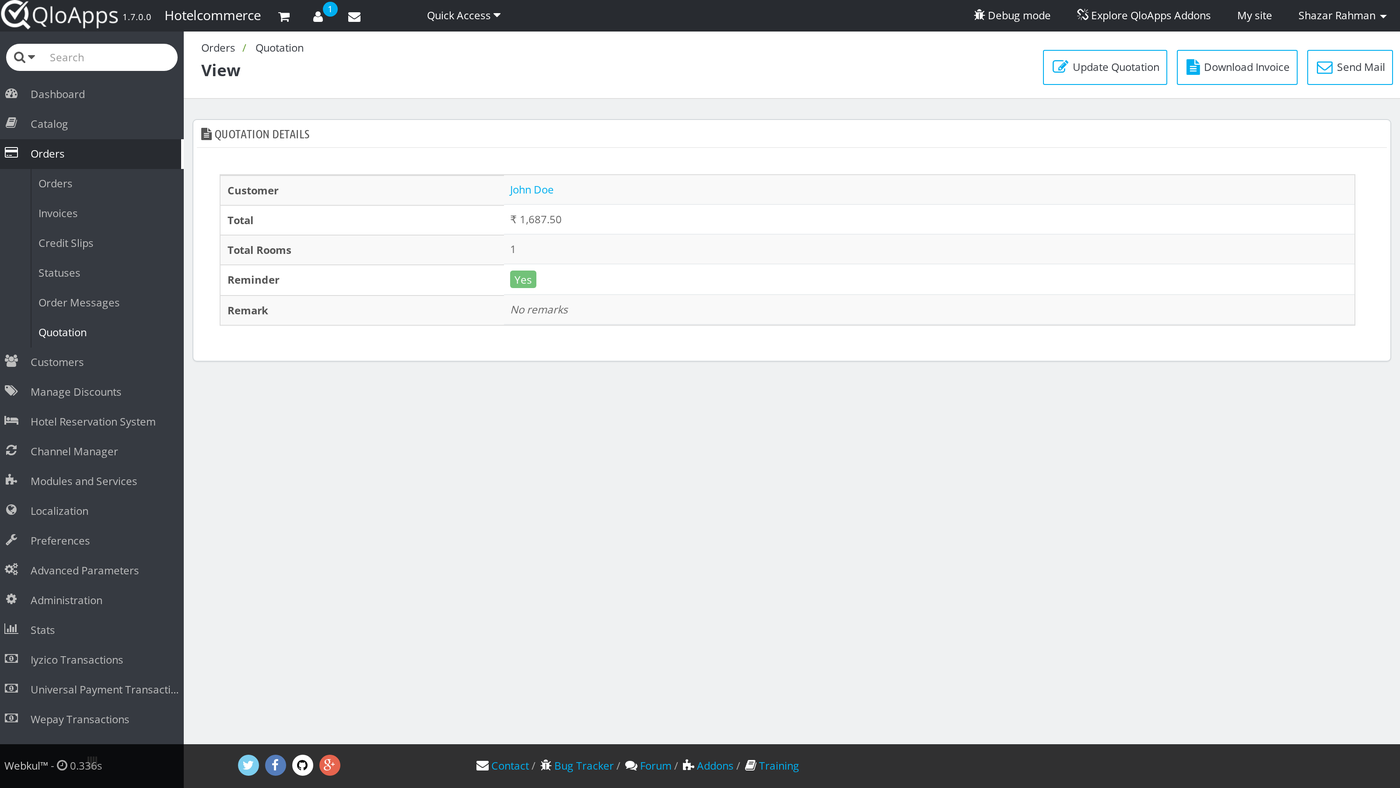
The Quotation Details box shows the guest, total rate, room count, reminder state, and notes.
Also, the top bar gives three fast action buttons:
- Update Quotation: Opens the booking cart so you can edit dates, rooms, or rates.
- Download Invoice: Creates and downloads the official proforma bill in PDF format.
- Send Mail: Sends the quote email to the guest once more.
Generating Proforma Invoices
The module makes a clean PDF proforma bill for each booking quote.
Hoteliers can email this file to guests or corporate travel desks before taking payment.
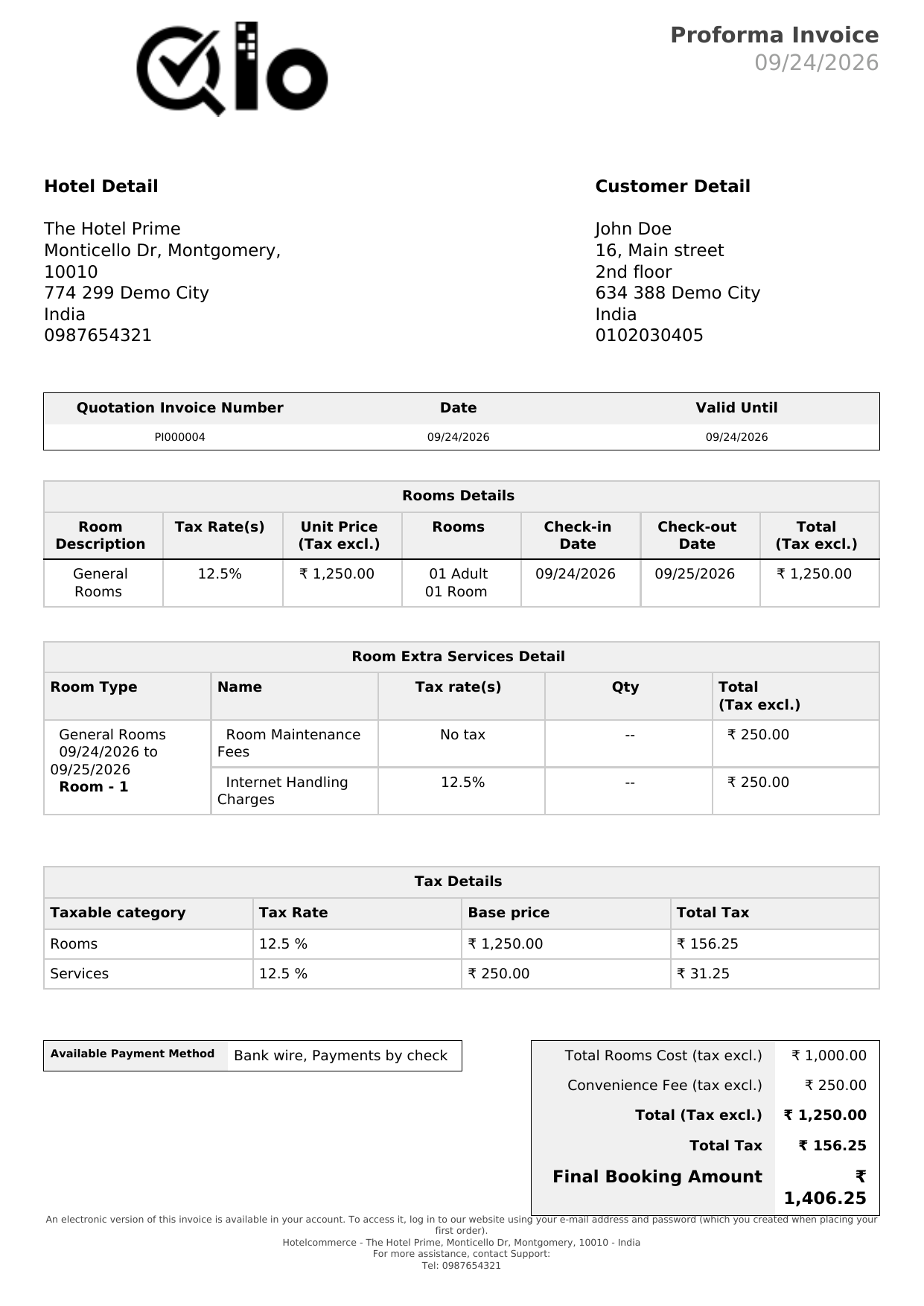
The proforma bill has clear booking facts:
- Header and Reference: Shows hotel logo, invoice number, issue date, and due date.
- Hotel and Customer Details: Shows hotel contact info and guest address.
- Rooms Details: Lists room name, tax rate, unit price, guest count, and stay dates.
- Extra Services: Shows added services with rates and fees.
- Tax Breakdown: Lists tax groups, rates, and tax sums for clear records.
- Payment Methods: Shows accepted pay methods set by the hotelier.
- Total Breakdown: Lists room totals, service fees, taxes, and final price.
Conclusion
In conclusion, QloApps Quotation and Proforma Invoice makes quote creation fast and clear.
Therefore, hotel managers can send estimates, track replies, and lock in bookings.
Finally, we hope this guide has helped you configure and use QloApps Quotation and Proforma Invoice with confidence.
Additionally, to learn more about QloApps, visit All-in-One Property Management System.
For technical help, open a ticket at QloApps Support.
Also, feel free to post queries on the QloApps Forum.
Current Module Version: 4.0.0
Supported QloApps Versions: 1.6.x and 1.7.x

Be the first to comment.